1
186
UBECO PROFIL - Rollform Design Software
· Check: CASE run multiply load cases.
· Run
Defining prepunched holes/cut-outs
This function requires Automatic remesh and is currently possible only if the element type Shell is
selected, see Profile. In a later version this function will be available for element type Solid, too.
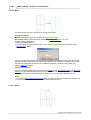
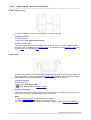
If prepunched sheet should be roll formed, the holes/cut-outs simply can be defined in a 2D CAD
drawing with any shape and position. The simulation result shows if the shape and position is as
desired in the final profile after leaving the roll forming machine.
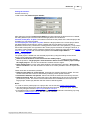
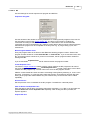
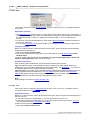
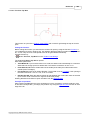
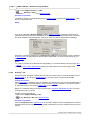
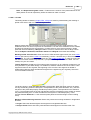
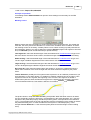
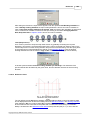
After pressing the Ok button in the Output FEA LS-Dyna window for the first time, the DXF file
<project name>.dxf is created that contains the drawing of the flat sheet with the preset meshing.
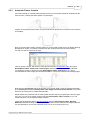
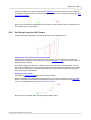
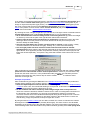
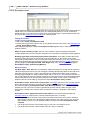
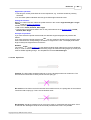
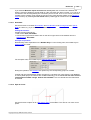
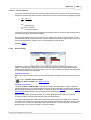
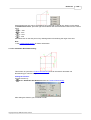
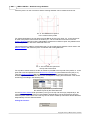
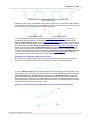
Open this file by using your CAD system and attach the desired holes/cut-outs pattern:
Please note:
· Define holes as CIRCLES in color RED (or in the color that is preset in Holes/Cut-Outs, Colors
DXF file, Holes/Cut-Outs respectively).
· Define cut-outs as closed POLYLINES in color RED (or in the color that is preset in
Holes/Cut-Outs, Colors DXF file, Holes/Cut-Outs respectively). The polylines can consist of
line and (bulged) arc segments.
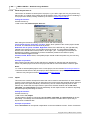
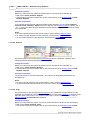
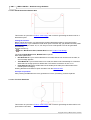
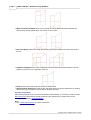
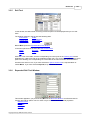
· Position the circles and polylines by orienting to the sheet corners or the mesh lines. Another
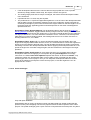
method: Define Holes/Cut-outs in the Profile List L01 of the Profile List Window. (Previously
extend the profile list window in Options, Profile List to layout With Holes/Cut-Outs). The center
lines in the developed sheet in the DXF file are useful for positioning.
· Save the drawing in AutoCAD 2000 DXF format.
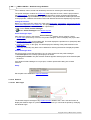
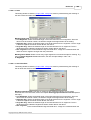
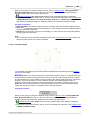
Press the Ok button again. PROFIL extracts the attached holes and cut-outs from the DXF file
(only circles and polylines in color RED) and copies them to the trimming file <project
name>.trm.
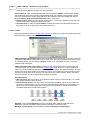
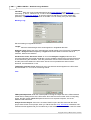
The meshing of the holes/cut-outs is done automatically by the solver (see Profile, Adaptive
refinement, Automatic remesh). In order to enable the Solver's Automesh function to do this
correctly, select Profile, Meshing in Sheet Running Direction with an aspect ration of 1
preferably, at the utmost 5.
Start the solver and the profile is simulated with holes/cut-outs.
Hints:
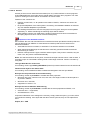
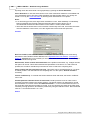
· Before you create the FEA simulation model you should use the function Calculate, Plausibility
Check to check the whole profile project on errors.
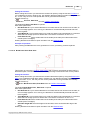
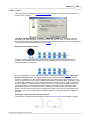
· In order to get a good simulation result, the maximum aspect ratio of the shell or solid elements
of the flat sheet should preferably not exceed 3. After pressing the Ok button, the status bar at
the bottom of the main window shows the maximum aspect ratio of the profile and the rolls; the
aspect ratio is saved in the <project name>.txt file, too. If the aspect ratio exceed 10, a message
window opens and shows the corresponding profile element number. In case the sheet has bore
holes/cut-outs, the maximum aspect ratio should not exceed 5. This is why the automesh
function of the solver should be able to remesh the surrounding sheet mesh correctly.
· The maximum aspect ratio of the shell elements of the rolls should not exceed 20. Also this ratio
is shown in the status bar and is saved in the <project name>.txt file.
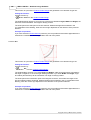
· Rolls should not have sharp edges, i.e. in the cross-section should not touch two contour lines
each other with an angle. The reason is: The surface normals of two adjoining surfaces change
the direction abruptly. Because of the discontinuous function the numeric solver cannot consider
the boundary conditions correctly. It is recommended to create a small fillet radius as in reality.
The same applies to cut-outs in the sheet; it is also recommended to round out sharp corners.
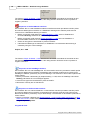
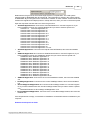
· The file <project name>.txt contains the project data, the FEA parameterization and the
messages Max. aspect ratio of mesh elements Profile, Max. aspect ratio of mesh elements
Copyright 2015 by UBECO GmbH, Iserlohn