1
Tutorials
Creating Your Own Analysis Tables
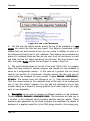
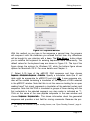
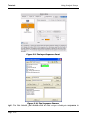
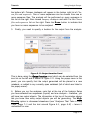
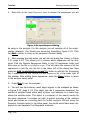
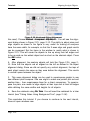
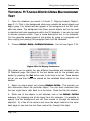
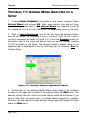
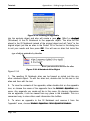
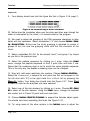
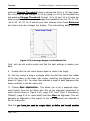
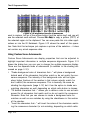
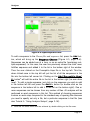
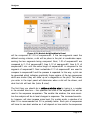
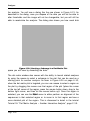
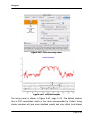
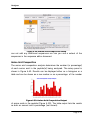
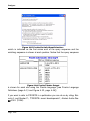
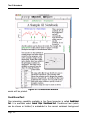
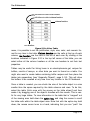
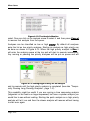
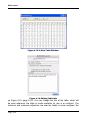
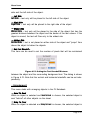
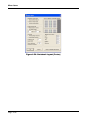
Figure 2.46: Nucleic Acid Table Editor
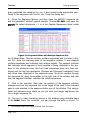
dines or between purines score 0.5. Mismatches will score 0.
3. The GI table editor is designed to allow you to press the tab key to move
through the table and enter values. As you type a value in one cell of the
table and then tab to move to the next cell in the table, the same value is
placed in the symmetrically located corresponding cell. In the figure, the
selected cell is row 2, column 4, while the corresponding symmetric cell is
row 4, column 2. Fill in the table to match that shown in Figure 2.46 by
entering values and tabbing to the next cell.
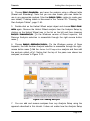
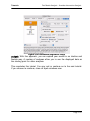
4. You can adjust the width of any of the columns by placing the mouse
cursor over one of the vertical table lines (the cursor will change shape) and
then dragging left or right to move the dividing line. If you hold down the shift
key when you drag the line, all columns in the table will be made the same
width as the column just to the left of the line you are dragging. If you hold
down the option/alt key while you drag to adjust the width, all columns in the
table will be adjusted by the same amount (i.e. - the same number of pixels
will be added to or removed from the width of each column in the table).
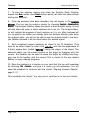
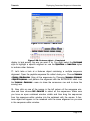
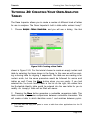
5. Press the Edit Info button to enter a Title for this new table. The new
title you enter in the Info Dialog will appear in the title bar of the window.
6. Pressing OK will create a new table in the User Table folder which is
found in the GI Data folder. This User Table will be available in any analysis
for which the table is appropriate.
Page 2-64