1
qooxdoo Documentation, Release 2.0
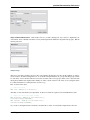
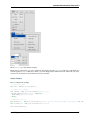
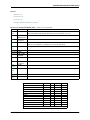
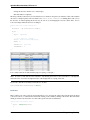
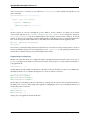
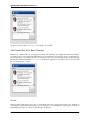
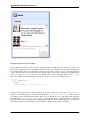
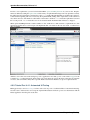
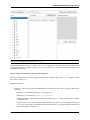
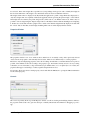
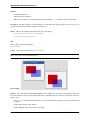
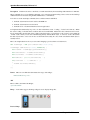
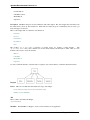
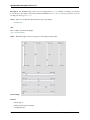
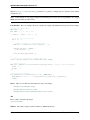
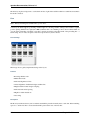
Tutorial To demonstrate the Selenium window, let’s write a small test case for the qooxdoo Feed Reader: We’ll
automate the procedure of adding a new user-defined feed.
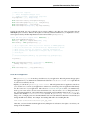
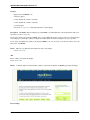
For this we’ll need both the Feed Reader itself and the Inspector, of course: Generate both by running generate.py
source,inspector in the application/feedreader directory of your qooxdoo SDK or SVN checkout,
then open application/feedreader/inspector/index.html in your favorite browser.
Now configure the external scripts as described above.
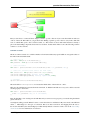
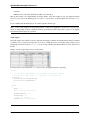
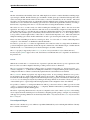
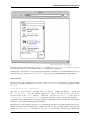
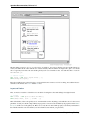
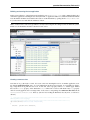
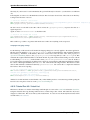
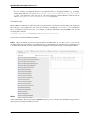
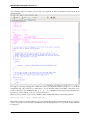
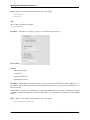
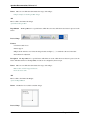
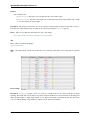
Time to start automating: Click the Inspect Widget button in the Inspector’s toolbar, then click the Feed Reader’s
Add Feed button. qx.ui.toolbar.Button[xy] should now be listed as the inspected widget. If you clicked
the button’s icon or label, that’s fine too.
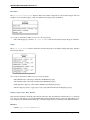
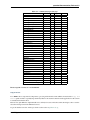
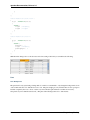
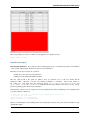
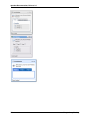
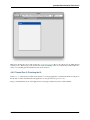
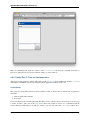
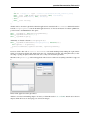
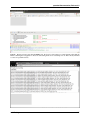
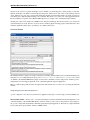
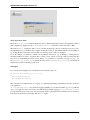
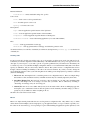
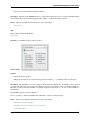
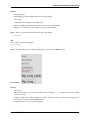
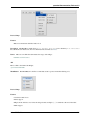
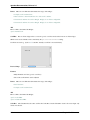
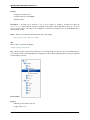
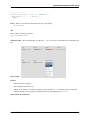
Click the plus button and a new line is added to the test case. Select that line and press play and the Add Feed window
should open. You might need to move some Inspector windows around to see it.
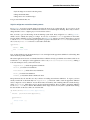
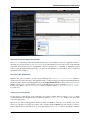
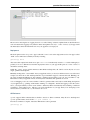
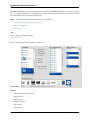
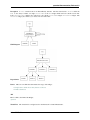
Now click the record button, select Inspect widget again and click the upper text field in the Add Feed window. The
new command will be added immediately. Select Inspect Widget again and click the second text field, then repeat the
process for the Add button. We’re done adding commands, so you can deactivate the record button and then close the
Add Feed window.
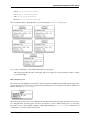
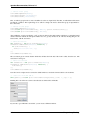
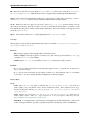
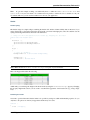
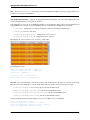
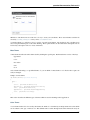
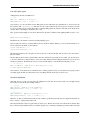
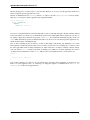
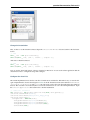
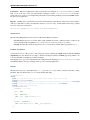
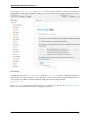
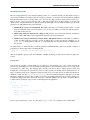
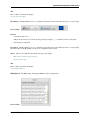
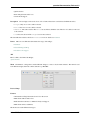
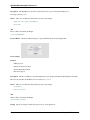
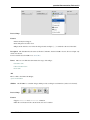
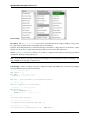
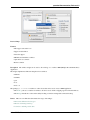
Of course we want to type in the text fields instead of clicking them, so we need to change the commands: Double
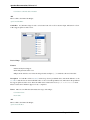
click the first column of the second row that currently says qxClick. Open the dropdown menu that appears and
select qxType. Now double click this command’s value cell and enter a title for the new feed to be added, e.g.
“Selenium Blogs”.
Repeat this step for the next row to define the new feed’s URL, e.g. “http://feeds.feedburner.com/Selenium”.
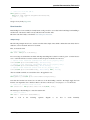
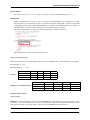
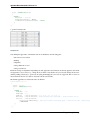
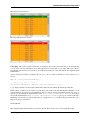
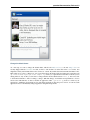
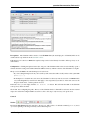
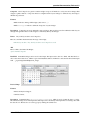
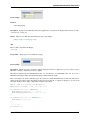
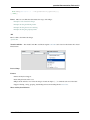
That’s all the steps we need, so let’s watch Selenium work. Set the slider to something around 1.5 seconds, select all
four commands in the table and press the play button. If all went according to plan, we can click the export button to
get a Selenese version of our test case to save.
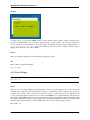
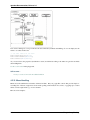
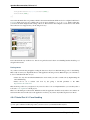
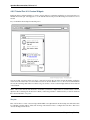
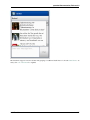
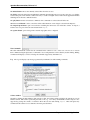
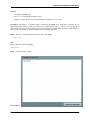
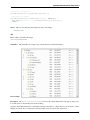
A debugging tool to inspect a qooxdoo application, featuring an interactive console, an object and widget
finder, and a property editor.
Online demo
9.2.4 Simulator
Overview
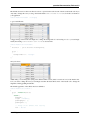
The purpose of the Simulator component is to help developers rapidly develop and run a suite of simulated user
interaction tests for their application with a minimum amount of configuration and using familiar technologies, e.g.
qooxdoo-style JavaScript. To do so it uses a combination of qooxdoo’s own toolchain, Mozilla’s Rhino JavaScript
engine and Selenium Remote Control.
Feature Highlights
The Simulator enables developers to:
• Define Selenium test cases by writing qooxdoo classes
• Use the JUnit-style setUp, test*, tearDown pattern
• Define test jobs using the qooxdoo toolchain’s configuration system
• Utilize the standard Selenium API as well as qooxdoo-specific user extensions to locate and interact with qooxdoo widgets
• Capture and log uncaught exceptions thrown in the tested application
9.2. Developer Tools
339