1
qooxdoo Documentation, Release 2.0
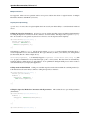
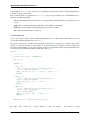
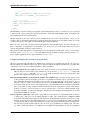
Overriding Existing Jobs
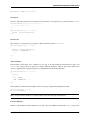
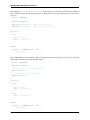
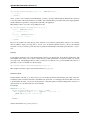
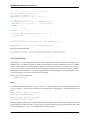
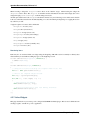
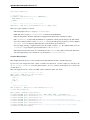
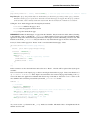
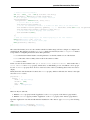
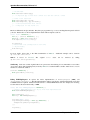
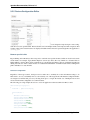
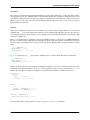
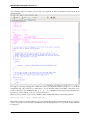
The second approach that goes beyond just modifying a macro is to override an existing job. The default config.json
comes with a commented-out sample for this. Let’s suppose you want to get rid of the extra newlines that are sprinkled
throughout the build version of your app. In the “jobs” section of the config you find a job entry named “build-script”.
It has a sub-key compile-options/code/format (the “/” indicates nesting in the Json maps) which is set to false (the
default is true). Just uncomment this job and run generate.py build again, and you’ll find all newlines gone from the
generated code. This illustrates the general principle:
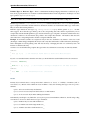
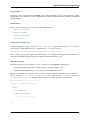
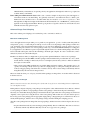
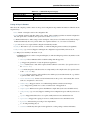
1. Identify the job you are not contempt with. This might require that you look at the generator output, or consult
the basic configuration file, tool/data/config/base.json, as some jobs which you can invoke with the generator
are broken down in sub-jobs.
2. Add an entry of the same name in your config.json. The generator, once you run it the next time, will indicate
this by issuing a hint in the console output that the respective job has been shadowed.
3. Add those keys to the job entry that you want to change, with suitable values. Use the default job’s definition
to find out which config key you need to tweak. To achieve this you can look at the job’s definition, e.g. in
base.json, or run the generator with the -w command line flag; this will print the full job definition before
the job is run.
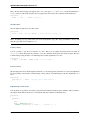
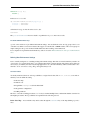
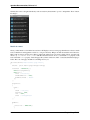
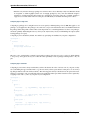
As mentioned above, on the next time you run the generator it will indicate that you have successfully overridden a
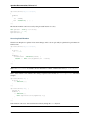
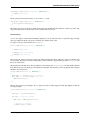
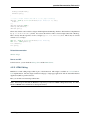
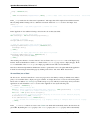
predefined job. The message will be something like this:
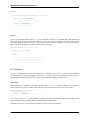
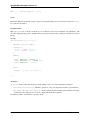
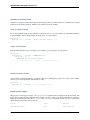
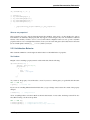
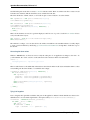
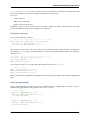
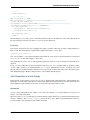
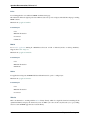
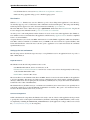
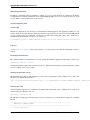
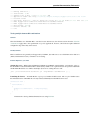
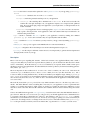
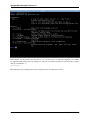
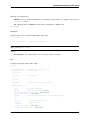
- Warning: ! Shadowing job "build-script" with local one
(This is also helpful to prevent you from accidentially overriding an existing job with a custom job that is supposed to
be new).
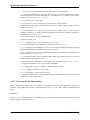
Custom Jobs
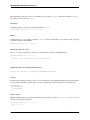
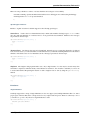
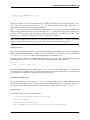
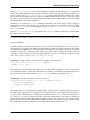
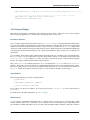
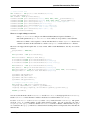
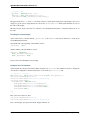
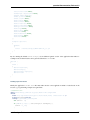
Custom jobs are jobs that you freely define in your config.json. You add them to the “jobs” section just as in the
previous step, but making sure you are not using an existing name for them (check the generator console output when
you run the job to make sure). The challenge with a custom job is that you have to build it up from scratch, and
it might take you through some trial-and-error until you come up with a job definition that is fully functional. To
help you with that, many basic configuration entries that almost any job would need are available in dedicated job
definitions of their own (like "cache" or "libraries"), and we recommend using them. (This gives you another
hint at the configuration system of the tool chain: Jobs need not do anything useful; they can also just be containers for
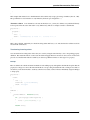
configuration snippets that can be included in other jobs to make their definition more modular or compliant). Here is
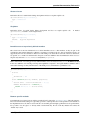
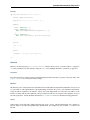
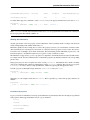
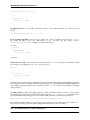
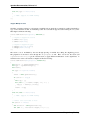
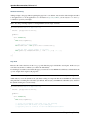
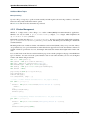
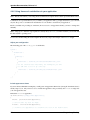
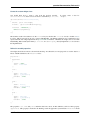
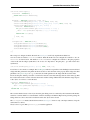
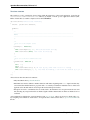
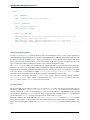
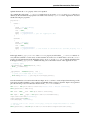
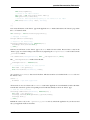
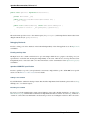
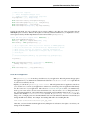
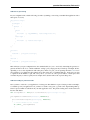
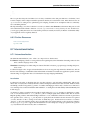
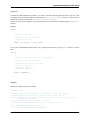
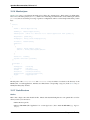
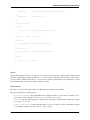
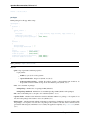
a simple custom job that just copies two files to the build path of the application:
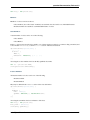
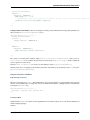
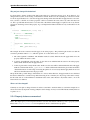
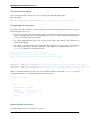
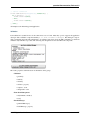
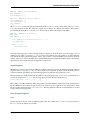
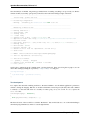
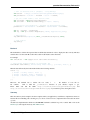
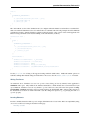
"myjob" :
{
"extend" : ["cache"],
"copy-files" :
{
"files" : ["foo1.txt", "foo2.txt"],
"source" : "/home/myhome/tmp",
"target" : "./build"
}
}
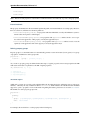
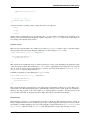
Don’t forget to add the entry “myjob” in your config’s "export" list, so it is available on the command line.
10.2. Generator
399