1
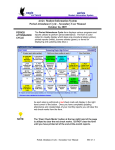
Aeries.net Student Information System Daily Attendance Setup & Procedures –User Manual June 19, 2010 ATTENDANCE SETUP At the beginning of the school year it is vital that School Options, School Calendar and the Absence Code Table are setup correctly. These options are usually setup by the District office but should be verified prior to performing ANY Attendance functions. If these options are setup incorrectly and you are not responsible for setting up these options contact the District office for assistance. SCHOOL OPTIONS In School Options select Daily Attendance in the Att. Type field to setup attendance on a daily basis. Select Negative Attendance in the Att. Reporting field to compute the correct attendance figures for monthly reporting. This area will be setup differently for a continuation or summer school. Daily Attendance Setup & Procedure – User Manual Page 2 –Aerie.net Student Information System TRADITIONAL CALENDAR SETUP From the Calendar form, setup the first day of each school month. The other days will automatically be filled in with the appropriate dates. After all months have been created sign out of the calendar to save the attendance months. Return to the calendar and assign the correct symbol next to any dates that require special designation such as holidays, non-school days, etc. MULTI-TRACK CALENDAR SETUP Prior to setting up the multi-track calendar, the number of tracks your school will have MUST be setup on the School Option form. After the attendance tracks are defined display the Calendar form. Setup the calendar that displays a blank Attendance Track field with the common holidays and non-school days before and after the true school year. Setup each track with its unique track vacation, staff development, parent conference and minimum days. Daily Attendance Setup & Procedure – User Manual Page 3 –Aerie.net Student Information System CREATE NEW CALENDAR From the School Info navigation tree click the mouse on the Calendar node. The form will display with no Calendar. To select a month click the mouse on the Date Picker. Select the beginning date for the first month. The beginning date for the first month will display. Click the mouse on the OK button. NOTE: Check with the District Office prior to creating the calendar. Request a final draft of the District School Calendar to verify dates and holidays. Daily Attendance Setup & Procedure – User Manual Page 4 –Aerie.net Student Information System The first month will be created according to the date selected and will display. ELIMINATE A WEEK FROM CALENDAR If a week needs to be eliminated from the calendar it must be done while creating the month. Click the mouse on the date to be changed and type the new date. For example, the week of 09/14/2009 needs to be eliminated so 09/21/2009 is entered over the 09/14/2009 date. Click the mouse on the Save button and the week will be eliminated. All upcoming dates will be changed according to the new date entered. Daily Attendance Setup & Procedure – User Manual Page 5 –Aerie.net Student Information System ADD AN ATTENDANCE MONTH Once the first attendance month has been created, the remaining calendar must be created. Click the mouse on the Add button. The program will default to the preceding month to determine the first Monday of the new month. The new month will display in the listing. NOTE: Do not flag holidays until after the whole calendar has been created. FLAG HOLIDAYS AND NON STUDENT DAYS After all months have been added to the calendar for the school year the holiday flags can be entered. Click the mouse on the Holiday code drop down to the right of the date selected. Click the mouse on the Code selected. The code will now display to the right of the date selected. Click the mouse on the Save button. VERIFY THE CALENDAR After the calendar is complete it is suggested that a copy be created and compared to the District calendar. Verify that the calendar is correct prior to proceeding with your school startup. Daily Attendance Setup & Procedure – User Manual Page 6 –Aerie.net Student Information System ABSENCE CODE TABLE NOTE: Setting up the Absence Codes will occur at the beginning of each school year and must only be performed by the person responsible for updating these codes. Contact your District Office to locate the person responsible. Prior to setting up or verifying the schools absence codes review the State of California compliance regulations, as they relate to acceptable absence reason codes. Daily Attendance Setup & Procedure – User Manual Page 7 –Aerie.net Student Information System UPDATE ABSENCE CODES To Add or Update an absence code, click the mouse on the Update Absence Codes node. ADD ABSENCE Click the mouse on the Add New Record button. CODE Type a one-character code in the Code field. Press the Tab key. Type a description of the type of absence code in the Description field. Press the Tab key. Type a three-character abbreviation of the code in the Abbreviation field. Daily Attendance Setup & Procedure – User Manual Page 8 –Aerie.net Student Information System Prior to adding this code, it must be determined whether or not this code is counted in the ADA and which reports will utilize this code. Click the mouse on the Check box to include. After the type of absence has been determined, click the mouse on the check box below Type of Absence. After all information has been selected, click the mouse on the Insert button. The code is now accessible for tracking attendance and stored in the ABS table. The new code will now display in the listing. CHANGE ABSENCE CODE Click the mouse on the Code and the code will be hi-lighted. Daily Attendance Setup & Procedure – User Manual Page 9 –Aerie.net Student Information System The code selected will now display. Click the mouse on the Change button. Make any necessary change to the Absence code. Click the mouse on the Update button. Daily Attendance Setup & Procedure – User Manual Page 10 –Aerie.net Student Information System ACTIVATE ATTENDANCE Activating attendance should be performed as close to the first day of school as possible. If the Attendance has not been activated for all students a message will display at the bottom of the Student Data indicating they are not enrolled in ATT. From the Attendance navigation tree click the mouse on the Configurations node. Click the mouse on Initialize ATT/CAR. From the following options box you can select to initialize ALL grades or specific grades. If this school has tracks the option will also display to initialize specific tracks. Click the mouse on the Initialize ATT/CAR button. Daily Attendance Setup & Procedure – User Manual Page 11 –Aerie.net Student Information System The following message will display. To continue click the mouse on the OK button. When completed the Student has no ATT message will no longer display for any students. DISPLAY AND UPDATE STUDENTS ATTENDANCE To display or update an individual student’s attendance record, under the Student Data navigation tree click the mouse on the Attendance node. Daily Attendance Setup & Procedure – User Manual Page 12 –Aerie.net Student Information System To display a specific student’s attendance record, use the Search engine to select a student. The student’s attendance will display on the form. Use the scroll bar to view the remaining daily attendance records for the student displayed. Daily Attendance Setup & Procedure – User Manual Page 13 –Aerie.net Student Information System DISPLAY ATTENDANCE TOTALS To display a student’s attendance record totals and enter and leave date, scroll to the bottom of the form. ADD AN ATTENDANCE RECORD To add an attendance record, click the mouse on the Update ATT Data button. The following selection box will display. Each student’s total absences for all day codes will display on the right side of the form. The Year-To-Date attendance totals will also display at the bottom of the form. The date will default to today’s date. The date can be hand entered or click the mouse on the Date Picker. Daily Attendance Setup & Procedure – User Manual Page 14 –Aerie.net Student Information System Select the date from the Date Picker. You must enter a beginning and ending date. To display the Absence Reasons click the mouse on the arrow and all reasons will display. Click the mouse on the selected reason. Click the mouse on the Update button and the student’s attendance will be updated. Daily Attendance Setup & Procedure – User Manual Page 15 –Aerie.net Student Information System CHANGE AN ABSENCE CODE Click the mouse on the Absence code for the date and period selected. The absence code will be hi-lighted. Type the change over the current absence code. The absence code will be updated. If the attendance date to be changed will affect attendance totals, such as, the monthly attendance report, a warning message will display. It is suggested that verification be made prior to continuing. Daily Attendance Setup & Procedure – User Manual Page 16 –Aerie.net Student Information System DELETE AN ABSENCE CODE Select the correct date and code to be deleted. Press the Delete key and the absence code will no longer display. If the attendance date to be changed will affect attendance totals, such as, the monthly attendance report, a warning message will display. It is suggested that verification be made prior to continuing. Daily Attendance Setup & Procedure – User Manual Page 17 –Aerie.net Student Information System ADD AN ENTER OR LEAVE DATE To add an enter or leave date, under the Student Data navigation tree click the mouse on the Attendance Enrollment node. Click the mouse on the Add New Record button. The date will default to the current date but can be changed. A code will also display depending on the previous code entered. If the student has a current Enter record the Ent/Lv field will default to L. The attendance enrollment record MUST have a valid date, an E for Enter, L for Leave or B for Both under Ent/Lv and the student’s current grade, special program code, track code and reason code. NOTE: If you are adding a Leave record this student must be Inactive and a Leave Date added from the Student Data form or an error message will display. Daily Attendance Setup & Procedure – User Manual Page 18 –Aerie.net Student Information System Click the mouse on the Reason drop down arrow. Select the Reason code. Enter the Next School. Click the mouse on the Save icon. The new record will now display on the Attendance Enrollment form. Daily Attendance Setup & Procedure – User Manual Page 19 –Aerie.net Student Information System DELETE AN ENTER OR LEAVE DATE To delete an Enter/Leave record, click the mouse in the Change icon. Click the mouse on the Delete icon. A message box will display to verify the deletion. Click the mouse on the OK button. The record will no longer display on the Attendance Enrollment form. Take note if you have changed a Leave record you MUST activate the student. Daily Attendance Setup & Procedure – User Manual Page 20 –Aerie.net Student Information System ATTENDANCE NOTES The Attendance Notes allows a school to store specific Attendance Notes within Aeries. A small icon displays to the left of each date on the calendar. When a note has been added for a particular date the envelope will change to red to indicate that a note exists for that date. ADD ATTENDANCE NOTES After selecting a student click the mouse on the Envelope symbol to the left of the date selected. The following form will display. Click the mouse on the Add New Record button. If a specific code is desired click the mouse on the Code drop down and select the code. The description for the code will automatically display. Daily Attendance Setup & Procedure – User Manual Page 21 –Aerie.net Student Information System The Modified by data will automatically be updated with the user name, date and time. Type any comments into the Attendance Notes text field. After you have completed your entry, click the mouse on the Save icon. The envelope on the Attendance form will change color to red to indicate that a note has been entered for this date. PRINT ATTENDANCE NOTES To print attendance notes, click the mouse on the Print Attendance Notes button at the bottom of the form. Daily Attendance Setup & Procedure – User Manual Page 22 –Aerie.net Student Information System All Codes will default to be included. To de-select a code click the mouse on the description. The check mark will no longer display under the Include column. Click the mouse on the Run Report button at the bottom of the form. The following is an example of the Attendance Notes report. Daily Attendance Setup & Procedure – User Manual Page 23 –Aerie.net Student Information System PRINT ATTENDANCE CLASS ROSTERS The Class Rosters can be generated for the teacher to take attendance. From the Attendance Navigation Tree click the mouse on the Report node. Click the mouse on the Class Rosters report. The following form will display. The Class Roster Report Options allows you to print Attendance roster sheets. The sheets can be sorted by Teacher Name, Teacher Number or Room Number. Daily Attendance Setup & Procedure – User Manual Page 24 –Aerie.net Student Information System Selections can also be made on the right hand side of the form: Print Dates at top of roster for the month selected Print Phone Number next to students name Print Signature Line for teachers signature Print Student Alias Names Skip Teacher Assistants and no sheet will print Enter specific track if not all Print Additional Lines to hand add students Enter specific teacher to print instead of all Add fields to the printout allows to add up to 3 fields from the STU table Hide attendance already entered After all selections are made click the mouse on the Run Report button at the bottom of the form. Daily Attendance Setup & Procedure – User Manual Page 25 –Aerie.net Student Information System If no attendance month has been selected and the month is left at zero, no dates will be printed on the roster. The following is an example of the Attendance Class Roster printed with dates at the top. Notice there are attendance marks printed on the sheet. NOTE: If Attendance Rosters are reprinted any absence codes previously marked will be printed unless the Hide Attendance option is selected. Daily Attendance Setup & Procedure – User Manual Page 26 –Aerie.net Student Information System CLASSROOM ATTENDANCE To display or update an individual for student’s in a particular classroom, under the Attendance navigation tree click the mouse on the Classroom Attendance node. The Classroom Attendance form will display. All teachers will display on the left hand side of the form. The Absence Code will default to the first code in the list and the Attendance date will default to today’s date. Daily Attendance Setup & Procedure – User Manual Page 27 –Aerie.net Student Information System MARK ABSENCE CODE To select a different Absence Code click the mouse on the arrow and all codes will display. Select the code to be used in marking attendance. To select the Attendance date click the mouse on the arrow and select the date. To display a specific class, click the mouse on a Teacher on the left side of the form. Daily Attendance Setup & Procedure – User Manual Page 28 –Aerie.net Student Information System All students will display that are enrolled in the selected Teachers classroom. The dates will display for the past 10 days along will all absences that have been marked. Notice the # under the 5/31 date. This date was a holiday on the calendar and no absences can be entered. To mark a student absent click the mouse on the student’s name. The Absence Code selected will be marked in the Date selected. Daily Attendance Setup & Procedure – User Manual Page 29 –Aerie.net Student Information System After all attendance has been marked click the mouse on the Save button and all attendance entered will be saved. CHANGE ABSENCE CODE To change an Absence Code, click the mouse on the code to be changed for the date selected. The mark will be hi-lighted. Enter the new Absence Code. After all changes have been made click the mouse on the Save button. The new Absence Code will now display and will be saved. Daily Attendance Setup & Procedure – User Manual Page 30 –Aerie.net Student Information System CLEAR AN ABSENCE CODE To clear an Absence Code, click the mouse on the code to be changed for the date selected. The mark will be hi-lighted. Press the Delete key. After all changes have been made click the mouse on the Save button. The Absence Code will no longer display and the attendance will be cleared. CLEAR ALL ABSENCE CODES If you have entered Absence Codes incorrectly all codes can be cleared for the whole classroom. Click the mouse on the Cancel button. ALL CODES will be cleared. Daily Attendance Setup & Procedure – User Manual Page 31 –Aerie.net Student Information System STUDENTS WITH UNVERIFIED ABSENCES The Students with Unverified Absences report displays all students that currently have unverified absence records and can be used to call the parents to either clear the code or be changed to a valid reason for the absence. From the Attendance navigation tree select the Reports node. Select the Students with Unverified Absences. The Start Date will default to the first day of school and End Date will default to the nearest school day from today. The report can be printed Landscape or Portrait, can be Sorted by Teacher and can also be Double Spaced. Select the Start Date and End Date for the report to be calculated. Click the mouse on the Run Report button. Daily Attendance Setup & Procedure – User Manual Page 32 –Aerie.net Student Information System The following is an example of the Students with Unverified Absences report. ABSENCES OR TARDIES The Students Absent or Tardy Today report will print students reported absent or tardy for any date selected. This report will print separately for absences or tardies. From the Attendance navigation tree click the mouse on the Report node. Select the Students Absent or Tardy Today report. The date to print will default to today’s date but can be changed. Daily Attendance Setup & Procedure – User Manual Page 33 –Aerie.net Student Information System Select either the Absences or Tardies report option. Click the mouse on the Run Report button. The following is an example of the Students Absent Today report. The following is an example of the Students Tardy Today report. Daily Attendance Setup & Procedure – User Manual Page 34 –Aerie.net Student Information System WEEKLY ATTENDANCE REPORT BY TEACHER The Print Weekly Attendance Report will generate a list of students by teacher and will indicate each student’s attendance for the week selected. A teacher signature line is on the bottom of the report. The options are available to print only teachers tagged for electronic attendance and to include inactive students. The report will be generated for all teachers or one teacher number can be selected. The Attendance Certification Text will allow you to enter the text that will print at the bottom of the report next to the teacher’s signature. Daily Attendance Setup & Procedure – User Manual Page 35 –Aerie.net Student Information System After all selections are made click the mouse on the Run Report button and the following report will be generated. Daily Attendance Setup & Procedure – User Manual Page 36 –Aerie.net Student Information System PRINT LETTERS TO PARENTS The Print Letters to Parents will generate attendance letters to be sent to parents informing them of their child’s excessive absences and/or tardies. A sequence of letters can be created and will be generated according to the number of absences. From the Attendance Navigation tree click the mouse on the Reports node. Select the Attendance Letter to Parents. The following form will display. The school must first create their own unique letters to parents in the Letter Text Editor. The Absence and Tardy Letter Text Editor form is used to prepare letters and can be reviewed using the Check Letter Text option. For more information see the following documentation for Absence and Tardy Letter Text Editor. At the top of the form a selection can be made next to Letter for which Absent or Tardy letter will be generated. The part selected determines the letter that will generated for the letter type. Under Student Options, the date is entered in the Count Attendance Between fields. A count of absences will be made for the selected date range. The Update letter log and Update student letter tag check boxes determine if the letters are logged in the Letter Log File and/or if the student’s letter tag will be updated. These options track the number of absences a student has and which letters the student has received. Daily Attendance Setup & Procedure – User Manual Page 37 –Aerie.net Student Information System The Zero All Letter Counters will reset the counters for all students. After the letter counters are reset and this option is re-run all students will receive a letter meeting the number of absences regardless if they previously received a letter. Various Print Options are also available. The right side displays the Absence Codes to be counted towards the letter selected. To deselect a code click the mouse on the Print box. After all selections are made click the mouse on Print Letters button. The letters will be generated and will be addressed to both students’ parents and to students’ contacts if tagged to receive copies of all mail. Daily Attendance Setup & Procedure – User Manual Page 38 –Aerie.net Student Information System The following is an example of an Absence Letter to a Parent for absences. After the Letters have been generated the Print Buttons at the bottom of the form will be accessible. These options must be done immediately after letters are printed. A copy of all letters can be printed by clicking the mouse on the Print School Copy button. A set of mailing labels can be generated for all students receiving letters by clicking the mouse on Print Labels and a list of students who have received a letter can be generated by clicking the mouse on Print List. Daily Attendance Setup & Procedure – User Manual Page 39 –Aerie.net Student Information System The following is an example of a Print Labels that will be generated for all students receiving letter. The following is an example of a Print List report. Daily Attendance Setup & Procedure – User Manual Page 40 –Aerie.net Student Information System ABSENCE AND TARDY LETTER TEXT EDITOR The Check Letter Text button will display the Absence and Tardy Letter Text Editor form which is used to setup absent letters. This form is also used to setup the number of absences or tardies needed to generate letters to parents/guardians. The first absence letter is setup as Absent 1 and is usually generated when a student has five or more absences during the current semester. The second letter is Absent 2 and is usually generated after ten or more absences and the third Absent 3 after fifteen or more absences. Before letters can be generated, the school must create the text for the letters. The following form is used to input the text for each absence letter or tardy letter and the Total Attendance Codes needed to get this letter. Each student record has two fields that stores the number of the most recent letter sent, one field for the absence letter, and one for the tardy letter. Each student starts the year with a zero in each field and these fields are updated after each letter is printed. Sample letters are created in Aeries.net for three absences and three tardies. The first absence letter is displayed above. The title of the letter is critical, since it is used to generate the letters. The absence letters are named Absent with parts 1, 2, and 3. The tardy letters are named Tardy with parts 1, 2, and 3. The total number of absences or tardies needed to generate each letter is also entered and defaults are 5, 10, and 15. Daily Attendance Setup & Procedure – User Manual Page 41 –Aerie.net Student Information System The Home Language Association can also be set for a letter in a different language. Letters can then be printed in different languages according to a student’s Home Language. Letters in other languages must start with the base name of “Absent”, “Tardy”, etc but can end with anything such as “Spanish” for a final letter name of “Absent - Spanish”. There should always be a default letter whose home language association is blank. Nothing needs to be done for these letters to print. They will automatically be printed for students whose Home Language matches the Home Language Association for the letter. All students who do not match will receive the default letter. When the letters are printed, a heading is automatically created with the school name, address, city, etc., and the date at the top, and the parent/guardian name, address, city, state, and zip code. The remainder of the letter must be setup starting with a greeting; e.g.: Dear Parent. The following fields can be used to pull data from the STU table and place them into the letter text. [FN] - insert the student's first name. [PG] -insert Parent Guardian [HE/SHE], [HIS/HER], [HIM/HER] - insert according student gender [SX] – insert gender [BD] – insert Birthdate [GR] – insert Grade [LN] – insert Last Name [MN] – insert Middle Name [CU] – insert Counselor/Teacher Number Daily Attendance Setup & Procedure – User Manual Page 42 –Aerie.net Student Information System STUDENTS WITH ABSENCES The Students with Absences prints a list of students with a total number of absences within the date range selected. The report will print the student number, name, Parent/Guardian, home phone and number of each absence code. The report will default to sort by student name. From the Attendance navigation tree select the Report node. Click the mouse on Students with Absences and the following selection box will display. Select whether to Sort by Teacher and whether to Include Inactive Students. All absences codes will default to be included. Click the mouse on the Print box to de-select specific codes. Daily Attendance Setup & Procedure – User Manual Page 43 –Aerie.net Student Information System The Start Date defaults to the first day of school and End Date to the nearest school day from today. The minimum number of absences to be included on this report defaults to 2. These fields can be changed. After all selections are complete, click the mouse on the Run Report button. The following is an example of the Students with Absences report. Daily Attendance Setup & Procedure – User Manual Page 44 –Aerie.net Student Information System ATTENDANCE SUMMARY The Print Attendance Summary will display each student’s total number of absence for the absence codes selected. The report can be printed for a certain date range and sorted by grade or program. From the Attendance navigation tree click the mouse on the Report node. After selecting Attendance Summary the following selection box will display. The Start date and End date will default to the first school date to the current date. A different date range can be selected. All absences codes will default to be included. Click the mouse on the Print box to de-select specific codes. After all selections have been made click the mouse on the Run Report button. Daily Attendance Setup & Procedure – User Manual Page 45 –Aerie.net Student Information System The following is an example of the Attendance Summary report generated sorted by Grade. PRINT ENROLLMENT BY TEACHER The Enrollment by Teacher report will display the number of students in each teacher’s class by grade and sex. The report can be sorted by teacher, grade or track. This report can be utilized to track the number of students in each class throughout the school year. From the Attendance navigation tree click the mouse on the Report node. After selecting Enrollment by Teacher the following selection box will display. The report will default to print for all grades on the left side of the form. Select to print the report for all grades or specific grades. Select the sort order. Select whether to sort the report by teacher number or teacher number. Click the mouse on the Run Report button. Daily Attendance Setup & Procedure – User Manual Page 46 –Aerie.net Student Information System The following is an example of the Enrollment By Teacher report. STUDENTS WITH GOOD ATTENDANCE The Students with Good Attendance prints a list of students with a maximum number of absences that would be considered good attendance. The Select Absence Codes to Count option will display the codes used for calculation. From the Attendance navigation tree select the Report node. Click the mouse on Students with N or More Absences and the following selection box will display. All Absence codes are defaulted to be counted that are flagged in the Absence Code setup. Daily Attendance Setup & Procedure – User Manual Page 47 –Aerie.net Student Information System Click the mouse on Select Absence codes to count to select the specific codes and the following selection box will display. To de-select an absence code, click the mouse on the Print box. The date to print will default to today’s date but can be changed to any date selected. After the date is selected, click the mouse on the Run Report button and the report will be generated. Daily Attendance Setup & Procedure – User Manual Page 48 –Aerie.net Student Information System The following is an example of the report generated. ATTENDANCE AUDIT LISTING The Attendance Audit Listing will print errors between the student record and the enrollment record. It can also include Missing Exit Reason codes. The following selection box will display with the options to Print ALL Students, Print Only Non No Shows and include Missing Exit Reason Errors. Select whether or not you want to Print ONLY Non-No Shows and include Missing Exit Reason Errors. Click the mouse on the Run Report button. Daily Attendance Setup & Procedure – User Manual Page 49 –Aerie.net Student Information System The following report will be generated. GAIN AND LOSS REPORT The Gain and Loss Report prints all students who have entered and left school, changed teacher, grade, special program or track during the current school year. This report is useful in providing the figures on the monthly attendance summary, such as the Carried Forward total. It also gives an accurate listing of how many students are currently in each program and grade level and which students have just entered or left school. From the Attendance Navigation tree click the mouse on the Report node. Click the mouse on Gain and Loss Report. Enter the Starting and Ending dates for the report. The report can be grouped by track, program and grade. Click the mouse on the Run Report button. Daily Attendance Setup & Procedure – User Manual Page 50 –Aerie.net Student Information System The report will print the date, student number, name and sex for each student who enters or leaves the grade and program. It also prints the cumulative total of students carried forward, gains, losses, and ending enrollment for each day. MONTHLY ATTENDANCE REPORT The Monthly Attendance Report generates a monthly report of student’s attendance alphabetically in order by grade, program, and track. From the Attendance navigation tree click the mouse on the Report node. Click the mouse on Monthly Attendance Report. The Print for Which Month will allow you to select the attendance month to be generated. A temporary work table will be created and will update the YTD table. All prior months should display in red that the YTD Records have been created. If any prior months are re-run any subsequent month would also need to be rerun. To generate the report click the mouse on the Run Report button. Daily Attendance Setup & Procedure – User Manual Page 51 –Aerie.net Student Information System The following is an example of the report generated. The report will list each student’s attendance for every day during the attendance month selected. It also displays the total not enrolled, nonapportionment absent and apportionment days for each student, with totals at the end of each grade. Daily Attendance Setup & Procedure – User Manual Page 52 –Aerie.net Student Information System MONTHLY ATTENDANCE SUMMARY The Monthly Attendance Summary generates a summary of the attendance for the month selected and includes total attendance by grade, program and track. The report is printed from the records in the YTD (year-to-date) table with the following totals. Teaching Days - Calculated from the attendance calendar and may vary by track in multi-track schools. Enrollment Carried Forward - Students enrolled at the end of the preceding month. Gains - Students who entered the school during the current month. Total Enrollment - Enrollment Carried Forward plus Gains. Losses - Students who left during the current month. Ending Enrollment -Total Enrollment minus Losses and carried forward to the next month. Days Not Enrolled - Total days students were not enrolled in this class, grade, program, and track. Days Non-Apportionment Attendance - Total days of unexcused absences. Actual Days – Teaching Days times Total Enrollment. Total Apportionment Attendance - Days Taught times Total Enrollment, minus Days Not Enrolled, minus Days of NonApportionment Attendance. Total Average Daily Attendance - Total Apportionment Attendance divided by days of Total Enrollment. Year-to-date Total Apportionment - Days Taught, and Total ADA. Daily Attendance Setup & Procedure – User Manual Page 53 –Aerie.net Student Information System From the Attendance navigation tree click the mouse on the Reports node. Select the Monthly Attendance Summary Report. The Print for Which Month will allow you to select the attendance month to be generated. A temporary work table will be created and will update the YTD table. All prior months should display in red that the YTD Records have been created. If any prior months are re-run any subsequent month would also need to be rerun. The Recompute YTD Information can also be turned off. To generate the report click the mouse on the Run Report button. Daily Attendance Setup & Procedure – User Manual Page 54 –Aerie.net Student Information System The following is an example of the Monthly Attendance Summary. Daily Attendance Setup & Procedure – User Manual