1
ShowDesigner
95
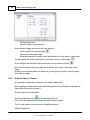
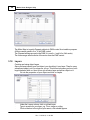
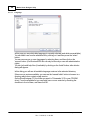
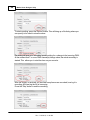
point and the position of the original object. If you want to define the radius instead,
simply type in the radius box instead of the axis boxes.
Example
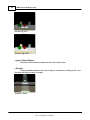
If you want to create winding (spiral) stairs, start with a single plank (cube), position it on
position it on (-0.5, 0.15, 0.0) and size if to ( 1.0, 0.01, 0.1 ).
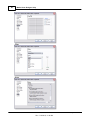
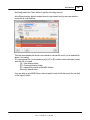
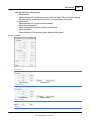
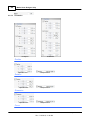
Now you create the staircase by specifying the Y-axis to rotate around, position the axis
on X: 0.0 and Z: 0.0.
Enter 0.15 in de Y part of the relative position (each plank should be 0.15 higher than
the previous one).
Enter and angle of 30.0 (each plank should rotate 30 degrees around the rotation axis),
and specify 11 Copies (1 original + 11 copies = 12 times 30 degrees is 360 degrees)
for a full circle.
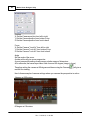
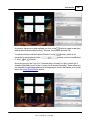
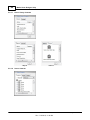
Example to have 12 fixtures in a circular shape.
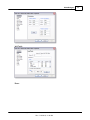
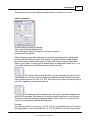
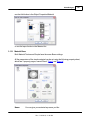
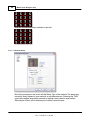
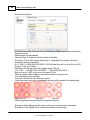
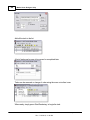
1. Insert one fixture to your MSD scene
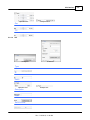
2. Select the 'Multiple Duplicate' option
3. Click the 'Circular' button.
4. In the 'Copies' dialogue set 11 (for a total of 12 fixtures)
5. In the 'Angle' field set 30 degrees spacing (360 divide by 12)
6. In the 'Radius' field set 2m (for 4m centers circle), or whatever radius that serves your
needs.
7. Click OK
3.8.7
Aling objects or fixtures
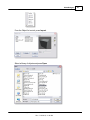
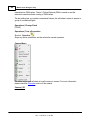
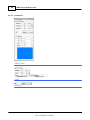
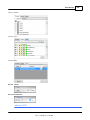
Operation | Alignment | Align Chain
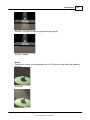
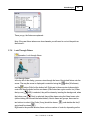
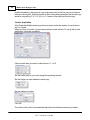
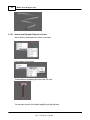
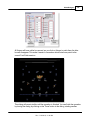
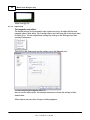
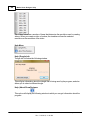
This option allows you to align two or more selected objects in a chain like way. The
selection order for this align operation is very important.
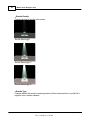
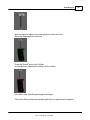
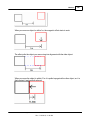
The object that is first selected will stay where it is, so you first have to make sure that
this object is in the right place.
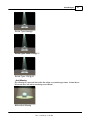
The second selected object will be aligned to the first one, the third selected object to
the second and so on.
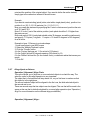
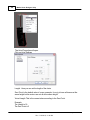
There are several ways that two objects can be aligned. The one that will be used is the
same as the one that is default calculated for a normal align operation (see 'Operation |
Align' for more information on the different align possibilities.)
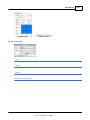
Operation | Alignment | Align...
© 2015 Martin Professional A/S, Lighthouse Holland
Rev.: 7/10/2015, 11:49 AM