1
Creating panels
Panels support visibility animation only.
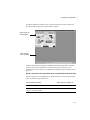
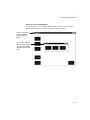
To create a panel
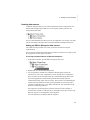
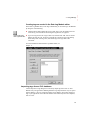
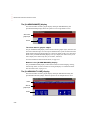
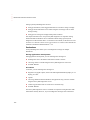
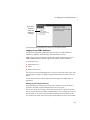
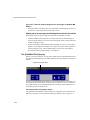
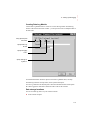
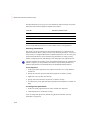
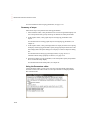
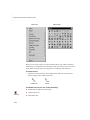
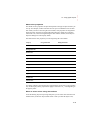
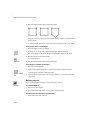
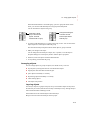
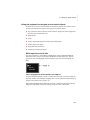
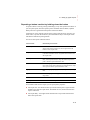
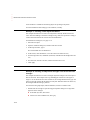
1. Select the Panel tool.
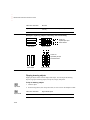
Panel tool
2. Click the mouse where you want to position the panel, and then drag to draw a
rectangle the general size you want the panel to be.
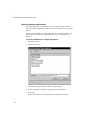
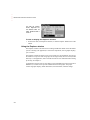
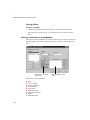
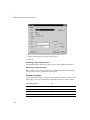
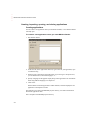
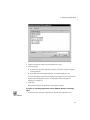
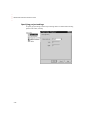
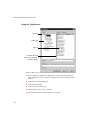
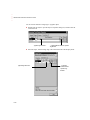
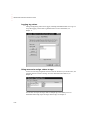
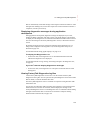
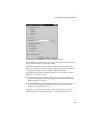
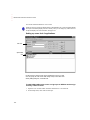
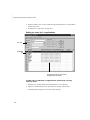
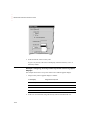
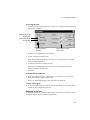
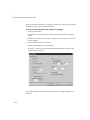
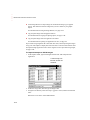
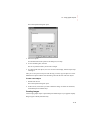
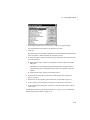
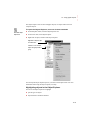
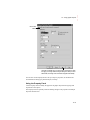
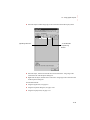
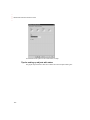
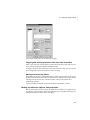
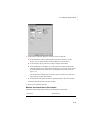
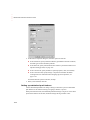
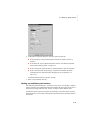
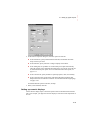
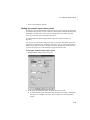
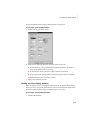
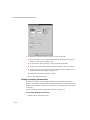
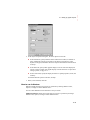
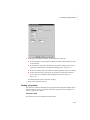
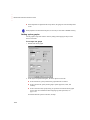
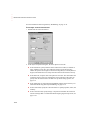
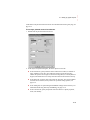
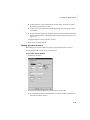
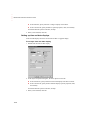
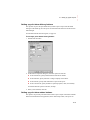
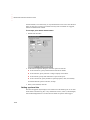
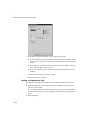
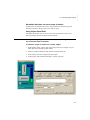
3. To change how the panel looks, double-click the panel to open the Panel Properties
dialog box.
4. Select panel options.
For information about the options in the dialog box, see Help.
5. To close the dialog box, click OK.
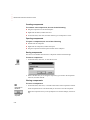
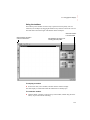
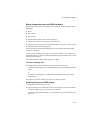
Creating arcs and wedges
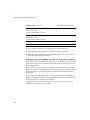
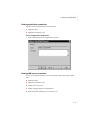
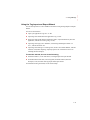
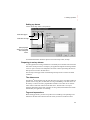
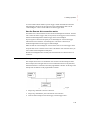
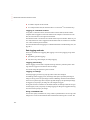
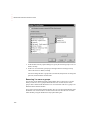
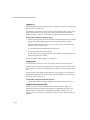
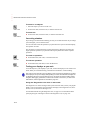
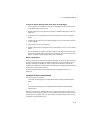
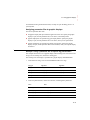
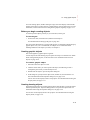
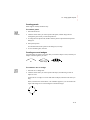
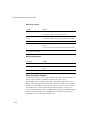
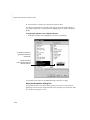
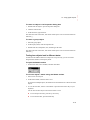
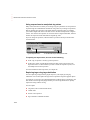
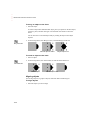
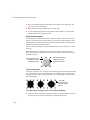
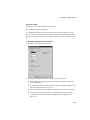
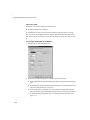
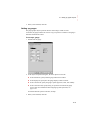
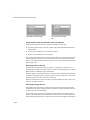
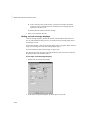
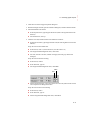
Arcs and wedges are drawn in two steps: first you create an ellipse or circle, and then you
reshape it into the segment you want.
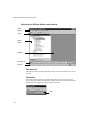
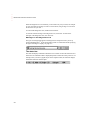
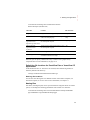
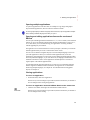
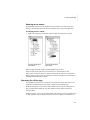
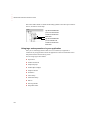
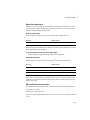
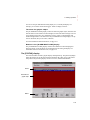
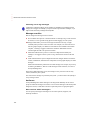
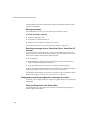
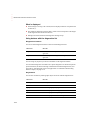
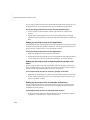
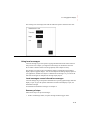
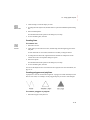
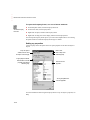
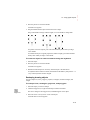
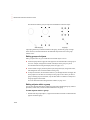
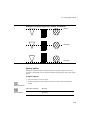
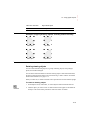
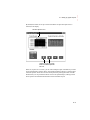
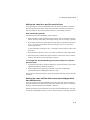
Arc
Hollow wedge
Filled wedge
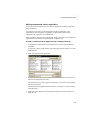
To create an arc or wedge
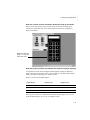
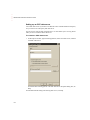
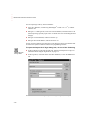
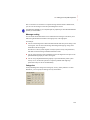
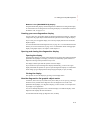
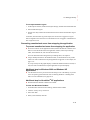
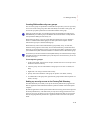
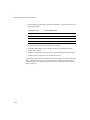
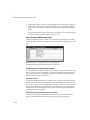
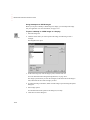
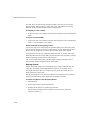
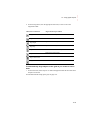
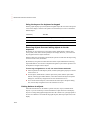
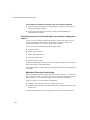
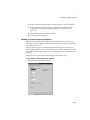
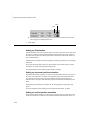
1. Select the Arc or Wedge tool.
Arc tool
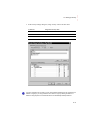
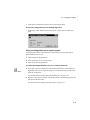
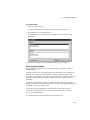
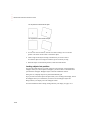
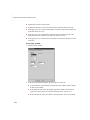
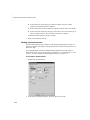
2. Click the mouse where you want to position the object, and then drag to draw an
ellipse or circle.
To base the arc or wedge on a circle rather than an ellipse, hold down Ctrl while you
drag.
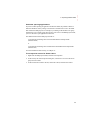
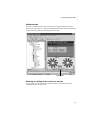
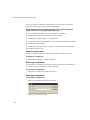
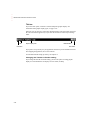
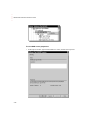
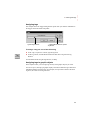
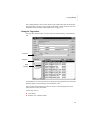
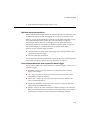
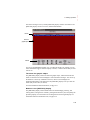
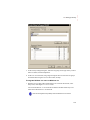
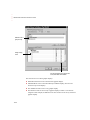
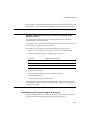
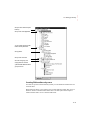
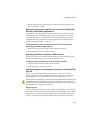
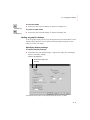
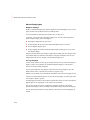
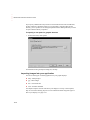
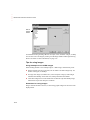
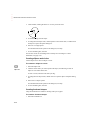
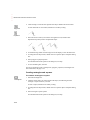
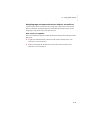
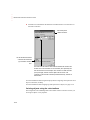
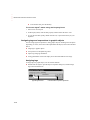
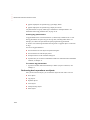
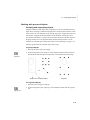
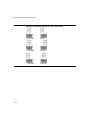
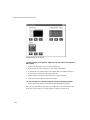
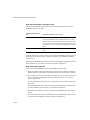
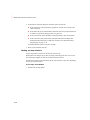
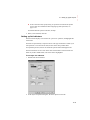
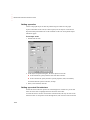
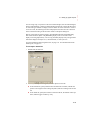
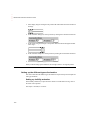
When you release the mouse button, a set of handles appears so you can decrease the
angle of the wedge or arc from 360 degrees to the desired angle.
15-17
• • • • •
15 • Using graphic objects