1
18
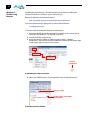
To set the KUMO device to its default static IP address:
1. Power up the KUMO router or control panel and wait for it to boot normally.
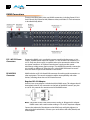
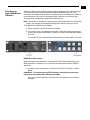
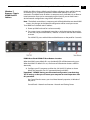
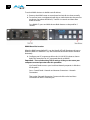
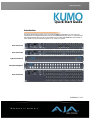
2. For a router, insert a straightened paper clip or similar device into the reset slot
on the rear (see photo that follows)—hold for six seconds and then allow
KUMO to restart.
For a KUMO CP, press and hold the two blank buttons on the panel for 5
seconds.
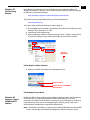
KUMO Reset Slot Location
When the KUMO router default IP is set, the Identify LED will illuminate and stay on.
When the KUMO CP default IP is set, the Source and Destination buttons will flash
alternately.
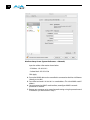
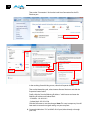
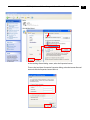
3. Configure your PC computer to talk on the 192.168.XX.XX subnet as shown
below (this example is for a PC connected directly to KUMO):
Important: First record existing TCP-IP settings so that you can return your
computer to normal operation after this procedure.
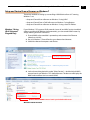
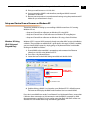
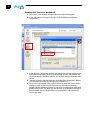
Use Control Panel to access your Local Area Network properties. In Windows
XP the path is:
Start > Control Panel > Network and Internet Connections > Network
Connections
Then, under “Network Connections” locate and click on the Local Area
Connection for the PC’s Ethernet port.