1
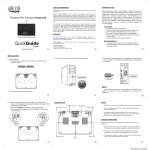
3) Turn the computer on and start Windows. 4) Test the keyboard's keys and touchpad; each should operate with the existing drivers. Note: If you are using Windows 95 and see the "New Hardware Found" dialog box after rebooting, select C eEL and follow the directions under "Driver installation instructions, Windows 95." Installing the Wave 2 on a portable computer: To connect your Wave 2 hardware to a portable computer: 1) Turn the power to your computer off. 2) For the keyboard: attach the round PS/2 connector (or use the PS/2-AT adapter) to your portable's keyboard port. For the touchpad: if you are using an external mouse, disconnect the mouse cable and attach the touch pad to the same port. Otherwise, connect the touch pad to your portable's PS/2 mouseport using the serial-PS/2 adapter. If your portable does not have a PS/2 mouseport, connect to the rectangular serial port. Because the PS/2 ports for both touchpad and keyboard appear identical, look for an icon or description on your portable to identify which to use. Be careful not to switch the cables. 3) Turn the portable on and start Windows. 4) Test the keyboard's keys and touchpad; each should operate with the existing drivers. If the portable computer's built-in pointing device works after installation but your touch pad does not, follow the instructions for "Installing Cirque's Driver." If you have already installed Cirque's - driver and the portable's built-in pointing device continues to work but your touchpad does not, or if the touchpad fails to work after restart, refer to "Troubleshooting: Portable computers with built-in pointing devices." Using your touchpad: Unlike the mouse or trackball, Cirque products require lillie arm and wrist motion and no pressure, lowering the risk of repetitive stress. Simply glide your finger across the surface of the pad to move the cursor and tap to "click." It's easy! Learning to tap on the touchpad : Click, double-click, drag and highlight functions of the primary and secondary mouse buttons can be activated by tapping directly on the surface of the pad. >- To "click," lightly and quickly tap the surface of the pad once. >- To "double-click," rapidly tap on the pad twice. Remember, the touchpad responds best to a very light, quick tap. >- To "drag," draw, or highlight, double-tap rapidly and hold your finger down on the second tap. Then glide to move. '. - >- To "drag" further than the touchpad surface, simply lift your finger and reposition after reaching the textured edge of the pad. Note: A helpful demonstration of tapping is available within the FEATURES submenu in Cirque's Control ~ Panel. You must install your Cirque driver to access the program; refer to the instructions on the following page. .2