1
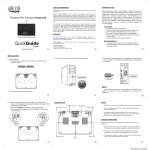
coupon offer). This pen is specifically designed for use with GlidePoint Touchpad 2 fechnology, which is integrated into your Wave 2. By installing the pen's software you can capture any signature or note by double-tapping the SIGNATURE icon on your screen. Your touch pad will react by responding to what is known as "tablet" or "absolute" mode. You may then glide the pen lightly over the pad to position the cursor, and press the tip down gently to begin writing. Signatures can be saved for repeated placement in your online documents and faxes. -.a:', ""'" - FAX _ T. u: ... r. Troubleshooting: common questions The Wave 2 should work right away when connected to your computer. If you have trouble: ./ Check all connections to your computer to be sure they are secured to the correct ports, then restart the computer. ./ Check the following list to see if your questions can be easily answered. Should you need additional help, contact Cirque's faxback service or customer support line at the numbers provided (see "Customer support &BBS"). - Keyboard not functioning properly or "keyboard error" at boot-up? If you receive a keyboard error after installing the Wave 2, or the system boots up but the keyboard does not function properly: ./ Make sure the connections for the touchpad and keyboard are secure and are not switched. If you are using both PS/2 connections, look for small icons on the back of your computer to see where to attach each one. The front page of this guide illustrates the correct ports. Having trouble tapping or dragging on the touchpad? If you have difficulties activating "click" or "highlight" operations by tapping on the touchpad surface: ./ Alight, quick tap works best. Touchpad 2 does not require pressure, and hard taps may actually slow your tapping. If you would prefer to allow for this tapping style, go to the TAPS menu within Cirque's driver. More useful tips are available in Cirque's driver; run DEMONSTRATION from the FEATURES submenu for a quick tutorial. HELP will also explain more of the pad's unique features. Cursor feels too fast or slow in DOS programs? If you would like to adjust the cursor speed when you use programs in DOS: ./ At the DOS prompt (C:\) insert one of the following statements before loading your application: for slow speed, type ..... c:\glide\glide Is25 Ipl for medium speed, type " c:\glide\glide Is50 Ipl for fast speed, type c:\glide\glide Is75 Ip2 4'