1
Libria Administrator Manual
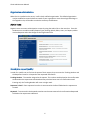
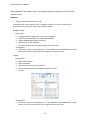
Add a new Request Type
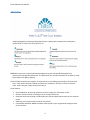
Create new:
1.
2.
3.
4.
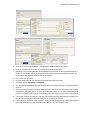
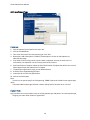
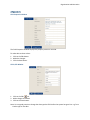
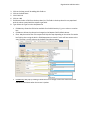
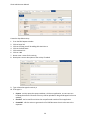
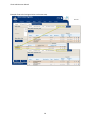
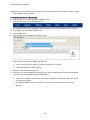
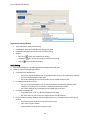
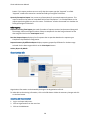
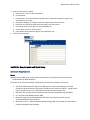
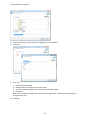
Click on Request Type located on the menu bar.
Click on the Add button.
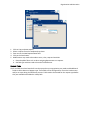
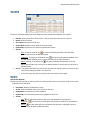
Title: Enter the name of the new request type in the Title.
Description: Add a description if needed. The description is shown on the Request List
administration page.
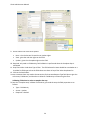
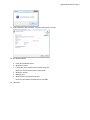
5. From Email: Enter the reply email account. When a requester receives an email such as a
confirmation, the requester can send a reply email to this account.
6. Email Confirmation Template: Select the Email Confirmation Template that will be sent out on a
Public Request upon the submission of a request.
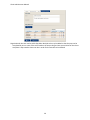
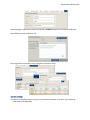
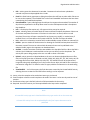
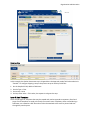
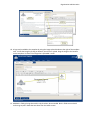
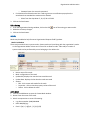
7. To upload the organization's logo, click on Browse button.
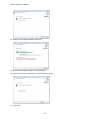
8. A Choose File to Upload dialog will open.
9. Locate the file and click the Open button.
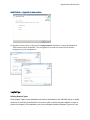
10. Click on the Save button.
Note:
In order to run reports specific to FOIA reporting, “FOIA” needs to be included in the request type
name.
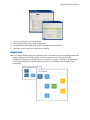
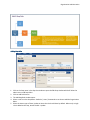
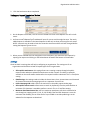
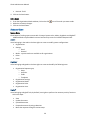
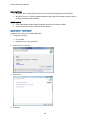
The newly added request type will have a Status of Draft until it has been set to “Go Live”.
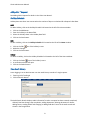
Copy and Paste:
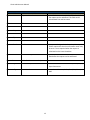
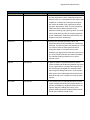
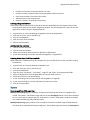
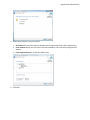
Copy and Paste can only be used to copy an existing request type and paste it as a new request type,
assigning it its own name, within an organization.
10