1
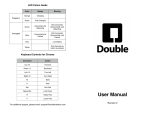
LED Colors Guide
Status
Plugged In or
Docked
Unplugged or
Not Docked
Either
Color
Steady
Blinking
Orange
Charging
Green
Fully Charged
Green
Connected and
Balancing
Not Connected,
Discoverable, and
Balancing
Blue
Connected and
Parked
Not Connected,
Discoverable, and
Parked
Red
Low Battery
Yellow
Pole lowering as power
button is pressed
Keyboard Controls for Chrome
Command
Action!
Up / W
Forward
Down / S
Backward
Left / A
Turn Left
Right / D
Turn Right
M
Mute
P
Park
Esc
End Call
Space Bar
Look Down
R (hold)
Raise Pole
F (hold)
Lower Pole
For additional support, please email: [email protected]!
!
!
!
User Manual !
!
Revision 11!
Initial Setup!
5. Once you have successfully logged in, you will
see the standby screen with the Drivers and
Park buttons.!
1. Take Double out of the box and stand it upright on a
flat surface.!
6. To adjust the height of your Double, swipe vertically anywhere on the
right side of the screen. To adjust volume, swipe on the left side.
2. Insert the iPad® mount into the socket (Figure A)
and screw in the bolt using the included hex
wrench (Figure B). !
Figure B
3. Using the charging cable that came with
your iPad, plug one end into the USB port
inside the iPad mount (Figure C). !
4. Continue to wrap the cord around the channel until
there is about 4 in (10 cm) left to fit through the
groove at the top.!
Drive Double!
1. From the Driver iPad or Google Chrome on Mac or PC
(drive.doublerobotics.com), log in to the account you just created. !
2. Your Double will appear on the map. Tap (or click) to start a call.
Figure A
5. Insert the iPad upside down (make sure Rotation
Lock is turned off) and be sure not to
pinch the charging cable.!
6. Plug the Lightning (or 30-pin)
connector into your iPad. !
Figure D
1. Plug in the power cord to the back of
your Double (Figure D). !
2. The front LED will be orange while
charging. Charging takes about 2-3 hours.!
USB Port
3. When Double has reached a full charge,
the LED will turn green.
7. Turn on Double by holding the power button for
three seconds (Figure D). !
8. (Optional) Attach the lens to the front of the mount.
Pair Bluetooth!
Charge Double !
Guided Access Mode !
Figure C
Power Button
Charging
Connector
We recommend that you enable Guided Access mode on your Double’s
iPad. This will:!
1. Go to Settings (on your iPad) > Bluetooth.!
• Prevent the iPad app from accidentally minimizing into the
background if someone presses the iPad’s home button or if you get
notifications. !
2. Tap the row that says Double XX-XXXXXX.
• Restart the app automatically if it crashes. !
To pair your iPad with Double:!
Create Account !
!
• Suppress iPad pop-ups, which may interfere with an active call. !
Setup Guided Access Mode!
1. On the iPad, download the Double app from the App Store (search
“Double Robotics”).!
1. On your Double’s iPad, launch Settings > General > Accessibility >
Guided Access.!
2. Launch the app and create an account, if you don’t already have one. !
2. Go into the Double app and tap your iPad’s home button three times
to activate Guided Access mode.
3. The app will prompt you to allow Location Services. Approving this will
enable the driver to see Double’s location on a map.!
4. If not prompted, touch the gear icon in the upper right corner and
switch from Driver Mode to Robot Mode.
Note: While you don’t normally need to turn Double off, you can do so by holding
the power button until the LED turns off (about 3 seconds).
iPad is a trademark of Apple Inc., registered in the U.S. and other countries.