1
The Order Log
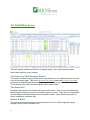
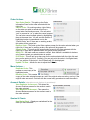
The order log will give you access to view the latest order status, as well as the ability to place,
modify, cancel and replace orders. The order log now has tabs separating the orders by status
for quick viewing. You can still use the All Top Day Orders tab which shows everything on one
screen.
The order log will give you a list of orders sorted in order of activity time by default. The latest
orders will be displayed on the top of the screen. All columns can be sorted ascending or
descending by clicking on the column header.
Pause Updates
The order log is a dynamic, constantly refreshing window. If you ever need to
pause the order screen from updating, click on the “Pause Updates” button located in the middle
section of the screen between the order log and the quote screen. To resume, press Resume
Updates.
Viewing Orders
By default, all orders for accounts you have access to will display in the order log screen and
will be arranged by activity time with the most recent at the top. You can sort any column in this
screen by clicking on the column header. All columns containing numerical values will be sorted
from low to high, columns containing text will be sorted alphabetically.
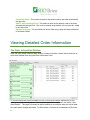
Quick Cancel
For working orders, clicking on the red X
on the far left side of the order in the order log will
pull up a cancel order confirmation screen. You can select “yes” to proceed or “no” to abort the
cancel request. You can also cancel multiple orders by highlighting them at the same time. You
will see the number of highlighted orders in parenthesis next to the “Cancel Order” text. If there
are no working orders, this option will be grayed out.
Right Click Context Menu
Right clicking on the order rows will give you access to many of the WebOE features, as well as
giving you options for customizing your order screen.
7