1
Getting Started
Step 3:
Selecting Output Options
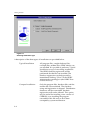
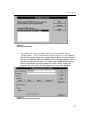
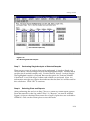
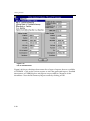
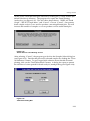
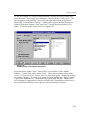
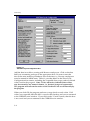
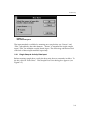
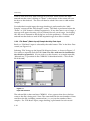
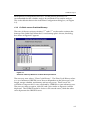
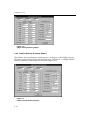
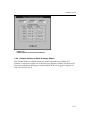
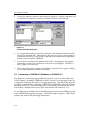
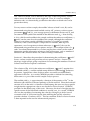
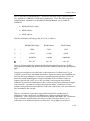
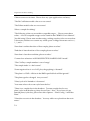
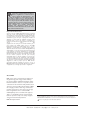
From the Main Window select “Options”. Then choose “Output” from the dropdown menu. The dialog box for selecting the output options appears.
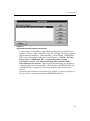
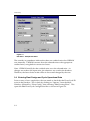
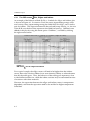
In this screen, there are two output options to choose from: 1) a calculation log
file and 2) an ASCII dump file. When selected, the option(s) remains in effect
until changed during a CHIRON session, or until the program is exited. You
may select one, both or none of the options from this box.
1. Enable calculation log file for single sample analysis. If you check this
box, then a text file named “chicalc.log” will be generated at the
completion of each single sample analysis. The “chicalc.log” file will be
placed in the CHIRON30 folder. This file can be used to retrieve all details
of the calculational sequence for the last calculated sample. It may be very
large, on the order of 60 printed pages. This option is not available when
running samples in Batch Analysis mode. Once created, the log-file may
be accessed with the use of a text editor. When a new sample analysis is
performed, the previous chicalc.log file is overwritten. The default choice
for this option is no calculation log file.
2. Enable ASCII Dump files for batch analysis. If you check this box, then
ASCII dump files will be written and placed in the CHIRON30 folder
every time a batch sample analysis is performed. The default choice for
this option is no ASCII Dump file.
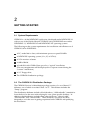
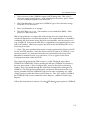
For this exercise, click (check) on both boxes. Your screen should look like the
one shown in Figure 2-14. Click OK. The program returns to the main window.
Figure 2-14
Output Options Dialog Box
2-15