1
CHAPTER
10
VIEWER
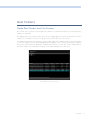
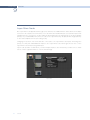
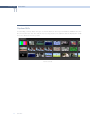
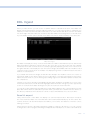
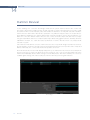
Viewer Stills Display
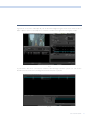
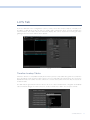
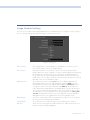
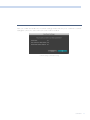
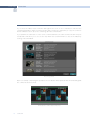
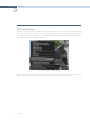
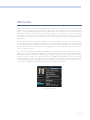
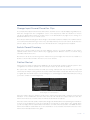
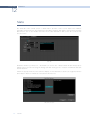
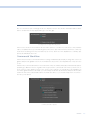
The first section of these right click options relates to Stills. ‘Grab Still’ will simply grab the current frame
to make a still and place it in the Gallery Stills display. ‘Grab All Stills from First Frame’ will grab a still from
every clip on the timeline using the first frame of each clip. ‘Grab All Stills from Middle Frame’ will perform
the same function, except use the middle frame of each clip as the source of the still. Once this is started,
it will work in the background and grab a still for each clip within the timeline. It is important to note that
once this procedure has started, it will continue until completed.
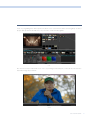
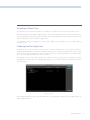
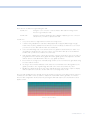
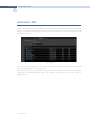
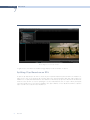
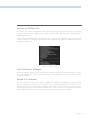
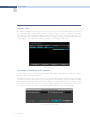
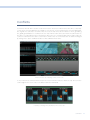
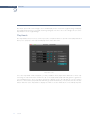
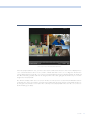
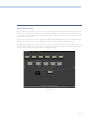
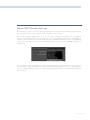
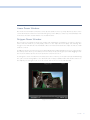
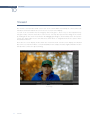
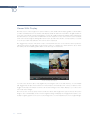
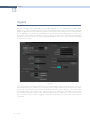
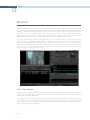
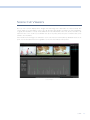
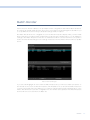
The Toggle Wipe selection will turn the wipe on and off. This function on the DaVinci Resolve panels is
called ‘Play Still.’ The Toggle Wipe mode will select either to compare the current timeline clip to either
the Gallery Still, the matching offline frame or another clip on the timeline.
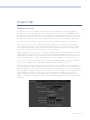
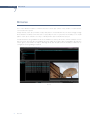
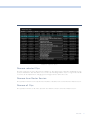
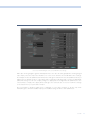
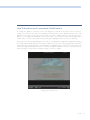
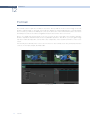
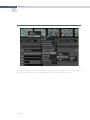
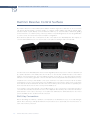
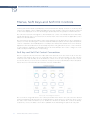
Viewer with Play Still enabled
You can select another clip to wipe against by selecting the still on the Still, Memory, or PowerGrade
tab. Toggle Wipe Shape switches between vertical wipe, horizontal wipe, mix or a key or Alpha control.
Toggle Invert Wipe will swap the reference and current images in the Wipe display so you can see the
other side of the images.
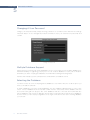
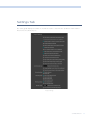
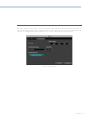
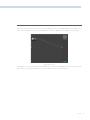
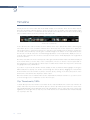
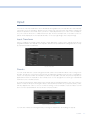
The next section of the pop-up menu includes the Reset and Original Size options. Reset will set the
image to the normal display for the Viewer. Original Setting will display the image pixel-for-pixel so it is
usually for getting quick zooms to the source image size to look for imperfections in the original image..
208
VIEWER