1
CHAPTER
9
COLOR
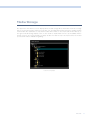
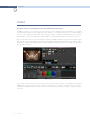
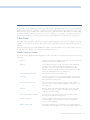
Batch Versions
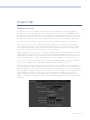
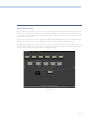
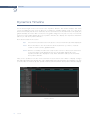
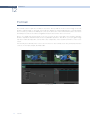
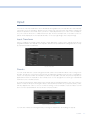
When you begin to color correct using the Master Session, all corrections are automatically applied
to the other conformed versions. This means that the Master Session is Batch Linked to all the other
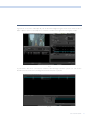
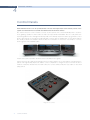
conformed versions. If you wish to create a different version of the color correction in another timeline,
simply select the desired version, right mouse click on a thumbnail, and select ‘Batch Unlink.’ This
conformed version will not share the same color corrections as the Master Session or any of the other
conformed versions. If you select ‘Batch Link,’ the corrections within this conformed version will revert to
the corrections seen in the other conformed versions.
Batches may also be copied using this right-click option.
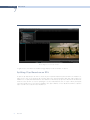
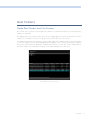
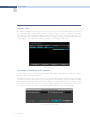
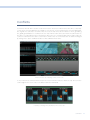
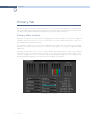
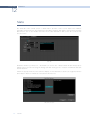
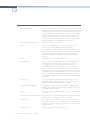
Display Node Graph
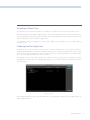
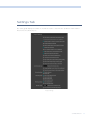
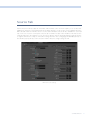
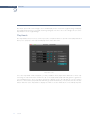
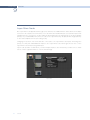
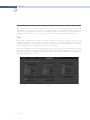
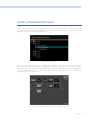
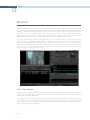
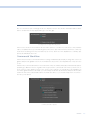
Just as you selected to display the Node Graph from Stills or PowerMaster Stills, you can do so from the
timeline Thumbnail.
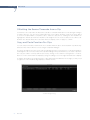
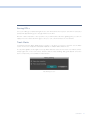
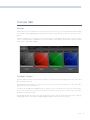
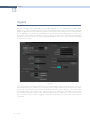
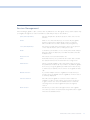
Wipe Timeline
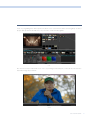
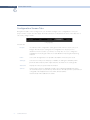
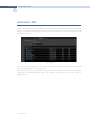
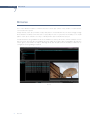
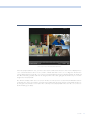
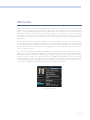
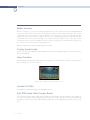
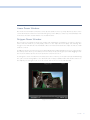
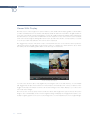
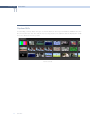
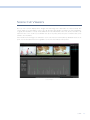
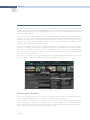
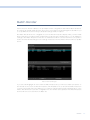
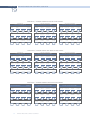
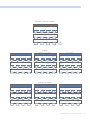
The thumbnail will display an orange border indicating it is the active reference. When you deselect the
clip the Gallery becomes the reference.
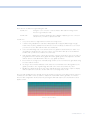
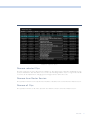
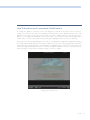
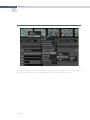
Orange outline indicates the clip used for reference wipe
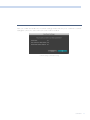
Update All VSRs
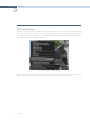
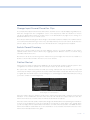
To update the thumbnail images select ‘Update All VSR’.
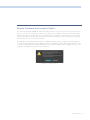
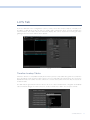
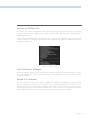
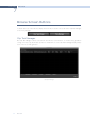
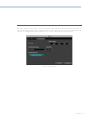
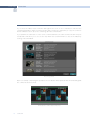
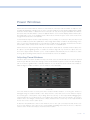
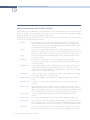
Edit PAR Value (Pixel Aspect Ratio)
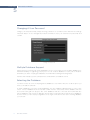
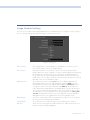
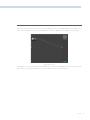
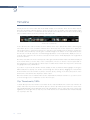
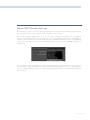
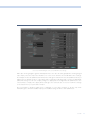
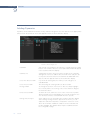
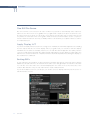
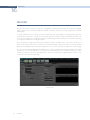
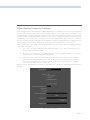
The PAR (Pixel Aspect Ratio) setting in the Media Pool will always have an indication, either square or
one of the other many PAR formats offered. To change the PAR for any clip, select the Thumbnail with
the right-click option, then select Edit PAR Value and then select the appropriate PAR from the pop-up
box.
170
COLOR