1
HECTA 360⁰ Survey Tool
User Manual
The HECTA 360 survey tool is designed to gauge your feedback on leadership behaviours of SDP
employees. This survey allows you to have a better understanding of yourself and your colleagues in
the journey of living HECTA Principles: Humility, Empowerment, Customer Centricity, Teaming, and
Accountability.
This survey tool will gather feedback from your good self, immediate superior, subordinate(s) and
peer(s), hence called “360 Survey”
A. Accessing The Survey Tool
Website address:
http://www.hecta360.com
User-id:
000nnnnn
Password:
000nnnnnDDMMYY (initial password = your Employee SAP ID and series date of birth)
Example:
(your Employee SAP ID in full number)
if your Employee SAP ID = 12345, Date of birth = 01-June-1960 “010660”
User-id:
00012345
Password:
00012345010660
Page 1
Once you enter the system, you will be immediately prompted to change the default password.
New Password:
**********
Re-type Password:
**********
The new password will be sent to your corporate email address.
If you do not have a corporate email, please note the password manually.
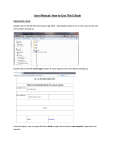
See the screen below:
If you encounter any problems in accessing this survey, please write an email or call the HECTA survey
Coordinator.
HECTA Survey Coordinator
Mr. Abdul Muhaimin Azzam
Mobile: +6012-655-1953
Email: [email protected]
SDG Asia (M) Sdn Bhd
Page 2
B. Entering Survey
In the system you will be able to see your data and survey assignment list.
You may have more than one survey to be completed for different roles;
• As your good self
• You as a ‘Superior’
• You as a ‘Peer’
• You as a ‘Subordinate’
Some of you may not have a “Self Assessment” survey as you have yet to be nominated to participate
in the HECTA Leadership Development Program for FY1314. Therefore you are only invited to give
feedback for other employees.
In the future you may have to attend to more than one survey. You can filter the survey assignments
by selecting the assignment status, either “All” or “Open”
You will see various action status. Each status allows for different actions;
• Open = This is a new survey assignment and you are requested to give your response. You can
begin the survey by clicking on the “Enter” button.
• Draft = You have previously responded to this survey assignment and saved your feedback in draft
mode. You may continue the survey by clicking the “Edit” button.
• Submitted = You have completed and submitted the survey assignment. You can no longer make
amendments to the survey but you could still view the assignment in read-only format. This can be
done by clicking the “Closed” button
Page 3
There are 30 questions to be answered. You MUST answer all 30 questions before you could submit
the assignment.
You will need to respond by selecting either one of the following radio buttons;
1 – Rarely
3 – Infrequently
5 – Frequently
7 – Always
❹ Give your
feedback here
If you need more time to complete the survey you can click the “Save Draft” button before exiting the
website.
You may resume your survey later by clicking the “Edit” button.
When you have completed the assignment, please click the “Submit” button to submit your survey.
Upon submission of survey, your status will automatically be changed to “Closed”, and you may view
your feedback in a read-only format
Page 4
You still can view your submitted feedback read-only by clicking icon Action “Closed”.
C. Survey Reporting
Once you have completed answering all necessary survey assignments, you may view the results by
following the steps below;
1. Click the “REPORTS” icon
2. Click the “Individual Survey Result” button on the left panel
3. Select the desired “Survey ID” (either pre assessment or post assessment results)
When the post assessment survey is made available on the system;
• You are required to give your feedback once again by following the steps above
• You may compare the pre and post assessment results side by side in a graphical format.
For your information, the blue line on the chart shows the results from “Self Assessment” only. The
orange line is the aggregated results of your superior, peers and subordinates.
To ensure confidentiality of information is upheld, you are not allowed to view the aggregated results
separately. This means you are not allowed to view your Superior’s/peers’/subordinates’ assessment
on you only.
Humility
Accountability
7
5
3
1
Empowerment
Teaming
Customer
Self
360°
Average
Self
Others
Page 5
H
5
3
E
7
5
C
7
5
T
5
5
A
5
7