1
B. Entering Survey
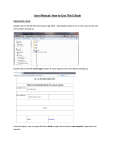
In the system you will be able to see your data and survey assignment list.
You may have more than one survey to be completed for different roles;
• As your good self
• You as a ‘Superior’
• You as a ‘Peer’
• You as a ‘Subordinate’
Some of you may not have a “Self Assessment” survey as you have yet to be nominated to participate
in the HECTA Leadership Development Program for FY1314. Therefore you are only invited to give
feedback for other employees.
In the future you may have to attend to more than one survey. You can filter the survey assignments
by selecting the assignment status, either “All” or “Open”
You will see various action status. Each status allows for different actions;
• Open = This is a new survey assignment and you are requested to give your response. You can
begin the survey by clicking on the “Enter” button.
• Draft = You have previously responded to this survey assignment and saved your feedback in draft
mode. You may continue the survey by clicking the “Edit” button.
• Submitted = You have completed and submitted the survey assignment. You can no longer make
amendments to the survey but you could still view the assignment in read-only format. This can be
done by clicking the “Closed” button
Page 3