1
Applying Settings
When the FlipMouse device is connected, the settings of the active slot can be applied to the
device for testing by clicking “Apply settings”. Once the settings have been applied, you will receive
a confirmation message in the activity log, and you will be able to use the FLipMouse with the new
settings.
Changing Settings and Features
Cursor Movement
Cursor movement is the default tab of the user interface. On this tab, you will be able to change the
function of the FLipMouse stick, change the speed and deadzone of the FLipMouse, and calibrate
the middle position.
FLipMouse stick function
By default, the FLipMouse stick is used like a joystick to induce cursor movements. However, stick
movements can also be reassigned to other functions, such as pressing the key ‘A’ when the stick
is pushed up.
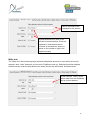
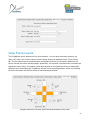
To continue using the FLipMouse stick for cursor movements, make sure “Use Stick for Cursor
Movement” is selected, as in the image below. If you would like to assign alternative actions to the
stick, please select the “Use Stick for Alternative Actions” option by clicking on the appropriate text
or the circle on the left side of the text.
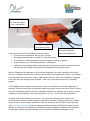
Drag the thumbs of the scroll bars
to change the speed and
deadzone of the FLipMouse
12