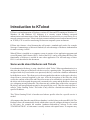
1
fields 'User' and 'Port' can be left unaltered, they are used if you want to login as a different user
from who you are authenticating as or if you want to connect to a specific port on the host. If
KTelnet have been enabled for firewalls (see page 33) two more fields will be visible on the
dialog ('Ticket to use' and 'Use HTTP-PROXY'). Normally 'Ticket to use' is left empty and 'Use
HTTP-PROXY' should only be checked when you are connection through a firewall. If you
have created several profiles then the field 'Use profile' is visible (see page 35 for usage of
profiles).
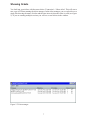
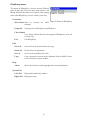
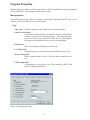
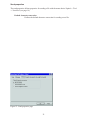
The second page (figure 2) is used if you want to use KTelnet as a terminal talking with some
system or unit that is directly connected to a serial port on your local computer. In this page you
select the serial port and communication parameters for that port.
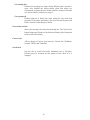
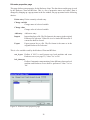
If you want to run FTP you bring up the third page (figure 3). You select the host to connect to
and the user in same way as for Telnet (this page uses a different history for hosts). User can
normally be left unaltered.
After you have selected the type of session, host and other parameters you click on OK and the
session will start.
Figure 3: Connect to FTP session.
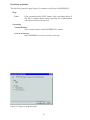
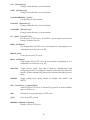
Figure 4: User data
Telnet session
KTelnet will now try to verify the name of the host and translate it into its generic name. The
generic name of the host is needed by Kerberos. If the name could be verified a connection is
opened to the host. If the host runs the Kerberos system it will automatically request Kerberos
authentification to take place. If you don't have any tickets KTelnet will request your username,
password and some other data (see figure 4). Fill in your user name and password. The fields
'Instance' and 'Realm' are normally not changed. When you type your password it will be shown
as '*' in the dialog box. After you have supplied the necessary information you click OK. The
Kerberos client will now request the necessary tickets and send the needed tickets to the host. If
the host accepts the ticket it will log you in to the host and you can use that computer. During this
login sequence encryption will be turned on (you can see this in the status line in bottom of the
KTelnet window).
5





















![20 [7] Don Libes, “Using expect to Automate Systems Administration](http://vs1.manualzilla.com/store/data/005773716_1-68a79e060d9ea16881001f4ab808f924-150x150.png)