1
GSSF Web Application Manual, - 2 -
GETTING STARTED
Logging In
1. To access this tool enter the following link in your web browser (i.e., Internet Explorer)
https://www.dukeonline.duke.edu/gssf/
2. A NETID login page will appear. Enter your Duke NETID and password.
Logging Out
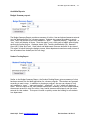
You can choose to click “logout” next to your NETID
Requesting Access
If you are a new user and do not have access to the Graduate School Student Funding
Application please send an email to [email protected] with the following information:
1. NetID
2. Name
3. Position (include department)
4. Email Address
NOTE: If you are a user who has transferred departments or is not able to view students in
another department other than your primary please use the above mentioned email address
to notify the graduate school of your change in departments or need for viewing rights in a
secondary department. In the email please identify your previous department or the reason
why you need access to a secondary department.
Rights to view or edit more than one department or program
Some of you may have rights to view or edit student funding information for more than one
department or program. If you have rights to view or edit more than one department or
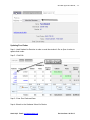
program, your beginning screen will be for your default department. To switch to your
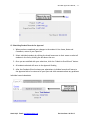
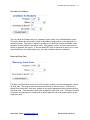
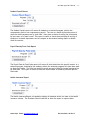
alternate department go to the upper right hand corner of the screen and click on “change”.
A drop down with your departments will appear. Select the department you wish to view, or
click cancel to remain on your current department view.
Rights to view or edit student funding data for a student funded by but not enrolled in
your department or program
From time to time, your department may provide funding to a graduate student not actually
enrolled in your department / program. If you need to have view / edit rights for a student
enrolled in another department or program but whom your department funds, contact the
GSOBF. A “secondary” program identifier can be added to the student’s profile so that the
student’s funding information can be viewed by the “home” department / program and the
“funding” department / program.
Initial Screen & Workflow
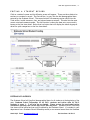
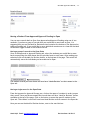
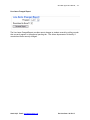
After login, your initial screen will appear similar to below. The upper right corner indicates
your NETID and the department that you are currently viewing.
Need Help? Email: [email protected]
Revision Date: 09/20/13