1
WL400 Quick Start Guide
DIGITAL YACHT
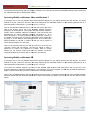
You will now be prompted to enter the Network Key
(also known as Password, WEP key or Passphrase) for
the network that you have selected. Consult the
network operator to get the necessary password and
enter this in the two boxes at the bottom of the window
shown in Figure 20. Click “OK”.
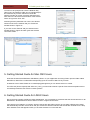
Assuming that the password was correct, the WL400
should connect to the network and you will see the
window shown in Figure 21.
If you click on the “General” tab you should see the
window shown in Figure 22 which gives the wireless
connection status.
.
Figure 20
Figure 5
Figure 21
Figure 22
5. Getting Started Guide for Mac OSX Users
Insert the WL400 Drivers/Software USB Memory Stick in to your Apple Mac and using Finder open the folder called
MacOS10.3, MacOS10.4 or MacOS10.5 depending upon the version of Mac OS X you have.
Included in each of these folders is an Install.mpkg package that you can double click on to install.
For OSX 10.6 (Snow Leopard) and OSX 10.7 (Lion), you will need to follow a special Tech Note that explains how to
successfully install the 10.5 drivers on these systems.
6. Getting Started Guide for LINUX Users
Due to the large number of different LINUX distributions, it is not possible to guarantee that the WL400 will work on all
distributions. All distributions that have Kernel V2.6.24 or higher should work.
If the drivers are included in your distro, simply insert the WL400 USB connector in to a spare USB port and LINUX
will automatically load the correct driver and you will see the wireless networks that the WL400 can detect in the drop
down wireless menu that appears when you click the wireless icon in the task bar.