1
3.3. Adding Hard Drives (Optional)
Hard drives are pre-installed in the EMR series. Users can also add
supplementary hard drives and do RAID configurations themselves. Please refer
to the following table for more details.
M o d el
N u mb ers o f P re-in s t alled
H ard D ri ves
Defau lt RAID
Co n fig u rat i o n
S p ace fo r Ad d i t i o n al
H ard D ri ves
RAID Op t io n s fo r
Ad d it i o n al Hard D rives
1 H DD
N /A
1 HDD
N/A
2 H DD
N /A
0 HDD
N/A
E M R5 0 0 0
1 H DD
N /A
4 HDD
RAID0 , 1 o r ab o ve
E M R8 0 0 0
2 HD D
RAID 1
6 HDD
RAID0 , 1 o r ab o ve
E M R2 0 0 0
Note: (1) You should go to Windows Disk Management to allocate and format
the logical drives (set the block size as 64k). You can choose to do this
before or after the RAID configuration is done. (2) In EMR5000 series,
RAID rebuild mode would decrease the recording performance
depending on the number of channels.
Hard Drive Installation Prerequisites
Purchase hard drives having the same capacity and using same interface with
the pre-installed ones.
Inserting Hard Drive into Drive Tray
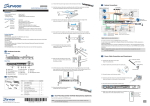
1. Open the front panel of the EMR system.
2. Press the release button (indicated by the blue arrow) on the bezel, the
bezel panel should open automatically and gently pull out the hard drive
tray.
21