1
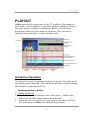
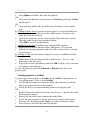
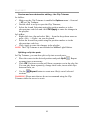
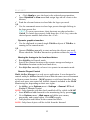
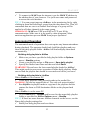
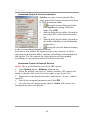
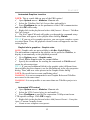
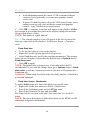
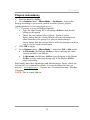
PLAYOUT Playback control You can push the playback control buttons to control the playout or use the provided short keys. The Return button is active only after a Jump operation. Use it to go back to the point in playback before the jump. Use the Cue button to pause the playback on the first frame of the currently selected clip. NOTE: The execution of this command may vary according to the hardware decoder! Please contact [email protected] for advice. External Device Control – the Clipboard NOTE: This option is a paid Add-on, part of the PRO option! Go to View menu > Clipboard; Select the mode of operation when pressing a clipboard button: Execute – to perform events right away, Insert – to insert event lines in the playlist, Set the position for inserting event lines: - to insert as next item to be executed; - to insert at the end of the playlist; Right-click in a button to assign an event to it; Specify the event properties in the relevant dialog and click OK to apply. Push the relevant button to execute the event assigned to it. Logo Insertion In AirBox stand-alone, you can save up to 16 static logo presets and use them later during playback. Set your logos in Options menu > Logo; Select the desired logo preset (one to sixteen), click Load and browse for the relevant image. Click Open. The image will appear in the preview area. Below, you can view and change its position in the screen. If the image has an alpha channel, define the Matte color in the relevant field. 11