1
ENGLISH
4. Grab’n’Go Easy Finder
The CH3MNAS can be accessed and managed through the Grab’n’Go Easy Finder, which can be installed on your Windows computer with the
included CD-ROM.
4.1
Installing the Grab’n’Go Easy Finder
A.
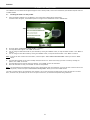
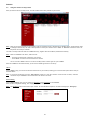
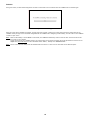
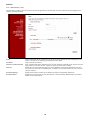
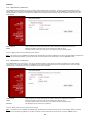
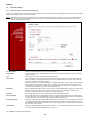
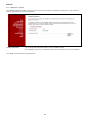
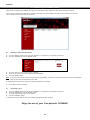
Insert the Product CD-ROM in your CD-ROM drive. The Autorun Menu should appear automatically.
If the Menu does not appear, use Windows Explorer to navigate to the CD-ROM and execute “Autorun.exe”.
B.
C.
D.
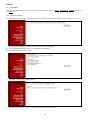
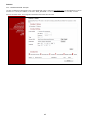
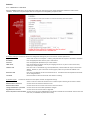
Select the option “Install Grab’n’Go Easy Finder” in the Menu.
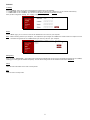
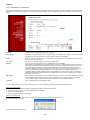
The Setup Wizard will appear. Click “Next” to continue.
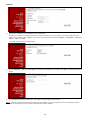
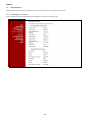
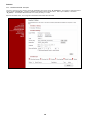
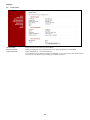
You can change the destination folder on your hard disk by clicking the “Browse” button, or keep the default location. Click “Next” to
continue.
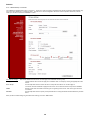
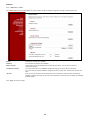
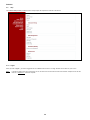
You can change the Start Menu folder by clicking the “Browse” button, or keep the default location. Click “Next” to continue.
E.
Note: If you do not want to add a Start Menu folder, check the option “Don’t create a Start Menu folder” before you click the “Next”
button.
F.
G.
H.
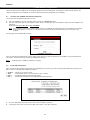
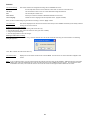
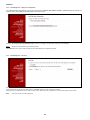
The Setup Wizard allows you to create a desktop and Quick Launch icon. Select which icon(s) you want to create by checking the
options. Click “Next” to continue.
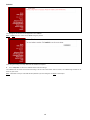
The Setup Wizard is now ready to install the software. Click “Install” to start the installation.
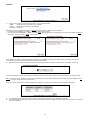
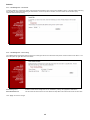
When the installation is ready, click “Finish” to close the Setup Wizard.
Note: The Setup Wizard will automatically start the Grab’n’Go Easy Finder after the installation. If you do not want to start the Grab’n’Go
Easy Finder, uncheck the option “Launch Grab’n’Go Easy Finder” before you click the “Finish” button.
The Grab’n’Go Easy Finder is now installed on your computer. You can start the Grab’n’Go Easy Finder by using the shortcut in the Start
Menu, the shortcut on your desktop or the icon in the Quick Launch bar if you selected those options during installation.
5