1
Getting started with CBLi
1. Starting the CBLi program
2. Window Concepts
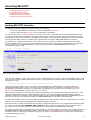
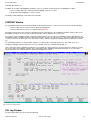
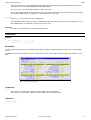
3. CBLi Main Window
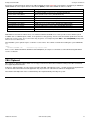
4. Security Considerations
5. CBLi Clipboard
Starting the CBLi program
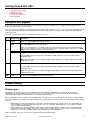
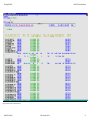
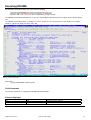
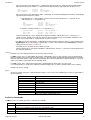
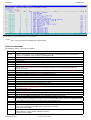
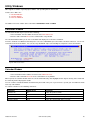
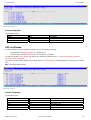
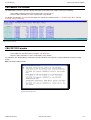
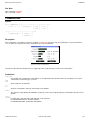
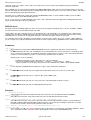
Before you start CBLi you need a mainframe 3270 terminal session. Most people now use a 3270 emulation program from a
workstation rather than a real 3270 terminal.
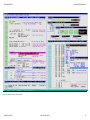
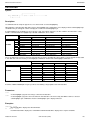
If you are using 3270 emulation we strongly recommend using the largest possible screen size. Screen sizes up to 62x160 for TSO
ISPF (this appears to be the maximum permitted for ISPF) and up to 86x190 for TSO without ISPF, CMS and VTAM (MVS and
VSE) are possible.
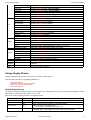
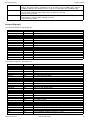
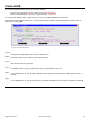
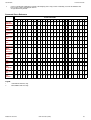
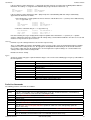
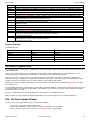
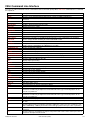
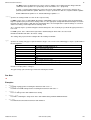
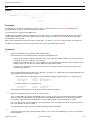
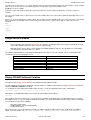
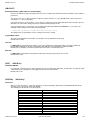
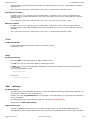
How CBLi is started depends on the environment in which it is to be run:
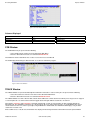
O/S
Environment
Command
TSO/E
Enter the command CBLI at the READY prompt.
ISPF
Enter TSO CBLiI on the ISPF command line.
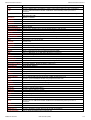
ISPF screen management is used and so CBLi must have first been defined as an ISPF application by
your systems programmer (as described in the CBL Interative installation Guide.) Otherwise enter TSO
CBLi to execute using TSO 3270 screen management.
MVS
VTAM
Enter LOGON APPLID(CBLIVTAM) on a VTAM USS screen.
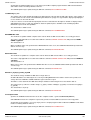
Your installation may have other ways of invoking a VTAM application. Refer to the CBL Interative
installation Guide.
Note: The CBLi VTAM session controller program (CBLIVTAM) must be running and the CBLi VTAM
applid must be active.
VSE
VTAM
Enter LOGON APPLID(CBLIVTAM) on a VTAM USS screen.
Your installation may have other ways of invoking a VTAM application. Refer to the CBL Interative
installation Guide.
Note: The CBLi VTAM session controller program (CBLIVTAM) must be running and the CBLi VTAM
applid must be active.
VM
CMS
Enter the command CBLI on the CMS command line.
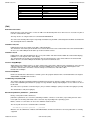
Window Concepts
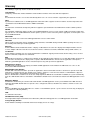
Window types
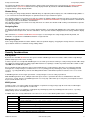
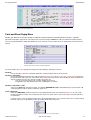
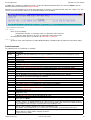
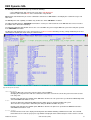
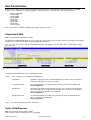
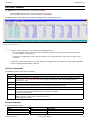
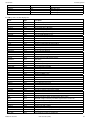
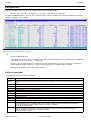
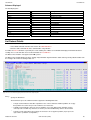
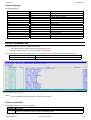
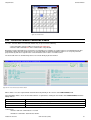
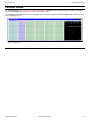
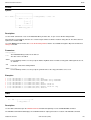
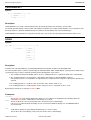
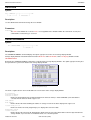
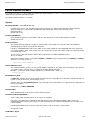
All windows exist in a hierarchy. At the top of the hierarchy is the desktop window which is automatically created during
initialisation. The desktop window covers the whole screeen and cannot be moved, resized or destroyed. All other windows,
including the CBLi application (main) window, are dependents of the desktop.
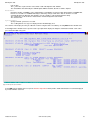
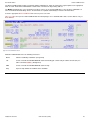
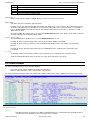
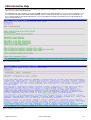
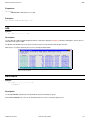
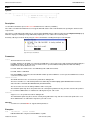
When an application creates a window the new window has to be dependent on an existing window, the parent or owning window.
If the application does not supply an existing window then the desktop window is used by default. This dependency relationship has
2 forms:
• Child window. The dependent window is a child of the existing window which is called its parent. The child window can
only exist within the rectangle defined by its parent's client area. Typically, child windows are used for low level entities
such as buttons and input fields.
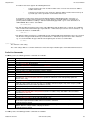
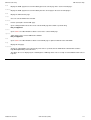
• Owned window. The dependent window is owned by the existing window which is called its owner. The owned window
can be moved all over the display surface but is always infront of (cannot be obscured by) its owner. Typically owned
windows are used for more complex entities such as dialog boxes and help windows.
When a window is destroyed, so are all of its dependent owned and child windows.
2009/07/20 16:03:29
CBL Interactive (CBLi)
2