1
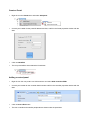
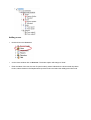
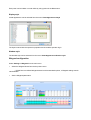
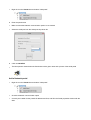
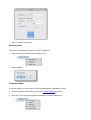
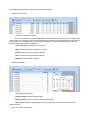
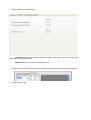
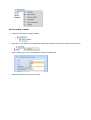
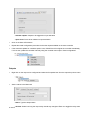
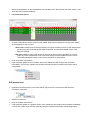
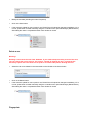
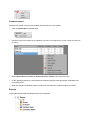
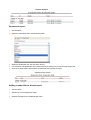
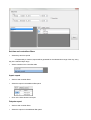
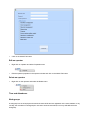
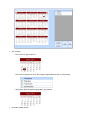
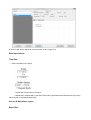
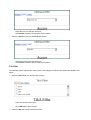
-click on the Clear button.
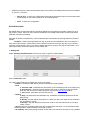
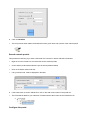
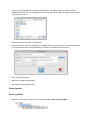
o If you want to save the changes you've made - click on the Save month button otherwise click on Cancel.
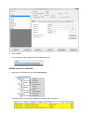
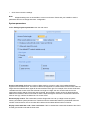
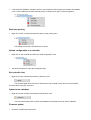
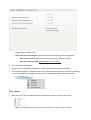
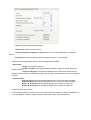
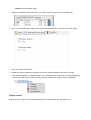
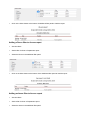
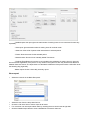
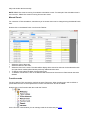
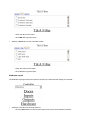
o If you want weekend days to be marked/not marked when setting absences - check/uncheck the
boxes respectively, see below.
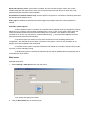
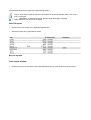
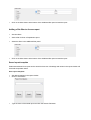
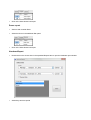
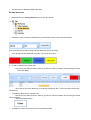
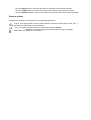
o In order for the absences to appear in the reports, a calculation must be done
- manual calculation - Calculate item from the T&A menu
-Automatic calculation - if set in Settings > T&A from the main menu (the calculation will be made
within the hour set inAutomatic Calculation).
Reports
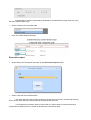
The reports for working hours give estimated cumulative working times for events up until the moment when
the last calculation for the working time was made for the corresponding month. In the event that there new
events or parameter changes for the working hours (workgroups, shifts, holidays) were made since the last
calculation, before generating reports it is necessary to perform a working hour calculation.
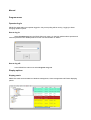
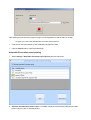
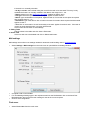
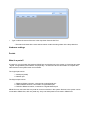
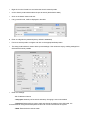
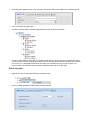
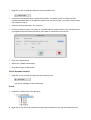
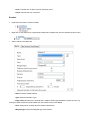
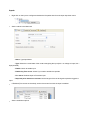
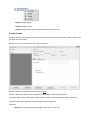
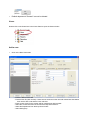
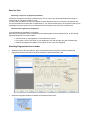
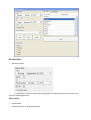
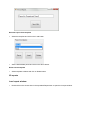
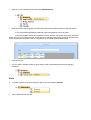
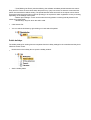
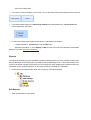
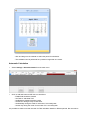
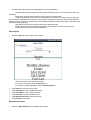
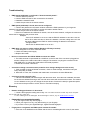
o Double-click on the Reports item under T&A to open the T&A reports window.
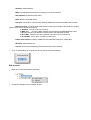
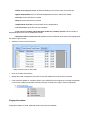
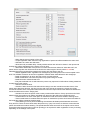
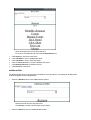
Edit Reports
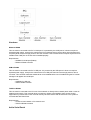
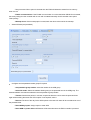
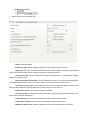
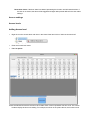
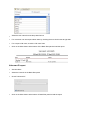
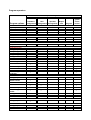
o Set the parameters for T&A reports.