1
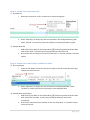
10. Table/Graph – Data Display Area (#10 on page15) – This is where the information is presented
to the user. It could be in the format of a table or a graph. By changing the elements in the
Marks Shelf, the presentation of the data can be changed (e.g. changing from line graph to bar
graph).
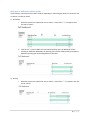
11. Worksheets in the Workbook (#11 on page 15) – a workbook usually contains a number of
worksheets. In the Web Authoring view, users can work on one worksheet at a time to
customize the content. Users can switch to different worksheets by clicking on the various tabs
located on the bottom of the display page. Please pay close attention to which worksheet you
are editing. One clue is that the current worksheet tab is a slightly lighter colour compared to
other tabs (however, it is not easy to tell the difference among gray colours). Another clue is to
check the URL, the ending is the name of the worksheet that is currently being edited.
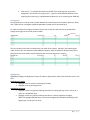
The end of the URL has the name of the worksheet that is currently opened in the
Web Authoring mode. The “%” is a replacement for the space in the worksheet
name. The “#3” at the end has something to do with the versioning of Tableau,
which can be ignored by user.
Example 1: Web Authoring – Add Gender to Professor Headcount Table
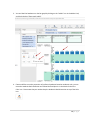
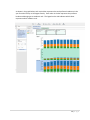
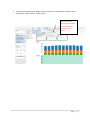
This example demonstrates the steps taken to add the Gender dimension into the Profess Headcount
worksheet using the Web Authoring Interface.
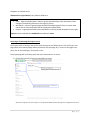
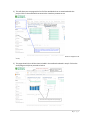
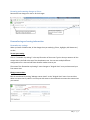
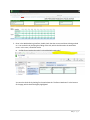
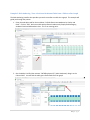
1. In the “U of A Staff project”, find the “UofA Staff Headcount” workbook. Once in the workbook,
navigate to and click on the “UofA Professoriate Headcount by Faculty and Rank” worksheet (5th
tab at the top of the display page). The table shows the professor headcount by Employee
Subcategory (Faculty vs Contingent Faculty) and Academic Rank (Full/Associate/Assistant
Professor). You can further detail the headcount by gender by using Web Authoring. To enter
the Web Authoring Interface, click on the Edit menu under workbook path (top left hand of
display page).
21 | P a g e