1
Mastering SureThing
7
Managing Project Options
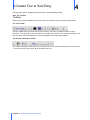
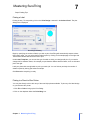
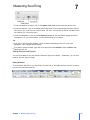
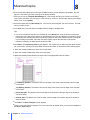
There are a number of options you can change for your project. The Project Options menu lets you set the
individual project properties.
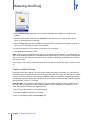
Show Playlist Contents
This toggles the Contents field on or off for the current design. The contents field is typically used for a
description of the contents for the disc you are labeling. For music CDs, SureThing can often automatically
fill the contents field with the song titles from your CD (click here to learn more).
Set Playlist Contents
When importing song titles into your label, there is a variety of information you can include for each song,
such as title, artist, playtime, genre and more. Click here to set the information you want to include on this
label.
Display Playlist Fields / Display Playlist Data
This toggles the view between the playlist's data (ex: Title, Artist, song titles, etc...) and the playlist field
names. (ex: {Title}, {Artist}, {Track: Title}, etc...)
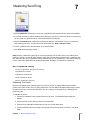
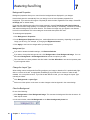
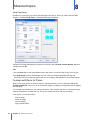
Project Label Types
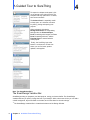
You can add or remove various types of labels from your project. Check label types you want to include,
uncheck those that you want to exclude. Note that the label types must be compatible to be in the same
project. For example, jewel case inserts can be included in the same project as disc labels, but not with
audio tapes.
Printing
Ultimately, printing a label is what SureThing is designed to do. You can print to a paper label, a variety of
disc case inserts, or directly on discs with special printers and disc drives.
In this section, you will learn about:
Printing a Label
Printing to a Direct-to-Disc Printer
Printing to LightScribe drives
Calibrating Your Printer
22
Chapter 7 Mastering SureThing