1
10
56
communi
cation fails.
Problems
3OHDVHFKHFNWKHVHWWLQJRI:+,7(%$/6(783PHQX
* Please check that direction of camera turns toward the Sun.
56&RQWURO3RUW
,QLWLDOYDOXH
121( (1$%/(
%$8'5$7( 8$5702'( 5(73.7
* We recommend that you make ground connection between camera and controller
for safe communication control.
&DPHUD,'
,WHP
3OHDVHFKHFNLIWKHLQLWLDOYDOXHRIWKH56&RPPXQLFDWLRQVHWXSPDWFKHV
between camera and OSD Controller or DVR.
56&RPPXQLFDWLRQHVWDEOLVKPHQWLQLWLDOYDOXH
&RQWURO%RDUG&RQQHFWLRQ3RUW
&211(&7,217(50,1$/75;
&211(&7,217(50,1$/75;
3OHDVHFKHFNWKHSRODULW\EHWZHHQ56&RQWURO3RUWDQG56FDEOH
Troubleshooting
The camera is not working
properly, and the surface of
the camera is hot.
Color is not correct.
The screen flickers
continually.
The image on the screen is
dark.
The image on the screen is
dim.
Troubleshooting
* Please check that the power cord and line connection between
the camera and monitor are fixed properly.
* Please check that you have properly connected VIDEO cable
to the camera VIDEO output jack.
* Is lens stained with dirt? Clean your lens with soft, clean cloth.
* Set the monitor to proper condition.
* if the camera is exposed to too strong light, change the camera
position.
* Adjust the contrast feature of the monitor.
,I\RXKDYHDQLQWHUPHGLDWHGHYLFHVHWWKHȍ+L=SURSHUO\
(Please check the impedance)
* Please check that you have properly connected the camera to
an appropriate power source.
Problems
Nothing appears on the
screen.
If there are problems in operating, please refer to the checklist below. If the problem persists,
please contact the agent where this product is purchased.
7. Troubleshooting guide
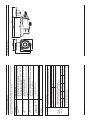
8. Dimension (mm)
11