1
Installing and Removing Dr.Web Anti-virus for Linux
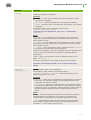
At that, a <file_name> directory with a set of files is created and installation procedure is
automatically started. If not started with root privileges, the Installation Wizard attempts to
elevate the privileges.
Depending on the environment where the distribution is started, one of the following installation
programs runs:
Installation Wizard for graphics mode;
installer for command-line mode.
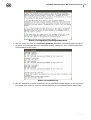
At that, the installer for command-line mode is automatically started if the Installation Wizard for
graphics mode fails to start.
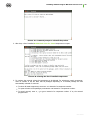
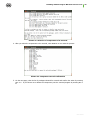
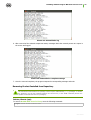
5. Follow the prompts of the installer.
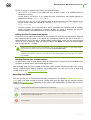
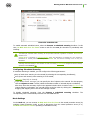
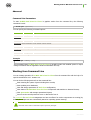
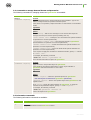
Note that if the used Linux distribution features SELinux, the installation process can be interrupted by
the security subsystem. If such situation occurs, set SELinux to the (Permissive) mode. To do this,
enter the following command:
# setenforce 0
and restart the installer.
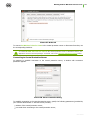
After the installation completes, configure SELinux security policies to enable correct operation of the
Anti-virus components.
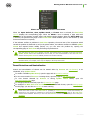
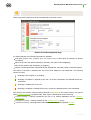
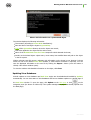
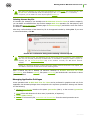
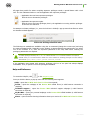
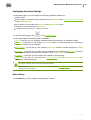
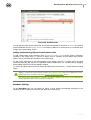
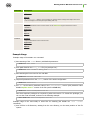
After installation in the desktop graphical shell completes, the Dr.Web item displays on the application
menu. This item contains two items:
Dr.Web for Linux item to run Anti-virus Dr.Web for Linux in graphics mode;
Remove Dr.Web components item to delete the components.
After successful installation you can remove the <file_name> directory with installation files.
Installing in Graphics Mode
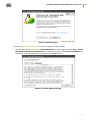
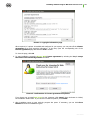
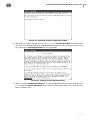
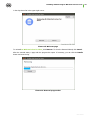
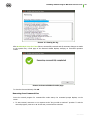
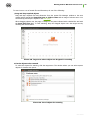
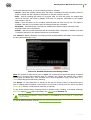
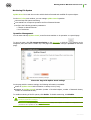
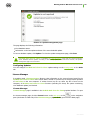
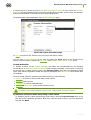
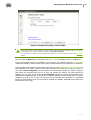
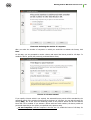
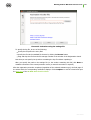
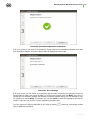
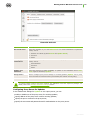
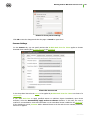
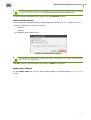
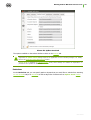
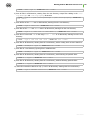
After the installation program for graphics mode starts, a window of the Installation Wizard displays. On
the welcome page, you can select the installation language in the drop-down list in the upper-right
corner.
User manual
21