1
Getting Started with Abaqus: Interactive Edition
Abaqus ID:
Printed on:
Getting Started with Abaqus
Interactive Edition
Version 6.8
Abaqus ID:
Printed on:
Legal Notices
CAUTION: This documentation is intended for qualified users who will exercise sound engineering judgment and expertise in the use of the Abaqus
Software. The Abaqus Software is inherently complex, and the examples and procedures in this documentation are not intended to be exhaustive or to apply
to any particular situation. Users are cautioned to satisfy themselves as to the accuracy and results of their analyses.
Dassault Systèmes and its subsidiaries, including Dassault Systèmes Simulia Corp., shall not be responsible for the accuracy or usefulness of any analysis
performed using the Abaqus Software or the procedures, examples, or explanations in this documentation. Dassault Systèmes and its subsidiaries shall not
be responsible for the consequences of any errors or omissions that may appear in this documentation.
DASSAULT SYSTÈMES AND ITS SUBSIDIARIES DISCLAIM ALL EXPRESS OR IMPLIED REPRESENTATIONS AND WARRANTIES,
INCLUDING ANY IMPLIED WARRANTY OF MERCHANTABILITY OR FITNESS FOR A PARTICULAR PURPOSE OF THE CONTENTS OF
THIS DOCUMENTATION.
IN NO EVENT SHALL DASSAULT SYSTÈMES, ITS SUBSIDIARIES, OR THEIR THIRD-PARTY PROVIDERS BE LIABLE FOR ANY INDIRECT,
INCIDENTAL, PUNITIVE, SPECIAL, OR CONSEQUENTIAL DAMAGES (INCLUDING, WITHOUT LIMITATION, DAMAGES FOR LOSS
OF BUSINESS PROFITS, BUSINESS INTERRUPTION, OR LOSS OF BUSINESS INFORMATION) EVEN IF DASSAULT SYSTÈMES OR ITS
SUBSIDIARY HAS BEEN ADVISED OF THE POSSIBILITY OF SUCH DAMAGES.
The Abaqus Software is available only under license from Dassault Systèmes or its subsidiary and may be used or reproduced only in accordance with the
terms of such license.
This documentation and the software described in this documentation are subject to change without prior notice.
No part of this documentation may be reproduced or distributed in any form without prior written permission of Dassault Systèmes or its subsidiary.
Export and re-export of the Abaqus Software and this documentation is subject to United States and other export control regulations. Each user is responsible
for compliance with applicable export regulations.
The Abaqus Software is a product of Dassault Systèmes Simulia Corp., Providence, RI, USA.
© Dassault Systèmes, 2008
Printed in the United States of America.
U.S. GOVERNMENT USERS: The Abaqus Software and its documentation are “commercial items,” specifically “commercial computer software” and
“commercial computer software documentation” and, consistent with FAR 12.212 and DFARS 227.7202, as applicable, are provided with restricted rights
in accordance with license terms.
Abaqus, the 3DS logo, SIMULIA, and CATIA are trademarks or registered trademarks of Dassault Systèmes or its subsidiaries in the United States and/or
other countries.
Other company, product, and service names may be trademarks or service marks of their respective owners. For additional information
concerning trademarks, copyrights, and licenses, see the Legal Notices in the Abaqus Version 6.8 Release Notes and the notices at:
http://www.simulia.com/products/products_legal.html.
Abaqus ID:
Printed on:
Offices and Representatives
SIMULIA Worldwide Headquarters
SIMULIA European Headquarters
Rising Sun Mills, 166 Valley Street, Providence, RI 02909–2499, Tel: +1 401 276 4400,
Fax: +1 401 276 4408, [email protected], http://www.simulia.com
Gaetano Martinolaan 95, P. O. Box 1637, 6201 BP Maastricht, The Netherlands, Tel: +31 43 356 6906,
Fax: +31 43 356 6908, [email protected]
Sales, Support, and Services
North America
Argentina
Australia
Austria
Benelux
Brazil
Czech Republic
France
Germany
India
Israel
Italy
Japan
Korea
Malaysia
New Zealand
Poland
Russia, Belarus & Ukraine
Scandinavia
Singapore
South Africa
Spain
Taiwan
Thailand
Turkey
United Kingdom
Abaqus ID:
Printed on:
Central, West Lafayette, IN, Tel: +1 765 497 1373, [email protected]
Central, Cincinnati, West Chester, OH, Tel: +1 513 275 1430, [email protected]
Central, Minneapolis/St. Paul, Woodbury, MN, Tel: +1 612 424 9044, [email protected]
East, Warwick, RI, Tel: +1 401 739 3637, [email protected]
Erie, Beachwood, OH, Tel: +1 216 378 1070, [email protected]
Great Lakes, Northville, MI, Tel: +1 248 349 4669, [email protected]
South, Lewisville, TX, Tel: +1 972 221 6500, [email protected]
West, Fremont, CA, Tel: +1 510 794 5891, [email protected]
Dassault Systèmes Latin America, Buenos Aires, Tel: +54 11 4345 2360, [email protected]
Dassault Systèmes Australia Pty. Ltd., Richmond VIC, Tel: +61 3 9421 2900, [email protected]
Vienna, Tel: +43 1 929 16 25-0, [email protected]
Huizen, The Netherlands, Tel: +31 35 52 58 424, [email protected]
SMARTtech Mecânica, São Paulo SP, Tel: +55 11 3168 3388, [email protected]
SMARTtech Mecânica, Rio de Janeiro RJ, Tel: + 55 21 3852 2360, [email protected]
Synerma s. r. o., Psáry, Tel: +420 603 145 769, [email protected]
Versailles, Tel: +33 1 39 24 15 40, [email protected]
Aachen, Tel: +49 241 474010, [email protected]
München, Tel: +49 89 5434 8770, [email protected]
Teynampet, Chennai, Tel: +91 44 65651590, [email protected]
ADCOM, Givataim, Tel: +972 54 6830290, [email protected]
Italy, Milano, Tel: +39 02 39211211, [email protected]
Tokyo, Tel: +81 3 5474 5817, [email protected]
Osaka, Tel: +81 6 4803 5020, [email protected]
Mapo-Gu, Seoul, Tel: +82 2 785 6707, [email protected]
WorleyParsons Advanced Analysis, Kuala Lumpur, Tel: +60 3 2161 2266, [email protected]
Matrix Applied Computing Ltd., Auckland, Tel: +64 9 623 1223, [email protected]
BudSoft Sp. z o.o., Sw. Marcin, Tel: +48 61 8508 466, [email protected]
TESIS Ltd., Moscow, Russia, Tel: +7 495 612 4422, [email protected]
Västerås, Sweden, Tel: +46 21 150870, [email protected]
WorleyParsons Advanced Analysis, Singapore, Tel: +65 6735 8444, [email protected]
Finite Element Analysis Services (Pty) Ltd., Mowbray, Tel: +27 21 448 7608, [email protected]
Principia Ingenieros Consultores, S.A., Madrid, Tel: +34 91 209 1482, [email protected]
APIC, Taipei, Tel: +886 02 25083066, [email protected]
WorleyParsons Advanced Analysis Group, Bangkok, Tel: +66 2 689 3000, [email protected]
A-Ztech Ltd., Istanbul, Tel: +90 216 361 8850, [email protected]
Sevenoaks, Kent, Tel: +44 1 925 830900, [email protected]
Warrington, Tel: +44 1 925 830900, [email protected]
Sales Only
North America
Finland
India
Great Lakes Canada, Toronto, ON, Canada, Tel: +1 416 402 2219, [email protected]
East, Mid-Atlantic, Forest Hill, MD, Tel: +1 410 420 8587, [email protected]
South, Southeast, Acworth, GA, Tel: +1 770 795 0960, [email protected]
West, Southern CA and AZ, Tustin, CA, Tel: +1 714 731 5895, [email protected]
West, Rocky Mountains, Boulder, CO, Tel: +1 303 664 5444, [email protected]
Vantaa, Tel: +358 9 2517 8157, [email protected]
New Delhi, Tel: +91 11 55171877, [email protected]
Pune, Tel: +91 20 32913739, [email protected]
China Representative Offices
China
Chaoyang District, Beijing, P. R. China, Tel: +86 10 65362345, [email protected]
Rudong District, Shanghai, P. R. China, Tel: +86 21 5888 0101, [email protected]
Complete contact information is available at http://www.simulia.com/about/locations.html.
Abaqus ID:
Printed on:
CONTENTS
Contents
1.
Introduction
The Abaqus products
Getting started with Abaqus
Abaqus documentation
Getting help
Support
A quick review of the finite element method
2.
1.1
1.2
1.3
1.4
1.5
1.6
Abaqus Basics
Components of an Abaqus analysis model
Introduction to Abaqus/CAE
Example: creating a model of an overhead hoist
Comparison of implicit and explicit procedures
Summary
3.
Finite Elements and Rigid Bodies
Finite elements
Rigid bodies
Summary
4.
3.1
3.2
3.3
Using Continuum Elements
Element formulation and integration
Selecting continuum elements
Example: connecting lug
Mesh convergence
Related Abaqus examples
Suggested reading
Summary
5.
2.1
2.2
2.3
2.4
2.5
4.1
4.2
4.3
4.4
4.5
4.6
4.7
Using Shell Elements
Element geometry
Shell formulation – thick or thin
Shell material directions
Selecting shell elements
Example: skew plate
Related Abaqus examples
5.1
5.2
5.3
5.4
5.5
5.6
v
Abaqus ID:gsa-toc
Printed on: Thu April 10 -- 8:52:52 2008
CONTENTS
Suggested reading
Summary
6.
5.7
5.8
Using Beam Elements
Beam cross-section geometry
Formulation and integration
Selecting beam elements
Example: cargo crane
Related Abaqus examples
Suggested reading
Summary
7.
6.1
6.2
6.3
6.4
6.5
6.6
6.7
Linear Dynamics
Introduction
Damping
Element selection
Mesh design for dynamics
Example: cargo crane under dynamic loading
Effect of the number of modes
Effect of damping
Comparison with direct time integration
Other dynamic procedures
Related Abaqus examples
Suggested reading
Summary
8.
7.1
7.2
7.3
7.4
7.5
7.6
7.7
7.8
7.9
7.10
7.11
7.12
Nonlinearity
Sources of nonlinearity
The solution of nonlinear problems
Including nonlinearity in an Abaqus analysis
Example: nonlinear skew plate
Related Abaqus examples
Suggested reading
Summary
9.
8.1
8.2
8.3
8.4
8.5
8.6
8.7
Nonlinear Explicit Dynamics
Types of problems suited for Abaqus/Explicit
Explicit dynamic finite element methods
Automatic time incrementation and stability
Example: stress wave propagation in a bar
Damping of dynamic oscillations
9.1
9.2
9.3
9.4
9.5
vi
Abaqus ID:gsa-toc
Printed on: Thu April 10 -- 8:52:52 2008
CONTENTS
Energy balance
Summary
10.
9.6
9.7
Materials
Defining materials in Abaqus
Plasticity in ductile metals
Selecting elements for elastic-plastic problems
Example: connecting lug with plasticity
Example: blast loading on a stiffened plate
Hyperelasticity
Example: axisymmetric mount
Mesh design for large distortions
Techniques for reducing volumetric locking
Related Abaqus examples
Suggested reading
Summary
11.
10.1
10.2
10.3
10.4
10.5
10.6
10.7
10.8
10.9
10.10
10.11
10.12
Multiple Step Analysis
General analysis procedures
Linear perturbation analysis
Example: vibration of a piping system
Restart analysis
Example: restarting the pipe vibration analysis
Related Abaqus examples
Summary
12.
11.1
11.2
11.3
11.4
11.5
11.6
11.7
Contact
Overview of contact capabilities in Abaqus
Defining surfaces
Interaction between surfaces
Defining contact in Abaqus/Standard
Modeling issues for rigid surfaces in Abaqus/Standard
Abaqus/Standard 2-D example: forming a channel
Defining contact in Abaqus/Explicit
Modeling considerations in Abaqus/Explicit
Abaqus/Explicit example: circuit board drop test
Compatibility between Abaqus/Standard and Abaqus/Explicit
Related Abaqus examples
Suggested reading
Summary
vii
Abaqus ID:gsa-toc
Printed on: Thu April 10 -- 8:52:52 2008
12.1
12.2
12.3
12.4
12.5
12.6
12.7
12.8
12.9
12.10
12.11
12.12
12.13
CONTENTS
13.
Quasi-Static Analysis with Abaqus/Explicit
Analogy for explicit dynamics
Loading rates
Mass scaling
Energy balance
Example: forming a channel in Abaqus/Explicit
Summary
A.
Example Files
Overhead hoist frame
Connecting lug
Skew plate
Cargo crane
Cargo crane – dynamic loading
Nonlinear skew plate
Stress wave propagation in a bar
Connecting lug with plasticity
Blast loading on a stiffened plate
Axisymmetric mount
Vibration of a piping system
Forming a channel
Circuit board drop test
B.
A.1
A.2
A.3
A.4
A.5
A.6
A.7
A.8
A.9
A.10
A.11
A.12
A.13
Creating and Analyzing a Simple Model in Abaqus/CAE
Understanding Abaqus/CAE modules
Understanding the Model Tree
Creating a part
Creating a material
Defining and assigning section properties
Assembling the model
Defining your analysis steps
Applying a boundary condition and a load to the model
Meshing the model
Creating and submitting an analysis job
Viewing the results of your analysis
Summary
C.
13.1
13.2
13.3
13.4
13.5
13.6
B.1
B.2
B.3
B.4
B.5
B.6
B.7
B.8
B.9
B.10
B.11
B.12
Using Additional Techniques to Create and Analyze a Model in Abaqus/CAE
Overview
Creating the first hinge piece
C.1
C.2
viii
Abaqus ID:gsa-toc
Printed on: Thu April 10 -- 8:52:52 2008
CONTENTS
Assigning section properties to the hinge part
Creating and modifying a second hinge piece
Creating the pin
Assembling the model
Defining analysis steps
Creating surfaces to use in contact interactions
Defining contact between regions of the model
Applying boundary conditions and loads to the assembly
Meshing the assembly
Creating and submitting a job
Viewing the results of your analysis
Summary
D.
C.3
C.4
C.5
C.6
C.7
C.8
C.9
C.10
C.11
C.12
C.13
C.14
Viewing the Output from Your Analysis
Overview
Which variables are in the output database?
Reading the output database
Customizing a model plot
Displaying the deformed model shape
Displaying and customizing a contour plot
Animating a contour plot
Displaying and customizing a symbol plot
Displaying and customizing a material orientation plot
Displaying and customizing an X–Y plot
Operating on X–Y data
Probing an X–Y plot
Displaying results along a path
Summary
ix
Abaqus ID:gsa-toc
Printed on: Thu April 10 -- 8:52:52 2008
D.1
D.2
D.3
D.4
D.5
D.6
D.7
D.8
D.9
D.10
D.11
D.12
D.13
D.14
THE Abaqus PRODUCTS
1.
Introduction
Abaqus is a suite of powerful engineering simulation programs, based on the finite element method, that
can solve problems ranging from relatively simple linear analyses to the most challenging nonlinear
simulations. Abaqus contains an extensive library of elements that can model virtually any geometry.
It has an equally extensive list of material models that can simulate the behavior of most typical
engineering materials including metals, rubber, polymers, composites, reinforced concrete, crushable
and resilient foams, and geotechnical materials such as soils and rock. Designed as a general-purpose
simulation tool, Abaqus can be used to study more than just structural (stress/displacement) problems.
It can simulate problems in such diverse areas as heat transfer, mass diffusion, thermal management of
electrical components (coupled thermal-electrical analyses), acoustics, soil mechanics (coupled pore
fluid-stress analyses), and piezoelectric analysis.
Abaqus offers a wide range of capabilities for simulation of linear and nonlinear applications.
Problems with multiple components are modeled by associating the geometry defining each component
with the appropriate material models and specifying component interactions. In a nonlinear analysis
Abaqus automatically chooses appropriate load increments and convergence tolerances and continually
adjusts them during the analysis to ensure that an accurate solution is obtained efficiently.
1.1
The Abaqus products
Abaqus consists of two main analysis products—Abaqus/Standard and Abaqus/Explicit. There are also
four special-purpose add-on analysis products for Abaqus/Standard—Abaqus/Aqua, Abaqus/Design,
Abaqus/AMS, and Abaqus/Foundation. Abaqus/CAE is the complete Abaqus environment that
includes capabilities for creating Abaqus models, interactively submitting and monitoring Abaqus
jobs, and evaluating results. Abaqus/Viewer is a subset of Abaqus/CAE that includes just the
postprocessing functionality. In addition, the Abaqus Interface for Moldflow and the Abaqus Interface
for MSC.ADAMS are interfaces to Moldflow and ADAMS/Flex, respectively. Abaqus also provides
translators that convert geometry from third-party CAD systems to models for Abaqus/CAE, convert
entities from third-party preprocessors to input for Abaqus analyses, and that convert output from
Abaqus analyses to entities for third-party postprocessors. The relationship between these products is
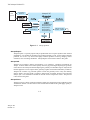
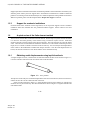
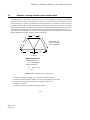
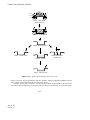
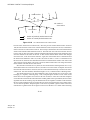
shown in Figure 1–1.
Abaqus/Standard
Abaqus/Standard is a general-purpose analysis product that can solve a wide range of linear and
nonlinear problems involving the static, dynamic, thermal, and electrical response of components.
This product is discussed in detail in this guide. Abaqus/Standard solves a system of equations
implicitly at each solution “increment.” In contrast, Abaqus/Explicit marches a solution forward
through time in small time increments without solving a coupled system of equations at each
increment (or even forming a global stiffness matrix).
1–1
Abaqus ID:
Printed on:
THE Abaqus PRODUCTS
CAD
Systems
Associative
interfaces
Abaqus/CAE
(Abaqus/Viewer)
Abaqus/Standard
Abaqus/Explicit
Abaqus/Aqua
Abaqus/AMS
Abaqus/Design
Abaqus Interface
for Moldflow
Moldflow
Figure 1–1
Abaqus Interface
for MSC. ADAMS
Abaqus products.
Abaqus/Explicit
Abaqus/Explicit is a special-purpose analysis product that uses an explicit dynamic finite element
formulation. It is suitable for modeling brief, transient dynamic events, such as impact and blast
problems, and is also very efficient for highly nonlinear problems involving changing contact
conditions, such as forming simulations. Abaqus/Explicit is discussed in detail in this guide.
Abaqus/CAE
Abaqus/CAE (Complete Abaqus Environment) is an interactive, graphical environment for
Abaqus. It allows models to be created quickly and easily by producing or importing the geometry
of the structure to be analyzed and decomposing the geometry into meshable regions. Physical and
material properties can be assigned to the geometry, together with loads and boundary conditions.
Abaqus/CAE contains very powerful options to mesh the geometry and to verify the resulting
analysis model. Once the model is complete, Abaqus/CAE can submit, monitor, and control the
analysis jobs. The Visualization module can then be used to interpret the results. Abaqus/CAE
is discussed in this guide.
Abaqus/Viewer
Abaqus/Viewer is a subset of Abaqus/CAE that contains only the postprocessing capabilities of the
Visualization module. The discussions of the Visualization module in this guide apply equally to
Abaqus/Viewer.
1–2
Abaqus ID:
Printed on:
THE Abaqus PRODUCTS
Abaqus/Aqua
Abaqus/Aqua is a set of optional capabilities that can be added to Abaqus/Standard. It is intended
for the simulation of offshore structures, such as oil platforms. Some of the optional capabilities
include the effects of wave and wind loading and buoyancy. Abaqus/Aqua is not discussed in this
guide.
Abaqus/Design
Abaqus/Design is a set of optional capabilities that can be added to Abaqus/Standard to perform
design sensitivity calculations. Abaqus/Design is not discussed in this guide.
Abaqus/AMS
Abaqus/AMS is an optional capability that can be added to Abaqus/Standard. It uses the automatic
multi-level substructuring (AMS) eigensolver during a natural frequency extraction. Abaqus/AMS
is not discussed in this guide.
Abaqus/Foundation
Abaqus/Foundation offers more efficient access to the linear static and dynamic analysis
functionality in Abaqus/Standard. Abaqus/Foundation is not discussed in this guide.
Abaqus Interface for Moldflow
The Abaqus Interface for Moldflow translates finite element model information from a Moldflow
analysis to write a partial Abaqus input file. The Abaqus Interface for Moldflow is not discussed in
this guide.
Abaqus Interface for MSC.ADAMS
The Abaqus Interface for MSC.ADAMS allows Abaqus finite element models to be included as
flexible components within the MSC.ADAMS family of products. The interface is based on the
component mode synthesis formulation of ADAMS/Flex. The Abaqus Interface for MSC.ADAMS
is not discussed in this guide.
Geometry translators
Abaqus provides the following translators for converting geometry from third-party CAD systems
to parts and assemblies for Abaqus/CAE:
•
The CATIA V5 Associative Interface creates a link between CATIA V5 and Abaqus/CAE
that allows you to transfer model data and propagate design changes from CATIA V5 to
Abaqus/CAE.
•
The SolidWorks Associative Interface creates a link between SolidWorks and Abaqus/CAE
that allows you to transfer model data and propagate design changes from SolidWorks to
Abaqus/CAE.
1–3
Abaqus ID:
Printed on:
GETTING STARTED WITH Abaqus
•
The Pro/ENGINEER Associative Interface creates a link between Pro/ENGINEER and
Abaqus/CAE that allows you to transfer model data and propagate design changes between
Pro/ENGINEER and Abaqus/CAE.
•
The Geometry Translator for CATIA V4 allows you to import the geometry of CATIA V4format parts and assemblies directly into Abaqus/CAE.
•
The Geometry Translator for I-DEAS converts parts and assemblies in I-DEAS to geometry
files that can be imported by Abaqus/CAE.
•
The Geometry Translator for Parasolid allows you to import the geometry of Parasolid-format
parts and assemblies directly into Abaqus/CAE.
The geometry translators are not discussed in this guide.
Translator utilities
Abaqus provides the following translators for converting entities from third-party preprocessors to
input for Abaqus analyses or for converting output from Abaqus analyses to entities for third-party
postprocessors:
•
•
•
•
•
abaqus fromnastran translates a NASTRAN bulk data file to an Abaqus input file.
•
abaqus tozaero enables the exchange of aeroelastic data between Abaqus and ZAERO.
abaqus frompamcrash translates a PAM-CRASH input file into an Abaqus input file.
abaqus fromradioss translates a RADIOSS input file into an Abaqus input file.
abaqus tonastran translates an Abaqus input file to NASTRAN bulk data file format.
abaqus toOutput2 translates an Abaqus output database file to the NASTRAN Output2 file
format.
The translator utilities are not discussed in this guide.
1.2
Getting started with Abaqus
This guide is an introductory text designed to give new users guidance in creating solid, shell, beam, and
truss models with Abaqus/CAE, analyzing these models with Abaqus/Standard and Abaqus/Explicit, and
viewing the results in the Visualization module. You do not need any previous knowledge of Abaqus to
benefit from this guide, although some previous exposure to the finite element method is recommended.
If you are already familiar with the Abaqus solver products (Abaqus/Standard or Abaqus/Explicit) but
would like an introduction to the Abaqus/CAE interface, three tutorials are provided in the appendices
of this manual to lead you through the modeling process in Abaqus/CAE.
This document covers only stress/displacement simulations, concentrating on both linear and
nonlinear static analyses as well as dynamic analyses. Other types of simulations, such as heat transfer
and mass diffusion, are not covered.
1–4
Abaqus ID:
Printed on:
GETTING STARTED WITH Abaqus
1.2.1
How to use this guide
The different sections of this manual are addressed to different types of users.
Tutorials for new Abaqus users
If you are completely new to Abaqus, we recommend that you follow each of the self-paced tutorials
in this manual. Each of the chapters in this guide introduces one or more topics relevant to using
Abaqus/Standard and Abaqus/Explicit. Throughout the manual the term Abaqus is used to refer
collectively to both Abaqus/Standard and Abaqus/Explicit; the individual product names are used
when information applies to only one product. Most chapters contain a short discussion of the topic
or topics being considered and one or two tutorial examples. You should work through the examples
carefully since they contain a great deal of practical advice on using Abaqus.
The capabilities of Abaqus/CAE are introduced gradually in these examples. It is assumed
that you will use Abaqus/CAE to create the models used in the examples. You can also generate the
model for any example using a script that replicates the complete analysis model for the problem.
Scripts are available in two locations:
•
•
A Python script is provided for each example in Appendix A, “Example Files.” The same
section also provides instructions on how to fetch the script and run it within Abaqus/CAE.
Abaqus/CAE plug-in scripts are provided for each example in the Getting Started Examples
dialog box of the Abaqus/CAE Plug-in toolset. For more information about running these
scripts, see “Running the Getting Started with Abaqus examples,” Section 63.1 of the
Abaqus/CAE User’s Manual, in the online HTML version of this manual.
If you do not have access to Abaqus/CAE or another preprocessor, you can use the companion
volume, Getting Started with Abaqus: Keywords Edition, to create the input files needed for most
of the examples manually.
This chapter is a short introduction to Abaqus and this guide. Chapter 2, “Abaqus Basics,”
which is centered around a simple example, covers the basics of using Abaqus. By the end of
Chapter 2, “Abaqus Basics,” you will know the fundamentals of how to prepare a model for an
Abaqus simulation, check the data, run the analysis job, and view the results.
Chapter 3, “Finite Elements and Rigid Bodies,” presents an overview of the main element
families available in Abaqus. The use of continuum (solid) elements, shell elements, and beam
elements is discussed in Chapter 4, “Using Continuum Elements”; Chapter 5, “Using Shell
Elements”; and Chapter 6, “Using Beam Elements”; respectively.
Linear dynamic analyses are discussed in Chapter 7, “Linear Dynamics.” Chapter 8,
“Nonlinearity,” introduces the concept of nonlinearity in general, and geometric nonlinearity in
particular, and contains the first nonlinear Abaqus simulation. Nonlinear dynamic analyses are
discussed in Chapter 9, “Nonlinear Explicit Dynamics,” and material nonlinearity is introduced in
Chapter 10, “Materials.” Chapter 11, “Multiple Step Analysis,” introduces the concept of multistep
simulations, and Chapter 12, “Contact,” discusses the many issues that arise in contact analyses.
Using Abaqus/Explicit to solve quasi-static problems is presented in Chapter 13, “Quasi-Static
1–5
Abaqus ID:
Printed on:
GETTING STARTED WITH Abaqus
Analysis with Abaqus/Explicit.” The illustrative example is a sheet metal forming simulation,
which requires importing between Abaqus/Explicit and Abaqus/Standard to perform the forming
and springback analyses efficiently.
You may find it easier to follow the printed version of these tutorial examples. This approach
reduces clutter on the screen and allow you to focus on the task at hand. If you do follow the tutorials
online, you should resize and move the Abaqus/CAE window and your web browser so both are
visible while you work through a tutorial.
Abaqus/CAE tutorials for experienced Abaqus users
Three appendices are provided to introduce users familiar with the Abaqus solver products to the
Abaqus/CAE interface. In Appendix B, “Creating and Analyzing a Simple Model in Abaqus/CAE,”
you create a simple model, analyze it, and then view the results. The second tutorial, Appendix C,
“Using Additional Techniques to Create and Analyze a Model in Abaqus/CAE,” is more complex
and illustrates how parts, sketches, datum geometry, and partitions work together and how you
assemble part instances. Appendix D, “Viewing the Output from Your Analysis,” demonstrates
how you can use the Visualization module (also licensed separately as Abaqus/Viewer) to display
your results in a variety of formats and how you can customize the display.
1.2.2
Conventions used in this guide
Different text styles used in the tutorial examples follow:
•
Input in COURIER FONT should be typed into Abaqus/CAE or your computer exactly as shown.
For example,
abaqus cae
•
would be typed on your computer to run Abaqus/CAE.
Menu selections, tabs within dialog boxes, and labels of items on the screen in Abaqus/CAE are
indicated in bold:
View→Graphics Options
Contour Plot Options
1.2.3
Basic mouse actions
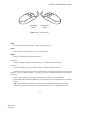
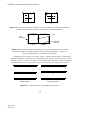
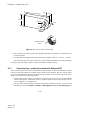
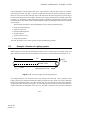
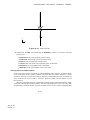
Figure 1–2 shows the mouse button orientation for a left-handed and a right-handed 3-button mouse.The
following terms describe actions you perform using the mouse:
Click
Press and quickly release the mouse button. Unless otherwise specified, the instruction “click”
means that you should click mouse button 1.
1–6
Abaqus ID:
Printed on:
GETTING STARTED WITH Abaqus
3
3
2
2
1
1
left-handed
mouse
Figure 1–2
right-handed
mouse
Mouse buttons.
Drag
Press and hold down mouse button 1 while moving the mouse.
Point
Move the mouse until the cursor is over the desired item.
Select
Point to an item and then click mouse button 1.
[Shift]+Click
Press and hold the [Shift] key, click mouse button 1, and then release the [Shift] key.
[Ctrl]+Click
Press and hold the [Ctrl] key, click mouse button 1, and then release the [Ctrl] key.
Abaqus/CAE is designed for use with a 3-button mouse. Accordingly, this manual refers to mouse
buttons 1, 2, and 3 as shown in Figure 1–2. However, you can use Abaqus/CAE with a 2-button mouse
as follows:
•
•
The two mouse buttons are equivalent to mouse buttons 1 and 3 on a 3-button mouse.
Pressing both mouse buttons simultaneously is equivalent to pressing mouse button 2 on a 3-button
mouse.
Tip: You are instructed to click mouse button 2 in procedures throughout this manual. Make
sure that you configure mouse button 2 (or the wheel button) to act as a middle button click.
1–7
Abaqus ID:
Printed on:
Abaqus DOCUMENTATION
1.3
Abaqus documentation
The documentation for Abaqus is extensive and complete. The following documentation and
publications are available from Abaqus, unless otherwise specified, in printed form, through the Abaqus
online HTML documentation, and in PDF format. For more information on accessing the online HTML
books, refer to the discussion of execution procedures in the Abaqus Analysis User’s Manual.
Abaqus Analysis User’s Manual
This volume contains a complete description of the elements, material models, procedures, input
specifications, etc. It is the basic reference document for Abaqus/Standard and Abaqus/Explicit, and
it provides both input file usage and Abaqus/CAE usage information. This guide regularly refers
to the Abaqus Analysis User’s Manual, so you should have it available as you work through the
examples.
Abaqus/CAE User’s Manual
This online-only manual for Abaqus/CAE includes detailed descriptions of how to use Abaqus/CAE
for model generation, analysis, and results evaluation and visualization. Abaqus/Viewer users
should refer to the information on the Visualization module in this manual.
Other documentation available from Abaqus:
Abaqus Example Problems Manual
This manual contains detailed examples designed to illustrate the approaches and decisions needed
to perform meaningful linear and nonlinear analysis. Many of the examples are worked with several
different element types, mesh densities, and other variations. Typical cases are large motion of an
elastic-plastic pipe hitting a rigid wall; inelastic buckling collapse of a thin-walled elbow; explosive
loading of an elastic, viscoplastic thin ring; consolidation under a footing; buckling of a composite
shell with a hole; and deep drawing of a metal sheet. It is generally useful to look for relevant
examples in this manual and to review them when embarking on a new class of problem.
When you want to use a feature that you have not used before, you should look up one or more
examples that use that feature. Then, use the example to familiarize yourself with the correct usage
of the capability. To find an example that uses a certain feature, search the online documentation or
use the abaqus findkeyword utility (see “Execution procedure for querying the keyword/problem
database,” Section 3.2.11 of the Abaqus Analysis User’s Manual, for more information).
All the input files associated with the examples are provided as part of the Abaqus installation.
The abaqus fetch utility is used to extract sample Abaqus input files from the compressed
archive files provided with the release (see “Execution procedure for fetching sample input files,”
Section 3.2.12 of the Abaqus Analysis User’s Manual, for more information). You can fetch any
of the example files so that you can run the simulations yourself and review the results. You can
also access the input files through the hyperlinks in the Abaqus Example Problems Manual.
1–8
Abaqus ID:
Printed on:
Abaqus DOCUMENTATION
Abaqus Benchmarks Manual
This online-only volume contains benchmark problems and analyses used to evaluate the
performance of Abaqus; the tests are multiple element tests of simple geometries or simplified
versions of real problems. The NAFEMS benchmark problems are included in this manual.
Abaqus Verification Manual
This online-only volume contains basic test cases, providing verification of each individual program
feature (procedures, output options, MPCs, etc.) against exact calculations and other published
results. It may be useful to run these problems when learning to use a new capability. In addition, the
supplied input data files provide good starting points to check the behavior of elements, materials,
etc.
Abaqus Theory Manual
This online-only volume contains detailed, precise discussions of all theoretical aspects of Abaqus.
It is written to be understood by users with an engineering background.
Abaqus Keywords Reference Manual
This volume contains a complete description of all the input options that are available in
Abaqus/Standard and Abaqus/Explicit.
Abaqus User Subroutines Reference Manual
This online-only volume contains a complete description of all the user subroutines available for
use in Abaqus analyses. It also discusses the utility routines that can be used when writing user
subroutines.
Abaqus Glossary
This online-only glossary defines technical terms as they apply to the Abaqus Unified FEA Product
Suite.
Abaqus Release Notes
This document contains brief descriptions of the new features available in the latest release of the
Abaqus product line.
Abaqus Installation and Licensing Guide
This document describes how to install Abaqus and how to configure the installation for particular
circumstances. Some of this information, of most relevance to users, is also provided in the
Abaqus Analysis User’s Manual.
Quality Assurance Plan
This document describes the QA procedures followed by SIMULIA. It is a controlled document,
provided to customers who subscribe to either the Nuclear QA Program or the Quality Monitoring
Service.
1–9
Abaqus ID:
Printed on:
GETTING HELP
Lecture Notes
These notes are available on many topics to which Abaqus is applied. They are used in the technical
seminars that are presented to help users improve their understanding and usage of Abaqus. While
not intended as stand-alone tutorial material, they are sufficiently comprehensive that they can
usually be used in that mode. The list of available lecture notes is included in the Documentation
Price List or can be found on the Products page at www.simulia.com.
Abaqus online resources
SIMULIA has a home page on the World Wide Web (www.simulia.com), containing a variety of
useful information about the Abaqus suite of programs, including:
•
•
•
•
•
•
•
Frequently asked questions
Abaqus systems information and machine requirements
Benchmark timing documents
Error status reports
Abaqus documentation price list
Training seminar schedule
Newsletters
In addition to the documentation listed above, the following manuals are available for Abaqus
interfaces and custom programming techniques not discussed in this guide:
•
•
•
•
•
•
Abaqus Interface for Moldflow User’s Manual
Abaqus Interface for MSC.ADAMS User’s Manual
Abaqus Scripting User’s Manual
Abaqus Scripting Reference Manual
Abaqus GUI Toolkit User’s Manual
Abaqus GUI Toolkit Reference Manual
SIMULIA also provides documentation for all of the geometry translators described in “The Abaqus
products,” Section 1.1.
1.4
Getting help
You may want to read additional information about Abaqus/CAE features at various points during the
tutorials. The context-sensitive help system allows you to locate relevant information quickly and easily.
Context-sensitive help is available for every item in the main window and in all dialog boxes.
1–10
Abaqus ID:
Printed on:
GETTING HELP
Note:
•
•
On Windows platforms, the help system uses your default web browser to display the online
documentation.
On UNIX and Linux platforms, the help system searches the system path first for Mozilla, then for
Firefox, and then for Netscape. The system uses the first browser it locates during this search. If
none of these browsers is found in the system path, an error is displayed.
The browser_type and browser_path variables can be set in the environment file to modify
this behavior. For more information, see “System customization parameters,” Section 4.1.4 of the
Abaqus Installation and Licensing Guide.
To obtain context-sensitive help:
1. From the main menu bar, select Help→On Context.
Tip: You can also click the help tool
to access context-sensitive help.
The cursor changes to a question mark.
2. Click any part of the main window except its frame.
A help window appears in your browser window. The help window displays information about the
item you selected.
3. Scroll to the bottom of the help window.
At the bottom of the window, a list of blue, underlined items appears. These items are links to the
Abaqus/CAE User’s Manual.
4. Click any one of the items.
A book window appears in your default web browser. The window is arranged into four frames as
follows:
•
•
•
The Abaqus/CAE User’s Manual appears in a text frame on the right side of the window. The
manual is turned to the item that you selected.
An expandable table of contents is available on the lower left side of the window for easy
navigation throughout the book.
The table of contents control tools in the upper left frame allow you to vary the level of detail
displayed in the table of contents frame or to change the size of the frame. Click
several levels in the table of contents of an online book. Click
•
to collapse all expanded
sections in the table of contents. Click
and
, respectively, to widen or narrow the table
of contents frame.
The navigation frame at the top of the book window allows you to select another book from
the entire Abaqus documentation collection. The navigation frame also allows you to search
the entire manual.
1–11
Abaqus ID:
Printed on:
to expand
SUPPORT
5. Click any item in the table of contents.
The text frame changes to reflect the item you selected.
6. Click the book icons to expand and collapse the table of contents.
7. In the search panel in the navigation frame, type any word that appears in the text frame on the right
and click Search.
When the search is complete, the table of contents frame displays the number of hits next to each
topic heading and all hits become highlighted in the text frame. Click Next Match or Previous
Match in the navigation frame to move through the document from one hit to the next.
You can enter a single word or a phrase in the search panel, and you can use the [*] character as
a wildcard. For detailed instructions on using the search capabilities of the online documentation,
see Using Abaqus Online Documentation.
8. Close the web browser windows.
1.5
Support
SIMULIA offers both technical (engineering) support and systems support for Abaqus. Technical and
systems support are provided through the nearest local support office. We regard technical support as an
important part of the service we offer and encourage you to contact us with any questions or concerns
that you have about your Abaqus analyses. You can contact our offices by telephone, fax, electronic mail,
or regular mail. Information on how to contact each office is listed in the front of each Abaqus manual.
Support is also available on the World Wide Web for your convenience. The SIMULIA Online Support
System is accessible through the My Support page at www.simulia.com. When contacting your local
support office, please specify whether you would like technical support (you have encountered problems
performing an Abaqus analysis) or systems support (Abaqus will not install correctly, licensing does not
work correctly, or other hardware-related issues have arisen).
We welcome any suggestions for improvements to the support program or documentation. We
will ensure that any enhancement requests you make are considered for future releases. If you wish
to file a complaint about the service or products provided by SIMULIA, refer to the Support page at
www.simulia.com.
1.5.1
Technical support
Abaqus technical support engineers can assist in clarifying Abaqus features and checking errors by giving
both general information on using Abaqus and information on its application to specific analyses. If you
have concerns about an analysis, we suggest that you contact us at an early stage, since it is usually easier
to solve problems at the beginning of a project rather than trying to correct an analysis at the end.
1–12
Abaqus ID:
Printed on:
SUPPORT
Please have the following information ready before calling the technical support hotline, and include
it in any written contacts:
•
The version of Abaqus that are you using.
– The version numbers for Abaqus/Standard and Abaqus/Explicit are given at the top of the data
(.dat) file.
– The version numbers for Abaqus/CAE and Abaqus/Viewer can be found by selecting
Help→On Version from the main menu bar.
– The version numbers for the Abaqus Interface for Moldflow and the Abaqus Interface for
MSC.ADAMS are output to the screen.
•
•
•
The type of computer on which you are running Abaqus.
The symptoms of any problems, including the exact error messages, if any.
Workarounds or tests that you have already tried.
For support about a specific problem, any available Abaqus output files may be helpful in answering
questions that the support engineer may ask you.
The support engineer will try to diagnose your problem from the model description and a description
of the difficulties you are having. Frequently, the support engineer will need model sketches, which can
be e-mailed, faxed, or sent in the mail. Plots of the final results or the results near the point that the
analysis terminated may also be needed to understand what may have caused the problem.
If the support engineer cannot diagnose your problem from this information, you may be asked to
send the input data. The data can be sent by means of e-mail, ftp, CD, DVD, or floppy disk. It may also
be attached to a support incident in the SIMULIA Online Support System. Please check the Support
page at www.simulia.com for the media formats that are currently accepted.
All support incidents are tracked in the SIMULIA Online Support System. This tracking enables
you (as well as the support engineer) to monitor the progress of a particular problem and to check that
we are resolving support issues efficiently. To use the SIMULIA Online Support System, you need to
register with the system. Visit the My Support page at www.simulia.com for instructions on how to
register. If you are contacting us to discuss an existing support problem and you know the incident
number, please mention it so that we can consult the database to see what the latest action has been and,
thus, avoid duplication of effort. In addition, please give the receptionist the support engineer’s name or
include it at the top of any e-mail correspondence.
1.5.2
Systems support
Abaqus systems support engineers can help you resolve issues related to the installation and running of
Abaqus, including licensing difficulties, that are not covered by technical support.
You should install Abaqus by carefully following the instructions in the Abaqus Installation and
Licensing Guide. If you encounter problems with the installation or licensing, first review the instructions
in the Abaqus Installation and Licensing Guide to ensure that they have been followed correctly. If this
method does not resolve the problems, consult the SIMULIA Answers database in the SIMULIA Online
1–13
Abaqus ID:
Printed on:
A QUICK REVIEW OF THE FINITE ELEMENT METHOD
Support System for information about known installation problems. If this method does not address your
situation, please contact your local support office. Send whatever information is available to define the
problem: error messages from an aborted analysis or a detailed explanation of the problems encountered.
Whenever possible, please send the output from the abaqus info=support command.
1.5.3
Support for academic institutions
Under the terms of the Academic License Agreement, we do not provide support to users at academic
institutions unless the institution has also purchased technical support. Please contact us for more
information.
1.6
A quick review of the finite element method
This section reviews the basics of the finite element method. The first step of any finite element simulation
is to discretize the actual geometry of the structure using a collection of finite elements. Each finite
element represents a discrete portion of the physical structure. The finite elements are joined by shared
nodes. The collection of nodes and finite elements is called the mesh. The number of elements per unit of
length, area, or volume in a mesh is referred to as the mesh density. In a stress analysis the displacements
of the nodes are the fundamental variables that Abaqus calculates. Once the nodal displacements are
known, the stresses and strains in each finite element can be determined easily.
1.6.1
Obtaining nodal displacements using implicit methods
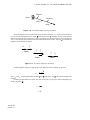
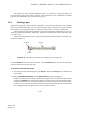
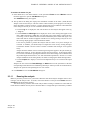
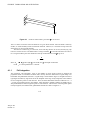
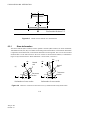
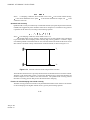
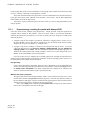
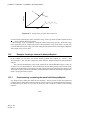
A simple example of a truss, constrained at one end and loaded at the other end as shown in Figure 1–3,
is used to introduce some terms and conventions used in this document.
Figure 1–3
Truss problem.
The objective of the analysis is to find the displacement of the free end of the truss, the stress in the truss,
and the reaction force at the constrained end of the truss.
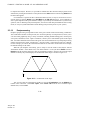
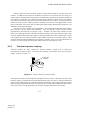
In this case the rod shown in Figure 1–3 will be modeled with two truss elements. In Abaqus truss
elements can carry axial loads only. The discretized model is shown in Figure 1–4 together with the node
and element labels.
1–14
Abaqus ID:
Printed on:
A QUICK REVIEW OF THE FINITE ELEMENT METHOD
Element 1
Node a
Element 2
Node b
Node c
Figure 1–4
Discretized model of the truss problem.
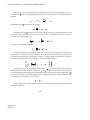
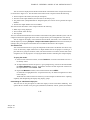
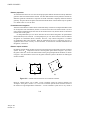
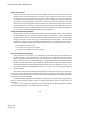
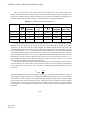
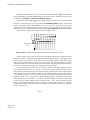
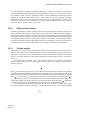
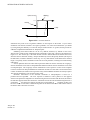
Free-body diagrams for each node in the model are shown in Figure 1–5. In general each node will
carry an external load applied to the model, P, and internal loads, I, caused by stresses in the elements
attached to that node. For a model to be in static equilibrium, the net force acting on each node must be
zero; i.e., the internal and external loads at each node must balance each other. For node a this equilibrium
equation can be obtained as follows.
Ia1
Pa
Node a
Ib1
Ib2
Ic2
Pc
P
Node b
Figure 1–5
b
Node c
Free-body diagram for each node.
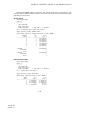
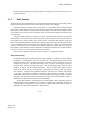
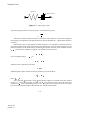
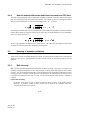
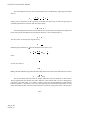
Assuming that the change in length of the rod is small, the strain in element 1 is given by
where
and are the displacements at nodes a and b, respectively, and L is the original length of the
element.
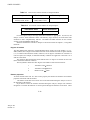
Assuming that the material is elastic, the stress in the rod is given by the strain multiplied by the
Young’s modulus, E:
1–15
Abaqus ID:
Printed on:
A QUICK REVIEW OF THE FINITE ELEMENT METHOD
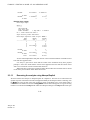
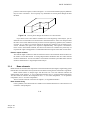
The axial force acting on the end node is equivalent to the stress in the rod multiplied by its crosssectional area, A. Thus, a relationship between internal force, material properties, and displacements is
obtained:
Equilibrium at node a can, therefore, be written as
Equilibrium at node b must take into account the internal forces acting from both elements joined
at that node. The internal force from element 1 is now acting in the opposite direction and so becomes
negative. The resulting equation is
For node c the equilibrium equation is
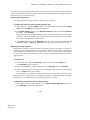
For implicit methods, the equilibrium equations need to be solved simultaneously to obtain the
displacements of all the nodes. This requirement is best achieved by matrix techniques; therefore, write
the internal and external force contributions as matrices. If the properties and dimensions of the two
elements are the same, the equilibrium equations can be simplified as follows:
In general, it may be that the element stiffnesses, the
terms, are different from element to
element; therefore, write the element stiffnesses as
and
for the two elements in the model. We are
interested in obtaining the solution to the equilibrium equation in which the externally applied forces, P,
are in equilibrium with the internally generated forces, I. When discussing this equation with reference
to convergence and nonlinearity, we write it as
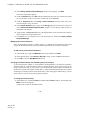
For the complete two-element, three-node structure we, therefore, modify the signs and rewrite the
equilibrium equation as
1–16
Abaqus ID:
Printed on:
A QUICK REVIEW OF THE FINITE ELEMENT METHOD
In an implicit method, such as that used in Abaqus/Standard, this system of equations can then be solved
to obtain values for the three unknown variables: , , and
( is specified in the problem as 0.0).
Once the displacements are known, we can go back and use them to calculate the stresses in the truss
elements. Implicit finite element methods require that a system of equations is solved at the end of each
solution increment.
In contrast to implicit methods, an explicit method, such as that used in Abaqus/Explicit, does not
require the solving of a simultaneous system of equations or the calculation of a global stiffness matrix.
Instead, the solution is advanced kinematically from one increment to the next. The extension of the
finite element method to explicit dynamics is covered in the following section.
1.6.2
Stress wave propagation illustrated
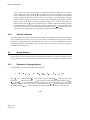
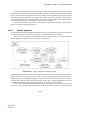
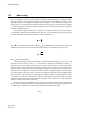
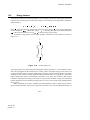
This section attempts to provide some conceptual understanding of how forces propagate through a model
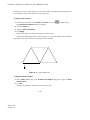
when using the explicit dynamics method. In this illustrative example we consider the propagation of a
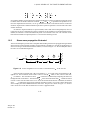
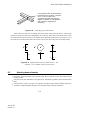
stress wave along a rod modeled with three elements, as shown in Figure 1–6. We will study the state of
the rod as we increment through time.
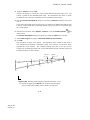
1
1
2
2
3
3
4
P
l
l
Figure 1–6
l
Initial configuration of a rod with a concentrated load,
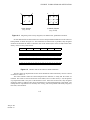
, at the free end.
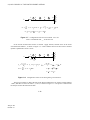
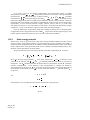
In the first time increment node 1 has an acceleration, , as a result of the concentrated force, ,
applied to it. The acceleration causes node 1 to have a velocity, , which, in turn, causes a strain rate,
, in element 1. The increment of strain,
, in element 1 is obtained by integrating the strain rate
through the time of increment 1. The total strain,
, is the sum of the initial strain, , and the increment
in strain. In this case the initial strain is zero. Once the element strain has been calculated, the element
stress,
, is obtained by applying the material constitutive model. For a linear elastic material the
stress is simply the elastic modulus times the total strain. This process is shown in Figure 1–7. Nodes 2
and 3 do not move in the first increment since no force is applied to them.
1–17
Abaqus ID:
Printed on:
A QUICK REVIEW OF THE FINITE ELEMENT METHOD
1
P
1
2
P
u 1 = ------- ⇒ u 1 = ∫ u 1 dt ⇒
M1
⇒
el1
=
o+
el1
3
2
⇒
el1
el1
– u1
= ----- ⇒
l
= E
4
3
el1
=
∫
el1 dt
el1
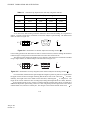
Figure 1–7 Configuration at the end of increment 1 of a rod
with a concentrated load, , at the free end.
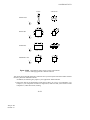
In the second increment the stresses in element 1 apply internal, element forces to the nodes
associated with element 1, as shown in Figure 1–8. These element stresses are then used to calculate
dynamic equilibrium at nodes 1 and 2.
1
P
1
Iel1 =
2
el1
4
3
A
P – I el1
u 1 = ------------------- ⇒ u 1 = u 1old + ∫ u 1 dt
M1
I el1
u 2 = ---------- ⇒ u 2 = ∫ u 2 dt
M2
Figure 1–8
3
2
el1
u2 – u1
= ---------------- ⇒
l
el1
⇒
el1
=
⇒
el1
= E
old
el1 +
=
∫
el1 dt
el1
el1
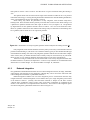
Configuration of the rod at the beginning of increment 2.
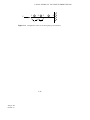
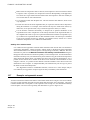
The process continues so that at the start of the third increment there are stresses in both elements
1 and 2, and there are forces at nodes 1, 2, and 3, as shown in Figure 1–9. The process continues until
the analysis reaches the desired total time.
1–18
Abaqus ID:
Printed on:
A QUICK REVIEW OF THE FINITE ELEMENT METHOD
P
Figure 1–9
1
1
2 2
Iel1
Iel2
3
4
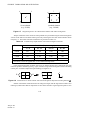
Configuration of the rod at the beginning of increment 3.
1–19
Abaqus ID:
Printed on:
3
Abaqus BASICS
2.
Abaqus Basics
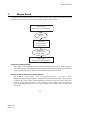
A complete Abaqus analysis usually consists of three distinct stages: preprocessing, simulation, and
postprocessing. These three stages are linked together by files as shown below:
Preprocessing
Abaqus/CAE or other software
Input file:
job.inp
Simulation
Abaqus/Standard
or Abaqus/Explicit
Output files:
job.odb, job.dat,
job.res, job.fil
Postprocessing
Abaqus/CAE or other software
Preprocessing (Abaqus/CAE)
In this stage you must define the model of the physical problem and create an Abaqus input file.
The model is usually created graphically using Abaqus/CAE or another preprocessor, although the
Abaqus input file for a simple analysis can be created directly using a text editor.
Simulation (Abaqus/Standard or Abaqus/Explicit)
The simulation, which normally is run as a background process, is the stage in which
Abaqus/Standard or Abaqus/Explicit solves the numerical problem defined in the model. Examples
of output from a stress analysis include displacements and stresses that are stored in binary files
ready for postprocessing. Depending on the complexity of the problem being analyzed and the
power of the computer being used, it may take anywhere from seconds to days to complete an
analysis run.
2–1
Abaqus ID:
Printed on:
COMPONENTS OF AN Abaqus ANALYSIS MODEL
Postprocessing (Abaqus/CAE)
You can evaluate the results once the simulation has been completed and the displacements,
stresses, or other fundamental variables have been calculated. The evaluation is generally done
interactively using the Visualization module of Abaqus/CAE or another postprocessor. The
Visualization module, which reads the neutral binary output database file, has a variety of options
for displaying the results, including color contour plots, animations, deformed shape plots, and
X–Y plots.
2.1
Components of an Abaqus analysis model
An Abaqus model is composed of several different components that together describe the physical
problem to be analyzed and the results to be obtained. At a minimum the analysis model consists of
the following information: discretized geometry, element section properties, material data, loads and
boundary conditions, analysis type, and output requests.
Discretized geometry
Finite elements and nodes define the basic geometry of the physical structure being modeled in
Abaqus. Each element in the model represents a discrete portion of the physical structure, which
is, in turn, represented by many interconnected elements. Elements are connected to one another
by shared nodes. The coordinates of the nodes and the connectivity of the elements—that is, which
nodes belong to which elements—comprise the model geometry. The collection of all the elements
and nodes in a model is called the mesh. Generally, the mesh will be only an approximation of the
actual geometry of the structure.
The element type, shape, and location, as well as the overall number of elements used in the
mesh, affect the results obtained from a simulation. The greater the mesh density (i.e., the greater
the number of elements in the mesh), the more accurate the results. As the mesh density increases,
the analysis results converge to a unique solution, and the computer time required for the analysis
increases. The solution obtained from the numerical model is generally an approximation to the
solution of the physical problem being simulated. The extent of the approximations made in the
model’s geometry, material behavior, boundary conditions, and loading determines how well the
numerical simulation matches the physical problem.
Element section properties
Abaqus has a wide range of elements, many of which have geometry not defined completely by
the coordinates of their nodes. For example, the layers of a composite shell or the dimensions of
an I-beam section are not defined by the nodes of the element. Such additional geometric data
are defined as physical properties of the element and are necessary to define the model geometry
completely (see Chapter 3, “Finite Elements and Rigid Bodies”).
2–2
Abaqus ID:
Printed on:
COMPONENTS OF AN Abaqus ANALYSIS MODEL
Material data
Material properties for all elements must be specified. While high-quality material data are often
difficult to obtain, particularly for the more complex material models, the validity of the Abaqus
results is limited by the accuracy and extent of the material data.
Loads and boundary conditions
Loads distort the physical structure and, thus, create stress in it. The most common forms of loading
include:
•
•
•
•
•
•
point loads;
pressure loads on surfaces;
distributed tractions on surfaces;
distributed edge loads and moments on shell edges;
body forces, such as the force of gravity; and
thermal loads.
Boundary conditions are used to constrain portions of the model to remain fixed (zero
displacements) or to move by a prescribed amount (nonzero displacements).
In a static analysis enough boundary conditions must be used to prevent the model from moving
as a rigid body in any direction; otherwise, unrestrained rigid body motion causes the stiffness matrix
to be singular. A solver problem will occur during the solution stage and may cause the simulation
to stop prematurely. Abaqus/Standard will issue a warning message if it detects a solver problem
during a simulation. It is important that you learn to interpret such error messages. If you see a
“numerical singularity” or “zero pivot” warning message during a static stress analysis, you should
check whether all or part of your model lacks constraints against rigid body translations or rotations.
Rigid body motions can consist of both translations and rotations of the components. The potential
rigid body motions depend on the dimensionality of the model.
Dimensionality
Possible Rigid Body Motion
Three-dimensional
Translation in the 1-, 2-, and 3-directions.
Rotation about the 1-, 2-, and 3-axes.
Axisymmetric
Translation in the 2-direction.
Rotation about the 3-axis (axisymmetric rigid bodies only).
Plane stress
Translation in the 1- and 2-directions.
Plane strain
Rotation about the 3-axis.
By default, the 1-, 2-, and 3-directions are aligned with the axes of a global Cartesian coordinate
system (discussed later).
2–3
Abaqus ID:
Printed on:
INTRODUCTION TO Abaqus/CAE
In a dynamic analysis inertia forces prevent the model from undergoing infinite motion
instantaneously as long as all separate parts in the model have some mass; therefore, solver
problem warnings in a dynamic analysis usually indicate some other modeling problem, such as
excessive plasticity.
Analysis type
Abaqus can carry out many different types of simulations, but this guide only covers the two most
common: static and dynamic stress analyses.
In a static analysis the long-term response of the structure to the applied loads is obtained.
In other cases the dynamic response of a structure to the loads may be of interest: for example,
the effect of a sudden load on a component, such as occurs during an impact, or the response of a
building in an earthquake.
Output requests
An Abaqus simulation can generate a large amount of output. To avoid using excessive disk space,
you can limit the output to that required for interpreting the results.
Generally a preprocessor such as Abaqus/CAE is used to define the necessary components of the
model.
2.2
Introduction to Abaqus/CAE
Abaqus/CAE is the Complete Abaqus Environment that provides a simple, consistent interface for
creating Abaqus models, interactively submitting and monitoring Abaqus jobs, and evaluating results
from Abaqus simulations. Abaqus/CAE is divided into modules, where each module defines a logical
aspect of the modeling process; for example, defining the geometry, defining material properties, and
generating a mesh. As you move from module to module, you build up the model. When the model
is complete, Abaqus/CAE generates an input file that you submit to the Abaqus analysis product.
Abaqus/Standard or Abaqus/Explicit reads the input file generated by Abaqus/CAE, performs the
analysis, sends information to Abaqus/CAE to allow you to monitor the progress of the job, and
generates an output database. Finally, you use the Visualization module to read the output database and
view the results of your analysis.
2.2.1
Starting Abaqus/CAE
To start Abaqus/CAE, you enter the command
abaqus cae
2–4
Abaqus ID:
Printed on:
INTRODUCTION TO Abaqus/CAE
at your operating system prompt, where abaqus is the command used to run Abaqus. This command
may be different on your system.
When Abaqus/CAE begins, the Start Session dialog box appears as shown in Figure 2–1. The
following session startup options are available:
•
•
•
•
Create Model Database allows you to begin a new analysis.
Open Database allows you to open a previously saved model or output database file.
Run Script allows you to run a file containing Abaqus/CAE commands.
Start Tutorial allows you to begin an introductory tutorial from the online documentation.
Figure 2–1
2.2.2
The Start Session dialog box.
Components of the main window
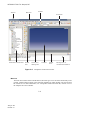
You interact with Abaqus/CAE through the main window. Figure 2–2 shows the components that appear
in the main window. The components are:
Title bar
The title bar indicates the version of Abaqus/CAE you are running and the name of the current
model database.
2–5
Abaqus ID:
Printed on:
INTRODUCTION TO Abaqus/CAE
Title bar
Toolbars
Menu bar
Context bar
Model Tree / Results Tree
Toolbox
area
Canvas and
drawing area
Figure 2–2
Viewport
Prompt
area
Message area or
command line interface
Components of the main window.
Menu bar
The menu bar contains all the available menus; the menus give access to all the functionality in the
product. Different menus appear in the menu bar depending on which module you selected from
the context bar. For more information, see “Components of the main menu bar,” Section 2.2.2 of
the Abaqus/CAE User’s Manual.
2–6
Abaqus ID:
Printed on:
INTRODUCTION TO Abaqus/CAE
Toolbars
The toolbars provide quick access to items that are also available in the menus. For more
information, see “Components of the toolbars,” Section 2.2.3 of the Abaqus/CAE User’s Manual.
Context bar
Abaqus/CAE is divided into a set of modules, where each module allows you to work on one aspect
of your model; the Module list in the context bar allows you to move between these modules. Other
items in the context bar are a function of the module in which you are working; for example, the
context bar allows you to retrieve an existing part while creating the geometry of the model. For
more information, see “The context bar,” Section 2.2.4 of the Abaqus/CAE User’s Manual.
Model Tree
The Model Tree provides you with a graphical overview of your model and the objects that it
contains, such as parts, materials, steps, loads, and output requests. In addition, the Model Tree
provides a convenient, centralized tool for moving between modules and for managing objects. If
your model database contains more than one model, you can use the Model Tree to move between
models. When you become familiar with the Model Tree, you will find that you can quickly
perform most of the actions that are found in the main menu bar, the module toolboxes, and the
various managers. For more information, see “Working with the Model Tree and the Results Tree,”
Section 3.5 of the Abaqus/CAE User’s Manual.
Results Tree
The Results Tree provides you with a graphical overview of your output databases and other sessionspecific data such as X–Y plots. If you have more than one output database open in your session, you
can use the Results Tree to move between output databases. When you become familiar with the
Results Tree, you will find that you can quickly perform most of the actions in the Visualization
module that are found in the main menu bar and the toolbox. For more information, see “An
overview of the Results Tree,” Section 3.5.2 of the Abaqus/CAE User’s Manual.
Toolbox area
When you enter a module, the toolbox area displays tools in the toolbox that are appropriate for that
module. The toolbox allows quick access to many of the module functions that are also available
from the menu bar. For more information, see “Understanding and using toolboxes and toolbars,”
Section 3.3 of the Abaqus/CAE User’s Manual.
Canvas and drawing area
The canvas can be thought of as an infinite screen or bulletin board on which you post viewports; for
more information, see Chapter 4, “Managing viewports on the canvas,” of the Abaqus/CAE User’s
Manual. The drawing area is the visible portion of the canvas.
2–7
Abaqus ID:
Printed on:
INTRODUCTION TO Abaqus/CAE
Viewport
Viewports are windows on the canvas in which Abaqus/CAE displays your model. For more
information, see Chapter 4, “Managing viewports on the canvas,” of the Abaqus/CAE User’s
Manual.
Prompt area
The prompt area displays instructions for you to follow during a procedure; for example, it asks you
to select the geometry as you create a set. For more information, see “Using the prompt area during
procedures,” Section 3.1 of the Abaqus/CAE User’s Manual.
Message area
Abaqus/CAE prints status information and warnings in the message area. To resize the message
area, drag the top edge; to see information that has scrolled out of the message area, use the scroll
bar on the right side. The message area is displayed by default, but it uses the same space occupied
by the command line interface. If you have recently used the command line interface, you must
click the
tab in the bottom left corner of the main window to activate the message area.
Note: If new messages are added while the command line interface is active, Abaqus/CAE changes
the background color surrounding the message area icon to red. When you display the message area,
the background reverts to its normal color.
Command line interface
You can use the command line interface to type Python commands and evaluate mathematical
expressions using the Python interpreter that is built into Abaqus/CAE. The interface includes
primary (>>>) and secondary (...) prompts to indicate when you must indent commands to
comply with Python syntax.
The command line interface is hidden by default, but it uses the same space occupied by the
message area. Click the
tab in the bottom left corner of the main window to switch from the
message area to the command line interface. Click the
2.2.3
tab to return to the message area.
What is a module?
As mentioned earlier, Abaqus/CAE is divided into functional units called modules. Each module contains
only those tools that are relevant to a specific portion of the modeling task. For example, the Mesh module
contains only the tools needed to create finite element meshes, while the Job module contains only the
tools used to create, edit, submit, and monitor analysis jobs.
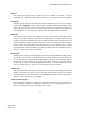
You select a module from the Module list in the context bar, as shown in Figure 2–3. The order of
the modules in the menu corresponds to a logical sequence you may follow to create a model. In many
circumstances you must follow this natural progression to complete a modeling task; for example, you
2–8
Abaqus ID:
Printed on:
INTRODUCTION TO Abaqus/CAE
Figure 2–3
Selecting a module.
must create parts before you create an assembly. Although the order of the modules follows a logical
sequence, Abaqus/CAE allows you to select any module at any time, regardless of the state of your
model. However, certain obvious restrictions apply; for example, you cannot assign section properties,
such as cross-sectional dimensions of an I-beam, to geometry that has not yet been created.
A completed model contains everything that Abaqus needs to start the analysis. Abaqus/CAE uses
a model database to store your models. When you start Abaqus/CAE, the Start Session dialog box
allows you to create a new, empty model database in memory. After you start Abaqus/CAE, you can
save your model database to a disk by selecting File→Save from the main menu bar; to retrieve a model
database from a disk, select File→Open.
The following list of the modules available within Abaqus/CAE briefly describes the modeling tasks
you can perform in each module. The order of the modules in the list corresponds to the order of the
modules in the context bar’s Module list (see Figure 2–3):
Part
The Part module allows you to create individual parts by sketching their geometry directly in
Abaqus/CAE or by importing their geometry from other geometric modeling programs. For more
information, see Chapter 11, “The Part module,” of the Abaqus/CAE User’s Manual.
Property
A section definition contains information about the properties of a part or a region of a part, such as
a region’s associated material definition and cross-sectional geometry. In the Property module you
create section and material definitions and assign them to regions of parts. For more information,
see Chapter 12, “The Property module,” of the Abaqus/CAE User’s Manual.
2–9
Abaqus ID:
Printed on:
INTRODUCTION TO Abaqus/CAE
Assembly
When you create a part, it exists in its own coordinate system, independent of other parts in the
model. You use the Assembly module to create instances of your parts and to position the instances
relative to each other in a global coordinate system, thus creating an assembly. An Abaqus model
contains only one assembly. For more information, see Chapter 13, “The Assembly module,” of
the Abaqus/CAE User’s Manual.
Step
You use the Step module to create and configure analysis steps and associated output requests.
The step sequence provides a convenient way to capture changes in a model (such as loading and
boundary condition changes); output requests can vary as necessary between steps. For more
information, see Chapter 14, “The Step module,” of the Abaqus/CAE User’s Manual.
Interaction
In the Interaction module you specify mechanical and thermal interactions between regions of a
model or between a region of a model and its surroundings. An example of an interaction is contact
between two surfaces. Other interactions that may be defined include constraints, such as tie,
equation, and rigid body constraints. Abaqus/CAE does not recognize mechanical contact between
part instances or regions of an assembly unless that contact is specified in the Interaction module;
the mere physical proximity of two surfaces in an assembly is not sufficient to indicate any type of
interaction between the surfaces. Interactions are step-dependent objects, which means that you
must specify the analysis steps in which they are active. For more information, see Chapter 15,
“The Interaction module,” of the Abaqus/CAE User’s Manual.
Load
The Load module allows you to specify loads, boundary conditions, and predefined fields. Loads
and boundary conditions are step-dependent objects, which means that you must specify the analysis
steps in which they are active; some predefined fields are step-dependent, while others are applied
only at the beginning of the analysis. For more information, see Chapter 16, “The Load module,”
of the Abaqus/CAE User’s Manual.
Mesh
The Mesh module contains tools that allow you to generate a finite element mesh on an assembly
created within Abaqus/CAE. Various levels of automation and control are available so that you can
create a mesh that meets the needs of your analysis. For more information, see Chapter 17, “The
Mesh module,” of the Abaqus/CAE User’s Manual.
Job
Once you have finished all of the tasks involved in defining a model, you use the Job module to
analyze your model. The Job module allows you to interactively submit a job for analysis and
2–10
Abaqus ID:
Printed on:
INTRODUCTION TO Abaqus/CAE
monitor its progress. Multiple models and runs may be submitted and monitored simultaneously.
For more information, see Chapter 18, “The Job module,” of the Abaqus/CAE User’s Manual.
Visualization
The Visualization module provides graphical display of finite element models and results. It obtains
model and result information from the output database; you can control what information is written
to the output database by modifying output requests in the Step module. For more information, see
Part V, “Viewing results,” of the Abaqus/CAE User’s Manual.
Sketch
Sketches are two-dimensional profiles that are used to help form the geometry defining an
Abaqus/CAE native part. You use the Sketch module to create a sketch that defines a planar part,
a beam, or a partition or to create a sketch that might be extruded, swept, or revolved to form
a three-dimensional part. For more information, see Chapter 19, “The Sketch module,” of the
Abaqus/CAE User’s Manual.
The contents of the main window change as you move between modules. Selecting a module from
the Module list on the context bar causes the context bar, module toolbox, and menu bar to change to
reflect the functionality of the current module.
Each module is discussed in more detail in the tutorial examples presented in this manual.
2.2.4
What is the Model Tree?
The Model Tree provides a visual description of the hierarchy of items in a model. It is located in the
left side of the main window underneath the Model tab. Figure 2–4 shows a typical Model Tree.
Items in the Model Tree are represented by small icons; for example, the Steps
icon,
. In addition, parentheses next to an item indicate that the item is a container,
and the number in the parentheses indicates the number of items in the container. You can click on the
“ ” and “ ” signs in the Model Tree to expand and collapse a container. The right and left arrow keys
perform the same operation.
The arrangement of the containers and items in the Model Tree reflects the order in which you are
expected to create your model. As noted earlier, a similar logic governs the order of modules in the
module menu—you create parts before you create the assembly, and you create steps before you create
loads. This arrangement is fixed—you cannot move items in the Model Tree.
The Model Tree provides most of the functionality of the main menu bar and the module managers.
For example, if you double-click on the Parts container, you can create a new part (the equivalent of
selecting Part→Create from the main menu bar).
The instructions for the examples discussed in this manual will focus on using the Model Tree to
access the functionality of Abaqus/CAE. Menu bar actions will be considered only when necessary (e.g.,
when creating a finite element mesh or postprocessing results).
2–11
Abaqus ID:
Printed on:
INTRODUCTION TO Abaqus/CAE
Figure 2–4
Model Tree.
The Results Tree uses the same space occupied by the Model Tree. Click the Results tab in the left
side of the main window to switch from the Model Tree to the Results Tree. The Results Tree provides
access to session-specific features (i.e., functionality available in only the Visualization module). The
Results Tree will be introduced during the course of the postprocessing exercises contained in this
manual.
2–12
Abaqus ID:
Printed on:
EXAMPLE: CREATING A MODEL OF AN OVERHEAD HOIST
2.3
Example: creating a model of an overhead hoist
This example of an overhead hoist, shown in Figure 2–5, leads you through the Abaqus/CAE modeling
process by using the Model Tree and showing you the basic steps used to create and analyze a simple
model. The hoist is a simple, pin-jointed beam and truss model that is constrained at the left end and
mounted on rollers at the right end. The members can rotate freely at the joints. The frame is prevented
from moving out of plane. A simulation is first performed in Abaqus/Standard to determine the structure’s
static deflection and the peak stress in its members when a 10 kN load is applied as shown in Figure 2–5.
The simulation is performed a second time in Abaqus/Explicit under the assumption that the load is
applied suddenly to study the dynamic response of the frame.
1m
1m
1m
1m
All members are
circular steel rods,
5 mm in diameter.
1m
10,000 N
Material properties
General properties:
3
ρ = 7800 kg/m
Elastic properties:
9
E = 200 × 10 Pa
ν = 0.3
Figure 2–5
Schematic of an overhead hoist.
For the overhead hoist example, you will perform the following tasks:
•
•
•
•
Sketch the two-dimensional geometry and create a part representing the frame.
Define the material properties and section properties of the frame.
Assemble the model.
Configure the analysis procedure and output requests.
2–13
Abaqus ID:
Printed on:
EXAMPLE: CREATING A MODEL OF AN OVERHEAD HOIST
•
•
•
•
Apply loads and boundary conditions to the frame.
Mesh the frame.
Create a job and submit it for analysis.
View the results of the analysis.
Abaqus provides scripts that replicate the complete analysis model for this problem. Run one of
these scripts if you encounter difficulties following the instructions given below or if you wish to check
your work. Scripts are available in the following locations:
•
A Python script for this example is provided in “Overhead hoist frame,” Section A.1, in the online
HTML version of this manual. Instructions on how to fetch the script and run it within Abaqus/CAE
are given in Appendix A, “Example Files.”
•
A plug-in script for this example is available in the Abaqus/CAE Plug-in toolset. To run the script
from Abaqus/CAE, select Plug-ins→Abaqus→Getting Started; highlight Overhead hoist
frame; and click Run. For more information about the Getting Started plug-ins, see “Running the
Getting Started with Abaqus examples,” Section 63.1 of the Abaqus/CAE User’s Manual, in the
online HTML version of this manual.
As noted earlier, it is assumed that you will be using Abaqus/CAE to generate the model. However,
if you do not have access to Abaqus/CAE or another preprocessor, the input file that defines this problem
can be created manually, as discussed in “Example: creating a model of an overhead hoist,” Section 2.3
of Getting Started with Abaqus: Keywords Edition.
2.3.1
Units
Before starting to define this or any model, you need to decide which system of units you will use. Abaqus
has no built-in system of units. Do not include unit names or labels when entering data in Abaqus. All
input data must be specified in consistent units. Some common systems of consistent units are shown in
Table 2–1.
Table 2–1
Consistent units.
Quantity
SI
SI (mm)
US Unit (ft)
US Unit (inch)
Length
m
mm
ft
in
Force
N
N
lbf
lbf
tonne (10 kg)
slug
lbf s2 /in
s
s
s
Mass
kg
Time
s
3
2
2
2
Stress
Pa (N/m )
MPa (N/mm )
lbf/ft
Energy
J
mJ (10−3 J)
ft lbf
Density
kg/m
3
tonne/mm
3
2–14
Abaqus ID:
Printed on:
slug/ft
psi (lbf/in2 )
in lbf
3
lbf s2 /in4
EXAMPLE: CREATING A MODEL OF AN OVERHEAD HOIST
The SI system of units is used throughout this guide. Users working in the systems labeled “US
Unit” should be careful with the units of density; often the densities given in handbooks of material
properties are multiplied by the acceleration due to gravity.
2.3.2
Creating a part
Parts define the geometry of the individual components of your model and, therefore, are the building
blocks of an Abaqus/CAE model. You can create parts that are native to Abaqus/CAE, or you can import
parts created by other applications either as a geometric representation or as a finite element mesh.
You will start the overhead hoist problem by creating a two-dimensional, deformable wire part. You
do this by sketching the geometry of the frame. Abaqus/CAE automatically enters the Sketcher when
you create a part.
Abaqus/CAE often displays a short message in the prompt area indicating what you should do next,
as shown in Figure 2–6.
previous
prompt
cancel
Figure 2–6
Messages and instructions are displayed in the prompt area.
Click the Cancel button to cancel the current task. Click the Previous button to cancel the current step
in the task and return to the previous step.
To create the overhead hoist frame:
1. If you did not already start Abaqus/CAE, type abaqus cae, where abaqus is the command used
to run Abaqus.
2. Select Create Model Database from the Start Session dialog box that appears.
Abaqus/CAE enters the Part module. The Model Tree appears in the left side of the main window
(underneath the Model tab). Between the Model Tree and the canvas is the Part module toolbox.
A toolbox contains a set of icons that allow expert users to bypass the menus in the main menu bar.
For many tools, as you select an item from the main menu bar or the Model Tree, the corresponding
tool is highlighted in the module toolbox so you can learn its location.
2–15
Abaqus ID:
Printed on:
EXAMPLE: CREATING A MODEL OF AN OVERHEAD HOIST
3. In the Model Tree, double-click the Parts container to create a new part.
The Create Part dialog box appears. Abaqus/CAE also displays text in the prompt area near the
bottom of the window to guide you through the procedure.
You use the Create Part dialog box to name the part; to choose its modeling space, type, and base
feature; and to set the approximate size. You can edit and rename a part after you create it; you can
also change its modeling space and type but not its base feature.
4. Name the part Frame. Choose a two-dimensional planar deformable body and a wire base feature.
5. In the Approximate size text field, type 4.0.
The value entered in the Approximate size text field at the bottom of the dialog box sets the
approximate size of the new part. The size that you enter is used by Abaqus/CAE to calculate the
size of the Sketcher sheet and the spacing of its grid. You should choose this value to be on the
order of the largest dimension of your finished part. Recall that Abaqus/CAE does not use specific
units, but the units must be consistent throughout the model. In this model SI units will be used.
6. Click Continue to exit the Create Part dialog box.
Abaqus/CAE automatically enters the Sketcher. The Sketcher toolbox appears in the left side of
the main window, and the Sketcher grid appears in the viewport. The Sketcher contains a set of
basic tools that allow you to sketch the two-dimensional profile of your part. Abaqus/CAE enters
the Sketcher whenever you create or edit a part. To finish using any tool, click mouse button 2 in
the viewport or select a new tool.
Tip: Like all tools in Abaqus/CAE, if you simply position the cursor over a tool in the
Sketcher toolbox for a short time, a small window appears that gives a brief description
of the tool. When you select a tool, a white background appears on it.
The following aspects of the Sketcher help you sketch the desired geometry:
•
•
•
The Sketcher grid helps you position the cursor and align objects in the viewport.
•
When you select a sketching tool, Abaqus/CAE displays the X- and Y-coordinates of the cursor
in the upper-left corner of the viewport.
Dashed lines indicate the X- and Y-axes of the sketch and intersect at the origin of the sketch.
A triad in the lower-left corner of the viewport indicates the relationship between the sketch
plane and the orientation of the part.
7. You will first sketch a rough approximation of the frame and later use constraints and dimensions to
refine the sketch. Begin by using the Create Lines: Rectangle tool
located in the upper-right
region of the Sketcher toolbox to sketch an arbitrary rectangle. Select any two points as the opposite
corners of the rectangle.
Click mouse button 2 anywhere in the viewport to exit the rectangle tool.
2–16
Abaqus ID:
Printed on:
EXAMPLE: CREATING A MODEL OF AN OVERHEAD HOIST
Note: If you make a mistake while using the Sketcher, you can undo your last action using the
Undo tool
or delete individual entities of your sketch using the Delete tool
.
8. The Sketcher automatically adds constraints to the sketch as indicated in Figure 2–7 (in this case,
the four corners of the rectangle are assigned perpendicular constraints and one edge is designated
as horizontal).
Perpendicular constraints
H
Horizontal constraint
Figure 2–7
Constraints indicated in the Sketcher.
To proceed, the perpendicular constraints must be deleted. In the Sketcher toolbox, select the Delete
tool
and then do the following:
a. In the prompt area, select Constraints as the scope of the operation.
b. Using [Shift]+Click, select the four perpendicular constraints.
c. Click Done in the prompt area.
9. You will now add additional constraints and dimensions to refine the sketch. Constraints and
dimensions allow you to control your sketch geometry and add precision. For more information on
constraints and dimensions, see “Controlling sketch geometry,” Section 19.7 of the Abaqus/CAE
User’s Manual.
a. Use the Add Constraint tool
to constrain the top and bottom edges so they remain parallel
to each other:
i. In the Add Constraint dialog box, select Parallel.
2–17
Abaqus ID:
Printed on:
EXAMPLE: CREATING A MODEL OF AN OVERHEAD HOIST
ii. In the viewport, select the top and bottom edges of the sketch (using [Shift]+Click).
iii. Click Done in the prompt area.
b. Use the Add Dimension tool
to dimension the top and bottom edges of the rectangle.
The top edge should have a horizontal dimension of 1 m and the bottom edge a horizontal
dimension of 2 m. When dimensioning each edge, simply select the line, click mouse button 1
to position the dimension text, and then enter the new dimension in the prompt area. Selecting
the line rather than its endpoints constrains the length of the line regardless of its orientation
in space (in effect, defining an oblique dimension).
Reset the view as needed using the Auto-Fit View tool
to see the updated sketch.
in the View Manipulation toolbar
c. Dimension the left and right edges so they each have an oblique dimension of 1 m.
The sketch in its current state is shown in Figure 2–8. In this figure the default grid spacing has
been doubled. For information on using the Sketcher Options tool
to modify the Sketcher
display, see “Customizing the Sketcher,” Section 19.9 of the Abaqus/CAE User’s Manual.
1.
1.
1.
H
2.
Figure 2–8
Rough sketch of frame (with grid spacing doubled).
2–18
Abaqus ID:
Printed on:
EXAMPLE: CREATING A MODEL OF AN OVERHEAD HOIST
10. Now sketch the interior edges of the frame.
a. Using the Create Lines: Connected tool
located in the upper-right corner of the
Sketcher toolbox, create two lines as follows:
i. Start the first line at the upper-left corner of the sketch and extend it to any point that snaps
onto the bottom edge (its horizontal location is arbitrary).
ii. Continue the second line to the upper-right corner of the sketch.
iii. Click mouse button 2 anywhere in the viewport to exit the connected lines tool.
b. Using the Split tool
, split the bottom edge at the point where it intersects the two lines
created above:
i. Note the small black triangles at the base of some of the toolbox icons. These triangles
indicate the presence of hidden icons that can be revealed. Click and hold the Auto-Trim
tool
located on the middle-right of the Sketcher toolbox until additional icons appear.
ii. From the set of additional icons click the Split tool
.
The split tool appears in the Sketcher toolbox with a white background indicating that you
selected it.
iii. Select the bottom edge as the first entity to define the split point.
iv. Select either of the two interior lines as the second entity (a red circle will appear around
the split point).
c. Use the Add Constraint tool
to constrain the two segments of the bottom edge so they
are of equal length:
i. In the Add Constraint dialog box, select Equal length.
ii. In the viewport, select the two segments of the bottom edge.
iii. Click Done in the prompt area.
11. The final sketch is shown in Figure 2–9.
12. From the prompt area (near the bottom of the main window), click Done to exit the Sketcher.
Note: If you don’t see the Done button in the prompt area, continue to click mouse button 2 in the
viewport until it appears.
13. Before you continue, save your model in a model database file.
a. From the main menu bar, select File→Save. The Save Model Database As dialog box
appears.
2–19
Abaqus ID:
Printed on:
EXAMPLE: CREATING A MODEL OF AN OVERHEAD HOIST
1.
H
1.
1.
2.
Figure 2–9
Frame geometry sketch.
b. Type a name for the new model database in the File Name field, and click OK. You do not
need to include the file extension; Abaqus/CAE automatically appends .cae to the file name.
Abaqus/CAE stores the model database in a new file and returns to the Part module. The path
and name of your model database appear in the main window title bar.
You should always save your model database at regular intervals (for example, each time you switch
modules); Abaqus/CAE does not save your model database automatically.
2.3.3
Creating a material
In this problem all the members of the frame are made of steel and assumed to be linear elastic with
Young’s modulus of 200 GPa and Poisson’s ratio of 0.3. Thus, you will create a single linear elastic
material with these properties.
To define a material:
1. In the Model Tree, double-click the Materials container to create a new material.
Abaqus/CAE switches to the Property module, and the Edit Material dialog box appears.
2. Name the material Steel.
3. Use the menu bar under the browser area of the material editor to reveal menus containing all the
available material options. Some of the menu items contain submenus; for example, Figure 2–10
shows the options available under the Mechanical→Elasticity menu item. When you select a
material option, the appropriate data entry form appears below the menu.
2–20
Abaqus ID:
Printed on:
EXAMPLE: CREATING A MODEL OF AN OVERHEAD HOIST
Figure 2–10
Submenus available under the Mechanical→Elasticity menu.
4. From the material editor’s menu bar, select Mechanical→Elasticity→Elastic.
Abaqus/CAE displays the Elastic data form.
5. Type a value of 200.0E9 for Young’s modulus and a value of 0.3 for Poisson’s ratio in the
respective fields. Use [Tab] or move the cursor to a new cell and click to move between cells.
6. Click OK to exit the material editor.
2.3.4
Defining and assigning section properties
You define the properties of a part through sections. After you create a section, you can use one of the
following two methods to assign the section to the part in the current viewport:
•
•
You can simply select the region from the part and assign the section to the selected region.
You can use the Set toolset to create a homogeneous set containing the region and assign the section
to the set.
For the frame model you will create a single truss section that you will assign to the frame by selecting
the frame from the viewport. The section will refer to the material Steel that you just created as well
as define the cross-sectional area of the frame members.
Defining a truss section
A truss section definition requires only a material reference and the cross-sectional area. Remember
that the frame members are circular bars that are 0.005 m in diameter. Thus, their cross-sectional
area is 1.963 × 10⁻⁵ m2 .
Tip: You can use the command line interface (CLI) in Abaqus/CAE as a simple
calculator. For example, to compute the cross-sectional area of the frame members,
click the
tab in the bottom left corner of the Abaqus/CAE window to activate the
CLI, type 3.1416*0.005**2/4.0 after the command prompt, and press [Enter]. The
value of the cross-sectional area is printed in the CLI.
2–21
Abaqus ID:
Printed on:
EXAMPLE: CREATING A MODEL OF AN OVERHEAD HOIST
To define a truss section:
1. In the Model Tree, double-click the Sections container to create a section.
The Create Section dialog box appears.
2. In the Create Section dialog box:
a. Name the section FrameSection.
b. In the Category list, select Beam.
c. In the Type list, select Truss.
d. Click Continue.
The Edit Section dialog box appears.
3. In the Edit Section dialog box:
a. Accept the default selection of Steel for the Material associated with the section. If
you had defined other materials, you could click the arrow next to the Material text box
to see a list of available materials and to select the material of your choice.
b. In the Cross-sectional area field, enter a value of 1.963E-5 (or copy and paste the
value from the CLI if you followed the steps outlined in the tip).
c. Click OK.
Assigning the section to the frame
The section FrameSection must be assigned to the frame.
To assign the section to the frame:
1. In the Model Tree, expand the branch for the part named Frame by clicking the “ ” symbol
to expand the Parts container and then clicking the “ ” symbol to expand the Frame item.
2. Double-click Section Assignments in the list of part attributes that appears.
Abaqus/CAE displays prompts in the prompt area to guide you through the procedure.
3. Select the entire part as the region to which the section will be applied.
a. Click and hold mouse button 1 at the upper left-hand corner of the viewport.
b. Drag the mouse to create a box around the truss.
c. Release mouse button 1.
Abaqus/CAE highlights the entire frame.
4. Click mouse button 2 in the viewport or click Done in the prompt area to accept the selected
geometry.
The Edit Section Assignment dialog box appears containing a list of existing sections.
2–22
Abaqus ID:
Printed on:
EXAMPLE: CREATING A MODEL OF AN OVERHEAD HOIST
5. Accept the default selection of FrameSection, and click OK.
Abaqus/CAE assigns the truss section to the frame, colors the entire frame aqua to indicate that
the region has a section assignment, and closes the Edit Section Assignment dialog box.
2.3.5
Defining the assembly
Each part that you create is oriented in its own coordinate system and is independent of the other parts
in the model. Although a model may contain many parts, it contains only one assembly. You define the
geometry of the assembly by creating instances of a part and then positioning the instances relative to
each other in a global coordinate system. An instance may be independent or dependent. Independent
part instances are meshed individually, while the mesh of a dependent part instance is associated with
the mesh of the original part. For further details, see “Working with part instances,” Section 13.3 of the
Abaqus/CAE User’s Manual. By default, part instances are dependent.
For this problem you will create a single instance of your overhead hoist. Abaqus/CAE positions
the instance so that the origin of the sketch that defined the frame overlays the origin of the assembly’s
default coordinate system.
To define the assembly:
1. In the Model Tree, expand the Assembly container and double-click Instances in the list that
appears.
Abaqus/CAE switches to the Assembly module, and the Create Instance dialog box appears.
2. In the dialog box, select Frame and click OK.
Abaqus/CAE creates an instance of the overhead hoist. In this example the single instance of the
frame defines the assembly. The frame is displayed in the 1–2 plane of the global coordinate system (a
right-handed, rectangular Cartesian system). A triad in the lower-left corner of the viewport indicates
the orientation of the model with respect to the view. A second triad in the viewport indicates the origin
and orientation of the global coordinate system (X-, Y-, and Z-axes). The global 1-axis is the horizontal
axis of the hoist, the global 2-axis is the vertical axis, and the global 3-axis is normal to the plane of the
framework. For two-dimensional problems such as this one Abaqus requires that the model lie in a plane
parallel to the global 1–2 plane.
2.3.6
Configuring your analysis
Now that you have created your assembly, you can configure your analysis. In this simulation we are
interested in the static response of the overhead hoist to a 10 kN load applied at the midspan, with the
left-hand end fully constrained and a roller constraint on the right-hand end (see Figure 2–5). This is a
single event, so only a single analysis step is needed for the simulation. Thus, the model will consist of
two steps overall:
•
•
An initial step, in which you will apply boundary conditions that constrain the ends of the frame.
An analysis step, in which you will apply a concentrated load at the midspan of the frame.
2–23
Abaqus ID:
Printed on:
EXAMPLE: CREATING A MODEL OF AN OVERHEAD HOIST
Abaqus/CAE generates the initial step automatically, but you must create the analysis step yourself. You
may also request output for any steps in the analysis.
There are two kinds of analysis steps in Abaqus: general analysis steps, which can be used to
analyze linear or nonlinear response, and linear perturbation steps, which can be used only to analyze
linear problems. Only general analysis steps are available in Abaqus/Explicit. For this simulation you
will define a static linear perturbation step. Perturbation procedures are discussed further in Chapter 11,
“Multiple Step Analysis.”
Creating an analysis step
Create a static, linear perturbation step that follows the initial step of the analysis.
To create a static linear perturbation analysis step:
1. In the Model Tree, double-click the Steps container to create a step.
Abaqus/CAE switches to the Step module, and the Create Step dialog box appears. A list of
all the general procedures and a default step name of Step-1 is provided.
2. Change the step name to Apply load.
3. Select Linear perturbation as the Procedure type.
4. From the list of available linear perturbation procedures in the Create Step dialog box, select
Static, Linear perturbation and click Continue.
The Edit Step dialog box appears with the default settings for a static linear perturbation step.
5. The Basic tab is selected by default. In the Description field, type 10 kN central
load.
6. Click the Other tab to see its contents; you can accept the default values provided for the step.
7. Click OK to create the step and to exit the Edit Step dialog box.
Requesting data output
Finite element analyses can create very large amounts of output. Abaqus allows you to control and
manage this output so that only data required to interpret the results of your simulation are produced.
Four types of output are available from an Abaqus analysis:
•
•
•
•
Results stored in a neutral binary file used by Abaqus/CAE for postprocessing. This file is
called the Abaqus output database file and has the extension .odb.
Printed tables of results, written to the Abaqus data (.dat) file. Output to the data file is
available only in Abaqus/Standard.
Restart data used to continue the analysis, written to the Abaqus restart (.res) file.
Results stored in binary files for subsequent postprocessing with third-party software, written
to the Abaqus results (.fil) file.
You will use only the first of these in the overhead hoist simulation.
2–24
Abaqus ID:
Printed on:
EXAMPLE: CREATING A MODEL OF AN OVERHEAD HOIST
By default, Abaqus/CAE writes the results of the analysis to the output database (.odb) file.
When you create a step, Abaqus/CAE generates a default output request for the step. A list of the
preselected variables written by default to the output database is given in the Abaqus Analysis
User’s Manual. You do not need to do anything to accept these defaults. You use the Field
Output Requests Manager to request output of variables that should be written at relatively low
frequencies to the output database from the entire model or from a large portion of the model. You
use the History Output Requests Manager to request output of variables that should be written
to the output database at a high frequency from a small portion of the model; for example, the
displacement of a single node.
For this example you will examine the output requests to the .odb file and accept the default
configuration.
To examine your output requests to the .odb file:
1. In the Model Tree, click mouse button 3 on the Field Output Requests container and select
Manager from the menu that appears.
Abaqus/CAE displays the Field Output Requests Manager. This manager displays the
status of field output requests in a table format. The left side of the table has an alphabetical
list of existing output requests. The top of the table lists the names of all the steps in the analysis
in the order of execution. Each cell of the table displays the status of each output request in
each step.
You can use the Field Output Requests Manager to do the following:
•
•
•
•
Select the variables that Abaqus will write to the output database.
Select the section points for which Abaqus will generate output data.
Select the region of the model for which Abaqus will generate output data.
Change the frequency at which Abaqus will write data to the output database.
2. Review the default output request that Abaqus/CAE generates for the Static, Linear
perturbation step you created and named Apply load.
Select the cell in the table labeled Created if it is not already selected. The following
information related to the cell is shown in the legend at the bottom of the manager:
•
•
•
The type of analysis procedure carried out in the step in that column.
The list of output request variables.
The output request status.
3. On the right side of the Field Output Requests Manager, click Edit to view more detailed
information about the output request.
The field output editor appears. In the Output Variables region of this dialog box, there is a
text box that lists all variables that will be output. If you change an output request, you can
always return to the default settings by clicking Preselected defaults above the text box.
2–25
Abaqus ID:
Printed on:
EXAMPLE: CREATING A MODEL OF AN OVERHEAD HOIST
4. Click the arrows next to each output variable category to see exactly which variables will be
output. The boxes next to each category title allow you to see at a glance whether all variables
in that category will be output. A black check mark indicates that all variables are output,
while a gray check mark indicates that only some variables will be output.
Based on the selections shown at the bottom of the dialog box, data will be generated at
every default section point in the model and will be written to the output database after every
increment during the analysis.
5. Click Cancel to close the field output editor, since you do not wish to make any changes to
the default output requests.
6. Click Dismiss to close the Field Output Requests Manager.
Note: What is the difference between the Dismiss and Cancel buttons? Dismiss buttons
appear in dialog boxes that contain data that you cannot modify. For example, the Field
Output Requests Manager allows you to view output requests, but you must use the field
output editor to modify those requests. Clicking the Dismiss button simply closes the Field
Output Requests Manager. Conversely, Cancel buttons appear in dialog boxes that allow
you to make changes. Clicking Cancel closes the dialog box without saving your changes.
7. Review the history output requests in a similar manner by right-clicking the History Output
Requests container in the Model Tree and opening the history output editor.
2.3.7
Applying boundary conditions and loads to the model
Prescribed conditions, such as loads and boundary conditions, are step dependent, which means that you
must specify the step or steps in which they become active. Now that you have defined the steps in the
analysis, you can define prescribed conditions.
Applying boundary conditions to the frame
In structural analyses, boundary conditions are applied to those regions of the model where the
displacements and/or rotations are known. Such regions may be constrained to remain fixed
(have zero displacement and/or rotation) during the simulation or may have specified, nonzero
displacements and/or rotations.
In this model the bottom-left portion of the frame is constrained completely and, thus, cannot
move in any direction. The bottom-right portion of the frame, however, is fixed in the vertical
direction but is free to move in the horizontal direction. The directions in which motion is possible
are called degrees of freedom (dof).
The labeling convention used for the displacement and rotational degrees of freedom in Abaqus
is shown in Figure 2–11.
2–26
Abaqus ID:
Printed on:
EXAMPLE: CREATING A MODEL OF AN OVERHEAD HOIST
2
1 Translation in the 1-direction (U1).
2 Translation in the 2-direction (U2).
dof 5
3 Translation in the 3-direction (U3).
4 Rotation about the 1-direction (UR1).
dof 2
5 Rotation about the 2-direction (UR2).
6 Rotation about the 3-direction (UR3).
dof 3
dof 4
dof 1
dof 6
3
Figure 2–11
1
Displacement and rotational degrees of freedom.
To apply boundary conditions to the frame:
1. In the Model Tree, double-click the BCs container.
Abaqus/CAE switches to the Load module, and the Create Boundary Condition dialog box
appears.
2. In the Create Boundary Condition dialog box:
a. Name the boundary condition Fixed.
b. From the list of steps, select Initial as the step in which the boundary condition will be
activated. All the mechanical boundary conditions specified in the Initial step must
have zero magnitudes. This condition is enforced automatically by Abaqus/CAE.
c. In the Category list, accept Mechanical as the default category selection.
d. In the Types for Selected Step list, select Displacement/Rotation, and click
Continue.
Abaqus/CAE displays prompts in the prompt area to guide you through the procedure.
For example, you are asked to select the region to which the boundary condition will be
applied.
To apply a prescribed condition to a region, you can either select the region directly in
the viewport or apply the condition to an existing set (a set is a named region of a model).
Sets are a convenient tool that can be used to manage large complicated models. In this
simple model you will not make use of sets.
2–27
Abaqus ID:
Printed on:
EXAMPLE: CREATING A MODEL OF AN OVERHEAD HOIST
3. In the viewport, select the vertex at the bottom-left corner of the frame as the region to which
the boundary condition will be applied.
4. Click mouse button 2 in the viewport or click Done in the prompt area to indicate that you
have finished selecting regions.
The Edit Boundary Condition dialog box appears. When you are defining a boundary
condition in the initial step, all available degrees of freedom are unconstrained by default.
5. In the dialog box:
a. Toggle on U1 and U2 since all translational degrees of freedom need to be constrained.
b. Click OK to create the boundary condition and to close the dialog box.
Abaqus/CAE displays two arrowheads at the vertex to indicate the constrained degrees of
freedom.
6. Repeat the above procedure to constrain degree of freedom U2 at the vertex at the bottom-right
corner of the frame. Name this boundary condition Roller.
7. In the Model Tree, click mouse button 3 on the BCs container and select Manager from the
menu that appears.
Abaqus/CAE displays the Boundary Condition Manager. The manager indicates that the
boundary conditions are Created (activated) in the initial step and are Propagated from
base state (continue to be active) in the analysis step Apply load.
Tip: To view the title of a column in its entirety, expand its width by dragging the
dividing line between the column headings.
8. Click Dismiss to close the Boundary Condition Manager.
In this example all the constraints are in the global 1- or 2-directions. In many cases constraints
are required in directions that are not aligned with the global directions. In such cases you can define
a local coordinate system for boundary condition application. The skew plate example in Chapter 5,
“Using Shell Elements,” demonstrates how to do this.
Applying a load to the frame
Now that you have constrained the frame, you can apply a load to the bottom of the frame. In
Abaqus the term load (as in the Load module in Abaqus/CAE) generally refers to anything that
induces a change in the response of a structure from its initial state, including:
•
•
•
•
•
concentrated forces,
pressures,
nonzero boundary conditions,
body loads, and
temperature (with thermal expansion of the material defined).
2–28
Abaqus ID:
Printed on:
EXAMPLE: CREATING A MODEL OF AN OVERHEAD HOIST
Sometimes the term load is used to refer specifically to force-type quantities (as in the Load
Manager of the Load module); for example, concentrated forces, pressures, and body loads but
not boundary conditions or temperature. The intended meaning of the term should be clear from
the context of the discussion.
In this simulation a concentrated force of 10 kN is applied in the negative 2-direction to the
bottom center of the frame; the load is applied during the linear perturbation step you created earlier.
In reality there is no such thing as a concentrated, or point, load; the load will always be applied
over some finite area. However, if the area being loaded is small, it is an appropriate idealization to
treat the load as a concentrated load.
To apply a concentrated force to the frame:
1. In the Model Tree, click mouse button 3 on the Loads container and select Manager from the
menu that appears.
The Load Manager appears.
2. At the bottom of the Load Manager, click Create.
The Create Load dialog box appears.
3. In the Create Load dialog box:
a. Name the load Force.
b. From the list of steps, select Apply load as the step in which the load will be applied.
c. In the Category list, accept Mechanical as the default category selection.
d. In the Types for Selected Step list, accept the default selection of Concentrated force.
e. Click Continue.
Abaqus/CAE displays prompts in the prompt area to guide you through the procedure. You
are asked to select a region to which the load will be applied.
As with boundary conditions, the region to which the load will be applied can be selected
either directly in the viewport or from a list of existing sets. As before, you will select the
region directly in the viewport.
4. In the viewport, select the vertex at the bottom center of the frame as the region where the load
will be applied.
5. Click mouse button 2 in the viewport or click Done in the prompt area to indicate that you
have finished selecting regions.
The Edit Load dialog box appears.
6. In the dialog box:
a. Enter a magnitude of -10000.0 for CF2.
b. Click OK to create the load and to close the dialog box.
2–29
Abaqus ID:
Printed on:
EXAMPLE: CREATING A MODEL OF AN OVERHEAD HOIST
Abaqus/CAE displays a downward-pointing arrow at the vertex to indicate that the load
is applied in the negative 2-direction.
7. Examine the Load Manager and note that the new load is Created (activated) in the analysis
step Apply load.
8. Click Dismiss to close the Load Manager.
2.3.8
Meshing the model
You will now generate the finite element mesh. You can choose the meshing technique that Abaqus/CAE
will use to create the mesh, the element shape, and the element type. The meshing technique for onedimensional regions (such as the ones in this example) cannot be changed, however. Abaqus/CAE uses
a number of different meshing techniques. The default meshing technique assigned to the model is
indicated by the color of the model that is displayed when you enter the Mesh module; if Abaqus/CAE
displays the model in orange, it cannot be meshed without assistance from you.
Assigning an Abaqus element type
In this section you will assign a particular Abaqus element type to the model. Although you will
assign the element type now, you could also wait until after the mesh has been created.
Two-dimensional truss elements will be used to model the frame. These elements are chosen
because truss elements, which carry only tensile and compressive axial loads, are ideal for modeling
pin-jointed frameworks such as this overhead hoist.
To assign an Abaqus element type:
1. In the Model Tree, expand the Frame item underneath the Parts container if it is not already
expanded. Then double-click Mesh in the list that appears.
Abaqus/CAE switches to the Mesh module. The Mesh module functionality is available only
through menu bar items or toolbox icons.
2. From the main menu bar, select Mesh→Element Type.
3. In the viewport, drag the mouse to create a box that selects the entire frame as the region to be
assigned an element type. In the prompt area, click Done when you are finished.
The Element Type dialog box appears.
4. In the dialog box, select the following:
•
•
•
Standard as the Element Library selection (the default).
Linear as the Geometric Order (the default).
Truss as the Family of elements.
5. In the lower portion of the dialog box, examine the element shape options. A brief description
of the default element selection is available at the bottom of each tabbed page.
2–30
Abaqus ID:
Printed on:
EXAMPLE: CREATING A MODEL OF AN OVERHEAD HOIST
Since the model is a two-dimensional truss, only two-dimensional truss element types are
shown on the Line tabbed page. A description of the element type T2D2 appears at the bottom
of the dialog box. Abaqus/CAE will now associate T2D2 elements with the elements in the
mesh.
6. Click OK to assign the element type and to close the dialog box.
7. In the prompt area, click Done to end the procedure.
Creating the mesh
Basic meshing is a two-stage operation: first you seed the edges of the part instance, and then you
mesh the part instance. You select the number of seeds based on the desired element size or on the
number of elements that you want along an edge, and Abaqus/CAE places the nodes of the mesh at
the seeds whenever possible. For this problem you will create one element on each bar of the hoist.
To seed and mesh the model:
1. From the main menu bar, select Seed→Part to seed the part instance.
Note: You can gain more control of the resulting mesh by seeding each edge of the part
instance individually, but it is not necessary for this example.
The Global Seeds dialog box appears. The dialog box displays the default element size that
Abaqus/CAE will use to seed the part instance. This default element size is based on the size
of the part instance. A relatively large seed value will be used so that only one element will be
created per region.
2. In the Global Seeds dialog box, specify an approximate global element size of 1.0, and click
OK to create the seeds and to close the dialog box.
3. From the main menu bar, select Mesh→Part to mesh the part instance.
4. From the buttons in the prompt area, click Yes to confirm that you want to mesh the part
instance.
Tip: You can display the node and element numbers within the Mesh module by selecting
View→Part Display Options from the main menu bar. Toggle on Show node labels
and Show element labels in the Mesh tabbed page of the Part Display Options dialog
box that appears.
2.3.9
Creating an analysis job
Now that you have configured your analysis, you will create a job that is associated with your model.
2–31
Abaqus ID:
Printed on:
EXAMPLE: CREATING A MODEL OF AN OVERHEAD HOIST
To create an analysis job:
1. In the Model Tree, double-click the Jobs container to create a job.
Abaqus/CAE switches to the Job module, and the Create Job dialog box appears with a list of the
models in the model database. When you are finished defining your job, the Jobs container will
display a list of your jobs.
2. Name the job Frame, and click Continue.
The Edit Job dialog box appears.
3. In the Description field, type Two-dimensional overhead hoist frame.
4. Click OK to accept all other default job settings in the job editor and to close the dialog box.
2.3.10
Checking the model
Having generated the model for this simulation, you are ready to run the analysis. Unfortunately, it is
possible to have errors in the model because of incorrect or missing data. You should perform a data
check analysis first before running the simulation.
To run a data check analysis:
1. In the Model Tree, expand the Jobs container. Click mouse button 3 on the job named Frame, and
select Data Check from the menu that appears to submit your job for a data check analysis.
2. After you submit your job, information appears next to the job name indicating the job’s status. The
status of the overhead hoist problem indicates one of the following conditions:
•
•
•
•
•
•
Check Submitted while the model is being submitted for a data check.
Check Running while Abaqus performs a data check on the model.
Check Completed when the data check has completed successfully.
Submitted while the job is being submitted for a full analysis.
Running while Abaqus analyzes the model.
Completed when the full analysis is complete, and the output has been written to the output
database.
•
Aborted if Abaqus/CAE finds a problem with the input file or the analysis and aborts the
analysis. In addition, Abaqus/CAE reports the problem in the message area (see Figure 2–2).
During the analysis, Abaqus/Standard sends information to Abaqus/CAE to allow you to monitor
the progress of the job. Information from the status, data, log, and message files appear in the Job
Monitor dialog box.
2–32
Abaqus ID:
Printed on:
EXAMPLE: CREATING A MODEL OF AN OVERHEAD HOIST
To monitor the status of a job:
1. In the Model Tree, click mouse button 3 on the job named Frame and select Monitor from the
menu that appears to open the Job Monitor dialog box.
The Job Monitor dialog box appears.
2. The top half of the dialog box displays the information available in the status (.sta) file that
Abaqus creates for the analysis. This file contains a brief summary of the progress of an analysis
and is described in “Output,” Section 4.1.1 of the Abaqus Analysis User’s Manual. The bottom half
of the dialog box allows you to view information about the analysis.
•
•
•
Click the Log tab to display the start and end times for the analysis that appear in the log
(.log) file.
Click the Errors and Warnings tabs to display the errors or the warnings that appear in the
data (.dat) and message (.msg) files. If a particular region of the model is causing the error
or warning, a node or element set will be created automatically that contains that region. The
name of the node or element set appears with the error or warning message, and you can view
the set using display groups in the Visualization module.
It will not be possible to perform the analysis until the causes of any error messages are
corrected. In addition, you should always investigate the reason for any warning messages
to determine whether corrective action is needed or whether such messages can be ignored
safely.
Abaqus limits the number of error and warning messages that appear in the job monitor (by
default these limits are 10 error messages and 50 warning messages). If the message limits
are exceeded, information regarding the additional errors and warnings can be obtained from
the printed output files themselves. See “Job customization parameters,” Section 4.1.3 of the
Abaqus Installation and Licensing Guide, for details on changing the default message limits.
Click the Output tab to display a record of each output data entry as it is written to the output
database.
Abaqus/CAE also activates the Data, Message, or Status buttons in the job monitor as the files
corresponding to these buttons are created during the analysis. When you click one of these buttons,
Abaqus/CAE opens the corresponding file in a new window.
3. Click Dismiss to close the Job Monitor dialog box.
2.3.11
Running the analysis
Make any necessary corrections to your model. When the data check analysis completes with no error
messages, run the analysis itself. To do this, click mouse button 3 on the job named Frame and select
Continue from the menu that appears.
You should always perform a data check analysis before running a simulation to ensure that the
model has been defined correctly and to check that there is enough disk space and memory available
2–33
Abaqus ID:
Printed on:
EXAMPLE: CREATING A MODEL OF AN OVERHEAD HOIST
to complete the analysis. However, it is possible to combine the data check and analysis phases of the
simulation by clicking mouse button 3 on the job name in the Jobs container and selecting Submit from
the menu that appears.
If a simulation is expected to take a substantial amount of time, it may be convenient to run it in
a batch queue by selecting Queue as the Run Mode in the Edit Job dialog box. (The availability of
such a queue depends on the queue definition settings in your Abaqus environment file. If you have any
questions, refer to “Defining analysis batch queues,” Section 4.2 of the Abaqus Installation and Licensing
Guide, or ask your system administrator about defining analysis batch queues on your system.)
2.3.12
Postprocessing
Graphical postprocessing is important because of the great volume of data created during a simulation.
The Visualization module of Abaqus/CAE (also licensed separately as Abaqus/Viewer) allows you to
view the results graphically using a variety of methods, including deformed shape plots, contour plots,
vector plots, animations, and X–Y plots. In addition, it allows you to create tabular reports of the output
data. All of these methods are discussed in this guide. For more information on any of the postprocessing
features discussed in this guide, consult Part V, “Viewing results,” of the Abaqus/CAE User’s Manual.
For this example you will use the Visualization module to do some basic model checks and to display
the deformed shape of the frame.
When the job completes successfully, you are ready to view the results of the analysis with the
Visualization module. In the Model Tree, click mouse button 3 on the job named Frame and select
Results from the menu that appears to enter the Visualization module. Abaqus/CAE opens the output
database created by the job and displays the undeformed model shape, as shown in Figure 2–12.
2
3
1
Figure 2–12
Undeformed model shape.
You can also enter the Visualization module by selecting Visualization from the Module list
located in the context bar. Select File→Open, select Frame.odb from the list of available output
database files, and click OK.
2–34
Abaqus ID:
Printed on:
EXAMPLE: CREATING A MODEL OF AN OVERHEAD HOIST
You can choose to display the title block and state block at the bottom of the viewport; these blocks
are not shown in Figure 2–12. The title block at the bottom of the viewport indicates the following:
•
•
•
•
The description of the model (from the job description).
The name of the output database (from the name of the analysis job).
The product name (Abaqus/Standard or Abaqus/Explicit) and version used to generate the output
database.
The date the output database was last modified.
The state block at the bottom of the viewport indicates the following:
•
•
•
Which step is being displayed.
The increment within the step.
The step time.
The view orientation triad indicates the orientation of the model in the global coordinate system. The 3D
compass located in the upper-right corner of the viewport allows you to manipulate the view directly.
You can suppress the display of and customize the title block, state block, view orientation triad,
and 3D compass by selecting Viewport→Viewport Annotation Options from the main menu bar (for
example, many of the figures in this manual do not include the title block or the compass).
The Results Tree
You will use the Results Tree to query the components of the model. The Results Tree allows easy
access to the history output contained in an output database file for the purpose of creating X–Y
plots and also to groups of elements, nodes, and surfaces based on set names, material and section
assignment, etc. for the purposes of verifying the model and also controlling the viewport display.
To query the model:
1. In the left side of the main window, click the Results tab to switch to the Results Tree if it is
not already visible.
2. All output database files that are open in a given postprocessing session are listed underneath
the Output Databases container. Expand this container and then expand the container for
the output database named Frame.odb.
3. Expand the Materials container, and click the material named STEEL.
All elements are highlighted in the viewport because only one material assignment was used
in this analysis.
The Results Tree will be used more extensively in later examples to illustrate the X–Y plotting
capability and manipulating the display using display groups.
Customizing an undeformed shape plot
You will now use the plot options to enable the display of node and element numbering. Plot
options that are common to all plot types (undeformed, deformed, contour, symbol, and material
2–35
Abaqus ID:
Printed on:
EXAMPLE: CREATING A MODEL OF AN OVERHEAD HOIST
orientation) are set in a single dialog box. The contour, symbol, and material orientation plot types
have additional options, each specific to the given plot type.
To display node numbers:
1. From the main menu bar, select Options→Common; or use the
The Common Plot Options dialog box appears.
tool in the toolbox.
2. Click the Labels tab.
3. Toggle on Show node labels.
4. Click Apply.
Abaqus/CAE applies the change and keeps the dialog box open.
The customized undeformed plot is shown in Figure 2–13 (your node numbers may be different
depending on the order in which you sketched the frame members).
1
4
2
3
Figure 2–13
5
Node number plot.
To display element numbers:
1. In the Labels tabbed page of the Common Plot Options dialog box, toggle on Show
element labels.
2. Click OK.
Abaqus/CAE applies the change and closes the dialog box.
2–36
Abaqus ID:
Printed on:
EXAMPLE: CREATING A MODEL OF AN OVERHEAD HOIST
The resulting plot is shown in Figure 2–14 (your element numbers may be different depending
on the order in which you sketched the frame members).
1
3
4
7
6
2
1
2
3
5
4
5
Y
Z
X
Figure 2–14
Node and element number plot.
Remove the node and element labels before proceeding. To disable the display of node and
element numbers, repeat the above procedure and, under Labels, toggle off Show node labels
and Show element labels.
Displaying and customizing a deformed shape plot
You will now display the deformed model shape and use the plot options to change the deformation
scale factor. You will also superimpose the undeformed model shape on the deformed model shape.
From the main menu bar, select Plot→Deformed Shape; or use the
tool in the toolbox.
Abaqus/CAE displays the deformed model shape, as shown in Figure 2–15.
For small-displacement analyses (the default formulation in Abaqus/Standard) the
displacements are scaled automatically to ensure that they are clearly visible. The scale factor is
displayed in the state block. In this case the displacements have been scaled by a factor of 42.83.
To change the deformation scale factor:
1. From the main menu bar, select Options→Common; or use the
tool in the toolbox.
2. From the Common Plot Options dialog box, click the Basic tab if it is not already selected.
3. From the Deformation Scale Factor area, toggle on Uniform and enter 10.0 in the Value
field.
2–37
Abaqus ID:
Printed on:
EXAMPLE: CREATING A MODEL OF AN OVERHEAD HOIST
2
3
1
Figure 2–15
Deformed model shape.
4. Click Apply to redisplay the deformed shape.
The state block displays the new scale factor.
To return to automatic scaling of the displacements, repeat the above procedure and, in the
Deformation Scale Factor field, toggle on Auto-compute.
To superimpose the undeformed model shape on the deformed model shape:
1. Click the
tool in the toolbox to allow multiple plot states in the viewport; then click the
tool or select Plot→Undeformed Shape to add the undeformed shape plot to the existing
deformed plot in the viewport.
By default, Abaqus/CAE plots the deformed model shape in green and the (superimposed)
undeformed model shape in a translucent white.
2. The plot options for the superimposed image are controlled separately from those of the
primary image. From the main menu bar, select Options→Superimpose; or use the
tool in the toolbox to change the edge style of the superimposed (i.e., undeformed) image.
3. From the Superimpose Plot Options dialog box, click the Color & Style tab.
4. In the Color & Style tabbed page, select the dashed edge style.
5. Click OK to close the Superimpose Plot Options dialog box and to apply the change.
The plot is shown in Figure 2–16. The undeformed model shape appears with a dashed edge style.
Checking the model with Abaqus/CAE
You can use Abaqus/CAE to check that the model is correct before running the simulation. You
have already learned how to draw plots of the model and to display the node and element numbers.
These are useful tools for checking that Abaqus is using the correct mesh.
2–38
Abaqus ID:
Printed on:
EXAMPLE: CREATING A MODEL OF AN OVERHEAD HOIST
Figure 2–16
Undeformed and deformed model shapes.
The boundary conditions applied to the overhead hoist model can also be displayed and
checked in the Visualization module.
To display boundary conditions on the undeformed model:
1. Click the
tool in the toolbox to disable multiple plot states in the viewport.
2. Display the undeformed model shape, if it is not displayed already.
3. From the main menu bar, select View→ODB Display Options.
4. In the ODB Display Options dialog box, click the Entity Display tab.
5. Toggle on Show boundary conditions.
6. Click OK.
Abaqus/CAE displays symbols to indicate the applied boundary conditions, as shown in
Figure 2–17.
Tabular data reports
In addition to the graphical capabilities described above, Abaqus/CAE allows you to write data to
a text file in a tabular format. This feature is a convenient alternative to writing tabular output to
the data (.dat) file. Output generated this way has many uses; for example, it can be used in
written reports. In this problem you will generate a report containing the element stresses, nodal
displacements, and reaction forces.
2–39
Abaqus ID:
Printed on:
EXAMPLE: CREATING A MODEL OF AN OVERHEAD HOIST
2
3
Figure 2–17
1
Applied boundary conditions on the overhead hoist.
To generate field data reports:
1. From the main menu bar, select Report→Field Output.
2. In the Variable tabbed page of the Report Field Output dialog box, accept the default position
labeled Integration Point. Click the triangle next to S: Stress components to expand the
list of available variables. From this list, toggle on S11.
3. In the Setup tabbed page, name the report Frame.rpt. In the Data region at the bottom of
the page, toggle off Column totals.
4. Click Apply.
The element stresses are written to the report file.
5. In the Variable tabbed page of the Report Field Output dialog box, change the position to
Unique Nodal. Toggle off S: Stress components, and select U1 and U2 from the list of
available U: Spatial displacement variables.
6. Click Apply.
The nodal displacements are appended to the report file.
7. In the Variable tabbed page of the Report Field Output dialog box, toggle off U: Spatial
displacement, and select RF1 and RF2 from the list of available RF: Reaction force
variables.
8. In the Data region at the bottom of the Setup tabbed page, toggle on Column totals.
9. Click OK.
The reaction forces are appended to the report file, and the Report Field Output dialog box
closes.
2–40
Abaqus ID:
Printed on:
EXAMPLE: CREATING A MODEL OF AN OVERHEAD HOIST
Open the file Frame.rpt in a text editor. The contents of this file are shown below. Your
node and element numbering may be different. Very small values may also be calculated differently,
depending on your system.
Stress output:
Field Output Report
Source 1
--------ODB: Frame.odb
Step: Apply load
Frame: Increment
1: Step Time =
2.2200E-16
Loc 1 : Integration point values from source 1
Output sorted by column "Element Label".
Field Output reported at integration points for part: FRAME-1
Element
Int
S.S11
Label
Pt
@Loc 1
------------------------------------------------1
1
-294.116E+06
2
1
294.116E+06
3
1
-294.116E+06
4
1
147.058E+06
5
1
-294.116E+06
6
1
147.058E+06
7
1
294.116E+06
Minimum
At Element
-294.116E+06
5
Int Pt
Maximum
At Element
1
294.116E+06
7
Int Pt
1
Displacement output:
Field Output Report
Source 1
--------ODB: Frame.odb
Step: Apply load
Frame: Increment
1: Step Time =
2.2200E-16
Loc 1 : Nodal values from source 1
Output sorted by column "Node Label".
Field Output reported at nodes for part: FRAME-1
Node
U.U1
U.U2
Label
@Loc 1
@Loc 1
------------------------------------------------1
1.47058E-03
-2.54712E-03
2
-46.3233E-12
-2.54712E-03
3
735.291E-06
-4.66972E-03
4
-0.
-5.E-33
5
1.47058E-03
-5.E-33
2–41
Abaqus ID:
Printed on:
EXAMPLE: CREATING A MODEL OF AN OVERHEAD HOIST
Minimum
-46.3233E-12
-4.66972E-03
At Node
2
1.47058E-03
3
-5.E-33
At Node
5
5
Maximum
Reaction force output:
Field Output Report
Source 1
--------ODB: Frame.odb
Step: Apply load
Frame: Increment
1: Step Time =
2.2200E-16
Loc 1 : Nodal values from source 1
Output sorted by column "Node Label".
Field Output reported at nodes for part: FRAME-1
Node
RF.RF1
RF.RF2
Label
@Loc 1
@Loc 1
------------------------------------------------1
0.
0.
2
0.
0.
3
0.
0.
4
454.747E-15
5.E+03
5
0.
5.E+03
Minimum
At Node
0.
5
0.
3
At Node
454.747E-15
4
5.E+03
5
Total
454.747E-15
10.E+03
Maximum
Are the nodal displacements and peak stresses in the individual members reasonable for this
hoist and these applied loads?
It is always a good idea to check that the results of the simulation satisfy basic physical
principles. In this case check that the external forces applied to the hoist and the reaction forces
sum to zero in both the vertical and horizontal directions.
What nodes have vertical forces applied to them? What nodes have horizontal forces? Do the
results from your simulation match those shown here?
2.3.13
Rerunning the analysis using Abaqus/Explicit
We will rerun the same analysis in Abaqus/Explicit for comparison. This time we are interested in the
dynamic response of the hoist to the same load applied suddenly at the midspan. Before continuing, click
the Model tab in the left side of the main window to switch to the Model Tree. Click mouse button 3
on Model-1 in the Model Tree and select Copy Model from the menu that appears to copy the existing
model to a new model named Explicit. Make all subsequent changes to the Explicit model (you
2–42
Abaqus ID:
Printed on:
EXAMPLE: CREATING A MODEL OF AN OVERHEAD HOIST
may want to collapse the original model to avoid confusion). You will need to replace the static step with
an explicit dynamic step, modify the output requests and the material definition, and change the element
library before you can resubmit the job.
Replacing the analysis step
The step definition must change to reflect a dynamic, explicit analysis.
To replace the static step with an explicit dynamic step:
1. In the Model Tree, expand the Steps container. Click mouse button 3 on the step named Apply
load, and select Replace from the menu that appears.
2. In the Replace Step dialog box, select Dynamic, Explicit from the list of available General
procedures. Click Continue.
Model attributes such as boundary conditions, loads, and contact interactions are retained when
replacing a step. Model attributes that cannot be converted will be deleted. In this simulation
all necessary model attributes will be retained.
3. In the Basic tabbed page of the Edit Step dialog box, enter the step description 10 kN
central load, suddenly applied and set the time period of the step to 0.01 s.
Modifying the output requests
Because this is a dynamic analysis in which the transient response of the frame is of interest, it
is helpful to have the displacements of the center point written as history output. Displacement
history output can be requested only for a preselected set. Thus, you will create a set that contains
the vertex at the center of the bottom of the truss. Then you will add displacements to the history
output requests.
To create a set:
1. In the Model Tree, expand the Assembly container and double-click the Sets item.
The Create Set dialog box appears.
2. Name the set Center, accept the default selection of Geometry, and click Continue.
3. In the viewport, select the point at the center of the bottom edge of the truss. In the prompt
area, click Done when you are finished.
For meshed parts you can define sets that are based on either the geometry or the mesh. If you
modify the mesh, you must redefine a mesh-based set. However, a geometry-based set will update
automatically. For unmeshed parts only geometry-based sets are available.
To add displacements to the history output request:
1. In the Model Tree, click mouse button 3 on the History Output Requests container and
select Manager from the menu that appears.
2–43
Abaqus ID:
Printed on:
EXAMPLE: CREATING A MODEL OF AN OVERHEAD HOIST
2. In the History Output Requests Manager dialog box that appears, click Edit.
The history output editor appears.
3. Under the Domain field, select Set. Abaqus automatically provides a list of all the sets created
for a given model. In this case you have created only one set, Center.
4. Under the Frequency field, select Every n time increments and set the value of n to 1 to
write the output at every increment.
5. In the Output Variables region, toggle off the Energy output and click the arrow to the left
of the Displacement/Velocity/Acceleration category to reveal history output options for
translations and rotations.
6. Toggle on UT, Translations to have the displacements for the selected set be written as
history output to the output database file.
7. Click OK to save your changes and to close the dialog box. Dismiss the History Output
Requests Manager.
Modifying the material definition
Since Abaqus/Explicit performs a dynamic analysis, a complete material definition requires that
you specify the material density. For this problem assume the density is equal to 7800 kg/m3 .
To add density to the material definition:
1. In the Model Tree, expand the Materials container and double-click Steel.
2. In the material editor, select General→Density and type a value of 7800 for the density.
3. Click OK to close the Edit Material dialog box.
Changing the element library and submitting the job for analysis
As will be discussed in Chapter 3, “Finite Elements and Rigid Bodies,” the elements available in
Abaqus/Explicit are a subset of those available in Abaqus/Standard. Thus, to ensure that you are
using a valid element type in your analysis, you must change the element library from which the
elements are selected to the explicit element library. Abaqus/CAE automatically filters the available
element types according to the selected element library. After changing the element library, you will
create and run a new job for the Abaqus/Explicit analysis.
To change the element library:
1. In the Model Tree, expand the Frame item underneath the Parts container. Then double-click
Mesh in the list that appears.
Abaqus/CAE switches to the Mesh module.
2–44
Abaqus ID:
Printed on:
EXAMPLE: CREATING A MODEL OF AN OVERHEAD HOIST
2. From the main menu bar, select Mesh→Element Type, select the entire frame in the viewport,
and change the Element Library selection to Explicit.
3. Click OK to accept the new element type.
To create and run the new job:
1. In the Model Tree, double-click the Jobs container.
2. Name the new job expFrame, and select Explicit as the source model.
3. Set the Job Type to Full analysis, and submit the job.
2.3.14
Postprocessing the dynamic analysis results
For the static linear perturbation analysis done in Abaqus/Standard you examined the deformed shape
as well as stress, displacement, and reaction force output. For the Abaqus/Explicit analysis you can
similarly examine the deformed shape and generate field data reports. Because this is a dynamic analysis,
you should also examine the transient response resulting from the loading. You will do this by animating
the time history of the deformed model shape and plotting the displacement history of the bottom center
node in the truss.
Plot the deformed shape of the model. For large-displacement analyses (the default formulation in
Abaqus/Explicit) the displaced shape scale factor has a default value of 1. Change the Deformation
Scale Factor to 20 so that you can more easily see the deformation of the truss.
To create a time-history animation of the deformed model shape:
1. From the main menu bar, select Animate→Time History; or use the
tool in the toolbox.
The time history animation begins in a continuous loop at its fastest speed. Abaqus/CAE displays
the movie player controls in the right side of the context bar (immediately above the viewport).
2. From the main menu bar, select Options→Animation; or use the animation options
the toolbox (located directly underneath the
tool in
tool).
The Animation Options dialog box appears.
3. Change the Mode to Play Once, and slow the animation down by moving the Frame Rate slider.
4. You can use the animation controls to start, pause, and step through the animation. From left to
right of Figure 2–18, these controls perform the following functions: play/pause, first, previous,
next, and last.
2–45
Abaqus ID:
Printed on:
EXAMPLE: CREATING A MODEL OF AN OVERHEAD HOIST
First
image
Play/
Pause
Figure 2–18
Next
image
Previous
image
Launch
Frame
Selector
Last
image
Postprocessing animation controls.
The truss responds dynamically to the load. You can confirm this by plotting the vertical
displacement history of the node set Center.
You can create X–Y curves from either history or field data stored in the output database (.odb)
file. X–Y curves can also be read from an external file or they can be typed into the Visualization module
interactively. Once curves have been created, their data can be further manipulated and plotted to the
screen in graphical form. In this example you will create and plot the curve using history data.
To create an X–Y plot of the vertical displacement for a node:
1. In the Results Tree, expand the History Output container underneath the output database named
expFrame.odb.
2. From the list of available history output, double-click Spatial displacement:
U2 at
Node x in NSET CENTER.
Abaqus/CAE plots the vertical displacement at the center node along the bottom of the truss, as
shown in Figure 2–19.
Note: The chart legend has been suppressed and the axis labels modified in this figure. Many X–Y
plot options are directly accessible by double-clicking the appropriate regions of the viewport. To
enable direct object actions, however, you must first click
in the prompt area to cancel the
current procedure (if necessary). To suppress the legend, double-click it in the viewport to open the
Chart Legend Options dialog box. In the Contents tabbed page of this dialog box, toggle off
Show legend. To modify the axis labels, double-click either axis to open the Axis Options dialog
box, and edit the axis titles as indicated in Figure 2–19.
Exiting Abaqus/CAE
Save your model database file; then select File→Exit from the main menu bar to exit Abaqus/CAE.
2–46
Abaqus ID:
Printed on:
COMPARISON OF IMPLICIT AND EXPLICIT PROCEDURES
[x1.E−3]
0.0
Displacement (mm)
−2.0
−4.0
−6.0
−8.0
0.000
0.002
0.004
0.006
0.008
0.010
Time
Figure 2–19
2.4
Vertical displacement at the midspan of the truss.
Comparison of implicit and explicit procedures
Abaqus/Standard and Abaqus/Explicit are capable of solving a wide variety of problems. The
characteristics of implicit and explicit procedures determine which method is appropriate for a given
problem. For those problems that can be solved with either method, the efficiency with which the
problem can be solved can determine which product to use. Understanding the characteristics of implicit
and explicit procedures will help you answer this question. Table 2–2 lists the key differences between
the analysis products, which are discussed in detail in the relevant chapters in this guide.
Table 2–2
Quantity
Key differences between Abaqus/Standard and Abaqus/Explicit.
Abaqus/Standard
Abaqus/Explicit
Element library
Offers an extensive element library.
Offers an extensive library of
elements well suited for explicit
analyses. The elements available
are a subset of those available in
Abaqus/Standard.
Analysis procedures
General and linear perturbation
procedures are available.
General procedures are available.
2–47
Abaqus ID:
Printed on:
COMPARISON OF IMPLICIT AND EXPLICIT PROCEDURES
Quantity
Abaqus/Standard
Abaqus/Explicit
Material models
Offers a wide range of material models.
Similar to those available in
Abaqus/Standard; a notable
difference is that failure material
models are allowed.
Contact formulation
Has a robust capability for solving
contact problems.
Has a robust contact functionality
that readily solves even the most
complex contact simulations.
Solution technique
Uses a stiffness-based solution technique
that is unconditionally stable.
Uses an explicit integration solution
technique that is conditionally
stable.
Disk space and
memory
Due to the large numbers of iterations
possible in an increment, disk space and
memory usage can be large.
Disk space and memory usage is
typically much smaller than that for
Abaqus/Standard.
2.4.1
Choosing between implicit and explicit analysis
For many analyses it is clear whether Abaqus/Standard or Abaqus/Explicit should be used. For example,
as demonstrated in Chapter 8, “Nonlinearity,” Abaqus/Standard is more efficient for solving smooth
nonlinear problems; on the other hand, Abaqus/Explicit is the clear choice for a wave propagation
analysis. There are, however, certain static or quasi-static problems that can be simulated well with
either program. Typically, these are problems that usually would be solved with Abaqus/Standard but
may have difficulty converging because of contact or material complexities, resulting in a large number
of iterations. Such analyses are expensive in Abaqus/Standard because each iteration requires a large
set of linear equations to be solved.
Whereas Abaqus/Standard must iterate to determine the solution to a nonlinear problem,
Abaqus/Explicit determines the solution without iterating by explicitly advancing the kinematic state
from the previous increment. Even though a given analysis may require a large number of time
increments using the explicit method, the analysis can be more efficient in Abaqus/Explicit if the same
analysis in Abaqus/Standard requires many iterations.
Another advantage of Abaqus/Explicit is that it requires much less disk space and memory than
Abaqus/Standard for the same simulation. For problems in which the computational cost of the two
programs may be comparable, the substantial disk space and memory savings of Abaqus/Explicit make
it attractive.
2–48
Abaqus ID:
Printed on:
COMPARISON OF IMPLICIT AND EXPLICIT PROCEDURES
2.4.2
Cost of mesh refinement in implicit and explicit analyses
Using the explicit method, the computational cost is proportional to the number of elements and roughly
inversely proportional to the smallest element dimension. Mesh refinement, therefore, increases the
computational cost by increasing the number of elements and reducing the smallest element dimension.
As an example, consider a three-dimensional model with uniform, square elements. If the mesh is refined
by a factor of two in all three directions, the computational cost increases by a factor of 2 × 2 × 2 as a
result of the increase in the number of elements and by a factor of 2 as a result of the decrease in the
smallest element dimension. The total computational cost of the analysis increases by a factor of 24 ,
or 16, by refining the mesh. Disk space and memory requirements are proportional to the number of
elements with no dependence on element dimensions; thus, these requirements increase by a factor of 8.
Whereas predicting the cost increase with mesh refinement for the explicit method is rather
straightforward, cost is more difficult to predict when using the implicit method. The difficulty arises
from the problem-dependent relationship between element connectivity and solution cost, a relationship
that does not exist in the explicit method. Using the implicit method, experience shows that for many
problems the computational cost is roughly proportional to the square of the number of degrees of
freedom. Consider the same example of a three-dimensional model with uniform, square elements.
Refining the mesh by a factor of two in all three directions increases the number of degrees of freedom
by approximately 23 , causing the computational cost to increase by a factor of roughly (23 )2 , or 64.
The disk space and memory requirements increase in the same manner, although the actual increase is
difficult to predict.
The explicit method shows great cost savings over the implicit method as the model size increases,
as long as the mesh is relatively uniform. Figure 2–20 illustrates the comparison of cost versus model
size using the explicit and implicit methods. For this problem the number of degrees of freedom scales
with the number of elements.
explicit
Cost
implicit
Number of degrees of freedom
Figure 2–20
Cost versus model size in using the explicit and implicit methods.
2–49
Abaqus ID:
Printed on:
SUMMARY
2.5
Summary
•
Abaqus/CAE can be used to create a complete Abaqus analysis model. The analysis product
(Abaqus/Standard or Abaqus/Explicit) reads the input file generated by Abaqus/CAE, performs
the analysis, sends information to Abaqus/CAE to allow you to monitor the progress of the job,
and generates an output database. You use the Visualization module to read the output database
and view the results of your analysis.
•
You can perform a data check analysis once you have created a model. Error and warning messages
are printed to the Job Monitor dialog box.
•
Use the Visualization module in Abaqus/CAE to verify the model geometry and boundary
conditions graphically, using the output database file generated during the data check phase.
•
•
Always check that the results satisfy basic engineering principles, such as equilibrium.
•
The choice between using implicit or explicit methods depends largely on the nature of the problem.
The Visualization module of Abaqus/CAE allows you to visualize analysis results graphically in a
variety of ways and also allows you to write tabular data reports.
2–50
Abaqus ID:
Printed on:
FINITE ELEMENTS
3.
Finite Elements and Rigid Bodies
Finite elements and rigid bodies are the fundamental components of an Abaqus model. Finite elements
are deformable, whereas rigid bodies move through space without changing shape. While users of finite
element analysis programs tend to have some understanding of what finite elements are, the general
concept of rigid bodies within a finite element program may be somewhat new.
For computational efficiency Abaqus has a general rigid body capability. Any body or part of a
body can be defined as a rigid body; most element types can be used in a rigid body definition (the
exceptions are listed in “Rigid body definition,” Section 2.4.1 of the Abaqus Analysis User’s Manual).
The advantage of rigid bodies over deformable bodies is that the motion of a rigid body is described
completely by no more than six degrees of freedom at a reference node. In contrast, deformable elements
have many degrees of freedom and require expensive element calculations to determine the deformations.
When such deformations are negligible or not of interest, modeling a component as a rigid body produces
significant computational savings without affecting the overall results.
3.1
Finite elements
A wide range of elements is available in Abaqus. This extensive element library provides you with a
powerful set of tools for solving many different problems. The elements available in Abaqus/Explicit
are a subset of those available in Abaqus/Standard. This section introduces you to the five aspects of an
element that influence how it behaves.
3.1.1
Characterizing elements
Each element is characterized by the following:
•
•
•
•
•
Family
Degrees of freedom (directly related to the element family)
Number of nodes
Formulation
Integration
Each element in Abaqus has a unique name, such as T2D2, S4R, or C3D8I. The element name identifies
each of the five aspects of an element. The naming convention is explained in this chapter.
Family
Figure 3–1 shows the element families most commonly used in a stress analysis. One of the major
distinctions between different element families is the geometry type that each family assumes.
3–1
Abaqus ID:
Printed on:
FINITE ELEMENTS
Continuum
(solid) elements
Shell
elements
Beam
elements
Membrane
elements
Infinite
elements
Springs and dashpots
Figure 3–1
Rigid
elements
Truss
elements
Commonly used element families.
The element families that you will use in this guide—continuum, shell, beam, truss, and rigid
elements—are discussed in detail in other chapters. The other element families are not covered
in this guide; if you are interested in using them in your models, read about them in Part VI,
“Elements,” of the Abaqus Analysis User’s Manual.
The first letter or letters of an element’s name indicate to which family the element belongs.
For example, the S in S4R indicates this is a shell element, while the C in C3D8I indicates this is a
continuum element.
Degrees of freedom
The degrees of freedom (dof) are the fundamental variables calculated during the analysis. For
a stress/displacement simulation the degrees of freedom are the translations at each node. Some
element families, such as the beam and shell families, have rotational degrees of freedom as well.
For a heat transfer simulation the degrees of freedom are the temperatures at each node; a heat
transfer analysis, therefore, requires the use of different elements than a stress analysis, since the
degrees of freedom are not the same.
The following numbering convention is used for the degrees of freedom in Abaqus:
1
Translation in direction 1
2
Translation in direction 2
3
Translation in direction 3
4
Rotation about the 1-axis
5
Rotation about the 2-axis
6
Rotation about the 3-axis
3–2
Abaqus ID:
Printed on:
FINITE ELEMENTS
7
Warping in open-section beam elements
8
Acoustic pressure, pore pressure, or hydrostatic fluid pressure
9
Electric potential
11
Temperature (or normalized concentration in mass diffusion analysis) for
continuum elements or temperature at the first point through the thickness
of beams and shells
12+
Temperature at other points through the thickness of beams and shells
Directions 1, 2, and 3 correspond to the global 1-, 2-, and 3-directions, respectively, unless a local
coordinate system has been defined at the nodes.
Axisymmetric elements are the exception, with the displacement and rotation degrees of
freedom referred to as follows:
1
Translation in the r-direction
2
Translation in the z-direction
6
Rotation in the r–z plane
Directions r (radial) and z (axial) correspond to the global 1- and 2-directions, respectively, unless
a local coordinate system has been defined at the nodes. See Chapter 5, “Using Shell Elements,”
for a discussion of defining a local coordinate system at the nodes.
In this guide our attention is restricted to structural applications. Therefore, only elements
with translational and rotational degrees of freedom are discussed. For information on other types
of elements (for example, heat transfer elements), consult the Abaqus Analysis User’s Manual.
By default, Abaqus/CAE uses the alphabetical option, x-y-z, for labeling the view orientation
triad. In general, this manual adopts the numerical option, 1-2-3, to permit direct correspondence
with degree of freedom and output labeling. For more information on labeling of axes, see
“Customizing the view triad,” Section 5.4 of the Abaqus/CAE User’s Manual.
Number of nodes—order of interpolation
Displacements, rotations, temperatures, and the other degrees of freedom mentioned in the previous
section are calculated only at the nodes of the element. At any other point in the element, the
displacements are obtained by interpolating from the nodal displacements. Usually the interpolation
order is determined by the number of nodes used in the element.
•
Elements that have nodes only at their corners, such as the 8-node brick shown in Figure 3–2(a),
use linear interpolation in each direction and are often called linear elements or first-order
elements.
•
Elements with midside nodes, such as the 20-node brick shown in Figure 3–2(b), use quadratic
interpolation and are often called quadratic elements or second-order elements.
3–3
Abaqus ID:
Printed on:
FINITE ELEMENTS
•
Modified triangular or tetrahedral elements with midside nodes, such as the 10-node
tetrahedron shown in Figure 3–2(c), use a modified second-order interpolation and are often
called modified elements or modified second-order elements.
(a) Linear element
(8-node brick, C3D8)
Figure 3–2
(b) Quadratic element
(20-node brick, C3D20)
(c) Modified second-order element
(10-node tetrahedron, C3D10M)
Linear brick, quadratic brick, and modified tetrahedral elements.
Abaqus/Standard offers a wide selection of both linear and quadratic elements. Abaqus/Explicit
offers only linear elements, with the exception of the quadratic beam and modified tetrahedron and
triangle elements.
Typically, the number of nodes in an element is clearly identified in its name. The 8-node
brick element, as you have seen, is called C3D8; and the 8-node general shell element is called
S8R. The beam element family uses a slightly different convention: the order of interpolation is
identified in the name. Thus, a first-order, three-dimensional beam element is called B31, whereas
a second-order, three-dimensional beam element is called B32. A similar convention is used for
axisymmetric shell and membrane elements.
Formulation
An element’s formulation refers to the mathematical theory used to define the element’s behavior.
In the absence of adaptive meshing all of the stress/displacement elements in Abaqus are based
on the Lagrangian or material description of behavior: the material associated with an element
remains associated with the element throughout the analysis, and material cannot flow across
element boundaries. In the alternative Eulerian or spatial description, elements are fixed in space
as the material flows through them. Eulerian methods are used commonly in fluid mechanics
simulations. Abaqus/Standard uses Eulerian elements to model convective heat transfer. Adaptive
meshing combines the features of pure Lagrangian and Eulerian analyses and allows the motion
of the element to be independent of the material. Eulerian elements and adaptive meshing are not
discussed in this guide.
To accommodate different types of behavior, some element families in Abaqus include
elements with several different formulations. For example, the shell element family has three
classes: one suitable for general-purpose shell analysis, another for thin shells, and yet another
for thick shells. (These shell element formulations are explained in Chapter 5, “Using Shell
Elements.”)
3–4
Abaqus ID:
Printed on:
FINITE ELEMENTS
Some Abaqus/Standard element families have a standard formulation as well as some
alternative formulations. Elements with alternative formulations are identified by an additional
character at the end of the element name. For example, the continuum, beam, and truss element
families include members with a hybrid formulation in which the pressure (continuum elements)
or axial force (beam and truss elements) is treated as an additional unknown; these elements are
identified by the letter “H” at the end of the name (C3D8H or B31H).
Some element formulations allow coupled field problems to be solved. For example, elements
whose names begin with the letter C and end with the letter T (such as C3D8T) possess both
mechanical and thermal degrees of freedom and are intended for coupled thermal-mechanical
simulations.
Several of the most commonly used element formulations are discussed later in this guide.
Integration
Abaqus uses numerical techniques to integrate various quantities over the volume of each element.
Using Gaussian quadrature for most elements, Abaqus evaluates the material response at each
integration point in each element. Some elements in Abaqus can use full or reduced integration,
a choice that can have a significant effect on the accuracy of the element for a given problem, as
discussed in detail in “Element formulation and integration,” Section 4.1.
Abaqus uses the letter “R” at the end of the element name to distinguish reduced-integration
elements (unless they are also hybrid elements, in which case the element name ends with the letters
“RH”). For example, CAX4 is the 4-node, fully integrated, linear, axisymmetric solid element; and
CAX4R is the reduced-integration version of the same element.
Abaqus/Standard offers both full and reduced-integration elements; Abaqus/Explicit offers
only reduced-integration elements with the exception of the modified tetrahedron and triangle
elements and the fully integrated first-order shell and brick elements.
3.1.2
Continuum elements
Among the different element families, continuum or solid elements can be used to model the widest
variety of components. Conceptually, continuum elements simply model small blocks of material in a
component. Since they may be connected to other elements on any of their faces, continuum elements,
like bricks in a building or tiles in a mosaic, can be used to build models of nearly any shape, subjected
to nearly any loading. Abaqus has both stress/displacement and coupled temperature-displacement
continuum elements; this guide will discuss only stress/displacement elements.
Continuum stress/displacement elements in Abaqus have names that begin with the letter “C.” The
next two letters indicate the dimensionality and usually, but not always, the active degrees of freedom
in the element. The letters “3D” indicate a three-dimensional element; “AX,” an axisymmetric element;
“PE,” a plane strain element; and “PS,” a plane stress element.
The use of continuum elements is discussed further in Chapter 4, “Using Continuum Elements.”
3–5
Abaqus ID:
Printed on:
FINITE ELEMENTS
Three-dimensional continuum element library
Three-dimensional continuum elements can be hexahedra (bricks), wedges, or tetrahedra. The full
inventory of three-dimensional continuum elements and the nodal connectivity for each type can be
found in “Three-dimensional solid element library,” Section 23.1.4 of the Abaqus Analysis User’s
Manual.
Whenever possible, hexahedral elements or second-order modified tetrahedral elements should
be used in Abaqus. First-order tetrahedra (C3D4) have a simple, constant-strain formulation, and
very fine meshes are required for an accurate solution.
Two-dimensional continuum element library
Abaqus has several classes of two-dimensional continuum elements that differ from each other
in their out-of-plane behavior. Two-dimensional elements can be quadrilateral or triangular.
Figure 3–3 shows the three classes that are used most commonly.
2 (z)
3 (θ)
1 (r)
Axisymmetric
element CAX4
2
3
2
1
3
Plane strain
element CPE4
Figure 3–3
Plane stress
element CPS4
Plane strain, plane stress, and axisymmetric elements without twist.
Plane strain elements assume that the out-of-plane strain,
model thick structures.
Plane stress elements assume that the out-of-plane stress,
modeling thin structures.
3–6
Abaqus ID:
Printed on:
1
, is zero; they can be used to
, is zero; they are suitable for
FINITE ELEMENTS
Axisymmetric elements without twist, the “CAX” class of elements, model a 360° ring; they
are suitable for analyzing structures with axisymmetric geometry subjected to axisymmetric loading.
Abaqus/Standard also provides generalized plane strain elements, axisymmetric elements with
twist, and axisymmetric elements with asymmetric deformation.
•
Generalized plane strain elements include the additional generalization that the out-of-plane
strain may vary linearly with position in the plane of the model. This formulation is particularly
suited for the thermal-stress analysis of thick sections.
•
Axisymmetric elements with twist model an initially axisymmetric geometry that can twist
about the axis of symmetry. These elements are useful for modeling the torsion of cylindrical
structures, such as axisymmetric rubber bushings.
•
Axisymmetric elements with asymmetric deformation model an initially axisymmetric
geometry that can deform asymmetrically (typically as a result of bending). They are useful
for simulating problems such as an axisymmetric rubber mount that is subjected to shear loads.
The latter three classes of two-dimensional continuum elements are not discussed in this guide.
Two-dimensional solid elements must be defined in the 1–2 plane so that the node order is
counterclockwise around the element perimeter, as shown in Figure 3–4.
4
3
3
2
1
2
Quadrilateral element
Figure 3–4
1
2
1
Triangular element
Correct nodal connectivity for two-dimensional elements.
When using a preprocessor to generate the mesh, ensure that the element normals all point in the
same direction as the positive, global 3-axis. Failure to provide the correct element connectivity
will cause Abaqus to issue an error message stating that elements have negative area.
Degrees of freedom
All of the stress/displacement continuum elements have translational degrees of freedom at each
node. Correspondingly, degrees of freedom 1, 2, and 3 are active in three-dimensional elements,
while only degrees of freedom 1 and 2 are active in plane strain elements, plane stress elements,
and axisymmetric elements without twist. To find the active degrees of freedom in the other classes
of two-dimensional solid elements, see “Two-dimensional solid element library,” Section 23.1.3 of
the Abaqus Analysis User’s Manual.
3–7
Abaqus ID:
Printed on:
FINITE ELEMENTS
Element properties
All solid elements must refer to a solid section property that defines the material and any additional
geometric data associated with the element. For three-dimensional and axisymmetric elements no
additional geometric information is required: the nodal coordinates completely define the element
geometry. For plane stress and plane strain elements the thickness of the elements may be specified
or a default value of 1 will be used.
Formulation and integration
Alternative formulations available for the continuum family of elements in Abaqus/Standard include
an incompatible mode formulation (the last or second-to-last letter in the element name is I) and a
hybrid element formulation (the last letter in the element name is H), both of which are discussed
in detail later in this guide.
In Abaqus/Standard you can choose between full and reduced integration for quadrilateral
and hexahedral (brick) elements. In Abaqus/Explicit you can choose between full and reduced
integration for hexahedral (brick) elements; however, only reduced integration is available
for quadrilateral first-order elements. Both the formulation and type of integration can have a
significant effect on the accuracy of solid elements, as discussed in “Element formulation and
integration,” Section 4.1.
Element output variables
By default, element output variables such as stress and strain refer to the global Cartesian coordinate
system. Thus, the
-component of stress at the integration point shown in Figure 3–5(a) acts in
the global 1-direction. Even if the element rotates during a large-displacement simulation, as shown
in Figure 3–5(b), the default is still to use the global Cartesian system as the basis for defining the
element variables.
2
2
1
2
1
1
(a)
Figure 3–5
(b)
Default material directions for continuum elements.
However, Abaqus allows you to define a local coordinate system for element variables (see
“Example: skew plate,” Section 5.5). This local coordinate system rotates with the motion of
the element in large-displacement simulations. A local coordinate system can be very useful if
3–8
Abaqus ID:
Printed on:
FINITE ELEMENTS
the object being modeled has some natural material orientation, such as the fiber directions in a
composite material.
3.1.3
Shell elements
Shell elements are used to model structures in which one dimension (the thickness) is significantly smaller
than the other dimensions and the stresses in the thickness direction are negligible.
Shell element names in Abaqus begin with the letter “S.” Axisymmetric shells all begin with the
letters “SAX.” Abaqus/Standard also provides axisymmetric shells with asymmetric deformations, which
begin with the letters “SAXA.” The first number in a shell element name indicates the number of nodes
in the element, except for the case of axisymmetric shells, for which the first number indicates the order
of interpolation.
Two types of shell elements are available in Abaqus: conventional shell elements and continuum
shell elements. Conventional shell elements discretize a reference surface by defining the element’s
planar dimensions, its surface normal, and its initial curvature. Continuum shell elements, on the other
hand, resemble three-dimensional solid elements in that they discretize an entire three-dimensional body
yet are formulated so that their kinematic and constitutive behavior is similar to conventional shell
elements. In this manual only conventional shell elements are discussed. Henceforth, we will refer to
them simply as “shell elements.” For more information on continuum shell elements, see “Shell elements:
overview,” Section 24.6.1 of the Abaqus Analysis User’s Manual.
The use of shell elements is discussed in detail in Chapter 5, “Using Shell Elements.”
Shell element library
In Abaqus/Standard general three-dimensional shell elements are available with three different
formulations: general-purpose, thin-only, and thick-only. The general-purpose shells and the
axisymmetric shells with asymmetric deformation account for finite membrane strains and
arbitrarily large rotations. The three-dimensional “thick” and “thin” element types provide for
arbitrarily large rotations but only small strains. The general-purpose shells allow the shell
thickness to change with the element deformation. All of the other shell elements assume
small strains and no change in shell thickness, even though the element’s nodes may undergo
finite rotations. Triangular and quadrilateral elements with linear and quadratic interpolation
are available. Both linear and quadratic axisymmetric shell elements are available. All of the
quadrilateral shell elements (except for S4) and the triangular shell element S3/S3R use reduced
integration. The S4 element and the other triangular shell elements use full integration. Table 3–1
summarizes the shell elements available in Abaqus/Standard.
All the shell elements in Abaqus/Explicit are general-purpose. Finite membrane strain and
small membrane strain formulations are available. Triangular and quadrilateral elements are
available with linear interpolation. A linear axisymmetric shell element is also available. Table 3–2
summarizes the shell elements available in Abaqus/Explicit.
3–9
Abaqus ID:
Printed on:
FINITE ELEMENTS
Table 3–1
Three classes of shell elements in Abaqus/Standard.
General-Purpose Shells
Thin-Only Shells
Thick-Only Shells
S4, S4R, S3/S3R, SAX1, SAX2,
SAX2T, SC6R, SC8R
STRI3, STRI65, S4R5,
S8R5, S9R5, SAXA
S8R, S8RT
Table 3–2
Two classes of shell elements in Abaqus/Explicit.
Finite-Strain Shells
Small-Strain Shells
S4, S4R, S3/S3R, SAX1
S4RS, S4RSW, S3RS
For most explicit analyses the large-strain shell elements are appropriate. If, however, the
analysis involves small membrane strains and arbitrarily large rotations, the small-strain shell
elements are more computationally efficient. The S4RS and S3RS elements do not consider
warping, while the S4RSW element does.
The shell formulations available in Abaqus are discussed in detail in Chapter 5, “Using Shell
Elements.”
Degrees of freedom
The three-dimensional elements in Abaqus/Standard whose names end in the number “5” (e.g.,
S4R5, STRI65) have 5 degrees of freedom at each node: three translations and two in-plane rotations
(i.e., no rotations about the shell normal). However, all six degrees of freedom are activated at a
node if required; for example, if rotational boundary conditions are applied or if the node is on a
fold line of the shell.
The remaining three-dimensional shell elements have six degrees of freedom at each node
(three translations and three rotations).
The axisymmetric shells have three degrees of freedom associated with each node:
1
Translation in the r-direction.
2
Translation in the z-direction.
6
Rotation in the r–z plane.
Element properties
All shell elements must refer to a shell section property that defines the thickness and material
properties associated with the element.
The stiffness of the shell cross-section can be calculated either during the analysis or once at
the beginning of the analysis.
If you choose to have the stiffness calculated during the analysis, Abaqus uses numerical
integration to calculate the behavior at selected points through the thickness of the shell. These
3–10
Abaqus ID:
Printed on:
FINITE ELEMENTS
points are called section points, as shown in Figure 3–6. The associated material property definition
may be linear or nonlinear. You can specify any odd number of section points through the shell
thickness.
Figure 3–6
Section points through the thickness of a shell element.
If you choose to have the stiffness calculated once at the beginning of the analysis, you can
define the cross-section behavior to model linear or nonlinear behavior. In this case Abaqus models
the shell’s cross-section behavior directly in terms of section engineering quantities (area, moments
of inertia, etc.), so there is no need for Abaqus to integrate any quantities over the element crosssection. Therefore, this option is less expensive computationally. The response is calculated in
terms of force and moment resultants; the stresses and strains are calculated only when they are
requested for output. This approach is recommended when the response of the shell is linear elastic.
Element output variables
The element output variables for shells are defined in terms of local material directions that lie on
the surface of each shell element. In all large-displacement simulations these axes rotate with the
element’s deformation. You can also define a local material coordinate system that rotates with the
element’s deformation in a large-displacement analysis.
3.1.4
Beam elements
Beam elements are used to model components in which one dimension (the length) is significantly greater
than the other two dimensions and only the stress in the direction along the axis of the beam is significant.
Beam element names in Abaqus begin with the letter “B.” The next character indicates the
dimensionality of the element: “2” for two-dimensional beams and “3” for three-dimensional beams.
The third character indicates the interpolation used: “1” for linear interpolation, “2” for quadratic
interpolation, and “3” for cubic interpolation.
The use of beam elements is discussed in Chapter 6, “Using Beam Elements.”
Beam element library
Linear, quadratic, and cubic beams are available in two and three dimensions. Cubic beams are not
available in Abaqus/Explicit.
3–11
Abaqus ID:
Printed on:
FINITE ELEMENTS
Degrees of freedom
Three-dimensional beams have six degrees of freedom at each node: three translational degrees
of freedom (1–3) and three rotational degrees of freedom (4–6). “Open-section”-type beams (such
as B31OS) are available in Abaqus/Standard and have an additional degree of freedom (7) that
represents the warping of the beam cross-section.
Two-dimensional beams have three degrees of freedom at each node: two translational degrees
of freedom (1 and 2) and one rotational degree of freedom (6) about the normal to the plane of the
model.
Element properties
All beam elements must refer to a beam section property that defines the material associated with
the element as well as the beam section profile (i.e., the element’s cross-sectional geometry); the
nodal coordinates define only the length. You can define the beam section profile geometrically
by specifying the shape and dimensions of the section. Alternatively, you can define a generalized
beam section profile by specifying the section engineering properties, such as area and moment of
inertia.
If you define the beam section profile geometrically, Abaqus calculates the cross-section
behavior of the beam by numerical integration over the cross-section, allowing both linear and
nonlinear material behavior.
If you provide the section engineering properties (area, moments of inertia, and torsional
constants) instead of the cross-section dimensions, there is no need for Abaqus to integrate any
quantities over the element cross-section. Therefore, this option is less expensive computationally.
With this approach, the material behavior may be either linear or nonlinear. The response is
calculated in terms of the force and moment resultants; the stresses and strains are calculated only
when they are requested for output.
Formulation and integration
The linear beams (B21 and B31) and the quadratic beams (B22 and B32) are shear deformable
and account for finite axial strains; therefore, they are suitable for modeling both slender and stout
beams. The cubic beam elements in Abaqus/Standard (B23 and B33) do not account for shear
flexibility and assume small axial strain, although large displacements and rotations of the beams
are valid. They are, therefore, suitable for modeling slender beams.
Abaqus/Standard provides variants of linear and quadratic beam elements that are suitable for
modeling thin-walled, open-section beams (B31OS and B32OS). These elements correctly model
the effects of torsion and warping in open cross-sections, such as I-beams or U-section channels.
Open-section beams are not covered in this guide.
Abaqus/Standard also has hybrid beam elements that are used for modeling very slender
members, such as flexible risers on offshore oil installations, or for modeling very stiff links.
Hybrid beams are not covered in this guide.
3–12
Abaqus ID:
Printed on:
FINITE ELEMENTS
Element output variables
The stress components in three-dimensional, shear-deformable beam elements are the axial stress
( ) and the shear stress due to torsion ( ). The shear stress acts about the section wall in
a thin-walled section. Corresponding strain measures are also available. The shear-deformable
beams also provide estimates of transverse shear forces on the section. The slender (cubic) beams
in Abaqus/Standard have only the axial variables as output. Open-section beams in space also have
only the axial variables as output, since the torsional shear stresses are negligible in this case.
All two-dimensional beams use only axial stress and strain.
The axial force, bending moments, and curvatures about the local beam axes can also be
requested for output. For details of what components are available with which elements, see “Beam
modeling: overview,” Section 24.3.1 of the Abaqus Analysis User’s Manual. Details of how the
local beam axes are defined are given in Chapter 6, “Using Beam Elements.”
3.1.5
Truss elements
Truss elements are rods that can carry only tensile or compressive loads. They have no resistance to
bending; therefore, they are useful for modeling pin-jointed frames. Moreover, truss elements can be used
as an approximation for cables or strings (for example, in a tennis racket). Trusses are also sometimes
used to represent reinforcement within other elements. The overhead hoist model in Chapter 2, “Abaqus
Basics,” uses truss elements.
All truss element names begin with the letter “T.” The next two characters indicate the
dimensionality of the element—“2D” for two-dimensional trusses and “3D” for three-dimensional
trusses. The final character represents the number of nodes in the element.
Truss element library
Linear and quadratic trusses are available in two and three dimensions. Quadratic trusses are not
available in Abaqus/Explicit.
Degrees of freedom
Truss elements have only translational degrees of freedom at each node. Three-dimensional truss
elements have degrees of freedom 1, 2, and 3, while two-dimensional truss elements have degrees
of freedom 1 and 2.
Element properties
All truss elements must refer to a truss section property that associates a material property definition
with the element and specifies its cross-sectional area.
Formulation and integration
In addition to the standard formulation, a hybrid truss element formulation is available in
Abaqus/Standard. It is useful for modeling very stiff links whose stiffness is much greater than
that of the overall structure.
3–13
Abaqus ID:
Printed on:
RIGID BODIES
Element output variables
Axial stress and strain are available as output for truss elements.
3.2
Rigid bodies
In Abaqus a rigid body is a collection of nodes and elements whose motion is governed by the motion
of a single node, known as the rigid body reference node, as shown in Figure 3–7.
Rigid body slave
nodes
Rigid body
reference node
Figure 3–7
Elements forming a rigid body.
The shape of the rigid body is defined either as an analytical surface obtained by revolving or extruding a
two-dimensional geometric profile or as a discrete rigid body obtained by meshing the body with nodes
and elements. The shape of the rigid body does not change during a simulation but can undergo large rigid
body motions. The mass and inertia of a discrete rigid body can be calculated based on the contributions
from its elements, or they can be assigned specifically.
The motion of a rigid body can be prescribed by applying boundary conditions at the rigid body
reference node. Loads on a rigid body are generated from concentrated loads applied to nodes and
distributed loads applied to elements that are part of the rigid body or from loads applied to the rigid
body reference node. Rigid bodies interact with the rest of the model through nodal connections to
deformable elements and through contact with deformable elements.
The use of rigid bodies is illustrated in Chapter 12, “Contact.”
3–14
Abaqus ID:
Printed on:
RIGID BODIES
3.2.1
Determining when to use a rigid body
Rigid bodies can be used to model very stiff components that are either fixed or undergoing large rigid
body motions. They can also be used to model constraints between deformable components, and they
provide a convenient method of specifying certain contact interactions. When Abaqus is used for
quasi-static forming analyses, rigid bodies are ideally suited for modeling tooling (such as punch, die,
drawbead, blank holder, roller, etc.) and may also be effective as a method of constraint.
It may be useful to make parts of a model rigid for verification purposes. For example, in complex
models elements far away from the particular region of interest could be included as part of a rigid
body, resulting in faster run times at the model development stage. When you are satisfied with the
model, you can remove the rigid body definitions and incorporate an accurate deformable finite element
representation throughout.
The principal advantage to representing portions of a model with rigid bodies rather than deformable
finite elements is computational efficiency. Element-level calculations are not performed for elements
that are part of a rigid body. Although some computational effort is required to update the motion of the
nodes of the rigid body and to assemble concentrated and distributed loads, the motion of the rigid body
is determined completely by a maximum of six degrees of freedom at the rigid body reference node.
In Abaqus/Explicit rigid bodies are particularly effective for modeling relatively stiff parts of
a structure for which tracking waves and stress distributions is not important. Element stable time
increment estimates in the stiff region can result in a very small global time increment. Since rigid
bodies and elements that are part of a rigid body do not affect the global time increment, using a rigid
body instead of a deformable finite element representation in a stiff region can result in a much larger
global time increment, without significantly affecting the overall accuracy of the solution.
Rigid bodies defined with analytical rigid surfaces in Abaqus are slightly cheaper in terms of
computational cost than discrete rigid bodies. In Abaqus/Explicit, for example, contact with analytical
rigid surfaces tends to be less noisy than contact with discrete rigid bodies because analytical rigid
surfaces can be smooth, whereas discrete rigid bodies are inherently faceted. However, the shapes that
can be defined with analytical rigid surfaces are limited.
3.2.2
Components of a rigid body
The motion of a rigid body is controlled by the motion of a single node: the rigid body reference node. A
rigid body reference node has both translational and rotational degrees of freedom and must be defined
uniquely for every rigid body.
The position of the rigid body reference node is not important unless rotations are applied to the
body or reaction moments about a certain axis through the body are desired. In either of these situations
the node should be placed such that it lies on the desired axis through the body.
In addition to the rigid body reference node, discrete rigid bodies consist of a collection of nodes
that are generated by assigning elements and nodes to the rigid body. These nodes, known as the rigid
3–15
Abaqus ID:
Printed on:
RIGID BODIES
body slave nodes (see Figure 3–7), provide a connection to other elements. Nodes that are part of a rigid
body are one of two types:
•
•
Pin nodes, which have only translational degrees of freedom.
Tie nodes, which have both translational and rotational degrees of freedom.
The rigid body node type is determined by the type of elements on the rigid body to which the node
is attached. The node type also can be specified or modified when assigning nodes directly to a rigid
body. For pin nodes only the translational degrees of freedom are part of the rigid body, and the motion
of these degrees of freedom is constrained by the motion of the rigid body reference node. For tie nodes
both the translational and rotational degrees of freedom are part of the rigid body and are constrained by
the motion of the rigid body reference node.
The nodes defining the rigid body cannot have any boundary conditions, multi-point constraints, or
constraint equations applied to them. Boundary conditions, multi-point constraints, constraint equations,
and loads can be applied, however, to the rigid body reference node.
3.2.3
Rigid elements
The rigid body capability in Abaqus allows most elements—not just rigid elements—to be part of a rigid
body. For example, shell elements or rigid elements can be used to model the same effect as long as
the elements are assigned to the rigid body. The rules governing rigid bodies, such as how loads and
boundary conditions are applied, pertain to all element types that form the rigid body, including rigid
elements.
The names of all rigid elements begin with the letter “R.” The next characters indicate the
dimensionality of the element. For example, “2D” indicates that the element is planar; and “AX,” that
the element is axisymmetric. The final character represents the number of nodes in the element.
Rigid element library
The three-dimensional quadrilateral (R3D4) and triangular (R3D3) rigid elements are used to model
the two-dimensional surfaces of a three-dimensional rigid body. Another element—a two-node,
rigid beam element (RB3D2)—is provided in Abaqus/Standard mainly to model components of
offshore structures to which fluid drag and buoyancy loads must be applied.
Two-node, rigid elements are available for plane strain, plane stress, and axisymmetric models.
A planar, two-node rigid beam element is also available in Abaqus/Standard and is used mainly to
model offshore structures in two dimensions.
Degrees of freedom
Only the rigid body reference node has independent degrees of freedom. For three-dimensional
elements the reference node has three translational and three rotational degrees of freedom; for
planar and axisymmetric elements the reference node has degrees of freedom 1, 2, and 6 (rotation
about the 3-axis).
3–16
Abaqus ID:
Printed on:
SUMMARY
The nodes attached to rigid elements have only slave degrees of freedom. The motion of
these nodes is determined entirely by the motion of the rigid body reference node. For planar
and three-dimensional rigid elements the only slave degrees of freedom are translations. The rigid
beam elements in Abaqus/Standard have the same slave degrees of freedom as the corresponding
deformable beam elements: 1–6 for the three-dimensional rigid beam and 1, 2, and 6 for the planar
rigid beam.
Physical properties
All rigid elements must refer to a section property. For the planar and rigid beam elements the crosssectional area can be defined. For the axisymmetric and three-dimensional elements the thickness
can be defined. The default thickness is zero. These data are required only if you apply body forces
to the rigid elements or, in Abaqus/Explicit, when the thickness is needed for the contact definition.
Formulation and integration
Since the rigid elements are not deformable, they do not use numerical integration points, and there
are no optional formulations.
Element output variables
There are no element output variables. The only output from rigid elements is the motion of the
nodes. In addition, reaction forces and reaction moments are available at the rigid body reference
node.
3.3
Summary
•
Abaqus has an extensive library of elements that can be used for a wide range of structural
applications. Your choice of element type has important consequences regarding the accuracy and
efficiency of your simulation. The elements available in Abaqus/Explicit are a subset of those
available in Abaqus/Standard.
•
•
The degrees of freedom active at a node depend on the element types attached to the node.
•
All elements must refer to a section property definition. The section property provides any
additional data required to define the geometry of the element and also identifies the associated
material property definition.
•
For continuum elements Abaqus defines the element output variables, such as stress and strain, with
respect to the global Cartesian coordinate system. You can change to a local material coordinate
system.
The element name completely identifies the element’s family, formulation, number of nodes, and
type of integration.
3–17
Abaqus ID:
Printed on:
SUMMARY
•
For three-dimensional shell elements Abaqus defines the element output variables with respect to
a coordinate system based on the surface of the shell. You can define a local material coordinate
system.
•
For computational efficiency any part of a model can be defined as a rigid body, which has degrees
of freedom only at its reference node.
•
As a method of constraint in an Abaqus/Explicit analysis, rigid bodies are computationally more
efficient than multi-point constraints.
3–18
Abaqus ID:
Printed on:
ELEMENT FORMULATION AND INTEGRATION
4.
Using Continuum Elements
The continuum (solid) family of stress/displacement elements is the most comprehensive of the
element libraries in Abaqus. There are some differences in the solid element libraries available in
Abaqus/Standard and Abaqus/Explicit.
Abaqus/Standard solid element library
The Abaqus/Standard solid element library includes first-order (linear) interpolation elements
and second-order (quadratic) interpolation elements in two or three dimensions using either
full or reduced integration. Triangles and quadrilaterals are available in two dimensions; and
tetrahedra, triangular wedges, and hexahedra (“bricks”) are provided in three dimensions. Modified
second-order triangular and tetrahedral elements are also provided.
In addition, hybrid and incompatible mode elements are available in Abaqus/Standard.
Abaqus/Explicit solid element library
The Abaqus/Explicit solid element library includes reduced-integration first-order (linear)
interpolation elements in two or three dimensions. Modified second-order interpolation triangles
and tetrahedra are also available. Full integration or regular second-order elements are not available
in Abaqus/Explicit, with the exception of the fully integrated first-order hexahedral element (an
incompatible mode version of this element is also available).
For detailed information on the options available for continuum elements, please see “Solid (continuum)
elements,” Section 23.1.1 of the Abaqus Analysis User’s Manual.
When the permutations of all these various element options are made, the total number of solid
elements available to you is large—over 20 just for three-dimensional models. The accuracy of your
simulation will depend strongly on the type of element you use in your model. The thought of choosing
which of these elements is best for your model may seem daunting, especially at first. However, you will
come to view this selection as a 20+ piece tool set that provides you with the ability to choose just the
right tool, or element, for a particular job.
This chapter discusses the effect that different element formulations and levels of integration have
on the accuracy of a particular analysis. Some general guidelines for selecting continuum elements are
also given. These provide the foundation upon which you can build your knowledge as you gain more
experience using Abaqus. The example at the end of this section will allow you to put this knowledge to
use as you build and analyze a connecting lug.
4.1
Element formulation and integration
The influence that the order of the element (linear or quadratic), the element formulation, and the level of
integration have on the accuracy of a structural simulation will be demonstrated by considering a static
analysis of the cantilever beam shown in Figure 4–1.
4–1
Abaqus ID:
Printed on:
ELEMENT FORMULATION AND INTEGRATION
P
Figure 4–1
Cantilever beam under a point load P at its free end.
This is a classic test used to assess the behavior of a given finite element. Since the beam is relatively
slender, we would normally model it with beam elements. However, it is used here to help assess the
effectiveness of various solid elements.
The beam is 150 mm long, 2.5 mm wide, and 5 mm deep; built-in at one end; and carrying a tip
load of 5 N at the free end. The material has a Young’s modulus, E, of 70 GPa and a Poisson’s ratio of
0.0. Using beam theory, the static deflection of the tip of the beam for a load P is given as
where
For
4.1.1
, l is the length, b is the width, and d is the depth of the beam.
5 N the tip deflection is 3.09 mm.
Full integration
The expression “full integration” refers to the number of Gauss points required to integrate the
polynomial terms in an element’s stiffness matrix exactly when the element has a regular shape. For
hexahedral and quadrilateral elements a “regular shape” means that the edges are straight and meet at
right angles and that any edge nodes are at the midpoint of the edge. Fully integrated, linear elements
use two integration points in each direction. Thus, the three-dimensional element C3D8 uses a 2 × 2
× 2 array of integration points in the element. Fully integrated, quadratic elements (available only in
Abaqus/Standard) use three integration points in each direction. The locations of the integration points
in fully integrated, two-dimensional, quadrilateral elements are shown in Figure 4–2.
4–2
Abaqus ID:
Printed on:
ELEMENT FORMULATION AND INTEGRATION
4
3
3
4
1
2
8
2
1
1
Linear element
(e.g., CPS4)
Figure 4–2
7
4
3
7
8
9
4
5
6
1
2
3
6
2
5
Quadratic element
(e.g., CPS8)
Integration points in fully integrated, two-dimensional, quadrilateral elements.
Several different finite element meshes were used in Abaqus/Standard simulations of the cantilever
beam problem, as shown in Figure 4–3. The simulations use either linear or quadratic, fully integrated
elements and illustrate the effects of both the order of the element (first versus second) and the mesh
density on the accuracy of the results.
1×6
2 × 12
4 × 12
8 × 24
Figure 4–3
Meshes used for the cantilever beam simulations.
The ratios of the tip displacements for the various simulations to the beam-theory value of 3.09 mm
are shown in Table 4–1.
The linear elements CPS4 and C3D8 underpredict the deflection so badly that the results are
unusable. The results are least accurate with coarse meshes, but even a fine mesh (8 × 24) still predicts
a tip displacement that is only 56% of the theoretical value. Notice that for the linear, fully integrated
elements it makes no difference how many elements there are through the thickness of the beam. The
underprediction of tip deflection is caused by shear locking, which is a problem with all fully integrated,
first-order, solid elements.
4–3
Abaqus ID:
Printed on:
ELEMENT FORMULATION AND INTEGRATION
Table 4–1
Normalized tip displacements with fully-integrated elements.
Mesh Size (Depth × Length)
Element
1 × 6
2 × 12
4 × 12
8 × 24
CPS4
0.074
0.242
0.242
0.561
CPS8
0.994
1.000
1.000
1.000
C3D8
0.077
0.248
0.243
0.563
C3D20
0.994
1.000
1.000
1.000
As we have seen, shear locking causes the elements to be too stiff in bending. It is explained as
follows. Consider a small piece of material in a structure subject to pure bending. The material will
distort as shown in Figure 4–4.
2
M
M
1
Figure 4–4
Deformation of material subjected to bending moment M.
Lines initially parallel to the horizontal axis take on constant curvature, and lines through the thickness
remain straight. The angle between the horizontal and vertical lines remains at 90°.
The edges of a linear element are unable to curve; therefore, if the small piece of material is modeled
using a single element, its deformed shape is like that shown in Figure 4–5.
2
M
M
11
Figure 4–5
Deformation of a fully integrated, linear element subjected to bending moment M.
For visualization, dotted lines that pass through the integration points are plotted. It is apparent that
, is tensile.
the upper line has increased in length, indicating that the direct stress in the 1-direction,
Similarly, the length of the lower dotted line has decreased, indicating that
is compressive. The
length of the vertical dotted lines has not changed (assuming that displacements are small); therefore,
at all integration points is zero. All this is consistent with the expected state of stress of a small piece
of material subjected to pure bending. However, at each integration point the angle between the vertical
and horizontal lines, which was initially 90°, has changed. This indicates that the shear stress,
, at
4–4
Abaqus ID:
Printed on:
ELEMENT FORMULATION AND INTEGRATION
these points is nonzero. This is incorrect: the shear stress in a piece of material under pure bending is
zero.
This spurious shear stress arises because the edges of the element are unable to curve. Its presence
means that strain energy is creating shearing deformation rather than the intended bending deformation,
so the overall deflections are less: the element is too stiff.
Shear locking only affects the performance of fully integrated, linear elements subjected to
bending loads. These elements function perfectly well under direct or shear loads. Shear locking is not
a problem for quadratic elements since their edges are able to curve (see Figure 4–6). The predicted
tip displacements for the quadratic elements shown in Table 4–1 are close to the theoretical value.
However, quadratic elements will also exhibit some locking if they are distorted or if the bending stress
has a gradient, both of which can occur in practical problems.
2
M
M
1
Figure 4–6
Deformation of a fully integrated, quadratic element subjected to bending moment M.
Fully integrated, linear elements should be used only when you are fairly certain that the loads will
produce minimal bending in your model. Use a different element type if you have doubts about the type
of deformation the loading will create. Fully integrated, quadratic elements can also lock under complex
states of stress; thus, you should check the results carefully if they are used exclusively in your model.
However, they are very useful for modeling areas where there are local stress concentrations.
Volumetric locking is another form of overconstraint that occurs in fully integrated elements when
the material behavior is (almost) incompressible. It causes overly stiff behavior for deformations that
should cause no volume changes. It is discussed further in Chapter 10, “Materials.”
4.1.2
Reduced integration
Only quadrilateral and hexahedral elements can use a reduced-integration scheme; all wedge, tetrahedral,
and triangular solid elements use full integration, although they can be used in the same mesh with
reduced-integration hexahedral or quadrilateral elements.
Reduced-integration elements use one fewer integration point in each direction than the fully
integrated elements. Reduced-integration, linear elements have just a single integration point located
at the element’s centroid. (Actually, these first-order elements in Abaqus use the more accurate
“uniform strain” formulation, where average values of the strain components are computed for the
element. This distinction is not important for this discussion.) The locations of the integration points
for reduced-integration, quadrilateral elements are shown in Figure 4–7.
4–5
Abaqus ID:
Printed on:
ELEMENT FORMULATION AND INTEGRATION
4
3
7
4
4
3
1
6
8
2
1
2
1
1
Linear element
(e.g., CPS4R)
Figure 4–7
3
5
2
Quadratic element
(e.g., CPS8R)
Integration points in two-dimensional elements with reduced integration.
Abaqus simulations of the cantilever beam problem were performed using the reduced-integration
versions of the same four elements utilized previously and using the four finite element meshes shown
in Figure 4–3. The results from these simulations are presented in Table 4–2.
Table 4–2
Normalized tip displacements with reduced-integration elements.
Element
Mesh Size (Depth × Length)
1 × 6
2 × 12
4 × 12
8 × 24
CPS4R
20.3
*
1.308
1.051
1.012
CPS8R
1.000
1.000
1.000
1.000
C3D8R
*
1.323
1.063
1.015
**
1.000
1.000
1.000
C3D20R
70.1
0.999
* no stiffness to resist the applied load, ** two elements through width
Linear reduced-integration elements tend to be too flexible because they suffer from their own
numerical problem called hourglassing. Again, consider a single reduced-integration element modeling
a small piece of material subjected to pure bending (see Figure 4–8).
2
M
M
1
Figure 4–8
Deformation of a linear element with reduced integration subjected to bending moment M.
Neither of the dotted visualization lines has changed in length, and the angle between them is also
unchanged, which means that all components of stress at the element’s single integration point are zero.
4–6
Abaqus ID:
Printed on:
ELEMENT FORMULATION AND INTEGRATION
This bending mode of deformation is thus a zero-energy mode because no strain energy is generated by
this element distortion. The element is unable to resist this type of deformation since it has no stiffness
in this mode. In coarse meshes this zero-energy mode can propagate through the mesh, producing
meaningless results.
In Abaqus a small amount of artificial “hourglass stiffness” is introduced in first-order reducedintegration elements to limit the propagation of hourglass modes. This stiffness is more effective at
limiting the hourglass modes when more elements are used in the model, which means that linear reducedintegration elements can give acceptable results as long as a reasonably fine mesh is used. The errors
seen with the finer meshes of linear reduced-integration elements (see Table 4–2) are within an acceptable
range for many applications. The results suggest that at least four elements should be used through the
thickness when modeling any structures carrying bending loads with this type of element. When a single
linear reduced-integration element is used through the thickness of the beam, all the integration points
lie on the neutral axis and the model is unable to resist bending loads. (These cases are marked with a *
in Table 4–2.)
Linear reduced-integration elements are very tolerant of distortion; therefore, use a fine mesh of
these elements in any simulation where the distortion levels may be very high.
The quadratic reduced-integration elements available in Abaqus/Standard also have hourglass
modes. However, the modes are almost impossible to propagate in a normal mesh and are rarely a
problem if the mesh is sufficiently fine. The 1 × 6 mesh of C3D20R elements fails to converge because
of hourglassing unless two elements are used through the width, but the more refined meshes do not
fail even when only one element is used through the width. Quadratic reduced-integration elements
are not susceptible to locking, even when subjected to complicated states of stress. Therefore, these
elements are generally the best choice for most general stress/displacement simulations, except in
large-displacement simulations involving very large strains and in some types of contact analyses.
4.1.3
Incompatible mode elements
The incompatible mode elements, available primarily in Abaqus/Standard, are an attempt to overcome the
problems of shear locking in fully integrated, first-order elements. Since shear locking is caused by the
inability of the element’s displacement field to model the kinematics associated with bending, additional
degrees of freedom, which enhance the element’s deformation gradients, are introduced into the firstorder element. These enhancements to the deformation gradients allow a first-order element to have a
linear variation of the deformation gradient across the element’s domain as shown in Figure 4–9(a). The
standard element formulation results in a constant deformation gradient across the element as shown in
Figure 4–9(b), resulting in the nonzero shear stress associated with shear locking. These enhancements to
the deformation gradients are entirely internal to an element and are not associated with nodes positioned
along the element edges. Unlike incompatible mode formulations that enhance the displacement field
directly, the formulation used in Abaqus does not result in overlapping material or a hole along the
boundary between two elements, as shown in Figure 4–10. Furthermore, the formulation used in Abaqus
is extended easily to nonlinear, finite-strain simulations, something which is not as easy with the enhanced
displacement field elements.
4–7
Abaqus ID:
Printed on:
ELEMENT FORMULATION AND INTEGRATION
∂u
∂y
∂u
∂y
y
y
(a)
(b)
Figure 4–9 Variation of deformation gradient in (a) an incompatible mode (enhanced deformation
gradient) element and (b) a first-order element using a standard formulation.
hole
initial
geometry
deformed
geometry
Figure 4–10 Potential kinematic incompatibility between incompatible mode elements that
use enhanced displacement fields rather than enhanced deformation gradients. Abaqus uses
the latter formulation for its incompatible mode elements.
Incompatible mode elements can produce results in bending problems that are comparable to
quadratic elements but at significantly lower computational cost. However, they are sensitive to element
distortions. Figure 4–11 shows the cantilever beam modeled with deliberately distorted incompatible
mode elements: in one case with “parallel” distortion and in the other with “trapezoidal” distortion.
15°
15°
30°
30°
45°
45°
Parallel distortion
Trapezoidal distortion
Figure 4–11
Distorted meshes of incompatible mode elements.
4–8
Abaqus ID:
Printed on:
ELEMENT FORMULATION AND INTEGRATION
Figure 4–12 shows the tip displacements for the cantilever beam models. The tip displacements are
normalized with respect to the analytical solution and plotted against the level of element distortion.
CPS4I
CPS4
CPS8R
CPS4I
CPS4
CPS8R
Parallel distortion
Figure 4–12
Trapezoidal distortion
Effect of parallel and trapezoidal distortion of incompatible mode elements.
Three types of plane stress elements in Abaqus/Standard are compared: the fully integrated, linear
element; the reduced-integration, quadratic element; and the linear, incompatible mode element. The
fully integrated, linear elements produce poor results in all cases, as expected. On the other hand, the
reduced-integration, quadratic elements give very good results that do not deteriorate until the elements
are badly distorted.
When the incompatible mode elements are rectangular, even a mesh with just one element through
the thickness of the cantilever gives results that are very close to the theoretical value. However, even
quite small levels of trapezoidal distortion make the elements much too stiff. Parallel distortion also
reduces the accuracy of the element but to a lesser extent.
Incompatible mode elements are useful because they can provide high accuracy at a low cost if they
are used appropriately. However, care must be taken to ensure that the element distortions are small,
which may be difficult when meshing complex geometries; therefore, you should again consider using
the reduced-integration, quadratic elements in models with such geometries because they show much
less sensitivity to mesh distortion. In a severely distorted mesh, however, simply changing the element
type will generally not produce accurate results. The mesh distortion should be minimized as much as
possible to improve the accuracy of the results.
4–9
Abaqus ID:
Printed on:
SELECTING CONTINUUM ELEMENTS
4.1.4
Hybrid elements
A hybrid element formulation is available for just about every type of continuum element in
Abaqus/Standard, including all reduced-integration and incompatible mode elements. Hybrid elements
are not available in Abaqus/Explicit. Elements using this formulation have the letter “H” in their names.
Hybrid elements are used when the material behavior is incompressible (Poisson’s ratio = 0.5)
or very close to incompressible (Poisson’s ratio > 0.475). Rubber is an example of a material with
incompressible material behavior. An incompressible material response cannot be modeled with regular
elements (except in the case of plane stress) because the pressure stress in the element is indeterminate.
Consider an element under uniform hydrostatic pressure (Figure 4–13).
Uniform
pressure
Figure 4–13
Element under hydrostatic pressure.
If the material is incompressible, its volume cannot change under this loading. Therefore, the
pressure stress cannot be computed from the displacements of the nodes; and, thus, a pure displacement
formulation is inadequate for any element with incompressible material behavior.
Hybrid elements include an additional degree of freedom that determines the pressure stress in the
element directly. The nodal displacements are used only to calculate the deviatoric (shear) strains and
stresses.
A more detailed description of the analysis of rubber materials is given in Chapter 10, “Materials.”
4.2
Selecting continuum elements
The correct choice of element for a particular simulation is vital if accurate results are to be obtained at a
reasonable cost. You will undoubtedly develop your own guidelines for selecting elements for your own
particular applications as you become more experienced in using Abaqus. However, as you begin to use
Abaqus, the guidelines given here may be helpful.
The following recommendations apply to both Abaqus/Standard and Abaqus/Explicit:
4–10
Abaqus ID:
Printed on:
EXAMPLE: CONNECTING LUG
•
•
•
•
Minimize the mesh distortion as much as possible. Coarse meshes with distorted linear elements
can give very poor results.
Use a fine mesh of linear, reduced-integration elements (CAX4R, CPE4R, CPS4R, C3D8R, etc.)
for simulations involving very large mesh distortions (large-strain analysis).
In three dimensions use hexahedral (brick-shaped) elements wherever possible. They give the
best results for the minimum cost. Complex geometries can be difficult to mesh completely with
hexahedrons; therefore, wedge and tetrahedral elements may be necessary. The linear versions of
these elements, C3D4 and C3D6, are poor elements (fine meshes are needed to obtain accurate
results); as a result, these elements should generally be used only when necessary to complete a
mesh, and, even then, they should be far from any areas where accurate results are needed.
Some preprocessors contain free-meshing algorithms that mesh arbitrary geometries with
tetrahedral elements. The quadratic tetrahedral elements in Abaqus/Standard (C3D10) should give
reasonable results for small-displacement problems without contact. An alternative to this element
is the modified quadratic tetrahedral element available in both analysis products (C3D10M), which
is robust for large-deformation and contact problems and exhibits minimal shear and volumetric
locking. With either element, however, the analysis will take longer to run than an equivalent mesh
of hexahedral elements. You should not use a mesh containing only linear tetrahedral elements
(C3D4): the results will be inaccurate unless you use an extremely large number of elements.
Abaqus/Standard users should also consider the following recommendations:
•
•
•
Use quadratic, reduced-integration elements (CAX8R, CPE8R, CPS8R, C3D20R, etc.) for general
analysis work, unless you need to model very large strains or have a simulation with complex,
changing contact conditions.
Use quadratic, fully integrated elements (CAX8, CPE8, CPS8, C3D20, etc.) locally where stress
concentrations may exist. They provide the best resolution of the stress gradients at the lowest cost.
For contact problems use a fine mesh of linear, reduced-integration elements or incompatible mode
elements (CAX4I, CPE4I, CPS4I, C3D8I, etc.). See Chapter 12, “Contact.”
4.3
Example: connecting lug
In this example you will use three-dimensional, continuum elements to model the connecting lug shown
in Figure 4–14.
The lug is welded firmly to a massive structure at one end. The other end contains a hole. When
it is in service, a bolt will be placed through the hole of the lug. You have been asked to determine the
static deflection of the lug when a 30 kN load is applied to the bolt in the negative 2-direction. Because
the goal of this analysis is to examine the static response of the lug, you should use Abaqus/Standard as
your analysis product. You decide to simplify this problem by making the following assumptions:
•
Rather than include the complex bolt-lug interaction in the model, you will use a distributed pressure
over the bottom half of the hole to load the connecting lug (see Figure 4–14).
4–11
Abaqus ID:
Printed on:
EXAMPLE: CONNECTING LUG
0.125 m
2 (y)
0.02
0.05 m
0.015 m
1 (x)
3 (z)
0.025 m
50 MPa pressure
load
Figure 4–14
•
•
Sketch of the connecting lug.
You will neglect the variation of pressure magnitude around the circumference of the hole and use
a uniform pressure.
The magnitude of the applied uniform pressure will be 50 MPa: 30 kN/ (2 × 0.015 m × 0.02 m).
After examining the static response of the lug, you will modify the model and use Abaqus/Explicit
to study the transient dynamic effects resulting from sudden loading of the lug.
4.3.1
Preprocessing—creating the model with Abaqus/CAE
In this section we discuss how to use Abaqus/CAE to create the entire model for this simulation. Abaqus
provides scripts that replicate the complete analysis model for this problem. Run one of these scripts
if you encounter difficulties following the instructions given below or if you wish to check your work.
Scripts are available in the following locations:
•
•
A Python script for this example is provided in “Connecting lug,” Section A.2, in the online HTML
version of this manual. Instructions on how to fetch the script and run it within Abaqus/CAE are
given in Appendix A, “Example Files.”
A plug-in script for this example is available in the Abaqus/CAE Plug-in toolset. To run the script
from Abaqus/CAE, select Plug-ins→Abaqus→Getting Started; highlight Connecting lug; and
4–12
Abaqus ID:
Printed on:
EXAMPLE: CONNECTING LUG
click Run. For more information about the Getting Started plug-ins, see “Running the Getting
Started with Abaqus examples,” Section 63.1 of the Abaqus/CAE User’s Manual, in the online
HTML version of this manual.
If you do not have access to Abaqus/CAE or another preprocessor, the input file required for this problem
can be created manually, as discussed in “Example: connecting lug,” Section 4.3 of Getting Started with
Abaqus: Keywords Edition.
Starting Abaqus/CAE
Start Abaqus/CAE by typing
abaqus cae
at the operating system prompt, where abaqus is the command used to run Abaqus on your system.
Select Create Model Database from the Start Session dialog box that appears.
Defining the model geometry
As always, the first step in creating the model is to define its geometry. In this example you will
create a three-dimensional, deformable body with a solid, extruded base feature. You will first
sketch the two-dimensional profile of the lug and then extrude it.
You need to decide what system of units to use in your model. The SI system of meters,
seconds, and kilograms is recommended; but you can use another system if you prefer.
To create a part:
1. In the Create Part dialog box, name the part Lug and accept the default settings of a threedimensional, deformable body and a solid, extruded base feature. In the Approximate size
text field, type 0.250. This value is twice the largest dimension of the part. Click Continue
to exit the Create Part dialog box.
2. Use the dimensions given in Figure 4–14 to sketch the profile of the lug. The following possible
approach can be used:
a. Create an arbitrary rectangle using the Create Lines: Rectangle tool. Delete the right
vertical edge, and assign an Equal length constraint to the top and bottom edges using
the constraints tool
. Use the dimensions tool
to adjust the profile so that it is
0.100 m long × 0.050 m wide, as shown in Figure 4–15.
Note: The figures in this section include dimensions and constraints for the purpose of
controlling the shape of the sketch. As seen previously, these tools are accessible from
the Sketcher toolbox. These tools are also accessible by selecting Add→Constraint and
Add→Dimension, respectively, from the main menu bar.
You can edit the dimension values as you add them to the sketch, or you can edit the
value of existing dimensions by selecting Edit→Dimension from the main menu bar or
by using the Edit Dimension
tool.
4–13
Abaqus ID:
Printed on:
EXAMPLE: CONNECTING LUG
100.E−03
50.E−03
2
3
H
1
Figure 4–15
Open rectangle (with grid spacing doubled).
b. Close the profile by adding a semicircular arc, as shown in Figure 4–16, using the Create
Arc: Thru 3 points tool,
. Select the two vertices at the open end of the rectangle
as the endpoints of the arc, starting with the top one. Select any point to the right of the
sketch as a point that lies on the arc. Define Tangent constraints between the ends of the
arc and the horizontal lines to refine the sketch. In Figure 4–16 the radial dimension of
the arc is enclosed in parentheses, indicating that it is used only for reference purposes.
To change any dimension to a reference value, simply edit the dimension and toggle on
Reference in the Edit Dimension dialog box.
c. Sketch a circle of radius 0.015 m, as shown in Figure 4–17, using the Create Circle:
Center and Perimeter tool,
. Place the center of the circle to coincide approximately
with the center of the arc created in the previous step. The perimeter point should be
placed to the right of the center point. Apply a concentric constraint to the arc and the
circle. Use the Add Dimension
tool to change the value of the radius to 0.015 m.
d. The perimeter point of the circle should be on the same horizontal plane as the circle
center point (as in Figure 4–17). If these two points do not line up correctly, dimension
the vertical distance between the center of the circle and the perimeter point so that the
distance is 0.
Note: When you mesh a part, Abaqus/CAE places nodes wherever vertices appear along
an edge; therefore, the location of the vertex on the circumference of the circle influences
the final mesh. Placing it on the same horizontal plane as the center point results in a
high-quality mesh.
4–14
Abaqus ID:
Printed on:
EXAMPLE: CONNECTING LUG
100.E−03
50.E−03
H
( 25.E−03 )
2
3
1
Figure 4–16
Rounded end (with grid spacing doubled).
100.E−03
15.E−03
V 0.
50.E−03
H
( 25.E−03 )
2
3
1
Figure 4–17
Lug hole (with grid spacing doubled).
e. Click Done in the prompt area when you are finished sketching the profile.
The Edit Base Extrusion dialog box appears. To complete the part definition, you must
specify the distance over which the profile will be extruded.
f. In the dialog box, enter an extrusion distance of 0.020 m and click OK.
Abaqus/CAE exits the Sketcher and displays the part.
4–15
Abaqus ID:
Printed on:
EXAMPLE: CONNECTING LUG
Defining the material and section properties
The next step in creating the model involves defining and assigning material and section properties
to the part. Each region of a deformable body must refer to a section property, which includes the
material definition. In this model you will create a single linear elastic material with a Young’s
modulus E = 200 GPa and Poisson’s ratio = 0.3.
To define material properties:
1. In the Model Tree, double-click the Materials container to create a new material definition.
2. In the material editor that appears, name the material Steel and select
Mechanical→Elasticity→Elastic. Enter 200.0E9 for the Young’s Modulus and 0.3
for the Poisson’s Ratio. Click OK.
To define section properties:
1. In the Model Tree, double-click the Sections container to create a new section definition.
Accept the default solid, homogeneous section type; and name the section LugSection.
Click Continue.
2. In the Edit Section dialog box that appears, accept Steel as the material and click OK.
To assign section properties:
1. In the Model Tree, expand the Lug item underneath the Parts container and double-click
Section Assignments in the list of part attributes that appears.
2. Select the entire part as the region to which the section will be assigned by clicking on it. When
the part is highlighted, click Done in the prompt area.
3. In the Edit Section Assignment dialog box that appears, accept LugSection as the section
definition, and click OK.
Creating an assembly
An assembly contains all the geometry included in the finite element model. Each Abaqus/CAE
model contains a single assembly. The assembly is initially empty, even though you have already
created a part. You will create an instance of the part in the Assembly module to include it in your
model.
To instance a part:
1. In the Model Tree, expand the Assembly container and double-click Instances in the list that
appears to create an instance of the part.
4–16
Abaqus ID:
Printed on:
EXAMPLE: CONNECTING LUG
2. In the Create Instance dialog box, select Lug from the Parts list and click OK.
The model is oriented by default so that the global 1-axis lies along the length of the lug, the
global 2-axis is vertical, and the global 3-axis lies in the thickness direction.
Defining steps and specifying output requests
You will now define the analysis steps. Since interactions, loads, and boundary conditions can be
step dependent, analysis steps must be defined before these can be specified. For this simulation
you will define a single static, general step. In addition, you will specify output requests for your
analysis. These requests will include output to the output database (.odb) file.
To define a step:
1. In the Model Tree, double-click the Steps container to create an analysis step. In the Create
Step dialog box that appears, name the step LugLoad and accept the General procedure
type. From the list of available procedure options, accept Static, General. Click Continue.
2. In the Edit Step dialog box that appears, enter the following step description: Apply
uniform pressure to the hole. Accept the default settings, and click OK.
Since you will use the Visualization module to postprocess the results, you must specify the output
data you wish to have written to the output database file. Default history and field output requests
are selected automatically by Abaqus/CAE for each procedure type. Edit these requests so that only
the displacements, stresses, and reaction forces are written as field data to the output database file.
To specify output requests to the .odb file:
1. In the Model Tree, click mouse button 3 on the Field Output Requests container and select
Manager from the menu that appears.
2. In the Field Output Requests Manager that appears, select the cell labeled Created in
the column labeled LugLoad if it is not already selected. The information at the bottom of the
dialog box indicates that preselected default field output requests have been made for this step.
3. On the right side of the dialog box, click Edit to change the field output requests. In the Edit
Field Output Request dialog box that appears:
a. Click the arrow next to Stresses to show the list of available stress output. Accept the
default selection of stress components and invariants.
b. Under Forces/Reactions, make the following changes:
i. Toggle off concentrated force and moment output.
ii. Toggle on nodal forces due to element stresses.
c. Toggle off Strains and Contact.
d. Accept the default Displacement/Velocity/Acceleration output.
e. Click OK, and click Dismiss to close the Field Output Requests Manager.
4–17
Abaqus ID:
Printed on:
EXAMPLE: CONNECTING LUG
4. Delete all history output requests. In the Model Tree, click mouse button 3 on the History
Output Requests container and select Manager to open the History Output Requests
Manager. In the History Output Requests Manager, select the cell labeled Created in
the column labeled LugLoad if it is not already selected. At the bottom of the dialog box,
click Delete and click Yes in the warning dialog box that appears. Click Dismiss to close the
History Output Requests Manager.
Prescribing boundary conditions and applied loads
In this model the left-hand end of the connecting lug needs to be constrained in all three directions.
This region is where the lug is attached to its parent structure (see Figure 4–18). In Abaqus/CAE
boundary conditions are applied to geometric regions of a part rather than to the finite element
mesh itself. This association between boundary conditions and part geometry makes it very easy to
vary the mesh without having to respecify the boundary conditions. The same holds true for load
definitions.
Y
X
Z
2
1
3
Figure 4–18
Built-in end of the connecting lug.
To prescribe boundary conditions:
1. In the Model Tree, double-click the BCs container to prescribe boundary conditions on the
model. In the Create Boundary Condition dialog box that appears, name the boundary
condition Fix left end, and select LugLoad as the step in which it will be applied
(since it is a fixed condition, it can be applied either in the initial step or the analysis step;
here we choose the analysis step for convenience). Accept Mechanical as the category and
Symmetry/Antisymmetry/Encastre as the type. Click Continue.
4–18
Abaqus ID:
Printed on:
EXAMPLE: CONNECTING LUG
2. You may need to rotate the view to facilitate your selection in the following steps. Select
View→Rotate from the main menu bar (or use the
tool from the View Manipulation
toolbar) and drag the cursor over the virtual trackball in the viewport. The view rotates
interactively; try dragging the cursor inside and outside the virtual trackball to see the
difference in behavior. Click mouse button 2 to exit the rotate view tool before proceeding.
3. Select the left end of the lug (indicated in Figure 4–18) using the cursor. Click Done in
the prompt area when the appropriate region is highlighted in the viewport, and toggle on
ENCASTRE in the Edit Boundary Condition dialog box that appears. Click OK to apply
the boundary condition.
Arrows appear on the face indicating the constrained degrees of freedom. The encastre
boundary condition constrains all active structural degrees of freedom in the region specified;
after the part is meshed and the job is created, this constraint will be applied to all the nodes
that occupy the region.
The lug carries a pressure of 50 MPa distributed around the bottom half of the hole. To apply the
load correctly, however, the part must first be partitioned (i.e., divided) so that the hole is composed
of two regions: a top half and a bottom half.
You use the Partition toolset to divide a part or assembly into regions. Partitioning is used for
many reasons; it is commonly used for the purposes of defining material boundaries, indicating the
location of loads and constraints (as in this example), and refining the mesh. An example of the
use of partitioning for meshing purposes is discussed in the next section. For more information on
partitioning, see Chapter 53, “The Partition toolset,” of the Abaqus/CAE User’s Manual.
Dependent part instances cannot be modified at the assembly level (e.g., they cannot be
partitioned in an assembly-level module). The reason for this restriction is that all dependent
instances of a part must have identical geometry so they can share the same mesh topology as the
original part. Thus, any change to a dependent part instance has to be made to the original part itself
(i.e., at the part level). In contrast, independent part instances may be partitioned at the assembly
level. In this example a dependent part instance (the default) was created; the corresponding
partitioning instructions follow.
To partition a dependent part instance:
1. In the Model Tree, double-click the Lug item in the Parts container to make it current.
2. Use the Partition Cell: Define Cutting Plane tool
to divide the part in half. Use
the 3 Points method to define the cutting plane. When you are prompted to select a point,
Abaqus/CAE highlights the points you can select: vertices, datum points, edge midpoints,
or arc centers. In this model the points used to define the cutting plane are indicated in
Figure 4–19. Again, you may need to rotate the view to facilitate your selection.
3. Click Create Partition in the prompt area after you have finished selecting the points.
4–19
Abaqus ID:
Printed on:
EXAMPLE: CONNECTING LUG
Use these points
to define the cutting plane.
2
3
1
Figure 4–19
Points used to define the cutting plane.
To apply a pressure load:
1. In the Model Tree, double-click the Loads container to prescribe the pressure load. In the
Create Load dialog box that appears, name the load Pressure load and select LugLoad
as the step in which it will be applied. Select Mechanical as the category and Pressure as
the type. Click Continue.
2. Select the surface associated with the bottom half of the hole using the cursor; the region is
highlighted in Figure 4–20. When the appropriate surface is selected, click Done in the prompt
area.
3. Specify a uniform pressure of 5.0E7 in the Edit Load dialog box, accept the default
Amplitude, and click OK to apply the load.
Arrows appear on the bottom half of the hole indicating the applied load.
Designing the mesh: partitioning and creating the mesh
You need to consider the type of element that will be used before you start building the mesh for a
particular problem. For example, a suitable mesh design that uses quadratic elements may very well
be unsuitable if you change to linear, reduced-integration elements. For this example use 20-node
hexahedral elements with reduced integration (C3D20R). Once you have selected the element type,
you can design the mesh for the connecting lug. The most important decision regarding the mesh
design for this example is how many elements to use around the circumference of the lug’s hole. A
possible mesh for the connecting lug is shown in Figure 4–21.
Another thing to consider when designing a mesh is the type of results you want from the
simulation. The mesh in Figure 4–21 is rather coarse and, therefore, unlikely to yield accurate
4–20
Abaqus ID:
Printed on:
EXAMPLE: CONNECTING LUG
Y
Z
X
2
1
3
Figure 4–20
Surface to which pressure will be applied.
2
3
Figure 4–21
1
Suggested mesh of C3D20R elements for the connecting lug model.
stresses. Four quadratic elements per 90° is the minimum number that should be considered for
a problem such as this one; using twice that many is recommended to obtain reasonably accurate
stress results. However, this mesh should be adequate to predict the overall level of deformation
4–21
Abaqus ID:
Printed on:
EXAMPLE: CONNECTING LUG
in the lug under the applied loads, which is what you were asked to determine. The influence of
increasing the mesh density used in this simulation is discussed in “Mesh convergence,” Section 4.4.
Abaqus/CAE offers a variety of meshing techniques to mesh models of different topologies.
The different meshing techniques provide varying levels of automation and user control. The
following three types of mesh generation techniques are available:
Structured meshing
Structured meshing applies preestablished mesh patterns to particular model topologies.
Complex models must generally be partitioned into simpler regions to use this technique.
Swept meshing
Swept meshing extrudes an internally generated mesh along a sweep path or revolves it around
an axis of revolution. Like structured meshing, swept meshing is limited to models with
specific topologies and geometries.
Free meshing
The free meshing technique is the most flexible meshing technique. It uses no preestablished
mesh patterns and can be applied to almost any model shape.
Bottom-up meshing
You use the bottom-up meshing technique to create a hexahedral or hex-dominated mesh on
a solid region that is unmeshable or difficult to mesh using the automated top-down meshing
techniques. Bottom-up meshing is a manual process that allows you to select the method and
parameters that Abaqus/CAE uses to build up a solid mesh of hexahedral elements. Bottom-up
meshing is not discussed in any of the examples in this guide.
When you enter the Mesh module, Abaqus/CAE color codes regions of the model according
to the methods it will use to generate a mesh:
•
•
•
•
Green indicates that a region can be meshed using structured methods.
Yellow indicates that a region can be meshed using sweep methods.
Pink indicates that a region can be meshed using the free method.
Orange indicates that a region cannot be meshed using the default element shape assignment
and must be partitioned further.
Dependent part instances are colored blue at the assembly level. You must switch to a part-level
view to mesh a dependent part instance.
In this problem you will create a structured mesh. You will find that the model must first be
partitioned further to use this mesh technique. After the partitions have been created, a global part
seed will be assigned and the mesh will be created.
4–22
Abaqus ID:
Printed on:
EXAMPLE: CONNECTING LUG
To partition the lug:
1. In the Model Tree, expand the Lug item underneath the Parts container and double-click
Mesh in the menu that appears.
The part is colored yellow initially, indicating that with the default set of mesh controls, a
hexahedral mesh can be created only using a swept mesh technique. Additional cell partitions
are required to permit structured meshing. Two partitions will be created. The first partition
permits structured meshing to be used, and the second improves the overall quality of the mesh.
Note: The Object field that appears in the context bar automatically displays the part so that
you can partition the geometry directly within the Mesh module. The ability to switch between
individual parts and the model assembly within the same module is available only in the Mesh
module. This feature allows you to partition both dependent and independent part instances in
the same module for the purpose of meshing. In all other modules, partitioning must be done
strictly at the part level for dependent instances (as was done earlier when the pressure load
was applied) or at the assembly level for independent part instances.
2. Partition both regions of the lug vertically by defining a cutting plane through the three points
shown in Figure 4–22 (use [Shift]+Click to select both regions simultaneously).
2
3
1
Figure 4–22
First partition to permit structured meshing.
3. Select Tools→Datum from the main menu bar, and create a datum point 0.075 m from the
left end of the lug (as shown in Figure 4–23) using the Offset from point method.
4. Create the second vertical partition by defining a cutting plane through the datum point you
just created and normal to the centerline of the lug (as shown in Figure 4–23).
The partitioned lug appears as in Figure 4–24.
4–23
Abaqus ID:
Printed on:
EXAMPLE: CONNECTING LUG
normal to
this edge
2
datum point
1
3
Figure 4–23
Second partition to improve the mesh quality.
2
3
1
Figure 4–24
Final partitioned lug.
4–24
Abaqus ID:
Printed on:
EXAMPLE: CONNECTING LUG
After you have partitioned the lug, all part regions should be colored green, which (based on the
current mesh controls) indicates structured hexahedral element meshing will be used everywhere.
To assign a global part seed and create the mesh:
1. From the main menu bar, select Seed→Part, and specify a target global element size of
0.007. Seeds appear on all the edges.
2. From the main menu bar, select Mesh→Element Type to choose the element type for the
part. Because of the partitions you have created, the part is now composed of several regions.
a. Use the cursor to draw a box around the entire part and, thus, select all regions of the part.
Click Done in the prompt area.
b. In the Element Type dialog box that appears, select the Standard element library, 3D
Stress family, Quadratic geometric order, and Hex, Reduced integration element.
Click OK to accept the choice of C3D20R as the element type.
Note: If you are using the Abaqus Student Edition, using second-order elements with a global
seed size of 0.007 results in a mesh that exceeds the model size limits of the product. Either
use first-order elements (C3D8R) with a global seed size of 0.007 or second-order elements
with a global seed size of 0.01.
3. From the main menu bar, select Mesh→Part. Click Yes in the prompt area to mesh the part
instance.
Creating, running, and monitoring a job
At this point the only task remaining to complete the model is defining the job. The job can then be
submitted from within Abaqus/CAE and the solution progress monitored interactively.
Before continuing, rename the model to Elastic by clicking mouse button 3 on Model-1 in
the Model Tree and selecting Rename from the menu that appears. This model will later form the
basis of the model used in the lug example discussed in Chapter 10, “Materials.”
To create a job:
1. In the Model Tree, double-click the Jobs container to create a job. Name the job Lug, and
click Continue.
2. In the Edit Job dialog box, enter the following description: Linear Elastic Steel
Connecting Lug.
3. Accept the default job settings, and click OK.
Save your model in a model database file named Lug.cae.
4–25
Abaqus ID:
Printed on:
EXAMPLE: CONNECTING LUG
To run the job:
1. In the Model Tree, click mouse button 3 on the job named Lug and select Submit to submit
your job for analysis.
A dialog box appears to warn you that history output has not been requested for the LugLoad
step. Click Yes to continue with the job submission.
2. In the Model Tree, click mouse button 3 on the job named Lug and select Monitor from the
menu that appears to open the job monitor.
At the top of the dialog box, a summary of the solution progress is included. This summary
is updated continuously as the analysis progresses. Any errors and/or warnings that are
encountered during the analysis are noted in the appropriate tabbed pages. If any errors are
encountered, correct the model and rerun the simulation. Be sure to investigate the cause of
any warning messages and take appropriate action; recall that some warning messages can be
ignored safely while others require corrective action.
3. When the job has completed, click Dismiss to close the job monitor.
4.3.2
Postprocessing—visualizing the results
In the Model Tree, click mouse button 3 on the job named Lug and select Results to enter the
Visualization module and automatically open the output database (.odb) file created by this job.
Alternatively, from the Module list located in the context bar, select Visualization to enter the
Visualization module; open the .odb file by selecting File→Open from the main menu bar and
double-clicking on the appropriate file.
Plotting the deformed shape
From the main menu bar, select Plot→Deformed Shape; or use the
tool in the toolbox.
Figure 4–25 displays the deformed model shape at the end of the analysis. What is the displacement
magnification level?
Changing the view
The default view is isometric. You can change the view using the options in the View menu or the
view tools in the View Manipulation toolbar. You can also specify a view by entering values for
rotation angles, viewpoint, zoom factor, or fraction of viewport to pan. Direct view manipulation
is also available using the 3D compass.
To manipulate the view using the 3D compass:
•
•
•
Click and drag one of the straight axes of the 3D compass to pan along an axis.
Click and drag any of the quarter-circular faces on the 3D compass to pan along a plane.
Click and drag one of the three arcs along the perimeter of the 3D compass to rotate the
model about the axis that is perpendicular to the plane containing the arc.
4–26
Abaqus ID:
Printed on:
EXAMPLE: CONNECTING LUG
2
3
Step: LugLoad, Apply uniform pressure to the hole
1Increment
1: Step Time =
1.000
Deformed Var: U
Figure 4–25
•
•
•
Deformation Scale Factor: +2.964e+01
Deformed model shape of connecting lug (shaded).
Click and drag the free rotation handle on the 3D compass to rotate the model freely about
its pivot point.
Click the label for any of the axes on the 3D compass to select a predefined view (the
selected axis is perpendicular to the plane of the viewport).
Double-click anywhere on the 3D compass to specify a view.
Most of the views in this manual are specified directly. This is to allow you to confirm the state of
your model by checking against the images in the manual. You are encouraged, however, to practice
using the above methods to manipulate your views as you deem fit.
To specify the view:
1. From the main menu bar, select View→Specify (or double-click the 3D compass).
The Specify View dialog box appears.
2. From the list of available methods, select Viewpoint.
In the Viewpoint method, you enter three values representing the X-, Y-, and Z-position of an
observer. You can also specify an up vector. Abaqus positions your model so that this vector
points upward.
3. Enter the X-, Y-, and Z-coordinates of the viewpoint vector as 1, 1, 3 and the coordinates
of the up vector as 0, 1, 0.
4–27
Abaqus ID:
Printed on:
EXAMPLE: CONNECTING LUG
4. Click OK.
Abaqus/CAE displays your model in the specified view, as shown in Figure 4–26.
2
1
Step:
LugLoad, Apply uniform pressure to the hole
Increment
1: Step Time =
1.000
3
Deformed Var: U
Figure 4–26
Deformation Scale Factor: +2.964e+01
Deformed model shape viewed from specified viewpoint.
Visible edges
Several options are available for choosing which edges will be visible in the model display. The
previous plots show all exterior edges of the model; Figure 4–27 displays only feature edges.
2
3
1
Step:
LugLoad, Apply uniform pressure to the hole
Increment
1: Step Time =
1.000
Deformed Var: U
Figure 4–27
Deformation Scale Factor: +2.964e+01
Deformed shape with only feature edges visible.
4–28
Abaqus ID:
Printed on:
EXAMPLE: CONNECTING LUG
To display only feature edges:
1. From the main menu bar, select Options→Common.
The Common Plot Options dialog box appears.
2. Click the Basic tab if it is not already selected.
3. From the Visible Edges options, choose Feature edges.
4. Click Apply.
The deformed plot in the current viewport changes to display only feature edges, as shown in
Figure 4–27.
Render style
A shaded plot is a filled plot in which a lightsource appears to be directed at the model. This is
the default render style and can be very useful when viewing complex three-dimensional models.
Three other render styles provide additional display options: wireframe, hidden line, and filled.
You can select a render style from the Common Plot Options dialog box or from the tools on the
Render Style toolbar: wireframe
, hidden line
, filled
, and shaded
. To display
the wireframe plot shown in Figure 4–28, select Exterior edges in the Common Plot Options
dialog box, click OK to close the dialog box, and select wireframe plotting by clicking the
tool.
All subsequent plots will be displayed in the wireframe render style until you select another render
style.
2
3
1
Step:
LugLoad, Apply uniform pressure to the hole
Increment
1: Step Time =
1.000
Deformed Var: U
Deformation Scale Factor: +2.964e+01
Figure 4–28
Wireframe plot.
4–29
Abaqus ID:
Printed on:
EXAMPLE: CONNECTING LUG
A wireframe model showing internal edges can be visually confusing for complex
three-dimensional models. You can use the other render style tools to select the hidden line and
filled render styles, shown in Figure 4–29 and Figure 4–30, respectively. These render styles are
more useful when viewing complex three-dimensional models.
2
1
Step:
LugLoad, Apply uniform pressure to the hole
Increment
1: Step Time =
1.000
3
Deformed Var: U
Deformation Scale Factor: +2.964e+01
Figure 4–29
Hidden line plot.
2
3
1
Step:
LugLoad, Apply uniform pressure to the hole
Increment
1: Step Time =
1.000
Deformed Var: U
Deformation Scale Factor: +2.964e+01
Figure 4–30
Filled element plot.
4–30
Abaqus ID:
Printed on:
EXAMPLE: CONNECTING LUG
Contour plots
Contour plots display the variation of a variable across the surface of a model. You can create filled
or shaded contour plots of field output results from the output database.
To generate a contour plot of the Mises stress:
1. From the main menu bar, select Plot→Contours→On Deformed Shape.
The filled contour plot shown in Figure 4–31 appears.
The Mises stress, S Mises, indicated in the legend title is the default variable chosen by
Abaqus for this analysis. You can select a different variable to plot.
S, Mises
(Avg: 75%)
+4.262e+08
+3.910e+08
+3.558e+08
+3.206e+08
+2.854e+08
+2.502e+08
+2.150e+08
+1.797e+08
+1.445e+08
+1.093e+08
+7.410e+07
+3.888e+07
+3.666e+06
2
3
1
Step:
LugLoad, Apply uniform pressure to the hole
Increment
1: Step Time =
1.000
Primary Var: S, Mises
Deformed Var: U
Deformation Scale Factor: +2.964e+01
Figure 4–31
Filled contour plot of Mises stress.
2. From the main menu bar, select Result→Field Output.
The Field Output dialog box appears; by default, the Primary Variable tab is selected.
3. From the list of available output variables, select a new variable to plot.
4. Click OK.
The contour plot in the current viewport changes to reflect your selection.
Abaqus/CAE offers many options to customize contour plots. To see the available options,
click the Contour Options
tool in the toolbox. By default, Abaqus/CAE automatically
4–31
Abaqus ID:
Printed on:
EXAMPLE: CONNECTING LUG
computes the minimum and maximum values shown in your contour plots and evenly divides the
range between these values into 12 intervals. You can control the minimum and maximum values
Abaqus/CAE displays (for example, to examine variations within a fixed set of bounds), as well
as the number of intervals.
To generate a customized contour plot:
1. In the Basic tabbed page of the Contour Plot Options dialog box, drag the Contour
Intervals slider to change the number of intervals to nine.
2. In the Limits tabbed page of the Contour Plot Options dialog box, choose Specify beside
Max; then enter a maximum value of 400E+6.
3. Choose Specify beside Min; then enter a minimum value of 60E+6.
4. Click OK.
Abaqus/CAE displays your model with the specified contour option settings, as shown in
Figure 4–32 (this figure shows Mises stress; your plot will show whichever output variable
you have chosen). These settings remain in effect for all subsequent contour plots until you
change them or reset them to their default values.
S, Mises
(Avg: 75%)
+4.262e+08
+4.000e+08
+3.622e+08
+3.244e+08
+2.867e+08
+2.489e+08
+2.111e+08
+1.733e+08
+1.356e+08
+9.778e+07
+6.000e+07
+3.666e+06
2
3
1
Step:
LugLoad, Apply uniform pressure to the hole
Increment
1: Step Time =
1.000
Primary Var: S, Mises
Deformed Var: U
Deformation Scale Factor: +2.964e+01
Figure 4–32
Customized plot of Mises stress.
4–32
Abaqus ID:
Printed on:
EXAMPLE: CONNECTING LUG
Displaying contour results on interior surfaces
You can cut your model such that interior surfaces are made visible. For example, you may want to
examine the stress distribution in the interior of a part. View cuts can be created for such purposes.
Here, a simple planar cut is made through the lug to view the Mises stress distribution through the
thickness of the part.
To create a view cut:
1. From the main menu bar, select Tools→View Cut→Create.
2. In the dialog box that appears, accept the default name and shape. Enter 0,0,0 as the Origin
of the plane (i.e., a point through which the plane will pass), 1,0,1 as the Normal axis to
the plane, and 0,1,0 as Axis 2 of the plane.
3. Click OK to close the dialog box and to make the view cut.
The view appears as shown in Figure 4–33.
S, Mises
(Avg: 75%)
+4.262e+08
+4.000e+08
+3.622e+08
+3.244e+08
+2.867e+08
+2.489e+08
+2.111e+08
+1.733e+08
+1.356e+08
+9.778e+07
+6.000e+07
+3.666e+06
2
3
1
Step:
LugLoad, Apply uniform pressure to the hole
Increment
1: Step Time =
1.000
Primary Var: S, Mises
Deformed Var: U
Deformation Scale Factor: +2.964e+01
Figure 4–33
Mises stress through the lug thickness.
4–33
Abaqus ID:
Printed on:
EXAMPLE: CONNECTING LUG
From the main menu bar, select Tools→View Cut→Manager to open the View Cut
Manager. By default, the regions on and below the cut are displayed (as indicated by the
check marks beneath the on cut
and below cut
symbols). To translate or rotate the
cut, choose Translate or Rotate from the list of available motions and enter a value or drag
the slider at the bottom of the View Cut Manager.
4. To view the full model again, toggle off Cut-4 in the View Cut Manager.
For more information on view cuts, see Chapter 32, “Cutting through a model,” of the
Abaqus/CAE User’s Manual.
Maximum and minimum values
The maximum and minimum values of a variable in a model can be determined easily.
To display the minimum and maximum values of a contour variable:
1. From the main menu bar, select Viewport→Viewport Annotation Options; then click the
Legend tab in the dialog box that appears.
The Legend options become available.
2. Toggle on Show min/max values.
3. Click OK.
The contour legend changes to report the minimum and maximum contour values.
One of the goals of this example is to determine the deflection of the lug in the negative
2-direction. You can contour the displacement component of the lug in the 2-direction to determine
its peak displacement in the vertical direction as follows. In the Contour Plot Options dialog box,
click Defaults to reset the minimum and maximum contour values and the number of intervals to
their default values before proceeding.
To contour the displacement of the connecting lug in the 2-direction:
1. From the main menu bar, select Result→Field Output.
The Field Output dialog box appears; by default, the Primary Variable tab is selected.
2. From the list of available output variables, select U.
3. From the list of available components, select U2.
4. Click OK.
What is the maximum displacement value in the negative 2-direction?
Displaying a subset of the model
By default, Abaqus/CAE displays your entire model; however, you can choose to display a subset
of your model called a display group. This subset can contain any combination of part instances,
geometry (cells, faces, or edges), elements, nodes, and surfaces from the current model or output
4–34
Abaqus ID:
Printed on:
EXAMPLE: CONNECTING LUG
database. For the connecting lug model you will create a display group consisting of the elements
at the bottom of the hole. Since a pressure load was applied to this region, an internal set is created
by Abaqus that can be used for visualization purposes.
To display a subset of the model:
1. In the Results Tree, double-click Display Groups.
The Create Display Group dialog box opens.
2. From the Item list, select Elements. From the Method list, select Internal sets.
Once you have selected these items, the list on the right-hand side of the Create Display
Group dialog box shows the available selections.
3. Using this list, identify the set that contains the elements at the bottom of the hole. Toggle on
Highlight items in viewport below the list so that the outlines of the elements in the selected
set are highlighted in red.
4. When the highlighted set corresponds to the group of elements at the bottom of the hole, click
Replace
to replace the current model display with this element set.
Abaqus/CAE displays the specified subset of your model.
5. Click Dismiss to close the Create Display Group dialog box.
When creating an Abaqus model, you may want to determine the face labels for a solid element.
For example, you may want to verify that the correct load ID was used when applying pressure loads
or when defining surfaces for contact. In such situations you can use the Visualization module to
display the mesh after you have run a datacheck analysis that creates an output database file.
To display the face identification labels and element numbers on the undeformed
model shape:
1. From the main menu bar, select Options→Common.
The Common Plot Options dialog box appears.
2. Set the render style to filled; all visible element edges will be displayed for convenience.
a. Toggle on Filled under Render Style.
b. Toggle on All edges under Visible Edges.
3. Click the Labels tab, and toggle on Show element labels and Show face labels.
4. Click Apply to apply the plot options.
5. From the main menu bar, select Plot→Undeformed Shape; or use the
tool in the
toolbox.
Abaqus/CAE displays the element and face identification labels in the current display group.
4–35
Abaqus ID:
Printed on:
EXAMPLE: CONNECTING LUG
6. Click Defaults in the Common Plot Options dialog box to restore the default plot settings
and then click OK to close the dialog box.
Displaying a free body cut
You can define a free body cut to view the resultant forces and moments transmitted across a selected
surface of a model. Force vectors are displayed with a single arrowhead and moment vectors with
a double arrowhead.
To create a free body cut:
1. From the main menu bar, select Tools→Free Body Cut→Manager.
2. Click Create in the Free Body Cut Manager.
3. From the dialog box that appears, select 3D element faces as the Selection method and
click Continue.
4. In the Free Body Cross-Section dialog box, select Surfaces as the Item and Pick from
viewport as the Method.
Select the
Tip: Since you will be selecting internal faces, ensure that the
Entity Closest to the Screen tool in the Selection toolbar is toggled off.
5. In the prompt area, set the selection method to by angle and accept the default angle.
6. Select the face at the lower left corner of the shaded selection shown in Figure 4–34. Use the
Next and Previous buttons to cycle through the possible selections and click OK when the
appropriate vertical faces are highlighted.
Figure 4–34
Selected faces for the free body cross-section.
4–36
Abaqus ID:
Printed on:
EXAMPLE: CONNECTING LUG
7. Click Done in the prompt area to indicate your selection is complete. Click OK in the Free
Body Cross-Section dialog box.
8. In the Edit Free Body Cut dialog box, accept the default settings for the Summation point
and the Component resolution. Click OK to close the dialog box.
9. Click Options in the Free Body Cut Manager.
10. From the Free Body Plot Options dialog box, select the Force tab in the Color and Style
tabbed page. Click the resultant color sample
arrow.
to change the color of the resultant force
11. Once you have selected a new color for the resultant force arrow, click OK in the Free Body
Plot Options dialog box and click Dismiss in the Free Body Cut Manager.
The free body cut is displayed in the viewport, as shown in Figure 4–35.
Figure 4–35
Free body cut displayed on the connecting lug.
Generating tabular data reports for subsets of the model
Tabular output data can be generated for selected regions of the model very easily using
Abaqus/CAE. This is achieved using display groups in conjunction with the report generation
feature. For the connecting lug problem we will generate the following tabular data reports:
•
•
Stresses in the elements at the built-in end of the lug (to determine the maximum stress in the
lug)
Reaction forces at the built-in end of the lug (to check that the reaction forces at the constraints
balance the applied loads)
4–37
Abaqus ID:
Printed on:
EXAMPLE: CONNECTING LUG
•
Vertical displacements at the bottom of the hole (to determine the deflection of the lug when
the load is applied)
Since we did not create geometry sets corresponding to these regions, each of these reports
will be generated using display groups whose contents are selected in the viewport. Thus, begin by
creating and saving display groups for each region of interest.
To create and save a display group containing the elements at the built-in end:
1. In the Results Tree, double-click Display Groups.
2. In the Create Display Group dialog box, select All from the Item list, and click Replace
to replace the contents of the viewport with the entire model.
3. Choose Elements from the Item list and Pick from viewport as the selection method.
4. In the prompt area, set the selection method to by angle; and click the built-in face of the lug.
Click Done when all the elements at the built-in face of the lug are highlighted in the viewport.
In the Create Display Group dialog box, click Replace
the display group as built-in elements.
followed by Save As. Save
To create and save a display group containing the nodes at the built-in end:
1. In the Create Display Group dialog box, choose Nodes from the Item list and Pick from
viewport as the selection method.
2. In the prompt area, set the selection method to by angle; and click the built-in face of the lug.
Click Done when all the nodes on the built-in face of the lug are highlighted in the viewport.
In the Create Display Group dialog box, click Replace
the display group as built-in nodes.
followed by Save As. Save
To create and save a display group containing the nodes at the bottom of the hole:
1. In the Create Display Group dialog box, select All from the item list, and click Replace
to reset the active display group to include the entire model.
2. In the Create Display Group dialog box, choose Nodes from the Item list and Pick from
viewport as the selection method.
3. In the prompt area, set the selection method to individually; and select the nodes at the bottom
of the hole in the lug, as indicated in Figure 4–36. Click Done when all the nodes on the bottom
of the hole are highlighted in the viewport. In the Create Display Group dialog box, click
Replace
followed by Save As. Save the display group as nodes at hole bottom.
4–38
Abaqus ID:
Printed on:
EXAMPLE: CONNECTING LUG
Select these nodes
2
3
Figure 4–36
1
Nodes in display group nodes at hole bottom.
Now generate the reports.
To generate field data reports:
1. In the Results Tree, click mouse button 3 on built-in elements underneath the Display
Groups container. In the menu that appears, select Plot to make it the current display group.
2. From the main menu bar, select Report→Field Output.
3. In the Variable tabbed page of the Report Field Output dialog box, accept the default position
labeled Integration Point. Click the triangle next to S: Stress components to expand the
list of available variables. From this list, select Mises and the six individual stress components:
S11, S22, S33, S12, S13, and S23.
4. In the Setup tabbed page, name the report Lug.rpt. In the Data region at the bottom of the
page, toggle off Column totals.
5. Click Apply.
6. In the Results Tree, click mouse button 3 on built-in nodes underneath the Display Groups
container. In the menu that appears, select Plot to make it the current display group. (To see
the nodes, toggle on Show node symbols in the Common Plot Options dialog box.)
7. In the Variable tabbed page of the Report Field Output dialog box, change the position to
Unique Nodal. Toggle off S: Stress components, and select RF1, RF2, and RF3 from the
list of available RF: Reaction force variables.
4–39
Abaqus ID:
Printed on:
EXAMPLE: CONNECTING LUG
8. In the Data region at the bottom of the Setup tabbed page, toggle on Column totals.
9. Click Apply.
10. In the Results Tree, click mouse button 3 on nodes at hole bottom underneath the Display
Groups container. In the menu that appears, select Plot to make it the current display group.
11. In the Variable tabbed page of the Report Field Output dialog box, toggle off RF: Reaction
force, and select U2 from the list of available U: Spatial displacement variables.
12. In the Data region at the bottom of the Setup tabbed page, toggle off Column totals.
13. Click OK.
Open the file Lug.rpt in a text editor. A portion of the table of element stresses is shown
below. The element data are given at the element integration points. The integration point associated
with a given element is noted under the column labeled Int Pt. The bottom of the table contains
information on the maximum and minimum stress values in this group of elements. The results
indicate that the maximum Mises stress at the built-in end is approximately 330 MPa. Your results
may differ slightly if your mesh is not identical to the one used here.
Field Output Report
Source 1
--------ODB: Lug.odb
Step: LugLoad
Frame: Increment
1: Step Time =
1.000
Loc 1 : Integration point values from source 1
Output sorted by column "Element Label".
Field Output reported at integration points for part: LUG-1
Element
Int
S.Mises
S.S11
S.S22
S.S33
S.S12
Label
Pt
@Loc 1
@Loc 1
@Loc 1
@Loc 1
@Loc 1
-----------------------------------------------------------------------------S.S13
S.S23
@Loc 1
@Loc 1
-------------------------31
1
84.0567E+06 76.2075E+06
14.021E+06 -274.446E+03 -26.4339E+06
-159.756E+03 1.70193E+06
31
2
88.1108E+06 79.9769E+06 16.7815E+06 5.07167E+06 -30.8241E+06
3.045E+06 2.20251E+06
31
3
71.0378E+06 87.4511E+06 30.5433E+06 22.7759E+06 -11.8374E+06
17.114E+06 1.47033E+06
31
4
64.3978E+06 76.4473E+06 26.1412E+06 19.0617E+06 -18.6815E+06
7.36221E+06 411.436E+03
31
5
48.4688E+06 20.2162E+06 4.20669E+06 68.3536E+03 -25.8284E+06
-78.8286E+03 1.65403E+06
31
6
55.6407E+06 21.1693E+06 4.87661E+06 1.46182E+06 -30.2661E+06
796.514E+03
2.0911E+06
31
7
25.1732E+06 22.9107E+06 7.96147E+06 5.89815E+06 -10.1069E+06
4.55755E+06 1.45446E+06
31
8
32.8268E+06
19.928E+06 6.76018E+06 4.88587E+06 -16.9708E+06
1.9631E+06 378.549E+03
.
.
198
1
239.655E+06 -247.046E+06 -20.9897E+06 -13.4824E+06 -38.331E+06
7.48079E+06 -1.1505E+06
4–40
Abaqus ID:
Printed on:
EXAMPLE: CONNECTING LUG
198
2
-1.25472E+06
198
3
20.3556E+06
198
4
48.227E+06
198
5
9.1461E+06
198
6
-4.10769E+06
198
7
26.8241E+06
198
8
64.3938E+06
237.839E+06
-1.57941E+06
190.507E+06
-419.555E+03
219.144E+06
-2.60239E+06
322.607E+06
-189.416E+03
320.169E+06
-1.03378E+06
300.073E+06
-343.386E+03
331.098E+06
-2.63754E+06
-235.534E+06 -13.8995E+06
2.83029E+06
-33.891E+06
-228.049E+06 -53.1236E+06 -51.1938E+06 -37.0096E+06
-259.016E+06 -65.4028E+06
-61.292E+06 -30.1529E+06
-330.074E+06 -2.82071E+06 -14.7802E+06 -12.9162E+06
-316.345E+06
1.80108E+06
4.87007E+06 -9.15387E+06
-364.931E+06 -95.1687E+06 -93.2852E+06 -69.7659E+06
-399.004E+06 -109.695E+06 -104.075E+06 -62.7377E+06
Minimum
25.1732E+06 -399.004E+06 -109.695E+06 -122.144E+06 -72.2982E+06
-64.4051E+06 -2.63899E+06
At Element
33
196
198
197
98
99
99
Int Pt
8
7
8
8
4
4
4
Maximum
331.159E+06 399.073E+06 109.719E+06 122.172E+06 -9.15387E+06
64.4051E+06
2.639E+06
At Element
97
99
99
98
196
97
97
Int Pt
3
4
4
4
5
3
3
How does the maximum value of Mises stress compare to the value reported in the contour plot
generated earlier? Do the two maximum values correspond to the same point in the model? The
Mises stresses shown in the contour plot have been extrapolated to the nodes, whereas the stresses
written to the report file for this problem correspond to the element integration points. Therefore,
the location of the maximum Mises stress in the report file is not exactly the same as the location of
the maximum Mises stress in the contour plot. This difference can be resolved by requesting that
stress output at the nodes (extrapolated from the element integration points and averaged over all
elements containing a given node) be written to the report file. If the difference is large enough to
be of concern, this is an indication that the mesh may be too coarse.
The table listing the reaction forces at the constrained nodes is shown below. The Total entry
at the bottom of the table contains the net reaction force components for this group of nodes. The
results confirm that the total reaction force in the 2-direction at the constrained nodes is equal and
opposite to the applied load of −30 kN in that direction.
Field Output Report
Source 1
--------ODB: Lug.odb
Step: LugLoad
Frame: Increment
1: Step Time =
1.000
Loc 1 : Nodal values from source 1
Output sorted by column "Node Label".
Field Output reported at nodes for part: LUG-1
4–41
Abaqus ID:
Printed on:
EXAMPLE: CONNECTING LUG
Node
RF.RF1
RF.RF2
RF.RF3
Label
@Loc 1
@Loc 1
@Loc 1
---------------------------------------------------------------3
-60.6106E-03
-118.486
-31.3131E-03
4
-60.6102E-03
-118.486
31.3133E-03
6
538.194
289.574
382.416
7
538.194
289.574
-382.416
11
-538.255
289.563
-382.329
.
.
1334
5.90186E+03
216.099
1.63004E+03
1336
6.60254E+03
1.81494E+03
-45.543E-06
1337
9.81613E+03
692.328
-791.954
1339
6.35335E+03
1.7276E+03
-331.533
1340
5.90186E+03
216.098
-1.63004E+03
Minimum
At Node
-9.81734E+03
953
-264.368
258
-1.63023E+03
950
At Node
9.81613E+03
1337
1.81556E+03
951
1.63022E+03
956
Total
-1.12979E-03
30.0000E+03
61.9937E-06
Maximum
The table showing the displacements of the nodes along the bottom of the hole (listed below)
indicates that the bottom of the hole in the lug has displaced about 0.3 mm.
Field Output Report
Source 1
--------ODB: Lug.odb
Step: LugLoad
Frame: Increment
1: Step Time =
1.000
Loc 1 : Nodal values from source 1
Output sorted by column "Node Label".
Field Output reported at nodes for part: LUG-1
Node
U.U2
Label
@Loc 1
-------------------------------23
-314.158E-06
24
-314.158E-06
143
-314.2E-06
144
-314.2E-06
1522
-314.163E-06
1526
-314.211E-06
1529
-314.163E-06
Minimum
-314.211E-06
At Node
1526
-314.158E-06
At Node
23
Maximum
4–42
Abaqus ID:
Printed on:
EXAMPLE: CONNECTING LUG
4.3.3
Rerunning the analysis using Abaqus/Explicit
You will now evaluate the dynamic response of the lug when the same load is applied suddenly. Of special
interest is the transient response of the lug. You will have to modify the model for the Abaqus/Explicit
analysis. Before proceeding, copy the existing model to a new model named Explicit. Make all
subsequent changes to the Explicit model (you may want to collapse the Elastic model to avoid
confusion). Before running the job you will need to add a density definition to the material model,
change the step type, and change the element type. In addition, you should make modifications to the
field output requests.
To modify the model:
1. Edit the material definition for Steel to include a mass density of 7800.
2. Replace the static step named LugLoad with a dynamic, explicit step. Change the step description
to Dynamic lug loading, and enter 0.005 s for the time period of the step.
3. Edit the field output request named F-Output-1. In the Edit Field Output Request dialog box,
enter 125 as the number of equally spaced intervals for saving output.
4. Accept the default history output request.
5. Change the element type used to mesh the lug. In the Element Type dialog box, select the Explicit
element library, 3D Stress family, Linear geometric order, and Hex element. Select enhanced
hourglass control for the element. The selected element type is C3D8R.
6. Create and submit a job named expLug using the model named Explicit.
7. Monitor the progress of the job.
At the top of the expLug Monitor dialog box, a summary of the solution progress is included.
This summary is updated continuously as the analysis progresses. Any errors and/or warnings that
are encountered during the analysis are noted in the appropriate tabbed pages. If any errors are
encountered, correct the model and rerun the simulation. Be sure to investigate the cause of any
warning messages and take appropriate action; recall that some warning messages can be ignored
safely while others require corrective action.
4.3.4
Postprocessing the dynamic analysis results
In the static analysis performed with Abaqus/Standard you examined the deformed shape of the lug as
well as stress and displacement output. For the Abaqus/Explicit analysis you can similarly examine
the deformed shape, stresses, and displacements in the lug. Because transient dynamic effects may
result from a sudden loading, you should also examine the time histories for internal and kinetic energy,
displacement, and Mises stress.
Open the output database (.odb) file created by this job.
4–43
Abaqus ID:
Printed on:
EXAMPLE: CONNECTING LUG
Plotting the deformed shape
From the main menu bar, select Plot→Deformed Shape; or use the
Figure 4–37 displays the deformed model shape at the end of the analysis.
tool in the toolbox.
2
3
Step: LugLoad, Dynamic lug loading
1Increment
6787: Step Time =
5.0000E-03
Deformed Var: U
Figure 4–37
Deformation Scale Factor: +1.000e+00
Deformed model shape for the explicit analysis (shaded).
As discussed earlier, Abaqus/Explicit assumes large deformation theory by default; thus, the
deformation scale factor is automatically set to 1. If the displacements are too small to be seen,
scaling can be applied to aid the study of the response.
To more clearly see the vibrations in the lug, change the deformation scale factor to 50. In
addition, animate the time history of the deformed shape of the lug and decrease the frame rate of
the time history animation.
The time history animation of the deformed shape of the lug shows that the suddenly applied
load induces vibrations in the lug. Additional insights about the behavior of the lug under this type
of loading can be gained by plotting the kinetic energy, internal energy, displacement, and stress in
the lug as a function of time. Some of the questions to consider are:
1. Is energy conserved?
2. Was large-displacement theory necessary for this analysis?
3. Are the peak stresses reasonable? Will the material yield?
4–44
Abaqus ID:
Printed on:
EXAMPLE: CONNECTING LUG
X–Y plotting
X–Y plots can display the variation of a variable as a function of time. You can create X–Y plots
from field and history output.
To create X–Y plots of the internal and kinetic energy as a function of time:
1. In the Results Tree, expand the History Output container underneath the output database
named expLug.odb.
2. The list of all the variables in the history portion of the output database appears; these are the
only history output variables you can plot.
From the list of available output variables, double-click ALLIE to plot the internal energy for
the whole model.
Abaqus reads the data for the curve from the output database file and plots the graph shown in
Figure 4–38.
Figure 4–38
Internal energy for the whole model.
3. Repeat this procedure to plot ALLKE, the kinetic energy for the whole model (shown in
Figure 4–39).
Both the internal energy and the kinetic energy show oscillations that reflect the vibrations of
the lug. Throughout the simulation, kinetic energy is transformed into internal (strain) energy
and vice-versa. Since the material is linear elastic, total energy is conserved. This can be seen
4–45
Abaqus ID:
Printed on:
EXAMPLE: CONNECTING LUG
Figure 4–39
Kinetic energy for the whole model.
by plotting ETOTAL, the total energy of the system, together with ALLIE and ALLKE. The
value of ETOTAL is approximately zero throughout the course of the analysis. Energy balances
in dynamic analysis are discussed further in Chapter 9, “Nonlinear Explicit Dynamics.”
We will examine the nodal displacements at the bottom of the lug hole to evaluate the significance
of geometrically nonlinear effects in this simulation.
To generate a plot of displacement versus time:
1. Plot the deformed shape of the lug. In the Results Tree, double-click XY Data.
2. In the Create XY Data dialog box that appears, toggle on ODB field output and click
Continue.
3. In the XY Data from ODB Field Output dialog box that appears, select Unique Nodal as
the type of position from which the X–Y data should be read.
4. Click the arrow next to U: Spatial displacement and toggle on U2 as the displacement
variable for the X–Y data.
5. Select the Elements/Nodes tab. Choose Pick from viewport as the selection method for
identifying the node for which you want X–Y data.
4–46
Abaqus ID:
Printed on:
EXAMPLE: CONNECTING LUG
6. Click Edit Selection. In the viewport, select one of the nodes on the bottom of the hole as
shown in Figure 4–40 (if necessary, change the render style to facilitate your selection). Click
Done in the prompt area.
2
3
1
Figure 4–40
Selected node at the bottom of the hole.
7. Click Plot in the XY Data from ODB Field Output dialog box to plot the nodal displacement
as a function of time.
The history of the oscillation, as shown in Figure 4–41, indicates that the displacements are
small (relative to the structure’s dimensions).
Thus, this problem could have been solved adequately using small-deformation theory. This
would have reduced the computational cost of the simulation without significantly affecting
the results. Nonlinear geometric effects are discussed further in Chapter 8, “Nonlinearity.”
We are also interested in the stress history of the connecting lug. The area of the lug near the built-in
end is of particular interest because the peak stresses expected to occur there may cause yielding in
the material.
To generate a plot of Mises stress versus time:
1. Plot the deformed shape of the lug again.
2. Select the Variables tab in the XY Data from ODB Field Output dialog box. Deselect U2
as the variable for the X–Y data plot.
3. Change the Position field to Integration Point.
4. Click the arrow next to S: Stress components and toggle on Mises as the stress variable
for the X–Y data.
4–47
Abaqus ID:
Printed on:
MESH CONVERGENCE
Figure 4–41
Displacement of a node at the bottom of the hole.
5. Select the Elements/Nodes tab. Choose Pick from viewport as the selection method for
identifying the node for which you want X–Y data.
6. Click Edit Selection. In the viewport, select one of the elements near the built-in end of the
lug as shown in Figure 4–42. Click Done in the prompt area.
7. Click Plot in the XY Data from ODB Field Output dialog box to plot the Mises stress at the
selected element as a function of time.
The peak Mises stress is on the order of 550 MPa, as shown in Figure 4–43. This value is larger
than the typical yield strength of steel. Thus, the material would have yielded before experiencing
such a large stress. Material nonlinearity is discussed further in Chapter 10, “Materials.”
4.4
Mesh convergence
It is important that you use a sufficiently refined mesh to ensure that the results from your Abaqus
simulation are adequate. Coarse meshes can yield inaccurate results in analyses using implicit or explicit
methods. The numerical solution provided by your model will tend toward a unique value as you increase
the mesh density. The computer resources required to run your simulation also increase as the mesh is
refined. The mesh is said to be converged when further mesh refinement produces a negligible change
in the solution.
4–48
Abaqus ID:
Printed on:
MESH CONVERGENCE
Figure 4–42
Selected element near the built-in end of the lug (hidden).
Figure 4–43
Mises stress near the built-in end of the lug.
As you gain experience, you will learn to judge what level of refinement produces a suitable mesh
to give acceptable results for most simulations. However, it is always good practice to perform a mesh
convergence study, where you simulate the same problem with a finer mesh and compare the results. You
can have confidence that your model is producing a mathematically accurate solution if the two meshes
give essentially the same result.
4–49
Abaqus ID:
Printed on:
MESH CONVERGENCE
Mesh convergence is an important consideration in both Abaqus/Standard and Abaqus/Explicit.
The connecting lug will be used as an example of a mesh refinement study by further analyzing the
connecting lug in Abaqus/Standard using four different mesh densities (Figure 4–44). The number of
elements used in each mesh is indicated in the figure.
Coarse mesh (14 elements)
Normal mesh (112 elements)
Fine mesh (448 elements)
Figure 4–44
Very fine mesh (1792 elements)
Different meshes for the connecting lug problem.
Note: The meshes in Figure 4–44 can be obtained by further partitioning, as indicated in Figure 4–45,
with appropriate mesh seeding.
We consider the influence of the mesh density on three particular results from this model:
•
•
•
The displacement of the bottom of the hole.
The peak Mises stress at the stress concentration on the bottom surface of the hole.
The peak Mises stress where the lug is attached to the parent structure.
The locations where the results are compared are shown in Figure 4–46.
4–50
Abaqus ID:
Printed on:
MESH CONVERGENCE
Figure 4–45
Additional partitions for the connecting lug.
von Mises stress at
attachment
von Mises stress on
bottom surface of hole
2
3
displacement of
bottom of hole
1
Figure 4–46
Locations where results are compared in the mesh refinement study.
The results for each of the four mesh densities are compared in Table 4–3, along with the CPU time
required to run each simulation.
4–51
Abaqus ID:
Printed on:
MESH CONVERGENCE
Table 4–3
Mesh
Results of mesh refinement study.
Displacement of
bottom of hole
Stress at
bottom of hole
Stress at
attachment
Relative
CPU time
Coarse
3.07E−4
256.E6
312.E6
0.83
Normal
3.13E−4
311.E6
365.E6
1.0
Fine
3.14E−4
332.E6
426.E6
3.2
Very fine
3.15E−4
345.E6
496.E6
13.3
The coarse mesh predicts less accurate displacements at the bottom of hole, but the normal, fine,
and very fine meshes all predict similar results. The normal mesh is, therefore, converged as far as the
displacements are concerned. The convergence of the results is plotted in Figure 4–47.
Normalized Result
1.6
1.4
1.2
1.0
0
20
40
60
80
100
120
Relative Mesh Density
Figure 4–47
Convergence of results in mesh refinement study.
All the results are normalized with respect to the values predicted by the coarse mesh. The peak
stress on the bottom of the hole converges much more slowly than the displacements because stress and
4–52
Abaqus ID:
Printed on:
MESH CONVERGENCE
strain are calculated from the displacement gradients; thus, a much finer mesh is required to predict
accurate displacement gradients than is needed to calculate accurate displacements.
Mesh refinement significantly changes the stress calculated at the attachment of the connecting lug;
it continues to increase with continued mesh refinement. A stress singularity exists at the corner of the
lug where it attaches to the parent structure. Theoretically the stress is infinite at this location; therefore,
increasing the mesh density will not produce a converged stress value at this location. This singularity
occurs because of the idealizations used in the finite element model. The connection between the lug
and the parent structure has been modeled as a sharp corner, and the parent structure has been modeled
as rigid. These idealizations lead to the stress singularity. In reality there probably will be a small fillet
between the lug and the parent structure, and the parent structure will be deformable, not rigid. If the
exact stress in this location is required, the fillet between the components must be modeled accurately
(see Figure 4–48) and the stiffness of the parent structure must also be considered.
Sharp corner
gives a stress
singularity.
Fillet.
Actual geometry of
component.
Figure 4–48
Finite element model
idealization.
Idealizing a fillet as a sharp corner.
It is common to omit small details like fillet radii from a finite element model to simplify the analysis
and to keep the model size reasonable. However, the introduction of any sharp corner into a model will
lead to a stress singularity at that location. This normally has a negligible effect on the overall response
of the model, but the predicted stresses close to the singularity will be inaccurate.
For complex, three-dimensional simulations the available computer resources often dictate a
practical limit on the mesh density that you can use. In this case you must use the results from the
analysis carefully. Coarse meshes are often adequate to predict trends and to compare how different
concepts behave relative to each other. However, you should use the actual magnitudes of displacement
and stress calculated with a coarse mesh with caution.
It is rarely necessary to use a uniformly fine mesh throughout the structure being analyzed. You
should use a fine mesh mainly in the areas of high stress gradients and use a coarser mesh in areas of
low stress gradients or where the magnitude of the stresses is not of interest. For example, Figure 4–49
shows a mesh that is designed to give an accurate prediction of the stress concentration at the bottom of
the hole.
4–53
Abaqus ID:
Printed on:
MESH CONVERGENCE
Figure 4–49
Mesh refined around the hole.
A fine mesh is used only in the region of high stress gradients, and a coarse mesh is used elsewhere.
The results from an Abaqus/Standard simulation with this locally refined mesh are shown in Table 4–4.
This table shows that the results are comparable to those from the very fine mesh, but the simulation with
the locally refined mesh required considerably less CPU time than the analysis with the very fine mesh.
Table 4–4
Mesh
Comparison of very fine and locally refined meshes.
Displacement of
bottom of hole
Stress at
bottom of hole
Relative
CPU time
Very fine
3.15E−4
345.E6
22.5
Locally refined
3.14E−4
346.E6
3.44
You can often predict the locations of the highly stressed regions of a model—and, hence, the regions
where a fine mesh is required—using your knowledge of similar components or with hand calculations.
This information can also be gained by using a coarse mesh initially to identify the regions of high stress
and then refining the mesh in these regions. The latter procedure is carried out easily using preprocessors
like Abaqus/CAE where the complete numerical model (i.e., material properties, boundary conditions,
loads, etc.) can be defined based on the geometry of the structure. It is simple to mesh the geometry
coarsely for the initial simulation and then to refine the mesh in the appropriate regions, as indicated by
the results from the coarse simulation.
Abaqus provides an advanced feature, called submodeling, that allows you to obtain more detailed
(and accurate) results in a region of interest in the structure. The solution from a coarse mesh of the
entire structure is used to “drive” a detailed local analysis that uses a fine mesh in this region of interest.
(This topic is beyond the scope of this guide. See “Submodeling: overview,” Section 10.2.1 of the
Abaqus Analysis User’s Manual, for further details.)
4–54
Abaqus ID:
Printed on:
SUGGESTED READING
4.5
Related Abaqus examples
If you are interested in learning more about using continuum elements in Abaqus, you should examine
the following problems:
•
•
•
“Geometrically nonlinear analysis of a cantilever beam,” Section 2.1.2 of the Abaqus Benchmarks
Manual
“Spherical cavity in an infinite medium,” Section 2.2.4 of the Abaqus Benchmarks Manual
“Performance of continuum and shell elements for linear analysis of bending problems,”
Section 2.3.5 of the Abaqus Benchmarks Manual
4.6
Suggested reading
The volume of literature that has been written on the finite element method and the applications of finite
element analysis is enormous. In most of the remaining chapters of this guide, a list of suggested books
and articles is provided so that you can explore the topics in more depth if you wish. While the advanced
references will not be of interest to most users, they provide detailed theoretical information for the
interested user.
General texts on the finite element method
•
•
•
•
•
•
NAFEMS Ltd., A Finite Element Primer, 1986.
Becker, E. B., G. F. Carey, and J. T. Oden, Finite Elements: An Introduction, Prentice-Hall,
1981.
Carey, G. F., and J. T. Oden, Finite Elements: A Second Course, Prentice-Hall, 1983.
Cook, R. D., D. S. Malkus, and M. E. Plesha, Concepts and Applications of Finite Element
Analysis, John Wiley & Sons, 1989.
Hughes, T. J. R., The Finite Element Method, Prentice-Hall, Inc., 1987.
Zienkiewicz, O. C., and R. L. Taylor, The Finite Element Method: Volumes I, II, and III,
Butterworth-Heinemann, 2000.
Performance of linear solid elements
•
Prathap, G., “The Poor Bending Response of the Four-Node Plane Stress Quadrilaterals,”
International Journal for Numerical Methods in Engineering, vol. 21, 825–835, 1985.
Hourglass control in solid elements
•
Belytschko, T., W. K. Liu, and J. M. Kennedy, “Hourglass Control in Linear and Nonlinear
Problems,” Computer Methods in Applied Mechanics and Engineering, vol. 43, 251–276,
1984.
4–55
Abaqus ID:
Printed on:
SUMMARY
•
Flanagan, D. P., and T. Belytschko, “A Uniform Strain Hexahedron and Quadrilateral with
Hourglass Control,” International Journal for Numerical Methods in Engineering, vol. 17,
679–706, 1981.
•
Puso, M. A., “A Highly Efficient Enhanced Assumed Strain Physically Stabilized Hexahedral
Element,” International Journal for Numerical Methods in Engineering, vol. 49, 1029–1064,
2000.
Incompatible mode elements
•
4.7
Simo, J. C. and M. S. Rifai, “A Class of Assumed Strain Methods and the Method of
Incompatible Modes,” International Journal for Numerical Methods in Engineering, vol. 29,
1595–1638, 1990.
Summary
•
The formulation and order of integration used in a continuum element can have a significant effect
on the accuracy and cost of the analysis.
•
First-order (linear) elements using full integration are prone to shear locking and normally should
not be used.
•
First-order, reduced-integration elements are prone to hourglassing; sufficient mesh refinement
minimizes this problem.
•
When using first-order, reduced-integration elements in a simulation where bending deformation
will occur, use at least four elements through the thickness.
•
Hourglassing is rarely a problem in the second-order, reduced-integration elements in
Abaqus/Standard. You should consider using these elements for most general applications when
there is no contact.
•
The accuracy of the incompatible mode elements available in Abaqus/Standard is strongly
influenced by the amount of element distortion.
•
The numerical accuracy of the results depends on the mesh that has been used. Ideally a mesh
refinement study should be carried out to ensure that the mesh provides a unique solution to the
problem. However, remember that using a converged mesh does not ensure that the results from the
finite element simulation will match the actual behavior of the physical problem: that also depends
on other approximations and idealizations in the model.
•
In general, refine the mesh mainly in regions where you want accurate results; a finer mesh is
required to predict accurate stresses than is needed to calculate accurate displacements.
•
Advanced features such as submodeling are available in Abaqus to help you to obtain useful results
for complex simulations.
4–56
Abaqus ID:
Printed on:
ELEMENT GEOMETRY
5.
Using Shell Elements
Use shell elements to model structures in which one dimension (the thickness) is significantly smaller
than the other dimensions and in which the stresses in the thickness direction are negligible. A structure,
such as a pressure vessel, whose thickness is less than 1/10 of a typical global structural dimension
generally can be modeled with shell elements. The following are examples of typical global dimensions:
•
•
•
•
the distance between supports,
the distance between stiffeners or large changes in section thickness,
the radius of curvature, and
the wavelength of the highest vibration mode of interest.
Abaqus shell elements assume that plane sections perpendicular to the plane of the shell remain
plane. Do not be confused into thinking that the thickness must be less than 1/10 of the element
dimensions. A highly refined mesh may contain shell elements whose thickness is greater than their
in-plane dimensions, although this is not generally recommended—continuum elements may be more
suitable in such a case.
5.1
Element geometry
Two types of shell elements are available in Abaqus: conventional shell elements and continuum
shell elements. Conventional shell elements discretize a reference surface by defining the element’s
planar dimensions, its surface normal, and its initial curvature. The nodes of a conventional shell
element, however, do not define the shell thickness; the thickness is defined through section properties.
Continuum shell elements, on the other hand, resemble three-dimensional solid elements in that they
discretize an entire three-dimensional body yet are formulated so that their kinematic and constitutive
behavior is similar to conventional shell elements. Continuum shell elements are more accurate in
contact modeling than conventional shell elements, since they employ two-sided contact taking into
account changes in thickness. For thin shell applications, however, conventional shell elements provide
superior performance.
In this manual only conventional shell elements are discussed. Henceforth, we will refer to them
simply as “shell elements.” For more information on continuum shell elements, see “Shell elements:
overview,” Section 24.6.1 of the Abaqus Analysis User’s Manual.
5.1.1
Shell thickness and section points
The shell thickness is required to describe the shell cross-section and must be specified. In addition to
specifying the shell thickness, you can choose to have the stiffness of the cross-section calculated during
the analysis or once at the beginning of the analysis.
5–1
Abaqus ID:
Printed on:
ELEMENT GEOMETRY
If you choose to have the stiffness calculated during the analysis, Abaqus uses numerical integration
to calculate the stresses and strains independently at each section point (integration point) through the
thickness of the shell, thus allowing nonlinear material behavior. For example, an elastic-plastic shell
may yield at the outer section points while remaining elastic at the inner section points. The location of
the single integration point in an S4R (4-node, reduced integration) element and the configuration of the
section points through the shell thickness are shown in Figure 5–1.
Top surface of shell
5
3
1
Integration point in
an S4R element
Section through shell
Section points through
the thickness of the
shell at the location of
the integration point
Figure 5–1
Configuration of section points in a numerically integrated shell.
You can specify any odd number of section points through the shell thickness when the properties
are integrated during the analysis. By default, Abaqus uses five section points through the thickness of
a homogeneous shell, which is sufficient for most nonlinear design problems. However, you should use
more section points in some complicated simulations, especially when you anticipate reversed plastic
bending (nine is normally sufficient in this case). For linear problems three section points provide exact
integration through the thickness. However, calculating the material stiffness once at the beginning of
the analysis is more efficient for linear elastic shells.
The material behavior must be linear elastic when the stiffness of the cross-section is calculated only
at the beginning of the simulation. In this case all calculations are done in terms of the resultant forces
and moments across the entire cross-section. If you request stress or strain output, Abaqus provides
default output for the bottom surface, the midplane, and the top surface.
5.1.2
Shell normals and shell surfaces
The connectivity of the shell element defines the direction of the positive normal, as shown in Figure 5–2.
5–2
Abaqus ID:
Printed on:
ELEMENT GEOMETRY
n
4
n
face SPOS
3
3
1
face SNEG
2
1
Three-dimensional shells
2
n
2
Axisymmetric shells
1
Figure 5–2
Positive normals for shells.
For axisymmetric shell elements the positive normal direction is defined by a 90° counterclockwise
rotation from the direction going from node 1 to node 2. For three-dimensional shell elements the positive
normal is given by the right-hand rule going around the nodes in the order in which they appear in the
element definition.
The “top” surface of a shell is the surface in the positive normal direction and is called the SPOS face
for contact definition. The “bottom” surface is in the negative direction along the normal and is called
the SNEG face for contact definition. Normals should be consistent among adjoining shell elements.
The positive normal direction defines the convention for element-based pressure load application
and output of quantities that vary through the shell thickness. A positive element-based pressure
load applied to a shell element produces a load that acts in the direction of the positive normal. (The
element-based pressure load convention for shell elements is opposite to that for continuum elements;
the surface-based pressure load conventions for shell and continuum elements are identical. For more
on the difference between element-based and surface-based distributed loads, see “Distributed loads,”
Section 28.4.3 of the Abaqus Analysis User’s Manual.)
5.1.3
Initial shell curvature
Shells in Abaqus (with the exception of element types S3/S3R, S3RS, S4R, S4RS, S4RSW, and STRI3)
are formulated as true curved shell elements; true curved shell elements require special attention to
5–3
Abaqus ID:
Printed on:
ELEMENT GEOMETRY
accurate calculation of the initial surface curvature. Abaqus automatically calculates the surface normals
at the nodes of every shell element to estimate the initial curvature of the shell. The surface normal at
each node is determined using a fairly elaborate algorithm, which is discussed in detail in “Defining the
initial geometry of conventional shell elements,” Section 24.6.3 of the Abaqus Analysis User’s Manual.
With a coarse mesh as shown in Figure 5–3, Abaqus may determine several independent surface
normals at the same node for adjoining elements. Physically, multiple normals at a single node mean
that there is a fold line between the elements sharing the node. While it is possible that you intend to
model such a structure, it is more likely that you intend to model a smoothly curved shell; Abaqus will
try to smooth the shell by creating an averaged normal at a node.
Physical
structure
Structure modeled
by Abaqus
Coarse mesh
The angle between successive element
normals is greater than 20°, so separate
normals are retained at each node for
adjacent elements, and the behavior is that
of a folded sheet.
Figure 5–3
Refined mesh
There is a single normal at each
node for adjacent elements, and the
behavior is that of a curved shell.
Effect of mesh refinement on the nodal surface normals.
The basic smoothing algorithm used is as follows: if the normals at a node for each shell element
attached to the node are within 20° of each other, the normals will be averaged. The averaged normal
will be used at that node for all elements attached to the node. If Abaqus cannot smooth the shell, a
warning message is issued in the data (.dat) file.
There are two methods that can be used to override the default algorithm. To introduce fold lines
into a curved shell or to model a curved shell with a coarse mesh, either give the components of
as the 4th, 5th, and 6th data values following the nodal coordinates (this method requires manually
editing the input file created by Abaqus/CAE in a text editor); or specify the normal direction directly
with the *NORMAL option (this option can be added using the Abaqus/CAE Keywords Editor; see
“Cross-section orientation,” Section 6.1.2). If both methods are used, the latter takes precedence. See
“Defining the initial geometry of conventional shell elements,” Section 24.6.3 of the Abaqus Analysis
User’s Manual, for further details.
5–4
Abaqus ID:
Printed on:
ELEMENT GEOMETRY
5.1.4
Reference surface offsets
The reference surface of the shell is defined by the shell element’s nodes and normal definitions. When
modeling with shell elements, the reference surface is typically coincident with the shell’s midsurface.
However, many situations arise in which it is more convenient to define the reference surface as offset
from the shell’s midsurface. For example, surfaces created in CAD packages usually represent either the
top or bottom surface of the shell body. In this case it may be easier to define the reference surface to be
coincident with the CAD surface and, therefore, offset from the shell’s midsurface.
Shell offsets can also be used to define a more precise surface geometry for contact problems where
shell thickness is important. Another situation where the offset from the midsurface may be important is
when a shell with continuously varying thickness is modeled. In this case defining the nodes at the shell
midplane can be difficult. If one surface is smooth while the other is rough, as in some aircraft structures,
it is easiest to use shell offsets to define the nodes at the smooth surface.
Offsets can be introduced by specifying an offset value that is defined as a fraction of the shell
thickness measured from the shell’s midsurface to the shell’s reference surface, as shown in Figure 5–4.
reference surface containing
element's nodes
shell normal
midsurface
z0
1/2
z
y
–1/2
x
Figure 5–4
Schematic of shell offset for an offset value of 0.5.
The degrees of freedom for the shell are associated with the reference surface. All kinematic
quantities, including the element’s area, are calculated there. Large offset values for curved shells may
lead to a surface integration error, affecting the stiffness, mass, and rotary inertia for the shell section. For
stability purposes Abaqus/Explicit also automatically augments the rotary inertia used for shell elements
on the order of the offset squared, which may result in errors in the dynamics for large offsets. When large
offsets from the shell’s midsurface are necessary, use multi-point constraints or rigid body constraints
instead.
5–5
Abaqus ID:
Printed on:
SHELL FORMULATION – THICK OR THIN
5.2
Shell formulation – thick or thin
Shell problems generally fall into one of two categories: thin shell problems and thick shell problems.
Thick shell problems assume that the effects of transverse shear deformation are important to the solution.
Thin shell problems, on the other hand, assume that transverse shear deformation is small enough to
be neglected. Figure 5–5(a) illustrates the transverse shear behavior of thin shells: material lines that
are initially normal to the shell surface remain straight and normal throughout the deformation. Hence,
transverse shear strains are assumed to vanish (
). Figure 5–5(b) illustrates the transverse shear
behavior of thick shells: material lines that are initially normal to the shell surface do not necessarily
remain normal to the surface throughout the deformation, thus adding transverse shear flexibility (
).
dw
dx
Neutral
axis
(a)
Transverse
section
x
w
Transverse
section
x
Deformation of cross-section
Figure 5–5
Neutral
axis
γ
(b)
w
dw
−γ=β
dx
dw
dx
Deformation of cross-section
Behavior of transverse shell sections in (a) thin shells and (b) thick shells.
Abaqus offers multiple classes of shell elements, distinguished by the element’s applicability to thin
and thick shell problems. General-purpose shell elements are valid for use with both thick and thin shell
problems. In certain cases, for specific applications, enhanced performance can be obtained by using the
special-purpose shell elements available in Abaqus/Standard.
The special-purpose shell elements fall into two categories: thin-only shell elements and thick-only
shell elements. All special-purpose shell elements provide for arbitrarily large rotations but only small
strains. The thin-only shell elements enforce the Kirchhoff constraint; that is, plane sections normal to
the midsection of the shell remain normal to the midsurface. The Kirchhoff constraint is enforced either
analytically in the element formulation (STRI3) or numerically through the use of a penalty constraint.
The thick-only shell elements are second-order quadrilaterals that may produce more accurate results
than the general-purpose shell elements in small-strain applications where the loading is such that the
solution is smoothly varying over the span of the shell.
To decide if a given application is a thin or thick shell problem, we can offer a few guidelines. For
thick shells transverse shear flexibility is important, while for thin shells it is negligible. The significance
5–6
Abaqus ID:
Printed on:
SHELL MATERIAL DIRECTIONS
of transverse shear in a shell can be estimated by its thickness-to-span ratio. A shell made of a single
isotropic material with a ratio greater than 1/15 is considered “thick”; if the ratio is less than 1/15, the
shell is considered “thin.” These estimates are approximate; you should always check the transverse
shear effects in your model to verify the assumed shell behavior. Since transverse shear flexibility can
be significant in laminated composite shell structures, this ratio should be much smaller for “thin” shell
theory to apply. Composite shells with very compliant interior layers (so-called “sandwich” composites)
have very low transverse shear stiffness and should almost always be modeled with “thick” shells; if
the assumption of plane sections remaining plane is violated, continuum elements should be used. See
“Shell section behavior,” Section 24.6.4 of the Abaqus Analysis User’s Manual, for details on checking
the validity of using shell theory.
Transverse shear force and strain are available for general-purpose and thick-only shell elements.
For three-dimensional elements, estimates of transverse shear stress are provided. The calculation of
these stresses neglects coupling between bending and twisting deformation and assumes small spatial
gradients of material properties and bending moments.
5.3
Shell material directions
Shell elements, unlike continuum elements, use material directions local to each element. Anisotropic
material data, such as that for fiber-reinforced composites, and element output variables, such as stress
and strain, are defined in terms of these local material directions. In large-displacement analyses the local
material axes on a shell surface rotate with the average motion of the material at each integration point.
5.3.1
Default local material directions
The local material 1- and 2-directions lie in the plane of the shell. The default local 1-direction is the
projection of the global 1-axis onto the shell surface. If the global 1-axis is normal to the shell surface,
the local 1-direction is the projection of the global 3-axis onto the shell surface. The local 2-direction
is perpendicular to the local 1-direction in the surface of the shell, so that the local 1-direction, local
2-direction, and the positive normal to the surface form a right-handed set (see Figure 5–6).
The default set of local material directions can sometimes cause problems; a case in point is
the cylinder shown in Figure 5–7. For most of the elements in the figure the local 1-direction is
circumferential. However, there is a line of elements that are normal to the global 1-axis. For these
elements the local 1-direction is the projection of the global 3-axis onto the shell, making the local
1-direction axial instead of circumferential. A contour plot of the direct stress in the local 1-direction,
, looks very strange, since for most elements
is the circumferential stress, whereas for some
elements it is the axial stress. In such cases it is necessary to define more appropriate local directions
for the model, as discussed in the next section.
5–7
Abaqus ID:
Printed on:
SHELL MATERIAL DIRECTIONS
2
n
1
3
2
1
Global Cartesian coordinate system
Figure 5–6
Default local shell material directions.
2
3
Figure 5–7
5.3.2
1
Default local material 1-direction in a cylinder.
Creating alternative material directions
You can replace the global Cartesian coordinate system with a local rectangular, cylindrical, or spherical
coordinate system, as shown in Figure 5–8.
You define the orientation of the local ( , , ) coordinate system, as well as which of the local
axes corresponds to which material direction. Thus, you must specify the local axis (1, 2, or 3) that is
closest to being normal to the shell’s 1 and 2 material directions and a rotation about that axis. Abaqus
follows a cyclic permutation (1, 2, 3) of the axes and projects the axis following your selection onto the
shell region to form the material 1-direction. For example, if you choose the -axis, Abaqus projects the
-axis onto the shell to form the material 1-direction. The material 2-direction is defined by the cross
product of the shell normal and the material 1-direction. Normally, the final material 2-direction and the
projection of the other local axis, in this case the -axis, will not coincide for curved shells.
If these local axes do not create the desired material directions, you can specify a rotation about
the selected axis. The other two local axes are rotated by this amount before they are projected onto
the shell’s surface to give the final material directions. For the projections to be interpreted easily, the
selected axis should be as close as possible to the shell normal.
5–8
Abaqus ID:
Printed on:
SELECTING SHELL ELEMENTS
y′
3
x′ (radial)
2
b
z′
b
x′
a
a
z′
1 (global)
(circumferential)
Cylindrical
Rectangular
z′ (meridional)
b
3
y′ (circumferential)
a
x′(radial)
2
1 (global)
Spherical
Figure 5–8
Definition of local coordinate systems.
For example, if the centerline of the cylinder shown in Figure 5–7 coincides with the global 3-axis,
local material directions can be defined such that the local material 1-direction is always circumferential
and the corresponding local material 2-direction is always axial. The procedure is described below.
To define local material directions:
1. From the main menu bar of the Property module, select Tools→Datum and define a cylindrical
datum coordinate system.
2. Select Assign→Material Orientation to assign a local material orientation to your part. When
prompted to select a coordinate system, select the datum coordinate system defined in the previous
step. The approximate shell normal direction is Axis–1; no additional rotation is necessary.
5.4
Selecting shell elements
•
The linear, finite-membrane-strain, fully integrated, quadrilateral shell element (S4) available in
Abaqus/Standard can be used when greater solution accuracy is desired, for problems prone to
membrane- or bending-mode hourglassing, or for problems where in-plane bending is expected.
5–9
Abaqus ID:
Printed on:
EXAMPLE: SKEW PLATE
•
The linear, finite-membrane-strain, reduced-integration, quadrilateral shell element (S4R) is robust
and is suitable for a wide range of applications.
•
The linear, finite-membrane-strain, triangular shell elements (S3/S3R) can be used as
general-purpose elements. A refined mesh may be needed to capture bending deformations
or high strain gradients because of the constant strain approximation in the elements.
•
To account for the influence of shear flexibility in laminated composite shell models, use the shell
elements suitable for modeling thick shells (S4, S4R, S3/S3R, S8R); check that the assumption of
plane sections remaining plane is satisfied.
•
Quadratic shell elements, either quadrilateral or triangular, are very effective for general, smallstrain, thin-shell applications. These elements are not susceptible to shear or membrane locking.
•
If you must use second-order elements in contact simulations, do not use the quadratic, triangular
shell element (STRI65). Use the 9-node, quadrilateral shell element (S9R5) instead.
•
For very large models that will experience only geometrically linear behavior, the linear, thin-shell
element (S4R5) will generally be more cost-effective than the general-purpose shell elements.
•
The small membrane strain elements are effective for explicit dynamics problems involving small
membrane strains and arbitrarily large rotations.
5.5
Example: skew plate
You have been asked to model the plate shown in Figure 5–9. It is skewed 30° to the global 1-axis, is
built-in at one end, and is constrained to move on rails parallel to the plate axis at the other end. You
are to determine the midspan deflection when the plate carries a uniform pressure. You are also to assess
whether a linear analysis is valid for this problem. You will perform an analysis using Abaqus/Standard.
5.5.1
Preprocessing—creating the model with Abaqus/CAE
Use Abaqus/CAE to create the entire model for this simulation. Abaqus provides scripts that replicate
the complete analysis model for this problem. Run one of these scripts if you encounter difficulties
following the instructions given below or if you wish to check your work. Scripts are available in the
following locations:
•
A Python script for this example is provided in “Skew plate,” Section A.3, in the online HTML
version of this manual. Instructions on how to fetch the script and run it within Abaqus/CAE are
given in Appendix A, “Example Files.”
•
A plug-in script for this example is available in the Abaqus/CAE Plug-in toolset. To run the script
from Abaqus/CAE, select Plug-ins→Abaqus→Getting Started; highlight Skew plate; and
click Run. For more information about the Getting Started plug-ins, see “Running the Getting
5–10
Abaqus ID:
Printed on:
EXAMPLE: SKEW PLATE
End
built-in
20.0 kPa
Origin
3
2
zero
rotation
Thickness=0.8 cm
1
100 cm
2
1
Plan
40 cm
30°
3
Elevation
0.8 cm
1
Figure 5–9
Sketch of the skew plate.
Started with Abaqus examples,” Section 63.1 of the Abaqus/CAE User’s Manual, in the online
HTML version of this manual.
If you do not have access to Abaqus/CAE or another preprocessor, the input file required for this problem
can be created manually, as discussed in “Example: skew plate,” Section 5.5 of Getting Started with
Abaqus: Keywords Edition.
Before you start to build the model, decide on a system of units. The dimensions are given in cm,
but the loading and material properties are given in MPa and GPa. Since these are not consistent units,
you must choose a consistent system to use in your model and convert the necessary input data. In the
following discussion Newtons, meters, kilograms, and seconds are used.
Defining the model geometry
Start Abaqus/CAE, and create a three-dimensional, deformable body with a planar shell base
feature. Name the part Plate, and specify an approximate part size of 4.0. A suggested approach
to creating the part geometry is outlined in the following procedure:
5–11
Abaqus ID:
Printed on:
EXAMPLE: SKEW PLATE
To sketch the plate geometry:
1. In the Sketcher, create an arbitrary rectangle using the Create Lines: Rectangle (4 Lines)
tool.
2. Delete all constraints automatically imposed by the sketcher (four perpendicular constraints
and one horizontal constraint).
3. Constrain the left and right edges to remain vertical and the bottom and top edges to be parallel.
4. Dimension the left edge by selecting the line and assign it a value of 0.4 m.
5. Dimension the bottom edge. Select the vertices of the line rather than the line itself to define
a horizontal dimension. Set the horizontal distance between the vertices to 1.0 m.
Note: If you were to dimension the line itself, you would control only the length of the line
(in whatever orientation it assumes).
6. Dimension the angle between the left and bottom edges. Select the left and bottom edges in
succession, and set the value of the angle to 60°.
The final sketch is shown in Figure 5–10.
V
400.E−03
V
60.º
2
3
1
H 1.
Figure 5–10
Sketch of the plate geometry (with grid spacing doubled).
7. In the prompt area, click Done to finish the sketch.
Defining the material and section properties and the local material directions
The plate is made of an isotropic, linear elastic material with a Young’s modulus E = 30 × 109 Pa
and a Poisson’s ratio = 0.3. Create the material definition; name the material Metal.
5–12
Abaqus ID:
Printed on:
EXAMPLE: SKEW PLATE
The orientation of the structure in the global coordinate system is shown in Figure 5–9. The
global Cartesian coordinate system defines the default material directions, but the plate is skewed
relative to this system. It will not be easy to interpret the results of the simulation if you use the
default material directions because the direct stress in the material 1-direction,
, will contain
contributions from both the axial stress, produced by the bending of the plate, and the stress
transverse to the axis of the plate. It will be easier to interpret the results if the material directions
are aligned with the axis of the plate and the transverse direction. Therefore, a local rectangular
coordinate system is needed in which the local -direction lies along the axis of the plate (i.e.,
at 30° to the global 1-axis) and the local -direction is also in the plane of the plate. Following
the instructions given below, define the shell section properties in a local (nondefault) material
coordinate system.
To define shell section properties and local material directions:
1. Define a homogeneous shell section named PlateSection. Specify that section integration
be performed before the analysis since the material is linear elastic. Assign a shell thickness
of 0.8E-2 and the Metal material definition to the section.
2. Define a rectangular datum coordinate system as shown in Figure 5–11 using the Create
Datum CSYS: 2 Lines tool
.
Select this edge to be
in the local x–y plane.
Y
X
Z
2
3
1
Figure 5–11
Select this edge to be
along the local x-direction.
Datum coordinate system used to define local material directions.
3. From the main menu bar of the Property module, select Assign→Material Orientation and
select the entire part as the region to which local material directions will be applied. In the
viewport, select the datum coordinate system created earlier. Select Axis 3 for the direction
of the approximate shell normal. No additional rotation is needed about this axis.
5–13
Abaqus ID:
Printed on:
EXAMPLE: SKEW PLATE
Tip: To verify that the local material directions have been assigned correctly, select
Tools→Query from the main menu bar and perform a property query on the material
orientations. Triads appear in the viewport indicating the material orientation of the
region you select.
Once the part has been meshed and elements have been created in the model, all element
variables will be defined in this local coordinate system.
4. Assign the section definition to the plate. Accept Middle surface as the shell offset definition.
Creating an assembly, defining an analysis step, and specifying output requests
Create a dependent instance of the plate.
You will partition the plate in half at its midspan; this will allow you to define a set there.
You will also define additional assembly-level sets to facilitate other output request and boundary
condition definitions.
To partition the plate and define geometry sets:
1. In the Model Tree, double-click the Plate item in the Parts container to make it current.
2. Partition the plate in half using the Partition Face: Use Shortest Path Between 2 Points
tool,
. Use the midpoints of the skewed edges of the plate to create the partition shown in
Figure 5–12.
EndB
EndA
MidSpan
2
3
1
Figure 5–12
Partition used to define a geometry set at the plate midspan.
3. In the Model Tree, expand the Assembly container and double-click the Sets item to create
a geometry set for the midspan named MidSpan. Similarly, create sets for the left and right
5–14
Abaqus ID:
Printed on:
EXAMPLE: SKEW PLATE
edges of the plate and name them EndA and EndB, respectively. The locations of these three
sets are indicated in Figure 5–12.
Tip: Geometry sets can be reviewed by expanding the Sets item underneath the
Assembly container in the Model Tree and then double-clicking on the set name in the
list that appears. The selected set is highlighted in the viewport, and its definition can
be edited if necessary.
Next, create a single static, general step. Name the step Apply Pressure, and specify
the following step description: Uniform pressure (20 kPa) load. Accept all the default
settings for the step.
Among the output you will need are the nodal displacements, reaction forces, and element
stresses as field data. These data will be used to create deformed shape plots, contour plots, and
tabular data reports in the Visualization module. You will also want to write the displacements at
the midspan as history data to create X–Y plots in the Visualization module.
To change the default output requests:
1. Edit the field output request so that only the nodal displacements, reaction forces, and element
stresses and strains for the whole model are written as field data to the .odb file.
2. Edit the history output request so that only the vertical nodal displacements U3 for the set
named MidSpan are written as history data to the .odb file.
Prescribing boundary conditions and applied loads
As shown in Figure 5–9, the left end of the plate is completely fixed; the right end is constrained to
move on rails that are parallel to the axis of the plate. Since the latter boundary condition direction
does not coincide with the global axes, you must define a local coordinate system that has an axis
aligned with the plate. You can use the datum coordinate system that you created earlier to define
the local material directions.
To assign boundary conditions in a local coordinate system:
1. In the Model Tree, double-click the BCs container and define a Displacement/Rotation
mechanical boundary condition named Rail boundary condition in the Apply
Pressure step.
In this example you will assign boundary conditions to sets rather than to regions selected
directly in the viewport. Thus, when prompted for the regions to which the boundary condition
will be applied, click Sets in the prompt area of the viewport.
2. From the Region Selection dialog box that appears, select set EndB. Toggle on Highlight
selections in viewport to make sure the correct set is selected. The right edge of the plate
should be highlighted. Click Continue.
5–15
Abaqus ID:
Printed on:
EXAMPLE: SKEW PLATE
3. In the Edit Boundary Condition dialog box, click Edit to specify the local coordinate system
in which the boundary condition will be applied. In the viewport, select the datum coordinate
system that was created earlier to define the local directions. The local 1-direction is aligned
with the plate axis.
4. In the Edit Boundary Condition dialog box, fix all degrees of freedom except for U1.
The right edge of the plate is now constrained to move only in the direction of the plate axis.
Once the plate has been meshed and nodes have been generated in the model, all printed nodal
output quantities associated with this region (displacements, velocities, reaction forces, etc.)
will be defined in this local coordinate system.
Complete the boundary condition definition by fixing all degrees of freedom at the left edge
of the plate (set EndA). Name this boundary condition Fix left end. Use the default global
directions for this boundary condition.
Finally, define a uniform pressure load across the top of the shell named Pressure. Select
both regions of the part using [Shift]+Click and then click Done. When prompted to choose a side
for the shell or internal faces, select Brown, which corresponds to the top side of the plate. You
may need to rotate the view to more clearly distinguish the top side of the plate. Specify a load
magnitude of 2.E4 Pa.
Creating the mesh and defining a job
Figure 5–13 shows the suggested mesh for this simulation.
2
3
1
Figure 5–13
Suggested mesh design for the skew plate simulation.
You must answer the following questions before selecting an element type: Is the plate thin
or thick? Are the strains small or large? The plate is quite thin, with a thickness-to-minimum span
5–16
Abaqus ID:
Printed on:
EXAMPLE: SKEW PLATE
ratio of 0.02. (The thickness is 0.8 cm and the minimum span is 40 cm.) While we cannot readily
predict the magnitude of the strains in the structure, we think that the strains will be small. Based on
this information, choose quadratic shell elements (S8R5) because they give accurate results for thin
shells in small-strain simulations. For further details on shell element selection, refer to “Choosing
a shell element,” Section 24.6.2 of the Abaqus Analysis User’s Manual.
In the Model Tree, expand the Plate item underneath the Parts container and double-click
Mesh in the list that appears. Seed the part using a global element size of 0.1. From the main
menu bar, select Mesh→Controls to specify the structured mesh technique for this model. Create a
quadrilateral mesh using quadratic, reduced-integration shell elements with five degrees of freedom
per node (S8R5).
Before proceeding, rename the model to Linear. This model will later form the basis of the
model used in the skew plate example discussed in Chapter 8, “Nonlinearity.”
Define a job named SkewPlate with the following description:
Linear Elastic Skew Plate. 20 kPa Load.
Save your model in a model database file named SkewPlate.cae.
Submit the job for analysis, and monitor the solution progress; correct any modeling errors
detected by the analysis product, and investigate the cause of any warnings.
5.5.2
Postprocessing
This section discusses postprocessing with Abaqus/CAE. Both contour and symbol plots are useful for
visualizing shell analysis results. Since contour plotting was discussed in detail in Chapter 4, “Using
Continuum Elements,” we use symbol plots here.
In the Module list located in the context bar, click Visualization to enter the Visualization module.
Then, open the .odb file created by this job (SkewPlate.odb).
By default, Abaqus/CAE plots the undeformed shape of the model.
Element normals
Use the undeformed shape plot to check the model definition. Check that the element normals for
the skew-plate model were defined correctly and point in the positive 3-direction.
To display the element normals:
1. From the main menu bar, select Options→Common; or use the
tool in the toolbox.
The Common Plot Options dialog box appears.
2. Click the Normals tab.
3. Toggle on Show normals, and accept the default setting of On elements.
4. Click OK to apply the settings and to close the dialog box.
5–17
Abaqus ID:
Printed on:
EXAMPLE: SKEW PLATE
The default view is isometric. You can change the view using the options in the view menu or
the view tools (such as
) from the View Manipulation toolbar.
To change the view:
1. From the main menu bar, select View→Specify.
The Specify View dialog box appears.
2. From the list of available methods, select Viewpoint.
3. Enter the
-, - and -coordinates of the viewpoint vector as −0.2, −1, 0.8 and the
coordinates of the up vector as 0, 0, 1.
4. Click OK.
Abaqus/CAE displays your model in the specified view, as shown in Figure 5–14.
23
1
Figure 5–14
Shell element normals in the skew plate model.
Symbol plots
Symbol plots display the specified variable as a vector originating from the node or element
integration points. You can produce symbol plots of most tensor- and vector-valued variables. The
exceptions are mainly nonmechanical output variables and element results stored at nodes, such
as nodal forces. The relative size of the arrows indicates the relative magnitude of the results,
and the vectors are oriented along the global direction of the results. You can plot results for the
resultant of variables such as displacement (U), reaction force (RF), etc.; or you can plot individual
components of these variables.
Before proceeding, suppress the visibility of the element normals.
5–18
Abaqus ID:
Printed on:
EXAMPLE: SKEW PLATE
To generate a symbol plot of the displacement:
1. From the main menu bar, select Result→Field Output.
In the Field Output dialog box that appears, click the Symbol Variable tab.
2. From the list of output variables, select U.
3. Choose Selected Component as the vector quantity.
4. From the list of components, select U3.
5. Click OK.
Abaqus/CAE displays a symbol plot of the displacement vector resultant on the deformed
model shape.
6. The default shaded render style obscures the arrows. An unobstructed view of the arrows can
be obtained by changing the render style to Wireframe using the Common Plot Options
dialog box. If the element normals are still visible, you should turn them off at this time.
7. The symbol plot can also be based on the undeformed model shape. From the main menu bar,
select Plot→Symbols→On Undeformed Shape.
A symbol plot on the undeformed model shape appears, as shown in Figure 5–15.
23
1
Figure 5–15
Symbol plot of displacement.
You can plot principal values of tensor variables such as stress using symbol plots. A
symbol plot of the principal values of stress yields three vectors at every integration point,
each corresponding to a principal value oriented along the corresponding principal direction.
Compressive values are indicated by arrows pointing toward the integration point, and tensile
5–19
Abaqus ID:
Printed on:
EXAMPLE: SKEW PLATE
values are indicated by arrows pointing away from the integration point. You can also plot
individual principal values.
To generate a symbol plot of the principal stresses:
1. From the main menu bar, select Result→Field Output.
In the Field Output dialog box that appears, click the Symbol Variable tab.
2. From the list of output variables, select S.
3. Choose All principal components as the tensor quantity.
4. Click OK to apply the settings and to close the dialog box.
Abaqus/CAE displays a symbol plot of principal stresses.
5. From the main menu bar, select Options→Symbol; or use the Symbol Options
tool in
the toolbox to change the arrow length.
The Symbol Plot Options dialog box appears.
6. In the Color & Style page, click the Tensor tab.
7. Drag the Size slider to select 2 as the arrow length.
8. Click OK to apply the settings and to close the dialog box.
The symbol plot shown in Figure 5–16 appears.
9. The principal stresses are displayed at section point 1 by default. To plot stresses at nondefault
section points, select Result→Section Points from the main menu bar to bring up the
Section Points dialog box.
10. Select the desired nondefault section point for plotting.
11. In a complex model, the element edges can obscure the symbol plots. To suppress the display
of the element edges, choose Feature edges in the Basic tabbed page of the Common Plot
Options dialog box.
Figure 5–17 shows a symbol plot of the principal stresses at the default section point with only
feature edges visible.
Material directions
Abaqus/CAE also allows you visualize the element material directions. This feature is particularly
useful if you would like to verify that the material directions were assigned correctly in the
simulation.
To plot the material directions:
1. From the main menu bar, select Plot→Material Orientations→On Undeformed Shape; or
use the
tool in the toolbox.
5–20
Abaqus ID:
Printed on:
EXAMPLE: SKEW PLATE
2
3
1
Figure 5–16
2
Symbol plot of principal stresses on the bottom surface of the plate.
3
1
Figure 5–17
Symbol plot of principal stresses using feature edges.
The material orientation directions are plotted on the undeformed shape. By default, the triads
that represent the material orientation directions are plotted without arrowheads.
5–21
Abaqus ID:
Printed on:
EXAMPLE: SKEW PLATE
2. From the main menu bar, select Options→Material Orientation; or use the Material
Orientation Options
tool in the toolbox to display the triads with arrowheads.
The Material Orientation Plot Options dialog box appears.
3. Set the Arrowhead option to use filled arrowheads in the triad.
4. Click OK to apply the settings and to close the dialog box.
5. Open the Views toolbar.
Tip: If the Views toolbar is not visible, select View→Toolbars→Views from the
main menu bar.
6. Use the predefined views available in the Views toolbar to display the plate as shown in
Figure 5–18. In this figure, perspective is turned off. To turn off perspective, click the
tool in the View Options toolbar.
By default, the material 1-direction is colored blue, the material 2-direction is colored yellow,
and, if it is present, the material 3-direction is colored red.
2
3
1
Figure 5–18
Plot of material orientation directions in the plate.
Evaluating results based on tabular data
Additional postprocessing can be performed by examining printed data. With the aid of display
groups, create a tabular data report of the whole model element stresses (components S11, S22,
5–22
Abaqus ID:
Printed on:
EXAMPLE: SKEW PLATE
and S12), the reaction forces at the supported nodes (sets EndA and EndB), and the displacements
of the midspan nodes (set MidSpan). The stress data are shown below.
Field Output Report
Source 1
--------ODB: SkewPlate.odb
Step: Apply pressure
Frame: Increment
1: Step Time =
1.000
Loc 1 : Integration point values at shell general ... : SNEG, (fraction = -1.0)
Loc 2 : Integration point values at shell general ... : SPOS, (fraction = 1.0)
Output sorted by column "Element Label".
Field Output reported at integration points for part: PLATE-1
Element
Int
S.S11
S.S11
S.S22
S.S22
S.S12
S.S12
Label
Pt
@Loc 1
@Loc 2
@Loc 1
@Loc 2
@Loc 1
@Loc 2
----------------------------------------------------------------------------------------------------1
1
79.7614E+06 -79.7614E+06
1.1085E+06
-1.1085E+06 -5.86291E+06
5.86291E+06
1
2
83.7703E+06 -83.7703E+06
7.14559E+06 -7.14559E+06 -8.00706E+06
8.00706E+06
1
3
66.9385E+06 -66.9385E+06
2.79241E+06 -2.79241E+06 -1.98396E+06
1.98396E+06
1
4
72.3479E+06 -72.3479E+06
5.05957E+06 -5.05957E+06
-7.0819E+06
7.0819E+06
.
.
48
1 -142.755E+06
142.755E+06 -56.0747E+06
56.0747E+06
21.007E+06
-21.007E+06
48
2 -118.848E+06
118.848E+06 -7.21449E+06
7.21449E+06
4.00065E+06 -4.00065E+06
48
3
-187.19E+06
187.19E+06
-103.31E+06
103.31E+06
50.352E+06
-50.352E+06
48
4 -238.323E+06
238.323E+06 -84.7331E+06
84.7331E+06
70.0676E+06 -70.0676E+06
Minimum
At Element
-238.323E+06
48
-90.2378E+06
4
-103.31E+06
24
-10.5216E+06
2
-18.865E+06
12
-70.0676E+06
48
Int Pt
Maximum
At Element
4
90.2378E+06
4
4
238.323E+06
48
3
10.5216E+06
2
2
103.31E+06
24
4
70.0676E+06
48
4
18.865E+06
12
Int Pt
4
4
2
3
4
4
The locations Loc 1 and Loc 2 identify the section point in the element where the stress was
calculated. Loc 1 (corresponding to section point 1) lies on the SNEG surface of the shell, and
Loc 2 (corresponding to section point 3) lies on the SPOS surface. Local material directions have
been used for the element: the stresses refer to a local coordinate system.
Check that the small-strain assumption was valid for this simulation. The axial strain
corresponding to the peak stress is
0.008. Because the strain is typically considered small
if it is less than 4 or 5%, a strain of 0.8% is well within the appropriate range to be modeled with
S8R5 elements.
The reaction forces and moments are reported in the following table:
Field Output Report
Source 1
--------ODB: SkewPlate.odb
Step: Apply pressure
Frame: Increment
1: Step Time =
1.000
Loc 1 : Nodal values from source 1
Output sorted by column "Node Label".
5–23
Abaqus ID:
Printed on:
RELATED Abaqus EXAMPLES
Field Output reported at nodes for part: PLATE-1
Node
RF.RF1
RF.RF2
RF.RF3
RM.RM1
RM.RM2
RM.RM3
Label
@Loc 1
@Loc 1
@Loc 1
@Loc 1
@Loc 1
@Loc 1
------------------------------------------------------------------------------------3
0.
0.
37.3924
-1.5991
-76.4939
0.
4
0.
0.
-109.834
1.77236 -324.424E-03
0.
5
0.
0.
37.3918
1.59909
76.4939
0.
6
0.
0.
-109.834
-1.77236 324.411E-03
0.
15
0.
0.
73.6366
8.75019
-62.2243
0.
16
0.
0.
260.424
6.95105
-51.1181
0.
17
0.
0.
239.685
6.56987
-35.4374
0.
28
0.
0.
73.6366
-8.75019
62.2243
0.
29
0.
0.
260.424
-6.95105
51.1181
0.
30
0.
0.
239.685
-6.56988
35.4374
0.
116
0.
0.
6.15382
7.5915
-36.4274
0.
119
0.
0.
455.132
6.80781
-88.237
0.
121
0.
0.
750.805
8.31069
-126.462
0.
123
0.
0.
2.2866E+03
31.0977
-205.818
0.
170
0.
0.
6.154
-7.5915
36.4274
0.
173
0.
0.
455.133
-6.80782
88.237
0.
175
0.
0.
750.805
-8.31069
126.462
0.
177
0.
0.
2.2866E+03
-31.0977
205.818
0.
Minimum
At Node
0.
177
0.
177
-109.834
6
-31.0977
177
-205.818
123
0.
177
Maximum
At Node
0.
177
0.
177
2.2866E+03
177
31.0977
123
205.818
177
0.
177
Total
0.
0.
8.00000E+03 -39.2199E-06 -5.00679E-06
0.
The reaction forces are written in the global coordinate system. Check that the sum of the reaction
forces and reaction moments with the corresponding applied loads is zero. The nonzero reaction
force in the 3-direction equilibrates the vertical force of the pressure load (20 kPa × 1.0 m × 0.4 m).
In addition to the reaction forces, the pressure load causes self-equilibrating reaction moments at
the constrained rotational degrees of freedom.
This example was run as a linear analysis, in which it is assumed that the nodal displacements
are small relative to the characteristic structural dimensions. The midspan deflection across the
plate, as indicated in the table of displacements (not shown here), is approximately 5.4 cm, or
roughly 5% of the plate’s length. However, it is questionable whether the displacements are
sufficiently small for a linear analysis to provide accurate results. Nonlinear effects in the structure
may be important, so we need to run a nonlinear analysis to further investigate this example.
Geometrically nonlinear analyses are discussed in Chapter 8, “Nonlinearity.”
5.6
Related Abaqus examples
•
•
•
•
“Pressurized fuel tank with variable shell thickness,” Section 2.1.6 of the Abaqus Example Problems
Manual
“Analysis of an anisotropic layered plate,” Section 1.1.2 of the Abaqus Benchmarks Manual
“Buckling of a simply supported square plate,” Section 1.2.4 of the Abaqus Benchmarks Manual
“The barrel vault roof problem,” Section 2.3.1 of the Abaqus Benchmarks Manual
5–24
Abaqus ID:
Printed on:
SUMMARY
5.7
Suggested reading
The following references provide a more in-depth treatment of the theoretical and computational aspects
of shell theory.
Basic shell theory
•
•
•
Timoshenko, S., Strength of Materials: Part II, Krieger Publishing Co., 1958.
Timoshenko, S. and S. W. Krieger, Theory of Plates and Shells, McGraw-Hill, Inc., 1959.
Ugural, A. C., Stresses in Plates and Shells, McGraw-Hill, Inc., 1981.
Basic computational shell theory
•
Cook, R. D., D. S. Malkus, and M. E. Plesha, Concepts and Applications of Finite Element
Analysis, John Wiley & Sons, 1989.
•
Hughes, T. J. R., The Finite Element Method, Prentice-Hall, Inc., 1987.
Advanced shell theory
•
Budiansky, B., and J. L. Sanders, “On the ‘Best’ First-Order Linear Shell Theory,” Progress in
Applied Mechanics, The Prager Anniversary Volume, 129–140, 1963.
Advanced computational shell theory
5.8
•
Ashwell, D. G., and R. H. Gallagher, Finite Elements for Thin Shells and Curved Members,
John Wiley & Sons, 1976.
•
Hughes, T. J. R., T. E. Tezduyar, “Finite Elements Based upon Mindlin Plate Theory with
Particular Reference to the Four-Node Bilinear Isoparametric Element,” Journal of Applied
Mechanics, 587–596, 1981.
•
Simo, J. C., D. D. Fox, and M. S. Rifai, “On a Stress Resultant Geometrically Exact Shell
Model. Part III: Computational Aspects of the Nonlinear Theory,” Computer Methods in
Applied Mechanics and Engineering, vol. 79, 21–70, 1990.
Summary
•
The cross-section behavior of shell elements can be determined using numerical integration through
the shell thickness or using a cross-section stiffness calculated at the beginning of the analysis.
•
Calculating the cross-section stiffness at the beginning of the analysis is efficient, but only linear
materials can be considered when this is done; calculating the cross-section stiffness during the
analysis using numerical integration allows both linear and nonlinear materials to be used.
5–25
Abaqus ID:
Printed on:
SUMMARY
•
Numerical integration is performed at a number of section points through the shell thickness. These
section points are the locations at which element variables can be output. The default outermost
section points lie on the surfaces of the shell.
•
The direction of a shell element’s normal determines the positive and negative surfaces of the
element. To define contact and interpret element output correctly, you must know which surface is
which. The shell normal also defines the direction of positive pressure loads applied to the element
and can be plotted in the Visualization module of Abaqus/CAE.
•
Shell elements use material directions local to each element. In large-displacement analyses the
local material axes rotate with the element. Nondefault local coordinate systems can be defined.
The element variables, such as stress and strain, are output in the local directions.
•
Local coordinate systems for nodes can also be defined. Concentrated loads and boundary
conditions are applied in the local coordinate system. All printed nodal output, such as
displacements, also refer to the local system by default.
•
Symbol plots can help you visualize the results from a simulation. They are especially useful for
visualizing the motion and load paths of a structure.
5–26
Abaqus ID:
Printed on:
BEAM CROSS-SECTION GEOMETRY
6.
Using Beam Elements
Use beam elements to model structures in which one dimension (the length) is significantly greater than
the other two dimensions and in which the longitudinal stress is most important. Beam theory is based
on the assumption that the deformation of the structure can be determined entirely from variables that
are functions of position along the structure’s length. For beam theory to produce acceptable results,
the cross-section dimensions should be less than 1/10 of the structure’s typical axial dimension. The
following are examples of typical axial dimensions:
•
•
•
the distance between supports,
the distance between gross changes in cross-section, and
the wavelength of the highest vibration mode of interest.
Abaqus beam elements assume that plane sections perpendicular to the axis of the beam remain
plane during deformation.
Do not be confused into thinking that the cross-section dimensions should be less than 1/10 of a
typical element length. A highly refined mesh may contain beam elements whose length is less than
their cross-section dimensions, although this is not generally recommended—continuum elements may
be more suitable in such a case.
6.1
Beam cross-section geometry
You can define the beam profile in one of three ways: by choosing from the Abaqus cross-section library
and specifying the shape and dimensions of the beam cross-section; by defining a generalized beam
profile using section engineering properties, such as area and moments of inertia; or by using a mesh
of special two-dimensional elements for which geometric quantities are calculated numerically, called a
meshed beam cross-section.
Abaqus offers a variety of common cross-section shapes, as shown in Figure 6–1, should you decide
to define the beam profile geometrically. You can also define almost any thin-walled cross-section using
the arbitrary cross-section definition. For a detailed discussion of the beam cross-sections available in
Abaqus, see “Beam cross-section library,” Section 24.3.9 of the Abaqus Analysis User’s Manual.
If you define a beam profile using one of the built-in cross-sections in the Abaqus library,
Abaqus/CAE prompts you for the required cross-section dimensions, which are different for each type
of cross-section. When the beam profile is associated with a beam section property, you can specify
whether to have the section engineering properties calculated during the analysis or to have Abaqus
precompute them (at the beginning of the analysis). The former option can be used when the material
behavior is either linear or nonlinear (for example, if the section stiffness changes due to inelastic
yielding); the latter option is more efficient, however, for linear elastic material behavior.
6–1
Abaqus ID:
Printed on:
BEAM CROSS-SECTION GEOMETRY
Arbitrary
Box
Circular
Hexagonal
I-beam
L-section
Pipe
Rectangular
Trapezoid
Figure 6–1
Beam cross-sections.
Alternatively, you can provide the section engineering properties (area, moments of inertia, and
torsional constants) instead of the cross-section dimensions. The material behavior may be either linear
or nonlinear. Thus, you can combine the beam’s geometry and material behavior to define its response
to loads, which may be linear or nonlinear. See “Using a general beam section to define the section
behavior,” Section 24.3.7 of the Abaqus Analysis User’s Manual, for further details.
Meshed beam cross-sections allow a description of the beam cross-section that includes multiple
materials and complex geometry. This type of beam profile is discussed further in “Meshed beam crosssections,” Section 10.5.1 of the Abaqus Analysis User’s Manual.
6.1.1
Section points
When you define the beam cross-section using a built-in profile from the Abaqus cross-section library and
request that section engineering properties be calculated during the analysis, Abaqus calculates the beam
element’s response at an array of section points throughout the beam cross-section. The number of section
points, as well as the section point locations, are shown in “Beam cross-section library,” Section 24.3.9 of
the Abaqus Analysis User’s Manual. Element output variables, such as stress and strain, are available at
any of the section points; however, by default output is provided at only a select number of section points,
as described in “Beam cross-section library,” Section 24.3.9 of the Abaqus Analysis User’s Manual. All
the section points for a rectangular cross-section are shown in Figure 6–2.
6–2
Abaqus ID:
Printed on:
BEAM CROSS-SECTION GEOMETRY
21
23
Integration
points
25
Array of section
points at each
integration point
1
Nodes
3
5
Figure 6–2
Integration and default section points in a B32 rectangular beam element.
For this cross-section output is provided at points 1, 5, 21, and 25 by default. The beam element
shown in Figure 6–2 uses a total of 50 section points, 25 at each of the two integration points, to calculate
its stiffness.
When you request that the beam section properties be precomputed, Abaqus does not calculate the
beam’s response at the section points. Instead, it uses the section engineering properties to determine the
section response. Therefore, Abaqus uses section points only as locations for output, and you need to
specify the section points at which you desire output.
6.1.2
Cross-section orientation
You must define the orientation of a beam’s cross-section in global Cartesian space. The local tangent
along the beam element, , is defined as the vector along the element axis pointing from the first node
of the element to the next node. The beam cross-section is perpendicular to this local tangent. The local
(1–2) beam section axes are represented by the vectors
and . The three vectors , , and
form
a local, right-handed, coordinate system (see Figure 6–3).
Additional node given on the
data line defining the element
V
n1
2
t
1
Figure 6–3
n2
Orientation of the beam element tangent, , and beam section axes,
6–3
Abaqus ID:
Printed on:
and
.
BEAM CROSS-SECTION GEOMETRY
The -direction is always (0.0, 0.0, −1.0) for two-dimensional beam elements.
For three-dimensional beam elements there are several ways to define the orientation of the local
beam section axes. The first is to specify an extra node on the data line defining the element (this method
requires manually editing the input file created by Abaqus/CAE). The vector, , from the first node in the
beam element to this additional node (see Figure 6–3), is used initially as an approximate -direction.
Abaqus then defines the beam’s -direction as
. Having determined , Abaqus defines the actual
-direction as
. This procedure ensures that the local tangent and local beam section axes form
an orthogonal system.
Alternatively, you can give an approximate
-direction when you define the beam section
properties in Abaqus/CAE. Abaqus then uses the procedure described above to calculate the actual
beam section axes. If you specify both an extra node and an approximate -direction, the additional
node method takes precedence. Abaqus uses the vector from the origin to the point (0.0, 0.0, −1.0) as
the default -direction if you provide no approximate -direction.
There are two methods that can be used to override the -direction defined by Abaqus; both require
editing the input file manually. One is to give the components of
as the 4th, 5th, and 6th data values
following the nodal coordinates. The alternative is to specify the normal direction directly with the
*NORMAL option (this option can be added using the Abaqus/CAE Keywords Editor). If both methods
are used, the latter takes precedence. Abaqus again defines the -direction as
.
The -direction that you provide need not be orthogonal to the beam element tangent, . When you
provide the -direction, the local beam element tangent is redefined as the value of the cross product
. It is quite possible in this situation that the redefined local beam tangent, , will not align with
the beam axis, as defined by the vector from the first to the second node. If the -direction subtends an
angle greater than 20° with the plane perpendicular to the element axis, Abaqus issues a warning message
in the data file.
The example presented in “Example: cargo crane,” Section 6.4, explains how to assign the beam
cross-section orientation using Abaqus/CAE.
6.1.3
Beam element curvature
The curvature of beam elements is based on the orientation of the beam’s -direction relative to the
beam axis. If the -direction and the beam axis are not orthogonal (i.e., the beam axis and the tangent,
, do not coincide), the beam element is considered to be curved initially. Since the behavior of curved
beams is different from the behavior of straight beams, you should always check your model to ensure
that the correct normals and, hence, the correct curvatures are used. For beams and shells Abaqus uses
the same algorithm to determine the normals at nodes shared by several elements. A description is given
in “Beam element cross-section orientation,” Section 24.3.4 of the Abaqus Analysis User’s Manual.
If you intend to model curved beam structures, you should probably use one of the two methods
described earlier to define the -direction directly, allowing you great control in modeling the curvature.
Even if you intend to model a structure made up of straight beams, curvature may be introduced as
normals are averaged at shared nodes. You can rectify this problem by defining the beam normals directly
as explained previously.
6–4
Abaqus ID:
Printed on:
FORMULATION AND INTEGRATION
6.1.4
Nodal offsets in beam sections
When beam elements are used as stiffeners for shell models, it is convenient to have the beam and shell
elements share the same nodes. By default, shell element nodes are located at the midplane of the shell,
and beam element nodes are located somewhere in the cross-section of the beam. Hence, if the shell
and beam elements share the same nodes, the shell and the beam stiffener will overlap unless the beam
cross-section is offset from the location of the node (see Figure 6–4).
Same node used for shell and beam elements
Shell section
(a)
(b)
Figure 6–4 Using beams as stiffeners for shell models: (a) without
offset of beam sections; (b) with offset of beam sections.
With beam section types I, TRAPEZOID, and ARBITRARY it is possible to specify that the section
geometry is located at some distance from the origin of the section’s local coordinate system, which
is located at the element’s nodes. Since it is easy to offset beams with such cross-sections from their
nodes, they can be used readily as stiffeners as shown in Figure 6–4(b). (If flange or web buckling of the
stiffeners is important, shells should be used to model the stiffeners.)
The I-beam shown in Figure 6–5 is attached to a shell 1.2 units thick. The beam section can be
oriented as it is shown in the figure by defining the offset of the beam node from the bottom of the
I-section. The offset in this case would be −0.6; i.e., one half of the shell thickness.
You can also specify the location of the centroid and shear center; these locations can be offset from
the beam node, thus enabling you to model stiffeners readily.
It is also possible to define the beam nodes and shell nodes separately and connect the beam and shell
using a rigid beam constraint between the two nodes. See “Linear constraint equations,” Section 29.2.1
of the Abaqus Analysis User’s Manual, for further details.
6.2
Formulation and integration
All beam elements in Abaqus are “beam-column” elements—meaning they allow axial, bending, and
torsional deformation. The Timoshenko beam elements also consider the effects of transverse shear
deformation.
6–5
Abaqus ID:
Printed on:
FORMULATION AND INTEGRATION
2
2.0
0.2
1
0.2
0.2
2.4
3.0
Shell section thickness 1.2
Figure 6–5
6.2.1
I-beam used as stiffener for a shell element.
Shear deformation
The linear elements (B21 and B31) and the quadratic elements (B22 and B32) are shear deformable,
Timoshenko beams; thus, they are suitable for modeling both stout members, in which shear deformation
is important, and slender beams, in which shear deformation is not important. The cross-sections of these
elements behave in the same manner as the cross-sections of the thick shell elements, as illustrated in
Figure 6–6(b) and discussed in “Shell formulation – thick or thin,” Section 5.2.
dw
dx
Neutral
axis
(a)
Transverse
section
x
Transverse
section
Deformation of cross-section
Behavior of transverse beam sections in (a) slender beams and (b) thick beams.
6–6
Abaqus ID:
Printed on:
w
x
Deformation of cross-section
Figure 6–6
Neutral
axis
γ
(b)
w
dw
−γ=β
dx
dw
dx
FORMULATION AND INTEGRATION
Abaqus assumes the transverse shear stiffness of these beam elements to be linear elastic and
constant. In addition, these beams are formulated so that their cross-sectional area can change as a
function of the axial deformation, an effect that is considered only in geometrically nonlinear simulations
(see Chapter 8, “Nonlinearity”) in which the section Poisson’s ratio has a nonzero value. These elements
can provide useful results as long as the cross-section dimensions are less than 1/10 of the typical axial
dimensions of the structure, which is generally considered to be the limit of the applicability of beam
theory; if the beam cross-section does not remain plane under bending deformation, beam theory is not
adequate to model the deformation.
The cubic elements available in Abaqus/Standard—the so-called Euler-Bernoulli beam elements
(B23 and B33)—do not model shear flexibility. The cross-sections of these elements remain
perpendicular to the beam axis (see Figure 6–6(a)). Therefore, the cubic beam elements are most
effective for modeling structures with relatively slender members. Since cubic elements model a cubic
variation of displacement along their lengths, a structural member often can be modeled with a single
cubic element for a static analysis and with a small number of elements for a dynamic analysis. These
elements assume that shear deformations are negligible. Generally, if the cross-section dimensions are
less than 1/15 of the typical axial dimensions of the structure, this assumption is valid.
6.2.2
Torsional response—warping
Structural members are often subjected to torsional moments, which occur in almost any
three-dimensional frame structure. Loads that cause bending in one member may cause twisting in
another, as shown in Figure 6–7.
Torsion and
bending
Bending
Figure 6–7
Torsion induced in a frame structure.
The response of a beam to torsion depends on the shape of its cross-section. Generally, torsion in a beam
produces warping or nonuniform out-of-plane displacements in the cross-section. Abaqus considers the
effects of torsion and warping only in the three-dimensional elements. The warping calculation assumes
that the warping displacements are small. The following cross-sections behave differently under torsion:
solid cross-sections; closed, thin-walled cross-sections; and open, thin-walled cross-sections.
6–7
Abaqus ID:
Printed on:
FORMULATION AND INTEGRATION
Solid cross-sections
A solid, non-circular cross-section does not remain plane under torsion; instead, the section warps.
Abaqus uses St. Venant warping theory to calculate a single component of shear strain caused by
the warping at each section point in the cross-section. The warping in such solid cross-sections is
considered unconstrained and creates negligible axial stresses. (Warping constraints would affect
the solution only in the immediate vicinity of the constrained end.) The torsional stiffness of a beam
with a solid cross-section depends on the shear modulus, G, of the material and the torsion constant,
J, of the beam section. The torsion constant depends on the shape and the warping characteristics
of the beam cross-section. Torsional loads that produce large amounts of inelastic deformation in
the cross-section cannot be modeled accurately with this approach.
Closed, thin-walled cross-sections
Beams that have closed, thin-walled, non-circular cross-sections (BOX or HEX) have significant
torsional stiffness and, thus, behave in a manner similar to solid sections. Abaqus assumes that
warping in these sections is also unconstrained. The thin-walled nature of the cross-section allows
Abaqus to consider the shear strains to be constant through the wall thickness. The thin-walled
assumption is generally valid provided that the wall thickness is 1/10 a typical beam cross-section
dimension. Examples of typical cross-section dimensions for thin-walled cross-sections include:
•
•
•
The diameter of a pipe section.
The length of an edge of a box section.
The typical edge length of an arbitrary section.
Open, thin-walled cross-sections
Open, thin-walled cross-sections are very flexible in torsion when warping is unconstrained, and
the primary source of torsional stiffness in such structures is the constraint of the axial warping
strains. Constraining the warping of open, thin-walled beams introduces axial stresses that can
affect the beam’s response to other loading types. Abaqus/Standard has shear deformable beam
elements, B31OS and B32OS, which include the warping effects in open, thin-walled sections.
These elements must be used when modeling structures with open, thin-walled cross-sections—such
as a channel (defined as an ARBITRARY section) or an I-section—that are subjected to significant
torsional loading.
The variation of the warping-induced axial deformation over the beam’s cross-section is defined by
the section’s warping function. The magnitude of this function is treated as an extra degree of freedom,
7, in the open-section beam elements. Constraining this degree of freedom prevents warping at the nodes
at which the constraints are applied.
So that the warping amplitude can be different in each branch, the junction between open-section
beams in a frame structure generally should be modeled with separate nodes for each branch (see
Figure 6–8).
However, if the connection is designed to prevent warping, all branches should share a common
node, and the warping degree of freedom should be constrained.
6–8
Abaqus ID:
Printed on:
SELECTING BEAM ELEMENTS
Use separate nodes for the members
connected at this location. Constrain
dof’s 1–6 to be equal at the
connection but keep the warping
degree of freedom (7) independent,
and constrain it separately, if
necessary.
Figure 6–8
Connecting open-section beams.
A shear force that does not act through the beam’s shear center produces torsion. The twisting
moment is equal to the shear force multiplied by its eccentricity with respect to the shear center. Often,
the centroid and the shear center do not coincide in open, thin-walled beam sections (see Figure 6–9). If
the nodes are not located at the shear center of the cross-section, the section may twist under loading.
s
c
s
c
s
c
s
c
c,s
s
c
Figure 6–9 Approximate locations of shear centers, s, and
centroids, c, for a number of beam cross-sections.
6.3
Selecting beam elements
•
•
•
First-order, shear-deformable beam elements (B21, B31) should be used in any simulation that
includes contact.
If the transverse shear deformation is important, use Timoshenko (quadratic) beam elements (B22,
B32).
If the structure is either very rigid or very flexible, the hybrid beam elements (B21H, B32H, etc.)
available in Abaqus/Standard should be used in geometrically nonlinear simulations.
6–9
Abaqus ID:
Printed on:
EXAMPLE: CARGO CRANE
•
•
The Euler-Bernoulli (cubic) beams (B23, B33) available in Abaqus/Standard are very accurate for
simulations that include distributed loading, such as dynamic vibration analyses.
Structures with open, thin-walled cross-sections should be modeled with the elements that use opensection warping theory (B31OS, B32OS) available in Abaqus/Standard.
6.4
Example: cargo crane
A light-service, cargo crane is shown in Figure 6–10. You have been asked to determine the static
deflections of the crane when it carries a load of 10 kN. You should also identify the critical members
and joints in the structure: i.e., those with the highest stresses and loads. Because this is a static analysis
you will analyze the cargo crane using Abaqus/Standard.
C
y
B
x
z
D
A
E
Figure 6–10
Sketch of a light-service cargo crane.
The crane consists of two truss structures joined together by cross bracing. The two main members
in each truss structure are steel box beams (box cross-sections). Each truss structure is stiffened by
internal bracing, which is welded to the main members. The cross bracing connecting the two truss
structures is bolted to the truss structures. These connections can transmit little, if any, moment and,
therefore, are treated as pinned joints. Both the internal bracing and cross bracing use steel box beams
with smaller cross-sections than the main members of the truss structures. The two truss structures are
connected at their ends (at point E) in such a way that allows independent movement in the 3-direction
and all of the rotations, while constraining the displacements in the 1- and 2-directions to be the same.
The crane is welded firmly to a massive structure at points A, B, C, and D. The dimensions of the crane
6–10
Abaqus ID:
Printed on:
EXAMPLE: CARGO CRANE
are shown in Figure 6–11. In the following figures, truss A is the structure consisting of members AE,
BE, and their internal bracing; and truss B consists of members CE, DE, and their internal bracing.
8.0
1
2.0
0.2
3
Plan
0.5
2
1.0
0.667
1.333
1
2.0
2.0
2.0
Elevation
Figure 6–11
Dimensions (in m) of the cargo crane.
The ratio of the typical cross-section dimension to global axial length in the main members of the
crane is much less than 1/15. The ratio is approximately 1/15 in the shortest member used for internal
bracing. Therefore, it is valid to use beam elements to model the crane.
6.4.1
Preprocessing—creating the model with Abaqus/CAE
In this section we discuss how to use Abaqus/CAE to create the entire model for this simulation. Abaqus
provides scripts that replicate the complete analysis model for this problem. Run one of these scripts
if you encounter difficulties following the instructions given below or if you wish to check your work.
Scripts are available in the following locations:
•
A Python script for this example is provided in “Cargo crane,” Section A.4, in the online HTML
version of this manual. Instructions of how to fetch the script and run it within Abaqus/CAE are
given in Appendix A, “Example Files.”
6–11
Abaqus ID:
Printed on:
EXAMPLE: CARGO CRANE
•
A plug-in script for this example is available in the Abaqus/CAE Plug-in toolset. To run the script
from Abaqus/CAE, select Plug-ins→Abaqus→Getting Started, highlight Cargo crane, and
click Run. For more information about the Getting Started plug-ins, see “Running the Getting
Started with Abaqus examples,” Section 63.1 of the Abaqus/CAE User’s Manual, in the online
HTML version of this manual.
If you do not have access to Abaqus/CAE or another preprocessor, the input file required for this problem
can be created manually, as discussed in “Example: cargo crane,” Section 6.4 of Getting Started with
Abaqus: Keywords Edition.
Creating the parts
The welded joints between the internal bracing and main members in the crane provide complete
continuity of the translations and rotations from one region of the model to the next. Therefore, you
need only a single geometric entity (i.e., vertex) at each welded joint in the model. A single part
is used to represent the internal bracing and main members. For convenience, both truss structures
will be treated as a single part.
The bolted joints, which connect the cross bracing to the truss structures, and the connection
at the tip of the truss structures are different from the welded joint connections. Since these joints
do not provide complete continuity for all degrees of freedom, separate vertices are needed for
connection. Thus, the cross bracing must be treated as a separate part since distinct geometric
entities are required to model the bolted joints. Appropriate constraints between the separate vertices
must be specified.
We begin by discussing a technique to define the truss geometry. Since the two truss structures
are identical, it is sufficient to define the base feature of the part using only the geometry of a single
truss structure. The sketch of the truss geometry can be saved and then used to add the second truss
structure to the part definition.
The dimensions shown in Figure 6–11 are relative to a global Cartesian coordinate system.
The base feature, however, must be sketched in a local plane. To make the sketching easier, datum
features will be used. A datum plane, parallel to one of the trusses (truss B in Figure 6–10, for
example), will serve as the sketch plane. The orientation of the sketch plane will be defined using
a datum axis.
To define the geometry of a single truss:
1. To create a datum plane, a part must first be created. A part consisting of a single reference
point will serve this purpose. Begin by creating a three-dimensional deformable part using the
point base feature. Set the approximate part size to 20.0, and name the part Truss. Place
the point at the origin. This point represents point D in Figure 6–10.
2. Using the Create Datum Point: Offset From Point tool
, create two datum points at
distances of (0, 1, 0) and (8, 1.5, 0.9) from the reference point. These points
represent points C and E, respectively, in Figure 6–10. Reset the view using the Auto-Fit
View tool in the View Manipulation toolbar to see the full model.
6–12
Abaqus ID:
Printed on:
EXAMPLE: CARGO CRANE
3. Using the Create Datum Plane: 3 Points tool
, create a datum plane to serve as the
sketch plane. Select the reference point first, and then select the other two datum points in a
counterclockwise fashion. Click mouse button 2 to exit the procedure.
Note: While selecting the points in this way is not required, it will make certain operations
that follow easier. For example, by selecting the points in a counterclockwise order, the normal
to the plane points out of the viewport and the sketch plane will be oriented automatically in
the 1–2 view in the Sketcher. If you select the points in a clockwise order, the plane’s normal
will point into the viewport and the sketch plane will have to be adjusted in the Sketcher.
4. Using the Create Datum Axis: Principal Axis tool
, create a datum axis parallel to the
Y-Axis. As noted earlier, this axis will be used to position the sketch plane.
5. You are now ready to sketch the geometry. Use the Create Wire: Planar tool
to enter
the Sketcher. Select the datum plane as the plane on which to sketch the wire geometry; select
the datum axis as the axis that will appear vertical and to the left of the sketch. You may need
to resize your view to select these entities.
6. Once in the Sketcher, use the Sketcher Options tool to modify the display. In the General
tab, change the Sheet size to 20 and double the Grid spacing. Zoom in to see the datum
points more clearly.
Note: If the sketch plane is not oriented in the 1–2 plane, use the Views toolbar to change to
the X–Y view.
Using the Create Lines: Connected tool, sketch the lines representing the main truss, as
shown in Figure 6–12. The datum points that were projected are treated as fixed points in the
sketch. Any line connected to one of these points effectively inherits a fixed constraint at that
point.
RP
2
3
1
Figure 6–12
Main members of the truss.
6–13
Abaqus ID:
Printed on:
EXAMPLE: CARGO CRANE
7. Next, create a series of connected lines as shown in Figure 6–13 to approximate the interior
bracing of the truss.
RP
2
3
1
Figure 6–13
Rough layout of interior members.
At this stage, the layout of the interior bracing is arbitrary and is intended only as a rough
approximation of the true shape. The endpoints of the lines, however, must snap to the edges
of the main truss members. This is indicated in the figure by the presence of small circles next
to the intersections of the interior bracing with the main members. Avoid creating 90° angles
because that will introduce unwanted additional constraints.
8. Split the edges of the main members at the points where they intersect the interior bracing.
9. Dimension the vertical distance between the left endpoints of the sketch and the horizontal
distance between the reference point and the right endpoint of the sketch, as shown in
Figure 6–14. These dimensions will act as additional constraints on the sketch. Accept the
values shown in the prompt area when creating the dimensions. These values represent the
dimensions of the part, projected from the global Cartesian coordinate system (depicted in
Figure 6–11) to the local sketch plane.
10. Apply parallel constraints to the segments of the top edge of the main member, then repeat this
operation for the bottom edge of the main member. These constraints ensure that these line
segments remain colinear.
11. To complete the sketch, recognize from Figure 6–11 that the interior bracing breaks the main
members into equal length segments on both its top and bottom edges. Thus, impose equal
length constraints on the segments of the top edge of the main member; repeat this operation
for the bottom edge of the main member. The final sketch appears as shown in Figure 6–15.
12. Using the Save Sketch As tool
, save the sketch as Truss.
13. Click Done to exit the Sketcher and to save the base feature of the part.
6–14
Abaqus ID:
Printed on:
EXAMPLE: CARGO CRANE
V 1.
RP
2
3
H 8.05
1
Figure 6–14
Dimensioned sketch.
V 1.
RP
2
3
H 8.05
1
Figure 6–15
Final sketch of single truss structure.
The other truss will also be added as a planar wire feature by projecting the truss created here
onto a new datum plane.
To define the geometry of the second truss structure:
1. Define three datum points using offsets from the end points of the truss, as shown in
Figure 6–16. The offsets from the parent vertices are indicated in the figure. You may need
to rotate your sketch to see the datum points.
2. Create a datum plane using these three points. As before, the points defining the plane should
be chosen in a counterclockwise order.
3. Use the Create Wire: Planar tool to add a feature to the part. Select the new datum plane as
the sketch plane and the datum axis created earlier as the edge that will appear vertical and on
the left of the sketch.
6–15
Abaqus ID:
Printed on:
EXAMPLE: CARGO CRANE
offset = (0,0,2) from the
ends of the truss
point P
RP
offset = (0,0,0.2) from the
tip of the truss
2
1
3
new datum plane
Figure 6–16
Datum points, plane, and axis.
Note: If the sketch plane is not oriented in the 1–2 plane, use the Views toolbar to change to
the X–Y view.
4. Use the Add Sketch tool
to retrieve the truss sketch. Translate the sketch by selecting
the vertex at the top left end of the new truss as the starting point of the translation vector and
the datum point labeled P in Figure 6–16 as the endpoint of the vector. Zoom in and rotate the
view as necessary to facilitate your selections.
Note: If the points defining either the original or new datum plane were not selected in a
counterclockwise order, you will have to mirror the sketch before translating it. If necessary,
cancel the sketch retrieval operation, create the necessary construction line for mirroring, and
retrieve the sketch again.
5. Click Done in the prompt area to exit the Sketcher.
The final truss part is shown in Figure 6–17. The visibility of all datum and reference geometry
has been suppressed.
Recall that the cross bracing must be treated as a separate part to properly represent the pin
joints between it and the trusses. The easiest way to sketch the cross bracing, however, is to create
wire features directly between the locations of the joints in the trusses. Thus, we will adopt the
following method to create the cross bracing part: first, a copy of the truss part will be created and
the wires representing the cross brace will be added to it (we cannot use this new part as is because
the vertices at the joints are shared and, thus, cannot represent a pin joint); then, we will use the cut
feature available in the Assembly module to perform a Boolean cut between the truss with the cross
brace and the truss without the cross brace, leaving the cross brace geometry as a distinct part. The
procedure is described in detail below.
6–16
Abaqus ID:
Printed on:
EXAMPLE: CARGO CRANE
d
c
b
truss B
a
f
e
h
g
j
truss A
i
2
3
1
Figure 6–17 Final geometry of the truss structures; highlighted
vertices indicate the locations of the pin joints.
To create the cross brace geometry:
1. In the Model Tree, click mouse button 3 on the Truss item underneath the Parts container
and select Copy from the menu that appears. In the Part Copy dialog box, name the new part
Truss-all, and click OK.
2. The pin locations are highlighted in Figure 6–17. Use the Create Wire: Point to Point tool.
In the Create Wire Feature dialog box, accept the default setting of Chained wires and click
Add to add the cross bracing geometry to the new part, as shown in Figure 6–18 (the vertices in
this figure correspond to those labeled in Figure 6–17; the visibility of the truss in Figure 6–18
has been suppressed). Use the following coordinates to specify a similar view: Viewpoint
(1.19, 5.18, 7.89), Up vector (−0.40, 0.76, −0.51).
Tip: If you make a mistake while connecting the cross bracing geometry, you can
delete a line using the Delete Feature tool
; you cannot recover deleted features.
3. Create an instance of each part (Truss and Truss-all).
4. From the main menu bar of the Assembly module, select Instance→Merge/Cut. In the
Merge/Cut Instances dialog box, name the new part Cross brace, select Cut geometry
in the Operations field, and click Continue.
5. From the Instance List, select Truss-all-1 as the instance to be cut and Truss-1 as the
instance that will make the cut.
After the cut is made, a new part named Cross brace is created that contains only the
cross brace geometry. The current model assembly contains only an instance of this part; the
6–17
Abaqus ID:
Printed on:
EXAMPLE: CARGO CRANE
d
b
f
h
c
j
a
e
g
i
2
3
1
Figure 6–18
Cross bracing geometry.
original part instances are suppressed by default. Since we will need to use the original truss
in the model assembly, click mouse button 3 on Truss-1 underneath the Instances container
and select Resume from the menu that appears to resume this part instance.
We now define the beam section properties.
Defining beam section properties
Since the material behavior in this simulation is assumed to be linear elastic, it is more efficient from
a computational point of view to precompute the beam section properties. Assume the trusses and
bracing are made of a mild strength steel with = 200.0 × 10⁹ Pa, = 0.25, and = 80.0 × 10⁹ Pa.
All the beams in this structure have a box-shaped cross-section.
A box-section is shown in Figure 6–19. The dimensions shown in Figure 6–19 are for the
main members of the two trusses in the crane. The dimensions of the beam sections for the bracing
members are shown in Figure 6–20.
To define the beam section properties:
1. In the Model Tree, double-click the Profiles container to create a box profile for the main
members of the truss structures; then, create a second profile for the internal and cross bracing.
Name the profiles MainBoxProfile and BraceBoxProfile, respectively. Use the
dimensions shown in Figure 6–19 and Figure 6–20 to complete the profile definitions.
2. Create one Beam section for the main members of the truss structures and one for the internal
and cross bracing. Name the sections MainMemberSection and BracingSection,
respectively.
6–18
Abaqus ID:
Printed on:
EXAMPLE: CARGO CRANE
2
Local beam section axes
t2 = 0.005
1
b = 0.05
t3 = 0.005
t4 = 0.005
t1 = 0.005
a = 0.1
Figure 6–19
Cross-section geometry and dimensions (in m) of the main members.
2
t2 = 0.003
b = 0.03
t3 = 0.003
Local beam section axes
t4 = 0.003
1
t1 = 0.003
a = 0.03
Figure 6–20
Cross-section geometry and dimensions (in m) of the internal and cross bracing members.
a. For both section definitions, specify that section integration will be performed before the
analysis. When this type of section integration is chosen, material properties are defined
as part of the section definition rather than in a separate material definition.
b. Choose MainBoxProfile for the main members’ section definition,
and
BraceBoxProfile for the bracing section definition.
c. Click the Basic tab, and enter the Young’s and shear moduli noted earlier in the
appropriate fields of the data table.
d. Enter the Section Poisson’s ratio in the appropriate text field of the Edit Beam Section
dialog box.
3. Assign MainMemberSection to the geometry regions representing the main members of
the trusses and BracingSection to the regions representing the internal and cross bracing
members. Use the Part list located in the context bar to retrieve each part. You can ignore the
Truss-all part since it is no longer needed.
6–19
Abaqus ID:
Printed on:
EXAMPLE: CARGO CRANE
Defining beam section orientations
The beam section axes for the main members should be oriented such that the beam 1-axis is
orthogonal to the plane of the truss structures shown in the elevation view (Figure 6–11) and the
beam 2-axis is orthogonal to the elements in that plane. The approximate -vector for the internal
truss bracing is the same as for the main members of the respective truss structures.
In its local coordinate system, the Truss part is oriented as shown in Figure 6–21.
(B)
n1
(A)
n1
2
1
3
Figure 6–21
Orientation of the truss in its local coordinate system.
From the main menu bar of the Property module, select Assign→Beam Section Orientation to
specify an approximate -vector for each truss structure. As noted earlier, the direction of this
vector should be orthogonal to the plane of the truss. Thus, for truss B, the approximate
=
(−0.1118, 0.0, 0.9936); while for the other truss structure (truss A), the approximate
= (−0.1118,
0.0, −0.9936).
You may want to check that your beam sections and orientations are correct. From the main
menu bar, select View→Part Display Options and toggle on Render beam profiles to see a
graphical representation of the beam profile. Toggle off Render beam profiles before continuing
with the rest of the example. This functionality is also available in the Visualization module through
the ODB Display Options dialog box.
From the main menu bar, select Assign→Tangent to specify the beam tangent directions.
Flip the tangent directions as necessary so that they appear as shown in Figure 6–22.
While both the cross bracing and the bracing within each truss structure have the same beam
section geometry, they do not share the same orientation of the beam section axes. Since the
square cross bracing members are subjected to primarily axial loading, their deformation is not
sensitive to cross-section orientation; thus, we make some assumptions so that the orientation of
the cross-bracing is somewhat easier to specify. All of the beam normals ( -vectors) should lie
approximately in the plane of the plan view of the cargo crane (see Figure 6–11). This plane is
6–20
Abaqus ID:
Printed on:
EXAMPLE: CARGO CRANE
2
3
1
Figure 6–22
Beam tangent directions.
skewed slightly from the global 1–3 plane. A simple method for defining such an orientation is
to provide an approximate -vector that is orthogonal to this plane. The vector should be nearly
parallel to the global 2-direction. Therefore, specify
= (0.0, 1.0, 0.0) for the cross bracing so
that it is aligned with the part (and as we shall see later, global) y-axis.
Beam normals
In this model you will have a modeling error if you provide data that only define the orientation of
the approximate -vector. Unless overridden, the averaging of beam normals (see “Beam element
curvature,” Section 6.1.3) causes Abaqus to use incorrect geometry for the cargo crane model. To
see this, you can use the Visualization module to display the beam section axes and beam tangent
vectors (see “Postprocessing,” Section 6.4.2). Without any further modification to the beam normal
directions, the normals in the crane model would appear to be correct in the Visualization module;
yet, they would be, in fact, slightly incorrect.
Figure 6–23 shows the geometry of the truss structure.
V2
R2
R1
R5
V1
R4
R3
2
3
1
Figure 6–23
Locations where beam normals should be specified.
6–21
Abaqus ID:
Printed on:
EXAMPLE: CARGO CRANE
Referring to this figure, the correct geometry for the crane model requires three independent beam
normals at vertex V1: one each for regions R1 and R2 and a single normal for regions R3 and R4.
Using the Abaqus logic for averaging normals, it becomes readily apparent that the beam normal at
vertex V1 in region R2 would be averaged with the normals at this point for the adjacent regions. In
this case the important part of the averaging logic is that normals that subtend an angle less than 20°
with the reference normal are averaged with the reference normal to define a new reference normal.
Assume the original reference normal at this point is the normal for regions R3 and R4. Since the
normal at vertex V1 in region R2 subtends an angle less than 20° with the original reference normal,
it is averaged with the original normal to define a new reference normal at that location. On the other
hand, since the normal at vertex V1 in region R1 subtends an angle of approximately 30° with the
original reference normal, it will have an independent normal.
This incorrect average normal means that the elements that will be created on regions R2,
R3, and R4 and that share the node created at vertex V1 would have a section geometry that
twists about the beam axis from one end of the element to the other, which is not the intended
geometry. You should specify the normal directions explicitly at positions where the subtended
angle between adjacent regions will be less than 20°. This will prevent Abaqus from applying its
averaging algorithm. In this problem you must do this for the corresponding regions on both sides
of the crane.
There is also a problem with the normals at vertex V2 at the tip of the truss structure, again
because the angle between the two regions attached to this vertex is less than 20°. Since we
are modeling straight beams, the normals are constant at both ends of each beam. This can be
corrected by explicitly specifying the beam normal direction. As before, you must do this for the
corresponding regions on both sides of the crane.
Currently, the only way to specify beam normal directions in Abaqus/CAE is with the
Keywords Editor. The Keywords Editor is a specialized text editor that allows you to modify
the Abaqus input file generated by Abaqus/CAE before submitting it for analysis. Thus, it
allows you to add Abaqus/Standard or Abaqus/Explicit functionality when such functionality is
not supported by the current version of Abaqus/CAE. For more information on the Keywords
Editor, see “Adding unsupported keywords to your Abaqus/CAE model,” Section 9.9.1 of the
Abaqus/CAE User’s Manual.
You will specify the beam normal directions later.
Creating an assembly
We now focus on assembling the model. Since the parts are already aligned with the global Cartesian
coordinate system shown in Figure 6–11, no further manipulations of the parts are necessary.
At this point, however, it is convenient to define assembly-level geometry sets that will be used
later. In the Model Tree, expand the Assembly container and double-click Sets. Define a geometry
set containing the vertices corresponding to points A through D (refer to Figure 6–10 for the exact
locations), and name the set Attach. When defining this set, be sure to select the vertices of the
truss and not reference points. You may need to use the Selection toolbar to aid in your selection.
6–22
Abaqus ID:
Printed on:
EXAMPLE: CARGO CRANE
In addition, create sets at the vertices located at the tips of the trusses (location E in
Figure 6–10). Name the sets Tip-a and Tip-b, with Tip-a being the geometry set associated
with truss A (see Figure 6–17). Finally, create a set for each region where beam normals will be
specified, referring to Figure 6–17 and Figure 6–23. For truss A, create a set named Inner-a
for the region indicated by R2 and a set named Leg-a for the region indicated by R5; create
corresponding sets Inner-b and Leg-b for truss B.
Creating a step definition and specifying output
Create a single static, general step. Name the step Tip load, and enter the following step
description: Static tip load on crane.
Write the displacements (U) and reaction forces (RF) at the nodes and the section forces (SF)
in the elements to the output database as field output for postprocessing with Abaqus/CAE.
Defining constraint equations
Constraints between nodal degrees of freedom are specified in the Interaction module. The form of
each equation is
where
is the coefficient associated with degree of freedom .
In the crane model the tips of the two trusses are connected together such that degrees of
freedom 1 and 2 (the translations in the 1- and 2-directions) of each tip node are equal, while the
other degrees of freedom (3–6) are independent. We need two linear constraints, one equating
degree of freedom 1 at the two vertices and the other equating degree of freedom 2.
To create linear equations:
1. In the Model Tree, double-click the Constraints container.
Name the constraint
TipConstraint-1, and specify an equation constraint.
2. In the Edit Constraint dialog box, enter a coefficient of 1.0, the set name Tip-a, and degree
of freedom 1 in the first row. In the second row, enter a coefficient of -1.0, the set name
Tip-b, and degree of freedom 1. Click OK.
This defines the constraint equation for degree of freedom 1.
Note: Text input is case-sensitive in Abaqus/CAE.
3. Click mouse button 3 on the TipConstraint-1 item underneath the Constraints container, and
select Copy from the menu that appears. Copy TipConstraint-1 to TipConstraint-
2.
4. Double-click TipConstraint-2 underneath the Constraints container to edit it. Change the
degree of freedom on both lines to 2.
The degrees of freedom associated with the first set defined in an equation are eliminated from
the stiffness matrix. Therefore, this set should not appear in other constraint equations, and boundary
conditions should not be applied to the eliminated degrees of freedom.
6–23
Abaqus ID:
Printed on:
EXAMPLE: CARGO CRANE
Modeling the pin joint between the cross bracing and the trusses
The cross bracing, unlike the internal truss bracing, is bolted to the truss members. You can assume
that these bolted connections are unable to transmit rotations or torsion. The duplicate vertices that
were defined at these locations are needed to define this constraint. In Abaqus such constraints can
be defined using multi-point constraints, constraint equations, or connectors. In this example the
last approach is adopted.
Connectors allow you to model a connection between any two points in a model assembly (or
between any single point in the assembly and the ground). A large library of connectors is available
in Abaqus. See “Connector element library,” Section 26.1.4 of the Abaqus Analysis User’s Manual,
for a complete list and a description of each connector type.
The JOIN connector will be used to model the bolted connection. The pinned joint created
by this connector constrains the displacements to be equal but the rotations (if they exist) remain
independent.
In Abaqus/CAE connectors are modeled using connector section assignments. You create an
assembly-level wire feature to define the connector geometry and a connector section to define the
connection type. You can model connectors at all of the pin joints using one connector section
assignment. You create the connector section assignment by selecting multiple wires and specifying
a connector section to assign to the selected wires (similar to the association between elements and
their section properties). Thus, the wire feature will be defined first, followed by the connector
section and the connector section assignment.
To define an assembly-level wire feature:
1. From the main menu bar in the Interaction module, select Connector→Geometry→Create
Wire Feature. In the Create Wire Feature dialog box, accept the default Disjoint wires
option to select points that are not automatically connected end-to-end, and click Add.
2. In the viewport, click each pin joint location twice. These are labeled a–j in Figure 6–17. For
each joint, this action selects the coincident points in sequence and defines a zero-length wire
between the points. Once you have double-clicked each pin joint, click Done in the prompt
area.
3. In the Create Wire Feature dialog box, toggle on Create set of wires. This will facilitate
the connector section assignment that follows. Click OK.
To define a connector section:
1. In the Model Tree, double-click Connector Sections. In the Create Connector Section
dialog box, select Basic types as the Connection Type. From the list of available
translational types, select Join. Accept all other defaults, and click Continue.
2. No additional section specifications are required. Thus, in the connector section editor that
appears, click OK.
6–24
Abaqus ID:
Printed on:
EXAMPLE: CARGO CRANE
To define a connector section assignment:
1. In the Model Tree, expand the Assembly container and double-click the Connector
Click Sets on the right side of the prompt area, select
Assignments container.
Wire-1–Set-1 from the Region Selection dialog box that appears. Click Continue.
Note: If you had not created a set when you created the wire feature, you could use drag-select
to select the zero-length wires in the viewport.
2. In the connector section assignment editor that appears, accept the default selection for the
Section. No orientation specifications are required. Click OK to complete the connector
section assignment. Symbols appear in the viewport indicating the presence of the connector
section assignment.
Defining loads and boundary conditions
A total load of 10 kN is applied in the negative y-direction to the ends of the truss. Recall there is
a constraint equation connecting the y-displacement of sets Tip-a and Tip-b, where the degree
of freedom for set Tip-a is eliminated from the system equations. Thus, apply the load as a
concentrated force of magnitude –10000 to set Tip-b. Name the load Tip load. Because of
the constraint, the load will be carried equally by both trusses.
The crane is attached firmly to the parent structure. Create an encastre boundary condition
named Fixed end, and apply it to set Attach.
Creating the mesh
The cargo crane will be modeled with three-dimensional, slender, cubic beam elements (B33).
The cubic interpolation in these elements allows us to use a single element for each member and
still obtain accurate results under the applied bending load. The mesh that you should use in this
simulation is shown in Figure 6–24.
In the Model Tree, expand the Truss item underneath the Parts container. Then double-click
Mesh in the list that appears. Specify a global part seed of 2.0 for all regions. Repeat this for the
part named Cross brace.
Tip: In the context bar of the Mesh module, select the appropriate part from the Object
pull-down list to switch between the parts more readily.
Mesh both part instances with linear cubic beams in space (B33 elements).
Using the Keywords Editor and defining the job
You will now add the keyword options that are necessary to complete the model definition (namely,
the option to define beam normal directions) using the Keywords Editor. Refer to the Abaqus
Keywords Reference Manual for a description of the required syntax, if necessary.
6–25
Abaqus ID:
Printed on:
EXAMPLE: CARGO CRANE
Figure 6–24
Mesh for cargo crane.
To add options in the Keywords Editor:
1. In the Model Tree, click mouse button 3 on Model-1 and select Edit Keywords from the menu
that appears.
The Edit Keywords dialog box appears containing the input file that has been generated for
your model.
2. In the Keywords Editor each keyword is displayed in its own block. Only text blocks with
a white background can be edited. Select the text block that appears just prior to the *END
ASSEMBLY option. Click Add After to add an empty block of text.
3. In the block of text that appears, enter the following:
*NORMAL, TYPE=ELEMENT
Inner-a, Inner-a, -0.3986, 0.9114,
Inner-b, Inner-b, 0.3986, -0.9114,
Leg-a,
Leg-a,
-0.1820, 0.9829,
Leg-b,
Leg-b,
0.1820, -0.9829,
0.1025
0.1025
0.0205
0.0205
Tip: Copy and paste data from one location in a text block to another.
4. When you have finished, click OK to exit the Keywords Editor.
Before continuing, rename the model to Static. This model will later form the basis of the
model used in the crane example discussed in Chapter 7, “Linear Dynamics.”
Save your model in a model database file named Crane.cae, and create a job named Crane.
Submit the job for analysis, and monitor the solution progress. If any modeling errors are
encountered, correct them; investigate the cause of any warning messages, taking appropriate action
as necessary.
6–26
Abaqus ID:
Printed on:
EXAMPLE: CARGO CRANE
6.4.2
Postprocessing
Switch to the Visualization module, and open the file Crane.odb. Abaqus displays an undeformed
shape plot of the crane model.
Plotting the deformed model shape
To begin this exercise, plot the deformed model shape with the undeformed model shape
superimposed on it. Specify a nondefault view using (0, 0, 1) as the X-, Y-, and Z-coordinates of
the viewpoint vector and (0, 1, 0) as the X-, Y-, and Z-coordinates of the up vector.
The undeformed shape of the crane superimposed upon the deformed shape is shown in
Figure 6–25.
2
3 1
Figure 6–25
Deformed shape of cargo crane.
Using display groups to plot element and node sets
You can use display groups to plot existing node and element sets; you can also create display
groups by selecting nodes or elements directly from the viewport. You will create a display group
containing only the elements associated with the main members in truss structure A.
To create and plot a display group:
1. In the Results Tree, expand the Sections container underneath the output database file named
Crane.odb.
2. To facilitate your selection, change the view back to the default isometric view using the
tool in the Views toolbar.
Tip: If the Views toolbar is not visible, select View→Toolbars→Views from the
main menu bar.
6–27
Abaqus ID:
Printed on:
EXAMPLE: CARGO CRANE
3. In succession, click the items in the container until the elements associated with the main
members in truss A are highlighted in the viewport. Click mouse button 3 on this item and
select Replace from the menu that appears.
Abaqus/CAE now displays only this group of elements.
4. To save this group, double-click Display Groups in the Results Tree; or use the
the Display Group toolbar.
tool in
The Create Display Group dialog box appears.
5. In the Create Display Group dialog box, click Save As and enter MainA as the name for
your display group.
6. Click Dismiss to close the Create Display Group dialog box.
This display group now appears underneath the Display Groups container in the Results Tree.
Beam cross-section orientation
You will now plot the section axes and beam tangents on the undeformed model shape.
To plot the beam section axes:
1. From the main menu bar, select Plot→Undeformed Shape; or use the
tool in the toolbox
to display only the undeformed model shape.
2. From the main menu bar, select Options→Common; then, click the Normals tab in the
dialog box that appears.
3. Toggle on Show normals, and accept the default setting of On elements.
4. In the Style area at the bottom of the Normals page, specify the Length to be Long.
5. Click OK.
The section axes and beam tangents are displayed on the undeformed shape.
The resulting plot is shown in Figure 6–26. The text annotations in Figure 6–26 that identify the
section axes and beam tangent will not appear in your image. The vector showing the local beam
1-axis, , is blue; the vector showing the beam 2-axis, , is red; and the vector showing the beam
tangent, , is white.
Rendering beam profiles
You will now display an idealized representation of the beam profile.
To render beam profiles:
1. From the main menu bar, select View→ODB Display Options.
The ODB Display Options dialog box appears.
6–28
Abaqus ID:
Printed on:
EXAMPLE: CARGO CRANE
Beam 1-axis
2
3
1
Beam tangent
Beam 2-axis
Figure 6–26
Plot of beam section axes and tangents for elements in display group MainA.
2. In the General tabbed page, toggle on Render beam profiles and accept the default scale
factor of 1.
3. Click OK.
Abaqus/CAE displays beam profiles with the appropriate dimensions and in the correct
orientations, as shown in Figure 6–27. Your changes are saved for the duration of the session.
Figure 6–27
Cargo crane with beam profiles displayed.
6–29
Abaqus ID:
Printed on:
EXAMPLE: CARGO CRANE
Creating a hard copy
You can save the image of the beam normals to a file for hardcopy output.
To create a PostScript file of the beam normals image:
1. From the main menu bar, select File→Print.
The Print dialog box appears.
2. From the Settings area in the Print dialog box, select Black&White as the Rendition type;
and toggle on File as the Destination.
3. Select PS as the Format, and enter beamsectaxes.ps as the File name.
4. Click PS Options.
The PostScript Options dialog box appears.
5. From the PostScript Options dialog box, select 600 dpi as the Resolution; and toggle off
Print date.
6. Click OK to apply your selections and to close the dialog box.
7. In the Print dialog box, click OK.
Abaqus/CAE creates a PostScript file of the beam normals image and saves it in your working
directory as beamsectaxes.ps. You can print this file using your system’s command for
printing PostScript files.
Displacement summary
Write a summary of the displacements of all nodes in display group MainA to a file named
crane.rpt. The peak displacement at the tip of the crane in the 2-direction is 0.0188 m.
Section forces and moments
Abaqus can provide output for structural elements in terms of forces and moments acting on the
cross-section at a given point. These section forces and moments are defined in the local beam
coordinate system. Contour the section moment about the beam 1-axis in the elements in display
group MainA. For clarity, reset the view so that the elements are displayed in the 1–2 plane.
To create a “bending moment”-type contour plot:
1. From the main menu bar, select Result→Field Output.
The Field Output dialog box appears; by default, the Primary Variable tab is selected.
2. Select SM from the list of available output variables; then select SM1 from the component
field.
3. Click OK.
The Select Plot State dialog box appears.
6–30
Abaqus ID:
Printed on:
EXAMPLE: CARGO CRANE
4. Toggle on Contour, and click OK.
Abaqus/CAE displays a contour plot of the bending moment about the beam 1-axis. The
contour is plotted on the deformed model shape. The deformation scale factor is chosen
automatically since geometric nonlinearity was not considered in the analysis.
5. Open the Common Plot Options dialog box, and select a Uniform deformation scale factor
of 1.0.
Color contour plots of this type typically are not very useful for one-dimensional elements such
as beams. A more useful plot is a “bending moment”-type plot, which you can produce using
the contour options.
6. From the main menu bar, select Options→Contour; or use the Contour Options
tool
in the toolbox.
The Contour Plot Options dialog box appears; by default, the Basic tab is selected.
7. In the Contour Type field, toggle on Show tick marks for line elements.
8. Click OK.
The plot shown in Figure 6–28 appears. The magnitude of the variable at each node is
now indicated by the position at which the contour curve intersects a “tick mark” drawn
perpendicular to the element. This “bending moment”-type plot can be used for any
variable (not just bending moments) for any one-dimensional element, including trusses and
axisymmetric shells as well as beams.
.
–182 N.m
.
265 N.m
2
3
1
Figure 6–28 Bending moment diagram (moment about beam 1-axis)
for elements in display group MainA. The locations with the highest
stress (created by the bending of the elements) are indicated.
6–31
Abaqus ID:
Printed on:
SUMMARY
6.5
Related Abaqus examples
•
•
•
•
“Detroit Edison pipe whip experiment,” Section 2.1.2 of the Abaqus Example Problems Manual
“Buckling analysis of beams,” Section 1.2.1 of the Abaqus Benchmarks Manual
“Crash simulation of a motor vehicle,” Section 1.3.14 of the Abaqus Benchmarks Manual
“Geometrically nonlinear analysis of a cantilever beam,” Section 2.1.2 of the Abaqus Benchmarks
Manual
6.6
Suggested reading
Basic beam theory
•
•
Timoshenko, S., Strength of Materials: Part II, Krieger Publishing Co., 1958.
Oden, J. T. and E. A. Ripperger, Mechanics of Elastic Structures, McGraw-Hill, 1981.
Basic computational beam theory
•
•
6.7
Cook, R. D., D. S. Malkus, and M. E. Plesha, Concepts and Applications of Finite Element
Analysis, John Wiley & Sons, 1989.
Hughes, T. J. R., The Finite Element Method, Prentice-Hall Inc., 1987.
Summary
•
•
•
•
•
The behavior of beam elements can be determined by numerical integration of the section or can be
given directly in terms of area, moments of inertia, and torsional constant.
When defining beam cross-section properties numerically, you can have the section properties
calculated once at the beginning of the analysis (linear elastic material behavior is assumed) or
throughout the analysis (linear or nonlinear material behavior is permitted).
Abaqus includes a number of standard cross-section shapes. Other shapes, provided they are “thinwalled,” can be modeled using the ARBITRARY cross-section.
The orientation of the cross-section must be defined either by specifying a third node or by defining
a normal vector as part of the element property definition. The normals can be plotted in the
Visualization module of Abaqus/CAE.
The beam cross-section can be offset from the nodes that define the beam. This procedure is useful
in modeling stiffeners on shells.
6–32
Abaqus ID:
Printed on:
SUMMARY
•
The linear and quadratic beams include the effects of shear deformation. The cubic beams
in Abaqus/Standard do not account for shear flexibility. The open-section beam elements in
Abaqus/Standard correctly model the effects of torsion and warping (including warping constraints)
in thin-walled, open sections.
•
Multi-point constraints, constraint equations, and connectors can be used to connect degrees of
freedom at nodes to model pinned connections, rigid links, etc.
•
“Bending moment”-type plots allow the results of one-dimensional elements, such as beams, to be
visualized easily.
•
Display options allow you to render beam profiles for an enhanced graphical representation of the
model.
•
Hard copies of Abaqus/CAE plots can be obtained in PostScript (PS), Encapsulated PostScript
(EPS), Tag Image File Format (TIFF), Portable Network Graphics (PNG), and Scalable Vector
Graphics (SVG) formats.
6–33
Abaqus ID:
Printed on:
INTRODUCTION
7.
Linear Dynamics
A static analysis is sufficient if you are interested in the long-term response of a structure to applied loads.
However, if the duration of the applied load is short (such as in an earthquake) or if the loading is dynamic
in nature (such as that from rotating machinery), you must perform a dynamic analysis. This chapter
discusses linear dynamic analysis in Abaqus/Standard; see Chapter 9, “Nonlinear Explicit Dynamics,”
for a discussion of nonlinear dynamic analysis in Abaqus/Explicit.
7.1
Introduction
A dynamic simulation is one in which inertia forces are included in the dynamic equation of equilibrium:
where
M
is the mass of the structure,
is the acceleration of the structure,
I
are the internal forces in the structure, and
P
are the applied external forces.
The expression in the equation shown above is nothing more than Newton’s second law of motion (
).
The inclusion of the inertial forces (
) in the equation of equilibrium is the major difference
between static and dynamic analyses. Another difference between the two types of simulations is in the
definition of the internal forces, I. In a static analysis the internal forces arise only from the deformation
of the structure; in a dynamic analysis the internal forces contain contributions created by both the motion
(i.e., damping) and the deformation of the structure.
7.1.1
Natural frequencies and mode shapes
The simplest dynamic problem is that of a mass oscillating on a spring, as shown in Figure 7–1.
The internal force in the spring is given by
so that its dynamic equation of motion is
7–1
Abaqus ID:
Printed on:
INTRODUCTION
Stiffness, k
Displacement, u
Force, p
Mass, m
Figure 7–1
Mass-spring system.
This mass-spring system has a natural frequency (in radians/time) given by
If the mass is moved and then released, it will oscillate at this frequency. If the force is applied at
this frequency, the amplitude of the displacement will increase dramatically—a phenomenon known as
resonance.
Real structures have a large number of natural frequencies. It is important to design structures in
such a way that the frequencies at which they may be loaded are not close to the natural frequencies. The
natural frequencies can be determined by considering the dynamic response of the unloaded structure
(
in the dynamic equilibrium equation). The equation of motion is then
For an undamped system
, so
Solutions to this equation have the form
Substituting this into the equation of motion yields the eigenvalue problem
where
.
This system has n eigenvalues, where n is the number of degrees of freedom in the finite element
model. Let
be the jth eigenvalue. Its square root, , is the natural frequency of the jth mode of the
structure, and is the corresponding jth eigenvector. The eigenvector is also known as the mode shape
because it is the deformed shape of the structure as it vibrates in the jth mode.
7–2
Abaqus ID:
Printed on:
INTRODUCTION
The frequency extraction procedure in Abaqus/Standard is used to determine the modes and
frequencies of the structure. This procedure is easy to use in that you need only specify the number of
modes required or the maximum frequency of interest.
7.1.2
Modal superposition
The natural frequencies and mode shapes of a structure can be used to characterize its dynamic response
to loads in the linear regime. The deformation of the structure can be calculated from a combination of
the mode shapes of the structure using the modal superposition technique. Each mode shape is multiplied
by a scale factor. The vector of displacements in the model, u, is defined as
where
is the scale factor for mode . This technique is valid only for simulations with small
displacements, linear elastic materials, and no contact conditions—in other words, linear problems.
In structural dynamic problems the response of a structure usually is dominated by a relatively
small number of modes, making modal superposition a particularly efficient method for calculating the
response of such systems. Consider a model containing 10,000 degrees of freedom. Direct integration
of the dynamic equations of motion would require the solution of 10,000 simultaneous equations at
each point in time. If the structural response is characterized by 100 modes, only 100 equations need
to be solved every time increment. Moreover, the modal equations are uncoupled, whereas the original
equations of motion are coupled. There is an initial cost in calculating the modes and frequencies, but
the savings obtained in the calculation of the response greatly outweigh the cost.
If nonlinearities are present in the simulation, the natural frequencies may change significantly
during the analysis, and modal superposition cannot be employed. In this case direct integration of
the dynamic equation of equilibrium is required, which is much more expensive than modal analysis.
A problem should have the following characteristics for it to be suitable for linear transient dynamic
analysis:
•
The system should be linear: linear material behavior, no contact conditions, and no nonlinear
geometric effects.
•
The response should be dominated by relatively few frequencies. As the frequency content of the
response increases, such as is the case in shock and impact problems, the modal superposition
technique becomes less effective.
•
The dominant loading frequencies should be in the range of the extracted frequencies to ensure that
the loads can be described accurately.
•
The initial accelerations generated by any suddenly applied loads should be described accurately
by the eigenmodes.
•
The system should not be heavily damped.
7–3
Abaqus ID:
Printed on:
DAMPING
7.2
Damping
If an undamped structure is allowed to vibrate freely, the magnitude of the oscillation is constant. In
reality, however, energy is dissipated by the structure’s motion, and the magnitude of the oscillation
decreases until the oscillation stops. This energy dissipation is known as damping. Damping is usually
assumed to be viscous or proportional to velocity. The dynamic equilibrium equation can be rewritten
to include damping as
where
C
is the damping matrix for the structure and
is the velocity of the structure.
The dissipation of energy is caused by a number of effects, including friction at the joints of the
structure and localized material hysteresis. Damping is a convenient way of including the important
absorption of energy without modeling the effects in detail.
In Abaqus/Standard the eigenmodes are calculated for the undamped system, yet most engineering
problems involve some kind of damping, however small. The relationship between the damped natural
frequency and the undamped natural frequency for each mode is
where
is the damped eigenvalue,
is the damping ratio, which is the fraction of critical damping,
c
is the damping of that mode shape, and
is the critical damping.
The eigenfrequencies of the damped system are very close to the corresponding quantities for the
undamped system for small values of ( < 0.1). As increases, the undamped eigenfrequencies become
less accurate; and as approaches 1, the use of undamped eigenfrequencies becomes invalid.
If a structure is critically damped (
), after any disturbance it will return to its initial static
configuration as quickly as possible without overshooting (Figure 7–2).
7–4
Abaqus ID:
Printed on:
DAMPING
Static Equilibrium
Underdamped
Critically
damped
Figure 7–2
7.2.1
Overdamped
Damped motion patterns for various values of .
Definition of damping in Abaqus/Standard
In Abaqus/Standard a number of different types of damping can be defined for a transient modal analysis:
direct modal damping, Rayleigh damping, and composite modal damping.
Damping is defined for modal dynamic procedures. The damping is part of the step definition, and
different amounts of damping can be defined for each mode.
Direct modal damping
The fraction of critical damping, , associated with each mode can be defined using direct modal
damping. Typically, values in the range of 1% to 10% of critical damping are used. Direct modal
damping allows you to define precisely the damping of each mode of the system.
Rayleigh damping
In Rayleigh damping the assumption is made that the damping matrix is a linear combination of the
mass and stiffness matrices,
7–5
Abaqus ID:
Printed on:
MESH DESIGN FOR DYNAMICS
where and are user-defined constants. Although the assumption that the damping is proportional
to the mass and stiffness matrices has no rigorous physical basis, in practice the damping distribution
rarely is known in sufficient detail to warrant any other more complicated model. In general, this
model ceases to be reliable for heavily damped systems; that is, above approximately 10% of critical
damping. As with the other forms of damping, you can define precisely the Rayleigh damping of
each mode of the system.
For a given mode i, the damping ratio, , and the Rayleigh damping values, and , are
related through
Composite damping
In composite damping a fraction of critical damping is defined for each material, and a composite
damping value is found for the whole structure. This option is useful when many different materials
are present in the structure. Composite damping is not discussed further in this guide.
7.2.2
Choosing damping values
In most linear dynamic problems the proper specification of damping is important to obtain accurate
results. However, damping is approximate in the sense that it models the energy absorbing characteristics
of the structure without attempting to model the physical mechanisms that cause them. Therefore, it
is difficult to determine the damping data required for a simulation. Occasionally, you may have data
available from dynamic tests, but often you will have to work with data gleaned from references or
experience. In such cases you should be very cautious in interpreting the results, and you should use
parametric studies to assess the sensitivity of the simulation to damping values.
7.3
Element selection
Virtually all of the elements in Abaqus can be used in dynamic analyses. In general the rules for selecting
the elements are the same as those for static simulations. However, for simulations of impact and blast
loading, first-order elements should be used. They have a lumped mass formulation, which is better
able to model the effect of stress waves than the consistent mass formulation used in the second-order
elements.
7.4
Mesh design for dynamics
When you are designing meshes for dynamic simulations, you need to consider the mode shapes that will
be excited in the response and use a mesh that is able to represent those mode shapes adequately. This
7–6
Abaqus ID:
Printed on:
MESH DESIGN FOR DYNAMICS
means that a mesh that is adequate for a static simulation may be unsuitable for calculating the dynamic
response to loading that excites high frequency modes.
Consider, for example, the plate shown in Figure 7–3. The mesh of first-order shell elements is
adequate for a static analysis of the plate under a uniform load and is also suitable for the prediction
of the first mode shape. However, the mesh is clearly too coarse to be able to model the sixth mode
accurately.
(a) Mode 1: 31.1 Hz
(b) Mode 6: 140 Hz
Figure 7–3 Vibration frequencies and corresponding mode
shapes of the plate based on the coarse mesh.
Figure 7–4 shows the same plate modeled with a refined mesh of first-order elements. The displaced
shape for the sixth mode now looks much better, and the frequency predicted for this mode is more
accurate. If the dynamic loading on the plate is such that there is significant excitation of this mode, the
refined mesh must be used; the results from the coarse mesh will not be accurate.
(a) Mode 1: 30.2 Hz
(b) Mode 6: 124 Hz
Figure 7–4 Vibration frequencies and corresponding mode
shapes of the plate based on the fine mesh.
7–7
Abaqus ID:
Printed on:
EXAMPLE: CARGO CRANE UNDER DYNAMIC LOADING
7.5
Example: cargo crane under dynamic loading
This example uses the same cargo crane that you analyzed in “Example: cargo crane,” Section 6.4, but
you have now been asked to investigate what happens when a load of 10 kN is dropped onto the lifting
hook for 0.2 seconds. The connections at points A, B, C, and D (see Figure 7–5) can only withstand a
maximum pull-out force of 100 kN. You have to decide whether or not any of these connections will
break.
C
y
B
x
z
D
A
E
Figure 7–5
Cargo crane.
The short duration of the loading means that inertia effects are likely to be important, making
dynamic analysis essential. You are not given any information regarding the damping of the structure.
Since there are bolted connections between the trusses and the cross bracing, the energy absorption
caused by frictional effects is likely to be significant. Based on experience, you therefore choose 5% of
critical damping in each mode.
The magnitude of the applied load versus time is shown in Figure 7–6.
Abaqus provides scripts that replicate the complete analysis model for this problem. Run one of
these scripts if you encounter difficulties following the instructions given below or if you wish to check
your work. Scripts are available in the following locations:
•
A Python script for this example is provided in “Cargo crane – dynamic loading,” Section A.5, in
the online HTML version of this manual. Instructions on how to fetch the script and run it within
Abaqus/CAE are given in Appendix A, “Example Files.”
7–8
Abaqus ID:
Printed on:
EXAMPLE: CARGO CRANE UNDER DYNAMIC LOADING
Figure 7–6
•
Load-time characteristic.
A plug-in script for this example is available in the Abaqus/CAE Plug-in toolset. To run the
script from Abaqus/CAE, select Plug-ins→Abaqus→Getting Started; highlight Cargo crane
dynamic loading; and click Run. For more information about the Getting Started plug-ins, see
“Running the Getting Started with Abaqus examples,” Section 63.1 of the Abaqus/CAE User’s
Manual, in the online HTML version of this manual.
If you do not have access to Abaqus/CAE or another preprocessor, the input file required for this
problem can be created manually, as discussed in “Example: cargo crane under dynamic loading,”
Section 7.5 of Getting Started with Abaqus: Keywords Edition.
7.5.1
Modifications to the model
Open the model database file Crane.cae, and copy the Static model to a model named Dynamic.
The dynamic analysis model is basically the same as the static analysis model, except for the
modifications described below.
Material
In dynamic simulations the density of every material must be specified so that the mass matrix can
be formed. The steel in the crane has a density of 7800 kg/m3 .
In this model the material properties were specified as part of the section definition. Thus,
you will need to edit the BracingSection and MainMemberSection section definitions to
7–9
Abaqus ID:
Printed on:
EXAMPLE: CARGO CRANE UNDER DYNAMIC LOADING
specify the density. In the Specify section material density field of the Edit Beam Section
dialog box, enter a value of 7800 for each section definition.
Note: If material data are defined independently of the section properties, the density is included
by editing the material definition and selecting General→Density in the Edit Material dialog box.
Steps
The step definitions that are used for the dynamic analysis are substantially different from those
used in the static analysis. Therefore, the static step created previously will be replaced by two new
steps.
The first step in the dynamic analysis calculates the natural frequencies and mode shapes of the
structure. The second step then uses these data to calculate the transient modal dynamic response
of the cargo crane. In this analysis we will assume that everything is linear. If you want to model
any nonlinearities in this simulation, direct integration of the equations of motion using the implicit
dynamic procedure must be performed instead. See “Nonlinear dynamics,” Section 7.9.2, for further
details.
Abaqus/Standard offers the Lanczos and the subspace iteration eigenvalue extraction methods.
The Lanczos method is generally faster when a large number of eigenmodes is required for a system
with many degrees of freedom. The subspace iteration method may be faster when only a few (less
than 20) eigenmodes are needed.
We use the Lanczos eigensolver in this analysis and request the first 30 eigenvalues. Instead of
specifying the number of modes required, it is also possible to specify the minimum and maximum
frequencies of interest so that the step will complete once Abaqus/Standard has found all of the
eigenvalues inside the specified range. A shift point may also be specified so that eigenvalues
nearest the shift point will be extracted. By default, no minimum or maximum frequency or shift is
used. If the structure is not constrained against rigid body modes, the shift value should be set to a
small negative value to remove numerical problems associated with rigid body motion.
To replace the static step with a frequency extraction step:
1. In the Model Tree, expand the Steps container. Then, click mouse button 3 on the step named
Tip Load and select Replace from the menu that appears. In the Replace Step dialog box,
select Frequency from the list of available Linear perturbation procedures.
Model attributes that cannot be converted will be deleted. In this case the concentrated loads
are deleted because they cannot be used in a frequency extraction step. However, the boundary
conditions and output requests associated with the static step are inherited by the frequency
extraction step.
2. In the Basic tabbed page of the Edit Step dialog box, enter the step description First 30
modes; accept the Lanczos eigensolver option; and request the first 30 eigenvalues.
3. Rename the step to Extract Frequencies by clicking mouse button 3 on the name Tip
Load and selecting Rename from the menu that appears.
7–10
Abaqus ID:
Printed on:
EXAMPLE: CARGO CRANE UNDER DYNAMIC LOADING
In structural dynamic analysis the response is usually associated with the lower modes.
However, enough modes should be extracted to provide a good representation of the dynamic
response of the structure. One way of checking that a sufficient number of eigenvalues has been
extracted is to look at the total effective mass in each degree of freedom, which indicates how much
of the mass is active in each direction of the extracted modes. The effective masses are tabulated
in the data file under the eigenvalue output. Ideally, the sum of the modal effective masses for
each mode in each direction should be at least 90% of the total mass. See “Effect of the number of
modes,” Section 7.6, for more information.
The modal dynamics procedure will be used to perform the transient dynamic analysis. The
transient response will be based on all the modes extracted in the first analysis step; 5% of critical
damping should be used in all 30 modes.
To create a transient modal dynamics step:
1. In the Model Tree, double-click the Steps container to create a new step. Select Modal
dynamics from the list of available Linear perturbation procedures, and name the step
Transient modal dynamics. Insert the step after the frequency extraction step defined
above.
2. In the Basic tabbed page of the Edit Step dialog box, enter the description Crane Reponse
to Dropped Load and specify a time period of 0.5 and a time increment of 0.005. In
dynamic analysis time is a real, physical quantity.
3. In the Damping tabbed page of the Edit Step dialog box, specify direct modal damping and
enter a critical damping fraction of 0.05 for modes 1 through 30.
The eigenmodes used in a mode-based dynamic procedure must be specified if modal damping
is used. By default, Abaqus/CAE automatically selects all available eigenmodes. You may use
the Keywords Editor, however, to edit the *SELECT EIGENMODES block if you wish to
change the default selection. In this problem, accept the default selection.
Output
Using the Field Output Requests Manager, modify the field output requests for the Extract
Frequencies step so that the Preselected defaults are selected. By default, Abaqus/Standard
writes the mode shapes to the output database (.odb) file so that they can be plotted using the
Visualization module. The nodal displacements for each mode shape are normalized so that the
maximum displacement is unity. Thus, these results, and the corresponding stresses and strains, are
not physically meaningful: they should be used only for relative comparisons.
Dynamic analyses usually require many more increments than static analyses to complete. As
a consequence, the volume of output from dynamic analyses can be very large, and you should
control the output requests to keep the output files to a reasonable size. In this example you will
request output of the deformed shape to the output database file at the end of every fifth increment.
There will be 100 increments in the step (0.5/0.005); therefore, there will be 20 frames of field
output.
7–11
Abaqus ID:
Printed on:
EXAMPLE: CARGO CRANE UNDER DYNAMIC LOADING
In addition, you will write the displacements at the loaded end of the model (for example, set
Tip-a) and the reaction forces at the fixed end (set Attach) as history data to the output database
file every increment so that a higher resolution of these data will be available. In dynamic analyses
we are also concerned about the energy distribution in the model and what form the energy takes.
Kinetic energy is present in the model as a result of the motion of the mass; strain energy is present
as a result of the displacement of the structure; energy is also dissipated through damping. By
default, whole model energies are written as history data to the .odb file for the modal dynamic
procedure. For this analysis you will restrict the energy output to the kinetic, internal, and viscous
dissipation energies.
To request output for the transient modal dynamics analysis step:
1. Open the Field Output Requests Manager. Select the cell labeled Created that appears
in the column labeled Transient modal dynamics (you may need to enlarge the column to
see the complete step name).
2. Edit the field output request so that only the nodal displacements are written to the .odb file
every 5 increments.
3. Open the History Output Requests Manager. Edit the default output request so that only
ALLIE, ALLKE, and ALLVD are written after every increment. In addition, create two new
output requests in the step labeled Transient modal dynamics. In the first write the
displacements (translations only) for the set Tip-a after every increment; in the second, the
reaction forces (not the moments) for the set Attach after every increment.
Loads and boundary conditions
The boundary conditions are the same as for the static analysis. Since these were retained during
the step replacement operation, no new boundary conditions need to be defined.
Apply a concentrated point load to the tip of the crane. The magnitude of this concentrated
load is time dependent, as illustrated in Figure 7–6. The time dependence of the load can be defined
using an amplitude curve. The actual magnitude of the load applied at any point in time is obtained
by multiplying the magnitude of the load (−10,000 N) by the value of the amplitude curve at that
time.
To specify a time-dependent load:
1. Begin by defining an amplitude curve. In the Model Tree, double-click the Amplitudes
container. Name the amplitude Bounce, and choose the type Tabular. Enter the data shown
in Table 7–1 in the Edit Amplitude dialog box. Accept the default selection of Step time as
the time span, and specify 0.25 as the smoothing parameter value.
Tip: Use mouse button 3 to access the table options.
2. Now define the load. In the Model Tree, double-click the Loads container. Apply the
load in the Transient modal dynamics step, name the load Dyn load, and choose
Concentrated force as the load type. Apply the load to set Tip-b. The equation constraint
7–12
Abaqus ID:
Printed on:
EXAMPLE: CARGO CRANE UNDER DYNAMIC LOADING
Table 7–1
Amplitude curve data.
Time
(sec)
Amplitude
0.0
0.0
0.01
1.0
0.2
1.0
0.21
0.0
defined previously between sets Tip-a and Tip-b means that the load will be carried
equally by both halves of the crane.
3. In the Edit Load dialog box, enter a value for CF2 of -1.E4, and choose Bounce for the
amplitude.
In this example the structure has no initial velocities or accelerations, which is the default.
However, if you wanted to define initial velocities, you could do so by selecting Predefined
Field→Create from the main menu bar and assigning initial translational velocities to selected
regions of the model in the initial step. You would also have to edit the definition of the modal
dynamics step to use initial conditions.
Running the analysis
Create a job named DynCrane with the following description: 3-D model of lightservice cargo crane dynamic analysis.
Save your model in a model database file, and submit the job for analysis. Monitor the solution
progress; correct any modeling errors that are detected and investigate the cause of any warning
messages, taking action as necessary.
7.5.2
Results
The Job Monitor gives a brief summary of the automatic time incrementation used in the analysis for
each increment. The information is written as soon as the increment is completed, so that you can monitor
the analysis as it is running. This facility is useful in large, complex problems. The information given in
the Job Monitor is the same as that given in the status file (DynCrane.sta).
Examine the Job Monitor and the printed output data file (DynCrane.dat) to evaluate the
analysis results.
Job monitor
In the Job Monitor, the first column shows the step number and the second column gives the
increment number. The sixth column shows the number of iterations Abaqus/Standard needed to
obtain a converged solution in each increment. Looking at the contents of the Job Monitor, we can
7–13
Abaqus ID:
Printed on:
EXAMPLE: CARGO CRANE UNDER DYNAMIC LOADING
see that the time increment associated with the single increment in Step 1 is very small. This step
uses no time, because time is not relevant in a frequency extraction procedure.
The output for Step 2 shows that the time increment size is constant throughout the step and that
each increment requires only one iteration. The bottom of the Job Monitor is shown in Figure 7–7.
Figure 7–7
Bottom portion of the Job Monitor: cargo crane dynamic analysis.
Data file
Click Data in the Job Monitor to display the results file in a new dialog box. The primary results
for Step 1 are the extracted eigenvalues, participation factors, and effective mass, as shown below.
E I G E N V A L U E
MODE NO
1
2
3
4
5
6
7
EIGENVALUE
1773.4
7016.7
7647.5
22987.
24700.
34712.
42845.
FREQUENCY
GENERALIZED MASS
(RAD/TIME) (CYCLES/TIME)
42.112
83.766
87.450
151.61
157.16
186.31
206.99
6.7023
13.332
13.918
24.130
25.013
29.652
32.944
7–14
Abaqus ID:
Printed on:
O U T P U T
151.93
30.208
90.345
252.17
273.36
487.27
1139.8
COMPOSITE MODAL DAMPING
0.0000
0.0000
0.0000
0.0000
0.0000
0.0000
0.0000
EXAMPLE: CARGO CRANE UNDER DYNAMIC LOADING
8
9
10
46444.
47430.
56036.
215.51
217.79
236.72
34.299
34.662
37.675
85.936
2610.9
3580.3
0.0000
0.0000
0.0000
475.06
492.35
532.93
540.69
560.31
603.93
75.609
78.360
84.819
86.054
89.175
96.118
202.12
126.41
1256.1
336.34
272.67
65.292
0.0000
0.0000
0.0000
0.0000
0.0000
0.0000
....
25
26
27
28
29
30
2.25686E+05
2.42412E+05
2.84018E+05
2.92348E+05
3.13943E+05
3.64727E+05
The highest frequency extracted is 96 Hz. The period associated with this frequency is
0.0104 seconds, which is comparable to the fixed time increment of 0.005 seconds. There is no
point in extracting modes whose period is substantially smaller than the time increment used.
Conversely, the time increment must be capable of resolving the highest frequencies of interest.
The column for generalized mass lists the mass of a single degree of freedom system associated
with that mode.
The table of participation factors indicates the predominant degrees of freedom in which the
modes act. The results indicate, for example, that mode 1 acts predominantly in the 3-direction.
P A R T I C I P A T I O N
MODE NO
X-COMPONENT
F A C T O R S
Y-COMPONENT
Z-COMPONENT
X-ROTATION
Y-ROTATION
Z-ROTATION
1
2
3
4
5
6
7
8
9
10
-6.06611E-04
0.18479
-0.17449
-1.10288E-04
-3.92511E-03
3.71231E-02
-2.47517E-03
-7.01103E-02
3.57881E-02
3.47216E-02
-6.17846E-03
-0.25762
1.5525
-9.12856E-03
2.12067E-03
-0.35739
-1.52583E-03
2.45133E-02
-2.40304E-02
4.06095E-02
1.4284
8.04301E-04
4.88060E-03
8.21115E-02
-2.99941E-02
6.34629E-03
6.01662E-02
0.72679
2.20008E-02
1.94440E-02
0.71334
1.70806E-03
-8.03914E-03
0.21879
-0.59355
-1.77381E-02
4.72640E-02
0.49783
1.46460E-02
1.09047E-02
-6.0252
-6.15987E-03
3.24474E-02
1.2205
1.7728
1.01840E-02
-0.29009
-3.8886
-0.12632
-6.72486E-02
-3.38734E-02
-1.6874
9.2788
-2.82304E-02
-1.93294E-02
-0.96546
-6.46649E-04
7.06104E-02
-1.18373E-03
3.81865E-02
25
26
27
28
29
30
-8.00997E-02
-2.47967E-02
1.69496E-02
4.67055E-02
9.82993E-03
4.79583E-02
-0.20489
-0.36498
2.49522E-02
2.75454E-02
-3.65247E-03
1.81564E-02
-3.86578E-02
4.43500E-02
2.25007E-02
-0.11807
4.59371E-03
0.13183
4.74085E-02
-2.04280E-02
-1.01110E-02
5.13236E-02
-3.11985E-03
-2.17841E-02
-2.62898E-02
-1.17456E-02
-4.29291E-02
0.24074
-1.55431E-02
-0.35222
-0.17853
-0.19930
2.77497E-02
1.94160E-05
-2.79420E-03
-1.81434E-02
....
The table of effective mass indicates the amount of mass active in each degree of freedom for any
one mode. The results indicate that the first mode with significant mass in the 2-direction is mode 3.
The total modal effective mass in the 2-direction is 378.25 kg.
E F F E C T I V E
MODE NO
X-COMPONENT
Y-COMPONENT
M A S S
Z-COMPONENT
X-ROTATION
Y-ROTATION
Z-ROTATION
1
2
3
4
5
6
7
8
9
10
5.59061E-05
1.0315
2.7507
3.06725E-06
4.21159E-03
0.67152
6.98316E-03
0.42241
3.3440
4.3164
5.79961E-03
2.0049
217.75
2.10134E-02
1.22938E-03
62.238
2.65372E-03
5.16390E-02
1.5077
5.9044
309.98
1.95415E-05
2.15204E-03
1.7002
0.24593
1.96249E-02
4.1262
45.393
1.2638
1.3536
77.310
8.81308E-05
5.83880E-03
12.071
96.308
0.15331
2.5463
21.298
0.56005
0.42575
5515.4
1.14621E-03
9.51184E-02
375.67
859.13
5.05369E-02
95.918
1299.5
41.664
16.192
0.17432
86.009
7778.4
0.20097
0.10214
454.19
4.76627E-04
0.42846
3.65846E-03
5.2209
25
26
27
1.2968
7.77276E-02
0.36087
8.4852
16.839
0.78207
0.30205
0.24864
0.63595
0.45428
5.27518E-02
0.12841
0.13970
1.74397E-02
2.3149
6.4420
5.0211
0.96727
....
7–15
Abaqus ID:
Printed on:
EXAMPLE: CARGO CRANE UNDER DYNAMIC LOADING
28
29
30
TOTAL
0.73370
2.63470E-02
0.15017
22.179
0.25520
3.63750E-03
2.15240E-02
378.25
4.6889
5.75383E-03
1.1347
373.65
0.88597
2.65397E-03
3.09842E-02
269.75
19.494
6.58723E-02
8.1001
8348.1
1.26795E-07
2.12885E-03
2.14931E-02
8518.0
The total mass of the model is given earlier in the data file and is 414.34 kg.
To ensure that enough modes have been used, the total effective mass in each direction should
be a large proportion of the mass of the model (say 90%). However, some of the mass of the model
is associated with nodes that are constrained. This constrained mass is approximately one-quarter of
the mass of all the elements attached to the constrained nodes, which, in this case, is approximately
28 kg. Therefore, the mass of the model that is able to move is 385 kg. The effective mass in
the x-, y-, and z-directions is 6%, 98%, and 97%, respectively, of the mass that can move. The
total effective mass in the 2- and 3-directions is well above the 90% recommended earlier; the
total effective mass in the 1-direction is much lower. However, since the loading is applied in the
2-direction, the response in the 1-direction is not significant.
The data file does not contain any results for the modal dynamics step, because all of the data
file output requests were suppressed.
7.5.3
Postprocessing
Enter the Visualization module, and open the output database file DynCrane.odb.
Plotting mode shapes
You can visualize the deformation mode associated with a given natural frequency by plotting the
mode shape associated with that frequency.
To select a mode and plot the corresponding mode shape:
1. In the context bar, click the frame selector tool
.
The Frame Selector dialog box appears. Drag the bottom corner of the dialog box to enlarge
it so that both step names are clearly visible.
2. Drag the frame slider to select frame 1 in the Extract Frequencies step. This is the first
eigenmode.
3. From the main menu bar, select Plot→Deformed Shape; or use the
tool in the toolbox.
Abaqus/CAE displays the deformed model shape associated with the first vibration mode, as
shown in Figure 7–8.
4. Select the third mode (frame 3 in the Extract Frequencies step) from the Frame Selector
dialog box. Afterward, close the dialog box.
Abaqus/CAE displays the third mode shape shown in Figure 7–9.
7–16
Abaqus ID:
Printed on:
EXAMPLE: CARGO CRANE UNDER DYNAMIC LOADING
2
3
1
Step: "Extract frequencies", First 30 modes
Mode
1: Value =
1773.5
Freq =
6.7025
Deformed Var: U
(cycles/time)
Deformation Scale Factor: +8.000e-01
Figure 7–8
Mode 1.
2
3
1
Step: "Extract frequencies", First 30 modes
Mode
3: Value =
7647.5
Freq =
13.918
Deformed Var: U
Figure 7–9
7–17
Abaqus ID:
Printed on:
(cycles/time)
Deformation Scale Factor: +8.000e-01
Mode 3.
EXAMPLE: CARGO CRANE UNDER DYNAMIC LOADING
Note: A complete list of the available frames is given in the Step/Frame dialog box
(Result→Step/Frame). This dialog box offers an alternative means to switching between
frames.
Animation of results
You will animate the analysis results. First create a scale factor animation of the third eigenmode.
Then create a time-history animation of the transient results.
To create a scale factor animation of an eigenmode:
1. From the main menu bar, select Animate→Scale Factor; or use the
tool in the toolbox.
Abaqus/CAE displays the third mode shape and steps through different deformation scale
factors ranging from 0 to 1.
Abaqus/CAE also displays the movie player controls on the right side of the context bar.
2. In the context bar, click
to pause the animation.
To create a time-history animation of the transient results:
1. From the main menu bar, select Result→Active Steps/Frames to select which frames will
be active in the history animation.
Abaqus/CAE displays the Active Steps/Frames dialog box.
2. Toggle the step names so that only the second step (Transient modal dynamics) is selected.
3. Click OK to accept the selection and to close the dialog box.
4. From the main menu bar, select Animate→Time History; or use the
tool from the
toolbox.
Abaqus/CAE steps through each available frame of the second step. The state block indicates
the current step and increment throughout the animation. After the last increment of this step
is reached, the animation process repeats itself.
5. You can customize the deformed shape plot while the animation is running.
a. Display the Common Plot Options dialog box.
b. Choose Uniform from the Deformation Scale Factor field.
c. Enter 15.0 as the deformation scale factor value.
d. Click Apply to apply your change.
Abaqus/CAE now steps through the frames in the second step with a deformation scale
factor of 15.0.
7–18
Abaqus ID:
Printed on:
EXAMPLE: CARGO CRANE UNDER DYNAMIC LOADING
e. Choose Auto-compute from the Deformation Scale Factor field.
f. Click OK to apply your change and to close the Common Plot Options dialog box.
Abaqus/CAE now steps through the frames in the second step with a default deformation
scale factor of 0.8.
Determining the peak pull-out force
To find the peak pull-out force at the attachment points, create an X–Y plot of the reaction force in
the 1-direction (variable RF1) at the attached nodes. This involves plotting multiple curves at the
same time.
To plot multiple curves:
1. In the Results Tree, click mouse button 3 on History Output for the output database named
DynCrane.odb. From the menu that appears, select Filter.
2. In the filter field, enter *RF1* to restrict the history output to just the reaction force components
in the 1-direction.
3. From the list of available history output, select the four curves (using [Ctrl]+Click) that have the
following form:
Reaction Force:
RF1 PI: TRUSS-1 Node xxx in NSET ATTACH
4. Click mouse button 3, and select Plot from the menu that appears.
Abaqus/CAE displays the selected curves.
5. Click
in the prompt area to cancel the current procedure.
To position the grid:
1. Double-click the plot to open the Chart Options dialog box.
2. In this dialog box, switch to the Grid Area tabbed page.
3. In the Size region of this page, select the Square option.
4. Use the slider to set the size to 75.
5. In the Position region of this page, select the Auto-align option.
6. From the available alignment options, select the last one (position the grid in the lower right
corner of the viewport).
7. Click Dismiss.
To position the legend:
1. Double-click the legend to open the Chart Legend Options dialog box.
2. In this dialog box, switch to the Area tabbed page.
7–19
Abaqus ID:
Printed on:
EXAMPLE: CARGO CRANE UNDER DYNAMIC LOADING
3. In the Position region of this page, toggle on Inset.
4. To display the minimum and maximum values in the legend, switch to the Contents tabbed
page of the dialog box. In the Numbers region of this page, toggle on Show min/max.
5. Click Dismiss.
6. Drag the legend in the viewport to reposition it.
The resulting plot (which has been customized) is shown in Figure 7–10. The curves for the
two nodes at the top of each truss (points B and C) are almost a reflection of those for the nodes on
the bottom of each truss (points A and D).
Note: To modify the curve styles, click
in the Visualization toolbox to open the Curve
Options dialog box.
XMIN
XMAX
YMIN
YMAX
RF1 Point A
RF1 Point B
RF1 Point C
RF1 Point D
0.000E+00
5.000E−01
−8.076E+04
7.915E+04
[x1.E6]
Peak tensile point
Force
0.05
0.00
Probe this point
−0.05
0.00
0.10
0.20
0.30
0.40
0.50
Time
Figure 7–10
History of the reaction forces at the attached nodes.
At the attachment points at the top of each truss structure, the peak tensile force is around 80 kN,
which is below the 100 kN capacity of the connection. Keep in mind that a negative reaction force
7–20
Abaqus ID:
Printed on:
EFFECT OF DAMPING
in the 1-direction means that the member is being pulled away from the wall. The lower attachments
are in compression (positive reaction force) while the load is applied but oscillate between tension
and compression after the load has been removed. The peak tensile force is about 40 kN, well below
the allowable value. To find this value, probe the X–Y plot.
To query the X–Y plot:
1. From the main menu bar, select Tools→Query.
The Query dialog box appears.
2. Click Probe values in the Visualization Module Queries field.
The Probe Values dialog box appears.
3. Select the point indicated in Figure 7–10.
The Y-coordinate of this point is –40.3 kN, which corresponds to the value of the reaction
force in the 1-direction.
7.6
Effect of the number of modes
For this simulation 30 modes were used to represent the dynamic behavior of the structure. The total
modal effective mass for all of these modes was well over 90% of the mass of the structure that can move
in the y- and z-directions, indicating that the dynamic representation is adequate.
Figure 7–11 shows the displacement in the direction of degree of freedom 2 of the node in set Tip-a
versus time and illustrates the effect of using fewer modes on the quality of the results. If you look at
the table of effective mass, you will see that the first significant mode in the 2-direction is mode 3, which
accounts for the lack of response when only two modes are used. The displacement of this node in
the direction of degree of freedom 2 for the analyses using five modes and 30 modes is similar after
0.2 seconds; however, the early response differs, suggesting that there are significant modes in the range
of 5–30 relating to the early response. When five modes are used, the total modal effective mass in the
2-direction is only 57% of the moveable mass.
7.7
Effect of damping
In this simulation we used 5% of critical damping in all modes. This value was chosen from experience,
based on the fact that the bolted connections between the trusses and the cross bracing might absorb
significant energy as a result of local frictional effects. In cases such as this, where accurate data are not
available, it is important to investigate the effect of the choices that you make.
Figure 7–12 compares the history of the reaction force at one of the top connections (point C) when
1%, 5%, and 10% of critical damping are used. As expected, the oscillations at lower damping levels do
not diminish as quickly as those at higher damping levels, and the peak force is higher in the models with
lower damping. With damping ratios even as low as 1%, the peak pull-out force is 85 kN, which is still
less than the strength of the connection (100 kN). Therefore, the cargo crane should retain its integrity
under this drop load.
7–21
Abaqus ID:
Printed on:
EFFECT OF DAMPING
2 modes
5 modes
30 modes
Figure 7–11
Effect of different numbers of modes on the results.
1% damping
5% damping
10% damping
Figure 7–12
Effect of damping ratio on the pull-out force.
7–22
Abaqus ID:
Printed on:
COMPARISON WITH DIRECT TIME INTEGRATION
7.8
Comparison with direct time integration
Since this is a transient dynamic analysis, it is natural to consider how the results compare with those
obtained using direct integration of the equations of motion. Direct integration can be performed with
either implicit (Abaqus/Standard) or explicit (Abaqus/Explicit) methods. Here we extend the analysis to
use the explicit dynamics procedure.
A direct comparison with the results presented earlier is not possible since the B33 element type
and direct modal damping are not available in Abaqus/Explicit. Thus, in the Abaqus/Explicit analysis
the element type is changed to B31 and Rayleigh damping is used in place of direct modal damping.
Copy the Dynamic model to one named explicit. All subsequent changes should be made to
the explicit model.
To modify the model:
1. Delete the modal dynamics step.
2. Replace the remaining frequency extraction step with an explicit dynamics step, and specify a time
period of 0.5 s. In addition, edit the step to use linear geometry (toggle off Nlgeom).
This will result in a linear analysis.
3. Rename the step to Transient dynamics.
4. Create two additional history output requests. In the first, request displacement history for the set
Tip-a; in the second, request reaction force history for the set Attach.
5. Add mass proportional damping to the bracing section properties. To do this, double-click
BracingSection underneath the Sections container in the Model Tree; in the section editor that
appears, click the Damping tab.
In the Stiffness Proportional Material Damping region, enter a value of 15 for Alpha and 0 for
the remaining damping quantities.
These values produce a reasonable trade-off in the values of critical damping at low and high
frequencies of the structure. For the three lowest natural frequencies, the effective value of
is greater than 0.05, but as was shown in Figure 7–11, the first two modes do not contribute
significantly to the response. For the remaining modes, the value of is less than 0.05. The
variation of as a function of natural frequency is shown in Figure 7–13.
6. Repeat the above step for the main member section properties.
7. Redefine the tip load at set Tip-b. Specify CF2 = −10000, and use the amplitude definition
Bounce.
8. Change the element library to Explicit, and assign element type B31 to all regions of the model.
9. Create a new job named expDynCrane, and submit it for analysis.
7–23
Abaqus ID:
Printed on:
OTHER DYNAMIC PROCEDURES
α
ξ = 2ω
ξ = 0.05
Figure 7–13 Variation of damping ratio with frequency
corresponding to the specified Rayleigh factors ( = 15, = 0).
When the job completes, enter the Visualization module to examine the results. In particular,
compare the tip displacement history obtained earlier from Abaqus/Standard with that obtained
from Abaqus/Explicit. As shown in Figure 7–14, there are small differences in the response. These
differences are due to the different element and damping types used for the modal dynamic analysis. In
fact, if the Abaqus/Standard analysis is modified to use B31 elements and mass proportional damping,
the results produced by the two analysis products are nearly indistinguishable (see Figure 7–14), which
confirms the accuracy of the modal dynamic procedure.
7.9
Other dynamic procedures
We now briefly review the other dynamic procedures available in Abaqus—namely linear modal
dynamics and nonlinear dynamics.
7.9.1
Linear modal dynamics
There are several other linear, dynamic procedures in Abaqus/Standard that employ the modal
superposition technique. Unlike the modal dynamics procedure, which calculates the response in the
7–24
Abaqus ID:
Printed on:
OTHER DYNAMIC PROCEDURES
b31-alpha-std
b31-alpha-xpl
b33-zeta-std
Figure 7–14 Comparison of tip displacements obtained from
Abaqus/Standard and Abaqus/Explicit.
time domain, these procedures provide results in the frequency domain, which can give additional
insight into the behavior of the structure.
A complete description of these procedures is given in “Dynamic stress/displacement analysis,”
Section 6.3 of the Abaqus Analysis User’s Manual.
Steady-state dynamics
This procedure calculates the amplitude and phase of the structure’s response caused by harmonic
excitation over a user-specified range of frequencies. Typical examples include the following:
•
•
•
The response of car engine mounts over a range of engine operating speeds.
Rotating machinery in buildings.
Components on aircraft engines.
Response spectrum
This procedure provides an estimate of the peak response (displacement, stress, etc.) when a
structure is subjected to dynamic motion of its fixed points. The motion of the fixed points is
known as “base motion”; an example is a seismic event causing ground motion. Typically the
method is used when an estimate of the peak response is required for design purposes.
7–25
Abaqus ID:
Printed on:
RELATED Abaqus EXAMPLES
Random response
This procedure predicts the response of a system subjected to random continuous excitation. The
excitation is expressed in a statistical sense using a power spectral density function. Examples of
random response analysis include the following:
•
•
7.9.2
The response of an airplane to turbulence.
The response of a structure to noise, such as that emitted by a jet engine.
Nonlinear dynamics
As mentioned earlier, the modal dynamics procedure is suitable only for linear problems. When
nonlinear dynamic response is of interest, the equations of motion must be integrated directly. The
direct-integration of the equations of motion is performed in Abaqus/Standard using an implicit
dynamics procedure. When this procedure is used, the mass, damping, and stiffness matrices are
assembled and the equation of dynamic equilibrium is solved at each point in time. Since these
operations are computationally intensive, direct-integration dynamics is more expensive than the modal
methods.
Since the nonlinear dynamic procedure in Abaqus/Standard uses implicit time integration, it is
suitable for nonlinear structural dynamics problems, for example, in which a sudden event initiates the
dynamic response, such as an impact, or when the structural response involves large amounts of energy
being dissipated by plasticity or viscous damping. In such studies the high frequency response, which is
important initially, is damped out rapidly by the dissipative mechanisms in the model.
An alternative for nonlinear dynamic analyses is the explicit dynamics procedure available in
Abaqus/Explicit. As discussed in Chapter 2, “Abaqus Basics,” the explicit algorithm propagates
the solution as a stress wave through the model, one element at a time. Thus, it is most suitable for
applications in which stress wave effects are important and in which the event time being simulated is
short (typically less than one second).
Another advantage associated with the explicit algorithm is that it can model discontinuous
nonlinearities such as contact and failure more easily than Abaqus/Standard.
Large, highly
discontinuous problems are often more easily modeled with Abaqus/Explicit, even if the response
is quasi-static. Explicit dynamic analyses are discussed further in Chapter 9, “Nonlinear Explicit
Dynamics.”
7.10
Related Abaqus examples
•
•
•
“Linear analysis of the Indian Point reactor feedwater line,” Section 2.2.2 of the Abaqus Example
Problems Manual
“Explosively loaded cylindrical panel,” Section 1.3.3 of the Abaqus Benchmarks Manual
“Eigenvalue analysis of a cantilever plate,” Section 1.4.6 of the Abaqus Benchmarks Manual
7–26
Abaqus ID:
Printed on:
SUMMARY
7.11
Suggested reading
•
•
•
Clough, R. W. and J. Penzien, Dynamics of Structures, McGraw-Hill, 1975.
NAFEMS Ltd., A Finite Element Dynamics Primer, 1993.
Spence, P. W. and C. J. Kenchington, The Role of Damping in Finite Element Analysis, Report
R0021, NAFEMS Ltd., 1993.
7.12
Summary
•
•
Dynamic analyses include the effect of the structure’s inertia.
•
The mode shapes can then be used to determine the dynamic response of linear systems by modal
superposition. This technique is efficient, but it cannot be used for nonlinear problems.
•
Linear dynamic procedures are available in Abaqus/Standard to calculate the transient response to
transient loading, the steady-state response to harmonic loading, the peak response to base motion,
and the response to random loading.
•
You should extract enough modes to obtain an accurate representation of the dynamic behavior of
the structure. The total modal effective mass in the direction in which motion will occur should be
at least 90% of the mass that can move to produce accurate results.
•
You can define direct modal damping, Rayleigh damping, and composite modal damping in
Abaqus/Standard. However, since the natural frequencies and mode shapes are based on the
undamped structure, the structure being analyzed should be only lightly damped.
•
Modal techniques are not suitable for nonlinear dynamic simulations. Direct time integration
methods or explicit analysis must be used in these situations.
•
•
Time variation of loads or prescribed boundary conditions can be defined with an amplitude curve.
The frequency extraction procedure in Abaqus/Standard extracts the natural frequencies and mode
shapes of the structure.
Mode shapes and transient results can be animated in the Visualization module of Abaqus/CAE.
This provides a useful way of understanding the response of dynamic and nonlinear static analyses.
7–27
Abaqus ID:
Printed on:
NONLINEARITY
8.
Nonlinearity
This chapter discusses nonlinear structural analysis in Abaqus. The differences between linear and
nonlinear analyses are summarized below.
Linear analysis
All the analyses discussed so far have been linear: there is a linear relationship between the applied
loads and the response of the system. For example, if a linear spring extends statically by 1 m under
a load of 10 N, it will extend by 2 m when a load of 20 N is applied. This means that in a linear
Abaqus/Standard analysis the flexibility of the structure need only be calculated once (by assembling
the stiffness matrix and inverting it). The linear response of the structure to other load cases can
be found by multiplying the new vector of loads by the inverted stiffness matrix. Furthermore, the
structure’s response to various load cases can be scaled by constants and/or superimposed on one
another to determine its response to a completely new load case, provided that the new load case is
the sum (or multiple) of previous ones. This principle of superposition of load cases assumes that
the same boundary conditions are used for all the load cases.
Abaqus/Standard uses the principle of superposition of load cases in linear dynamics
simulations, which are discussed in Chapter 7, “Linear Dynamics.”
Nonlinear analysis
A nonlinear structural problem is one in which the structure’s stiffness changes as it deforms.
All physical structures are nonlinear. Linear analysis is a convenient approximation that is often
adequate for design purposes. It is obviously inadequate for many structural simulations including
manufacturing processes, such as forging or stamping; crash analyses; and analyses of rubber
components, such as tires or engine mounts. A simple example is a spring with a nonlinear
stiffening response (see Figure 8–1).
Force
Force
Displacement
Displacement
Linear spring.
Stiffness is constant.
Figure 8–1
Nonlinear spring.
Stiffness is not constant.
Linear and nonlinear spring characteristics.
8–1
Abaqus ID:
Printed on:
SOURCES OF NONLINEARITY
Since the stiffness is now dependent on the displacement, the initial flexibility can no longer
be multiplied by the applied load to calculate the spring’s displacement for any load. In a nonlinear
implicit analysis the stiffness matrix of the structure has to be assembled and inverted many times
during the course of the analysis, making it much more expensive to solve than a linear implicit
analysis. In an explicit analysis the increased cost of a nonlinear analysis is due to reductions in
the stable time increment. The stable time increment is discussed further in Chapter 9, “Nonlinear
Explicit Dynamics.”
Since the response of a nonlinear system is not a linear function of the magnitude of the applied
load, it is not possible to create solutions for different load cases by superposition. Each load case
must be defined and solved as a separate analysis.
8.1
Sources of nonlinearity
There are three sources of nonlinearity in structural mechanics simulations:
•
•
•
Material nonlinearity.
Boundary nonlinearity.
Geometric nonlinearity.
8.1.1
Material nonlinearity
This type of nonlinearity is probably the one that you are most familiar with and is covered in more depth
in Chapter 10, “Materials.” Most metals have a fairly linear stress/strain relationship at low strain values;
but at higher strains the material yields, at which point the response becomes nonlinear and irreversible
(see Figure 8–2).
Rubber materials can be approximated by a nonlinear, reversible (elastic) response (see Figure 8–3).
Material nonlinearity may be related to factors other than strain. Strain-rate-dependent material data
and material failure are both forms of material nonlinearity. Material properties can also be a function
of temperature and other predefined fields.
8.1.2
Boundary nonlinearity
Boundary nonlinearity occurs if the boundary conditions change during the analysis. Consider the
cantilever beam, shown in Figure 8–4, that deflects under an applied load until it hits a “stop.”
8–2
Abaqus ID:
Printed on:
SOURCES OF NONLINEARITY
Stress
Ultimate tensile stress
Initial yield stress
Material
Failure
Slope is
Young’s modulus, E
Strain
Figure 8–2
Stress-strain curve for an elastic-plastic material under uniaxial tension.
Stress
Strain
Figure 8–3
Stress-strain curve for a rubber-type material.
Figure 8–4
Cantilever beam hitting a stop.
8–3
Abaqus ID:
Printed on:
SOURCES OF NONLINEARITY
The vertical deflection of the tip is linearly related to the load (if the deflection is small) until it
contacts the stop. There is then a sudden change in the boundary condition at the tip of the beam,
preventing any further vertical deflection, and so the response of the beam is no longer linear. Boundary
nonlinearities are extremely discontinuous: when contact occurs during a simulation, there is a large and
instantaneous change in the response of the structure.
Another example of boundary nonlinearity is blowing a sheet of material into a mold. The sheet
expands relatively easily under the applied pressure until it begins to contact the mold. From then on the
pressure must be increased to continue forming the sheet because of the change in boundary conditions.
Boundary nonlinearity is covered in Chapter 12, “Contact.”
8.1.3
Geometric nonlinearity
The third source of nonlinearity is related to changes in the geometry of the model during the analysis.
Geometric nonlinearity occurs whenever the magnitude of the displacements affects the response of the
structure. This may be caused by:
•
•
•
Large deflections or rotations.
“Snap through.”
Initial stresses or load stiffening.
For example, consider a cantilever beam loaded vertically at the tip (see Figure 8–5).
Figure 8–5
Large deflection of a cantilever beam.
If the tip deflection is small, the analysis can be considered as being approximately linear. However,
if the tip deflections are large, the shape of the structure and, hence, its stiffness changes. In addition,
if the load does not remain perpendicular to the beam, the action of the load on the structure changes
significantly. As the cantilever beam deflects, the load can be resolved into a component perpendicular
to the beam and a component acting along the length of the beam. Both of these effects contribute to the
nonlinear response of the cantilever beam (i.e., the changing of the beam’s stiffness as the load it carries
increases).
One would expect large deflections and rotations to have a significant effect on the way that
structures carry loads. However, displacements do not necessarily have to be large relative to the
8–4
Abaqus ID:
Printed on:
THE SOLUTION OF NONLINEAR PROBLEMS
dimensions of the structure for geometric nonlinearity to be important. Consider the “snap through”
under applied pressure of a large panel with a shallow curve, as shown in Figure 8–6.
Undeformed shape
Load
Applied pressure
As the panel “snaps
through,” the stiffness
becomes negative.
Positive stiffness is
regained once the panel
snaps through
Initial
stiffness
Deflection
“Snapped through”
shape
Figure 8–6
Snap-through of a large shallow panel.
In this example there is a dramatic change in the stiffness of the panel as it deforms. As the panel
“snaps through,” the stiffness becomes negative. Thus, although the magnitude of the displacements,
relative to the panel’s dimensions, is quite small, there is significant geometric nonlinearity in the
simulation, which must be taken into consideration.
An important difference between the analysis products should be noted here: by default,
Abaqus/Standard assumes small deformations, while Abaqus/Explicit assumes large deformations.
8.2
The solution of nonlinear problems
The nonlinear load-displacement curve for a structure is shown in Figure 8–7. The objective of the
analysis is to determine this response. Consider the external forces, P, and the internal (nodal) forces,
I, acting on a body (see Figure 8–8(a) and Figure 8–8(b), respectively). The internal loads acting on a
node are caused by the stresses in the elements that contain that node.
For the body to be in static equilibrium, the net force acting at every node must be zero. Therefore,
the basic statement of static equilibrium is that the internal forces, I, and the external forces, P, must
balance each other:
8–5
Abaqus ID:
Printed on:
THE SOLUTION OF NONLINEAR PROBLEMS
Load
P
u
Figure 8–7
Displacement
Nonlinear load-displacement curve.
Ia
P
p
Id
Ib
Ic
(a) External loads in a simulation.
Figure 8–8
(b) Internal forces acting at a node.
Internal and external loads on a body.
Abaqus/Standard uses the Newton-Raphson method to obtain solutions for nonlinear problems. In
a nonlinear analysis the solution cannot be calculated by solving a single system of equations, as would
be done in a linear problem. Instead, the solution is found by applying the specified loads gradually
and incrementally working toward the final solution. Therefore, Abaqus/Standard breaks the simulation
into a number of load increments and finds the approximate equilibrium configuration at the end of each
load increment. It often takes Abaqus/Standard several iterations to determine an acceptable solution to
a given load increment. The sum of all of the incremental responses is the approximate solution for the
nonlinear analysis. Thus, Abaqus/Standard combines incremental and iterative procedures for solving
nonlinear problems.
8–6
Abaqus ID:
Printed on:
THE SOLUTION OF NONLINEAR PROBLEMS
Abaqus/Explicit determines a solution to the dynamic equilibrium equation
without
iterating by explicitly advancing the kinematic state from the previous increment. Solving a problem
explicitly does not require the formation of tangent stiffness matrices. The explicit central-difference
operator satisfies the dynamic equilibrium equations at the beginning of the increment, t; the accelerations
calculated at time t are used to advance the velocity solution to time
and the displacement
solution to time
. For linear and nonlinear problems alike, explicit methods require a small time
increment size that depends solely on the highest natural frequency of the model and is independent of
the type and duration of loading. Simulations typically require a large number of increments; however,
due to the fact that a global set of equations is not solved in each increment, the cost per increment of an
explicit method is much smaller than that of an implicit method. The small increments characteristic of
an explicit dynamic method make Abaqus/Explicit well suited for nonlinear analysis.
8.2.1
Steps, increments, and iterations
This section introduces some new vocabulary for describing the various parts of an analysis. It is
important that you clearly understand the difference between an analysis step, a load increment, and
an iteration.
•
The load history for a simulation consists of one or more steps. You define the steps, which generally
consist of an analysis procedure option, loading options, and output request options. Different loads,
boundary conditions, analysis procedure options, and output requests can be used in each step. For
example:
– Step 1: Hold a plate between rigid jaws.
– Step 2: Add loads to deform the plate.
– Step 3: Find the natural frequencies of the deformed plate.
•
An increment is part of a step. In nonlinear analyses the total load applied in a step is broken into
smaller increments so that the nonlinear solution path can be followed.
In Abaqus/Standard you suggest the size of the first increment, and Abaqus/Standard
automatically chooses the size of the subsequent increments. In Abaqus/Explicit the default time
incrementation is fully automatic and does not require user intervention. Because the explicit
method is conditionally stable, there is a stability limit for the time increment. The stable time
increment is discussed in Chapter 9, “Nonlinear Explicit Dynamics.”
At the end of each increment the structure is in (approximate) equilibrium and results are
available for writing to the output database, restart, data, or results files. The increments at which
you select results to be written to the output database file are called frames.
The issues associated with time incrementation in Abaqus/Standard and Abaqus/Explicit
analyses are quite different, since time increments are generally much smaller in Abaqus/Explicit.
•
An iteration is an attempt at finding an equilibrium solution in an increment when solving with an
implicit method. If the model is not in equilibrium at the end of the iteration, Abaqus/Standard
tries another iteration. With every iteration the solution Abaqus/Standard obtains should be closer
8–7
Abaqus ID:
Printed on:
THE SOLUTION OF NONLINEAR PROBLEMS
to equilibrium; sometimes Abaqus/Standard may need many iterations to obtain an equilibrium
solution. When an equilibrium solution has been obtained, the increment is complete. Results can
be requested only at the end of an increment.
Abaqus/Explicit does not need to iterate to obtain the solution in an increment.
8.2.2
Equilibrium iterations and convergence in Abaqus/Standard
The nonlinear response of a structure to a small load increment,
, is shown in Figure 8–9.
Abaqus/Standard uses the structure’s initial stiffness,
, which is based on its configuration at , and
to calculate a displacement correction, , for the structure. Using , the structure’s configuration
is updated to .
Load
Ka
a
P
Ra
ΔP
Ia
K0
ca
u0
Figure 8–9
ua
Displacement
First iteration in an increment.
Convergence
Abaqus/Standard forms a new stiffness,
, for the structure, based on its updated configuration,
. Abaqus/Standard also calculates , in this updated configuration. The difference between the
total applied load, P, and can now be calculated as:
where
is the force residual for the iteration.
If
is zero at every degree of freedom in the model, point a in Figure 8–9 would lie on the
load-deflection curve, and the structure would be in equilibrium. In a nonlinear problem it is almost
impossible to have
equal zero, so Abaqus/Standard compares it to a tolerance value. If
is less
than this force residual tolerance, Abaqus/Standard accepts the structure’s updated configuration
as the equilibrium solution. By default, this tolerance value is set to 0.5% of an average force
8–8
Abaqus ID:
Printed on:
THE SOLUTION OF NONLINEAR PROBLEMS
in the structure, averaged over time. Abaqus/Standard automatically calculates this spatially and
time-averaged force throughout the simulation.
If
is less than the current tolerance value, P and
are in equilibrium, and
is
a valid equilibrium configuration for the structure under the applied load. However, before
Abaqus/Standard accepts the solution, it also checks that the displacement correction, , is small
relative to the total incremental displacement,
. If
is greater than 1% of the
incremental displacement, Abaqus/Standard performs another iteration. Both convergence checks
must be satisfied before a solution is said to have converged for that load increment. The exception
to this rule is the case of a linear increment, which is defined as any increment in which the largest
force residual is less than 10−8 times the time-averaged force. Any case that passes such a stringent
comparison of the largest force residual with the time-averaged force is considered linear and
does not require further iteration. The solution is accepted without any check on the size of the
displacement correction.
If the solution from an iteration is not converged, Abaqus/Standard performs another iteration
to try to bring the internal and external forces into balance. This second iteration uses the
stiffness,
, calculated at the end of the previous iteration together with
to determine another
displacement correction, , that brings the system closer to equilibrium (point b in Figure 8–10).
ΔP
P
Ia
a
K0
Ka
Load
u0
ua
a
P
Rb
b
Ib
Ia
K0
cb
ua
Figure 8–10
ub
Displacement
Second iteration.
, using the internal forces from the
Abaqus/Standard calculates a new force residual,
structure’s new configuration, . Again, the largest force residual at any degree of freedom,
8–9
Abaqus ID:
Printed on:
THE SOLUTION OF NONLINEAR PROBLEMS
, is compared against the force residual tolerance, and the displacement correction for the
second iteration, , is compared to the increment of displacement,
. If necessary,
Abaqus/Standard performs further iterations.
For each iteration in a nonlinear analysis Abaqus/Standard forms the model’s stiffness matrix
and solves a system of equations. This means that each iteration is equivalent, in computational cost,
to conducting a complete linear analysis. It should now be clear that the computational expense of
a nonlinear analysis in Abaqus/Standard can be many times greater than for a linear one.
It is possible with Abaqus/Standard to save results at each converged increment. Thus, the
amount of output data available from a nonlinear simulation is many times that available from a
linear analysis of the same geometry. Consider both of these factors and the types of nonlinear
simulations that you want to perform when planning your computer resources.
8.2.3
Automatic incrementation control in Abaqus/Standard
Abaqus/Standard automatically adjusts the size of the load increments so that it solves nonlinear problems
easily and efficiently. You only need to suggest the size of the first increment in each step of your
simulation. Thereafter, Abaqus/Standard automatically adjusts the size of the increments. If you do not
provide a suggested initial increment size, Abaqus/Standard will try to apply all of the loads defined in
the step in the first increment. In highly nonlinear problems Abaqus/Standard will have to reduce the
increment size repeatedly, resulting in wasted CPU time. Generally it is to your advantage to provide a
reasonable initial increment size (see “Modifications to the model,” Section 8.4.1, for an example); only
in very mildly nonlinear problems can all of the loads in a step be applied in a single increment.
The number of iterations needed to find a converged solution for a load increment will vary
depending on the degree of nonlinearity in the system. By default, if the solution has not converged
within 16 iterations or if the solution appears to diverge, Abaqus/Standard abandons the increment
and starts again with the increment size set to 25% of its previous value. An attempt is then made at
finding a converged solution with this smaller load increment. If the increment still fails to converge,
Abaqus/Standard reduces the increment size again. By default, Abaqus/Standard allows a maximum of
five cutbacks of increment size in an increment before stopping the analysis.
In Abaqus/Standard you can also specify the maximum number of increments allowed during the
step. Abaqus/Standard terminates the analysis with an error message if it needs more increments than this
limit to complete the step. The default number of increments for a step is 100; if significant nonlinearity
is present in the simulation, the analysis may require many more increments. You specify an upper limit
on the number of increments that Abaqus/Standard can use, rather than the number of increments it must
use.
In a nonlinear analysis a step takes place over a finite period of “time,” although this “time” has no
physical meaning unless inertial effects or rate-dependent behavior are important. In Abaqus/Standard
you specify the initial time increment,
, and the total step time,
. The ratio of the initial
time increment to the step time specifies the proportion of load applied in the first increment. The initial
load increment is given by
8–10
Abaqus ID:
Printed on:
INCLUDING NONLINEARITY IN AN Abaqus ANALYSIS
The choice of initial time increment can be critical in certain nonlinear simulations in Abaqus/Standard,
but for most analyses an initial increment size that is 5% to 10% of the total step time is usually sufficient.
In static simulations the total step time is usually set to 1.0 for convenience, unless, for example, ratedependent material effects or dashpots are included in the model. With a total step time of 1.0 the
proportion of load applied is always equal to the current step time; i.e., 50% of the total load is applied
when the step time is 0.5.
Although you must specify the initial increment size in Abaqus/Standard, Abaqus/Standard
automatically controls the size of the subsequent increments. This automatic control of the increment
size is suitable for the majority of nonlinear simulations performed with Abaqus/Standard, although
further controls on the increment size are available. Abaqus/Standard will terminate an analysis if
excessive cutbacks caused by convergence problems reduce the increment size below the minimum
value. The default minimum allowable time increment,
, is 10−5 times the total step time. By
default, Abaqus/Standard has no upper limit on the increment size,
, other than the total step
time. Depending on your Abaqus/Standard simulation, you may want to specify different minimum
and/or maximum allowable increment sizes. For example, if you know that your simulation may have
trouble obtaining a solution if too large a load increment is applied, perhaps because the model may
undergo plastic deformation, you may want to decrease
.
If the increment converges in fewer than five iterations, this indicates that the solution is being
found fairly easily. Therefore, Abaqus/Standard automatically increases the increment size by 50% if
two consecutive increments require fewer than five iterations to obtain a converged solution.
Details of the automatic load incrementation scheme are given in the Job Diagnostics dialog box,
as shown in more detail in “Job diagnostics,” Section 8.4.2.
8.3
Including nonlinearity in an Abaqus analysis
We now discuss how to account for nonlinearity in an Abaqus analysis. The main focus is on geometric
nonlinearity.
8.3.1
Geometric nonlinearity
Incorporating the effects of geometric nonlinearity in an analysis requires only minor changes to an
Abaqus/Standard model. You need to make sure the step definition considers geometrically nonlinear
effects. This is the default setting in Abaqus/Explicit. You also need to set time incrementation
parameters as discussed in “Automatic incrementation control in Abaqus/Standard,” Section 8.2.3.
8–11
Abaqus ID:
Printed on:
EXAMPLE: NONLINEAR SKEW PLATE
Local directions
In a geometrically nonlinear analysis the local material directions may rotate with the deformation
in each element. For shell, beam, and truss elements the local material directions always rotate with
the deformation. For solid elements the local material directions rotate with the deformation only
if the elements refer to nondefault local material directions; otherwise, the default local material
directions remain constant throughout the analysis.
Local directions defined at nodes remain fixed throughout the analysis; they do not rotate with
the deformation. See “Transformed coordinate systems,” Section 2.1.5 of the Abaqus Analysis
User’s Manual, for further details.
Effect on subsequent steps
Once you include geometric nonlinearity in a step, it is considered in all subsequent steps. If
nonlinear geometric effects are not requested in a subsequent step, Abaqus will issue a warning
stating that they are being included in the step anyway.
Other geometrically nonlinear effects
The large deformations in a model are not the only important effects that are considered when
geometric nonlinearity is activated. Abaqus/Standard also includes terms in the element stiffness
calculations that are caused by the applied loads, the so-called load stiffness. These terms improve
convergence behavior. In addition, the membrane loads in shells and the axial loads in cables
and beams contribute much of the stiffness of these structures in response to transverse loads.
By including geometric nonlinearity, the membrane stiffness in response to transverse loads is
considered as well.
8.3.2
Material nonlinearity
The addition of material nonlinearity to an Abaqus model is discussed in Chapter 10, “Materials.”
8.3.3
Boundary nonlinearity
The introduction of boundary nonlinearity is discussed in Chapter 12, “Contact.”
8.4
Example: nonlinear skew plate
This example is a continuation of the linear skew plate simulation described in Chapter 5, “Using Shell
Elements,” and shown in Figure 8–11. You will now reanalyze the plate in Abaqus/Standard to include
the effects of geometric nonlinearity. The results from this analysis will allow you to determine the
importance of geometrically nonlinear effects and, therefore, the validity of the linear analysis.
8–12
Abaqus ID:
Printed on:
EXAMPLE: NONLINEAR SKEW PLATE
20 kPa
End
built-in
3
zero
rotation
2
1
Figure 8–11
Skew plate.
If you wish, you can follow the guidelines at the end of this example to extend the simulation to
perform a dynamic analysis using Abaqus/Explicit.
Abaqus provides scripts that replicate the complete analysis model for this problem. Run one of
these scripts if you encounter difficulties following the instructions given below or if you wish to check
your work. Scripts are available in the following locations:
•
•
A Python script for this example is provided in “Nonlinear skew plate,” Section A.6, in the online
HTML version of this manual. Instructions on how to fetch the script and run it within Abaqus/CAE
are given in Appendix A, “Example Files.”
A plug-in script for this example is available in the Abaqus/CAE Plug-in toolset. To run the script
from Abaqus/CAE, select Plug-ins→Abaqus→Getting Started; highlight Nonlinear skew
plate; and click Run. For more information about the Getting Started plug-ins, see “Running the
Getting Started with Abaqus examples,” Section 63.1 of the Abaqus/CAE User’s Manual, in the
online HTML version of this manual.
If you do not have access to Abaqus/CAE or another preprocessor, the input file required for this
problem can be created manually, as discussed in “Example: nonlinear skew plate,” Section 8.4 of
Getting Started with Abaqus: Keywords Edition.
8.4.1
Modifications to the model
Open the model database file SkewPlate.cae. Copy the model named Linear to a model named
Nonlinear.
For the Nonlinear skew plate model, you will include nonlinear geometric effects as well as
change the output requests.
8–13
Abaqus ID:
Printed on:
EXAMPLE: NONLINEAR SKEW PLATE
Defining the step
In the Model Tree, double-click the Apply Pressure step underneath the Steps container to edit
the step definition. In the Basic tabbed page of the Edit Step dialog box, toggle on Nlgeom to
include geometric nonlinearity effects, and ensure the time period for the step is set to 1.0. In the
Incrementation tabbed page, set the initial increment size to 0.1. The default maximum number
of increments is 100; Abaqus may use fewer increments than this upper limit, but it will stop the
analysis if it needs more.
You may wish to change the description of the step to reflect that it is now a nonlinear analysis
step.
Output control
In a linear analysis Abaqus solves the equilibrium equations once and calculates the results for this
one solution. A nonlinear analysis can produce much more output because results can be requested
at the end of each converged increment. If you do not select the output requests carefully, the output
files become very large, potentially filling the disk space on your computer.
As noted earlier, output is available in four different files:
•
the output database (.odb) file, which contains data in a neutral binary format necessary to
postprocess the results with Abaqus/CAE;
•
the data (.dat) file, which contains printed tables of selected results (available only in
Abaqus/Standard);
•
•
the restart (.res) file, which is used to continue the analysis; and
the results (.fil) file, which is used with third-party postprocessors.
Only the output database (.odb) file is discussed here. If selected carefully, data can be saved
frequently during the simulation without using excessive disk space.
Open the Field Output Requests Manager. On the right side of the dialog box, click Edit to
open the field output editor. Remove the field output requests defined for the linear analysis model,
and specify the default field output requests by selecting Preselected defaults under Output
Variables. This preselected set of output variables is the most commonly used set of field variables
for a general static procedure.
To reduce the size of the output database file, write field output every second increment. If
you were simply interested in the final results, you could either select Last increment or set the
frequency at which output is saved equal to a large number. Results are always stored at the end
of each step, regardless of the value specified; therefore, using a large value causes only the final
results to be saved.
The history output request for the displacements of the nodes at the midspan can be kept
from the previous analysis. You will explore these results using the X–Y plotting capability in the
Visualization module.
8–14
Abaqus ID:
Printed on:
EXAMPLE: NONLINEAR SKEW PLATE
Running and monitoring the job
Create a job for the Nonlinear model named NlSkewPlate, and give it the description
Nonlinear Elastic Skew Plate. Remember to save your model in a new model database
file.
Submit the job for analysis, and monitor the solution progress. If any errors are encountered,
correct them; if any warning messages are issued, investigate their source and take corrective action
as necessary.
Figure 8–12 shows the contents of the Job Monitor for this nonlinear skew plate simulation.
Figure 8–12
Job Monitor: nonlinear skew plate analysis.
The first column shows the step number—in this case there is only one step. The second column
gives the increment number. The sixth column shows the number of iterations Abaqus/Standard
needed to obtain a converged solution in each increment; for example, Abaqus/Standard needed
four iterations in increment 1. The eighth column shows the total step time completed, and the
ninth column shows the increment size (
).
This example shows how Abaqus/Standard automatically controls the increment size and,
therefore, the proportion of load applied in each increment. In this analysis Abaqus/Standard
applied 10% of the total load in the first increment: you specified
to be 0.1 and the
step time to be 1.0. Abaqus/Standard needed four iterations to converge to a solution in the
first increment. Abaqus/Standard only needed two iterations in the second increment, so it
automatically increased the size of the next increment by 50% to
= 0.15. Abaqus/Standard
also increased
in both the fourth and fifth increments. It adjusted the final increment size to be
just enough to complete the analysis; in this case the final increment size was 0.0875.
8–15
Abaqus ID:
Printed on:
EXAMPLE: NONLINEAR SKEW PLATE
8.4.2
Job diagnostics
In addition to allowing you to monitor the progress of your analysis job, Abaqus/CAE provides a visual
diagnostics tool to help you understand the convergence behavior of your job and debug the model if
necessary. Abaqus/Standard stores information in the output database for each step, increment, attempt,
and iteration of an analysis. This diagnostic information is saved automatically for every job that you
run. If an analysis takes longer than expected or terminates prematurely, you can view the job diagnostic
information in Abaqus/CAE to help determine the cause and to identify ways to correct the model.
Enter the Visualization module, and open the output database file NlSkewPlate.odb to examine
the convergence history. From the main menu bar, select Tools→Job Diagnostics to open the Job
Diagnostics dialog box. Click the “ ” symbols in the Job History list to expand the list to include the
steps, increments, attempts, and iterations in the analysis job. For example, under Increment 1, select
Attempt 1, as shown in Figure 8–13.
Figure 8–13
Summary information for the first attempt of the first increment.
The Attempt information on the right side of the dialog box contains basic information such as
the increment size; the Iterations information contains the number of iterations attempted. Select
Iteration 1 of this attempt to see detailed information regarding the first iteration. The information on
the Summary tabbed page tells you that convergence was not achieved in this iteration, so click the
Residuals tab to understand why.
As shown in Figure 8–14, the Residuals tabbed page displays the values of the average force, ,
and time average force, , in the model. It also displays the values of the largest residual force,
,
the largest increment of displacement,
, and the largest correction to displacement, , as well as the
8–16
Abaqus ID:
Printed on:
EXAMPLE: NONLINEAR SKEW PLATE
Figure 8–14
Force residual information for the first iteration.
nodes and degrees of freedom (DOF) at which these occur. The location in the model where any of these
occur can be highlighted in the viewport by toggling on Highlight selection in viewport at the bottom
of the dialog box. The selection of the diagnostic criterion is persistent. Thus, you can click your way
through the list of iterations on the left side of the dialog box to quickly see how the location associated
with a given criterion changes throughout the iteration history. This may prove very useful if you are
trying to debug a large, complex model. A similar display is available for rotational degrees of freedom
(select Rotation under the list of Variables).
In this example the initial time increment is 0.1, as specified in the step definition. The average
force for the increment is 12.2 N; and the time average force, , has the same value since this is the
first increment. The largest residual force in the model,
, is −749.6 N, which is clearly greater than
0.005 × .
occurred at node 167 in degree of freedom 1. Abaqus/Standard must also check for
equilibrium of the moments in the model since this model includes shell elements. The moment/rotation
field also failed to satisfy the equilibrium check.
Although failure to satisfy the equilibrium check is enough to cause Abaqus/Standard to try another
iteration, you should also examine the displacement correction. In the first iteration of the first increment
of the first step the largest increment of displacement,
, and the largest correction to displacement,
, are both −5.578 × 10⁻³ m; and the largest increment of rotation and correction to rotation are both
−1.598 × 10⁻² radians. Since the incremental values and the corrections are always equal in the first
iteration of the first increment of the first step, the check that the largest corrections to nodal variables
are less than 1% of the largest incremental values will always fail. However, if Abaqus/Standard judges
the solution to be linear (a judgement based on the magnitude of the residuals,
< 10−8 ), it will
ignore this criterion.
8–17
Abaqus ID:
Printed on:
EXAMPLE: NONLINEAR SKEW PLATE
Since Abaqus/Standard did not find an equilibrium solution in the first iteration, it tries a second
iteration. The residual information for the second iteration is shown in Figure 8–15.
Figure 8–15
Force residual information for the second iteration.
has fallen to −0.173 N at node 167 in degree of freedom 1. However,
In the second iteration
equilibrium is not satisfied in this iteration because 0.005 × , where = 1.00 N, is still less than
.
The displacement correction criterion also failed again because
= −7.055 × 10⁻⁵ , which occurred at
node 5 in degree of freedom 1, is more than 1% of
= −5.584 × 10⁻³ , the maximum displacement
increment.
Both the moment residual check and the largest correction to rotation check were satisfied in this
second iteration; however, Abaqus/Standard must perform two more iterations because the solutions
did not pass the force residual check (or the largest correction to displacement criterion). The residual
information for the additional iterations necessary to obtain a solution in the first increment are shown
in Figure 8–16 and Figure 8–17.
After the fourth iteration = 0.997 N and
= 1.794 × 10⁻⁷ N at node 76 in degree of freedom 1.
These values satisfy
< 0.005 × , so the force residual check is satisfied. Comparing
to the
largest increment of displacement shows that the displacement correction is below the required tolerance.
The solution for the forces and displacements has, therefore, converged. The checks for both the moment
residual and the rotation correction continue to be satisfied, as they have been since the second iteration.
With a solution that satisfies equilibrium for all variables (displacement and rotation in this case), the
first load increment is complete. The attempt summary (Figure 8–13) shows the number of iterations
that were required for this increment and the size of the increment.
8–18
Abaqus ID:
Printed on:
EXAMPLE: NONLINEAR SKEW PLATE
Figure 8–16
Force residual information for the third iteration.
Figure 8–17
Force residual information for the fourth iteration.
Abaqus/Standard continues this process of applying an increment of load then iterating to find a
solution until it completes the whole analysis (or reaches the maximum increment that you specified). In
this analysis it required five more increments. The step summary is shown in Figure 8–18.
8–19
Abaqus ID:
Printed on:
EXAMPLE: NONLINEAR SKEW PLATE
Figure 8–18
Analysis step summary.
In addition to the residual information discussed above, analysis warning messages related to
numerical singularities, zero pivots, and negative eigenvalues, if they exist, are displayed in the Job
Diagnostics dialog box (in the Warnings tabbed page). Always investigate the cause of these
warnings.
8.4.3
Postprocessing
You will now postprocess the results.
Showing the available frames
To begin this exercise, determine the available output frames (the increment intervals at which
results were written to the output database).
To show the available frames:
1. From the main menu bar, select Result→Step/Frame.
The Step/Frame dialog box appears.
During the analysis Abaqus/Standard wrote field output results to the output database file every
second increment, as was requested. Abaqus/CAE displays the list of the available frames, as
shown in Figure 8–19.
8–20
Abaqus ID:
Printed on:
EXAMPLE: NONLINEAR SKEW PLATE
Figure 8–19
Available frames.
The list tabulates the steps and increments for which field variables are stored. This analysis
consisted of a single step with six increments. The results for increment 0 (the initial state
of the step) are saved by default, and you saved data for increments 2, 4, and 6. By default,
Abaqus/CAE always uses the data for the last available increment saved in the output database
file.
2. Click OK to dismiss the Step/Frame dialog box.
Displaying the deformed and undeformed model shapes
Use the Allow Multiple Plot States
tool to display the deformed model shape with the
undeformed model shape superimposed. Set the render style for both images to wireframe, and
toggle off the translucency of the superimposed plot. Rotate the view to obtain a plot similar to
that shown in Figure 8–20. By default, the deformed shape is plotted for the last increment. (For
clarity, the edges of the undeformed shape are plotted using a dashed style.)
Using results from other frames
You can evaluate the results from other increments saved to the output database file by selecting the
appropriate frame.
8–21
Abaqus ID:
Printed on:
EXAMPLE: NONLINEAR SKEW PLATE
3
2
1
Figure 8–20
Deformed and undeformed model shapes of the skew plate.
To select a new frame:
1. From the main menu bar, select Result→Step/Frame.
The Step/Frame dialog box appears.
2. Select Increment 4 from the Frame menu.
3. Click OK to apply your changes and to close the Step/Frame dialog box.
Any plots now requested will use results from increment 4. Repeat this procedure, substituting
the increment number of interest, to move through the output database file.
Note: Alternatively, you may use the Frame Selector dialog box to select a results frame.
X–Y plotting
You saved the displacements of the midspan nodes (node set Midspan) in the history portion of
the output database file NlSkewPlate.odb for each increment of the simulation. You can use
these results to create X–Y plots. In particular, you will plot the vertical displacement history of the
nodes located at the edges of the plate midspan.
To create X–Y plots of the midspan displacements:
1. First, display only the nodes in the node set named Midspan: in the Results Tree, expand the
Node Sets container underneath the output database file named NlSkewPlate.odb. Click
mouse button 3 on the set named MIDSPAN, and select Replace from the menu that appears.
2. Use the Common Plot Options dialog box to show the node labels (i.e., numbers) to
determine which nodes are located at the edges of the plate midspan.
3. In the Results Tree, expand the History Output container for the output database named
NlSkewPlate.odb.
8–22
Abaqus ID:
Printed on:
EXAMPLE: NONLINEAR SKEW PLATE
4. Locate the output labeled as follows: Spatial displacement:
U3 at Node xxx
in NSET MIDSPAN. Each of these curves represents the vertical motion of one of the
midspan nodes.
5. Select (using [Ctrl]+Click) the vertical motion of the two midspan edge nodes. Use the node
labels to determine which curves you need to select.
6. Click mouse button 3, and select Plot from the menu that appears.
Abaqus reads the data for both curves from the output database file and plots a graph similar
to the one shown in Figure 8–21. (For clarity, the second curve has been changed to a dashed
line, and the default grid and legend positions have been changed.)
U3 N: 1 NSET MIDSPAN
U3 N: 2 NSET MIDSPAN
Figure 8–21
Midspan displacement history at the edges of the skew plate.
The nonlinear nature of this simulation is clearly seen in these curves: as the analysis
progresses, the plate stiffens. In this simulation the increase in the plate stiffness with the
deformation is due to membrane effects. Therefore, the resulting peak displacement is less
than that predicted by the linear analysis, which did not include this effect.
You can create X–Y curves from either history or field data stored in the output database (.odb)
file. X–Y curves can also be read from an external file or they can be typed into the Visualization
module interactively. Once curves have been created, their data can be further manipulated and
plotted to the screen in graphical form.
8–23
Abaqus ID:
Printed on:
EXAMPLE: NONLINEAR SKEW PLATE
The X–Y plotting capability of the Visualization module is discussed further in Chapter 10,
“Materials.”
Tabular data
Create a tabular data report of the midspan displacements. Use the node set Midspan to create
the appropriate display group and the frame selector to choose the final frame. The contents of the
report are shown below.
Field Output Report
Source 1
--------ODB: NlSkewPlate.odb
Step: Apply pressure
Frame: Increment
6: Step Time =
1.000
Loc 1 : Nodal values from source 1
Output sorted by column "Node Label".
Field Output reported at nodes for part: PLATE-1
Node
U.U1
U.U2
U.U3
Label
@Loc 1
@Loc 1
@Loc 1
----------------------------------------------------------------1
-2.68697E-03
-747.394E-06
-49.4696E-03
2
-2.27869E-03
-806.331E-06
-45.4817E-03
7
-2.57405E-03
-759.298E-06
-48.5985E-03
8
-2.49085E-03
-775.165E-06
-47.7038E-03
9
-2.4038E-03
-793.355E-06
-46.533E-03
66
-2.62603E-03
-750.246E-06
-49.0086E-03
70
-2.53886E-03
-762.497E-06
-48.1876E-03
73
-2.45757E-03
-778.207E-06
-47.144E-03
76
-2.36229E-03
-794.069E-06
-45.9613E-03
Minimum
-2.68697E-03
-806.331E-06
-49.4696E-03
At Node
1
-2.27869E-03
2
-747.394E-06
1
-45.4817E-03
At Node
2
1
2
Maximum
Compare these with the displacements from the linear analysis in Chapter 5, “Using Shell
Elements.” The maximum displacement at the midspan in this simulation is about 9% less than
that predicted from the linear analysis. Including the nonlinear geometric effects in the simulation
reduces the vertical deflection (U3) of the midspan of the plate.
Another difference between the two analyses is that in the nonlinear simulation there are
nonzero deflections in the 1- and 2-directions. What effects make the in-plane displacements, U1
and U2, nonzero in the nonlinear analysis? Why is the vertical deflection of the plate less in the
nonlinear analysis?
The plate deforms into a curved shape: a geometry change that is taken into account in the
nonlinear simulation. As a consequence, membrane effects cause some of the load to be carried by
membrane action rather than by bending alone. This makes the plate stiffer. In addition, the pressure
loading, which is always normal to the plate’s surface, starts to have a component in the 1- and
8–24
Abaqus ID:
Printed on:
SUGGESTED READING
2-directions as the plate deforms. The nonlinear analysis includes the effects of this stiffening and
the changing direction of the pressure. Neither of these effects is included in the linear simulation.
The differences between the linear and nonlinear simulations are sufficiently large to indicate
that a linear simulation is not adequate for this plate under this particular loading condition.
8.4.4
Running the analysis in Abaqus/Explicit
As an optional exercise, you can modify the model and run a dynamic analysis of the skew plate in
Abaqus/Explicit. To do so, you must add a density of 7800 kg/m3 to the material definition for steel,
replace the existing step with an explicit dynamic step, and change the element library to Explicit.
In addition, you should edit the history output requests to write the translations and rotations for the
set MidSpan to the output database file. This information will be helpful in evaluating the dynamic
response of the plate. After making the appropriate model changes, you can create and run a new job to
examine the transient dynamic effects in the plate under a suddenly applied load.
8.5
Related Abaqus examples
•
“Elastic-plastic collapse of a thin-walled elbow under in-plane bending and internal pressure,”
Section 1.1.2 of the Abaqus Example Problems Manual
•
“Laminated composite shells: buckling of a cylindrical panel with a circular hole,” Section 1.2.2 of
the Abaqus Example Problems Manual
•
“Unstable static problem: reinforced plate under compressive loads,” Section 1.2.5 of the Abaqus
Example Problems Manual
•
“Large rotation of a one degree of freedom system,” Section 1.3.5 of the Abaqus Benchmarks
Manual
•
“Vibration of a cable under tension,” Section 1.4.3 of the Abaqus Benchmarks Manual
8.6
Suggested reading
The following references provide additional information on nonlinear finite element methods. They
allow the interested user to explore the topic in more depth.
General texts on nonlinear finite element analysis
•
Belytschko, T., W. K. Liu, and B. Moran, Nonlinear Finite Elements for Continua and
Structures, Wiley & Sons, 2000.
•
Bonet, J., and R. D. Wood, Nonlinear Continuum Mechanics for Finite Element Analysis,
Cambridge, 1997.
8–25
Abaqus ID:
Printed on:
SUMMARY
8.7
•
Cook, R. D., D. S. Malkus, and M. E. Plesha, Concepts and Applications of Finite Element
Analysis, Wiley & Sons, 1989.
•
Crisfield, M. A., Non-linear Finite Element Analysis of Solids and Structures, Volume I:
Essentials, Wiley & Sons, 1991.
•
Crisfield, M. A., Non-linear Finite Element Analysis of Solids and Structures, Volume II:
Advanced Topics, Wiley & Sons, 1997.
•
E. Hinton (editor), NAFEMS Introduction to Nonlinear Finite Element Analysis, NAFEMS
Ltd., 1992.
•
Oden, J. T., Finite Elements of Nonlinear Continua, McGraw-Hill, 1972.
Summary
•
There are three sources of nonlinearity in structural problems: material, geometric, and boundary
(contact). Any combination of these may be present in an Abaqus analysis.
•
Geometric nonlinearity occurs whenever the magnitude of the displacements affects the response
of the structure. It includes the effects of large displacements and rotations, snap through, and load
stiffening.
•
In Abaqus/Standard nonlinear problems are solved iteratively using the Newton-Raphson method.
A nonlinear problem will require many times the computer resources required by a linear problem.
•
Abaqus/Explicit does not need to iterate to obtain a solution; however, the computational cost may
be affected by reductions in the stable time increment due to large changes in geometry.
•
A nonlinear analysis step is split into a number of increments.
– Abaqus/Standard iterates to find the approximate static equilibrium obtained at the end of each
new load increment. Abaqus/Standard controls the load incrementation by using convergence
controls throughout the simulation.
– Abaqus/Explicit determines a solution by advancing the kinematic state from one increment to
the next, using a smaller time increment than what is commonly used in implicit analyses. The
size of the increment is limited by the stable time increment. By default, time incrementation
is completely automated in Abaqus/Explicit.
•
The Job Monitor dialog box allows the progress of an analysis to be monitored while it is running.
The Job Diagnostics dialog box contains the details of the load incrementation and iterations.
•
Results can be saved at the end of each increment so that the evolution of the structure’s response
can be seen in the Visualization module. Results can also be plotted in the form of X–Y graphs.
8–26
Abaqus ID:
Printed on:
TYPES OF PROBLEMS SUITED FOR Abaqus/Explicit
9.
Nonlinear Explicit Dynamics
In previous chapters you explored the basics of explicit dynamics procedures; in this chapter you will
explore this topic in greater detail. The explicit dynamics procedure can be an effective tool for solving
a wide variety of nonlinear solid and structural mechanics problems. It is often complementary to an
implicit solver such as Abaqus/Standard. From a user standpoint, the distinguishing characteristics of
the explicit and implicit methods are:
•
•
Explicit methods require a small time increment size that depends solely on the highest natural
frequencies of the model and is independent of the type and duration of loading. Simulations
generally take on the order of 10,000 to 1,000,000 increments, but the computational cost per
increment is relatively small.
Implicit methods do not place an inherent limitation on the time increment size; increment size is
generally determined from accuracy and convergence considerations. Implicit simulations typically
take orders of magnitude fewer increments than explicit simulations. However, since a global set
of equations must be solved in each increment, the cost per increment of an implicit method is far
greater than that of an explicit method.
Knowing these characteristics of the two procedures can help you decide which methodology is
appropriate for your problems.
9.1
Types of problems suited for Abaqus/Explicit
Before discussing how the explicit dynamics procedure works, it is helpful to understand what classes
of problems are well-suited to Abaqus/Explicit. Throughout this manual we have incorporated pertinent
examples of the following classes of problems commonly performed in Abaqus/Explicit:
High-speed dynamic events
The explicit dynamics method was originally developed to analyze high-speed dynamic events
that can be extremely costly to analyze using implicit programs, such as Abaqus/Standard. As
an example of such a simulation, the effect of a short-duration blast load on a steel plate is analyzed
in Chapter 10, “Materials.” Since the load is applied rapidly and is very severe, the response of
the structure changes rapidly. Accurate tracking of stress waves through the plate is important for
capturing the dynamic response. Since stress waves are associated with the highest frequencies of
the system, obtaining an accurate solution requires many small time increments.
Complex contact problems
Contact conditions are formulated more easily using an explicit dynamics method than using an
implicit method. The result is that Abaqus/Explicit can readily analyze problems involving complex
contact interaction between many independent bodies. Abaqus/Explicit is particularly well-suited
for analyzing the transient dynamic response of structures that are subject to impact loads and
9–1
Abaqus ID:
Printed on:
EXPLICIT DYNAMIC FINITE ELEMENT METHODS
subsequently undergo complex contact interaction within the structure. An example of such a
problem is the circuit board drop test presented in Chapter 12, “Contact.” In this example a circuit
board sitting in foam packaging is dropped on the floor from a height of 1 m. The problem involves
impact between the packaging and the floor, as well as rapidly changing contact conditions between
the circuit board and the packaging.
Complex postbuckling problems
Unstable postbuckling problems are solved readily in Abaqus/Explicit. In such problems the
stiffness of the structure changes drastically as the loads are applied. Postbuckling response often
includes the effects of contact interactions.
Highly nonlinear quasi-static problems
For a variety of reasons Abaqus/Explicit is often very efficient in solving certain classes of
problems that are essentially static. Quasi-static process simulation problems involving complex
contact such as forging, rolling, and sheet-forming generally fall within these classes. Sheet
forming problems usually include very large membrane deformations, wrinkling, and complex
frictional contact conditions. Bulk forming problems are characterized by large distortions, flash
formation, and contact interaction with the dies. An example of a quasi-static forming simulation
is presented in Chapter 13, “Quasi-Static Analysis with Abaqus/Explicit.”
Materials with degradation and failure
Material degradation and failure often lead to severe convergence difficulties in implicit analysis
programs, but Abaqus/Explicit models such materials well. An example of material degradation
is the concrete cracking model, in which tensile cracking causes the material stiffness to become
negative. An example of material failure is the ductile failure model for metals, in which material
stiffness can degrade until it reduces to zero. At this time the failed elements are removed from the
model entirely.
Each of these types of analyses can include temperature and heat transfer effects.
9.2
Explicit dynamic finite element methods
This section contains an algorithmic description of the Abaqus/Explicit solver as well as a comparison
between implicit and explicit time integration and a discussion of the advantages of the explicit method.
9.2.1
Explicit time integration
Abaqus/Explicit uses a central difference rule to integrate the equations of motion explicitly through
time, using the kinematic conditions at one increment to calculate the kinematic conditions at the next
increment. At the beginning of the increment the program solves for dynamic equilibrium, which states
9–2
Abaqus ID:
Printed on:
EXPLICIT DYNAMIC FINITE ELEMENT METHODS
that the nodal mass matrix, , times the nodal accelerations, , equals the net nodal forces (the difference
between the external applied forces, , and internal element forces, ):
The accelerations at the beginning of the current increment (time ) are calculated as
Since the explicit procedure always uses a diagonal, or lumped, mass matrix, solving for the
accelerations is trivial; there are no simultaneous equations to solve. The acceleration of any node is
determined completely by its mass and the net force acting on it, making the nodal calculations very
inexpensive.
The accelerations are integrated through time using the central difference rule, which calculates
the change in velocity assuming that the acceleration is constant. This change in velocity is added to
the velocity from the middle of the previous increment to determine the velocities at the middle of the
current increment:
The velocities are integrated through time and added to the displacements at the beginning of the
increment to determine the displacements at the end of the increment:
Thus, satisfying dynamic equilibrium at the beginning of the increment provides the accelerations.
Knowing the accelerations, the velocities and displacements are advanced “explicitly” through time.
The term “explicit” refers to the fact that the state at the end of the increment is based solely on the
displacements, velocities, and accelerations at the beginning of the increment. This method integrates
constant accelerations exactly. For the method to produce accurate results, the time increments must be
quite small so that the accelerations are nearly constant during an increment. Since the time increments
must be small, analyses typically require many thousands of increments. Fortunately, each increment is
inexpensive because there are no simultaneous equations to solve. Most of the computational expense
lies in the element calculations to determine the internal forces of the elements acting on the nodes. The
element calculations include determining element strains and applying material constitutive relationships
(the element stiffness) to determine element stresses and, consequently, internal forces.
Here is a summary of the explicit dynamics algorithm:
1. Nodal calculations.
a. Dynamic equilibrium.
9–3
Abaqus ID:
Printed on:
EXPLICIT DYNAMIC FINITE ELEMENT METHODS
b. Integrate explicitly through time.
2. Element calculations.
a. Compute element strain increments, , from the strain rate, .
b. Compute stresses, , from constitutive equations.
c. Assemble nodal internal forces,
3. Set
9.2.2
.
to and return to Step 1.
Comparison of implicit and explicit time integration procedures
For both the implicit and the explicit time integration procedures, equilibrium is defined in terms of the
external applied forces, , the internal element forces, , and the nodal accelerations:
where
is the mass matrix. Both procedures solve for nodal accelerations and use the same element
calculations to determine the internal element forces. The biggest difference between the two procedures
lies in the manner in which the nodal accelerations are computed. In the implicit procedure a set of linear
equations is solved by a direct solution method. The computational cost of solving this set of equations
is high when compared to the relatively low cost of the nodal calculations with the explicit method.
Abaqus/Standard uses automatic incrementation based on the full Newton iterative solution method.
Newton’s method seeks to satisfy dynamic equilibrium at the end of the increment at time
and
to compute displacements at the same time. The time increment,
, is relatively large compared to
that used in the explicit method because the implicit scheme is unconditionally stable. For a nonlinear
problem each increment typically requires several iterations to obtain a solution within the prescribed
tolerances. Each Newton iteration solves for a correction, , to the incremental displacements,
.
Each iteration requires the solution of a set of simultaneous equations,
which is an expensive procedure for large models. The effective stiffness matrix,
, is a linear
combination of the tangent stiffness matrix and the mass matrix for the iteration. The iterations continue
until several quantities—force residual, displacement correction, etc.—are within the prescribed
9–4
Abaqus ID:
Printed on:
EXPLICIT DYNAMIC FINITE ELEMENT METHODS
tolerances. For a smooth nonlinear response Newton’s method has a quadratic rate of convergence, as
illustrated below:
Iteration
Relative Error
1
1
2
10−2
3
10−4
.
.
.
.
.
.
However, if the model contains highly discontinuous processes, such as contact and frictional
sliding, quadratic convergence may be lost and a large number of iterations may be required. Cutbacks
in the time increment size may become necessary to satisfy equilibrium. In extreme cases the resulting
time increment size in the implicit analysis may be on the same order as a typical stable time increment
for an explicit analysis, while still carrying the high solution cost of implicit iteration. In some cases
convergence may not be possible using the implicit method.
Each iteration in an implicit analysis requires solving a large system of linear equations, a procedure
that requires considerable computation, disk space, and memory. For large problems these equation
solver requirements are dominant over the requirements of the element and material calculations, which
are similar for an analysis in Abaqus/Explicit. As the problem size increases, the equation solver
requirements grow rapidly so that, in practice, the maximum size of an implicit analysis that can be
solved on a given machine often is dictated by the amount of disk space and memory available on the
machine rather than by the required computation time.
9.2.3
Advantages of the explicit time integration method
The explicit method is especially well-suited to solving high-speed dynamic events that require many
small increments to obtain a high-resolution solution. If the duration of the event is short, the solution
can be obtained efficiently.
Contact conditions and other extremely discontinuous events are readily formulated in the explicit
method and can be enforced on a node-by-node basis without iteration. The nodal accelerations can be
adjusted to balance the external and internal forces during contact.
The most striking feature of the explicit method is the absence of a global tangent stiffness matrix,
which is required with implicit methods. Since the state of the model is advanced explicitly, iterations
and tolerances are not required.
9–5
Abaqus ID:
Printed on:
AUTOMATIC TIME INCREMENTATION AND STABILITY
9.3
Automatic time incrementation and stability
The stability limit dictates the maximum time increment used by the Abaqus/Explicit solver. It is a critical
factor in the performance of Abaqus/Explicit. The following sections describe the stability limit and
discuss how Abaqus/Explicit determines this value. Issues surrounding the model design parameters that
affect the stability limit are also addressed. These model parameters include the model mass, material,
and mesh.
9.3.1
Conditional stability of the explicit method
With the explicit method the state of the model is advanced through an increment of time,
, based
on the state of the model at the start of the increment at time . The amount of time that the state can
be advanced and still remain an accurate representation of the problem is typically quite short. If the
time increment is larger than this maximum amount of time, the increment is said to have exceeded the
stability limit. A possible effect of exceeding the stability limit is a numerical instability, which may
lead to an unbounded solution. It generally is not possible to determine the stability limit exactly, so
conservative estimates are used instead. The stability limit has a great effect on reliability and accuracy,
so it must be determined consistently and conservatively. For computational efficiency Abaqus/Explicit
chooses the time increments to be as close as possible to the stability limit without exceeding it.
9.3.2
Definition of the stability limit
The stability limit is defined in terms of the highest frequency in the system (
the stability limit is defined by the expression
). Without damping
and with damping it is defined by the expression
where is the fraction of critical damping in the mode with the highest frequency. (Recall that critical
damping defines the limit between oscillatory and non-oscillatory motion in the context of free-damped
vibration. Abaqus/Explicit always introduces a small amount of damping in the form of bulk viscosity to
control high-frequency oscillations.) Perhaps contrary to engineering intuition, damping always reduces
the stability limit.
The actual highest frequency in the system is based on a complex set of interacting factors, and it
is not computationally feasible to calculate its exact value. Alternately, we use a simple estimate that is
9–6
Abaqus ID:
Printed on:
AUTOMATIC TIME INCREMENTATION AND STABILITY
efficient and conservative. Instead of looking at the global model, we estimate the highest frequency of
each individual element in the model, which is always associated with the dilatational mode. It can be
shown that the highest element frequency determined on an element-by-element basis is always higher
than the highest frequency in the assembled finite element model.
Based on the element-by-element estimate, the stability limit can be redefined using the element
length, , and the wave speed of the material, :
For most element types—a distorted quadrilateral element, for example—the above equation is only an
estimate of the actual element-by-element stability limit because it is not clear how the element length
should be determined. As an approximation the shortest element distance can be used, but the resulting
estimate is not always conservative. The shorter the element length, the smaller the stability limit. The
wave speed is a property of the material. For a linear elastic material with a Poisson’s ratio of zero
where is Young’s modulus and is the mass density. The stiffer the material, the higher the wave
speed, resulting in a smaller stability limit. The higher the density, the lower the wave speed, resulting
in a larger stability limit.
Our simplified stability limit definition provides some intuitive understanding. The stability limit is
the transit time of a dilatational wave across the distance defined by the characteristic element length. If
we know the size of the smallest element dimension and the wave speed of the material, we can estimate
the stability limit. For example, if the smallest element dimension is 5 mm and the dilatational wave
speed is 5000 m/s, the stable time increment is on the order of 1 × 10⁻⁶ s.
9.3.3
Fully automatic time incrementation versus fixed time
incrementation in Abaqus/Explicit
Abaqus/Explicit uses equations such as those discussed in the previous section to adjust the time
increment size throughout the analysis so that the stability limit, based on the current stage of the
model, is never exceeded. Time incrementation is automatic and requires no user intervention, not
even a suggested initial time increment. The stability limit is a mathematical concept resulting from
the numerical model. Since the finite element program has all of the relevant details, it can determine
an efficient and conservative stability limit. However, Abaqus/Explicit does allow the user to override
the automatic time incrementation, if desired. “Summary,” Section 9.7, briefly discusses manual time
incrementation controls.
The time increment used in an explicit analysis must be smaller than the stability limit of the
central-difference operator. Failure to use a small enough time increment will result in an unstable
9–7
Abaqus ID:
Printed on:
AUTOMATIC TIME INCREMENTATION AND STABILITY
solution. When the solution becomes unstable, the time history response of solution variables such
as displacements will usually oscillate with increasing amplitudes. The total energy balance will also
change significantly. If the model contains only one material type, the initial time increment is directly
proportional to the size of the smallest element in the mesh. If the mesh contains uniform size elements
but contains multiple material descriptions, the element with the highest wave speed will determine the
initial time increment.
In nonlinear problems—those with large deformations and/or nonlinear material response—the
highest frequency of the model will continually change, which consequently changes the stability limit.
Abaqus/Explicit has two strategies for time incrementation control: fully automatic time incrementation
(where the code accounts for changes in the stability limit) and fixed time incrementation.
Two types of estimates are used to determine the stability limit: element by element and global. An
analysis always starts by using the element-by-element estimation method and may switch to the global
estimation method under certain circumstances.
The element-by-element estimate is conservative; it will give a smaller stable time increment
than the true stability limit that is based upon the maximum frequency of the entire model. In general,
constraints such as boundary conditions and kinematic contact have the effect of compressing the
eigenvalue spectrum, and the element-by-element estimates do not take this into account.
The adaptive, global estimation algorithm determines the maximum frequency of the entire model
using the current dilatational wave speed. This algorithm continuously updates the estimate for the
maximum frequency. The global estimator will usually allow time increments that exceed the elementby-element values.
A fixed time incrementation scheme is also available in Abaqus/Explicit. The fixed time increment
size is determined either by the initial element-by-element stability estimate for the step or by a time
increment specified directly by the user. Fixed time incrementation may be useful when a more accurate
representation of the higher mode response of a problem is required. In this case, a time increment
size smaller than the element-by-element estimates may be used. When fixed time incrementation is
used, Abaqus/Explicit will not check that the computed response is stable during the step. The user
should ensure that a valid response has been obtained by carefully checking the energy history and other
response variables.
9.3.4
Mass scaling to control time incrementation
Since the mass density influences the stability limit, under some circumstances scaling the mass density
can potentially increase the efficiency of an analysis. For example, because of the complex discretization
of many models, there are often regions containing very small or poorly shaped elements that control the
stability limit. These controlling elements are often few in number and may exist in localized areas. By
increasing the mass of only these controlling elements, the stability limit can be increased significantly,
while the effect on the overall dynamic behavior of the model may be negligible.
The automatic mass scaling features in Abaqus/Explicit can keep offending elements from hindering
the stability limit. There are two fundamental approaches used in mass scaling: defining a scaling factor
directly or defining a desired element-by-element stable time increment for the elements whose mass
9–8
Abaqus ID:
Printed on:
EXAMPLE: STRESS WAVE PROPAGATION IN A BAR
is to be scaled. These two approaches, described in detail in “Mass scaling,” Section 11.7.1 of the
Abaqus Analysis User’s Manual, permit additional user control over the stability limit. However, use
caution when employing mass scaling since significantly changing the mass of the model may change
the physics of the problem.
9.3.5
Effect of material on stability limit
The material model affects the stability limit through its effect on the dilatational wave speed. In a linear
material the wave speed is constant; therefore, the only changes in the stability limit during the analysis
result from changes in the smallest element dimension during the analysis. In a nonlinear material, such
as a metal with plasticity, the wave speed changes as the material yields and the stiffness of the material
changes. Abaqus/Explicit monitors the effective wave speeds in the model throughout the analysis, and
the current material state in each element is used for stability estimates. After yielding, the stiffness
decreases, reducing the wave speed and, consequently, increasing the stability limit.
9.3.6
Effect of mesh on stability limit
Since the stability limit is roughly proportional to the shortest element dimension, it is advantageous
to keep the element size as large as possible. Unfortunately, for accurate analyses a fine mesh is often
necessary. To obtain the highest possible stability limit while using the required level of mesh refinement,
the best approach is to have a mesh that is as uniform as possible. Since the stability limit is based on the
smallest element dimension in the model, even a single small or poorly shaped element can reduce the
stability limit drastically. For diagnostic purposes Abaqus/Explicit provides a list in the status (.sta)
file of the 10 elements in the mesh with the lowest stability limit. If the model contains some elements
whose stability limits are much lower than those of the rest of the mesh, remeshing the model more
uniformly may be worthwhile.
9.3.7
Numerical instability
Abaqus/Explicit remains stable for most elements under most circumstances. It is possible, however,
to define spring and dashpot elements such that they become unstable during the course of an analysis.
Therefore, it is useful to be able to recognize a numerical instability if it occurs in your analysis. If it
does occur, the result typically will be unbounded, nonphysical, and often oscillatory solutions.
9.4
Example: stress wave propagation in a bar
This example demonstrates some of the fundamental ideas in explicit dynamics described earlier in
Chapter 2, “Abaqus Basics.” It also illustrates stability limits and the effect of mesh refinement and
material properties on the solution time.
The bar has the dimensions shown in Figure 9–1.
9–9
Abaqus ID:
Printed on:
EXAMPLE: STRESS WAVE PROPAGATION IN A BAR
front view
side view
p = 1.0 × 10⁵ Pa
0.2 m
0.2 m
1m
E = 207 ×109 Pa
ν
= 7800 kg/m3
Figure 9–1
Schematic for wave propagation in a bar.
To make the problem a one-dimensional strain problem, all four lateral faces are on rollers; thus, the
three-dimensional model simulates a one-dimensional problem. The material is steel with the properties
shown in Figure 9–1. The free end of the bar is subjected to a blast load with a magnitude of 1.0 × 10⁵ Pa
and a duration of 3.88 × 10⁻⁵ s. The normalized load versus time is shown in Figure 9–2.
Figure 9–2
Blast amplitude versus time.
9–10
Abaqus ID:
Printed on:
EXAMPLE: STRESS WAVE PROPAGATION IN A BAR
9.4.1
Preprocessing—creating the model with Abaqus/CAE
In this section we discuss how to use Abaqus/CAE to create the model for this simulation. Abaqus
provides scripts that replicate the complete analysis model for this problem. Run one of these scripts
if you encounter difficulties following the instructions given below or if you wish to check your work.
Scripts are available in the following locations:
•
•
A Python script for this example is provided in “Stress wave propagation in a bar,” Section A.7, in
the online HTML version of this manual. Instructions on how to fetch the script and run it within
Abaqus/CAE are given in Appendix A, “Example Files.”
A plug-in script for this example is available in the Abaqus/CAE Plug-in toolset. To run the
script from Abaqus/CAE, select Plug-ins→Abaqus→Getting Started; highlight Stress wave
propagation in a bar; and click Run. For more information about the Getting Started plug-ins,
see “Running the Getting Started with Abaqus examples,” Section 63.1 of the Abaqus/CAE User’s
Manual, in the online HTML version of this manual.
If you do not have access to Abaqus/CAE or another preprocessor, the input file that defines
this problem can be created manually, as discussed in “Example: stress wave propagation in a bar,”
Section 9.4 of Getting Started with Abaqus: Keywords Edition.
Defining the model geometry
In this example you will create a three-dimensional, deformable body with a solid, extruded base
feature. You will first sketch the two-dimensional profile of the bar and then extrude it.
To create a part:
1. Create a new part named Bar, and accept the default settings of a three-dimensional,
deformable body and a solid, extruded base feature in the Create Part dialog box. Use an
approximate size of 0.50 for the model.
2. Use the dimensions given in Figure 9–3 to sketch the cross-section of the bar. The following
possible approach can be used:
a. Create a rectangle centered about the origin using the Create Lines: Rectangle tool.
Tip: Create fixed horizontal and vertical construction lines through the origin
of the sketch plane, and apply appropriate geometry constraints to the sketch.
b. Dimension the sketch so that the cross-section is 0.20 m high × 0.20 m wide.
c. Click Done in the prompt area when you are finished sketching the profile.
The Edit Base Extrusion dialog box appears. To complete the part definition, you must
specify the distance over which the profile will be extruded.
d. In the dialog box, enter an extrusion depth of 1.0 m.
3. Save your model in a model database file named Bar.cae.
9–11
Abaqus ID:
Printed on:
EXAMPLE: STRESS WAVE PROPAGATION IN A BAR
Figure 9–3
Rectangular cross-section (with grid spacing doubled).
Defining the material and section properties
Create a single linear elastic material named Steel with a mass density of 7800 kg/m3 , a Young’s
modulus of 207E9 Pa, and a Poisson’s ratio of 0.3.
Create a solid, homogeneous section definition named BarSection with Steel as the
material.
Assign the section definition BarSection to the entire part.
Creating an assembly
Create an instance of the bar. The model is oriented by default so that the global 3-axis lies along
the length of the bar.
Creating geometry sets and surfaces
Create the geometry sets TOP, BOT, FRONT, BACK, FIX, and OUT as shown in Figure 9–4. (The
set OUT contains the edge shown in bold in Figure 9–4.) Create the surface named LOAD shown in
Figure 9–5. These regions will be used later for the application of loads and boundary conditions,
as well as for the definition of output requests.
Defining steps
Create a single dynamic, explicit step named BlastLoad. Enter Apply pressure load
pulse as the step description, and set the Time period to 2.0E-4 s. In the Edit Step dialog box,
click the Other tab. To keep the stress wave as sharp as possible, set the Quadratic bulk viscosity
parameter (discussed in “Bulk viscosity,” Section 9.5.1) to zero.
9–12
Abaqus ID:
Printed on:
EXAMPLE: STRESS WAVE PROPAGATION IN A BAR
TOP
FIX
BACK
FRONT
BOT
OUT
Figure 9–4
Sets.
LOAD
Figure 9–5
Surface.
Specifying output requests
Edit the default field output request so that preselected field data are written to the output database
at four equally spaced intervals for the step BlastLoad.
Delete the existing default history output request, and create a new set of history output
requests. In the Create History Output dialog box, accept the default name of H-Output-1
and select the BlastLoad step. Click Continue. Click the arrow next to the Domain field,
select Set, and select OUT. In the Output Variables section, click on the triangle to the left of
Stresses. Click on the triangle to the left of S, Stress components and invariants, and toggle
on the S33 variable, which is the component of stress in the axial direction of the bar. Specify that
output be saved at every increment.
Prescribing boundary conditions
Create a boundary condition named Fix right end, and constrain the right end of the bar
(geometry set FIX) in all three directions (see Figure 9–1). Create additional boundary conditions
9–13
Abaqus ID:
Printed on:
EXAMPLE: STRESS WAVE PROPAGATION IN A BAR
to constrain the top, bottom, front, and back faces in the directions normal to these faces (the
1-direction for sets FRONT and BACK and the 2-direction for sets TOP and BOT).
Defining the load history
The blast load is applied at its maximum value instantaneously and is held constant for 3.88 × 10⁻⁵ s.
Then the load is suddenly removed and held constant at zero. Create an amplitude definition named
Blast using the data shown in Figure 9–6. For this problem the pressure load at any given time is
the specified magnitude of the pressure load times the value interpolated from the amplitude curve.
Figure 9–6
Tabular data for the blast load amplitude definition.
Create a pressure load named Blast load, and select BlastLoad as the step in which it
will be applied. Apply the load to the surface LOAD. Select Uniform for the distribution, specify a
value of 1.0E5 Pa for the load magnitude, and select Blast for the amplitude.
Creating a mesh
Using the material properties (neglecting Poisson’s ratio), we can calculate the wave speed of the
material using the equations introduced earlier.
At this speed the wave passes to the fixed end of the bar in 1.94 × 10⁻⁴ s. Since we are interested
in stress propagation along the length of the bar through time, we need a sufficiently refined mesh
9–14
Abaqus ID:
Printed on:
EXAMPLE: STRESS WAVE PROPAGATION IN A BAR
to capture the stress wave accurately. We will assume that the blast load will take place over the
span of 10 elements. To determine the length of these 10 elements, multiply the blast duration by
the wave speed:
The length of 10 elements is 0.2 m. Since the total length of the bar is 1.0 m, we would have 50
elements along the length. To keep the mesh uniform, we will also have 10 elements in each of the
transverse directions, making the mesh 50 × 10 × 10. This mesh is shown in Figure 9–7.
Y
Z
X
2
3
1
Figure 9–7
50 × 10 × 10 mesh.
Seed the instance with a target global element size of 0.02. Select C3D8R as the element
type, and mesh the instance.
Note: The proposed mesh density exceeds the model size limits of the Abaqus Student Edition. If
you are using this product, specify one of the following:
•
•
•
A global element size of 0.04.
A 50 × 3 × 3 mesh.
A 25 × 5 × 5 mesh.
Creating, running, and monitoring a job
Create a job named Bar, and enter Stress wave propagation in a bar (SI
units) for the job description. Submit the job, and monitor the results. If any errors are
encountered, correct the model and rerun the simulation. Be sure to investigate the cause of any
warning messages and take appropriate action; recall that some warning messages can be ignored
safely while others require corrective action.
9–15
Abaqus ID:
Printed on:
EXAMPLE: STRESS WAVE PROPAGATION IN A BAR
The status (.sta) file
You can also look at the status file, Bar.sta, to monitor the job progress. You can display this
file by clicking Status from the Job Monitor. The status file contains information about moments
of inertia, followed by information concerning the stability limit. The 10 elements with the lowest
stable time limits are listed in rank order.
Most critical elements:
Element number
Rank
Time increment
Increment ratio
(Instance name)
---------------------------------------------------------1
1
1.819458E-06
1.000000E+00
BAR-1
10
2
1.819458E-06
1.000000E+00
BAR-1
21
3
1.819458E-06
1.000000E+00
BAR-1
30
4
1.819458E-06
1.000000E+00
BAR-1
31
5
1.819458E-06
1.000000E+00
BAR-1
40
6
1.819458E-06
1.000000E+00
BAR-1
51
7
1.819458E-06
1.000000E+00
BAR-1
60
8
1.819458E-06
1.000000E+00
BAR-1
61
9
1.819458E-06
1.000000E+00
BAR-1
70
10
1.819458E-06
1.000000E+00
BAR-1
The status file continues with information about the progress of the solution.
STEP 1
ORIGIN 0.0000
Total memory used for step 1 is approximately 6.7 megabytes.
Global time estimation algorithm will be used.
Scaling factor : 1.0000
Variable mass scaling factor at zero increment: 1.0000
STEP
TOTAL
CPU
STABLE
CRITICAL
KINETIC
TOTAL
INCREMENT
TIME
TIME
TIME
INCREMENT
ELEMENT
ENERGY
ENERGY
0 0.000E+00 0.000E+00 00:00:00 1.819E-06
1 0.000E+00 0.000E+00
INSTANCE WITH CRITICAL ELEMENT: BAR-1
ODB Field Frame Number
0 of
4 requested intervals at increment zero.
6 1.092E-05 1.092E-05 00:00:00 1.819E-06
1 4.432E-05 -1.134E-06
12 2.183E-05 2.183E-05 00:00:00 1.819E-06
21 9.043E-05 -1.437E-06
17 3.431E-05 3.431E-05 00:00:00 2.919E-06
1 1.424E-04 -1.443E-06
21 4.596E-05 4.596E-05 00:00:00 2.902E-06
1 1.596E-04 1.744E-06
23 5.176E-05 5.176E-05 00:00:00 2.896E-06
1 1.581E-04 3.095E-06
ODB Field Frame Number
1 of
4 requested intervals at 5.176230E-05
27 6.333E-05 6.333E-05 00:00:00 2.885E-06
1 1.565E-04 1.089E-06
31 7.485E-05 7.485E-05 00:00:00 2.876E-06
121 1.550E-04 -4.690E-08
Similar information is available in the Job Diagnostics dialog box of the Visualization module.
This dialog box also allows you to plot histories of the data, as shown in Figure 9–8. To create a history
plot, select a step from the Job History, select a column in the Incrementation tab, and click Plot
selected column.
9–16
Abaqus ID:
Printed on:
EXAMPLE: STRESS WAVE PROPAGATION IN A BAR
Figure 9–8
9.4.2
Stable time increment history.
Postprocessing
In the Model Tree, click mouse button 3 on the job named Bar and select Results from the menu that
appears to enter the Visualization module and automatically open the output database (.odb) file created
by this job. Alternatively, from the Module list located in the context bar, select Visualization to enter
the Visualization module; open the .odb file by selecting File→Open from the main menu bar and
double-clicking on the appropriate file.
Plotting the stress along a path
We are interested in looking at how the stress distribution along the length of the bar changes with
time. To do so, we will look at the stress distribution at three different times throughout the course
of the analysis.
Create a curve of the variation of the stress in the 3-direction (S33) along the axis of the bar
for each of the first three frames of the output database file. To create these plots, you first need to
define a straight path along the axis of the bar.
To create a point list path along the center of the bar:
1. In the Results Tree, double-click Paths.
The Create Path dialog box appears.
2. Name the path Center. Select Point list as the path type, and click Continue.
The Edit Point List Path dialog box appears.
9–17
Abaqus ID:
Printed on:
EXAMPLE: STRESS WAVE PROPAGATION IN A BAR
3. In the Point Coordinates table, enter the coordinates of the centers of both ends of the bar.
The input specifies a path from the first point to the second point, as defined in the global
coordinate system of the model.
Note: If you generated the geometry and mesh using the procedure described earlier, the table
entries are 0, 0, 1 and 0, 0, 0. If you used an alternate procedure to generate the bar
geometry, you can use the
tool in the Query toolbar to determine the coordinates of the
centers at each end of the bar.
4. When you have finished, click OK to close the Edit Point List Path dialog box.
To save X–Y plots of stress along the path at three different times:
1. In the Results Tree, double-click XYData.
The Create XY Data dialog box appears.
2. Choose Path as the X–Y data source, and click Continue.
The XY Data from Path dialog box appears with the path that you created visible in the list
of available paths. If the undeformed model shape is currently displayed, the path you select
is highlighted in the plot.
3. Toggle on Include intersections under Point locations.
4. Accept True distance as the selection in the X Values portion of the dialog box.
5. Click Field Output in the Y Values portion of the dialog box to open the Field Output dialog
box.
6. Select the S33 stress component, and click OK.
The field output variable in the XY Data from Path dialog box changes to indicate that stress
data in the 3-direction (S33) will be created.
Note: Abaqus/CAE may warn you that the field output variable will not affect the current
image. Leave the plot state As is, and click OK to continue.
7. Click Step/Frame in the Y Values portion of the XY Data from Path dialog box.
8. In the Step/Frame dialog box that appears, choose frame 1, which is the second of the five
recorded frames. (The first frame listed, frame 0, is the base state of the model at the beginning
of the step.) Click OK.
The Y Values portion of the XY Data from Path dialog box changes to indicate that data from
Step 1, frame 1 will be created.
9. To save the X–Y data, click Save As.
The Save XY Data As dialog box appears.
10. Name the X–Y data S33_T1, and click OK.
S33_T1 appears in the XYData container of the Results Tree.
9–18
Abaqus ID:
Printed on:
EXAMPLE: STRESS WAVE PROPAGATION IN A BAR
11. Repeat Steps 7 through 9 to create X–Y data for frames 2 and 3. Name the data sets S33_T2
and S33_T3, respectively.
12. To close the XY Data from Path dialog box, click Cancel.
To plot the stress curves:
1. In the XYData container, drag the cursor to select all three X–Y data sets.
2. Click mouse button 3, and select Plot from the menu that appears.
Abaqus/CAE plots the stress in the 3-direction along the center of the bar for frames 1, 2, and
3, corresponding to approximate simulation times of 5 × 10⁻⁵ s, 1 × 10⁻⁴ s, and 1.5 × 10⁻⁴ s,
respectively.
3. Click
in the prompt area to cancel the current procedure.
To customize the X–Y plot:
1. Double-click the Y-axis.
The Axis Options dialog box appears. The Y Axis is selected.
2. In the Tick Mode region of the Scale tabbed page, select By increment and specify that the
Y-axis major tick marks occur at 20E3 Pa increments.
You can also customize the axis titles.
3. Switch to the Title tabbed page.
4. Enter Stress - S33 (Pa) as the Y-axis title.
5. To edit the X-axis, select the axis label in the X Axis field of the dialog box. In the Title tabbed
page of the dialog box, enter Distance along bar (m) as the X-axis title.
6. Click Dismiss to close the Axis Options dialog box.
To customize the appearance of the curves in the X–Y plot:
to open the Curve Options dialog box.
1. In the Visualization toolbox, click
2. In the Curves field, select S33_T2.
3. Choose the dotted line style for the S33_T2 curve.
The S33_T2 curve becomes dotted.
4. Repeat Steps 2 and 3 to make the S33_T3 curve dashed.
5. Dismiss the Curve Options dialog box.
The customized plot appears in Figure 9–9. (For clarity, the default grid and legend positions
have been changed.)
9–19
Abaqus ID:
Printed on:
EXAMPLE: STRESS WAVE PROPAGATION IN A BAR
S33_T1
S33_T2
S33_T3
Figure 9–9
Stress (S33) along the bar at three different time instances.
We can see that the length of the bar affected by the stress wave is approximately 0.2 m in each
of the three curves. This distance should correspond to the distance that the blast wave travels during
its time of application, which can be checked by a simple calculation. If the length of the wave front is
0.2 m and the wave speed is 5.15 × 10³ m/s, the time it takes for the wave to travel 0.2 m is 3.88 × 10⁻⁵ s.
As expected, this is the duration of the blast load that we applied. The stress wave is not exactly square
as it passes along the bar. In particular, there is “ringing” or oscillation of the stress behind the sudden
changes in stress. Linear bulk viscosity, discussed later in this chapter, damps the ringing so that it does
not affect the results adversely.
Creating a history plot
Another way to study the results is to view the time history of stress at three different points within
the bar; for example, at distances of 0.25 m, 0.50 m, and 0.75 m from the loaded end of the bar. To
do this, we must first determine the labels of the elements located at these positions. An easy way
to accomplish this is to query the elements in a display group consisting of the elements along the
edge of the bar (set OUT).
To create and plot a display group and query the element labels:
1. In the Results Tree, expand the Element Sets container underneath the output database file
named Bar.odb. Click mouse button 3 on the set named OUT, and select Replace from the
menu that appears.
9–20
Abaqus ID:
Printed on:
EXAMPLE: STRESS WAVE PROPAGATION IN A BAR
2. To save this group, double-click Display Groups in the Results Tree; or use the
the Display Group toolbar.
tool in
The Create Display Group dialog box appears.
3. In the Create Display Group dialog box, click Save As and enter History plot as the
name for your display group.
4. Click Dismiss to close the Create Display Group dialog box.
This display group now appears underneath the Display Groups container in the Results Tree.
5. From the main menu bar, select Tools→Query; or use the
tool in the Query toolbar.
6. In the Query dialog box that appears, click Element.
7. Click on the elements shaded in Figure 9–10 (every 13th element along the bar). The element
ID (label) appears in the prompt area (and also in the message area). Make note of the element
labels for the three shaded elements.
Figure 9–10
History plot display group.
To plot the stress history:
1. In the Results Tree, click mouse button 3 on History Output and deselect Group Children
from the menu that appears.
2. Select the data for the three elements you have identified (again, every 13th element). Use
[Ctrl]+Click to select multiple X–Y data sets.
3. Click mouse button 3, and select Plot from the menu that appears.
Abaqus/CAE displays an X–Y plot of the longitudinal stress in each element versus time.
9–21
Abaqus ID:
Printed on:
EXAMPLE: STRESS WAVE PROPAGATION IN A BAR
4. Click
in the prompt area to cancel the current procedure.
As before, you can customize the appearance of the plot.
To customize the X–Y plot:
1. Double-click the X-axis.
The Axis Options dialog box appears.
2. Switch to the Title tabbed page.
3. Specify Total time (s) as the X-axis title.
4. Click Dismiss to close the dialog box.
To customize the appearance of the curves in the X–Y plot:
to open the Curve Options dialog box.
1. In the Visualization toolbox, click
2. In the Curves field, select the temporary X–Y data label that corresponds to the element closest
to the free end of the bar. (Of the elements in this set, this one is affected first by the stress
wave.)
3. Enter S33-0.25 as the curve legend text.
4. In the Curves field, select the temporary X–Y data label that corresponds to the element in the
middle of the bar. (This is the element affected next by the stress wave.)
5. Specify S33-0.5 as the curve legend text, and change the curve style to dotted.
6. In the Curves field, select the temporary X–Y data label that corresponds to the element closest
to the fixed end of the bar. (This is the element affected last by the stress wave.)
7. Specify S33-0.75 as the curve legend text, and change the curve style to dashed.
8. Click Dismiss to close the dialog box.
The customized plot appears in Figure 9–11. (For clarity, the default grid and legend positions
have been changed.)
In the history plot we can see that stress at a given point increases as the stress wave travels through
the point. Once the stress wave has passed completely through the point, the stress at the point oscillates
about zero.
9.4.3
How the mesh affects the stable time increment and CPU time
In “Automatic time incrementation and stability,” Section 9.3, we discussed how mesh refinement affects
the stability limit and the CPU time. Here we will illustrate this effect with the wave propagation problem.
9–22
Abaqus ID:
Printed on:
EXAMPLE: STRESS WAVE PROPAGATION IN A BAR
S33-0.25
S33-0.5
S33-0.75
Figure 9–11 Time history of stress (S33) at three points along
the length of the bar (0.25 m, 0.5 m, and 0.75 m).
We began with a reasonably refined mesh of square elements with 50 elements along the length and
10 elements in each of the two transverse directions. For illustrative purposes, we will now use a coarse
mesh of 25 × 5 × 5 elements and observe how refining the mesh in the various directions changes the
CPU time. The four meshes are shown in Figure 9–12.
25 × 5 × 5
50 × 5 × 5
50 × 10 × 5
50 × 10 × 10
Figure 9–12
Meshes from least to most refined.
9–23
Abaqus ID:
Printed on:
EXAMPLE: STRESS WAVE PROPAGATION IN A BAR
Table 9–1 shows how the CPU time (normalized with respect to the coarse mesh model result)
changes with mesh refinement for this problem. The first half of the table provides the expected results,
based on the simplified stability equations presented in this guide; the second half of the table provides
the results obtained by running the analyses in Abaqus/Explicit on a desktop workstation.
Table 9–1
Mesh refinement and solution time.
Simplified Theory
Mesh
Actual
(s)
Number of
Elements
CPU Time
(s)
25 × 5 × 5
A
B
50 × 5 × 5
A/2
50 × 10 × 5
50 × 10 × 10
Max
(s)
Number of
Elements
Normalized
CPU Time
C
6.06e-6
625
1
2B
4C
3.14e-6
1250
4
A/2
4B
8C
3.12e-6
2500
8.33
A/2
8B
16C
3.11e-6
5000
16.67
For the theoretical results we choose the coarsest mesh, 25 × 5 × 5, as the base state, and we
define the stable time increment, the number of elements, and the CPU time as variables A, B, and C,
respectively. As the mesh is refined, two things happen: the smallest element dimension decreases, and
the number of elements in the mesh increases. Each of these effects increases the CPU time. In the first
level of refinement, the 50 × 5 × 5 mesh, the smallest element dimension is cut in half and the number
of elements is doubled, increasing the CPU time by a factor of four over the previous mesh. However,
further doubling the mesh to 50 × 10 × 5 does not change the smallest element dimension; it only doubles
the number of elements. Therefore, the CPU time increases by only a factor of two over the 50 × 5 × 5
mesh. Further refining the mesh so that the elements are uniform and square in the 50 × 10 × 10 mesh
again doubles the number of elements and the CPU time.
This simplified calculation predicts quite well the trends of how mesh refinement affects the stable
time increment and CPU time. However, there are reasons why we did not compare the predicted and
actual stable time increment values. First, recall that we made the approximation that the stable time
increment is
We then assumed that the characteristic element length, , is the smallest element dimension, whereas
Abaqus/Explicit actually determines the characteristic element length based on the overall size and shape
of the element. Another complication is that Abaqus/Explicit employs a global stability estimator, which
allows a larger stable time increment to be used. These factors make it difficult to predict the stable
time increment accurately before running the analysis. However, since the trends follow nicely from the
simplified theory, it is straightforward to predict how the stable time increment will change with mesh
refinement.
9–24
Abaqus ID:
Printed on:
DAMPING OF DYNAMIC OSCILLATIONS
9.4.4
How the material affects the stable time increment and CPU time
The same wave propagation analysis performed on different materials would take different amounts of
CPU time, depending on the wave speed of the material. For example, if we were to change the material
from steel to aluminum, the wave speed would change from 5.15 × 10³ m/s to
The change from aluminum to steel has minimal effect on the stable time increment, because the stiffness
and the density differ by nearly the same amount. In the case of lead the difference is more substantial,
as the wave speed decreases to
which is approximately one-fifth the wave speed of steel. The stable time increment for the lead bar
would be five times the stable time increment of our steel bar.
9.5
Damping of dynamic oscillations
There are two reasons for adding damping to a model: to limit numerical oscillations or to add physical
damping to the system. Abaqus/Explicit provides several methods of introducing damping into the
analysis.
9.5.1
Bulk viscosity
Bulk viscosity introduces damping associated with volumetric straining. Its purpose is to improve the
modeling of high-speed dynamic events. Abaqus/Explicit contains linear and quadratic forms of bulk
viscosity. You can modify the default bulk viscosity parameters in the step definition, although it is rarely
necessary to do so. The bulk viscosity pressure is not included in the material point stresses because it
is intended as a numerical effect only. As such, it is not considered part of the material’s constitutive
response.
Linear bulk viscosity
By default, linear bulk viscosity is always included to damp “ringing” in the highest element
frequency. It generates a bulk viscosity pressure that is linear in the volumetric strain rate,
according to the following equation:
9–25
Abaqus ID:
Printed on:
DAMPING OF DYNAMIC OSCILLATIONS
where
is a damping coefficient, whose default value is 0.06, is the current material density,
is the current dilatational wave speed,
is the element characteristic length, and
is the
volumetric strain rate.
Quadratic bulk viscosity
Quadratic bulk viscosity is included only in continuum elements (except for the plane stress element,
CPS4R) and is applied only if the volumetric strain rate is compressive. The bulk viscosity pressure
is quadratic in the strain rate, according to the following equation:
where is the damping coefficient, whose default value is 1.2.
The quadratic bulk viscosity smears a shock front across several elements and is introduced
to prevent elements from collapsing under extremely high velocity gradients. Consider a simple
one-element problem in which the nodes on one side of the element are fixed and the nodes on the
other side have an initial velocity in the direction of the fixed nodes, as shown in Figure 9–13.
V0
V0
Figure 9–13
Element with fixed nodes and prescribed velocities.
The stable time increment size is precisely the transit time of a dilatational wave across the element.
Therefore, if the initial nodal velocity is equal to the dilatational wave speed of the material, the
element collapses to zero volume in one time increment. The quadratic bulk viscosity pressure
introduces a resisting pressure that prevents the element from collapsing.
Fraction of critical damping due to bulk viscosity
The bulk viscosity pressures are based on only the dilatational modes of each element. The fraction
of critical damping in the highest element mode is given by the following equation:
9–26
Abaqus ID:
Printed on:
DAMPING OF DYNAMIC OSCILLATIONS
where is the fraction of critical damping. The linear term alone represents 6% of critical damping,
whereas the quadratic term is usually much smaller.
9.5.2
Viscous pressure
Viscous pressure loads are commonly used in structural problems and quasi-static problems to damp out
the low-frequency dynamic effects, thus allowing static equilibrium to be reached in a minimal number
of increments. These loads are applied as distributed loads defined by the following formula:
where is the pressure applied to the body; is the viscosity, given on the data line as the magnitude of
the load; is the velocity vector of the point on the surface where the viscous pressure is being applied;
and is the unit outward normal vector to the surface at the same point. For typical structural problems
it is not desirable to absorb all of the energy. Typically, is set equal to a small percentage—perhaps 1
or 2 percent—of the quantity
as an effective way of minimizing ongoing dynamic effects.
9.5.3
Material damping
The material model itself may provide damping in the form of plastic dissipation or viscoelasticity. For
many applications such damping may be adequate. Another option is to use Rayleigh damping. There
are two damping factors associated with Rayleigh damping:
for mass proportional damping and
for stiffness proportional damping.
Mass proportional damping
The
factor defines a damping contribution proportional to the mass matrix for an element. The
damping forces that are introduced are caused by the absolute velocities of nodes in the model. The
resulting effect can be likened to the model moving through a viscous fluid so that any motion of
any point in the model triggers damping forces. Reasonable mass proportional damping does not
reduce the stability limit significantly.
Stiffness proportional damping
The
factor defines damping proportional to the elastic material stiffness. A “damping stress,”
, proportional to the total strain rate is introduced, using the following formula:
9–27
Abaqus ID:
Printed on:
ENERGY BALANCE
where is the strain rate. For hyperelastic and hyperfoam materials
is defined as the initial
elastic stiffness. For all other materials
is the material’s current elastic stiffness. This damping
stress is added to the stress caused by the constitutive response at the integration point when the
dynamic equilibrium equations are formed, but it is not included in the stress output. Damping
can be introduced for any nonlinear analysis and provides standard Rayleigh damping for linear
analyses. For a linear analysis stiffness proportional damping is exactly the same as defining a
damping matrix equal to
times the stiffness matrix. Stiffness proportional damping must be
used with caution because it may significantly reduce the stability limit. To avoid a dramatic drop
in the stable time increment, the stiffness proportional damping factor,
, should be less than or
of the same order of magnitude as the initial stable time increment without damping.
9.5.4
Discrete dashpots
Yet another option is to define individual dashpot elements. Each dashpot element provides a damping
force proportional to the relative velocity of its two nodes. The advantage of this approach is that it
enables you to apply damping only at points where you decide it is necessary. Dashpots always should
be used in parallel with other elements, such as springs or trusses, so that they do not cause a significant
reduction in the stability limit.
9.6
Energy balance
Energy output is often an important part of an Abaqus/Explicit analysis. Comparisons between various
energy components can be used to help evaluate whether an analysis is yielding an appropriate response.
9.6.1
Statement of energy balance
An energy balance for the entire model can be written as
where
is the internal energy,
is the viscous energy dissipated,
is the frictional energy
dissipated,
is the kinetic energy,
is the work done by the externally applied loads, and
,
, and
are the work done by contact penalties, by constraint penalties, and by propelling
added mass, respectively. The sum of these energy components is
, which should be constant. In
the numerical model
is only approximately constant, generally with an error of less than 1%.
9–28
Abaqus ID:
Printed on:
ENERGY BALANCE
Internal energy
The internal energy is the sum of the recoverable elastic strain energy,
; the energy dissipated
through inelastic processes such as plasticity,
; the energy dissipated through viscoelasticity or
creep,
; and the artificial strain energy,
:
The artificial strain energy includes energy stored in hourglass resistances and transverse shear in
shell and beam elements. Large values of artificial strain energy indicate that mesh refinement or
other changes to the mesh are necessary.
Viscous energy
The viscous energy is the energy dissipated by damping mechanisms, including bulk viscosity
damping and material damping. A fundamental variable in the global energy balance, viscous
energy is not part of the energy dissipated through viscoelasticity or inelastic processes.
External work of applied forces
The external work is integrated forward continuously, defined entirely by nodal forces (moments)
and displacements (rotations). Prescribed boundary conditions also contribute to the external work.
9.6.2
Output of the energy balance
Each of the energy quantities can be requested as output and can be plotted as time histories summed over
the entire model, particular element sets, individual elements, or as energy density within each element.
The variable names associated with the energy quantities summed over the entire model or element sets
are as listed in Table 9–2.
Table 9–2
Whole model energy output variables.
Variable Name
Energy Quantity
ALLIE
Internal energy,
ALLKE
Kinetic energy,
ALLVD
Viscous dissipated energy,
ALLFD
Frictional dissipated energy,
ALLCD
Energy dissipated by viscoelasticity,
ALLWK
Work of the external forces,
ALLPK
Work done by contact penalties,
ALLCK
Work done by constraint penalties,
:ALLIE = ALLSE + ALLPD + ALLCD + ALLAE.
.
9–29
Abaqus ID:
Printed on:
.
.
.
.
.
.
SUMMARY
Variable Name
Energy Quantity
ALLMK
Work done by propelling added mass (due to mass scaling),
ALLSE
Elastic strain energy,
ALLPD
Inelastic dissipated energy,
ALLAE
Artificial strain energy,
ETOTAL
Energy balance:
.
.
.
.
.
In addition, Abaqus/Explicit can produce element-level energy output and energy density output, as listed
in Table 9–3.
Table 9–3
Whole element energy output variables.
Variable Name
Whole Element Energy Quantity
ELSE
Elastic strain energy.
ELPD
Plastic dissipated energy.
ELCD
Creep dissipated energy.
ELVD
Viscous dissipated energy.
ELASE
Artificial energy = drill energy + hourglass energy.
EKEDEN
Kinetic energy density in the element.
ESEDEN
Elastic strain energy density in the element.
EPDDEN
Plastic energy density dissipated in the element.
EASEDEN
Artificial strain energy density in the element.
ECDDEN
Creep strain energy density dissipated in the element.
EVDDEN
Viscous energy density dissipated in the element.
9.7
Summary
•
•
Abaqus/Explicit uses a central difference rule to integrate the kinematics explicitly through time.
•
The explicit method has great cost savings over the implicit method as the model size increases.
The explicit method requires many small time increments. Since there are no simultaneous
equations to solve, each increment is inexpensive.
9–30
Abaqus ID:
Printed on:
SUMMARY
•
The stability limit is the maximum time increment that can be used to advance the kinematic state
and still remain accurate.
•
Abaqus/Explicit automatically controls the time increment size throughout the analysis to maintain
stability.
•
As the material stiffness increases, the stability limit decreases; as the material density increases,
the stability limit increases.
•
For a mesh with a single material, the stability limit is roughly proportional to the smallest element
dimension.
•
Generally, mass proportional damping is used in Abaqus/Explicit to damp low-frequency
oscillations, and stiffness proportional damping is used to damp high-frequency oscillations.
9–31
Abaqus ID:
Printed on:
PLASTICITY IN DUCTILE METALS
10.
Materials
The material library in Abaqus allows most engineering materials to be modeled, including metals,
plastics, rubbers, foams, composites, granular soils, rocks, and plain and reinforced concrete. This guide
discusses only three of the most commonly used material models: linear elasticity, metal plasticity,
and rubber elasticity. All of the material models are discussed in detail in Part V, “Materials,” of the
Abaqus Analysis User’s Manual.
10.1
Defining materials in Abaqus
You can use any number of different materials in your simulation. Each material definition is given
a name. Different regions in a model are associated with different material definitions through the
assignment of section properties that refer to the material name.
10.2
Plasticity in ductile metals
Many metals have approximately linear elastic behavior at low strain magnitudes (see Figure 10–1), and
the stiffness of the material, known as the Young’s or elastic modulus, is constant.
Stress
Young’s modulus, E
Strain
Figure 10–1
Stress-strain behavior for a linear elastic material, such as steel, at small strains.
At higher stress (and strain) magnitudes, metals begin to have nonlinear, inelastic behavior (see
Figure 10–2), which is referred to as plasticity.
10–1
Abaqus ID:
Printed on:
Nominal stress
PLASTICITY IN DUCTILE METALS
Ultimate strength
Yield point
Hardening
Necking
Young’s modulus, E
Failure
1
Unloading curve
Parallel to Young's modulus
Nominal strain
Figure 10–2
10.2.1
Nominal stress-strain behavior of an elastic-plastic material in a tensile test.
Characteristics of plasticity in ductile metals
The plastic behavior of a material is described by its yield point and its post-yield hardening. The shift
from elastic to plastic behavior occurs at a certain point, known as the elastic limit or yield point, on a
material’s stress-strain curve (see Figure 10–2). The stress at the yield point is called the yield stress. In
most metals the initial yield stress is 0.05 to 0.1% of the material’s elastic modulus.
The deformation of the metal prior to reaching the yield point creates only elastic strains, which
are fully recovered if the applied load is removed. However, once the stress in the metal exceeds the
yield stress, permanent (plastic) deformation begins to occur. The strains associated with this permanent
deformation are called plastic strains. Both elastic and plastic strains accumulate as the metal deforms
in the post-yield region.
The stiffness of a metal typically decreases dramatically once the material yields (see Figure 10–2).
A ductile metal that has yielded will recover its initial elastic stiffness when the applied load is removed
(see Figure 10–2). Often the plastic deformation of the material increases its yield stress for subsequent
loadings: this behavior is called work hardening.
Another important feature of metal plasticity is that the inelastic deformation is associated with
nearly incompressible material behavior. Modeling this effect places some severe restrictions on the
type of elements that can be used in elastic-plastic simulations.
A metal deforming plastically under a tensile load may experience highly localized extension and
thinning, called necking, as the material fails (see Figure 10–2). The engineering stress (force per unit
undeformed area) in the metal is known as the nominal stress, with the conjugate nominal strain (length
10–2
Abaqus ID:
Printed on:
PLASTICITY IN DUCTILE METALS
change per unit undeformed length). The nominal stress in the metal as it is necking is much lower than
the material’s ultimate strength. This material behavior is caused by the geometry of the test specimen,
the nature of the test itself, and the stress and strain measures used. For example, testing the same material
in compression produces a stress-strain plot that does not have a necking region because the specimen
is not going to thin as it deforms under compressive loads. A mathematical model describing the plastic
behavior of metals should be able to account for differences in the compressive and tensile behavior
independent of the structure’s geometry or the nature of the applied loads. This goal can be accomplished
if the familiar definitions of nominal stress,
, and nominal strain,
, where the subscript 0
indicates a value from the undeformed state of the material, are replaced by new measures of stress and
strain that account for the change in area during the finite deformations.
10.2.2
Stress and strain measures for finite deformations
Strains in compression and tension are the same only if considered in the limit as
; i.e.,
and
where l is the current length, is the original length, and is the true strain or logarithmic strain.
The stress measure that is the conjugate to the true strain is called the true stress and is defined as
where F is the force in the material and A is the current area. A ductile metal subjected to finite
deformations will have the same stress-strain behavior in tension and compression if true stress is
plotted against true strain.
10.2.3
Defining plasticity in Abaqus
When defining plasticity data in Abaqus, you must use true stress and true strain. Abaqus requires these
values to interpret the data correctly.
Quite often material test data are supplied using values of nominal stress and strain. In such
situations you must use the expressions presented below to convert the plastic material data from
nominal stress/strain values to true stress/strain values.
10–3
Abaqus ID:
Printed on:
PLASTICITY IN DUCTILE METALS
The relationship between true strain and nominal strain is established by expressing the nominal
strain as
Adding unity to both sides of this expression and taking the natural log of both sides provides the
relationship between the true strain and the nominal strain:
The relationship between true stress and nominal stress is formed by considering the incompressible
nature of the plastic deformation and assuming the elasticity is also incompressible, so
The current area is related to the original area by
Substituting this definition of A into the definition of true stress gives
where
can also be written as
Making this final substitution provides the relationship between true stress and nominal stress and strain:
The classical metal plasticity model in Abaqus defines the post-yield behavior for most metals.
Abaqus approximates the smooth stress-strain behavior of the material with a series of straight lines
joining the given data points. Any number of points can be used to approximate the actual material
behavior; therefore, it is possible to use a very close approximation of the actual material behavior. The
plastic data define the true yield stress of the material as a function of true plastic strain. The first piece
10–4
Abaqus ID:
Printed on:
PLASTICITY IN DUCTILE METALS
True stress
of data given defines the initial yield stress of the material and, therefore, should have a plastic strain
value of zero.
The strains provided in material test data used to define the plastic behavior are not likely to be
the plastic strains in the material. Instead, they will probably be the total strains in the material. You
must decompose these total strain values into the elastic and plastic strain components. The plastic strain
is obtained by subtracting the elastic strain, defined as the value of true stress divided by the Young’s
modulus, from the value of total strain (see Figure 10–3).
εel
εpl
True strain
εt
Figure 10–3
Decomposition of the total strain into elastic and plastic components.
This relationship is written
where
is true plastic strain,
is true total strain,
is true elastic strain,
is true stress, and
E
is Young’s modulus.
10–5
Abaqus ID:
Printed on:
PLASTICITY IN DUCTILE METALS
Example of converting material test data to Abaqus input
The nominal stress-strain curve in Figure 10–4 will be used as an example of how to convert the
test data defining a material’s plastic behavior into the appropriate input format for Abaqus. The
six points shown on the nominal stress-strain curve will be used to determine the plastic data.
Nominal Stress (MPa)
400.
200.
E = 210. GPa
0.1
Figure 10–4
0.2
Nominal Strain
Elastic-plastic material behavior.
The first step is to use the equations relating the true stress to the nominal stress and strain and
the true strain to the nominal strain (shown earlier) to convert the nominal stress and nominal strain
to true stress and true strain. Once these values are known, the equation relating the plastic strain
to the total and elastic strains (shown earlier) can be used to determine the plastic strains associated
with each yield stress value. The converted data are shown in Table 10–1.
Table 10–1
Stress and strain conversions.
Nominal
Stress (Pa)
Nominal
Strain
True Stress
(Pa)
True Strain
Plastic
Strain
200E6
0.00095
200.2E6
0.00095
0.0
240E6
0.025
246E6
0.0247
0.0235
280E6
0.050
294E6
0.0488
0.0474
340E6
0.100
374E6
0.0953
0.0935
10–6
Abaqus ID:
Printed on:
PLASTICITY IN DUCTILE METALS
Nominal
Stress (Pa)
Nominal
Strain
True Stress
(Pa)
True Strain
Plastic
Strain
380E6
0.150
437E6
0.1398
0.1377
400E6
0.200
480E6
0.1823
0.1800
While there are few differences between the nominal and true values at small strains, there are very
significant differences at larger strain values; therefore, it is extremely important to provide the
proper stress-strain data to Abaqus if the strains in the simulation will be large.
Data regularization in Abaqus/Explicit
When performing an analysis, Abaqus/Explicit may not use the material data exactly as defined
by the user; for efficiency, all material data that are defined in tabular form are automatically
regularized. Material data can be functions of temperature, external fields, and internal state
variables, such as plastic strain. For each material point calculation, the state of the material must
be determined by interpolation, and, for efficiency, Abaqus/Explicit fits the user-defined curves
with curves composed of equally spaced points. These regularized material curves are the material
data used during the analysis. It is important to understand the differences that might exist between
the regularized material curves used in the analysis and the curves that you specified.
To illustrate the implications of using regularized material data, consider the following two
cases. Figure 10–5 shows a case in which the user has defined data that are not regular.
∗
300
∗
∗
σy 200 ∗
∗ user-defined data points
regular data points
100
.0
.2
.4
.6
.8
1.0
εpl
Figure 10–5
Example of user data that can be regularized exactly.
10–7
Abaqus ID:
Printed on:
PLASTICITY IN DUCTILE METALS
In this example Abaqus/Explicit generates the six regular data points shown, and the user’s data are
reproduced exactly. Figure 10–6 shows a case where the user has defined data that are difficult to
regularize exactly. In this example it is assumed that Abaqus/Explicit has regularized the data by
dividing the range into 10 intervals that do not reproduce the user’s data points exactly.
300
∗
∗
σy 200 ∗
∗ user-defined data points
regular data points
maximum difference 26%
100 ∗
.0
.2
.4
.6
.8
1.0
εpl
Figure 10–6
Example of user data that are difficult to regularize.
Abaqus/Explicit attempts to use enough intervals such that the maximum error between the
regularized data and the user-defined data is less than 3%; however, you can change this error
tolerance. If more than 200 intervals are required to obtain an acceptable regularized curve, the
analysis stops during the data checking with an error message. In general, the regularization is
more difficult if the smallest interval defined by the user is small compared to the range of the
independent variable. In Figure 10–6 the data point for a strain of 1.0 makes the range of strain
values large compared to the small intervals defined at low strain levels. Removing this last data
point enables the data to be regularized much more easily.
Interpolation between data points
Abaqus interpolates linearly between the data points provided (or, in Abaqus/Explicit, regularized
data) to obtain the material’s response and assumes that the response is constant outside the range
defined by the input data, as shown in Figure 10–7. Thus, the stress in this material will never exceed
480 MPa; when the stress in the material reaches 480 MPa, the material will deform continuously
until the stress is reduced below this value.
10–8
Abaqus ID:
Printed on:
SELECTING ELEMENTS FOR ELASTIC-PLASTIC PROBLEMS
Figure 10–7
10.3
Material curve used by Abaqus.
Selecting elements for elastic-plastic problems
The incompressible nature of plastic deformation in metals places limitations on the types of elements
that can be used for an elastic-plastic simulation. The limitations arise because modeling incompressible
material behavior adds kinematic constraints to an element; in this case the limitations constrain the
volume at the element’s integration points to remain constant. In certain classes of elements the addition
of these incompressibility constraints makes the element overconstrained. When these elements cannot
resolve all of these constraints, they suffer from volumetric locking, which causes their response to be
too stiff. Volumetric locking is indicated by a rapid variation of hydrostatic pressure stress from element
to element or integration point to integration point.
The fully integrated, second-order, solid elements available in Abaqus/Standard are very susceptible
to volumetric locking when modeling incompressible material behavior and, therefore, should not be
used in elastic-plastic simulations. The fully integrated, first-order, solid elements in Abaqus/Standard
do not suffer from volumetric locking because Abaqus actually uses a constant volume strain in these
elements. Thus, they can be used safely in plasticity problems.
Reduced-integration solid elements have fewer integration points at which the incompressibility
constraints must be satisfied. Therefore, they are not overconstrained and can be used for most elasticplastic simulations. The second-order reduced-integration elements in Abaqus/Standard should be used
10–9
Abaqus ID:
Printed on:
EXAMPLE: CONNECTING LUG WITH PLASTICITY
with caution if the strains exceed 20–40% because at this magnitude they can suffer from volumetric
locking. This effect can be reduced with mesh refinement.
If you have to use fully integrated, second-order elements in Abaqus/Standard, use the hybrid
versions, which are designed to model incompressible behavior; however, the additional degrees of
freedom in these elements will make the analysis more computationally expensive.
A family of modified second-order triangular and tetrahedral elements is available that provides
improved performance over the first-order triangular and tetrahedral elements and that avoids some of
the problems that exist for conventional second-order triangular and tetrahedral elements. In particular,
these elements exhibit minimal shear and volumetric locking. These elements are available in addition
to fully integrated and hybrid elements in Abaqus/Standard; they are the only second-order continuum
(solid) elements available in Abaqus/Explicit.
10.4
Example: connecting lug with plasticity
True
stress
You have been asked to investigate what happens if the steel connecting lug from Chapter 4, “Using
Continuum Elements,” is subjected to an extreme load (60 kN) caused by an accident. The results
from the linear analysis indicate that the lug will yield. You need to determine the extent of the plastic
deformation in the lug and the magnitude of the plastic strains so that you can assess whether or not the lug
will fail. You do not need to consider inertial effects in this analysis; thus, you will use Abaqus/Standard
to examine the static response of the lug.
The only inelastic material data available for the steel are its yield stress (380 MPa) and its strain at
failure (0.15). You decide to assume that the steel is perfectly plastic: the material does not harden, and
the stress can never exceed 380 MPa (see Figure 10–8).
380.E6
E=200.E9
εel
Figure 10–8
True strain
Stress-strain behavior for the steel.
10–10
Abaqus ID:
Printed on:
EXAMPLE: CONNECTING LUG WITH PLASTICITY
In reality some hardening will probably occur, but this assumption is conservative; if the material hardens,
the plastic strains will be less than those predicted by the simulation.
Abaqus provides scripts that replicate the complete analysis model for this problem. Run one of
these scripts if you encounter difficulties following the instructions given below or if you wish to check
your work. Scripts are available in the following locations:
•
•
A Python script for this example is provided in “Connecting lug with plasticity,” Section A.8, in
the online HTML version of this manual. Instructions on how to fetch the script and run it within
Abaqus/CAE are given in Appendix A, “Example Files.”
A plug-in script for this example is available in the Abaqus/CAE Plug-in toolset. To run the script
from Abaqus/CAE, select Plug-ins→Abaqus→Getting Started; highlight Connecting lug
with plasticity; and click Run. For more information about the Getting Started plug-ins, see
“Running the Getting Started with Abaqus examples,” Section 63.1 of the Abaqus/CAE User’s
Manual, in the online HTML version of this manual.
If you do not have access to Abaqus/CAE or another preprocessor, the input file required for this
problem can be created manually, as discussed in “Example: connecting lug with plasticity,” Section 10.4
of Getting Started with Abaqus: Keywords Edition.
10.4.1
Modifications to the model
Open the model database file Lug.cae, and copy the model Elastic to a model named Plastic.
Material definition
For the Plastic model, you will specify the post-yield behavior of the material using the classical
metal plasticity model in Abaqus. The initial yield stress at zero plastic strain is 380 MPa. Since
you are modeling the steel as perfectly plastic, no other yield stresses are required. You will perform
a general, nonlinear simulation because of the nonlinear material behavior in the model.
To add plasticity data to the material model:
1. In the Model Tree, expand the Materials container and double-click Steel.
2. In the material editor, select Mechanical→Plasticity→Plastic to invoke the classical metal
plasticity model. Enter an initial yield stress of 380.E6 with a corresponding initial plastic
strain of 0.0.
Step definition and output requests
Edit the step definition and output requests. In the Basic tabbed page of the Edit Step dialog
box, set the total time period to 1.0. Assume that the effects of geometric nonlinearity will not
be important in this simulation. In the Incrementation tabbed page, specify an initial increment
size that is 20% of the total step time (0.2). This simulation is a static analysis of the lug under
extreme loads; you do not know in advance how many increments this simulation may require. The
10–11
Abaqus ID:
Printed on:
EXAMPLE: CONNECTING LUG WITH PLASTICITY
default maximum of 100 increments, however, is reasonably large and should be sufficient for this
analysis.
Open the Field Output Requests Manager. Edit the current output request to request the
default preselected field data at every increment.
Loading
The load applied in this simulation is twice what was applied in the linear elastic simulation of
the lug (60 kN vs. 30 kN). Therefore, in the Model Tree, double-click Pressure load underneath
the Loads container, and double the magnitude of the pressure applied to the lug (i.e., change the
magnitude to 10.0E7).
Job definition
In the Model Tree, create a job named PlasticLugNoHard, and enter the following job
description: Elastic-Plastic Steel Connecting Lug. Remember to save your model
database file.
Submit the job for analysis, and monitor the solution progress. Correct any modeling errors,
and investigate the source of any warning messages. This analysis should terminate prematurely;
the reasons are discussed in the following section.
10.4.2
Job monitor and diagnostics
You can monitor the progress of your analysis while it is running by looking at the Job Monitor.
Job Monitor
When Abaqus/Standard has finished the simulation, the Job Monitor will contain information
similar to that shown in Figure 10–9. Abaqus/Standard was able to apply only 94% of the prescribed
load to the model. The Job Monitor shows that Abaqus/Standard reduced the size of the time
increment, shown in the last (right-hand) column, many times during the simulation and stopped the
analysis in the fourteenth increment. The information on the Errors tabbed page (see Figure 10–9)
indicates that the analysis terminated. Click Message to view the error details in the message
file, as shown in Figure 10–10. The error indicates that the analysis terminated because the size of
the time increment is smaller than the value allowed for this analysis. This is a classic symptom
of convergence difficulties and is a direct result of the continued reduction in the time increment
size. To begin diagnosing the problem, click the Warnings tab in the Job Monitor dialog box. As
shown in Figure 10–11, many warning messages concerning large strain increments and problems
with the plasticity calculations are found here. These warnings are related since problems with the
plasticity calculations are typically the result of excessively large strain increments and often lead
to divergence. Thus, we suspect that numerical problems with the plasticity calculations caused
Abaqus/Standard to terminate the analysis early.
10–12
Abaqus ID:
Printed on:
EXAMPLE: CONNECTING LUG WITH PLASTICITY
Figure 10–9
Job Monitor: perfectly plastic connecting lug.
Figure 10–10
Message File: error description.
10–13
Abaqus ID:
Printed on:
EXAMPLE: CONNECTING LUG WITH PLASTICITY
Figure 10–11
Warnings: perfectly plastic connecting lug.
Job diagnostics
Enter the Visualization module, and open the file PlasticLugNoHard.odb. Open the Job
Diagnostics dialog box to examine the convergence history of the job. Looking at the information
for the first increment in the analysis (see Figure 10–12), you will discover that the model’s initial
behavior is assumed to be linear. This judgement is based on the fact that the magnitude of the
residual,
, is less than 10−8 (the time average force); the displacement correction criterion is
ignored in this case. The model’s behavior is also linear in the second increment (see Figure 10–13).
Abaqus/Standard requires several iterations to obtain a converged solution in the third
increment, which indicates that nonlinear behavior occurs in the model during this increment. The
only nonlinearity in the model is the plastic material behavior, so the steel must have started to
yield somewhere in the lug at this applied load magnitude. The summary of the final (converged)
iteration for the third increment is shown in Figure 10–14.
Abaqus/Standard attempts to find a solution in the fourth increment using an increment size of
0.3, which means it is applying 30% of the total load, or 18 kN, during this increment. After several
iterations, Abaqus/Standard abandons the attempt and reduces the size of the time increment to 25%
of the value used in the first attempt. This reduction in increment size is called a cutback. With the
smaller increment size, Abaqus/Standard finds a converged solution in just a few iterations.
Look more closely at the information for the first attempt of the fourth increment (this is where
the convergence difficulties first appear). For this attempt Abaqus/Standard detects large strain
increments at the integration points of a number of elements, as shown in Figure 10–15.
10–14
Abaqus ID:
Printed on:
EXAMPLE: CONNECTING LUG WITH PLASTICITY
Figure 10–12
Convergence history for Increment 1.
Figure 10–13
Convergence history for Increment 2.
10–15
Abaqus ID:
Printed on:
EXAMPLE: CONNECTING LUG WITH PLASTICITY
Figure 10–14
Convergence history for Increment 3.
Figure 10–15
Convergence history for Increment 4.
10–16
Abaqus ID:
Printed on:
EXAMPLE: CONNECTING LUG WITH PLASTICITY
“Large” strain increments are those that exceed the strain at initial yield by 50 times; some of
these increments are also considered “excessive,” which implies the plasticity calculations are not
even attempted at the affected integration points. Thus, we see that the onset of the convergence
difficulties is directly related to the large strain increments and problems with the plasticity
calculations.
Abaqus/Standard encounters renewed convergence difficulties in subsequent increments until
finally it terminates the job. In many of these increments Abaqus/Standard cuts back the time
increment size because the strain increments are so large that the plasticity calculations are not
even performed. Thus, we conclude the overall convergence difficulties are indeed the result of
numerical problems with the plasticity calculations.
This check on the magnitude of the total strain increment is an example of the many automatic
solution controls Abaqus/Standard uses to ensure that the solution obtained for your simulation is
both accurate and efficient. The automatic solution controls are suitable for almost all simulations.
Therefore, you do not have to worry about providing parameters to control the solution algorithm:
you only have to be concerned with the input data for your model.
An interesting observation is made using the Job Diagnostics dialog box: in virtually all
attempts where convergence problems are encountered, the elements with large or excessive strain
increments are in the vicinity of the built-in end of the lug (where yielding begins) while the node
with the largest displacement correction is in the vicinity of the loaded end of the lug. This implies
that the loaded end wants to deform more than the built-in end can support. Deformed model shape
plots can help you pursue this observation further.
10.4.3
Postprocessing the results
Look at the results in the Visualization module to understand what caused the excessive plasticity.
Plotting the deformed model shape
Create a plot of the model’s deformed shape, and check that this shape is realistic.
The default view is isometric. You can set the view shown in Figure 10–16 by using the options
in the View menu or the tools in the View Manipulation toolbar; in this figure perspective is also
turned off.
The displacements and, particularly, the rotations of the lug shown in the plot are large. Yet they
do not seem large enough to have caused all of the numerical problems seen in the simulation. Look
closely at the information in the plot’s title for an explanation. The deformation scale factor used in
this plot is 0.02; i.e., the displacements are scaled to 2% of their actual values. (Your deformation
scale factor may be different.)
Abaqus/CAE always scales the displacements in a geometrically linear simulation such that the
deformed shape of the model fits into the viewport. (This is in contrast to a geometrically nonlinear
simulation, where Abaqus/CAE does not scale the displacements and, instead, adjusts the view by
zooming in or out to fit the deformed shape in the plot.) To plot the actual displacements, set the
10–17
Abaqus ID:
Printed on:
EXAMPLE: CONNECTING LUG WITH PLASTICITY
2
3
1
Step: LugLoad, Apply uniform pressure to the hole
Increment
13: Step Time =
0.9376
Deformed Var: U
Figure 10–16
Deformation Scale Factor: +2.000e-02
Deformed model shape using results for the simulation without hardening.
deformation scale factor to 1.0. This will produce a plot of the model in which the lug has deformed
until it is almost parallel to the vertical (global Y) axis.
The applied load of 60 kN exceeds the limit load of the lug, and the lug collapses when the
material yields at all the integration points through its thickness. The lug then has no stiffness to
resist further deformation because of the perfectly plastic post-yield behavior of the steel. This is
consistent with the pattern observed earlier concerning the locations of the large strain increments
and maximum displacement corrections.
10.4.4
Adding hardening to the material model
The connecting lug simulation with perfectly plastic material behavior predicts that the lug will suffer
catastrophic failure caused by the collapse of the structure. We have already mentioned that the steel
would probably exhibit some hardening after it has yielded. You suspect that including hardening
behavior would allow the lug to withstand this 60 kN load because of the additional stiffness it would
provide. Therefore, you decide to add some hardening to the steel’s material property definition.
Assume that the yield stress increases to 580 MPa at a plastic strain of 0.35, which represents typical
hardening for this class of steel. The stress-strain curve for the modified material model is shown in
Figure 10–17.
Modify your plastic material data so that it includes the hardening data. Edit the material definition
to add a second row of data to the plastic data form. Enter a yield stress of 580.E6 with a corresponding
plastic strain of 0.35.
10–18
Abaqus ID:
Printed on:
EXAMPLE: CONNECTING LUG WITH PLASTICITY
True stress
580.E6
380.E6
E=200.E9
0.3529
True strain
Figure 10–17
10.4.5
Modified stress-strain behavior of the steel.
Running the analysis with plastic hardening
Create a job named PlasticLugHard. Submit the job for analysis, and monitor the solution progress.
Correct any modeling errors, and investigate the source of any warning messages.
Job Monitor
The summary of the analysis in the Job Monitor, shown in Figure 10–18, indicates that
Abaqus/Standard found a converged solution when the full 60 kN load was applied. The hardening
data added enough stiffness to the lug to prevent it from collapsing under the 60 kN load.
There are no convergence-related warnings issued during the analysis, so you can proceed
directly to postprocessing the results.
10.4.6
Postprocessing the results
Enter the Visualization module, and open the file PlasticLugHard.odb.
Deformed model shape and peak displacements
Plot the deformed model shape with these new results, and change the deformation scale factor
to 2 to obtain a plot similar to Figure 10–19. The displayed deformations are double the actual
deformations.
Contour plot of Mises stress
Contour the Mises stress in the model. Create a filled contour plot using ten contour intervals on the
actual deformed shape of the lug (i.e., set the deformation scale factor to 1.0) with the plot title and
state blocks suppressed. Use the view manipulation tools to position and size the model to obtain a
plot similar to that shown in Figure 10–20.
10–19
Abaqus ID:
Printed on:
EXAMPLE: CONNECTING LUG WITH PLASTICITY
Figure 10–18
Job Monitor: connecting lug with plastic hardening.
2
3
1
Step: LugLoad, Apply uniform pressure to the hole
Increment
4: Step Time =
1.000
Deformed Var: U
Figure 10–19
Deformation Scale Factor: +2.000e+00
Deformed model shape for the simulation with plastic hardening.
10–20
Abaqus ID:
Printed on:
EXAMPLE: CONNECTING LUG WITH PLASTICITY
S, Mises
(Avg: 75%)
+6.184e+08
+5.589e+08
+4.993e+08
+4.397e+08
+3.801e+08
+3.206e+08
+2.610e+08
+2.014e+08
+1.418e+08
+8.224e+07
+2.266e+07
Maximum stress > 580 MPa
2
3
1
Figure 10–20
Contour of Mises stress.
Do the values listed in the contour legend surprise you? The maximum stress is greater than
580 MPa, which should not be possible since the material was assumed to be perfectly plastic at
this stress magnitude. This misleading result occurs because of the algorithm that Abaqus/CAE
uses to create contour plots for element variables, such as stress. The contouring algorithm requires
data at the nodes; however, Abaqus/Standard calculates element variables at the integration
points. Abaqus/CAE calculates nodal values of element variables by extrapolating the data from
the integration points to the nodes. The extrapolation order depends on the element type; for
second-order, reduced-integration elements Abaqus/CAE uses linear extrapolation to calculate
the nodal values of element variables. To display a contour plot of Mises stress, Abaqus/CAE
extrapolates the stress components from the integration points to the nodal locations within each
element and calculates the Mises stress. If the differences in Mises stress values fall within the
specified averaging threshold, nodal averaged Mises stresses are calculated from each surrounding
element’s invariant stress value. Invariant values exceeding the elastic limit can be produced by
the extrapolation process.
Try plotting contours of each component of the stress tensor (variables S11, S22, S33, S12,
S23, and S13). You will see that there are significant variations in these stresses across the elements
10–21
Abaqus ID:
Printed on:
EXAMPLE: CONNECTING LUG WITH PLASTICITY
at the built-in end. This causes the extrapolated nodal stresses to be higher than the values at the
integration points. The Mises stress calculated from these values will, therefore, also be higher.
The Mises stress at an integration point can never exceed the current yield stress of the
element’s material; however, the extrapolated nodal values reported in a contour plot may do so.
In addition, the individual stress components may have magnitudes that exceed the value of the
current yield stress; only the Mises stress is required to have a magnitude less than or equal to the
value of the current yield stress.
You can use the query tools in the Visualization module to check the Mises stress at the
integration points.
To query the Mises stress:
1. From the main menu bar, select Tools→Query; or use the
tool in the Query toolbar.
The Query dialog box appears.
2. In the Visualization Module Queries field, select Probe values.
The Probe Values dialog box appears.
3. Select the Mises stress output by clicking in the column to the left of S, Mises.
A check mark appears in the S, Mises row.
4. Make sure that Elements and the output position Integration Pt are selected.
5. Use the cursor to select elements near the constrained end of the lug.
Abaqus/CAE reports the element ID and type by default and the value of the Mises stress at
each integration point starting with the first integration point. The Mises stress values at the
integration points are all lower than the values reported in the contour legend and also below
the yield stress of 580 MPa. You can click mouse button 1 to store probed values.
6. Click Cancel when you have finished probing the results.
The fact that the extrapolated values are so different from the integration point values indicates
that there is a rapid variation of stress across the elements and that the mesh is too coarse for accurate
stress calculations. This extrapolation error will be less significant if the mesh is refined but will
always be present to some extent. Therefore, always use nodal values of element variables with
caution.
Contour plot of equivalent plastic strain
The equivalent plastic strain in a material (PEEQ) is a scalar variable that is used to represent
the material’s inelastic deformation. If this variable is greater than zero, the material has yielded.
Those parts of the lug that have yielded can be identified in a contour plot of PEEQ by selecting
Result→Field Output from the main menu bar and selecting PEEQ from the list of output variables
in the dialog box that appears. Set the colors for values outside the contour limits to Use spectrum
min/max (open the Contour Plot Options dialog box and select the Color & Style tab; then select
10–22
Abaqus ID:
Printed on:
EXAMPLE: CONNECTING LUG WITH PLASTICITY
the Spectrum tab). Thus, any areas in the model plotted in a dark color in Abaqus/CAE still have
elastic material behavior (see Figure 10–21).
PEEQ
(Avg: 75%)
+9.994e-02
+8.994e-02
+7.995e-02
+6.996e-02
+5.996e-02
+4.997e-02
+3.997e-02
+2.998e-02
+1.999e-02
+9.994e-03
+0.000e+00
2
3
1
Figure 10–21
Contour of equivalent plastic strain (PEEQ).
It is clear from the plot that there is gross yielding in the lug where it is attached to its parent
structure. The maximum plastic strain reported in the contour legend is about 10%. However,
this value may contain errors from the extrapolation process. Use the query tool
to check the
integration point values of PEEQ in the elements with the largest plastic strains. You will find that
the largest equivalent plastic strains in the model are about 0.087 at the integration points. This
does not necessarily indicate a large extrapolation error since there are strain gradients present in
the vicinity of the peak plastic deformation.
Creating a variable-variable (stress-strain) plot
The X–Y plotting capability in Abaqus/CAE was introduced earlier in this manual. In this section
you will learn how to create X–Y plots showing the variation of one variable as a function of another.
You will use the stress and strain data saved to the output database (.odb) file (in the form of field
output rather than history output) to create a stress-strain plot for one of the integration points in an
element adjacent to the constrained end of the lug.
Consider the shaded element shown in Figure 10–22.
10–23
Abaqus ID:
Printed on:
EXAMPLE: CONNECTING LUG WITH PLASTICITY
2
1
3
Figure 10–22
Element where stress and strain histories will be studied.
We will plot the stress and strain histories at an integration point in this element. The selected
integration point should be as close as possible to the top surface of the lug but not adjacent to
the constrained nodes. The numbering of the integration points depends on the element’s nodal
connectivity. Thus, you will need to identify the element’s label as well as its nodal connectivity to
determine which integration point to use.
To determine the integration point number:
1. In the Display Group toolbar, select the Replace Selected
tool and click the shaded
element shown in Figure 10–22.
2. Plot the undeformed shape of this element with the node labels made visible. Click the auto-fit
tool
to obtain a plot similar to Figure 10–23.
3. Use the Query tool to obtain the nodal connectivity for this corner element (toggle on Nodes
in the Probe Values dialog box). You will have to expand the Nodes column at the bottom
of the dialog box to see the complete list; you are interested in only the first four nodes.
4. Compare the nodal connectivity list with the undeformed model shape plot to determine which
is the 1–2–3–4 face on your C3D20R element, as defined in “Three-dimensional solid element
library,” Section 23.1.4 of the Abaqus Analysis User’s Manual. For example, in Figure 10–23
the 276–552–313–79 face corresponds to the 1–2–3–4 face. Thus, the integration points are
numbered as shown in the figure. We are interested in the point that corresponds to integration
point 5.
10–24
Abaqus ID:
Printed on:
EXAMPLE: CONNECTING LUG WITH PLASTICITY
4
939
(4)
937
×7
79
43
×3
5×
932
integration
point 5
916
1×
933
×8
913
276 (1)
×4
×6
(3)
313
234
2×
910
934
2
3
915
1
552 (2)
Figure 10–23
Location of integration point near the top surface.
In the following discussion, assume that the element label is 41 and that integration point 5 of
this element satisfies the requirements stated above. Your element and/or integration point numbers
may differ.
To create history curves of stress and direct strain along the lug:
1. In the Results Tree, double-click XYData.
The Create XY Data dialog box appears.
2. In this dialog box, select ODB field output as the source and click Continue.
The XY Data from ODB Field Output dialog box appears; the Variables tabbed page is open
by default.
3. In this dialog box, expand the following lists: S: Stress components and E: Strain
components.
4. From the list of available stress and strain components, select Mises and E11, respectively.
The Mises stress, rather than the component of the true stress tensor, is used because the
plasticity model defines plastic yield in terms of Mises stress. The E11 strain component is
10–25
Abaqus ID:
Printed on:
EXAMPLE: CONNECTING LUG WITH PLASTICITY
used because it is the largest component of the total strain tensor at this point; using it clearly
shows the elastic, as well as the plastic, behavior of the material at this integration point.
5. Click the Elements/Nodes tab.
6. Accept Pick from viewport as the selection method, and click Add Selection.
7. In the viewport, click on the shaded element shown in Figure 10–22; then click Done in the
prompt area.
8. Click Save to save the data followed by Dismiss to close the dialog box.
Sixteen curves are created (one for each variable at each integration point), and default names
are given to the curves. The curves appear in the XYData container. Each of the curves is a
history (variable versus time) plot. You must combine the plots for the integration point of interest,
eliminating the time dependence, to produce the desired stress-strain plot.
To combine history curves to produce a stress-strain plot:
1. In the Results Tree, double-click XYData.
The Create XY Data dialog box appears.
2. Select Operate on XY data, and click Continue.
The Operate on XY Data dialog box appears. Expand the Name field to see the full name of
each curve.
3. From the Operators listed, select combine(X,X).
combine( ) appears in the text field at the top of the dialog box.
4. In the XY Data field, select the stress and strain curves for the integration point of interest.
5. Click Add to Expression.
The expression combine("E:E11 ...", "S:MISES
...") appears in the text field. In this expression "E:E11 ..." will determine the
X-values and "S:MISES ..." will determine the Y-values in the combined plot.
6. Save the combined data object by clicking Save As at the bottom of the dialog box.
The Save XY Data As dialog box appears. In the Name text field, type SVE11; and click
OK to close the dialog box.
7. To view the combined stress-strain plot, click Plot Expression at the bottom of the dialog
box.
8. Click Cancel to close the dialog box.
9. Click
in the prompt area to cancel the current procedure.
This X–Y plot would be clearer if the limits on the X- and Y-axes were changed.
10–26
Abaqus ID:
Printed on:
EXAMPLE: CONNECTING LUG WITH PLASTICITY
To customize the stress-strain curve:
1. Double-click either axis to open the Axis Options dialog box.
2. Set the maximum value of the X-axis (E11 strain) to 0.09, the maximum value of the Y-axis
(MISES stress) to 500 MPa, and the minimum value to 0.0 MPa.
3. Switch to the Title tabbed page, and customize the X- and Y-axis labels as shown in
Figure 10–24.
Figure 10–24
Mises stress vs. direct strain (E11) along the lug in the corner element.
4. Click Dismiss to close the Axis Options dialog box.
5. It will also be helpful to display a symbol at each data point of the curve. Open the Curve
Options dialog box.
6. From the Curves field, select the stress-strain curve (SVE11).
The SVE11 data object is highlighted.
7. Toggle on Show symbol. Accept the defaults, and click Dismiss at the bottom of the dialog
box.
The stress-strain plot appears with a symbol at each data point of the curve.
You should now have a plot similar to the one shown in Figure 10–24. The stress-strain curve
shows that the material behavior was linear elastic for this integration point during the first two
increments of the simulation. In this plot it appears that the material remains linear during the third
increment of the analysis; however, it does yield during this increment. This illusion is created by
the extent of strain shown in the plot. If you limit the maximum strain displayed to 0.01 and set
10–27
Abaqus ID:
Printed on:
EXAMPLE: BLAST LOADING ON A STIFFENED PLATE
the minimum value to 0.0, the nonlinear material behavior in the third increment can be seen more
clearly (see Figure 10–25).
Figure 10–25 Mises stress vs. direct strain (E11) along the
lug in the corner element. Maximum strain 0.01.
This stress-strain curve contains another apparent error. It appears that the material yields at
250 MPa, which is well below the initial yield stress. However, this error is caused by the fact that
Abaqus/CAE connects the data points on the curve with straight lines. If you limit the increment
size, the additional points on the graph will provide a better display of the material response and
show yield occurring at exactly 380 MPa.
The results from this second simulation indicate that the lug will withstand this 60 kN load if
the steel hardens after it yields. Taken together, the results of the two simulations demonstrate that
it is very important to determine the actual post-yield hardening behavior of the steel. If the steel
has very little hardening, the lug may collapse under the 60 kN load. Whereas if it has moderate
hardening, the lug will probably withstand the load although there will be extensive plastic yielding
in the lug (see Figure 10–21). However, even with plastic hardening, the factor of safety for this
loading will probably be very small.
10.5
Example: blast loading on a stiffened plate
The previous example illustrated some of the convergence difficulties that may be encountered when
solving problems involving a nonlinear material response using implicit methods. We will now focus
on solving a problem involving plasticity using explicit dynamics. As will become evident shortly,
convergence difficulties are not an issue in this case since iteration is not required for explicit methods.
10–28
Abaqus ID:
Printed on:
EXAMPLE: BLAST LOADING ON A STIFFENED PLATE
In this example you will assess the response of a stiffened square plate subjected to a blast loading
in Abaqus/Explicit. The plate is firmly clamped on all four sides and has three equally spaced stiffeners
welded to it. The plate is constructed of 25 mm thick steel and is 2 m square. The stiffeners are made
from 12.5 mm thick plate and have a depth of 100 mm. Figure 10–26 shows the plate geometry and
material properties in more detail. Since the plate thickness is significantly smaller than any other global
dimensions, shell elements can be used to model the plate.
2
0.5 m (stiffeners are evenly spaced)
1
0.1 m
Plate thickness = 25 mm
1 2.0 m
Stiffener thickness = 12.5 mm
3
2.0 m
Material properties
General properties:
3
ρ = 7800 kg/m
Elastic properties:
9
E = 210 × 10 Pa
ν = 0.3
Plastic properties:
Figure 10–26
True Stress (Pa)
True Plastic Strain
300 × 106
0.000
350 ×
106
0.025
375 ×
106
0.100
394 ×
106
0.200
400 × 106
0.350
Problem description for blast load on a stiffened plate.
10–29
Abaqus ID:
Printed on:
EXAMPLE: BLAST LOADING ON A STIFFENED PLATE
The purpose of this example is to determine the response of the plate and to see how it changes as
the sophistication of the material model increases. Initially, we analyze the behavior with the standard
elastic-plastic material model. Subsequently, we study the effects of including material damping and
rate-dependent material properties.
10.5.1
Preprocessing—creating the model with Abaqus/CAE
Use Abaqus/CAE to create a three-dimensional model of the stiffened plate. Abaqus provides scripts
that replicate the complete analysis model for this problem. Run one of these scripts if you encounter
difficulties following the instructions given below or if you wish to check your work. Scripts are available
in the following locations:
•
•
A Python script for this example is provided in “Blast loading on a stiffened plate,” Section A.9, in
the online HTML version of this manual. Instructions on how to fetch the script and run it within
Abaqus/CAE are given in Appendix A, “Example Files.”
A plug-in script for this example is available in the Abaqus/CAE Plug-in toolset. To run the script
from Abaqus/CAE, select Plug-ins→Abaqus→Getting Started; highlight Blast loading on
a stiffened plate; and click Run. For more information about the Getting Started plug-ins, see
“Running the Getting Started with Abaqus examples,” Section 63.1 of the Abaqus/CAE User’s
Manual, in the online HTML version of this manual.
If you do not have access to Abaqus/CAE or another preprocessor, the input file required for
this problem can be created manually, as discussed in “Example: blast loading on a stiffened plate,”
Section 10.5 of Getting Started with Abaqus: Keywords Edition.
Defining the model geometry
Create a three-dimensional, deformable part with an extruded shell base feature to represent the
plate. Use an approximate part size of 5.0, and name the part Plate. A suggested approach for
creating the part geometry shown in Figure 10–27 is summarized in the following procedure:
To create the stiffened plate geometry:
1. To define the plate geometry, use the Create Lines: Connected tool to sketch an arbitrary
horizontal line.
2. To define the stiffener geometry, add three vertical lines extending up from the plate. The
horizontal position of these lines is arbitrary at this stage, but their endpoints must snap to the
horizontal line.
3. Constrain the three vertical lines so they are of equal length, and dimension one of them so
that it is 0.1 m long.
4. Split the plate at the points where it intersects the stiffeners.
5. Dimension the horizontal distance between the plate endpoints, and set the value to 2.0 m.
10–30
Abaqus ID:
Printed on:
EXAMPLE: BLAST LOADING ON A STIFFENED PLATE
V
100.E−03
V
V
H 2.
2
3
1
Figure 10–27
Sketch of the stiffened plate (with grid spacing doubled).
6. Apply equal length constraints to the four horizontal segments of the line.
The final part sketch is shown in Figure 10–27.
7. Extrude the sketch to a depth of 2.0 m to create the plate.
Defining the material properties
Define the material and section properties for the plate and the stiffeners.
Create a material named Steel with a mass density of 7800 kg/m3 , a Young’s modulus of
210.0E9 Pa, and a Poisson’s ratio of 0.3. At this stage we do not know whether there will be
any plastic deformation, but we know the value of the yield stress and the details of the post-yield
behavior for this steel. We will include this information in the material definition. The initial yield
stress is 300 MPa, and the yield stress increases to 400 MPa at a plastic strain of 35%. To define
the plastic material properties, enter the yield stress and plastic strain data shown in Figure 10–26.
The plasticity stress-strain curve is shown in Figure 10–28.
During the analysis Abaqus calculates values of yield stress from the current values of plastic
strain. As discussed earlier, the process of lookup and interpolation is most efficient when the stressstrain data are at equally spaced values of plastic strain. To avoid having the user input regular
data, Abaqus/Explicit automatically regularizes the data. In this case the data are regularized by
Abaqus/Explicit by expanding the data to 15 equally spaced points with increments of 0.025.
10–31
Abaqus ID:
Printed on:
EXAMPLE: BLAST LOADING ON A STIFFENED PLATE
Figure 10–28
Yield stress versus plastic strain.
To illustrate the error message that is produced when Abaqus/Explicit cannot regularize the
material data, you could set the regularization tolerance to 0.001 (in the Edit Material dialog box,
select General→Regularization) and include one additional data pair, as shown in Table 10–2.
Table 10–2
Modified plasticity data.
Yield Stress (Pa)
Plastic Strain
300.0E6
0.000
349.0E6
0.001
350.0E6
0.025
375.0E6
0.100
394.0E6
0.200
400.0E6
0.350
The combination of the low tolerance value and the small interval in the user-defined data would
lead to difficulty in regularizing this material definition. The following error message would be
written to the status (.sta) file and displayed in the Job Monitor dialog box in the Job module:
***ERROR: Failed to regularize material data. Please check
your input data to see if they meet both criteria as
10–32
Abaqus ID:
Printed on:
EXAMPLE: BLAST LOADING ON A STIFFENED PLATE
explained in the "MATERIAL DEFINITION" section of the
Abaqus Analysis User's Manual. In general, regularization is
more difficult if the smallest interval defined by the user
is small compared to the range of the independent variable.
Before continuing, set the regularization tolerance back to the default value (0.03) and remove the
additional pair of data points.
Creating and assigning section properties
Create two homogeneous shell section properties, each referring to the steel material definition
but specifying different shell thicknesses. Name the first shell section property PlateSection,
select Steel as the material, and specify 0.025 m as the value for the Shell thickness. Name the
second shell section property StiffSection, select Steel as the material, and specify 0.0125
m as the value for the Shell thickness.
Assign the StiffSection definition to the stiffeners (use [Shift]+Click to select multiple
regions in the viewport).
Before assigning the PlateSection definition to the plate, consider the following. If the
plate and the stiffeners are joined directly at their midsurfaces (this is the default behavior), an area
of material overlap will occur, as shown in Figure 10–29.
overlapping
material
Figure 10–29
Overlapping material.
Although the thicknesses of the plate and stiffener are small in comparison to the overall dimensions
of the structure (so that this overlapping material and the extra stiffness it creates would have little
effect on the analysis results), a more precise model can be created by offsetting the plate reference
surface from its midsurface. This technique allows the stiffeners to butt up against the plate without
overlapping any material with the plate, as shown in Figure 10–30.
10–33
Abaqus ID:
Printed on:
EXAMPLE: BLAST LOADING ON A STIFFENED PLATE
stiffener nodes lie
on shell midsurface
stiffener
plate nodes lie on
shell SPOS
or SNEG face
base plate
plate midsurface
Figure 10–30 Stiffener joint in which the plate’s reference
surface is offset from its midsurface.
To determine whether to offset the plate reference surface to its positive (SPOS) or negative
(SNEG) side, query the shell normals (Tools→Query) and note the color of the side of the plate
facing the stiffeners (brown is the positive side; purple is the negative side). If necessary, flip the
plate normals (Assign→Normal) so that its segments have consistent normals. Then assign the
PlateSection definition to the regions of the plate. In the Edit Section Assignment dialog
box, set the shell offset to Top surface if the brown (positive) side of the plate faces the stiffeners
and Bottom surface if the purple (negative) side faces the stiffeners.
Creating an assembly
Create an independent instance of the plate. Use the default rectangular coordinate system, with the
plate lying in the 1–3 plane.
At this point, it is convenient to create the geometry sets that will be used to specify boundary
conditions and output requests. Create one set named Edge for the plate edges and one set
named Center at the center of the intersection of the plate and the middle stiffener, as shown in
Figure 10–31. To create the set Center, you need to partition the edge of the original part in half
using the Partition Edge: Enter Parameter
10–34
Abaqus ID:
Printed on:
tool.
EXAMPLE: BLAST LOADING ON A STIFFENED PLATE
Partition this
edge in half
Y
Center
Z
X
2
Edge
3
1
Figure 10–31
Geometry sets.
Defining steps and output requests
Create a single dynamic, explicit step. Name the step Blast, and specify the following step
description: Apply blast loading. Enter a value of 50E-3 s for the time period of the
step.
In general, you should try to limit the number of frames written during the analysis to keep the
size of the output database file reasonable. In this analysis saving information every 2 ms should
provide sufficient detail to study the response of the structure. Edit the default output request FOutput-1, and set the number of intervals during the step at which preselected field data are saved
to 25. This ensures that the selected data are written every 2 ms since the total time for the step is
50 ms.
A more detailed set of output for selected regions of the model can be saved as history output.
Create a history output request named Center-U2 for the step Blast. Select Center as the
output domain, and select U2 as the translation output variable. Enter 500 as the number of intervals
at which the output will be saved during the analysis.
Prescribing boundary conditions and loads
Next, define the boundary conditions used in this analysis. In the step Blast, create a
Symmetry/Antisymmetry/Encastre mechanical boundary condition named Fix edges.
Apply the boundary condition to the edges of the plate using the geometry set Edge, and specify
ENCASTRE (U1 = U2 = U3 = UR1 = UR2 = UR3 = 0) to fully constrain the set.
The plate will be subjected to a load that varies with time: the pressure increases rapidly from
zero at the start of the analysis to its maximum of 7.0 × 10⁵ Pa in 1 ms, at which point it remains
constant for 9 ms before dropping back to zero in another 10 ms. It then remains at zero for the
remainder of the analysis. See Figure 10–32 for details.
10–35
Abaqus ID:
Printed on:
EXAMPLE: BLAST LOADING ON A STIFFENED PLATE
Figure 10–32
Pressure load as a function of time.
Define a tabular amplitude curve named Blast. Enter the amplitude data given in Table 10–3,
and specify a smoothing parameter of 0.0.
Table 10–3
Blast load amplitude.
Time
Amplitude
0.0
0.0
1.0E−3
7.0E5
10.0E−3
7.0E5
20.0E−3
0.0
50.0E−3
0.0
Next, define the pressure loading. Since the magnitude of the load will be defined by the
amplitude definition, you need to apply only a unit pressure to the plate. Apply the pressure so that
it pushes against the top of the plate (where the stiffeners are on the bottom of the plate). Such a
pressure load will place the outer fibers of the stiffeners in tension.
10–36
Abaqus ID:
Printed on:
EXAMPLE: BLAST LOADING ON A STIFFENED PLATE
To define the pressure loading:
1. In the Model Tree, double-click the Loads container. In the Create Load dialog box that
appears, name the load Pressure load and select Blast as the step in which it will
be applied. Select Mechanical as the load category and Pressure as the load type. Click
Continue.
2. Select all the surfaces associated with the plate. When the appropriate surfaces are selected,
click Done.
Abaqus/CAE uses two different colors to indicate the two sides of the shell surface. To
complete the load definition, the colors must be consistent on each side of the plate.
3. If necessary, select Flip a surface in the prompt area to flip the colors for a region of the plate.
Repeat this procedure until all of the faces on the top of the plate are the same color.
4. In the prompt area, select the color representing the side of the plate without the stiffeners.
5. In the Edit Load dialog box that appears, specify a uniform pressure of 1.0 Pa, and select the
amplitude definition Blast. Click OK to complete the load definition.
The plate load and boundary conditions are shown in Figure 10–33.
Y
Z
X
2
3
1
Figure 10–33
Pressure load and boundary conditions.
Creating the mesh and defining a job
Seed the part with a global element size of 0.1. In addition, select Seed→Edge By Number
and specify that two elements be created along the height of the stiffeners. Set the mesh controls
(Mesh→Controls) so that all regions of the plate use a Quad element shape and the Medial axis
algorithm. Mesh the plate and stiffeners using quadrilateral shell elements (S4R) from the Explicit
element library. The resulting mesh is shown in Figure 10–34. This relatively coarse mesh provides
moderate accuracy while keeping the solution time to a minimum.
10–37
Abaqus ID:
Printed on:
EXAMPLE: BLAST LOADING ON A STIFFENED PLATE
Y
Z
X
2
3
1
Figure 10–34
Meshed plate.
Create a job named BlastLoad. Specify the following job description: Blast load on
a flat plate with stiffeners: S4R elements (20x20 mesh) Normal
stiffeners (20x2).
Save your model in a model database file, and submit the job for analysis. Monitor the solution
progress; correct any modeling errors that are detected, and investigate the cause of any warning
messages.
10.5.2
Postprocessing
When the job completes, enter the Visualization module, and open the .odb file created by this job
(BlastLoad.odb). By default, Abaqus plots the undeformed model shape with the shaded render
style.
Changing the view
The default view is isometric, which does not provide a particularly clear view of the plate. To
improve the viewpoint, rotate the view using the options in the View menu or the tools in the View
Manipulation toolbar. Specify the view and select the viewpoint method for rotating the view.
Enter the X-, Y-, and Z-coordinates of the viewpoint vector as 1,0.5,1 and the coordinates of the
up vector as 0,1,0.
Animation of results
As noted in earlier examples, animating your results will provide a general understanding of the
dynamic response of the plate under the blast loading. First, plot the deformed model shape. Then,
create a time-history animation of the deformed shape. Use the Animation Options dialog box to
change the mode to Play once.
10–38
Abaqus ID:
Printed on:
EXAMPLE: BLAST LOADING ON A STIFFENED PLATE
You will see from the animation that as the blast loading is applied, the plate begins to deflect.
Over the duration of the load the plate begins to vibrate and continues to vibrate after the blast load
has dropped to zero. The maximum displacement occurs at approximately 8 ms, and a displaced
plot of that state is shown in Figure 10–35.
Figure 10–35
Displaced shape at 8 ms.
The animation images can be saved to a file for playback at a later time.
To save the animation:
1. From the main menu bar, select Animate→Save As.
The Save Image Animation dialog box appears.
2. In the Settings field, enter the file name blast_base.
The format of the animation can be specified as AVI, QuickTime, VRML, or Compressed
VRML.
3. Choose the QuickTime format, and click OK.
The animation is saved as blast_base.mov in your current directory. Once saved, your
animation can be played external to Abaqus/CAE using industry-standard animation software.
History output
Since it is not easy to see the deformation of the plate from the deformed plot, it is desirable to view
the deflection response of the central node in the form of a graph. The displacement of the node in
the center of the plate is of particular interest since the largest deflection occurs at this node.
Display the displacement history of the central node, as shown in Figure 10–36 (with
displacements in millimeters).
10–39
Abaqus ID:
Printed on:
EXAMPLE: BLAST LOADING ON A STIFFENED PLATE
50.00
Displacement (mm)
40.00
30.00
20.00
10.00
0.00
0.00
0.01
0.02
0.03
0.04
0.05
Time (s)
Figure 10–36
Central node displacement as a function of time.
To generate a history plot of the central node displacement:
1. In the Results Tree, double-click the history output data named Spatial displacement:
U2 at the node in the center of the plate (set Center).
2. Save the current X–Y data: in the Results Tree, click mouse button 3 on the data name and
select Save As from the menu that appears. Name the data DISP.
The units of the displacements in this plot are meters. Modify the data to create a plot of
displacement (in millimeters) versus time by creating a new data object.
3. In the Results Tree, expand the XYData container.
The DISP data are listed underneath.
4. In the Results Tree, double-click XYData; then select Operate on XY data in the Create XY
Data dialog box. Click Continue.
5. In the Operate on XY Data dialog box, multiply DISP by 1000 to create the plot with the
displacement values in millimeters instead of meters. The expression at the top of the dialog
box should appear as:
"DISP" * 1000
6. Click Plot Expression to see the modified X–Y data. Save the data as U_BASE2.
10–40
Abaqus ID:
Printed on:
EXAMPLE: BLAST LOADING ON A STIFFENED PLATE
7. Close the Operate on XY Data dialog box.
8. Click the Axis Options
tool in the toolbox. In the Axis Options dialog box, change the
Y-axis title to Displacement (mm). Click OK to close the dialog box. The resulting plot
is shown in Figure 10–36.
The plot shows that the displacement reaches a maximum of 50.2 mm at 7.7 ms and then
oscillates after the blast load is removed.
The other quantities saved as history output in the output database are the total energies of the model.
The energy histories can help identify possible shortcomings in the model as well as highlight
significant physical effects. Display the histories of five different energy output variables—ALLAE,
ALLIE, ALLKE, ALLPD, and ALLSE.
To generate history plots of the model energies:
1. Save the history results for the ALLAE, ALLIE, ALLKE, ALLPD, and ALLSE output
variables as X–Y data. A default name is given to each curve; rename each according to its
output variable name: ALLAE, ALLKE, etc.
2. In the Results Tree, expand the XYData container.
The ALLAE, ALLIE, ALLKE, ALLPD, and ALLSE X–Y data objects are listed underneath.
3. Select ALLAE, ALLIE, ALLKE, ALLPD, and ALLSE using [Ctrl]+Click; click mouse button 3,
and select Plot from the menu that appears to plot the energy curves.
4. To more clearly distinguish between the different curves in the plot, open the Curve Options
dialog box and change their line styles.
•
•
•
•
For the curve ALLSE, select a dashed line style.
For the curve ALLPD, select a dotted line style.
For the curve ALLAE, select a chain dashed line style.
For the curve ALLIE, select the second thinnest line type.
5. To change the position of the legend, open the Chart Legend Options dialog box and switch
to the Area tabbed page.
6. In the Position region of this page, toggle on Inset and click Dismiss. Drag the legend in
the viewport so that it fits within the grid, as shown in Figure 10–37.
We can see that once the load has been removed and the plate vibrates freely, the kinetic energy
increases as the strain energy decreases. When the plate is at its maximum deflection and, therefore,
has its maximum strain energy, it is almost entirely at rest, causing the kinetic energy to be at a
minimum.
Note that the plastic strain energy rises to a plateau and then rises again. From the plot of
kinetic energy we can see that the second rise in plastic strain energy occurs when the plate has
rebounded from its maximum displacement and is moving back in the opposite direction. We are,
therefore, seeing plastic deformation on the rebound after the blast pulse.
10–41
Abaqus ID:
Printed on:
EXAMPLE: BLAST LOADING ON A STIFFENED PLATE
3
[x10 ]
50.00
Energy (J)
40.00
30.00
ALLAE
ALLIE
ALLKE
ALLPD
ALLSE
20.00
10.00
0.00
0.00
0.01
0.02
0.03
0.04
0.05
Time (s)
Figure 10–37
Energy quantities as a function of time.
Even though there is no indication that hourglassing is a problem in this analysis, study the
artificial strain energy to make sure. As discussed in Chapter 4, “Using Continuum Elements,”
artificial strain energy or “hourglass stiffness” is the energy used to control hourglass deformation,
and the output variable ALLAE is the accumulated artificial strain energy. This discussion on
hourglass control applies equally to shell elements. Since energy is dissipated as plastic deformation
as the plate deforms, the total internal energy is much greater than the elastic strain energy alone.
Therefore, it is most meaningful in this analysis to compare the artificial strain energy to an energy
quantity that includes the dissipated energy as well as the elastic strain energy. Such a variable is the
total internal energy, ALLIE, which is a summation of all internal energy quantities. The artificial
strain energy is approximately 2% of the total internal energy, indicating that hourglassing is not a
problem.
One thing we can notice from the deformed shape is that the central stiffener is subject to
almost pure in-plane bending. Using only two first-order, reduced-integration elements through the
depth of the stiffener is not sufficient to model in-plane bending behavior. While the solution from
this coarse mesh appears to be adequate since there is little hourglassing, for completeness we will
study how the solution changes when we refine the mesh of the stiffener. Remember that caution
must be taken when refining the mesh, since mesh refinement will increase the solution time by
increasing the number of elements and decreasing the element size.
Edit the mesh, and respecify the mesh density. Specify four elements through the height of each
stiffener, and remesh the part instance. Create a new job named BlastLoadRefined. Submit
this job for analysis, and investigate the results when the job has completed running.
10–42
Abaqus ID:
Printed on:
EXAMPLE: BLAST LOADING ON A STIFFENED PLATE
This increase in the number of elements increases the solution time by approximately 20%.
In addition, the stable time increment decreases by approximately a factor of two as a result of the
reduction of the smallest element dimension in the stiffeners. Since the total increase in solution time
is a combination of the two effects, the solution time of the refined mesh increases by approximately
a factor of 1.2 × 2, or 2.4, over that of the original mesh.
Figure 10–38 shows the histories of artificial energy for both the original mesh and the mesh
with the refined stiffeners. The artificial energy is slightly lower in the refined mesh. As a result,
we would not expect the results to change significantly from the original to the refined mesh.
3
[x10 ]
1.00
Artificial Energy (J)
0.80
0.60
Original
Refined
0.40
0.20
0.00
0.00
0.01
0.02
0.03
0.04
0.05
Time (s)
Figure 10–38
Artificial energy in the original and refined meshes.
Figure 10–39 shows that the displacement of the plate’s central node is almost identical in both cases,
indicating that the original mesh is capturing the overall response adequately. One advantage of the
refined mesh, however, is that it better captures the variation of stress and plastic strain through the
stiffeners.
Contour plots
In this section you will use the contour plotting capability of the Visualization module to display
the von Mises stress and equivalent plastic strain distributions in the plate. Use the model with the
refined stiffener mesh to create the plots; from the main menu bar, select File→Open and choose
the file BlastLoadRefined.odb.
To generate contour plots of the von Mises stress and equivalent plastic strain:
1. From the main menu bar, select Result→Field Output.
10–43
Abaqus ID:
Printed on:
EXAMPLE: BLAST LOADING ON A STIFFENED PLATE
50.00
Displacement (mm)
40.00
30.00
Original
Refined
20.00
10.00
0.00
0.00
0.01
0.02
0.03
0.04
0.05
Time (s)
Figure 10–39
Central node displacement history for the original and refined meshes.
2. In the Field Output dialog box that appears, select the stress output variable (S) from the
Output Variable area. The stress invariants are displayed in the Invariant area. Select the
Mises stress invariant.
3. Click Section Points to select a section point.
4. In the Section Points dialog box that appears, select Top and bottom as the active locations
and click OK.
5. In the Select Plot State dialog box that appears, toggle on Contour and click OK.
Abaqus plots the contours of the von Mises stress on both the top and bottom faces of each
shell element. To see this more clearly, rotate the model in the viewport.
The view that you set earlier for the animation exercise should be changed so that the stress
distribution is clearer.
6. Change the view back to the default isometric view using the
tool in the Views toolbar.
Tip: If the Views toolbar is not visible, select View→Toolbars→Views from the
main menu bar.
Figure 10–40 shows a contour plot of the von Mises stress at the end of the analysis.
7. Similarly, contour the equivalent plastic strain. From the main menu bar, select Result→Field
Output. Select the equivalent plastic strain output variable (PEEQ) from the list of primary
output variables, and click OK.
Figure 10–41 shows a contour plot of the equivalent plastic strain at the end of the analysis.
10–44
Abaqus ID:
Printed on:
EXAMPLE: BLAST LOADING ON A STIFFENED PLATE
S, Mises
SNEG, (fraction = -1.0)
SPOS, (fraction = 1.0)
(Avg: 75%)
+3.202e+08
+2.943e+08
+2.685e+08
+2.426e+08
+2.168e+08
+1.909e+08
+1.651e+08
+1.392e+08
+1.134e+08
+8.755e+07
+6.170e+07
+3.585e+07
+1.000e+07
2
1
3
Figure 10–40
Contour plot of von Mises stress at 50 ms.
PEEQ
SNEG, (fraction = -1.0)
SPOS, (fraction = 1.0)
(Avg: 75%)
+1.938e-02
+1.777e-02
+1.615e-02
+1.454e-02
+1.292e-02
+1.131e-02
+9.692e-03
+8.077e-03
+6.462e-03
+4.846e-03
+3.231e-03
+1.615e-03
+0.000e+00
2
3
1
Figure 10–41
Contour plot of equivalent plastic strain at 50 ms.
10–45
Abaqus ID:
Printed on:
EXAMPLE: BLAST LOADING ON A STIFFENED PLATE
10.5.3
Reviewing the analysis
The objective of this analysis is to study the deformation of the plate and the stress in various parts of
the structure when it is subjected to a blast load. To judge the accuracy of the analysis, you will need to
consider the assumptions and approximations made and identify some of the limitations of the model.
Damping
Undamped structures continue to vibrate with constant amplitude. Over the 50 ms of this simulation,
the frequency of the oscillation can be seen to be approximately 100 Hz. A constant amplitude
vibration is not the response that would be expected in practice since the vibrations in this type
of structure would tend to die out over time and effectively disappear after 5–10 oscillations. The
energy loss typically occurs by a variety of mechanisms including frictional effects at the supports
and damping by the air.
Consequently, we need to consider the presence of damping in the analysis to model this energy
loss. The energy dissipated by viscous effects, ALLVD, is nonzero in the analysis, indicating that
there is already some damping present. By default, a bulk viscosity damping (discussed in Chapter 9,
“Nonlinear Explicit Dynamics”) is always present and is introduced to improve the modeling of
high-speed events.
In this shell model only linear damping is present. With the default value the oscillations would
eventually die away, but it would take a long time because the bulk viscosity damping is very small.
Material damping should be used to introduce a more realistic structural response. Thus, modify
the material definition.
To add damping to a material:
1. In the Model Tree, double-click Steel underneath the Materials container.
2. In the Edit Material dialog box, select Mechanical→Damping and specify 50 as the value
for the mass proportional damping factor, Alpha. Beta is the parameter that controls stiffness
proportional damping; at this stage, leave it set to zero.
3. Click OK.
The duration of the oscillation of the plate is approximately 30 ms, so we need to increase the
analysis period to allow enough time for the vibration to be damped out. Edit the step definition,
and increase the time period of step Blast to 150E-3 s.
The results of the damped analysis clearly show the effect of mass proportional damping.
Figure 10–42 shows the displacement history of the central node for both the damped and undamped
analyses. (We have extended the analysis time to 150 ms for the undamped model to compare the
data more effectively.) The peak response is also reduced due to damping. By the end of the damped
analysis the oscillation has decayed to a nearly static condition.
10–46
Abaqus ID:
Printed on:
EXAMPLE: BLAST LOADING ON A STIFFENED PLATE
50.00
Displacement (mm)
40.00
30.00
20.00
Damped
Undamped
10.00
0.00
0.00
0.05
0.10
0.15
Time (s)
Figure 10–42
Damped and undamped displacement histories.
Rate dependence
Some materials, such as mild steel, show an increase in the yield stress with increasing strain rate.
In this example the loading rate is high, so strain-rate dependence is likely to be important.
Add rate dependence to your material definition.
To add rate dependence to your metal plasticity material model:
1. In the Model Tree, double-click Steel underneath the Materials container.
2. In the Edit Material dialog box, select Mechanical→Plasticity→Plastic.
3. Select Suboptions→Rate Dependent.
4. In the Suboption Editor that appears, enter a value of 40.0 for the Multiplier and a value
of 5.0 for the Exponent, and click OK.
With this definition of rate-dependent behavior, the ratio of the dynamic yield stress to the
static yield stress ( ) is given for an equivalent plastic strain rate ( ), according to the equation
, where and are material constants (40.0 and 5.0 in this case).
Change the time period of step Blast back to the original value of 50 ms. Create a job named
BlastLoadRateDep, and submit the job for analysis. When the analysis is complete, open the
output database file BlastLoadRateDep.odb, and postprocess the results.
When rate dependence is included, the yield stress effectively increases as the strain rate
increases. Therefore, because the elastic modulus is higher than the plastic modulus, we expect a
10–47
Abaqus ID:
Printed on:
HYPERELASTICITY
stiffer response in the analysis with rate dependence. Both the displacement history of the central
portion of the plate shown in Figure 10–43 and the history of plastic strain energy shown in
Figure 10–44 confirm that the response is indeed stiffer when rate dependence is included. The
results are, of course, sensitive to the material data. In this case the values of and are typical
of a mild steel, but more precise data would be required for detailed design analyses.
50.00
Displacement (mm)
40.00
30.00
20.00
No Rate Dep
Rate Dep
10.00
0.00
0.00
0.01
0.02
0.03
0.04
0.05
Time (s)
Figure 10–43
10.6
Displacement of the central node with and without rate dependence.
Hyperelasticity
We now turn our attention to another class of material nonlinearity, namely, the nonlinear elastic response
exhibited by rubber materials.
10.6.1
Introduction
The stress-strain behavior of typical rubber materials, shown in Figure 10–45, is elastic but highly
nonlinear. This type of material behavior is called hyperelasticity. The deformation of hyperelastic
materials, such as rubber, remains elastic up to large strain values (often well over 100%).
Abaqus makes the following assumptions when modeling a hyperelastic material:
•
•
•
The material behavior is elastic.
The material behavior is isotropic.
The simulation will include nonlinear geometric effects.
10–48
Abaqus ID:
Printed on:
HYPERELASTICITY
3
[x10 ]
40.00
35.00
Plastic Energy (J)
30.00
25.00
20.00
15.00
No Rate Dep
Rate Dep
10.00
5.00
0.00
0.00
0.01
0.02
0.03
0.04
0.05
Time (s)
Figure 10–44
Stress
Plastic strain energy with and without rate dependence.
Strain
Figure 10–45
Typical stress-strain curve for rubber.
In addition, Abaqus/Standard assumes the hyperelastic material is incompressible by default.
Abaqus/Explicit assumes the material is nearly incompressible (Poisson’s ratio is 0.475 by default).
Elastomeric foams are another class of highly nonlinear, elastic materials. They differ from rubber
materials in that they have very compressible behavior when subjected to compressive loads. They are
modeled with a separate material model in Abaqus and are not discussed in detail in this guide.
10–49
Abaqus ID:
Printed on:
HYPERELASTICITY
10.6.2
Compressibility
Most solid rubber materials have very little compressibility compared to their shear flexibility. This
behavior is not a problem with plane stress, shell, or membrane elements. However, it can be a problem
when using other elements, such as plane strain, axisymmetric, and three-dimensional solid elements.
For example, in applications where the material is not highly confined, it would be quite satisfactory to
assume that the material is fully incompressible: the volume of the material cannot change except for
thermal expansion. In cases where the material is highly confined (such as an O-ring used as a seal), the
compressibility must be modeled correctly to obtain accurate results.
Abaqus/Standard has a special family of “hybrid” elements that must be used to model the fully
incompressible behavior seen in hyperelastic materials. These “hybrid” elements are identified by the
letter ‘H’ in their name; for example, the hybrid form of the 8-node brick, C3D8, is called C3D8H.
Except for plane stress and uniaxial cases, it is not possible to assume that the material is fully
incompressible in Abaqus/Explicit because the program has no mechanism for imposing such a constraint
at each material calculation point. An incompressible material also has an infinite wave speed, resulting
in a time increment of zero. Therefore, we must provide some compressibility. The difficulty is that, in
many cases, the actual material behavior provides too little compressibility for the algorithms to work
efficiently. Thus, except for plane stress and uniaxial cases, the user must provide enough compressibility
for the code to work, knowing that this makes the bulk behavior of the model softer than that of the actual
material. Some judgment is, therefore, required to decide whether or not the solution is sufficiently
accurate, or whether the problem can be modeled at all with Abaqus/Explicit because of this numerical
limitation. We can assess the relative compressibility of a material by the ratio of its initial bulk modulus,
, to its initial shear modulus, . Poisson’s ratio, , also provides a measure of compressibility since
it is defined as
Table 10–4 provides some representative values.
Table 10–4
Relationship between compressibility and Poisson’s ratio.
Poisson’s ratio
10
0.452
20
0.475
50
0.490
100
0.495
1,000
0.4995
10,000
0.49995
10–50
Abaqus ID:
Printed on:
HYPERELASTICITY
If no value is given for the material compressibility in the hyperelastic option, by default
Abaqus/Explicit assumes
, corresponding to Poisson’s ratio of 0.475. Since typical unfilled
elastomers have
ratios in the range of 1,000 to 10,000 (
to
) and filled
elastomers have
ratios in the range of 50 to 200 (
to
), this default provides
much more compressibility than is available in most elastomers. However, if the elastomer is relatively
unconfined, this softer modeling of the material’s bulk behavior usually provides quite accurate results.
Unfortunately, in cases where the material is highly confined—such as when it is in contact with
stiff, metal parts and has a very small amount of free surface, especially when the loading is highly
compressive—it may not be feasible to obtain accurate results with Abaqus/Explicit.
If you are defining the compressibility rather than accepting the default value in Abaqus/Explicit,
an upper limit of 100 is suggested for the ratio of
. Larger ratios introduce high frequency noise
into the dynamic solution and require the use of excessively small time increments.
10.6.3
Strain energy potential
Abaqus uses a strain energy potential (U), rather than a Young’s modulus and Poisson’s ratio, to relate
stresses to strains in hyperelastic materials. Several different strain energy potentials are available: a
polynomial model, the Ogden model, the Arruda-Boyce model, the Marlow model, and the van der Waals
model. Simpler forms of the polynomial model are also available, including the Mooney-Rivlin, neoHookean, reduced polynomial, and Yeoh models.
The polynomial form of the strain energy potential is one that is commonly used. Its form is
where U is the strain energy potential;
is the elastic volume ratio;
and
are measures of the
distortion in the material; and N,
, and
are material parameters, which may be functions of
temperature. The
parameters describe the shear behavior of the material, and the
parameters
introduce compressibility. If the material is fully incompressible (a condition not allowed in
Abaqus/Explicit), all the values of
are set to zero and the second part of the equation shown above
can be ignored. If the number of terms, N, is one, the initial shear modulus, , and bulk modulus,
,
are given by
and
If the material is also incompressible, the equation for the strain energy density is
10–51
Abaqus ID:
Printed on:
HYPERELASTICITY
This expression is commonly referred to as the Mooney-Rivlin material model. If
is also zero, the
material is called neo-Hookean.
The other hyperelastic models are similar in concept and are described in “Hyperelasticity,”
Section 18.5 of the Abaqus Analysis User’s Manual.
You must provide Abaqus with the relevant material parameters to use a hyperelastic material.
For the polynomial form these are
and
. It is possible that you will be supplied with these
parameters when modeling hyperelastic materials; however, more likely you will be given test data for
the materials that you must model. Fortunately, Abaqus can accept test data directly and calculate the
material parameters for you (using a least squares fit).
10.6.4
Defining hyperelastic behavior using test data
A convenient way of defining a hyperelastic material is to supply Abaqus with experimental test data.
Abaqus then calculates the constants using a least squares method. Abaqus can fit data for the following
experimental tests:
•
•
•
•
Uniaxial tension and compression
Equibiaxial tension and compression
Planar tension and compression (pure shear)
Volumetric tension and compression
The deformation modes seen in these tests are shown in Figure 10–46. Unlike plasticity data, the
test data for hyperelastic materials must be given to Abaqus as nominal stress and nominal strain values.
Volumetric compression data only need to be given if the material’s compressibility is important.
Normally in Abaqus/Standard it is not important, and the default fully incompressible behavior is used.
As noted earlier, Abaqus/Explicit assumes a small amount of compressibility if no volumetric test data
are given.
Obtaining the best material model from your data
The quality of the results from a simulation using hyperelastic materials strongly depends on the
material test data that you provide Abaqus. Typical tests are shown in Figure 10–46. There are
several things that you can do to help Abaqus calculate the best possible material parameters.
Wherever possible, try to obtain experimental test data from more than one deformation
state—this allows Abaqus to form a more accurate and stable material model. However, some
of the tests shown in Figure 10–46 produce equivalent deformation modes for incompressible
materials. The following are equivalent tests for incompressible materials:
•
•
•
Uniaxial tension ↔ Equibiaxial compression
Uniaxial compression ↔ Equibiaxial tension
Planar tension ↔ Planar compression
10–52
Abaqus ID:
Printed on:
HYPERELASTICITY
TENSION
COMPRESSION
UNIAXIAL TEST
1
3
2
BIAXIAL TEST
1
3
2
PLANAR TEST
1
3
2
VOLUMETRIC TEST
1
3
2
Figure 10–46 Deformation modes for the various experimental
tests for defining hyperelastic material behavior.
You do not need to include data from a particular test if you already have data from another test that
models a particular deformation mode.
In addition, the following may improve your hyperelastic material model:
•
Obtain test data for the deformation modes that are likely to occur in your simulation. For
example, if your component is loaded in compression, make sure that your test data include
compressive, rather than tensile, loading.
10–53
Abaqus ID:
Printed on:
EXAMPLE: AXISYMMETRIC MOUNT
•
Both tension and compression data are allowed, with compressive stresses and strains entered
as negative values. If possible, use compression or tension data depending on the application,
since the fit of a single material model to both tensile and compressive data will normally be
less accurate than for each individual test.
•
Try to include test data from the planar test. This test measures shear behavior, which can be
very important.
•
Provide more data at the strain magnitudes that you expect the material will be subjected to
during the simulation. For example, if the material will only have small tensile strains, say
under 50%, do not provide much, if any, test data at high strain values (over 100%).
•
Use the material evaluation functionality in Abaqus/CAE to perform simulations of the
experimental tests and to compare the results Abaqus calculates to the experimental data. If
the computational results are poor for a particular deformation mode that is important to you,
try to obtain more experimental data for that deformation mode. The technique is illustrated
as part of the example discussed in “Example: axisymmetric mount,” Section 10.7. Please
consult the Abaqus/CAE User’s Manual for further details.
Stability of the material model
It is common for the hyperelastic material model determined from the test data to be unstable at
certain strain magnitudes. Abaqus performs a stability check to determine the strain magnitudes
where unstable behavior will occur and prints a warning message in the data (.dat) file. The same
information is printed in the Material Parameters and Stability Limit Information dialog box
that appears when the material evaluation capability is used in Abaqus/CAE. You should check this
information carefully since your simulation may not be realistic if any part of the model experiences
strains beyond the stability limits. The stability checks are done for specific deformations, so it is
possible for the material to be unstable at the strain levels indicated if the deformation is more
complex. Likewise, it is possible for the material to become unstable at lower strain levels if the
deformation is more complex. In Abaqus/Standard your simulation may not converge if a part of
the model exceeds the stability limits.
See “Hyperelastic behavior of rubberlike materials,” Section 18.5.1 of the Abaqus Analysis
User’s Manual, for suggestions on improving the accuracy and stability of the test data fit.
10.7
Example: axisymmetric mount
You have been asked to find the axial stiffness of the rubber mount shown in Figure 10–47 and to identify
any areas of high maximum principal stress that might limit the fatigue life of the mount. The mount
is bonded at both ends to steel plates. It will experience axial loads up to 5.5 kN distributed uniformly
across the plates. The cross-section geometry and dimensions are given in Figure 10–47.
10–54
Abaqus ID:
Printed on:
EXAMPLE: AXISYMMETRIC MOUNT
center
line
z
Plane to be modeled
All dimensions in mm.
10
50
60
r=47.16
50
r
100
origin
Figure 10–47
Axisymmetric mount.
You can use axisymmetric elements for this simulation since both the geometry of the model and
the loading are axisymmetric. Therefore, you only need to model a plane through the component: each
element represents a complete 360° ring. You will examine the static response of the mount; therefore,
you will use Abaqus/Standard for your analysis.
10.7.1
Symmetry
You do not need to model the whole section of this axisymmetric component because the problem is
symmetric about a horizontal line through the center of the mount. By modeling only half of the section,
you can use half as many elements and, hence, approximately half the number of degrees of freedom.
This significantly reduces the run time and storage requirements for the analysis or, alternatively, allows
you to use a more refined mesh.
Many problems contain some degree of symmetry. For example, mirror symmetry, cyclic symmetry,
axisymmetry, or repetitive symmetry (shown in Figure 10–48) are common. More than one type of
symmetry may be present in the structure or component that you want to model.
When modeling just a portion of a symmetric component, you have to add boundary conditions to
make the model behave as if the whole component were being modeled. You may also have to adjust the
applied loads to reflect the portion of the structure actually being modeled. Consider the portal frame in
Figure 10–49.
The frame is symmetric about the vertical line shown in the figure. To maintain symmetry in the
model, any nodes on the symmetry line must be constrained from translating in the 1-direction and from
rotating about the 2- or 3-axes.
10–55
Abaqus ID:
Printed on:
EXAMPLE: AXISYMMETRIC MOUNT
Axisymmetry
Mirror symmetry
Repetitive symmetry
Cyclic symmetry
Figure 10–48
Various forms of symmetry.
Applied
load=P/2
Point load, P, applied
on center line
XSYMM
boundary
condition
Base built in
2
3
1
ENCASTRE
boundary
condition
Figure 10–49
Symmetric portal frame.
In the frame problem the load is applied along the model’s symmetry plane; therefore, only half of
the total value should be applied to the portion you are modeling.
In axisymmetric analyses using axisymmetric elements, such as this rubber mount example, we
need model only the cross-section of the component. The element formulation automatically includes
the effects of axial symmetry.
10–56
Abaqus ID:
Printed on:
EXAMPLE: AXISYMMETRIC MOUNT
10.7.2
Preprocessing—creating the model with Abaqus/CAE
Use Abaqus/CAE to create the model. Abaqus provides scripts that replicate the complete analysis model
for this problem. Run one of these scripts if you encounter difficulties following the instructions given
below or if you wish to check your work. Scripts are available in the following locations:
•
A Python script for this example is provided in “Axisymmetric mount,” Section A.10, in the online
HTML version of this manual. Instructions on how to fetch the script and run it within Abaqus/CAE
are given in Appendix A, “Example Files.”
•
A plug-in script for this example is available in the Abaqus/CAE Plug-in toolset. To run the script
from Abaqus/CAE, select Plug-ins→Abaqus→Getting Started; highlight Axisymmetric
mount; and click Run. For more information about the Getting Started plug-ins, see “Running the
Getting Started with Abaqus examples,” Section 63.1 of the Abaqus/CAE User’s Manual, in the
online HTML version of this manual.
If you do not have access to Abaqus/CAE or another preprocessor, the input file required for this
problem can be created manually, as discussed in “Example: axisymmetric mount,” Section 10.7 of
Getting Started with Abaqus: Keywords Edition.
Part definition
Create an axisymmetric, deformable, shell part. Name the part Mount, and specify an approximate
part size of 0.3. Because of symmetry considerations, only the bottom half of the mount will be
modeled. You can use the following suggested approach to create the part geometry. When you first
enter the sketcher, the axis of revolution is displayed as a green dashed line with a fixed position
constraint; your sketch cannot cross this axis.
To sketch the mount geometry:
1. Draw an arbitrary rectangle to the right of the axis of symmetry. Dimension it as follows:
a. Set the horizontal distance between the axis of symmetry and the left edge of the rectangle
to 0.01 m.
b. Set the vertical height of the rectangle to 0.030 m and its horizontal span to 0.050 m.
2. Sketch a circle using the Create Circle: Center and Perimeter tool. Select any point to the
right of the rectangle as the center, and snap the perimeter point to any point along the right
edge of the rectangle. Dimension the circle as follows:
a. Set the horizontal distance between the axis of symmetry and the center of the circle to
0.1 m.
b. Set the vertical distance between the center of the circle and the top-right vertex of the
rectangle to 0 m.
10–57
Abaqus ID:
Printed on:
EXAMPLE: AXISYMMETRIC MOUNT
c. Set the vertical distance between the perimeter point (where the circle snaps to the
rectangle) and the bottom-right vertex of the rectangle to 0.005 m.
The sketch appears as shown in Figure 10–50.
V 0.
30.E−03
H
10.E−03
2
3
Figure 10–50
V 5.E−03
50.E−03
1
100.E−03
Construction geometry used to create the part (with grid spacing doubled).
3. Use the Auto-Trim tool
to remove the excess portions of the sketch as shown in
Figure 10–51.
Material properties: hyperelastic model for the rubber
You have been given some experimental test data for the rubber material used in the mount. Three
different sets of test data—a uniaxial test, a biaxial test, and a planar (shear) test—are available. The
data (shown in Figure 10–52 and tabulated in Table 10–5, Table 10–6, and Table 10–7) are given in
terms of nominal stress and corresponding nominal strain.
Note: Volumetric test data are not required when the material is incompressible (as is the case in
this example).
10–58
Abaqus ID:
Printed on:
EXAMPLE: AXISYMMETRIC MOUNT
( 47.E−03 )
30.E−03
H
10.E−03
50.E−03
2
3
1
Figure 10–51
Final part geometry (with grid spacing doubled).
Nominal Stress (Pa)
UNIAXIAL
BIAXIAL
PLANAR
Nominal Strain
Figure 10–52
Material test data for the rubber material.
10–59
Abaqus ID:
Printed on:
EXAMPLE: AXISYMMETRIC MOUNT
Table 10–5
Uniaxial test data.
Stress (Pa)
Strain
0.054E6
0.0380
0.152E6
0.1338
0.254E6
0.2210
0.362E6
0.3450
0.459E6
0.4600
0.583E6
0.6242
0.656E6
0.8510
0.730E6
1.4268
Table 10–6
Biaxial test data.
Stress (Pa)
Strain
0.089E6
0.0200
0.255E6
0.1400
0.503E6
0.4200
0.958E6
1.4900
1.703E6
2.7500
2.413E6
3.4500
Table 10–7
Planar test data.
Stress (Pa)
Strain
0.055E6
0.0690
0.324E6
0.2828
0.758E6
1.3862
1.269E6
3.0345
1.779E6
4.0621
10–60
Abaqus ID:
Printed on:
EXAMPLE: AXISYMMETRIC MOUNT
When you define a hyperelastic material using experimental data, you also specify the strain
energy potential that you want to apply to the data. Abaqus uses the experimental data to calculate
the coefficients necessary for the specified strain energy potential. However, it is important to verify
that an acceptable correlation exists between the behavior predicted by the material definition and
the experimental data.
You can use the material evaluation option available in Abaqus/CAE to simulate one or more
standard tests with the experimental data using the strain energy potential that you specify in the
material definition.
To define and evaluate hyperelastic material behavior:
1. Create a hyperelastic material named Rubber. In this example a first-order, polynomial strain
energy function is used to model the rubber material; thus, select Polynomial from the Strain
energy potential list in the material editor. Enter the test data given above using the Test
Data menu items in the material editor.
To visualize the experimental data, click mouse button 3 on the table for any of the test data
and select Create X–Y Data from the menu that appears. You can then plot the data in the
Visualization module.
Note: In general, you may be unsure of which strain energy potential to specify. In this case,
you could select Unknown from the Strain energy potential list in the material editor. You
could then use the Evaluate option to guide your selection by performing standard tests with
the experimental data using multiple strain energy potentials.
2. In the Model Tree, click mouse button 3 on Rubber underneath the Materials container. Select
Evaluate from the menu that appears to perform the standard unit-element tests (uniaxial,
biaxial, and planar). Specify a minimum strain of 0 and a maximum strain of 1.75 for
each test. Evaluate only the first-order polynomial strain energy function. This form of the
hyperelasticity model is known as the Mooney-Rivlin material model.
When the evaluation is complete, Abaqus/CAE enters the Visualization module. A dialog
box appears containing material parameter and stability information. In addition, an X–Y plot
that displays a nominal stress–nominal strain curve for the material as well as a plot of the
experimental data appears for each test.
The computational and experimental results for the various types of tests are compared in
Figure 10–53, Figure 10–54, and Figure 10–55 (for clarity, some of the computational data points
are not shown). The Abaqus/Standard and experimental results for the biaxial tension test match
very well. The computational and experimental results for the uniaxial tension and planar tests
match well at strains less than 100%. The hyperelastic material model created from these material
test data is probably not suitable for use in general simulations where the strains may be larger than
100%. However, the model will be adequate for this simulation if the principal strains remain within
the strain magnitudes where the data and the hyperelastic model fit well.
10–61
Abaqus ID:
Printed on:
Nominal Stress (Pa)
EXAMPLE: AXISYMMETRIC MOUNT
Nominal Strain
Nominal Stress (Pa)
Figure 10–53 Comparison of experimental data (solid line) and
Abaqus/Standard results (dashed line): biaxial tension.
Nominal Strain
Figure 10–54 Comparison of experimental data (solid line) and
Abaqus/Standard results (dashed line): uniaxial tension.
10–62
Abaqus ID:
Printed on:
Nominal Stress (Pa)
EXAMPLE: AXISYMMETRIC MOUNT
Nominal Strain
Figure 10–55 Comparison of experimental data (solid line) and
Abaqus/Standard results (dashed line): planar shear.
If you find that the results are beyond these magnitudes or if you are asked to perform a different
simulation, you will have to insist on getting better material data. Otherwise, you will not be able
to have much confidence in your results.
The hyperelastic material parameters
In this simulation the material is assumed to be incompressible (
= 0). To achieve this,
no volumetric test data were provided. To simulate compressible behavior, you must provide
volumetric test data in addition to the other test data.
The hyperelastic material coefficients—
,
, and
—that Abaqus calculates from
the material test data appear in the Material Parameters and Stability Limit Information
dialog box, shown in Figure 10–56. The material model is stable at all strains with these
material test data and this strain energy function.
However, if you specified that a second-order (N=2) polynomial strain energy function
be used, you would see the warnings shown in Figure 10–57. If you had only uniaxial test
data for this problem, you would find that the Mooney-Rivlin material model Abaqus creates
would have unstable material behavior above certain strain magnitudes.
10–63
Abaqus ID:
Printed on:
EXAMPLE: AXISYMMETRIC MOUNT
Figure 10–56 Material parameters and stability limits for the
first-order polynomial strain energy function.
Figure 10–57 Material parameters and stability limits for the
second-order polynomial strain energy function.
10–64
Abaqus ID:
Printed on:
EXAMPLE: AXISYMMETRIC MOUNT
Completing the material and section definitions and assigning section properties
The steel is modeled with linear elastic properties only ( = 200 × 109 Pa, = 0.3) because the
loads should not be large enough to cause inelastic deformations. Create a material named Steel
with these properties. In addition, create two homogeneous solid section definitions: one named
RubberSection that refers to the rubber material and one named SteelSection that refers
to the steel material.
Before assigning section properties, partition the part into the two regions shown in
Figure 10–58 using the Partition Face: Sketch tool.
2
3
1
Figure 10–58
Partition used to divide the part into two regions.
In the Sketcher, draw a horizontal line extending from the point where the circular arc intersects the
right edge to any point past the left edge of the sketch.
The upper region represents the rubber mount, while the lower region represents the steel plate.
Assign the appropriate section definitions to each region.
Creating an assembly and a step definition
Create a dependent instance of the part. In this simulation you can accept the default r–z
(1–2) axisymmetric coordinate system. Then, define a single static, general step named
Compress mount. When hyperelastic materials are used in a model, Abaqus assumes that the
model may undergo large deformations; but large deformations and other nonlinear geometric
effects are not included by default in Abaqus/Standard. Therefore, you must include them in this
simulation by toggling on Nlgeom; otherwise, Abaqus/Standard will terminate the analysis with
an input error. Set the total step time to 1.0 and the initial time increment to 0.01 (i.e., 1/100th
of the total step time).
For the purpose of restricting output, create a geometry set named Out at the vertex located at
the lower-left corner of the steel plate region.
Write the preselected variables and nominal strains as field output to the output database file
every increment. In addition, write the displacements at a single point on the bottom of the steel
10–65
Abaqus ID:
Printed on:
EXAMPLE: AXISYMMETRIC MOUNT
plate to the output database file as history data so that the stiffness of the mount can be calculated.
Use the geometry set Out for this purpose.
Applying loads and boundary conditions
Specify boundary conditions for the region on the symmetry plane (U2 = 0 is shown in Figure 10–59;
however, YSYMM would be equivalent in this case).
2
3
1
Figure 10–59 Boundary conditions on the rubber mount;
pressure loading on the steel plate.
No boundary constraints are needed in the radial direction (global 1-direction) because the
axisymmetric nature of the model does not allow the structure to move as a rigid body in the radial
direction. Abaqus will allow nodes to move in the radial direction, even those initially on the axis
of symmetry (i.e., those with a radial coordinate of 0.0), if no boundary conditions are applied to
their radial displacements (degree of freedom 1). Since you want to let the mount deform radially in
this analysis, do not apply any boundary conditions; again, Abaqus will prevent rigid body motions
automatically.
The mount must carry a maximum axial load of 5.5 kN, spread uniformly over the steel plates.
Therefore, apply a distributed load to the bottom of the steel plate, as shown in Figure 10–59. The
magnitude of the pressure is given by
Creating the mesh and the job
Use first-order, axisymmetric, hybrid solid elements (CAX4H) for the rubber mount. You must use
hybrid elements because the material is fully incompressible. The elements are not expected to be
subjected to bending, so shear locking in these fully integrated elements should not be a concern.
Model the steel plates with a single layer of incompatible mode elements (CAX4I) because it is
possible that the plates may bend as the rubber underneath them deforms.
10–66
Abaqus ID:
Printed on:
EXAMPLE: AXISYMMETRIC MOUNT
Create a structured quadrilateral mesh. Seed the part by specifying the number of elements
along the edges (by selecting Seed→Edge By Number or the
tool). Specify 30 elements
along each horizontal edge, 14 elements along the vertical and curved edges of the rubber, and 1
element along the vertical edges of the steel. The mesh is shown in Figure 10–60.
Line of symmetry
Rubber
Steel plate
2
3
1
Figure 10–60
Mesh for the rubber mount.
Create a job named Mount. Give the job the following description: Axisymmetric
mount analysis under axial loading.
Save your model in a model database file, and submit the job for analysis. Monitor the solution
progress; correct any modeling errors that are detected, and investigate and correct as necessary the
cause of any warning messages.
10.7.3
Postprocessing
Enter the Visualization module, and open the file Mount.odb.
Calculating the stiffness of the mount
Determine the stiffness of the mount by creating an X–Y plot of the displacement of the steel plate
as a function of the applied load. You will first create a plot of the vertical displacement of the node
on the steel plate for which you wrote data to the output database file. Data were written for the
node in set Out in this model.
To create a history curve of vertical displacement and swap the X- and Y-axes:
1. In the Results Tree, expand the History Output container underneath the output database
named Mount.odb.
10–67
Abaqus ID:
Printed on:
EXAMPLE: AXISYMMETRIC MOUNT
2. Locate and select the vertical displacement U2 at the node in set Out.
3. Click mouse button 3, and select Save As from the menu that appears to save the X–Y data.
The Save XY Data As dialog box appears.
4. Type the name DISP, and click OK.
5. In the Results Tree, double-click XYData.
The Create XY Data dialog box appears.
6. Select Operate on XY data, and click Continue.
The Operate on XY Data dialog box appears.
7. From the Operators listed, click swap(X).
swap( ) appears in the text field at the top of the dialog box.
8. In the XY Data field, double-click DISP.
The expression swap( "DISP" ) appears in the text field at the top of the dialog box.
9. Save the swapped data object by clicking Save As at the bottom of the dialog box.
The Save XY Data As dialog box appears.
10. In the Name text field, type SWAPPED; and click OK to close the dialog box.
11. To view the swapped plot of time-displacement, click Plot Expression at the bottom of the
Operate on XY Data dialog box.
You now have a curve of time-displacement. What you need is a curve showing
force-displacement. This is easy to create because in this simulation the force applied to the
mount is directly proportional to the total time in the analysis. All you have to do to plot a
force-displacement curve is multiply the curve SWAPPED by the magnitude of the load (5.5 kN).
To multiply a curve by a constant value:
1. In the Operate on XY Data dialog box, click Clear Expression.
2. In the XY Data field, double-click SWAPPED.
The expression "SWAPPED" appears in the text field at the top of the dialog box. Your cursor
should be at the end of the text field.
3. Multiply the data object in the text field by the magnitude of the applied load by entering
*5500.
4. Save the multiplied data object by clicking Save As at the bottom of the dialog box.
The Save XY Data As dialog box appears.
5. In the Name text field, type FORCEDEF; and click OK to close the dialog box.
6. To view the force-displacement plot, click Plot Expression at the bottom of the Operate on
XY Data dialog box.
10–68
Abaqus ID:
Printed on:
EXAMPLE: AXISYMMETRIC MOUNT
You have now created a curve with the force-deflection characteristic of the mount (the axis
labels do not reflect this since you did not change the actual variable plotted). To get the stiffness,
you need to differentiate the curve FORCEDEF. You can do this by using the differentiate( )
operator in the Operate on XY Data dialog box.
To obtain the stiffness:
1. In the Operate on XY Data dialog box, clear the current expression.
2. From the Operators listed, click differentiate(X).
differentiate( ) appears in the text field at the top of the dialog box.
3. In the XY Data field, double-click FORCEDEF.
The expression differentiate( "FORCEDEF" ) appears in the text field.
4. Save the differentiated data object by clicking Save As at the bottom of the dialog box.
The Save XY Data As dialog box appears.
5. In the Name text field, type STIFF; and click OK to close the dialog box.
6. To plot the stiffness-displacement curve, click Plot Expression at the bottom of the Operate
on XY Data dialog box.
7. Click Cancel to close the dialog box.
8. Open the Axis Options dialog box and switch to the Title tabbed page.
9. Customize the axis titles so they appear as shown in Figure 10–61.
10. Click Dismiss to close the Axis Options dialog box.
The stiffness of the mount increases by almost 100% as the mount deforms. This is a result of the
nonlinear nature of the rubber and the change in shape of the mount as it deforms. Alternatively, you
could have created the stiffness-displacement curve directly by combining all the operators above
into one expression.
To define the stiffness curve directly:
1. In the Results Tree, double-click XYData.
The Create XY Data dialog box appears.
2. Select Operate on XY data, and click Continue.
The Operate on XY Data dialog box appears.
3. Clear the current expression; and from the Operators listed, click differentiate(X).
differentiate( ) appears in the text field at the top of the dialog box.
4. From the Operators listed, click swap(X).
differentiate( swap( )
) appears in the text field.
5. In the XY Data field, double-click DISP.
The expression differentiate( swap( "DISP" )
10–69
Abaqus ID:
Printed on:
) appears in the text field.
EXAMPLE: AXISYMMETRIC MOUNT
Stiffness (N/m)
STIFF
Displacement (m)
Figure 10–61
Stiffness characteristic of the mount.
6. Place the cursor in the text field directly after the swap( "DISP" ) data object, and type
*5500 to multiply the swapped data by the constant total force value.
differentiate( swap( "DISP" )*5500 ) appears in the text field.
7. Save the differentiated data object by clicking Save As at the bottom of the dialog box.
The Save XY Data As dialog box appears.
8. In the Name text field, type STIFFNESS; and click OK to close the dialog box.
9. Click Cancel to close the Operate on XY Data dialog box.
10. Customize the X- and Y-axis labels as they appear in Figure 10–61 if you have not already
done so.
11. In the Results Tree, click mouse button 3 on STIFFNESS underneath the XYData container
and select Plot from the menu that appears to view the plot in Figure 10–61 that shows the
variation of the mount’s axial stiffness as the mount deforms.
Model shape plots
You will now plot the undeformed and deformed model shapes of the mount. The latter plot will
allow you to evaluate the quality of the deformed mesh and to assess the need for mesh refinement.
10–70
Abaqus ID:
Printed on:
EXAMPLE: AXISYMMETRIC MOUNT
To plot the undeformed and deformed model shapes:
1. From the main menu bar, select Plot→Undeformed Shape; or use the
tool in the
Visualization module toolbox to plot the undeformed model shape (see Figure 10–62).
2
3
1
Figure 10–62
Undeformed model shape of the rubber mount.
2. Select Plot→Deformed Shape, or use the
tool to plot the deformed model shape of the
mount (see Figure 10–63).
2
3
Figure 10–63
1
Deformed model shape of the rubber under an applied load of 5500 N.
10–71
Abaqus ID:
Printed on:
EXAMPLE: AXISYMMETRIC MOUNT
If the figure obscures the plot title, you can move the plot by clicking the
tool and holding
down mouse button 1 to pan the deformed shape to the desired location. Alternatively, you can turn
the plot title off (Viewport→Viewport Annotation Options).
The plate has been pushed up, causing the rubber to bulge at the sides. Zoom in on the bottom
left corner of the mesh using the
tool from the View Manipulation toolbar. Click mouse
button 1, and hold it down to define the first corner of the new view; move the mouse to create
a box enclosing the viewing area that you want (Figure 10–64); and release the mouse button.
Alternatively, you can zoom and pan the plot by selecting View→Specify from the main menu bar.
You should have a plot similar to the one shown in Figure 10–64.
Badly distorted
mesh
2
3
Figure 10–64
1
Distortion at the left-hand corner of the rubber mount model.
Some elements in this corner of the model are becoming badly distorted because the mesh
design in this area was inadequate for the type of deformation that occurs there. Although the shape
of the elements is fine at the start of the analysis, they become badly distorted as the rubber bulges
outward, especially the element in the corner. If the loading were increased further, the element
distortion may become so excessive that the analysis may abort. “Mesh design for large distortions,”
Section 10.8, discusses how to improve the mesh design for this problem.
The keystoning pattern exhibited by the distorted elements in the bottom right-hand corner
of the model indicates that they are locking. A contour plot of the hydrostatic pressure stress in
these elements (without averaging across elements sharing common nodes) shows rapid variation
in the pressure stress between adjacent elements. This indicates that these elements are suffering
from volumetric locking, which was discussed earlier in “Selecting elements for elastic-plastic
problems,” Section 10.3, in the context of plastic incompressibility. Volumetric locking arises
in this problem from overconstraint. The steel is very stiff compared to the rubber. Thus, along
the bond line the rubber elements cannot deform laterally. Since these elements must also
satisfy incompressibility requirements, they are highly constrained and locking occurs. Analysis
techniques that address volumetric locking are discussed in “Techniques for reducing volumetric
locking,” Section 10.9.
10–72
Abaqus ID:
Printed on:
EXAMPLE: AXISYMMETRIC MOUNT
Contouring the maximum principal stress
Plot the maximum in-plane principal stress in the model. Follow the procedure given below to
create a filled contour plot on the actual deformed shape of the mount with the plot title suppressed.
To contour the maximum principal stress:
1. From the main menu bar, select Result→Field Output.
The Field Output dialog box appears; by default, the Primary Variable tab is selected.
2. From the list of output variables, select S if it is not already selected.
3. From the list of invariants, select Max. Principal.
4. Click OK.
The Select Plot State dialog box appears.
5. Toggle on Contour, and click OK.
Abaqus/CAE displays a contour plot of the maximum in-plane principal stresses.
6. Open the Contour Plot Options dialog box.
7. Drag the uniform contour intervals slider to 8.
8. Click OK to view the contour plot and to close the dialog box.
Create a display group showing only the elements in the rubber mount.
9. In the Results Tree, expand the Materials container underneath the output database file named
Mount.odb.
10. Click mouse button 3 on RUBBER, and select Replace from the menu that appears to replace
the current display with the selected elements.
11. The viewport display changes and displays only the rubber mount elements, as shown in
Figure 10–65.
The maximum principal stress in the model, reported in the contour legend, is 136 kPa.
Although the mesh in this model is fairly refined and, thus, the extrapolation error should be
minimal, you may want to use the query tool
to determine the more accurate integration point
values of the maximum principal stress.
When you look at the integration point values, you will discover that the peak value of
maximum principal stress occurs in one of the distorted elements in the bottom right-hand part
of the model. This value is likely to be unreliable because of the levels of element distortion and
volumetric locking. If this value is ignored, there is an area near the plane of symmetry where the
maximum principal stress is around 88.2 kPa.
The easiest way to check the range of the principal strains in the model is to display the
maximum and minimum values in the contour legend.
10–73
Abaqus ID:
Printed on:
EXAMPLE: AXISYMMETRIC MOUNT
S, Max. Principal
(Avg: 75%)
+1.363e+05
+5.822e+04
−1.984e+04
−9.789e+04
−1.759e+05
−2.540e+05
−3.321e+05
−4.101e+05
−4.882e+05
Maximum principal stress around 88.2 kPa
2
3
1
Figure 10–65
Largest principal stress (100 kPa) is in
the distorted element
Contours of maximum principal stress in the rubber mount.
To check the principal nominal strain magnitude:
1. From the main menu bar, select Viewport→Viewport Annotation Options.
The Viewport Annotation Options dialog box appears.
2. Click the Legend tab, and toggle on Show min/max values.
3. Click OK.
The maximum and minimum values appear at the bottom of the contour legend in the viewport.
4. From the main menu bar, select Result→Field Output.
The Field Output dialog box appears; by default, the Primary Variable tab is selected.
5. From the list of output variables, select NE.
6. From the list of invariants, select Max. Principal if it is not already selected.
7. Click Apply.
The contour plot changes to display values for maximum principal nominal strain. Note the
value of the maximum principal nominal strain from the contour legend.
10–74
Abaqus ID:
Printed on:
MESH DESIGN FOR LARGE DISTORTIONS
8. From the list of invariants in the Field Output dialog box, select Min. Principal.
9. Click OK to close the Field Output dialog box.
The contour plot changes to display values for minimum principal nominal strain. Note the
value of the minimum principal nominal strain from the contour legend.
The maximum and minimum principal nominal strain values indicate that the maximum
tensile nominal strain in the model is about 100% and the maximum compressive nominal strain
is about 56%. Because the nominal strains in the model remained within the range where the
Abaqus hyperelasticity model has a good fit to the material data, you can be fairly confident that
the response predicted by the mount is reasonable from a material modeling viewpoint.
10.8
Mesh design for large distortions
We know that the element distortions in the corners of the rubber mount are undesirable. The results in
these areas are unreliable; and if the load were increased, the analysis might fail. These problems can be
corrected by using a better mesh design. The mesh shown in Figure 10–66 is an example of an alternate
mesh design that might be used to reduce element distortion in the bottom left corner of the rubber model.
2
3
1
Figure 10–66 Modified mesh to minimize element distortions in the
bottom left corner of the rubber model during the simulation.
The issues surrounding the mesh distortion in the opposite corner are addressed in “Techniques for
reducing volumetric locking,” Section 10.9. The elements in the bottom left-hand corner region are now
much more distorted in the initial, undeformed configuration. However, as the analysis progresses and
the elements deform, their shape actually improves. The deformed shape plot, shown in Figure 10–67,
illustrates that the amount of element distortion in this region is reduced; however, the level of mesh
distortion in the bottom right-hand corner of the rubber model is still significant.
10–75
Abaqus ID:
Printed on:
MESH DESIGN FOR LARGE DISTORTIONS
2
3
1
Figure 10–67
Deformed shape of the modified mesh.
The contours of maximum principal stress (Figure 10–68) show that the very localized stress in that
corner has been reduced only slightly.
S, Max. Principal
(Ave. Crit.: 75%)
+1.311e+05
+6.187e+04
-7.325e+03
-7.652e+04
-1.457e+05
-2.149e+05
-2.841e+05
-3.533e+05
-4.225e+05
-4.917e+05
2
3
1
Figure 10–68
Contours of maximum principal stress in the modified mesh.
Mesh design for large-distortion problems is more difficult than it is for small-displacement
problems. A mesh must be produced where the shape of the elements is reasonable throughout the
10–76
Abaqus ID:
Printed on:
TECHNIQUES FOR REDUCING VOLUMETRIC LOCKING
analysis, not just at the start. You must estimate how the model will deform using experience, hand
calculations, or the results from a coarse finite element model.
10.9
Techniques for reducing volumetric locking
Two techniques are employed to eliminate volumetric locking in this problem. The first involves refining
the mesh in both corners at the bottom of the rubber model to reduce mesh distortion in these areas.
The second introduces a small amount of compressibility into the rubber material model. Provided the
amount of compressibility is small, the results obtained with a nearly incompressible material will be very
similar to those obtained with an incompressible material; the presence of compressibility alleviates the
volumetric locking.
Compressibility is introduced by setting the material constant
to a nonzero value. The value is
chosen so that the initial Poisson’s ratio, , is close to 0.5. The equations given in “Hyperelastic behavior
of rubberlike materials,” Section 18.5.1 of the Abaqus Analysis User’s Manual, can be used to relate
and
in terms of
and
(the initial shear and bulk moduli, respectively) for the polynomial form
of the strain energy potential. For example, the hyperelastic material coefficients obtained earlier from
the test data (see “The hyperelastic material parameters” in “Preprocessing—creating the model with
Abaqus/CAE,” Section 10.7.2) were given as
176051 and
4332.63; thus, setting
5.E−7 yields
0.46.
A model that incorporates the above features is shown in Figure 10–69 (this mesh can be generated
easily by changing the edge seeds in Abaqus/CAE or another preprocessor).
2
3
1
Figure 10–69
Modified mesh with refinement at both corners.
The deformed shape associated with this model is shown in Figure 10–70. It is clear from this figure that
the mesh distortion has been reduced significantly in the critical regions of the rubber model and that the
volumetric locking has been eliminated.
10–77
Abaqus ID:
Printed on:
SUGGESTED READING
2
3
1
Figure 10–70
10.10
•
•
•
•
Deformed shape of the modified mesh.
Related Abaqus examples
“Pressurized rubber disc,” Section 1.1.7 of the Abaqus Benchmarks Manual
“Necking of a round tensile bar,” Section 1.1.9 of the Abaqus Benchmarks Manual
“Fitting of rubber test data,” Section 3.1.4 of the Abaqus Benchmarks Manual
“Uniformly loaded, elastic-plastic plate,” Section 3.2.1 of the Abaqus Benchmarks Manual
10.11
Suggested reading
The following provides the interested user with additional references on material modeling.
General texts on materials
•
•
•
Ashby, M. F., and D. R. H. Jones, Engineering Materials, Pergamon Press, 1980.
Callister, W. D., Materials Science & Engineering—An Introduction, John Wiley, 1994.
Pascoe, K. J., An Introduction to the Properties of Engineering Materials, Van Nostrand, 1978.
Plasticity
•
•
•
SIMULIA, Metal Inelasticity in Abaqus.
Lubliner, J., Plasticity Theory, Macmillan Publishing Co., 1990.
Calladine, C. R., Engineering Plasticity, Pergamon Press, 1969.
10–78
Abaqus ID:
Printed on:
SUMMARY
Rubber elasticity
•
•
10.12
•
•
•
•
•
•
•
•
•
•
•
•
SIMULIA, Modeling Rubber and Viscoelasticity with Abaqus.
Gent, A., Engineering with Rubber (How to Design Rubber Components), Hanser Publishers,
1992.
Summary
Abaqus contains an extensive library to model the behavior of various engineering materials. It
includes models for metal plasticity and rubber elasticity.
The stress-strain data for the metal plasticity model must be defined in terms of true stress and true
plastic strain. Nominal stress-strain data can be converted easily into true stress-strain data.
The metal plasticity model in Abaqus assumes incompressible plastic behavior.
For efficiency Abaqus/Explicit regularizes user-defined material curves by fitting them with curves
composed of equally spaced points.
The hyperelastic material model in Abaqus/Standard allows true incompressibility. The hyperelastic
material model in Abaqus/Explicit does not: the default Poisson’s ratio for hyperelastic materials
in Abaqus/Explicit is 0.475. Some analyses may require increasing Poisson’s ratio to model
incompressibility more accurately.
Polynomial, Ogden, Arruda-Boyce, Marlow, van der Waals, Mooney-Rivlin, neo-Hookean, reduced
polynomial, and Yeoh strain energy functions are available for rubber elasticity (hyperelasticity).
All models allow the material coefficients to be determined directly from experimental test data.
The test data must be specified as nominal stress and nominal strain values.
The material evaluation capability in Abaqus/CAE can be used to verify the correlation between
the behavior predicted by the hyperelastic material models and experimental test data.
Stability warnings may indicate that a hyperelastic material model is unsuitable for the strain ranges
you wish to analyze.
The presence of symmetry can be used to reduce the size of a simulation since only part of the
component needs to be modeled. The effect of the rest of the component is represented by applying
appropriate boundary conditions.
Mesh design for large-distortion problems is more difficult than for small-displacement problems.
The elements in the mesh must not become too distorted at any stage of the analysis.
Volumetric locking can be alleviated by permitting a small amount of compressibility. Care must
be taken to ensure that the amount of compressibility introduced into the problem does not grossly
affect the overall results.
The X–Y plotting capabilities in Abaqus/CAE allow data in curves to be manipulated to create new
curves. Two curves or a curve and a constant can be added, subtracted, multiplied, or divided.
Curves can also be differentiated, integrated, and combined.
10–79
Abaqus ID:
Printed on:
GENERAL ANALYSIS PROCEDURES
11.
Multiple Step Analysis
The general goal of an Abaqus simulation is to determine the response of the model to the applied
loads. Recall that in a general sense the term load in Abaqus refers to anything that induces a change
in the response of a structure from its initial state; for example, nonzero boundary conditions or applied
displacements, point forces, pressures, fields, etc. In some cases loads are relatively simple, such as a
single set of point loads on a structure. In other problems the loads applied to a structure can be very
complex. For example, different loads may be applied to different portions of the model in a particular
sequence over some period of time, or the magnitude of the loads may vary as a function of time. The
term load history is used to refer to such complex loading of a model.
In Abaqus the user divides the complete load history of the simulation into a number of steps. Each
step is a period of “time,” specified by the user, for which Abaqus calculates the response of the model
to a particular set of loads and boundary conditions. The user must specify the type of response, known
as the analysis procedure, during each step and may change analysis procedures from step to step. For
example, static dead loads, perhaps gravitational loads, could be applied to a structure in one step; and
the dynamic response of the loaded structure to earthquake accelerations could be calculated in the next
step. Both implicit and explicit analyses can contain multiple steps; however, implicit and explicit steps
cannot be combined in the same analysis job. To combine a series of implicit and explicit steps, the
results transfer (or import) capability can be used. This feature is discussed in “Transferring results
between Abaqus/Explicit and Abaqus/Standard,” Section 9.2.2 of the Abaqus Analysis User’s Manual,
and is not discussed further here.
Abaqus divides all of its analysis procedures into two main groups: linear perturbation and general.
General analysis steps can be included in an Abaqus/Standard or an Abaqus/Explicit analysis; linear
perturbation steps are available only in Abaqus/Standard. Loading conditions and “time” are defined
differently for the two cases. Furthermore, the results from each type of procedure should be interpreted
differently.
The response of the model during a general analysis procedure, known as a general step, may be
either nonlinear or linear. In a step that uses a perturbation procedure, which is called a perturbation
step, the response can only be linear. Abaqus/Standard treats such steps as a linear perturbation about the
preloaded, predeformed state (known as the base state) created by any previous general steps; therefore,
its capability for doing linear simulations is rather more general than that of a purely linear analysis
program.
11.1
General analysis procedures
The starting point for each general step is the deformed state at the end of the last general step. Therefore,
the state of the model evolves in a sequence of general steps as it responds to the loads defined in each
step. Any initial conditions define the starting point for the first general step in the simulation.
11–1
Abaqus ID:
Printed on:
LINEAR PERTURBATION ANALYSIS
All general analysis procedures share the same concepts for applying loads and defining “time.”
11.1.1
Time in general analysis steps
Abaqus has two measures of time in a simulation. The total time increases throughout all general steps
and is the accumulation of the total step time from each general step. Each step also has its own time
scale (known as the step time), which begins at zero for each step. Time varying loads and boundary
conditions can be specified in terms of either time scale. The time scales for an analysis whose history
is divided into three steps, each 100 seconds long, are shown in Figure 11–1.
Step 1
Total
time
Step
time
0s
100s
200s
300s
0s
100s 0s
100s 0s
100s
Figure 11–1
11.1.2
Step 3
Step 2
Step and total time for a simulation.
Specifying loads in general steps
In general steps the loads must be specified as total values, not incremental values. For example, if a
concentrated load has a value of 1000 N in the first step and it is increased to 3000 N in the second general
step, the magnitude given for the load in the two steps should be 1000 N and 3000 N, not 1000 N and
2000 N.
By default, all previously defined loads are propagated to the current step. In the current step you can
define additional loads as well as modify any previously defined load (for example, change its magnitude
or deactivate it). Any previously defined load that is not specifically modified in the current step continues
to follow its associated amplitude definition, provided that the amplitude curve is defined in terms of total
time; otherwise, the load is maintained at the magnitude it had at the end of the last general step.
11.2
Linear perturbation analysis
Linear perturbation analysis steps are available only in Abaqus/Standard.
11–2
Abaqus ID:
Printed on:
LINEAR PERTURBATION ANALYSIS
The starting point for a linear perturbation step is called the base state of the model. If the first step
in a simulation is a linear perturbation step, the base state is the state of the model specified using initial
conditions. Otherwise, the base state is the state of the simulation at the end of the last general step prior
to the linear perturbation step. Although the response of the structure during the perturbation step is by
definition linear, the model may have a nonlinear response in previous general steps. For models with
a nonlinear response in the prior general steps, Abaqus/Standard uses the current elastic modulus as the
linear stiffness for perturbation procedures. This modulus is the initial elastic modulus for elastic-plastic
materials and the tangent modulus for hyperelastic materials (see Figure 11–2); the moduli used for
other material models are described in “General and linear perturbation procedures,” Section 6.1.2 of the
Abaqus Analysis User’s Manual.
Force
tangent
modulus
Base state
Displacement
Figure 11–2
For hyperelastic materials the tangent modulus is used as the stiffness in linear
perturbation steps that occur after general, nonlinear steps.
The loads in the perturbation step should be sufficiently small that the model’s response would
not deviate much from that predicted with the tangent modulus. If the simulation includes contact, the
contact state between two surfaces does not change during a perturbation step: points that were closed
in the base state remain closed, and points that were open remain open.
11.2.1
Time in linear perturbation steps
If another general step follows a perturbation step, it uses the state of the model at the end of the last
general step as its starting point, not the state of the model at the end of the perturbation step. Thus,
the response from a linear perturbation step has no permanent effect on the simulation. Therefore,
Abaqus/Standard does not include the step time of linear perturbation steps in the total time for the
analysis. In fact, what Abaqus/Standard actually does is to define the step time of a perturbation step to
11–3
Abaqus ID:
Printed on:
LINEAR PERTURBATION ANALYSIS
be very small (10−36 ) so that it has no effect when it is added to the total accumulated time. The exception
to this rule is the modal dynamics procedure.
11.2.2
Specifying loads in linear perturbation steps
Loads and prescribed boundary conditions given in linear perturbation steps are always local to that step.
The load magnitudes (including the magnitudes of prescribed boundary conditions) given in a linear
perturbation step are always the perturbation (increment) of the load, not the total magnitude. Likewise,
the value of any solution variable is output as the perturbation value only—the value of the variable in
the base state is not included.
As an example of a simple load history that includes a mixture of general and perturbation steps,
consider the bow and arrow shown in Figure 11–3.
0.0254 m
(1.0 in)
0.0025 m
(0.1 in)
1.27 m
(50.0 in)
Bow
String
Bow
A
String
SECTION A _ A
A
F
Step 1 = Pretension
Step 2 = Pull Back
Figure 11–3
Step 4 = Dynamic Release
Simple bow and arrow.
Step 1 might be to string the bow—to pretension the bowstring. Step 2 would then follow this by pulling
back the string with an arrow, thus storing more strain energy in the system. Step 3 might then be a linear
11–4
Abaqus ID:
Printed on:
LINEAR PERTURBATION ANALYSIS
perturbation analysis step: an eigenvalue frequency analysis to investigate the natural frequencies of the
loaded system. Such a step might also have been included between Steps 1 and 2, to find the natural
frequencies of the bow and string just after the string is pretensioned but before it is pulled back to shoot.
Step 4 is then a nonlinear dynamic analysis, in which the bowstring is released, so that the strain energy
that was stored in the system by pulling back the bowstring in Step 2 imparts kinetic energy to the arrow
and causes it to leave the bow. This step thus continues to develop the nonlinear response of the system,
but now with dynamic effects included.
In this case it is obvious that each nonlinear general analysis step must use the state at the end of
the previous nonlinear general analysis step as its initial condition. For example, the dynamic part of
the history has no loading—the dynamic response is caused by the release of some of the strain energy
stored in the static steps. This effect introduces a natural order dependency in the input file: nonlinear
general analysis steps follow one another in the input, in the order in which the events they define occur,
with linear perturbation analysis steps inserted at the appropriate times in this sequence to investigate the
linear behavior of the system at those times.
A more complex load history is illustrated in Figure 11–4, which shows a schematic representation
of the steps in the manufacture and use of a stainless steel sink. The sink is formed from sheet steel
using a punch, a die, and a blank holder. This forming simulation will consist of a number of general
steps. Typically, the first step may involve the application of blank holder pressure, and the punching
operation will be simulated in the second step. The third step will involve the removal of the tooling,
allowing the sink to spring back into its final shape. Each of these steps is a general step since together
they model a sequential load history, where the starting condition for each step is the ending condition
from the previous step. These steps obviously include many nonlinear effects (plasticity, contact, large
deformations). At the end of the third step, the sink will contain residual stresses and inelastic strains
caused by the forming process. Its thickness will also vary as a direct result of the manufacturing process.
The sink is then installed: boundary conditions would be applied around the edge of the sink where
it is attached to the worktop. The response of the sink to a number of different loading conditions may
be of interest and has to be simulated. For example, a simulation may need to be performed to ensure
that the sink does not break if someone stands on it. Step 4 would, therefore, be a linear perturbation
step analyzing the static response of the sink to a local pressure load. Remember that the results from
Step 4 will be perturbations from the state of the sink after the forming process; do not be surprised if
the displacement of the center of the sink in this step is only 2 mm, but you know that the sink deformed
much more than that since the start of the forming simulation. This 2 mm deflection is just the additional
deformation from the sink’s final configuration after the forming process (i.e., the end of Step 3) caused
by the weight of the person. The total deflection, measured from the undeformed sheet’s configuration,
is the sum of this 2 mm and the deflection at the end of Step 3.
The sink may also be fitted with a waste disposal unit, so its steady-state dynamic response to a
harmonic load at certain frequencies must be simulated. Step 5 would, therefore, be a second linear
perturbation step using the direct steady-state dynamics procedure with a load applied at the point of
attachment of the disposal unit. The base state for this step is the state at the end of the previous general
step—that is, at the end of the forming process (Step 3). The response in the previous perturbation step
11–5
Abaqus ID:
Printed on:
LINEAR PERTURBATION ANALYSIS
Punch
Blank
holder
Die
Step 1 - Apply blank
holder pressure
Step 2 - Form sink
Step 3 - Remove tooling
F
t
Step 4 - Stand on sink
Step 6 - Fill sink
Step 5 - Run waste
disposal unit
Step 7 - Stand on sink
Figure 11–4
Steps in the manufacture and use of a sink.
(Step 4) is ignored. The two perturbation steps are, therefore, separate, independent simulations of the
sink’s response to loads applied to the base state of the model.
If another general step is included in the analysis, the condition of the structure at the start of the
step is that at the end of the previous general step (Step 3). Step 6 could, therefore, be a general step with
11–6
Abaqus ID:
Printed on:
EXAMPLE: VIBRATION OF A PIPING SYSTEM
loads modeling the sink being filled with water. The response in this step may be linear or nonlinear.
Following this general step, Step 7 could be a simulation repeating the analysis performed in Step 4.
However, in this case the base state (the state of the structure at the end of the previous general step) is
the state of the model at the end of Step 6. Therefore, the response will be that of a full sink, rather than
an empty one. Performing another steady-state dynamics simulation would produce inaccurate results
because the mass of the water, which would change the response considerably, would not be considered
in the analysis.
The following procedures in Abaqus/Standard are always linear perturbation steps:
•
•
•
•
•
•
linear eigenvalue buckling,
frequency extraction,
transient modal dynamics,
random response,
response spectrum, and
steady-state dynamics.
The static procedure can be either a general or linear perturbation procedure.
11.3
Example: vibration of a piping system
In this example you will study the vibrational frequencies of a 5 m long section of a piping system. The
pipe is made of steel and has an outer diameter of 18 cm and a 2 cm wall thickness (see Figure 11–5).
5m
OD
0.18 m
Global 1-axis
Origin
Figure 11–5
Wall thickness 0.02m
Portion of piping system being analyzed.
It is clamped firmly at one end and can move only axially at the other end. This 5 m portion of the
piping system may be subjected to harmonic loading at frequencies up to 50 Hz. The lowest vibrational
mode of the unloaded structure is 40.1 Hz, but this value does not consider how the loading applied to
the piping structure may affect its response. To ensure that the section does not resonate, you have been
asked to determine the magnitude of the in-service load that is required so that its lowest vibrational
11–7
Abaqus ID:
Printed on:
EXAMPLE: VIBRATION OF A PIPING SYSTEM
mode is higher than 50 Hz. You are told that the section of pipe will be subjected to axial tension when
in service. Start by considering a load magnitude of 4 MN.
The lowest vibrational mode of the pipe will be a sine wave deformation in any direction transverse
to the pipe axis because of the symmetry of the structure’s cross-section. You use three-dimensional
beam elements to model the pipe section.
The analysis requires a natural frequency extraction. Thus, you will use Abaqus/Standard as your
analysis product.
11.3.1
Preprocessing—creating the model with Abaqus/CAE
Create the model for this example using Abaqus/CAE. Abaqus provides scripts that replicate the
complete analysis model for this problem. Run one of these scripts if you encounter difficulties
following the instructions given below or if you wish to check your work. Scripts are available in the
following locations:
•
A Python script for this example is provided in “Vibration of a piping system,” Section A.11, in
the online HTML version of this manual. Instructions on how to fetch the script and run it within
Abaqus/CAE are given in Appendix A, “Example Files.”
•
A plug-in script for this example is available in the Abaqus/CAE Plug-in toolset. To run the
script from Abaqus/CAE, select Plug-ins→Abaqus→Getting Started; highlight Vibration of
a piping system; and click Run. For more information about the Getting Started plug-ins, see
“Running the Getting Started with Abaqus examples,” Section 63.1 of the Abaqus/CAE User’s
Manual, in the online HTML version of this manual.
If you do not have access to Abaqus/CAE or another preprocessor, the input file required for this
problem can be created manually, as discussed in “Example: vibration of a piping system,” Section 11.3
of Getting Started with Abaqus: Keywords Edition.
Part geometry
Create a three-dimensional, deformable, planar wire part. (Remember to use an approximate part
size that is slightly larger than the largest dimension in your model.) Name the part Pipe, and use
the Create Lines: Connected tool to sketch a horizontal line of length 5.0 m. Dimension the
sketch as needed to ensure that the length is specified precisely.
Material and section properties
The pipe is made of steel with a Young’s modulus of 200 × 109 Pa and a Poisson’s ratio of 0.3. Create
a linear elastic material named Steel with these properties. You must also define the density of
the steel material (7800 kg/m3 ) because eigenmodes and eigenfrequencies will be extracted in this
simulation and a mass matrix is needed for this type of procedure.
Next, create a Pipe profile. Name the profile PipeProfile, and specify an outer radius of
0.09 m and a wall thickness of 0.02 m for the pipe.
11–8
Abaqus ID:
Printed on:
EXAMPLE: VIBRATION OF A PIPING SYSTEM
Create a Beam section named PipeSection. In the Edit Beam Section dialog box, specify
that section integration will be performed during the analysis and assign material Steel and profile
PipeProfile to the section definition.
Finally, assign section PipeSection to the pipe. In addition, define the approximate
-direction as the vector (0.0, 0.0, –1.0) (the default). In this model the actual
-vector will
coincide with this approximate vector.
Assembly and sets
Create a dependent instance of the part named Pipe. For convenience, create geometry sets
that contain the vertices at the left and right ends of the pipe and name them Left and Right,
respectively. These regions will be used later to assign loads and boundary conditions to the model.
Steps
In this simulation you need to investigate the eigenmodes and eigenfrequencies of the steel pipe
section when a 4 MN tensile load is applied. Therefore, the analysis will be split into two steps:
Step 1. General step:
Step 2. Linear perturbation step:
Apply a 4 MN tensile force.
Calculate modes and frequencies.
Create a general static step named Pull I with the following step description: Apply axial
tensile load of 4.0 MN. The actual magnitude of time in this step will have no effect on
the results; unless the model includes damping or rate-dependent material properties, “time” has
no physical meaning in a static analysis procedure. Therefore, use a step time of 1.0. Include the
effects of geometric nonlinearity, and specify an initial increment size that is 1/10 the total step time.
This causes Abaqus/Standard to apply 10% of the load in the first increment. Accept the default
number of allowable increments.
You need to calculate the eigenmodes and eigenfrequencies of the pipe in its loaded state.
Thus, create a second analysis step using the linear perturbation frequency extraction procedure.
Name the step Frequency I, and give it the following description: Extract modes and
frequencies. Although only the first (lowest) eigenmode is of interest to you, extract the first
eight eigenmodes for the model. Since a small number of eigenvalues is requested, use the subspace
iteration eigensolver.
Output requests
The default output database output requests created by Abaqus/CAE for each step will suffice; you
do not need to create any additional output database output requests.
To request output to the restart file, select Output→Restart Requests from the main menu
bar of the Step module. For the step labeled Pull I, write data to the restart file every 10
increments; for the step labeled Frequency I, write data to the restart file every increment.
11–9
Abaqus ID:
Printed on:
EXAMPLE: VIBRATION OF A PIPING SYSTEM
Loads and boundary conditions
In the first step create a load named Force that applies a 4 × 10⁶ N tensile force to the right end of
the pipe section such that it deforms in the positive axial (global 1) direction. Forces are applied,
by default, in the global coordinate system.
The pipe section is clamped at its left end. It is also clamped at the other end; however, the
axial force must be applied at this end, so only degrees of freedom 2 through 6 (U2, U3, UR1, UR2,
and UR3) are constrained. Apply the appropriate boundary conditions to sets Left and Right in
the first step.
In the second step you require the natural frequencies of the extended pipe section. This does
not involve the application of any perturbation loads, and the fixed boundary conditions are carried
over from the previous general step. Therefore, you do not need to specify any additional loads or
boundary conditions in this step.
Mesh and job definition
Seed and mesh the pipe section with 30 uniformly spaced second-order, pipe elements (PIPE32).
Before continuing, rename the model to Original. This model will later form the basis
of the model used in the example discussed in “Example: restarting the pipe vibration analysis,”
Section 11.5.
Create a job named Pipe with the following description: Analysis of a 5 meter
long pipe under tensile load.
Save your model in a model database file, and submit the job for analysis. Monitor the solution
progress; correct any modeling errors and investigate the source of any warning messages, taking
corrective action as necessary.
11.3.2
Monitoring the job
Check the Job Monitor as the job is running. When the analysis completes, its contents will look similar
to Figure 11–6.
Both steps are shown, and the time associated with the linear perturbation step (Step 2) is very
small: the frequency extraction procedure, or any linear perturbation procedure, does not contribute to
the general loading history of the model.
11.3.3
Postprocessing
Enter the Visualization module, and open the output database file, Pipe.odb, created by this job.
Deformed shapes from the linear perturbation steps
The Visualization module automatically uses the last available frame on the output database file.
The results from the second step of this simulation are the natural mode shapes of the pipe and the
corresponding natural frequencies. Plot the first mode shape.
11–10
Abaqus ID:
Printed on:
EXAMPLE: VIBRATION OF A PIPING SYSTEM
Figure 11–6
Job Monitor: original pipe vibration analysis.
To plot the first mode shape:
1. From the main menu bar, select Result→Step/Frame.
The Step/Frame dialog box appears.
2. Select step Frequency I and frame Mode 1.
3. Click OK.
4. From the main menu bar, select Plot→Deformed Shape.
5. Click the
tool in the toolbox to allow multiple plot states in the viewport; then click the
tool or select Plot→Undeformed Shape to add the undeformed shape plot to the existing
deformed plot in the viewport.
6. Include node symbols on both plots (the superimpose options control the appearance of the
undeformed shape when multiple plot states are displayed). Change the color of the node
symbols to green and the symbol shape to a solid circle.
7. Click the auto-fit tool
so that the entire plot is rescaled to fit in the viewport.
11–11
Abaqus ID:
Printed on:
EXAMPLE: VIBRATION OF A PIPING SYSTEM
The default view is isometric. Try rotating the model to find a better view of the first
eigenmode, similar to that shown in Figure 11–7.
Natural frequency (modes 1 and 2) = 47.1 Hz
The base state (undeformed
configuration) is the deformed
shape from Step 1.
Figure 11–7
First and second eigenmode shapes of the pipe section under the tensile
load (the modes lie in planes orthogonal to each other).
Since this is a linear perturbation step, the undeformed shape is the shape of the structure in the
base state. This makes it easy to see the motion relative to the base state. Use the Frame Selector
to plot the other mode shapes. You will discover that this model has many repeated eigenmodes.
This is a result of the symmetric nature of the pipe’s cross-section, which yields two eigenmodes
for each natural frequency, corresponding to the 1–2 and 1–3 planes. The second eigenmode shape
is shown in Figure 11–7. Some of the higher vibrational mode shapes are shown in Figure 11–8.
Natural frequency
(modes 3 and 4) = 118.4 Hz
Natural frequency
(modes 5 and 6) = 218.5 Hz
Figure 11–8 Shapes of eigenmodes 3 through 6; corresponding
mode shapes lie in planes orthogonal to each other.
The natural frequency associated with each eigenmode is reported in the plot title. The lowest
natural frequency of the pipe section when the 4 MN tensile load is applied is 47.1 Hz. The tensile
loading has increased the stiffness of the pipe and, thus, increased the vibrational frequencies of the
pipe section. This lowest natural frequency is within the frequency range of the harmonic loads;
therefore, resonance of the pipe may be a problem when it is used with this loading.
You, therefore, need to continue the simulation and apply additional tensile load to the pipe
section until you find the magnitude that raises the natural frequency of the pipe section to an
11–12
Abaqus ID:
Printed on:
RESTART ANALYSIS
acceptable level. Rather than repeating the analysis and increasing the applied axial load, you can
use the restart capability in Abaqus to continue the load history of a prior simulation in a new
analysis.
11.4
Restart analysis
Multistep simulations need not be defined in a single job. Indeed, it is usually desirable to run a complex
simulation in stages. This allows you to examine the results and confirm that the analysis is performing
as expected before continuing with the next stage. The Abaqus restart analysis capability allows a
simulation to be restarted and the model’s response to additional load history to be calculated.
The restart analysis capability is discussed in detail in “Restarting an analysis,” Section 9.1.1 of the
Abaqus Analysis User’s Manual.
11.4.1
The restart and state files
The Abaqus/Standard restart (.res) file and the Abaqus/Explicit state (.abq) file contain the
information necessary to continue a previous analysis. In Abaqus/Explicit the package (.pac) file
and the selected results (.sel) file are also used for restarting an analysis and must be saved upon
completion of the first job. In addition, both products require the output database (.odb) file. Restart
files can become very large for large models; when restart data are requested, they are written for every
increment or interval by default. Thus, it is important to control the frequency at which restart data are
written. Sometimes it is useful to allow data to be overwritten on the restart file during a step. This
means that at the end of the analysis there is only one set of restart data for each step, corresponding to
the state of the model at the end of each step. However, if the analysis is interrupted for some reason,
such as a computer malfunction, the analysis can be continued from the point where restart data were
last written.
11.4.2
Restarting an analysis
When restarting a simulation using the results of a previous analysis, you specify the particular point
in the simulation’s load history from which to restart the analysis. The model used in the restart
analysis, however, must be the same as the model used in the original analysis up to the restart location.
Specifically,
•
•
the restart analysis model must not modify or add any geometry, mesh, materials, sections,
beam section profiles, material orientations, beam section orientations, interaction properties, or
constraints that are already defined in the original analysis model; and
similarly, it must not modify any step, load, boundary condition, predefined field, or interaction at
or before the restart location.
You may, however, define new sets and amplitude curves in the restart analysis model.
11–13
Abaqus ID:
Printed on:
RESTART ANALYSIS
Continuing an interrupted run
The restart analysis continues directly from the specified step and increment of the previous analysis.
If the given step and increment do not correspond to the end of the previous analysis (for example,
if the analysis was interrupted by a computer malfunction), Abaqus will try to finish the original
step before trying to simulate any new steps.
In Abaqus/Explicit in cases where restart is being performed simply to continue a long step
(which might have been terminated because the time limit for the job was exceeded, for example),
you can restart the run by using the Recover job type as shown in Figure 11–9.
Figure 11–9
Recover job type.
Continuing with additional steps
If the previous analysis completed successfully and, having viewed the results, you want to add
additional steps to the load history, the specified step and increment should be the last step and last
increment of the previous analysis.
11–14
Abaqus ID:
Printed on:
EXAMPLE: RESTARTING THE PIPE VIBRATION ANALYSIS
Changing an analysis
Sometimes, having viewed the results of the previous analysis, you may want to restart the
analysis from an intermediate point and change the remaining load history in some manner—for
example, to add more output requests, to change the loading, or to adjust the analysis controls.
This can be necessary, for example, when a step has exceeded its maximum number of increments.
If an analysis is restarted because the maximum number of increments has been exceeded,
Abaqus/Standard thinks that the analysis is partway through a step, tries to complete the step, and
promptly exceeds the maximum number of increments again.
In such situations you should indicate that the current step should be terminated at the specified
step and increment. The simulation may then continue with the new steps. For example, if a step
allowed only a maximum of 20 increments, which was less than the number necessary to complete
the step, a new step should be defined in which the entire step definition, including applied loads and
boundary conditions, is identical to that specified in the original run with the following exceptions:
•
•
•
The number of increments should be increased.
The total time of the new step should be the total time of the original step less the time
completed in the first run. For example, if the time of the step as originally specified was 100
seconds and the analysis ran out of increments at a step time of 20 seconds, the duration of
the step in the restart analysis should be 80 seconds.
Any amplitude definitions specified in terms of step time need to be respecified to reflect the
new time scale of the step. Amplitude definitions specified in terms of total time do not need
to be changed, provided the modifications given above are used.
The magnitudes of any loads or prescribed boundary conditions remain unchanged since they
are always total values in general analysis steps.
11.5
Example: restarting the pipe vibration analysis
To demonstrate how to restart an analysis, take the pipe section example in “Example: vibration of a
piping system,” Section 11.3, and restart the simulation, adding two additional steps of load history. The
first simulation predicted that the piping section would be vulnerable to resonance when extended axially;
you must now determine how much additional axial load will increase the pipe’s lowest vibrational
frequency to an acceptable level.
Step 3 will be a general step that increases the axial load on the pipe to 8 MN, and Step 4 will
calculate the eigenmodes and eigenfrequencies again.
11.5.1
Creating a restart analysis model
Open the model database file Pipe.cae (if it is not already open). Copy the model named Original
to a model named Restart. The modifications to this model are discussed next. If you do not have
access to Abaqus/CAE or another preprocessor, the input file required for this problem can be created
11–15
Abaqus ID:
Printed on:
EXAMPLE: RESTARTING THE PIPE VIBRATION ANALYSIS
manually, as discussed in “Example: restarting the pipe vibration analysis,” Section 11.5 of Getting
Started with Abaqus: Keywords Edition.
Model attributes
To perform a restart analysis, the model’s attributes must be changed to indicate that the model
should reuse data from a previous analysis. In the Model Tree, double-click the Restart model
underneath the Models container. In the Edit Model Attributes dialog box that appears, specify
that restart data will be read from the job Pipe and that the restart location will be the end of step
Frequency I.
Step definitions
You will now create two new analysis steps. The first new step is a general static step; name the
step Pull II, and insert it immediately after the step Frequency I. Give the step the following
description: Apply axial tensile load of 8.0 MN; and set the time period for the step
to 1.0 and the initial time increment to 0.1.
The second new step is a frequency extraction step; name the step Frequency II, and insert
it immediately after the step Pull II. Give the step the following description: Extract modes
and frequencies; and use the subspace iteration eigensolver to extract the first 8 natural modes
and frequencies of the pipe.
Output requests
For the step Pull II, write data to the restart file every 10 increments. In addition, write the
preselected field data every increment to the output database file.
Accept the default output data requests for the frequency extraction step.
Load definition
Modify the load definition so that the tensile load that is applied to the pipe is doubled in the second
general static step (Pull II). To do this, expand the Force item underneath the Loads container
in the Model Tree. In the list that appears, expand the States item. Double-click the step named
Pull II, and change the value of the applied force to 8.0E+06 in this step.
Job definition
Create a job named PipeRestart with the following description: Restart analysis of
a 5 meter long pipe under tensile load. Set the job type to Restart if it is not
already. (If the job type is not set to Restart, Abaqus/CAE ignores the model’s restart attributes.)
Save your model in a model database file, and submit the job for analysis. Monitor the solution
progress; correct any modeling errors and investigate the source of any warning messages, taking
corrective action as necessary.
11–16
Abaqus ID:
Printed on:
EXAMPLE: RESTARTING THE PIPE VIBRATION ANALYSIS
11.5.2
Monitoring the job
Again, check the Job Monitor as the job is running. When the analysis completes, its contents will look
similar to Figure 11–10.
Figure 11–10
Job Monitor: restart pipe vibration analysis.
This analysis starts at Step 3 since Steps 1 and 2 were completed in the previous analysis. There
are now two output database (.odb) files associated with this simulation. Data for Steps 1 and 2 are in
the file Pipe.odb; data for Steps 3 and 4 are in the file PipeRestart.odb. When plotting results,
you need to remember which results are stored in each file, and you need to ensure that Abaqus/CAE is
using the correct output database file.
11.5.3
Postprocessing the restart analysis results
Switch to the Visualization module, and open the output database file from the restart analysis,
PipeRestart.odb.
11–17
Abaqus ID:
Printed on:
EXAMPLE: RESTARTING THE PIPE VIBRATION ANALYSIS
Plotting the eigenmodes of the pipe
Plot the same six eigenmode shapes of the pipe section for this simulation as were plotted in the
previous analysis. The eigenmode shapes can be plotted using the procedures described for the
original analysis. These eigenmodes and their natural frequencies are shown in Figure 11–11; again,
the corresponding mode shapes lie in planes orthogonal to each other.
Natural frequency
(modes 1 and 2) = 53.1 Hz
Natural frequency
(modes 3 and 4) = 127.5 Hz
Natural frequency
(modes 5 and 6) = 228.9 Hz
Figure 11–11
Shapes and frequencies of eigenmodes 1 through 6 with 8 MN tensile load.
Under 8 MN of axial load, the lowest mode is now at 53.1 Hz, which is greater than the required
minimum of 50 Hz. If you want to find the exact load at which the lowest mode is just above 50 Hz,
you can repeat this restart analysis and change the value of the applied load.
Plotting X–Y graphs from field data for selected steps
Use the field data stored in the output database files, Pipe.odb and PipeRestart.odb, to plot
the history of Mises stress in the pipe for the whole simulation.
To generate a history plot of the Mises stress in the pipe for the restart analysis:
1. In the Results Tree, double-click XYData.
The Create XY Data dialog box appears.
11–18
Abaqus ID:
Printed on:
EXAMPLE: RESTARTING THE PIPE VIBRATION ANALYSIS
2. Select ODB field output from this dialog box, and click Continue to proceed.
The XY Data from ODB Field Output dialog box appears.
3. In the Variables tabbed page of this dialog box, accept the default selection of Integration
Point for the variable position and select Mises from the list of available stress components.
4. At the bottom of the dialog box, toggle Select for the section point and click Settings to
choose a section point.
5. In the Field Report Section Point Settings dialog box that appears, select the category
beam and choose any of the available section points for the pipe cross-section. Click OK to
exit this dialog box.
6. In the Elements/Nodes tabbed page of the XY Data from ODB Field Output dialog box,
select Element labels as the selection Method. There are 30 elements in the model, and they
are numbered consecutively from 1 to 30. Enter any element number (for example, 25) in the
Element labels text field that appears on the right side of the dialog box.
7. Click Active Steps/Frames, and select Pull II as the only step from which to extract
data.
8. At the bottom of the XY Data from ODB Field Output dialog box, click Plot to see the history
of Mises stress in the element.
The plot traces the Mises stress history at each integration point of the element in the restart
analysis. Since the restart is a continuation of an earlier job, it is often useful to view the results
from the entire (original and restarted) analysis.
To generate a history plot of the Mises stress in the pipe for the entire analysis:
1. Save the current plot by clicking Save at the bottom of the XY Data from ODB Field Output
dialog box. Two curves are saved (one for each integration point), and default names are given
to the curves.
2. Rename either curve RESTART, and delete the other curve.
3. From the main menu bar, select File→Open; or use the
tool in the File toolbar to open
the file Pipe.odb.
4. Following the procedure outlined above, save the plot of the Mises stress history for the same
element and integration/section point used above. Name this plot ORIGINAL.
5. In the Results Tree, expand the XYData container.
The ORIGINAL and RESTART curves are listed underneath.
6. Select both plots with [Ctrl]+Click. Click mouse button 3, and select Plot from the menu that
appears to create a plot of Mises stress history in the pipe for the entire simulation.
7. To change the style of the line, open the Curve Options dialog box.
11–19
Abaqus ID:
Printed on:
SUMMARY
8. For the RESTART curve, select a dotted line style.
9. Click Dismiss to close the dialog box.
10. To change the axis titles, open the Axis Options dialog box.
In this dialog box, switch to the Title tabbed page.
11. Change the X-axis title to TOTAL TIME, and change the Y-axis title to STRESS
INVARIANT - MISES.
12. Click Dismiss to close the dialog box.
The plot created by these commands is shown in Figure 11–12. The Mises stress history of
the same element during Step 3 can be plotted by itself by selecting only the RESTART curve (see
Figure 11–13).
11.6
Related Abaqus examples
•
•
•
•
“Deep drawing of a cylindrical cup,” Section 1.3.4 of the Abaqus Example Problems Manual
“Linear analysis of the Indian Point reactor feedwater line,” Section 2.2.2 of the Abaqus Example
Problems Manual
“Vibration of a cable under tension,” Section 1.4.3 of the Abaqus Benchmarks Manual
“Random response to jet noise excitation,” Section 1.4.10 of the Abaqus Benchmarks Manual
11.7
Summary
•
•
•
•
•
•
•
An Abaqus simulation can include any number of steps.
Implicit and explicit steps are not allowed in the same analysis job.
An analysis step is a period of “time” during which the response of the model to a specified set of
loads and boundary conditions is calculated. The character of this response is determined by the
particular analysis procedure used during the step.
The response of a structure in a general analysis step may be either linear or nonlinear.
The starting condition for each general step is the ending condition of the previous general step.
Thus, the model’s response evolves during a sequence of general steps in a simulation.
Linear perturbation steps (available only in Abaqus/Standard) calculate the linear response of the
structure to a perturbation load. The response is reported relative to the base state defined by the
condition of the model at the end of the last general step.
Analyses can be restarted as long as a restart file is saved. Restart files can be used to continue an
interrupted analysis or to add additional load history to the simulation.
11–20
Abaqus ID:
Printed on:
SUMMARY
ORIGINAL
RESTART
Figure 11–12
History of Mises stress in the pipe.
RESTART
Figure 11–13
History of Mises stress in the pipe during Step 3.
11–21
Abaqus ID:
Printed on:
DEFINING SURFACES
12.
Contact
Many engineering problems involve contact between two or more components. In these problems a force
normal to the contacting surfaces acts on the two bodies when they touch each other. If there is friction
between the surfaces, shear forces may be created that resist the tangential motion (sliding) of the bodies.
The general aim of contact simulations is to identify the areas on the surfaces that are in contact and to
calculate the contact pressures generated.
In a finite element analysis contact conditions are a special class of discontinuous constraint,
allowing forces to be transmitted from one part of the model to another. The constraint is discontinuous
because it is applied only when the two surfaces are in contact. When the two surfaces separate, no
constraint is applied. The analysis has to be able to detect when two surfaces are in contact and apply
the contact constraints accordingly. Similarly, the analysis must be able to detect when two surfaces
separate and remove the contact constraints.
12.1
Overview of contact capabilities in Abaqus
The contact modeling capabilities available in Abaqus/Standard and Abaqus/Explicit differ significantly;
therefore, they are discussed separately. A comparison of the capabilities is provided at the end of this
chapter.
Contact simulations in Abaqus/Standard are either surface based or contact element based. Surfaces
that will be involved in contact must be created on the various components in the model. Then, the
pairs of surfaces that may contact each other, known as contact pairs, must be identified. Finally, the
constitutive models governing the interactions between the various surfaces must be defined. These
surface interaction definitions include behavior such as friction.
Contact simulations in Abaqus/Explicit can utilize either the general (“automatic”) contact
algorithm or the contact pair algorithm. A contact simulation is usually defined simply by specifying
the contact algorithm to use and the surfaces that will interact with one another. In some cases where
the default contact settings are not appropriate, other aspects of the contact simulation can be specified;
for example, a mechanical interaction model that considers friction.
12.2
Defining surfaces
Surfaces are created from the element faces of the underlying material. The discussion that follows
assumes that the surfaces will be defined in Abaqus/CAE. Restrictions on the types of surfaces that can
be created in Abaqus are discussed in “Defining surfaces,” Section 2.3 of the Abaqus Analysis User’s
Manual; please read them before beginning a contact simulation.
12–1
Abaqus ID:
Printed on:
DEFINING SURFACES
Surfaces on continuum elements
For two- and three-dimensional solid continuum elements you specify which regions of a part form
the contact surface by selecting the regions of a part instance in the viewport.
Surfaces on structural, surface, and rigid elements
There are four ways to define surfaces on structural, surface, and rigid elements: using single-sided
surfaces, double-sided surfaces, edge-based surfaces, and node-based surfaces.
Using single-sided surfaces, you specify which side of the element forms the contact surface.
The side in the direction of the positive element normal is called SPOS, while the side in the direction
of the negative element normal is called SNEG, as shown in Figure 12–1. The connectivity of an
element defines the positive element normal, as discussed in Chapter 5, “Using Shell Elements.”
The positive element normals can be viewed in Abaqus/CAE.
n
Side SPOS
2
1
Figure 12–1
Side SNEG
Surfaces on a two-dimensional shell or rigid element.
Double-sided contact surfaces are more general because both the SPOS and SNEG faces and all
free edges are included automatically as part of the contact surface. Contact can occur on either face
or on the edges of the elements forming the double-sided surface. For example, a slave node can start
on one side of a double-sided surface and then travel around the perimeter to the other side during the
course of an analysis. Currently, double-sided surfaces can be defined only on three-dimensional
shell, membrane, surface, and rigid elements. In Abaqus/Explicit the general contact algorithm
and self-contact in the contact pair algorithm enforce contact on both sides of all shell, membrane,
surface, and rigid surface facets, even if they are defined as single-sided. Double-sided contact
surfaces cannot be used with the default contact formulation in Abaqus/Standard, but they can be
used with certain optional contact formulations; see “Defining contact pairs in Abaqus/Standard,”
Section 30.2.1 of the Abaqus Analysis User’s Manual, for more information.
Edge-based surfaces consider contact on the perimeter edges of the model. They can be used
to model contact on a shell edge, for example. Alternatively, node-based surfaces, which define
contact between a set of nodes and a surface, can be used to achieve the same effect, as shown in
Figure 12–2.
12–2
Abaqus ID:
Printed on:
DEFINING SURFACES
node-based surface
Figure 12–2
Node-based region for contact on a shell edge.
Rigid surfaces
Rigid surfaces are the surfaces of rigid bodies. They can be defined as an analytical shape, or they
can be based on the underlying surfaces of elements associated with the rigid body.
Analytical rigid surfaces have three basic forms. In two dimensions the specific form of an
analytical rigid surface is a two-dimensional, segmented rigid surface. The cross-section of the
surface is defined in the two-dimensional plane of the model using straight lines, circular arcs, and
parabolic arcs. The cross-section of a three-dimensional rigid surface is defined in a user-specified
plane in the same manner used for two-dimensional surfaces. Then, this cross-section is swept
around an axis to form a surface of revolution or extruded along a vector to form a long threedimensional surface as shown in Figure 12–3.
Segment that
you define
Generator
direction
Surface that is
generated
Figure 12–3
Analytical rigid surfaces.
The benefit of analytical rigid surfaces is that they are defined by only a small number of
geometric points and are computationally efficient. However, in three dimensions the range of
shapes that can be created with them is limited.
12–3
Abaqus ID:
Printed on:
INTERACTION BETWEEN SURFACES
Discretized rigid surfaces are based on the underlying elements that make up a rigid body; thus,
they can be more geometrically complex than analytical rigid surfaces. Discretized rigid surfaces
are defined in exactly the same manner as surfaces on deformable bodies.
12.3
Interaction between surfaces
The interaction between contacting surfaces consists of two components: one normal to the surfaces and
one tangential to the surfaces. The tangential component consists of the relative motion (sliding) of the
surfaces and, possibly, frictional shear stresses. Each contact interaction can refer to a contact property
that specifies a model for the interaction between the contacting surfaces. There are several contact
interaction models available in Abaqus; the default model is frictionless contact with no bonding.
12.3.1
Behavior normal to the surfaces
Contact pressure
The distance separating two surfaces is called the clearance. The contact constraint is applied in
Abaqus when the clearance between two surfaces becomes zero. There is no limit in the contact
formulation on the magnitude of contact pressure that can be transmitted between the surfaces. The
surfaces separate when the contact pressure between them becomes zero or negative, and the constraint
is removed. This behavior, referred to as “hard” contact, is summarized in the contact pressure-clearance
relationship shown in Figure 12–4.
0
0
Figure 12–4
Contact clearance
Contact pressure-clearance relationship for “hard” contact.
In Abaqus/Standard “hard” contact is the default method used to enforce contact constraints. The
dramatic change in contact pressure that occurs when a contact condition changes from “open” (a
positive clearance) to “closed” (clearance equal to zero) sometimes makes it difficult to complete contact
simulations in Abaqus/Standard; the same is not true for Abaqus/Explicit since iteration is not required
12–4
Abaqus ID:
Printed on:
INTERACTION BETWEEN SURFACES
for explicit methods. Alternative enforcement methods (e.g., penalty) are available, as discussed in
“Contact constraint enforcement methods in Abaqus/Standard,” Section 30.2.3 of the Abaqus Analysis
User’s Manual. Other sources of information include “Common difficulties associated with contact
modeling in Abaqus/Standard,” Section 30.2.13 of the Abaqus Analysis User’s Manual; “Common
difficulties associated with contact modeling using contact pairs in Abaqus/Explicit,” Section 30.4.6
of the Abaqus Analysis User’s Manual; the “Contact in Abaqus/Standard” lecture notes; and the
“Advanced Topics: Abaqus/Explicit” lecture notes.
12.3.2
Sliding of the surfaces
In addition to determining whether contact has occurred at a particular point, an Abaqus analysis also
must calculate the relative sliding of the two surfaces. This can be a very complex calculation; therefore,
Abaqus makes a distinction between analyses where the magnitude of sliding is small and those where the
magnitude of sliding may be finite. It is much less expensive computationally to model problems where
the sliding between the surfaces is small. What constitutes “small sliding” is often difficult to define,
but a general guideline to follow is that problems where a point contacting a surface does not slide more
than a small fraction of a typical element dimension can use the “small-sliding” approximation.
12.3.3
Friction models
When surfaces are in contact, they usually transmit shear as well as normal forces across their interface.
Thus, the analysis may need to take frictional forces, which resist the relative sliding of the surfaces,
into account. Coulomb friction is a common friction model used to describe the interaction of contacting
surfaces. The model characterizes the frictional behavior between the surfaces using a coefficient of
friction, .
The default friction coefficient is zero. The tangential motion is zero until the surface traction
reaches a critical shear stress value, which depends on the normal contact pressure, according to the
following equation:
where is the coefficient of friction and is the contact pressure between the two surfaces. This equation
gives the limiting frictional shear stress for the contacting surfaces. The contacting surfaces will not slip
(slide relative to each other) until the shear stress across their interface equals the limiting frictional shear
stress, . For most surfaces is normally less than unity. Coulomb friction can be defined with or
. The solid line in Figure 12–5 summarizes the behavior of the Coulomb friction model: there is zero
relative motion (slip) of the surfaces when they are sticking (the shear stresses are below ). Optionally,
a friction stress limit can be specified if both contacting surfaces are element-based surfaces.
In Abaqus/Standard the discontinuity between the two states—sticking or slipping—can result in
convergence problems during the simulation. You should include friction in your Abaqus/Standard
12–5
Abaqus ID:
Printed on:
INTERACTION BETWEEN SURFACES
τ (shear stress)
slipping
τ crit
sticking
γ (slip)
Figure 12–5
Frictional behavior.
simulations only when it has a significant influence on the response of the model. If your contact
simulation with friction encounters convergence problems, one of the first modifications you should
try in diagnosing the difficulty is to rerun the analysis without friction. In general, friction presents no
additional computational difficulties for Abaqus/Explicit.
Simulating ideal friction behavior can be very difficult; therefore, by default in most cases,
Abaqus uses a penalty friction formulation with an allowable “elastic slip,” shown by the dotted line in
Figure 12–5. The “elastic slip” is the small amount of relative motion between the surfaces that occurs
when the surfaces should be sticking. Abaqus automatically chooses the penalty stiffness (the slope of
the dotted line) so that this allowable “elastic slip” is a very small fraction of the characteristic element
length. The penalty friction formulation works well for most problems, including most metal forming
applications.
In those problems where the ideal stick-slip frictional behavior must be included, the “Lagrange”
friction formulation can be used in Abaqus/Standard and the kinematic friction formulation can be used
in Abaqus/Explicit. The “Lagrange” friction formulation is more expensive in terms of the computer
resources used because Abaqus/Standard uses additional variables for each surface node with frictional
contact. In addition, the solution converges more slowly so that additional iterations are usually required.
This friction formulation is not discussed in this guide.
Kinematic enforcement of the frictional constraints in Abaqus/Explicit is based on a
predictor/corrector algorithm. The force required to maintain a node’s position on the opposite
surface in the predicted configuration is calculated using the mass associated with the node, the distance
the node has slipped, and the time increment. If the shear stress at the node calculated using this force is
greater than
, the surfaces are slipping, and the force corresponding to
is applied. In either case
the forces result in acceleration corrections tangential to the surface at the slave node and the nodes of
the master surface facet that it contacts.
12–6
Abaqus ID:
Printed on:
INTERACTION BETWEEN SURFACES
Often the friction coefficient at the initiation of slipping from a sticking condition is different from
the friction coefficient during established sliding. The former is typically referred to as the static friction
coefficient, and the latter is referred to as the kinetic friction coefficient. In Abaqus an exponential decay
law is available to model the transition between static and kinetic friction (see Figure 12–6). This friction
formulation is not discussed in this guide.
μ
μs
γ
μ = μk + (μs − μk) e−dc eq
μk
γeq
Figure 12–6
Exponential decay friction model.
In Abaqus/Standard the inclusion of friction in a model adds unsymmetric terms to the system of
equations being solved. If is less than about 0.2, the magnitude and influence of these terms are quite
small and the regular, symmetric solver works well (unless the contact surface has high curvature).
For higher coefficients of friction, the unsymmetric solver is invoked automatically because it will
improve the convergence rate. The unsymmetric solver requires twice as much computer memory and
scratch disk space as the symmetric solver. Large values of generally do not cause any difficulties in
Abaqus/Explicit.
12.3.4
Other contact interaction options
The other contact interaction models available in Abaqus depend on the analysis product and the
algorithm used and may include adhesive contact behavior, softened contact behavior, fasteners (for
12–7
Abaqus ID:
Printed on:
DEFINING CONTACT IN Abaqus/Standard
example, spot welds), and viscous contact damping. These options are not discussed in this guide.
Details about them can be found in the Abaqus Analysis User’s Manual.
12.3.5
Surface-based constraints
Tie constraints are used to tie together two surfaces for the duration of a simulation. Each node on the
slave surface is constrained to have the same motion as the point on the master surface to which it is
closest. For a structural analysis this means the translational (and, optionally, the rotational) degrees of
freedom are constrained.
Abaqus uses the undeformed configuration of the model to determine which slave nodes are tied to
the master surface. By default, all slave nodes that lie within a given distance of the master surface are
tied. The default distance is based on the typical element size of the master surface. This default can
be overridden in one of two ways: by specifying the distance within which slave nodes must lie from
the master surface to be constrained or by specifying the name of a set containing the nodes that will be
constrained.
Slave nodes can also be adjusted so that they lie exactly on the master surface. If slave nodes have
to be adjusted by distances that are a large fraction of the length of the side of the element (to which the
slave node is attached), the element can become severely distorted; avoid large adjustments if possible.
Tie constraints are particularly useful for rapid mesh refinement between dissimilar meshes.
12.4
Defining contact in Abaqus/Standard
The first step in defining a contact pair in Abaqus/Standard is to create surfaces. Next, contact interactions
are created to pair the surfaces. Then you define the mechanical property models that govern the behavior
of the surfaces when they are in contact.
12.4.1
Contact interactions
Define possible contact between two surfaces in an Abaqus/Standard simulation by assigning the surface
names to a contact interaction. Each contact interaction must refer to a contact property, in much the
same way that each element must refer to an element property. Constitutive behavior, such as the contact
pressure-clearance relationship and friction, can be included in the contact property.
When you define a contact interaction, you must decide whether the magnitude of the relative sliding
will be small or finite. The default is the more general finite-sliding formulation. The small-sliding
formulation is appropriate if the relative motion of the two surfaces is less than a small proportion of the
characteristic length of an element face. Using the small-sliding formulation when applicable results in
a more efficient analysis.
12–8
Abaqus ID:
Printed on:
DEFINING CONTACT IN Abaqus/Standard
12.4.2
Slave and master surfaces
By default, contact pairs in Abaqus/Standard use a pure master-slave contact algorithm: nodes on one
surface (the slave) cannot penetrate the segments that make up the other surface (the master), as shown
in Figure 12–7. The algorithm places no restrictions on the master surface; it can penetrate the slave
surface between slave nodes, as shown in Figure 12–7.
Master surface (segments)
Slave surface (nodes)
Penetration of
master surface
Figure 12–7
The master surface can penetrate the slave surface.
A consequence of this strict master-slave formulation is that you must be careful to select the slave
and master surfaces correctly to achieve the best possible contact simulation. Some simple rules to follow
are:
•
•
the slave surface should be the more finely meshed surface; and
if the mesh densities are similar, the slave surface should be the surface with the softer underlying
material.
12.4.3
Small and finite sliding
When using the small-sliding formulation, Abaqus/Standard establishes the relationship between the
slave nodes and the master surface at the beginning of the simulation. Abaqus/Standard determines
which segment on the master surface will interact with each node on the slave surface. It maintains these
relationships throughout the analysis, never changing which master surface segments interact with which
slave nodes. If geometric nonlinearity is included in the model, the small-sliding algorithm accounts for
any rotation and deformation of the master surface and updates the load path through which the contact
forces are transmitted. If geometric nonlinearity is not included in the model, any rotation or deformation
of the master surface is ignored and the load path remains fixed.
The finite-sliding contact formulation requires that Abaqus/Standard constantly determine which
part of the master surface is in contact with each slave node. This is a very complex calculation, especially
if both the contacting bodies are deformable. The structures in such simulations can be either two- or
three-dimensional. Abaqus/Standard can also model the finite-sliding self-contact of a deformable body.
Such a situation occurs when a structure folds over onto itself.
12–9
Abaqus ID:
Printed on:
DEFINING CONTACT IN Abaqus/Standard
The finite-sliding formulation for contact between a deformable body and a rigid surface is not as
complex as the finite-sliding formulation for two deformable bodies. Finite-sliding simulations where
the master surface is rigid can be performed for both two- and three-dimensional models.
12.4.4
Element selection
Selection of elements for contact depends heavily on the contact enforcement used. For example, for
“hard” contact (the default pressure-overclosure relationship), it is generally better to use first-order
elements for those parts of a model that will form a slave surface. Second-order elements can sometimes
cause problems with “hard” contact because of the way these elements calculate consistent nodal loads
for a constant pressure. The consistent nodal loads for a constant pressure, P, on a second-order, twodimensional element with area A are shown in Figure 12–8.
Pressure, P
PA
FA = 6
2PA
FB = 3
FA
FB
FA
Figure 12–8 Equivalent nodal loads for a constant pressure
on a two-dimensional, second-order element.
The hard contact algorithm bases important decisions on the forces acting on the slave nodes. It
is difficult for the algorithm to tell if the force distribution shown in Figure 12–8 represents a constant
contact pressure or an actual variation across the element. The equivalent nodal forces for a threedimensional, second-order brick element are even more confusing because they do not even have the
same sign for a constant pressure, making it very difficult for the hard contact algorithm to work correctly,
especially for nonuniform contact. Therefore, to avoid such problems, Abaqus/Standard automatically
adds a midface node to any face of a second-order, three-dimensional brick or wedge element that defines
a slave surface. The equivalent nodal forces for a second-order element face with a midface node have
the same sign for a constant pressure, although they still differ considerably in magnitude.
The equivalent nodal forces for applied pressures on first-order elements always have a consistent
sign and magnitude; therefore, there is no ambiguity about the contact state that a given distribution of
nodal forces represents.
12–10
Abaqus ID:
Printed on:
DEFINING CONTACT IN Abaqus/Standard
If you are using hard contact and your geometry is complicated and requires the use of an automatic
mesh generator, the modified second-order tetrahedral elements (C3D10M) in Abaqus/Standard should
be used. These elements are designed to be used in complex contact simulations; regular second-order
tetrahedral elements (C3D10) have zero contact force at their corner nodes, leading to poor predictions
of the contact pressures. They should, therefore, not be used in contact problems. The modified secondorder tetrahedral elements can calculate the contact pressures accurately.
Second-order elements can generally be used without difficulty when modeling contact with the
penalty or augmented Lagrange algorithms.
12.4.5
Contact algorithm
Understanding the algorithm Abaqus/Standard uses to solve contact problems will help you understand
the diagnostic output in the message file and carry out contact simulations successfully.
The contact pair algorithm in Abaqus/Standard, which is shown in Figure 12–9, is built around the
Newton-Raphson technique discussed in Chapter 8, “Nonlinearity.”
Figure 12–9
Contact algorithm in Abaqus/Standard.
Abaqus/Standard examines the state of all contact interactions at the start of each increment to establish
whether slave nodes are open or closed. If a node is closed, Abaqus/Standard determines whether it is
sliding or sticking. Abaqus/Standard applies a constraint for each closed node and removes constraints
from any node where the contact state changes from closed to open. Abaqus/Standard then carries out
an iteration and updates the configuration of the model using the calculated corrections.
In the updated configuration Abaqus/Standard checks for changes in the contact conditions at the
slave nodes. Any node where the clearance after the iteration becomes negative or zero has changed
12–11
Abaqus ID:
Printed on:
MODELING ISSUES FOR RIGID SURFACES IN Abaqus/Standard
status from open to closed. Any node where the contact pressure becomes negative has changed status
from closed to open. If any contact changes are detected in the current iteration, Abaqus/Standard labels
it a severe discontinuity iteration.
Abaqus/Standard continues to iterate until the severe discontinuities are sufficiently small (or no
severe discontinuities occur) and the equilibrium (flux) tolerances are satisfied. Alternatively, you
can choose a different approach in which Abaqus/Standard will continue to iterate until no severe
discontinuities occur before checking for equilibrium.
The summary for each completed increment in the message and status files shows how many
iterations were severe discontinuity iterations and how many were equilibrium iterations (an equilibrium
iteration is one in which no severe discontinuities occur). The total number of iterations for an
increment is the sum of these two. For some increments, you may find that all iterations are labeled
severe discontinuity iterations (this occurs when small contact changes are detected in each iteration
and equilibrium is ultimately satisfied).
Abaqus/Standard applies sophisticated criteria involving changes in penetration, changes in the
residual force, and the number of severe discontinuities from one iteration to the next to determine
whether iteration should be continued or terminated. Hence, it is in principle not necessary to limit
the number of severe discontinuity iterations. This makes it possible to run contact problems that require
large numbers of contact changes without having to change the control parameters. The default limit for
the maximum number of severe discontinuity iterations is 50, which in practice should always be more
than the actual number of iterations in an increment.
12.5
Modeling issues for rigid surfaces in Abaqus/Standard
There are a number of issues that you should consider when modeling contact problems in
Abaqus/Standard that involve rigid surfaces. These issues are discussed in detail in “Common difficulties
associated with contact modeling in Abaqus/Standard,” Section 30.2.13 of the Abaqus Analysis User’s
Manual; but some of the more important issues are described here.
•
•
The rigid surface is always the master surface in a contact interaction.
•
The deformable mesh must be refined enough to interact with any feature on the rigid surface. There
is no point in having a 10 mm wide feature on the rigid surface if the deformable elements that will
contact it are 20 mm across: the rigid feature will just penetrate into the deformable surface as shown
in Figure 12–11. With a sufficiently refined mesh on the deformable surface, Abaqus/Standard will
prevent the rigid surface from penetrating the slave surface.
The rigid surface should be large enough to ensure that slave nodes do not slide off and “fall behind”
the surface. If this happens, the solution usually will fail to converge. Extending the rigid surface
or including corners along the perimeter (see Figure 12–10) will prevent slave nodes from falling
behind the master surface.
12–12
Abaqus ID:
Printed on:
MODELING ISSUES FOR RIGID SURFACES IN Abaqus/Standard
A node “falling behind” a rigid surface
can cause convergence problems
Figure 12–10
Extending the rigid surface prevents a
node from “falling behind” the surface
Extending rigid surfaces to prevent convergence problems.
Ensure that the mesh density on the slave surface is appropriate to
model the interaction with the smallest features on the rigid surface
Figure 12–11
•
Modeling small features on the rigid surface.
The contact algorithm in Abaqus/Standard requires the master surface of a contact interaction
to be smooth. Rigid surfaces are always the master surface and so should always be smoothed.
Abaqus/Standard does not smooth discrete rigid surfaces. The level of refinement controls the
smoothness of a discrete rigid surface. Analytical rigid surfaces can be smoothed by defining a fillet
radius that is used to smooth any sharp corners in the rigid surface definition (see Figure 12–12.)
r
Sharp corners in a rigid surface
can cause convergence problems
Figure 12–12
•
Define a fillet radius
to smooth sharp corners
in the analytical rigid surface
Smoothing an analytical rigid surface.
The rigid surface normal must always point toward the deformable surface with which it will
interact. If it does not, Abaqus/Standard will detect severe overclosures at all of the nodes on the
deformable surface; the simulation will probably terminate due to convergence difficulties.
12–13
Abaqus ID:
Printed on:
Abaqus/Standard 2-D EXAMPLE: FORMING A CHANNEL
The normals for an analytical rigid surface are defined as the directions obtained by the 90°
counterclockwise rotation of the vectors from the beginning to the end of each line and circular
segment forming the surface (see Figure 12–13).
Rigid surface normals
Start of line
segments
End of line
segments
Figure 12–13
Normals for an analytical rigid surface.
The normals for a rigid surface created from rigid elements are defined by the faces specified
when creating the surface.
12.6
Abaqus/Standard 2-D example: forming a channel
This simulation of the forming of a channel in a long metal sheet illustrates the use of rigid surfaces
and some of the more complex techniques often required for a successful contact analysis in
Abaqus/Standard.
The problem consists of a strip of deformable material, called the blank, and the tools—the punch,
die, and blank holder—that contact the blank. The tools are modeled as (analytical) rigid surfaces because
they are much stiffer than the blank. Figure 12–14 shows the basic arrangement of the components. The
blank is 1 mm thick and is squeezed between the blank holder and the die. The blank holder force is
440 kN. This force, in conjunction with the friction between the blank and blank holder and the blank
and die, controls how the blank material is drawn into the die during the forming process. You have been
asked to determine the forces acting on the punch during the forming process. You also must assess how
well the channel is formed with these particular settings for the blank holder force and the coefficient of
friction between the tools and blank.
A two-dimensional, plane strain model will be used. The assumption that there is no strain in the
out-of-plane direction of the model is valid if the structure is long in this direction. Only half of the
channel needs to be modeled because the forming process is symmetric about a plane along the center
of the channel.
The dimensions of the various components are shown in Figure 12–15.
12–14
Abaqus ID:
Printed on:
Abaqus/Standard 2-D EXAMPLE: FORMING A CHANNEL
symmetry
Blank holder force
Punch force
Blank
holder
Punch
Blank
Die
Final punch
position
Figure 12–14
Forming analysis.
0.001
0.06
0.005
0.001
symmetry
plane
0.06
gap = 0.0
0.005
0.005
0.001
gap = 0.0
0.01
0.06
0.051
2(y)
0.1
1(x)
Figure 12–15
Dimensions, in m, of the components in the forming simulation.
12–15
Abaqus ID:
Printed on:
0.011
Abaqus/Standard 2-D EXAMPLE: FORMING A CHANNEL
12.6.1
Preprocessing—creating the model with Abaqus/CAE
Use Abaqus/CAE to create the model. Abaqus provides scripts that replicate the complete analysis model
for this problem. Run one of these scripts if you encounter difficulties following the instructions given
below or if you wish to check your work. Scripts are available in the following locations:
•
•
A Python script for this example is provided in “Forming a channel,” Section A.12, in the online
HTML version of this manual. Instructions on how to fetch the script and run it within Abaqus/CAE
are given in Appendix A, “Example Files.”
A plug-in script for this example is available in the Abaqus/CAE Plug-in toolset. To run the script
from Abaqus/CAE, select Plug-ins→Abaqus→Getting Started; highlight Forming a channel;
and click Run. For more information about the Getting Started plug-ins, see “Running the Getting
Started with Abaqus examples,” Section 63.1 of the Abaqus/CAE User’s Manual, in the online
HTML version of this manual.
If you do not have access to Abaqus/CAE or another preprocessor, the input file required for this
problem can be created manually, as discussed in “Abaqus/Standard 2-D example: forming a channel,”
Section 12.5 of Getting Started with Abaqus: Keywords Edition.
Part definition
Start Abaqus/CAE (if you are not already running it). You will have to create four parts: a
deformable part representing the blank and three rigid parts representing the tools.
Deformable blank
Create a two-dimensional, deformable solid part with a planar shell base feature to represent
the deformable blank. Use an approximate part size of 0.25, and name the part Blank. To
define the geometry, sketch a rectangle of arbitrary dimensions using the connected lines tool.
Then, dimension the horizontal and vertical lengths of the rectangle, and edit the dimensions
to define the part geometry precisely. The final sketch is shown in Figure 12–16.
Rigid tools
You must create a separate part for each rigid tool. Each of these parts will be created using
very similar techniques so it is sufficient to consider the creation of only one of them (for
example, the punch) in detail. Create a two-dimensional planar, analytical rigid part with a
wire base feature to represent the rigid punch. Use an approximate part size of 0.25, and
name the part Punch. Using the Create Lines and Create Fillet tools, sketch the geometry
of the part. Create and edit the dimensions as necessary to define the geometry precisely. The
final sketch is shown in Figure 12–17.
A rigid body reference point must be created. Exit the Sketcher when you are finished
defining the part geometry to return to the Part module. From the main menu bar, select
Tools→Reference Point. In the viewport, select the point at the center of the arc as the
rigid body reference point.
12–16
Abaqus ID:
Printed on:
Abaqus/Standard 2-D EXAMPLE: FORMING A CHANNEL
100.E−03
H
1.E−03
2
3
1
Figure 12–16
Sketch of the deformable blank (with grid spacing doubled).
V
V 60.E−03
H
2
3
Figure 12–17
5.E−03
1
H 60.E−03
Sketch of the rigid punch (with grid spacing doubled).
Next, create two additional analytical rigid parts named Holder and Die, representing
the blank holder and rigid die, respectively. Since the parts are mirror images of each other,
the easiest way to define the geometry of the new parts is to rotate the sketch created for the
punch. (The Copy Part tool cannot be used to mirror analytical rigid parts.) For example,
edit the punch feature, and save the sketch with the name Punch. Then, create a part named
Holder, and add the Punch sketch to the part definition. Mirror the sketch about the vertical
edge. Finally, create a part named Die, and add the Punch sketch to the part definition. In
12–17
Abaqus ID:
Printed on:
Abaqus/Standard 2-D EXAMPLE: FORMING A CHANNEL
this case mirror the sketch twice: first about the vertical edge and then about the horizontal
edge. Be sure to create a reference point at the center of the arc on each part.
Material and section properties
The blank is made from a high-strength steel (elastic modulus of 210.0 × 10⁹ Pa, = 0.3). Its
inelastic stress-strain behavior is tabulated in Table 12–1 and shown in Figure 12–18. The material
undergoes considerable work hardening as it deforms plastically. It is likely that plastic strains will
be large in this analysis; therefore, hardening data are provided up to 50% plastic strain.
Table 12–1
Yield stress–plastic strain data.
Yield stress (Pa)
Plastic strain
400.0E6
0.0
420.0E6
2.0E−2
500.0E6
20.0E−2
600.0E6
50.0E−2
600.
Stress (MPa)
500.
400.
300.
200.
100.
0.1
0.2
0.3
0.4
0.5
Plastic strain
Figure 12–18
Yield stress vs. plastic strain.
Create a material named Steel with these properties. Create a homogeneous solid section
named BlankSection that refers to the material Steel. Assign the section to the blank.
The blank is going to undergo significant rotation as it deforms. Reporting the values of stress
and strain in a coordinate system that rotates with the blank’s motion will make it much easier to
interpret the results. Therefore, a local material coordinate system that is aligned initially with the
global coordinate system but moves with the elements as they deform should be created. To do this,
12–18
Abaqus ID:
Printed on:
Abaqus/Standard 2-D EXAMPLE: FORMING A CHANNEL
create a rectangular datum coordinate system using the Create Datum CSYS: 3 Points
tool.
From the main menu bar of the Property module, select Assign→Material Orientation. Select
the blank as the region to which the local material orientation will be assigned, and pick the datum
coordinate system in the viewport as the CSYS (select Axis 1 and accept None for the additional
rotation options).
Assembling the parts
You will now create an assembly of part instances to define the analysis model. Begin by instancing
the blank. Then, instance and position the rigid tools using the techniques described below.
To instance and position the punch:
1. In the Model Tree, double-click Instances underneath the Assembly container and select
Punch as the part to instance.
Two-dimensional plane strain models must be defined in the global 1–2 plane. Therefore, do
not rotate the parts after they have been instanced. You may, however, place the origin of the
model at any convenient location. The 1-direction will be normal to the symmetry plane.
2. The bottom of the punch initially rests 0.001 m from the top of the blank, as indicated in
Figure 12–15. From the main menu bar, select Constraint→Edge to Edge to position the
punch vertically with respect to the blank.
3. Choose the horizontal edge of the punch as the straight edge of the movable instance and the
edge on the top of the blank as the straight edge of the fixed instance.
Arrows appear on both instances. The punch will be moved so that its arrow points in the same
direction as the arrow on the blank.
4. If necessary, click Flip in the prompt area to reverse the direction of the arrow on the punch so
that both arrows point in the same direction; otherwise, the punch will be flipped. When both
arrows point in the same direction, click OK.
5. Enter a distance of 0.001 m to specify the separation between the instances.
The punch is moved in the viewport to the specified location. Click the Auto-fit tool
that the entire assembly is rescaled to fit in the viewport.
so
6. The vertical edge of the punch is 0.05 m from the left edge of the blank, as shown in
Figure 12–15. Define another Edge to Edge constraint to position the punch horizontally
with respect to the blank.
Select the vertical edge of the punch as the straight edge of the movable instance and the left
edge of the blank as the straight edge of the fixed instance. Flip the arrow on the punch if
necessary so that both arrows point in the same direction. Enter a distance of −0.05 m to specify
the separation between the edges. (A negative distance is used since the offset is applied in the
direction of the edge normal. The edge normal points away from the edge of the blank.)
12–19
Abaqus ID:
Printed on:
Abaqus/Standard 2-D EXAMPLE: FORMING A CHANNEL
Now that you have positioned the punch relative to the blank, check to make sure that the
left end of the punch extends beyond the left edge of the blank. This is necessary to prevent
any nodes associated with the blank from “falling off” the rigid surface associated with the
punch during the contact calculations. If necessary, return to the Part module and edit the part
definition to satisfy this requirement.
To instance and position the blank holder:
The procedure for instancing and positioning the holder is very similar to that used to instance
and position the punch. Referring to Figure 12–15, we see that the holder is initially positioned
so that its horizontal edge is offset a distance of 0.0 m from the top edge of the blank and
its vertical edge is offset a distance of 0.001 m from the vertical edge of the punch. Define
the necessary Edge to Edge constraints to position the blank holder. Remember to flip the
directions of the arrows as necessary, and make sure the right end of the holder extends beyond
the right edge of the blank. If necessary, return to the Part module and edit the part definition.
To instance and position the die:
The procedure for instancing and positioning the die is very similar to that used to instance and
position the other tools. Referring to Figure 12–15, we see that the die is initially positioned
so that its horizontal edge is offset a distance of 0.0 m from the bottom edge of the blank and
its vertical edge is offset a distance of 0.051 m from the left edge of the blank. Define the
necessary Edge to Edge constraints to position the die. Remember to flip the directions of
the arrows as necessary, and make sure the right end of the die extends beyond the right edge
of the blank. If necessary, return to the Part module and edit the part definition.
The final assembly is shown in Figure 12–19.
Geometry sets
At this point it is convenient to create the geometry sets that will be used to specify loads and
boundary conditions and to restrict data output. Six sets should be created: one at each rigid body
reference point, one at the symmetry plane of the blank, and one at each end of the blank midplane.
The last two sets require that a vertex first exist at these locations; an edge partition can be performed
to satisfy this requirement.
Begin by partitioning the vertical edges of the blank in half using the procedure described
below.
To create vertices on the blank midplane:
1. In the Model Tree, double-click the part named Blank underneath the Parts container.
Partition the left and right vertical edges of the blank using the Partition Edge: Enter
Parameter tool. For each edge, specify a normalized edge parameter of 0.5 to partition the
edge in half.
Each vertical edge of the blank now has a vertex located on the blank midplane.
12–20
Abaqus ID:
Printed on:
Abaqus/Standard 2-D EXAMPLE: FORMING A CHANNEL
RP RP
RP
Y
Z
X
2
3
1
Figure 12–19
Model assembly.
2. Double-click the Sets item underneath the Assembly container to create the following
geometry sets:
•
•
•
•
•
•
RefPunch at the punch rigid body reference point.
RefHolder at the holder rigid body reference point.
RefDie at the die rigid body reference point.
Center at the left vertical edge (symmetry plane) of the blank.
MidLeft at the left midplane vertex of the blank.
MidRight at the right midplane vertex of the blank.
Defining steps and output requests
There are two major sources of difficulty in Abaqus/Standard contact analyses: rigid body motion
of the components before contact conditions constrain them and sudden changes in contact
conditions, which lead to severe discontinuity iterations as Abaqus/Standard tries to establish the
exact condition of all contact surfaces. Therefore, wherever possible, take precautions to avoid
these situations.
Removing rigid body motion is not particularly difficult. Simply ensure that there are enough
constraints to prevent all rigid body motions of all the components in the model. This may mean
using boundary conditions initially to get the components into contact, instead of applying loads
12–21
Abaqus ID:
Printed on:
Abaqus/Standard 2-D EXAMPLE: FORMING A CHANNEL
directly. Using this approach may require more steps than originally anticipated, but the solution of
the problem should proceed more smoothly.
Unless a dynamic impact event is being simulated, always try to establish contact between
components in a reasonably smooth manner, avoiding large overclosures and rapid changes in
contact pressure. Again, this usually means adding additional steps to the analysis to move
components into contact before fully loading them. This approach, although requiring more steps,
will minimize convergence difficulties and, therefore, make the solution far more efficient. With
these points in mind, we can now define the steps for this example.
The simulation will consist of five steps. Since the simulation involves material, geometric,
and boundary nonlinearities, general steps must be used. In addition, the forming process is quasistatic; thus, we can ignore inertia effects throughout the simulation. A brief summary of each step
(including the details of its purpose, definition, and associated output requests) is given below.
However, the details concerning how the loads and boundary conditions are applied are discussed
later.
Step 1
This step is intended to establish firm contact between the blank and the blank holder. In this
step the endpoints of the midplane of the blank will be fixed in the vertical direction to prevent
the blank from moving initially, and the blank holder will be pushed down onto the blank using
a displacement boundary condition.
Given the quasi-static nature of the problem and the fact that nonlinear response will be
considered, create a static, general step named Establish contact I after the Initial
step. Enter the following description for the step: Push the blank holder and die
together; and include the effects of geometric nonlinearity. The step should complete in
one increment, so set the initial time increment and the total time to be equal (for example,
1.0). To limit the amount of output, write the preselected field output only at the end of the
step. In addition, you can delete the history output request for this step. Output for variables
that you need to track using history data can be requested, when needed, at a later stage in
the analysis. In addition, write contact diagnostics to the message file (Output→Diagnostic
Print).
Step 2
Since contact was established between the blank and the blank holder and die in the previous
step, the constraint on the right end of the blank midplane is no longer necessary and
will be removed in a second static, general step. Name the second step Remove right
constraint, and insert it after the Establish contact I step. Enter the following
description for the step: Remove the middle constraint at right. Since the
previous step considers the effects of geometric nonlinearity, these effects will be included
automatically in this and all subsequent general steps and cannot be removed. This step
should also complete in a single increment because the only change being made to the model
is the removal of the vertical constraints on the blank; therefore, set the initial time increment
and the total time to be equal (again, set them equal to 1.0). The field output request specified
12–22
Abaqus ID:
Printed on:
Abaqus/Standard 2-D EXAMPLE: FORMING A CHANNEL
in the previous step will be propagated to this step. You should request contact diagnostic
output for Step 2 as well.
Step 3
The magnitude of the blank holder force is a controlling factor in many forming processes;
therefore, it needs to be introduced as a variable load in the analysis. In this step the boundary
condition used to move the blank holder down will be replaced with a force.
Create a third static, general step named Holder force, and insert it after the
Remove right constraint step. Enter the following description for the step: Apply
prescribed force on blank holder. This step will also complete in a single
increment; therefore, again set the initial time increment to be equal to the total time period.
Request contact diagnostic output for this step.
Step 4
At the beginning of the analysis the punch and the blank are separated to avoid any interference
while contact is established between the blank and the die and blank holder. In this step the
punch will be moved down in the 2-direction just enough to achieve contact with the blank. In
addition, the vertical constraint on the left end of the blank midplane will be removed; and a
small pressure will be applied to the top surface of the blank to pull it onto the surface of the
punch.
Create a fourth static, general step named Establish contact II, and insert it
after the Holder force step. Enter the following description for the step: Move the
punch down a little while applying a small pressure to blank
top. Set the initial time increment to 10% of the total time since the contact condition may
be harder to establish in this step. Request contact diagnostic output for Step 4. In addition,
request that the vertical reaction force and displacement (RF2 and U2) at the punch reference
point (geometry set RefPunch) be written every increment as history data.
Step 5
In the fifth and final step the pressure load applied to the blank will be removed, and the punch
will be moved down to complete the forming operation.
Create a fifth static, general step named Move punch, and insert it after the
Establish contact II step. Enter the following description for the step: Full
extent. Because of the frictional sliding, the changing contact conditions, and the inelastic
material behavior, there is significant nonlinearity in this step; therefore, set the maximum
number of increments to a large value (for example, 1000). Set the initial time increment
to 0.0001, the total time period to 1.0, and the minimum time increment to 1e−06. With
these settings Abaqus/Standard can take smaller time increments during the highly nonlinear
parts of the response without terminating the analysis. Specify that the preselected field
output be written every 20 increments for this step. Your history output request for the punch
reaction forces from the previous step will be propagated to this step. Remember to specify
the contact diagnostics output request as well. In addition, request that the restart file be
written every 200 increments for Step 5.
12–23
Abaqus ID:
Printed on:
Abaqus/Standard 2-D EXAMPLE: FORMING A CHANNEL
Monitoring the value of a degree of freedom
You can request that Abaqus monitor the value of a degree of freedom at one selected point. The
value of the degree of freedom is shown in the Job Monitor and is written at every increment to the
status (.sta) file and at specific increments during the course of an analysis to the message (.msg)
file. In addition, a plot of the degree of freedom value over time appears in a new viewport that is
generated automatically when you submit the analysis. You can use this information to monitor the
progress of the solution.
In this model you will monitor the vertical displacement (degree of freedom 2) of the punch’s
reference node throughout each step. Before proceeding, make the first analysis step (Establish
contact I) active by selecting it from the Step list located in the context bar. The monitor
definition applied for this step will be propagated automatically to all the subsequent steps.
To select a degree of freedom to monitor:
1. From the main menu bar of the Step module, select Output→DOF Monitor.
The DOF Monitor dialog box appears.
2. Toggle on Monitor a degree of freedom throughout the analysis.
3. Click Edit to select the region. In the prompt area, click Points. In the Region Selection
dialog box that appears, select RefPunch; and click Continue.
4. In the Degree of freedom text field, enter 2.
5. Accept the default frequency (every increment) at which this information will be written to the
message file.
6. Click OK to exit the DOF Monitor dialog box.
Defining contact interactions
Contact must be defined between the top of the blank and the punch, the top of the blank and the
blank holder, and the bottom of the blank and the die. The rigid surface must be the master surface
in each of these contact interactions. Each contact interaction must refer to a contact interaction
property that governs the interaction behavior.
In this example we assume that the friction coefficient is zero between the blank and the punch.
The friction coefficient between the blank and the other two tools is assumed to be 0.1. Therefore,
two contact interaction properties must be defined: one with friction and one without.
Define the following surfaces: BlankTop on the top edge of the blank; BlankBot on the
bottom edge of the blank; DieSurf on the side of the die that faces the blank; HolderSurf on
the side of the holder that faces the blank; and PunchSurf on the side of the punch that faces the
blank.
Now define two contact interaction properties. (In the Model Tree, double-click the
Interaction Properties container to create a contact property.) Name the first one NoFric; since
frictionless contact is the default in Abaqus, accept the default property settings for the tangential
12–24
Abaqus ID:
Printed on:
Abaqus/Standard 2-D EXAMPLE: FORMING A CHANNEL
behavior (select Mechanical→Tangential Behavior in the Edit Contact Property dialog
box). The second property should be named Fric. For this property use the Penalty friction
formulation with a friction coefficient of 0.1.
Finally, define the interactions between the surfaces and refer to the appropriate contact
interaction property for each definition. (In the Model Tree, double-click the Interactions
container to define a contact interaction.) In all cases define the interactions in the Initial step
and use the default finite-sliding formulation (Surface-to-surface contact (Standard)). The
following interactions should be defined:
•
•
•
Die-Blank between surfaces DieSurf (master) and BlankBot (slave) referring to the
Fric contact interaction property.
Holder-Blank between surfaces HolderSurf (master) and BlankTop (slave) referring
to the Fric contact interaction property.
Punch-Blank between surfaces PunchSurf (master) and BlankTop (slave) referring to
the NoFric contact interaction property.
The Interaction Manager shows that each interaction has been created in the Initial step
and propagated to all subsequent steps, as shown in Figure 12–20.
Figure 12–20
Contents of the Interaction Manager.
Boundary conditions for Step 1
Recall that the first stage of the process is to hold the blank between the blank holder and the die.
At the start of the first increment of the analysis contact may not be fully established between the
various components, even though their surfaces are coincident initially. Problems can occur when
contact is not fully established: components may undergo rigid body motion; or the contact status
may oscillate between open and closed, which is known as chattering. Chattering is especially
common in contact analyses with multiple components.
To avoid rigid body motions and chattering in this simulation, the endpoints of the midplane
of the blank will be fixed in the vertical direction to prevent the blank from moving initially. These
points are used because constraints should not be applied to regions that are also part of a contact
surface. If a contact region is constrained by a boundary condition in the direction that contact
occurs, there will be two constraints applied to a single degree of freedom. This can cause numerical
problems, and Abaqus/Standard may issue a zero pivot warning message in the message file.
One method of establishing contact is to apply a force to the blank holder. However, the blank
holder may undergo rigid body motion in the vertical direction because contact between the blank
holder and the blank may not be fully established. Therefore, it is better to move the blank holder
by means of an applied displacement. This ensures firm contact between these two surfaces. In
12–25
Abaqus ID:
Printed on:
Abaqus/Standard 2-D EXAMPLE: FORMING A CHANNEL
addition, move the die slightly upward to establish firm contact between it and the blank. The
magnitude of the applied displacement should be large enough so that firm contact is established
yet small enough so that plastic yielding does not occur.
Constrain the blank holder and die in degrees of freedom 1 and 6, where degree of freedom 6
is the rotation in the plane of the model. All of the boundary conditions for the rigid surfaces are
applied to their respective rigid body reference nodes. Constrain the punch completely, and apply
symmetric boundary constraints on the region of the blank lying on the symmetry plane (geometry
set Center).
Table 12–2 summarizes the boundary conditions applied in this step.
Table 12–2
Summary of boundary conditions applied in Step 1.
BC Name
Geometry Set
BCs
CenterBC
Center
XSYMM
RefDieBC
RefDie
U1 = UR3 = 0.0, U2 = 1.E−08
RefHolderBC
RefHolder
U1 = UR3 = 0.0, U2 = −1.E−08
RefPunchBC
RefPunch
U1 = U2 = UR3 = 0.0
MidLeftBC
MidLeft
U2 = 0.0
MidRightBC
MidRight
U2 = 0.0
Boundary conditions for Step 2
Now that contact between the blank and the blank holder and die has been established, the blank is
fully constrained in the 2-direction. Therefore, deactivate the boundary condition on the right side
of the midplane of the blank (it is no longer necessary). To do this, open the Boundary Condition
Manager and click the cell under Remove right constraint in the row for boundary condition
MidRightBC. Click Deactivate on the right side of the dialog box.
Loading and boundary conditions for Step 3
In this step the boundary condition used to move the blank holder down should be removed and
replaced with a concentrated force. There should be no problems replacing the applied displacement
on the blank holder with a force because there is firm contact between the blank holder and the
blank. In this simulation the required blank holder force is 440 kN. Generally, care should be taken
to ensure that the newly applied force is of the same order as the reaction force generated from the
boundary condition so that the contact condition does not change significantly.
Using the Boundary Condition Manager, edit the RefHolderBC boundary condition in
Step 3 to remove the constraint on U2.
Create a mechanical concentrated force in this step named RefHolderForce. Apply the
load to set RefHolder in step Holder force. Specify a magnitude of −440.E3 for CF2.
12–26
Abaqus ID:
Printed on:
Abaqus/Standard 2-D EXAMPLE: FORMING A CHANNEL
Loading and boundary conditions for Step 4
In this step the punch must be moved down in the 2-direction just enough to achieve contact with
the blank. The vertical constraint on set MidLeft should be removed, and a small pressure should
be applied to the top surface of the blank to pull it onto the surface of the punch.
Using the Boundary Condition Manager, deactivate the MidLeftBC boundary condition in
Step 4 and change the RefPunchBC boundary condition to specify a value of −0.001 for U2.
It can be difficult to choose the proper magnitude of pressure to apply. In this analysis you
should use a pressure magnitude (1000 Pa) that produces a force on the blank that is three orders
of magnitude lower than the blank holder force. A positive pressure acts into the surface; however,
in this simulation you want the pressure to act out of the surface, so use a negative pressure. This
technique is used to prevent chattering of the BlankTop and Punch surfaces.
Create a mechanical pressure load named Small pressure. Apply the load to the surface
BlankTop in step Establish contact II. Specify a magnitude of -1000.0.
Loading and boundary conditions for Step 5
In this step remove the pressure load applied to surface BlankTop, and move the punch down to
complete the forming operation. When a pressure load is removed in a static analysis, the magnitude
is ramped down to zero over the duration of the step. Therefore, the pressure will continue to
pull on the surface BlankTop and hold it tightly against the punch, maintaining contact between
the surfaces, particularly in the early part of the step. This helps prevent chattering between the
punch and the blank at the beginning of the forming process. As long as the force created by the
pressure is small compared to the force required to move the punch, it will have little effect on the
solution. Using the Load Manager, deactivate the Small pressure load in this step. Using
the Boundary Condition Manager, edit the RefPunchBC boundary condition to specify a value
of −0.031 for U2. This represents the total displacement of the punch, accounting for the initial
offset of 0.001 m.
For reference, the contents of the Boundary Condition Manager appear in Figure 12–21.
Figure 12–21
Contents of the Boundary Condition Manager.
Before continuing, change the name of your model to Standard.
12–27
Abaqus ID:
Printed on:
Abaqus/Standard 2-D EXAMPLE: FORMING A CHANNEL
Mesh creation and job definition
You should consider the type of element you will use before you design your mesh. When choosing
an element type, you must consider several aspects of your model such as the model’s geometry,
the type of deformation that will be seen, the loads being applied, etc. The following points are
important to consider in this simulation:
•
•
The contact between surfaces. Whenever possible, first-order elements (with the exception of
tetrahedral elements) should be used for contact simulations. When using tetrahedral elements,
modified second-order tetrahedral elements should be used for contact simulations.
Significant bending of the blank is expected under the applied loading. Fully integrated firstorder elements exhibit shear locking when subjected to bending deformation. Therefore, either
reduced-integration or incompatible mode elements should be used.
Either incompatible mode or reduced-integration elements are suitable for this analysis. In this
analysis you will use reduced-integration elements with enhanced hourglass control. Reducedintegration elements help decrease the analysis time, and enhanced hourglass control reduces the
possibility of hourglassing in the model. Mesh the blank using either the sweep or structured mesh
techniques with CPE4R elements using enhanced hourglass control (see Figure 12–22).
RP
RP
RP
2
3
1
Figure 12–22
Mesh for the channel forming analysis.
12–28
Abaqus ID:
Printed on:
Abaqus/Standard 2-D EXAMPLE: FORMING A CHANNEL
Seed the edges of the blank by specifying the number of elements along each edge. Specify 100
elements along the horizontal edges of the blank and 2 elements along each region on the vertical
edges of the blank (recall these edges were partitioned earlier, so in effect there will be four elements
along each vertical edge). The tools have been modeled with analytical rigid surfaces so they need
not be meshed. However, if the tools had been modeled with discrete rigid elements, the mesh
would have to be sufficiently refined to avoid contact convergence difficulties. For example, if
the die were modeled with R2D2 elements, the curved corner should be modeled with at least 20
elements. This would create a sufficiently smooth surface that would capture the corner geometry
accurately. Always use a sufficient number of elements to model such curves when using discrete
rigid elements.
Create a job named Channel. Give the job the following description: Analysis of
the forming of a channel. Save your model to a model database file, and submit the
job for analysis. Monitor the solution progress, correct any modeling errors that are detected, and
investigate the cause of any warning messages.
Once the analysis is underway, an X–Y plot of the values of the degree of freedom that you
selected to monitor (the punch’s vertical displacement) appears in a separate viewport. From the
main menu bar, select Viewport→Job Monitor: Channel to follow the progression of the punch’s
displacement in the 2-direction over time as the analysis runs.
12.6.2
Job monitoring
This analysis should take approximately 165 increments to complete. The top of the Job Monitor is
shown in Figure 12–23. The value of the punch displacement appears in the Output tabbed page.
This simulation contains many severe discontinuity iterations. Abaqus/Standard has a difficult time
determining the contact state in the first increment of Step 5. It needs three attempts before it finds
the proper configuration of the PunchSurf and BlankTop surfaces and achieves equilibrium. After
this difficult start, Abaqus/Standard quickly increases the increment size to a more reasonable value. The
end of the Job Monitor is shown in Figure 12–24.
12.6.3
Troubleshooting Abaqus/Standard contact analyses
Contact analyses are generally more difficult to complete than just about any other type of simulation in
Abaqus/Standard. Therefore, it is important to understand all of the options available to help you with
contact analyses.
If a contact analysis runs into difficulty, the first thing to check is whether the contact surfaces are
defined correctly. The easiest way to do this is to run a datacheck analysis and plot the surface normals
in the Visualization module. You can plot all of the normals, for both surfaces and structural elements, on
either the deformed or the undeformed plots. Use the Normals options in the Common Plot Options
dialog box to do this, and confirm that the surface normals are in the correct directions.
Abaqus/Standard may still have some problems with contact simulations, even when the contact
surfaces are all defined correctly. One reason for these problems may be the default convergence
12–29
Abaqus ID:
Printed on:
Abaqus/Standard 2-D EXAMPLE: FORMING A CHANNEL
Figure 12–23
Top of the Job Monitor: channel forming analysis.
tolerances and limits on the number of iterations: they are quite rigorous. In contact analyses it
is sometimes better to allow Abaqus/Standard to iterate a few more times rather than abandon
the increment and try again. This is why Abaqus/Standard makes the distinction between severe
discontinuity iterations and equilibrium iterations during the simulation.
The diagnostic contact information is essential for almost every contact analysis. This information
can be vital for spotting mistakes or problems. For example, chattering can be spotted because the same
slave node will be seen to be involved in all of the severe discontinuity iterations. If you see this, you
will have to modify the mesh in the region around that node or add constraints to the model. Contact
diagnostic information can also identify regions where only a single slave node is interacting with a
surface. This is a very unstable situation and can cause convergence problems. Again, you should modify
the model to increase the number of elements in such regions.
12–30
Abaqus ID:
Printed on:
Abaqus/Standard 2-D EXAMPLE: FORMING A CHANNEL
Figure 12–24
Bottom of the Job Monitor: channel forming analysis.
Contact diagnostics
To illustrate how to interpret the contact diagnostic information in Abaqus/CAE, consider the
iterations in the sixth increment of the fourth step. As shown in Figure 12–23, this is one of the first
increments in which severe discontinuity iterations are required. Abaqus/Standard requires one
iteration to establish the correct contact conditions in the model; i.e., whether or not the punch was
contacting the blank. The second iteration does not produce any changes in the model’s contact
state but does not achieve equilibrium. One additional iteration is required to converge on static
equilibrium. Thus, once Abaqus/Standard determines the correct contact state, it can easily find
the equilibrium solution.
To further investigate the behavior of the model in this increment, look at the visual diagnostic
information available in Abaqus/CAE. The diagnostic information written to the output database
file provides detailed information about the changes in the model’s contact conditions. For example,
the node number and location in the model of every slave node whose contact status changes in a
12–31
Abaqus ID:
Printed on:
Abaqus/Standard 2-D EXAMPLE: FORMING A CHANNEL
severe discontinuity iteration, as well as the contact interaction to which it belongs, can be obtained
using the visual diagnostics tool.
Enter the Visualization module, and open the file Channel.odb to look at the contact
diagnostics information. In the first severe discontinuity iteration of the fourth step (increment 6,
attempt 1), 46 nodes on the blank experience contact overclosure, indicating that their assumed
contact state is incompatible. This can be seen in the Contact tabbed page of the Job Diagnostics
dialog box (see Figure 12–25). To see where the nodes are located on the model, toggle on
Highlight selections in viewport.
Figure 12–25
Contact overclosure in the first severe discontinuity iteration.
Since neither the contact state nor the equilibrium checks pass in this iteration,
Abaqus/Standard removes the contact constraints from these nodes and performs another
iteration. This time Abaqus/Standard detects no changes in the contact state. The solution in this
iteration does not satisfy the force residual tolerance check, so another iteration is performed. This
time, not only is the contact state converged, but the force residual tolerance check is satisfied and
the displacement correction is acceptable relative to the largest displacement increment, as shown
in Figure 12–26. Thus, the second equilibrium iteration produces a converged solution for this
increment.
12–32
Abaqus ID:
Printed on:
Abaqus/Standard 2-D EXAMPLE: FORMING A CHANNEL
Figure 12–26
12.6.4
Converged equilibrium iteration.
Postprocessing
In the Visualization module, examine the deformation of the blank.
Deformed model shape and contour plots
The basic result of this simulation is the deformation of the blank and the plastic strain caused by the
forming process. We can plot the deformed model shape and the plastic strain, as described below.
To plot the deformed model shape:
1. Plot the deformed model shape. You can remove the die and the punch from the display and
visualize just the blank.
2. In the Results Tree, expand the Instances container underneath the output database file named
Channel.odb.
12–33
Abaqus ID:
Printed on:
Abaqus/Standard 2-D EXAMPLE: FORMING A CHANNEL
3. From the list of available part instances, select BLANK-1. Click mouse button 3, and select
Replace from the menu that appears to replace the current display group with the selected
elements. Click
, if necessary, to fit the model in the viewport.
The resulting plot is shown in Figure 12–27.
2
3
1
Figure 12–27
Deformed shape of blank at the end of Step 5.
To plot the contours of equivalent plastic strain:
1. From the main menu bar, select Plot→Contours→On Deformed Shape; or click the
tool from the toolbox to display contours of Mises stress.
2. Open the Contour Plot Options dialog box.
3. Drag the Contour Intervals slider to change the number of contour intervals to 7.
4. Click OK to apply these settings.
5. From the main menu bar, select Result→Field Output.
The Field Output dialog box appears.
6. Select PEEQ from the Output Variable list.
PEEQ is an integrated measure of plastic strain. A non-integrated measure of plastic strain is
PEMAG. PEEQ and PEMAG are equal for proportional loading.
7. Click OK to apply these settings. Use the
tool to zoom into any region of interest in the
blank, as shown in Figure 12–28.
The maximum plastic strain is approximately 21%. Compare this with the failure strain of the
material to determine if the material will tear during the forming process.
12–34
Abaqus ID:
Printed on:
Abaqus/Standard 2-D EXAMPLE: FORMING A CHANNEL
Figure 12–28
Contours of the scalar plastic strain variable PEEQ in one corner of the blank.
History plots of the reaction forces on the blank and punch
It is important to check that the force required to push the punch into the blank is much larger than
the force created by the pressure applied to the surface of the blank. The force on the blank from
the applied pressure is approximately 100 N (1000 Pa × 0.1 m × 1.0 m) at the start of Step 5. The
solid line in Figure 12–29 shows the variation of the reaction force RF2 at the punch’s rigid body
reference node.
To create a history plot of the reaction force:
1. In the Results Tree, expand the History Output container.
Double-click Reaction
force: RF1 PI: PUNCH–1 Node xxx in NSET REFPUNCH.
A history plot of the reaction force in the 1-direction appears.
2. Select and plot Reaction force:
RF2 PI: PUNCH–1 Node xxx in NSET
REFPUNCH.
3. Open the Axis Options dialog box to label the axes.
4. Switch to the Title tabbed page.
5. Specify Reaction Force - RF2 as the Y-axis label, and Total Time as the X-axis
label.
6. Click Dismiss to close the dialog box.
The punch force, shown in Figure 12–29, rapidly increases to about 160 kN during Step 5,
which runs from a total time of 4.0 to 5.0. The punch force clearly is much larger than the force
(100 N) created by the pressure load.
12–35
Abaqus ID:
Printed on:
Abaqus/Standard 2-D EXAMPLE: FORMING A CHANNEL
RF2 PI: PUNCH-1 N: 1 NSET REFPUNCH
Reaction Force-RF2 (N)
XMIN 3.000E+00
XMAX 5.000E+00
YMIN -1.714E+05
YMAX 0.000E+00
Total Time (s)
Figure 12–29
Force on punch.
Plotting contours on surfaces
Abaqus/CAE includes a number of features designed specifically for postprocessing contact
analyses. Within the Visualization module, the Display Group feature can be used to collect
surfaces into display groups, similar to element and node sets.
To display contact surface normal vectors:
1. Plot the undeformed model shape.
2. In the Results Tree, expand the Surface Sets container. Select the surfaces named BLANKTOP
and PUNCH-1.PUNCHSURF. Click mouse button 3, and select Replace from the menu that
appears.
3. Using the Common Plot Options dialog box, turn on the display of the normal vectors (On
surfaces) and set the length of the vector arrows to Short.
4. Use the
tool, if necessary, to zoom into any region of interest, as shown in Figure 12–30.
12–36
Abaqus ID:
Printed on:
Abaqus/Standard 2-D EXAMPLE: FORMING A CHANNEL
Figure 12–30
Surface normals.
To contour the contact pressure:
1. Plot the contours of plastic strain again.
2. From the main menu bar, select Result→Field Output.
The Field Output dialog box appears.
3. Select CPRESS from the Output Variable list.
4. Click OK to apply these settings.
5. Remove the PUNCH-1.PUNCHSURF surface from your display group.
To visualize contours of surface-based variables better in two-dimensional models, you can
extrude the plane strain elements to construct the equivalent three-dimensional view. You can
sweep axisymmetric elements in a similar fashion.
6. From the main menu bar, select View→ODB Display Options.
The ODB Display Options dialog box appears.
7. Select the Sweep/Extrude tab to access the Sweep/Extrude options.
8. In the Extrude region of the dialog box, toggle on Extrude elements; and set the Depth to
0.05 to extrude the model for the purpose of displaying contours.
9. Click OK to apply these settings.
Rotate the model using the
shown in Figure 12–31.
tool to display the model from a suitable view, such as the one
12–37
Abaqus ID:
Printed on:
DEFINING CONTACT IN Abaqus/Explicit
CPRESS
+1.572e+08
+1.348e+08
+1.123e+08
+8.985e+07
+6.739e+07
+4.493e+07
+2.246e+07
+0.000e+00
Figure 12–31
12.7
Contact pressure.
Defining contact in Abaqus/Explicit
Abaqus/Explicit provides two algorithms for modeling contact interactions. The general (“automatic”)
contact algorithm allows very simple definitions of contact with very few restrictions on the types of
surfaces involved (see “Defining general contact interactions in Abaqus/Explicit,” Section 30.3.1 of
the Abaqus Analysis User’s Manual). The contact pair algorithm has more restrictions on the types
of surfaces involved and often requires more careful definition of contact; however, it allows for some
interaction behaviors that currently are not available with the general contact algorithm (see “Defining
contact pairs in Abaqus/Explicit,” Section 30.4.1 of the Abaqus Analysis User’s Manual). General
contact interactions typically are defined by specifying self-contact for a default, element-based surface
defined automatically by Abaqus/Explicit that includes all bodies in the model. To refine the contact
domain, you can include or exclude specific surface pairs. Contact pair interactions are defined by
specifying each of the individual surface pairs that can interact with each other.
12–38
Abaqus ID:
Printed on:
DEFINING CONTACT IN Abaqus/Explicit
12.7.1
Abaqus/Explicit contact formulation
The contact formulation in Abaqus/Explicit includes the constraint enforcement method, the contact
surface weighting, the tracking approach, and the sliding formulation.
Constraint enforcement method
For general contact Abaqus/Explicit enforces contact constraints using a penalty contact method,
which searches for node-into-face and edge-into-edge penetrations in the current configuration. The
penalty stiffness that relates the contact force to the penetration distance is chosen automatically
by Abaqus/Explicit so that the effect on the time increment is minimal yet the penetration is not
significant.
The contact pair algorithm uses a kinematic contact formulation by default that achieves precise
compliance with the contact conditions using a predictor/corrector method. The increment at first
proceeds under the assumption that contact does not occur. If at the end of the increment there is
an overclosure, the acceleration is modified to obtain a corrected configuration in which the contact
constraints are enforced. The predictor/corrector method used for kinematic contact is discussed
in more detail in “Contact formulations for contact pairs in Abaqus/Explicit,” Section 30.4.4 of
the Abaqus Analysis User’s Manual; some limitations of this method are discussed in “Common
difficulties associated with contact modeling using contact pairs in Abaqus/Explicit,” Section 30.4.6
of the Abaqus Analysis User’s Manual.
The normal contact constraint for contact pairs can optionally be enforced with the penalty
contact method, which can model some types of contact that the kinematic method cannot. For
example, the penalty method allows modeling of contact between two rigid surfaces (except when
both surfaces are analytical rigid surfaces). When the penalty contact formulation is used, equal
and opposite contact forces with magnitudes equal to the penalty stiffness times the penetration
distance are applied to the master and slave nodes at the penetration points. The penalty stiffness is
chosen automatically by Abaqus/Explicit and is similar to that used by the general contact algorithm.
The penalty stiffness can be overridden for surface-to-surface contact interactions by specifying a
penalty scale factor or a “softened” contact relationship.
Contact surface weighting
In the pure master-slave approach one of the surfaces is the master surface and the other is the
slave surface. As the two bodies come into contact, the penetrations are detected and the contact
constraints are applied according to the constraint enforcement method (kinematic or penalty).
Pure master-slave weighting (regardless of the constraint enforcement method) will resist only
penetrations of slave nodes into master facets. Penetrations of master nodes into the slave surface
can go undetected, as shown in Figure 12–32, unless the mesh on the slave surface is adequately
refined.
12–39
Abaqus ID:
Printed on:
DEFINING CONTACT IN Abaqus/Explicit
master
surface
slave
surface
Figure 12–32
Penetration of master nodes into slave surface with pure master-slave contact.
Balanced master-slave contact simply applies the pure master-slave approach twice, reversing
the surfaces on the second pass. One set of contact constraints is obtained with surface 1 as the
slave, and another set of constraints is obtained with surface 2 as the slave. The acceleration
corrections or forces are obtained by taking a weighted average of the two calculations. For
kinematic balanced master-slave contact a second correction is made to resolve any remaining
penetrations, as described in “Contact formulations for contact pairs in Abaqus/Explicit,”
Section 30.4.4 of the Abaqus Analysis User’s Manual. The balanced master-slave contact
constraint when kinematic compliance is used is illustrated in Figure 12–33.
Figure 12–33
Balanced master-slave contact constraint with kinematic compliance.
The balanced approach minimizes the penetration of the contacting bodies and, thus, provides more
accurate results in most cases.
The general contact algorithm uses balanced master-slave weighting whenever possible; pure
master-slave weighting is used for general contact interactions involving node-based surfaces,
which can act only as pure slave surfaces. For the contact pair algorithm Abaqus/Explicit will
decide which type of weighting to use for a given contact pair based on the nature of the two
surfaces involved and the constraint enforcement method used.
12–40
Abaqus ID:
Printed on:
DEFINING CONTACT IN Abaqus/Explicit
Tracking approach
Because it is possible for a node on one contact surface to contact any of the facets on the opposite
contact surface, Abaqus/Explicit uses sophisticated search algorithms for tracking the motions of
the contact surfaces. While the contact search algorithm is transparent to the user and is rarely a
concern, some situations require special consideration and an understanding of the methods. The
discussion that follows applies to contact pair interactions. The general contact algorithm uses a
somewhat more sophisticated global/local tracking approach that does not require user control.
At the beginning of each step an exhaustive, global search is conducted to determine the closest
master surface facet for each slave node of each contact pair. This search is aided by a “bucket
sort,” but the cost of a global search is relatively high. A global search is performed only every 100
increments by default. Figure 12–34 shows the global search to determine which of all of the facets
on the master surface is the closest facet to slave node 50. The search determines that the closest
master facet is the face of element 10. Node 100 is determined to be the node on that master facet
that is closest to slave node 50; therefore, it is designated as the tracked master surface node. The
goal of the global search is to determine the closest master facet and a tracked master surface node
for each slave node.
master surface
8
9
49
48
100
101
10
50
102
11
51
12
13
52
slave surface
53
location of tracked master node
searched master faces
Figure 12–34
Two-dimensional global contact search.
Since the cost of each global search is relatively high, a less expensive local search is performed
in most increments. In a local search a given slave node searches only the facets that are attached to
the previous tracked master surface node to determine the closest facet. In Figure 12–35 the slave
surface of the model shown in Figure 12–34 has moved since the previous increment. (The relative
incremental motion shown is much greater than typically occurs in an explicit dynamic analysis
12–41
Abaqus ID:
Printed on:
DEFINING CONTACT IN Abaqus/Explicit
master surface
8
102 12
101
100
9
11
10
13
⇒
49
48
50
51
slave surface
motion of
slave surface
52
location of previously tracked master node
location of currently tracked master node
Figure 12–35
Two-dimensional local contact search.
because of the small time increments used.) Since the previous tracked master surface node was
100, the nearest master surface facet of those attached to node 100 (facets 9 and 10) is determined.
In this case facet 10 is the closest to node 50. The next step is to determine the current tracked master
surface node from the nodes attached to facet 10. This time node 101 is the closest node on facet 10
to slave node 50. The local search continues until the tracked master surface node remains the same
from one iteration of the search to the next. In this case the tracked master surface node changed
from 100 to 101, so the local search continues. Again, the closest master facet is determined from
the master facets attached to node 101, in this case facets 10 and 11. Facet 11 is determined to be
the closest facet, and node 102 is determined to be the new tracked master surface node. Since node
102 is truly the closest master node to slave node 50, further iteration does not change the tracked
master surface node and the local search ends.
Since the time increments are very short, for most situations the contacting bodies move a very
small amount from one increment to the next, and the local contact search is adequate to track the
motion of the contact surfaces. However, there are certain situations that may cause the local contact
search to fail. One such situation, illustrated in Figure 12–36, is a master surface containing a hole.
The shaded element face has been identified as the closest master facet to the slave node
belonging to a separate, contacting body. Thus, Abaqus/Explicit conducts a local search of the
master facet and its neighbors for contact in the next increment. If the slave node later displaces
across the hole and reaches the other side before another global search is performed, the local search
algorithm will still be checking only the shaded facet and its neighbors. Potential contact between
the slave node and master facets across the hole will not be recognized in the local contact search.
To overcome the problem, Abaqus/Explicit can be forced to perform a global contact search more
often because a global search will recognize contact across the hole. Use caution when increasing
12–42
Abaqus ID:
Printed on:
DEFINING CONTACT IN Abaqus/Explicit
master surface
slave node
previous nearest
master face
trajectory of slave node
Figure 12–36
Example in which local contact search may fail.
the number of global contact searches because frequent global contact searches are computationally
expensive.
Another option is to allow a single surface to contact itself. For example, the inside of a tube
could be defined as a single surface, which contacts itself as the tube is crushed. Due to the generality
and complexity of single-surface contact with the contact pair algorithm, a global contact search is
performed every few increments, making single-surface contact significantly more expensive than
two-surface contact.
Sliding formulation
When you define a surface-to-surface contact interaction, you must decide whether the magnitude
of the relative sliding will be small or finite. The default (and only option for general contact
interactions) is the more general finite-sliding formulation. The small-sliding formulation is
appropriate if the relative motion of the two surfaces is less than a small proportion of the
characteristic length of an element face. Using the small-sliding formulation when applicable
results in a more efficient analysis.
12–43
Abaqus ID:
Printed on:
MODELING CONSIDERATIONS IN Abaqus/Explicit
12.8
Modeling considerations in Abaqus/Explicit
We now discuss the following modeling considerations: correct definition of surfaces, overconstraints,
mesh refinement, and initial overclosures.
12.8.1
Correct surface definitions
Certain rules must be followed when defining surfaces for use with each of the contact algorithms. The
general contact algorithm has fewer restrictions on the types of surfaces that can be involved in contact;
however, two-dimensional and node-based surfaces can be used only with the contact pair algorithm.
Continuous surfaces
Surfaces used with the general contact algorithm can span multiple unattached bodies. More than
two surface facets can share a common edge. In contrast, all surfaces used with the contact pair
algorithm must be continuous and simply connected. The continuity requirement has the following
implications for what constitutes a valid or invalid surface definition for the contact pair algorithm:
•
In two dimensions the surface must be either a simple, nonintersecting curve with two terminal
ends or a closed loop. Figure 12–37 shows examples of valid and invalid two-dimensional
surfaces.
Valid Closed
Simply Connected
2-D Surface
Valid Open
Simply Connected
2-D Surface
Invalid 2-D Surface
Figure 12–37
Valid and invalid two-dimensional surfaces for the contact pair algorithm.
12–44
Abaqus ID:
Printed on:
MODELING CONSIDERATIONS IN Abaqus/Explicit
•
In three dimensions an edge of an element face belonging to a valid surface may be either on
the perimeter of the surface or shared by one other face. Two element faces forming a contact
surface cannot be joined just at a shared node; they must be joined across a common element
edge. An element edge cannot be shared by more than two surface facets. Figure 12–38
illustrates valid and invalid three-dimensional surfaces.
valid simply connected surface
invalid surface
Figure 12–38
•
invalid surface
Valid and invalid three-dimensional surfaces for the contact pair algorithm.
In addition, it is possible to define three-dimensional, double-sided surfaces. In this case both
sides of a shell, membrane, or rigid element are included in the same surface definition, as
shown in Figure 12–39.
both sides
belong to the
same surface
valid double-sided surface
Figure 12–39
Valid double-sided surface.
12–45
Abaqus ID:
Printed on:
MODELING CONSIDERATIONS IN Abaqus/Explicit
Extending surfaces
Abaqus/Explicit does not extend surfaces automatically beyond the perimeter of the surface
defined by the user. If a node from one surface is in contact with another surface and it slides along
the surface until it reaches an edge, it may “fall off the edge.” Such behavior can be particularly
troublesome because the node may later reenter from the back side of the surface, thereby violating
the kinematic constraint and causing large jumps in acceleration at that node. Consequently, it is
good modeling practice to extend surfaces somewhat beyond the regions that will actually contact.
In general, we recommend covering each contacting body entirely with surfaces; the additional
computational expense is minimal.
Figure 12–40 shows two simple box-like bodies constructed of brick elements.
Perimeter of
contact surface
Only top of box defined as surface
Perimeter of
contact surface
Side of box included in surface definition
Figure 12–40
Surface perimeters.
The upper box has a contact surface defined only on the top face of the box. While it is a
permissible surface definition in Abaqus/Explicit, the lack of extensions beyond the “raw edge”
could be problematic. In the lower box the surface wraps some distance around the side walls,
12–46
Abaqus ID:
Printed on:
MODELING CONSIDERATIONS IN Abaqus/Explicit
thereby extending beyond the flat, upper surface. If contact is to occur only at the top face of the
box, this extended surface definition minimizes contact problems by keeping any contacting nodes
from going behind the contact surface.
Mesh seams
Two nodes with the same coordinates (double nodes) can generate a seam or crack in a valid surface
that appears to be continuous, as shown in Figure 12–41. A node sliding along the surface can fall
through this crack and slide behind the contact surface. A large, nonphysical acceleration correction
may be caused once penetration is detected. Surfaces defined in Abaqus/CAE will never have two
nodes located at the same coordinates; however, imported meshes can have double nodes. Mesh
seams can be detected in the Visualization module by drawing the free edges of the model. Any
seams that are not part of the desired perimeter can be double-noded regions.
Both nodes have the same
coordinates. They are separated
to show the crack in the surface.
Figure 12–41
Example of a double-noded mesh.
Complete surface definition
Figure 12–42 illustrates a two-dimensional model of a simple connection between two parts. The
contact definition shown in the figure is not adequate for modeling this connection because the
surfaces do not represent a complete description of the geometry of the bodies. At the beginning of
the analysis some of the nodes on surface 3 find that they are “behind” surfaces 1 and 2. Figure 12–43
shows an adequate surface definition for this connection. The surfaces are continuous and describe
the entire geometry of the contacting bodies.
Highly warped surfaces
No special treatment of warped surfaces is required for the general contact algorithm. However,
when a surface used with the contact pair algorithm contains highly warped facets, a more expensive
tracking approach must be used than the approach required when the surface does not contain highly
warped facets. To keep the solution as efficient as possible, Abaqus monitors the warpage of the
surfaces and issues a warning if surfaces become too warped; if the normal directions of adjacent
12–47
Abaqus ID:
Printed on:
MODELING CONSIDERATIONS IN Abaqus/Explicit
surface 1
surface 2
surface 3
these nodes on surface 3
are behind surfaces 1 and 2
Analysis will stop after the first
increment with message that
elements are badly distorted
Figure 12–42
Example of an incorrect surface definition.
surface 4
surface 5
Figure 12–43
Correct surface definition.
facets differ by more than 20°, Abaqus issues a warning message. Once a surface is deemed to be
highly warped, Abaqus switches from the more efficient contact search approach to a more accurate
search approach to account for the difficulties posed by the highly warped surface.
12–48
Abaqus ID:
Printed on:
MODELING CONSIDERATIONS IN Abaqus/Explicit
For purposes of efficiency Abaqus does not check for highly warped surfaces every increment.
Rigid surfaces are checked for high warpage only at the start of the step, since rigid surfaces do
not change shape during the analysis. Deformable surfaces are checked for high warpage every 20
increments by default; however, some analyses may have surfaces with rapidly increasing warpage,
making the default 20 increment frequency check inadequate. The frequency of warping checks
can be changed to the desired number of increments. Some analyses in which the surface warping
is less than 20° may also require the more accurate contact search approach associated with highly
warped surfaces. The angle that defines high warpage can be redefined.
Rigid element discretization
Complex rigid surface geometries can be modeled using rigid elements. Rigid elements in
Abaqus/Explicit are not smoothed; they remain faceted exactly as defined by the user. The
advantage of unsmoothed surfaces is that the surface defined by the user is exactly the same as
the surface used by Abaqus; the disadvantage is that faceted surfaces require much higher mesh
refinement to define smooth bodies accurately. In general, using a large number of rigid elements
to define a rigid surface does not increase the CPU costs significantly. However, a large number of
rigid elements does increase the memory overhead significantly.
The user must ensure that the discretization of any curved geometry on rigid bodies is adequate.
If the rigid body discretization is too coarse, contacting nodes on the deformable body may “snag,”
leading to erroneous results, as illustrated in Figure 12–44.
blank motion
"snagging"
rigid tool
Figure 12–44
sheet metal
blank
Potential effect of coarse rigid body discretization.
A node that is snagged on a sharp corner may be trapped from further sliding along the rigid surface
for some time. Once enough energy is released to slide beyond the sharp corner, the node will
snap dynamically before contacting the adjacent facet. Such motions cause noisy solutions. The
more refined the rigid surface, the smoother the motion of the contacting slave nodes. The general
contact algorithm includes some numerical rounding of features that prevents snagging of nodes
from becoming a concern for discrete rigid surfaces. In addition, penalty enforcement of the contact
constraints reduces the tendency for snagging to occur. Analytical rigid surfaces should normally be
used with the contact pair algorithm for rigid bodies whose shape is an extruded profile or a surface
of revolution.
12–49
Abaqus ID:
Printed on:
MODELING CONSIDERATIONS IN Abaqus/Explicit
12.8.2
Overconstraining the model
Just as multiple conflicting boundary conditions should not be defined at a given node, multi-point
constraints and contact conditions enforced with the kinematic method generally should not be defined
at the same node because they may generate conflicting kinematic constraints. Unless the constraints
are entirely orthogonal to one another, the model will be overconstrained; the resulting solution will be
quite noisy, as Abaqus/Explicit tries to satisfy the conflicting constraints. Penalty contact constraints
and multi-point constraints acting on the same nodes will not generate conflicts because the penalty
constraints are not enforced as strictly as the multi-point constraints.
12.8.3
Mesh refinement
For contact as well as all other types of analyses, the solution improves as the mesh is refined. For
contact analyses using a pure master-slave approach, it is especially important that the slave surface
is refined adequately so that the master surface facets do not overly penetrate the slave surface. The
balanced master-slave approach does not require high mesh refinement on the slave surface to have
adequate contact compliance. Mesh refinement is generally most important with pure master-slave
contact between deformable and rigid bodies; in this case the deformable body is always the pure slave
surface and, thus, must be refined enough to interact with any feature on the rigid body. Figure 12–45
shows an example of the penetration that can occur if the discretization of the slave surface is poor
compared to the dimensions of the features on the master surface. If the deformable surface were more
refined, the penetrations of the rigid surface would be much less severe.
rigid master
surface
deformable
slave surface
Figure 12–45
Example of inadequate slave surface discretization.
Tie constraints
The tie constraint prevents surfaces initially in contact from penetrating, separating, or sliding
relative to one another. It is, therefore, an easy means of mesh refinement. Since any gaps that
exist between the two surfaces, however small, will result in nodes that are not tied to the opposite
12–50
Abaqus ID:
Printed on:
Abaqus/Explicit EXAMPLE: CIRCUIT BOARD DROP TEST
boundary, you must adjust the nodes to ensure that the two surfaces are exactly in contact at the
start of the analysis.
The tie constraint formulation constrains translational and, optionally, rotational degrees of
freedom. When using tied contact with structural elements, you must ensure that any unconstrained
rotations will not cause problems.
12.8.4
Initial contact overclosure
Abaqus/Explicit will automatically adjust the undeformed coordinates of nodes on contact surfaces to
remove any initial overclosures. When using the balanced master-slave approach, both surfaces are
adjusted; when using the pure master-slave approach, only the slave surface is adjusted. Displacements
associated with adjusting the surface to remove overclosures do not cause any initial strain or stress for
contact defined in the first step of the analysis. When conflicting constraints exist, initial overclosures
may not be completely resolved by repositioning nodes. In this case severe mesh distortions can result
near the beginning of an analysis when the contact pair algorithm is used. The general contact algorithm
stores any unresolved initial penetrations as offsets to avoid large initial accelerations.
In subsequent steps any nodal adjustments to remove initial overclosures cause strains that
often cause severe mesh distortions because the entire nodal adjustments occur in a single, very brief
increment. This is especially true when the kinematic constraint method is used. For example, if the
node is overclosed by 1.0 × 10⁻³ m and the increment time is 1.0 × 10⁻⁷ s, the acceleration applied to
the node to correct the overclosure is 2.0 × 10¹¹ m/s2 . Such a large acceleration applied to a single node
typically will cause warnings about deformation speed exceeding the wave speed of the material and
warnings about severe mesh distortions a few increments later, once the large acceleration has deformed
the associated elements significantly. Even a very slight initial overclosure can induce extremely large
accelerations for kinematic contact. In general, it is important that in Step 2 and beyond any new contact
surfaces that you define are not overclosed.
Figure 12–46 shows a common case of initial overclosure of two contact surfaces. All of the nodes
on the contact surfaces lie exactly on the same arc of a circle; but since the mesh of the inner surface
is finer than that of the outer surface and since the element edges are linear, some nodes on the finer,
inner surface initially penetrate the outer surface. Assuming that the pure master-slave approach is
used, Figure 12–47 shows the initial, strain-free displacements applied to the slave-surface nodes by
Abaqus/Explicit. In the absence of external loads this geometry is stress free. If the default, balanced
master-slave approach is used, a different initial set of displacements is obtained, and the resulting mesh
is not entirely stress free.
12.9
Abaqus/Explicit example: circuit board drop test
In this example you will investigate the behavior of a circuit board in protective crushable foam packaging
dropped at an angle onto a rigid surface. Your goal is to assess whether the foam packaging is adequate
to prevent circuit board damage when the board is dropped from a height of 1 meter. You will use the
12–51
Abaqus ID:
Printed on:
Abaqus/Explicit EXAMPLE: CIRCUIT BOARD DROP TEST
Figure 12–46
Original overclosure of two contact surfaces.
Figure 12–47
Corrected contact surfaces.
general contact capability in Abaqus/Explicit to model the interactions between the different components.
Figure 12–48 shows the dimensions of the circuit board and foam packaging in millimeters and the
material properties.
12.9.1
Preprocessing—creating the model with Abaqus/CAE
Create the model for this simulation with Abaqus/CAE. Abaqus provides scripts that replicate the
complete analysis model for this problem. Run one of these scripts if you encounter difficulties
following the instructions given below or if you wish to check your work. Scripts are available in the
following locations:
•
A Python script for this example is provided in “Circuit board drop test,” Section A.13, in the online
HTML version of this manual. Instructions on how to fetch the script and run it within Abaqus/CAE
are given in Appendix A, “Example Files.”
12–52
Abaqus ID:
Printed on:
Abaqus/Explicit EXAMPLE: CIRCUIT BOARD DROP TEST
2
100
circuit board
150
foam
packaging
local
coordinate
z
system
x
y
12
110
24
2
20
Material properties
Circuit board material (plastic):
9
E = 45 × 10 Pa
ν = 0.3
ρ = 500 kg/m
3
Foam packaging material is crushable foam:
6
E = 3 × 10 Pa
ν = 0.0
3
ρ = 100 kg/m
(Foam plasticity data are given in the text.)
Figure 12–48
•
Dimensions in millimeters and material properties.
A plug-in script for this example is available in the Abaqus/CAE Plug-in toolset. To run the script
from Abaqus/CAE, select Plug-ins→Abaqus→Getting Started; highlight Circuit board drop
test; and click Run. For more information about the Getting Started plug-ins, see “Running the
Getting Started with Abaqus examples,” Section 63.1 of the Abaqus/CAE User’s Manual, in the
online HTML version of this manual.
12–53
Abaqus ID:
Printed on:
Abaqus/Explicit EXAMPLE: CIRCUIT BOARD DROP TEST
If you do not have access to Abaqus/CAE or another preprocessor, the input file required for this
problem can be created manually, as discussed in “Abaqus/Explicit example: circuit board drop test,”
Section 12.8 of Getting Started with Abaqus: Keywords Edition.
Defining the model geometry
You will create three parts representing the packaging, the circuit board, and the floor. The chips
will be represented using discrete point masses. You will also create a number of datum points to
aid in positioning the part instances and the point masses.
To define the packaging geometry:
1. The packaging is a three-dimensional solid structure. Create a three-dimensional, deformable
part with an extruded solid base feature to represent the packaging; name the part Packaging.
Use an approximate part size of 0.1, and sketch a 0.02 m × 0.024 m rectangle as the profile.
Specify 0.11 m as the extrusion depth.
2. From the main menu bar, select Shape→Cut→Extrude to create the cut in the packaging in
which the circuit board will rest.
a. Select the left end of the packaging as the plane for the extruded cut. Select a vertical line
on the packaging profile to be vertical and on the right in the sketching plane.
b. In the Sketcher, create a vertical construction line through the center of the packaging.
Apply a fixed constraint to the construction line.
c. Sketch the profile of the cut shown in Figure 12–49. Use a Symmetry constraint to center
the cut about the construction line and edit the dimensions of the cut profile so that it is
0.002 m wide and extends a distance of 0.012 m into the packaging.
d. In the Edit Cut Extrusion dialog box that appears upon completion of the sketch, select
Through All as the end condition and select the arrow direction representing a cut into
the packaging.
3. Create a datum point centered on the bottom face of the cut, as shown in Figure 12–50. This
point will be used to position the board relative to the packaging.
a. From the main menu bar, select Tools→Datum.
The Create Datum dialog box appears.
b. Accept the default selection of Point as the datum type and select Midway between 2
points as the method.
c. Select the two points centered on the bottom face at either end of the cut to be the two
points between which the datum point will be created.
Abaqus/CAE creates the datum point shown in Figure 12–50.
12–54
Abaqus ID:
Printed on:
Abaqus/Explicit EXAMPLE: CIRCUIT BOARD DROP TEST
”|”
”|”
V 12.E-03
H
H 2.E-03
2
3
Figure 12–49
1
Profile of cut in packaging (with grid spacing doubled).
Datum
point
Select these two
points to position
the datum point
Figure 12–50
Datum point at center of cut in packaging.
To define the circuit board geometry:
1. The circuit board can be modeled as a thin, flat plate with chips attached to it. Create a three-
dimensional, deformable planar shell to represent the circuit board; name the part Board. Use
an approximate part size of 0.5, and sketch a 0.100 m × 0.150 m rectangle for the profile.
12–55
Abaqus ID:
Printed on:
Abaqus/Explicit EXAMPLE: CIRCUIT BOARD DROP TEST
2. Create the three datum points shown in Figure 12–51. These points will be used to position
the chips on the board.
(0.010, 0.135)
(0.070, 0.090)
(0.080, 0.030)
Figure 12–51 Datum points used to position the chips relative to the board. Numbers in parentheses
are (x, y) coordinates in meters based on a local origin at the bottom left corner of the circuit board.
a. From the main menu bar, select Tools→Datum.
The Create Datum dialog box appears.
b. Accept the default selection of Point as the datum type, and select Offset from point as
the method.
c. Select the bottom left corner of the board as the point from which to offset, and enter the
coordinates for one of the points shown in Figure 12–51.
d. Repeat Step c to create the other two datum points.
To define the floor:
1. The surface that the circuit board will impact is effectively rigid. Create a three-dimensional,
discrete rigid planar shell to represent the floor; name the part Floor. Use an approximate
part size of 0.5. The rigid surface should be large enough to keep any deformable bodies from
falling off the edges.
2. Sketch a 0.2 m × 0.2 m square as the profile. To simplify the positioning of parts in the assembly
of the model, ensure that the center of the surface corresponds to point (0, 0) in the sketcher.
This also corresponds to the origin of the global coordinate system.
3. Assign a reference point at the center of the part.
12–56
Abaqus ID:
Printed on:
Abaqus/Explicit EXAMPLE: CIRCUIT BOARD DROP TEST
Defining the material and section properties
The circuit board is assumed to be made of a PCB elastic material with a Young’s modulus of
45 × 109 Pa and a Poisson’s ratio of 0.3. The mass density of the board is 500 kg/m3 . Define a
material named PCB with these properties.
The foam packaging material will be modeled using the crushable foam plasticity model. The
elastic properties of the packaging include a Young’s modulus of 3 × 10⁶ Pa and a Poisson’s ratio
of 0.0. The material density of the packaging is 100.0 kg/m3 . Define a material named Foam with
these properties; do not close the material editor.
The yield surface of a crushable foam in the p–q (pressure stress-Mises equivalent stress) plane
is illustrated in Figure 12–52.
q
Uniaxial compression
σ 0c
3
original
surface
1
softened
surface
-pt
Figure 12–52
σ 0c
3
hardened
surface
p0c
pc
pc
p
Crushable foam model: yield surface in the p–q plane.
The initial yield behavior is governed by the ratio of initial yield stress in uniaxial compression to
initial yield stress in hydrostatic compression,
, and the ratio of yield stress in hydrostatic
tension to initial yield stress in hydrostatic compression,
. In this problem we have chosen the
first data item to be 1.1 and the second data item (which is given as a positive value) to be 0.1.
Hardening effects are also included in the material model definition. Table 12–3 summarizes
the yield stress–plastic strain data.
12–57
Abaqus ID:
Printed on:
Abaqus/Explicit EXAMPLE: CIRCUIT BOARD DROP TEST
Table 12–3
Yield stress–plastic strain data for the crushable foam model.
Yield stress in uniaxial
compression (Pa)
Plastic
strain
0.22000E6
0.0
0.24651E6
0.1
0.27294E6
0.2
0.29902E6
0.3
0.32455E6
0.4
0.34935E6
0.5
0.37326E6
0.6
0.39617E6
0.7
0.41801E6
0.8
0.43872E6
0.9
0.45827E6
1.0
0.49384E6
1.2
0.52484E6
1.4
0.55153E6
1.6
0.57431E6
1.8
0.59359E6
2.0
0.62936E6
2.5
0.65199E6
3.0
0.68334E6
5.0
0.68833E6
10.0
The crushable foam hardening model follows the curve shown in Figure 12–53. In the material
editor, select Mechanical→Plasticity→Crushable Foam. Enter the yield stress ratios given
above. Click Suboptions, select Foam Hardening, and enter the hardening data from Table 12–3.
Define a homogeneous shell section named BoardSection that refers to the material PCB.
Specify a thickness of 0.002 m, and assign this section definition to the part Board. Define a
homogeneous solid section named FoamSection that refers to the material Foam. Assign this
section definition to the part Packaging.
12–58
Abaqus ID:
Printed on:
Abaqus/Explicit EXAMPLE: CIRCUIT BOARD DROP TEST
Size of the Yield Surface (Pa)
[×106 ]
0.6
0.4
initial volumetric
plastic strain, ε 0pl
0.2
0.0
initial size of the
yield surface (pc
_p)
0
0
2
4
6
8
10
Volumetric Plastic Strain
t
Figure 12–53
Foam hardening material data.
For the circuit board it is most meaningful to output stress results in the longitudinal and lateral
directions, aligned with the edges of the board. Therefore, you need to specify a local material
orientation for the circuit board mesh.
To specify a material orientation for the board:
1. Double-click Board underneath the Parts container in the Model Tree.
2. To define a datum coordinate system for the orientation:
a. From the main menu bar, select Tools→Datum.
b. Select CSYS as the type and 2 lines as the method.
c. In the Create Datum CSYS dialog box that appears, select a rectangular coordinate
system and click Continue.
d. In the viewport, select the bottom horizontal edge of the board to be the local x-axis and
the right vertical edge of the board to lie in the X–Y plane.
The datum coordinate system appears in yellow in the viewport.
3. From the main menu bar of the Property module, select Assign→Material Orientation. In
the viewport select the circuit board. Select the datum coordinate system as the coordinate
system. In the material orientation editor select Axis 3 as the shell surface normal and None
as the additional rotation about that axis.
The material orientation appears on the board in the viewport. Click OK in the prompt area.
12–59
Abaqus ID:
Printed on:
Abaqus/Explicit EXAMPLE: CIRCUIT BOARD DROP TEST
Creating the assembly
In the Model Tree, double-click Instances underneath the Assembly container and create a
dependent instance of the floor.
The circuit board will be dropped at an angle; the final model assembly is shown in
Figure 12–54.
RP
RP
RP
Y
Z
X
RP
3
2
1
Figure 12–54
Complete circuit board assembly.
You will use the positioning tools in the Assembly module to position the packaging first; then you
will position the board relative to the packaging. Finally, you will create a reference point at each
datum point location of the board to represent the chips.
To position the packaging:
1. From the main menu bar of the Assembly module, select Tools→Datum to create additional
datum points that will help you position the packaging.
a. Select Point as the type, and select Enter coordinates as the method.
b. Create two datum points at (0, 0, 0) and (0.5, 0.707, 0.25).
c. Click the auto-fit tool to see both points in the viewport.
12–60
Abaqus ID:
Printed on:
Abaqus/Explicit EXAMPLE: CIRCUIT BOARD DROP TEST
2. In the Create Datum dialog box, select Axis as the type and 2 points as the method. Create
a datum axis defined by the two datum points created in the previous step, selecting the point
at (0.5, 0.707, 0.25) as the first point in the datum axis definition.
Tip: Suppress the display of the reference points in the viewport to select the datum
point located at (0, 0, 0).
3. Instance the packaging.
4. Constrain the packaging so that the bottom edge aligns with the datum axis.
a. From the main menu bar, select Constraint→Edge to Edge.
b. Select the edge of the packaging shown in Figure 12–55 as a straight edge of the movable
instance.
Tip: To obtain a better view of the model, select View→Specify from the main
menu bar and select Viewpoint as the method; enter (−1, −1, 1) for the
viewpoint vector and (0, 0, 1) for the up vector.
select this edge
RP
3
2
1
Figure 12–55
Select a straight edge on the movable instance.
12–61
Abaqus ID:
Printed on:
Abaqus/Explicit EXAMPLE: CIRCUIT BOARD DROP TEST
c. Select the datum axis as the fixed instance.
d. If necessary, click Flip in the prompt area to reverse the direction of the arrow on
the packaging; click OK when the arrows point in opposite directions as shown in
Figure 12–55.
Tip: You may need to zoom out and rotate the model to see the arrow on the
datum axis. The direction of this arrow depends on how you defined the axis
initially; if the arrow on your axis points in the reverse direction of the one
shown in the figure, the arrow on your packaging should also be opposite to the
figure.
Abaqus/CAE positions the packaging as shown in Figure 12–56.
RP
3
2
1
Figure 12–56 Position 1: Constrain the bottom edge of the
packaging to lie along the datum axis.
Note: Abaqus/CAE stores position constraints as features of the assembly; if you
make a mistake while positioning the assembly, you can delete the position constraints.
Simply click mouse button 3 on the constraint you wish to delete in the list of Position
Constraints items found underneath the Assembly container in the Model Tree, and
select Delete from the menu that appears.
5. Create a third datum point at (−0.5, 0.707, −0.5), and click the auto-fit tool again.
6. In the Create Datum dialog box, select Plane as the type and Line and point as the method.
Create a datum plane defined by the datum axis created earlier and the datum point created in
the previous step.
12–62
Abaqus ID:
Printed on:
Abaqus/Explicit EXAMPLE: CIRCUIT BOARD DROP TEST
7. Constrain the packaging so that the bottom face lies on the datum plane.
a. From the main menu bar, select Constraint→Face to Face.
b. Select the face of the packaging shown in Figure 12–57 as a face of the movable instance.
RP
3
2
1
Figure 12–57
Select a face on the movable instance.
c. Select the datum plane as the fixed instance.
d. If necessary, click Flip in the prompt area; click OK when both arrows point in the same
direction.
e. Accept the default distance of 0.0 from the fixed plane.
8. Finally, constrain the packaging to contact the floor at its center.
a. From the main menu bar, select Constraint→Coincident Point.
b. Select the lowest vertex of the packaging as a point on the movable instance, and select
the reference point on the floor as a point on the fixed instance.
Abaqus/CAE positions the packaging as shown in Figure 12–58.
9. Now, translate the floor slightly downward to ensure that there is no initial overclosure between
the packaging and the floor.
a. Convert the relative position constraints to absolute constraints to avoid conflicts. From
the main menu bar, select Instance→Convert Constraints. Select the packaging in the
viewport, and click Done in the prompt area.
b. From the main menu bar, select Instance→Translate.
12–63
Abaqus ID:
Printed on:
Abaqus/Explicit EXAMPLE: CIRCUIT BOARD DROP TEST
RP
3
2
1
Figure 12–58
Final position of the packaging relative to the floor.
c. Select the floor in the viewport.
d. Enter (0.0, 0.0, 0.0) as the start point for the translation vector and (0.0,
0.0, −0.0001) as the end point for the translation vector.
e. Click OK to accept the new position.
To position the circuit board:
1. Instance the circuit board. In the Create Instance dialog box, toggle on Auto-offset from
other instances.
2. From the main menu bar, select Constraint→Parallel Face. Select the face of the board as
a face on the movable instance; select a face on the long side of the packaging as a face on
the fixed instance. If necessary, click Flip in the prompt area to ensure that the arrows on both
faces point in the directions shown in Figure 12–59; click OK to complete the constraint.
3. From the main menu bar, select Constraint→Parallel Edge. Select the top edge of the board
as an edge on the movable instance. Select an edge along the length of the packaging as an
edge on the fixed instance. If necessary, click Flip in the prompt area to ensure that the arrows
on both edges point in the same direction, as shown in Figure 12–60; click OK to complete the
constraint.
4. From the main menu bar, select Constraint→Coincident Point. Select the midpoint of the
bottom of the board as a point on the movable instance. Select the datum point at the center of
the cut in the packaging as a point on the fixed instance.
Tip: Set the render style to hidden to facilitate your selection of the datum point.
12–64
Abaqus ID:
Printed on:
Abaqus/Explicit EXAMPLE: CIRCUIT BOARD DROP TEST
RP
3
2
1
Figure 12–59
Parallel face constraint for the circuit board.
RP
3
2
1
Figure 12–60
Parallel edge constraint for the circuit board.
Figure 12–61 shows the final position of the circuit board. The circuit board and the slot in the
packaging are the same thickness (2 mm) so there is a snug fit between the two bodies.
12–65
Abaqus ID:
Printed on:
Abaqus/Explicit EXAMPLE: CIRCUIT BOARD DROP TEST
Y
Z
X
3
2
1
RP
Figure 12–61
Final position of the circuit board.
To create the chips:
Create a reference point at each of the three datum point locations on the board to represent
each chip. Each of these reference points will later be assigned mass properties. To create a
reference point, select Tools→Reference Point from the main menu bar of the Assembly
module.
Once you have created the reference points, the assembly is complete.
Before continuing, create the following geometry sets that you will use to specify output requests
and mass properties:
•
•
•
•
TopChip for the reference point of the top chip
MidChip for the reference point of the middle chip
BotChip for the reference point of the bottom chip
BotBoard for the bottom edge of the board
Defining the step and requesting output
Create a single dynamic, explicit step named Drop; set the time period to 0.02 s. Accept the
default history and field output requests. In addition, request vertical displacement (U3), velocity
(V3), and acceleration (A3) history output every 0.07 × 10⁻³ s for each of the three chips.
Tip: Define the history output request for the first chip; using the History Output
Requests Manager, copy the request and edit the domain to define the requests for the
other chips.
12–66
Abaqus ID:
Printed on:
Abaqus/Explicit EXAMPLE: CIRCUIT BOARD DROP TEST
Request history output every 0.07 × 10⁻³ s for the logarithmic strain components (LE11, LE22,
and LE12) and the principal logarithmic strains (LEP) at the top face (section point 5) of the set
BotBoard.
Defining contact
Either contact algorithm in Abaqus/Explicit could be used for this problem. However, the definition
of contact using the contact pair algorithm would be more cumbersome since, unlike general contact,
the surfaces involved in contact pairs cannot span more than one body. We use the general contact
algorithm in this example to demonstrate the simplicity of the contact definition for more complex
geometries.
Define a contact interaction property named Fric. In the Edit Contact Property dialog box,
select Mechanical→Tangential Behavior; select Penalty as the friction formulation; and specify
a friction coefficient of 0.3 in the table. Accept all other defaults.
Create a General contact (Explicit) interaction named All in the Drop step. In the Edit
Interaction dialog box, accept the default selection of All* with self for the Contact Domain
to specify self-contact for the default unnamed, all-inclusive surface defined automatically by
Abaqus/Explicit. This is the simplest way to define contact in Abaqus/Explicit for an entire model.
Accept Fric as the Global property assignment, and click OK.
Defining tie constraints
You will use tie constraints to attach the chips to the board. Begin by defining a surface named
Board for the circuit board. Select Both sides in the prompt area to specify that the surface is
double-sided. In the Model Tree, double-click the Constraints container; define a tie constraint
named TopChip. Select Board as the master surface and TopChip as the slave node region.
Toggle off Tie rotational DOFs if applicable in the Edit Constraint dialog box since only the
effects of the chip masses are of interest, and click OK. Yellow circles appear on the model to
represent the constraint. Similarly, create tie constraints named MidChip and BotChip for the
middle and bottom chips.
Assigning mass properties to the chips:
You will assign a point mass to each chip. To do this, expand Engineering Features underneath
the Assembly container in the Model Tree. In the list that appears, double-click Inertias. In the
Create Inertia dialog box, enter the name MassTopChip and click Continue. Select the set
TopChip, and assign it a mass of 0.005 kg. Repeat this procedure for the two remaining chips.
Specifying loads and boundary conditions
Constrain the reference point on the floor in all directions; for example, you could prescribe an
ENCASTRE boundary condition.
Two methods could be used to simulate the circuit board being dropped from a height of
1 m. You could model the circuit board and foam at a height of 1 m above the floor and allow
Abaqus/Explicit to calculate the motion under the influence of gravity; however, this method is
impractical because of the large number of increments required to complete the “free-fall” part of
12–67
Abaqus ID:
Printed on:
Abaqus/Explicit EXAMPLE: CIRCUIT BOARD DROP TEST
the simulation. The more efficient method is to model the circuit board and packaging in an initial
position very close to the surface of the floor (as you have done in this problem) and specify an
initial velocity of 4.43 m/s to simulate the 1 m drop. Create a predefined field in the initial step to
specify an initial velocity of V3 = −4.43 m/s for the board, chips, and packaging.
Meshing the model and defining a job
Seed the circuit board with 10 elements along its length and height. Seed the edges of the packaging
as shown in Figure 12–62.
15
3
3
3
3
1
6
7
Figure 12–62
Edge seeds for the packaging mesh.
The mesh for the packaging will be too coarse near the impacting corner to provide highly accurate
results; however, it will be adequate for a low-cost preliminary study. Using the swept mesh
technique (with the medial axis algorithm), mesh the packaging with C3D8R elements and the
board with S4R elements from the Abaqus/Explicit library. Use enhanced hourglass control for
the packaging mesh to control hourglassing effects. Specify a global seed of 1.0 for the floor, and
mesh it with one Abaqus/Explicit R3D4 element.
Note: The suggested mesh density exceeds the model size limits of the Abaqus Student Edition.
Specify 12 elements along the length of the foam packaging if using this product.
Create a job named Circuit and give it the following description: Circuit board
drop test. Double precision should be used for this analysis to minimize the noise in the
solution. In the Precision tabbed page of the job editor, select Double as the Abaqus/Explicit
precision. Save your model to a model database file, and submit the job for analysis. Monitor the
solution progress; correct any modeling errors that are detected, and investigate the cause of any
warning messages.
12–68
Abaqus ID:
Printed on:
Abaqus/Explicit EXAMPLE: CIRCUIT BOARD DROP TEST
12.9.2
Postprocessing
Enter the Visualization module, and open the output database file created by this job (Circuit.odb).
Checking material directions
The material directions obtained from the orientation definition can be checked in the Visualization
module.
To plot the material orientation:
1. First, change the view to a more convenient setting. If it is not visible, display the Views
toolbar by selecting View→Toolbars→Views from the main menu bar. In the Views toolbar,
select the X–Z setting.
2. From the main menu bar, select Plot→Material Orientations→On Deformed Shape.
The orientations of the material directions for the circuit board at the end of the simulation are
shown. The material directions are drawn in different colors. The material 1-direction is blue,
the material 2-direction is yellow, and the 3-direction, if it is present, is red.
3. To view the initial material orientation, select Result→Step/Frame. In the Step/Frame
dialog box that appears, select Increment 0. Click Apply.
Abaqus displays the initial material directions.
4. To restore the display to the results at the end of the analysis, select the last increment available
in the Step/Frame dialog box; and click OK.
Animation of results
You will create a time-history animation of the deformation to help you visualize the motion and
deformation of the circuit board and foam packaging during impact.
To create a time-history animation:
1. Plot the deformed model shape at the end of the analysis.
2. From the main menu bar, select Animate→Time History.
The animation of the deformed model shape begins.
3. From the main menu bar, select View→Parallel to turn off perspective.
4. In the context bar, click
to pause the animation after a full cycle has been completed.
5. In the context bar, click
and then select a node on the foam packaging near one of the
corners that impacts the floor. When you restart the animation the camera will move with the
selected node. If you zoom in on the node, it will remain in view throughout the animation.
12–69
Abaqus ID:
Printed on:
Abaqus/Explicit EXAMPLE: CIRCUIT BOARD DROP TEST
Note: To reset the camera to follow the global coordinate system, click
bar.
in the context
While you view the deformation history of the drop test, take note of when the foam is in contact
with the floor. You should observe that the initial impact occurs over the first 4 ms of the analysis.
A second impact occurs from about 8 ms to 15 ms. The deformed state of the foam and board at
approximately 4 ms after impact is shown in Figure 12–63.
Figure 12–63
Deformed mesh at 4 ms.
Plotting model energy histories
Plot graphs of various energy variables versus time. Energy output can help you evaluate whether
an Abaqus/Explicit simulation is predicting an appropriate response.
To plot energy histories:
1. In the Results Tree, click mouse button 3 on History Output for the output database named
Circuit.odb. From the menu that appears, select Filter.
2. In the filter field, enter *ALL* to restrict the history output to just the energy output variables.
3. Select the ALLAE output variable, and save the data as Artificial Energy.
4. Select the ALLIE output variable, and save the data as Internal Energy.
5. Select the ALLKE output variable, and save the data as Kinetic Energy.
6. Select the ALLPD output variable, and save the data as Plastic Dissipation.
12–70
Abaqus ID:
Printed on:
Abaqus/Explicit EXAMPLE: CIRCUIT BOARD DROP TEST
7. Select the ALLSE output variable, and save the data as Strain Energy.
8. In the Results Tree, expand the XYData container.
9. Select all five curves. Click mouse button 3, and select Plot from the menu that appears to
view the X–Y plot.
Next, you will customize the appearance of the plot; begin by changing the line styles of the
curves.
10. Open the Curve Options dialog box.
11. In this dialog box, apply different line styles and thicknesses to each of the curves displayed
in the viewport.
Next, reposition the legend so that it appears inside the plot.
12. Double-click the legend to open the Chart Legend Options dialog box.
13. In this dialog box, switch to the Area tabbed page, and toggle on Inset.
14. In the viewport, drag the legend over the plot.
Now change the format of the X-axis labels.
15. In the viewport, double-click the X-axis to access the X Axis options in the Axis Options
dialog box.
16. In this dialog box, switch to the Axes tabbed page, and select the Engineering label format
Energy (J)
for the X-axis.
The energy histories appear as shown in Figure 12–64.
Time (s)
Figure 12–64
Energy results versus time.
12–71
Abaqus ID:
Printed on:
Abaqus/Explicit EXAMPLE: CIRCUIT BOARD DROP TEST
First, consider the kinetic energy history. At the beginning of the simulation the components
are in free fall, and the kinetic energy is large. The initial impact deforms the foam packaging, thus
reducing the kinetic energy. The components then bounce and rotate about the impacted corner
until the opposite side of the foam packaging impacts the floor at about 8 ms, further reducing the
kinetic energy.
The deformation of the foam packaging during impact causes a transfer of kinetic energy to
internal energy in the foam packaging and the circuit board. From Figure 12–64 we can see that the
internal energy increases as the kinetic energy decreases. In fact, the internal energy is composed
of elastic energy and plastically dissipated energy, both of which are also plotted in Figure 12–64.
Elastic energy rises to a peak and then falls as the elastic deformation recovers, but the plastically
dissipated energy continues to rise as the foam is deformed permanently.
Another important energy output variable is the artificial energy, which is a substantial fraction
(approximately 15%) of the internal energy in this analysis. By now you should know that the
quality of the solution would improve if the artificial energy could be decreased to a smaller fraction
of the total internal energy.
What causes high artificial strain energy in this problem?
In the example in Chapter 3, “Finite Elements and Rigid Bodies,” we saw that contact at a
single node—such as the corner impact in this example—can cause hourglassing, especially in a
coarse mesh. That example posed two methods of reducing the artificial strain energy: refining the
mesh or rounding the impacting corner. For the current exercise, however, we shall continue with
the original mesh, realizing that improving the mesh would lead to an improved solution.
Evaluating acceleration histories at the chips
The next result we wish to examine is the acceleration of the chips attached to the circuit board.
Excessive accelerations during impact may damage the chips. Therefore, in order to assess the
desirability of the foam packaging, we need to plot the acceleration histories of the three chips.
Since we expect the accelerations to be greatest in the 3-direction, we will plot the variable A3.
To plot acceleration histories:
1. In the Results Tree, filter the History Output container according to *A3*, select the
acceleration A3 of the nodes in sets TopChip, MidChip, and BotChip; and plot the three
X–Y data objects.
The X–Y plot appears in the viewport. As before, customize the plot appearance to obtain a
plot similar to Figure 12–65.
Next, we will evaluate the plausibility of the acceleration data recorded at the bottom chip. To
do this, we will integrate the acceleration data to calculate the chip velocity and displacement and
compare the results to the velocity and displacement data recorded directly by Abaqus/Explicit.
12–72
Abaqus ID:
Printed on:
Vertical Acceleration (m/s2)
Abaqus/Explicit EXAMPLE: CIRCUIT BOARD DROP TEST
Time (s)
Figure 12–65
Acceleration of the three chips in the Z-direction.
To integrate the bottom chip acceleration history:
1. In the Results Tree, filter the History Output container according to *BOTCHIP*, select the
acceleration A3 of the node in set BotChip; and save the data as A3.
2. In the Results Tree, double-click XYData; then select Operate on XY data in the Create XY
Data dialog box. Click Continue.
3. In the Operate on XY Data dialog box, integrate acceleration A3 to calculate velocity and
subtract the initial velocity magnitude of 4.43 m/s. The expression at the top of the dialog box
should appear as:
integrate ( "A3" ) - 4.43
4. Click Plot Expression to plot the calculated velocity curve.
5. In the Results Tree, filter the History Output container according to *V3*. Click mouse
button 3 on the velocity V3 history output for the node in set BotChip; and select Add to
Plot from the menu that appears.
The X–Y plot appears in the viewport. As before, customize the plot appearance to obtain a
plot similar to Figure 12–66. Note that the velocity curve you produced by integrating the
acceleration data may be different from the one pictured here. The reason for this will be
discussed later.
6. In the Operate on XY Data dialog box, integrate acceleration A3 a second time to calculate
chip displacement. The expression at the top of the dialog box should appear as:
integrate ( integrate ( "A3" ) - 4.43 )
12–73
Abaqus ID:
Printed on:
Vertical Velocity (m/s)
Abaqus/Explicit EXAMPLE: CIRCUIT BOARD DROP TEST
Time (s)
Figure 12–66
Velocity of the bottom chip in the Z-direction.
7. Click Plot Expression to plot the calculated displacement curve.
Notice that the Y-value type is length. In order to plot the calculated displacement with the
same Y-axis as the displacement output recorded during the analysis, we must save the X–Y
data and change the Y-value type to displacement.
8. Click Save As to save the calculated displacement curve as U3-from-A3.
9. In the XYData container of the Results Tree, click mouse button 3 on U3-from-A3; and
select Edit from the menu that appears.
10. In the Edit XY Data dialog box, choose Displacement as the Y-value type.
11. In the Results Tree, double-click U3–from-A3 to recreate the calculated displacement plot
with the displacement Y-value type.
12. In the Results Tree, filter the History Output container according to *U3*. Click mouse
button 3 on the displacement U3 history output for the node in set BotChip; and select Add
to Plot from the menu that appears.
The X–Y plot appears in the viewport. As before, customize the plot appearance to obtain a
plot similar to Figure 12–67. Again, the curve you produced by integrating the acceleration
data may be different from the one pictured here. The reason for this will be discussed later.
12–74
Abaqus ID:
Printed on:
Vertical Displacement (m)
Abaqus/Explicit EXAMPLE: CIRCUIT BOARD DROP TEST
Time (s)
Figure 12–67
Displacement of the bottom chip in the Z-direction.
Why are the velocity and displacement curves calculated by integrating the acceleration data
different from the velocity and displacement recorded during the analysis?
In this example the acceleration data has been corrupted by a phenomenon called aliasing.
Aliasing is a form of data corruption that occurs when a signal (such as the results of an Abaqus
analysis) is sampled at a series of discrete points in time, but not enough data points are saved in
order to correctly describe the signal. The aliasing phenomenon can be addressed using digital signal
processing (DSP) methods, a fundamental principle of which is the Nyquist Sampling Theorem
(also known as the Shannon Sampling Theorem). The Sampling Theorem requires that a signal be
sampled at a rate that is greater than twice the signal’s highest frequency. Therefore, the maximum
frequency content that can be described by a given sampling rate is half that rate (the Nyquist
frequency). Sampling (storing) a signal with large-amplitude oscillations at frequencies greater
than the Nyquist frequency of the sample rate may produce significantly distorted results due to
aliasing. In this example the chip acceleration was sampled every 0.07 ms, which is a sampling
rate of 14.3 kHz (the sample rate is the inverse of the sample size). The recorded data was aliased
because the chip acceleration response has frequency content above 7.2 kHz (half the sample rate).
Aliasing of a sine wave
To better understand how aliasing distorts data, consider a 1 kHz sine wave sampled using various
sampling rates, as shown in Figure 12–68.
12–75
Abaqus ID:
Printed on:
Abaqus/Explicit EXAMPLE: CIRCUIT BOARD DROP TEST
Figure 12–68
1 kHz sine wave sampled at 1.1 kHz and 3 kHz.
According to the Sampling Theorem, this signal must be sampled at a rate greater than 2 kHz to
avoid alias distortions. We will evaluate what happens when the sample rate is greater than or less
than this value.
Consider the data recorded with a sample rate of 1.1 kHz; this rate is less than the required
2 kHz rate. The resulting curve exhibits alias distortions because it is an extremely misleading
representation of the original 1 kHz sine wave.
Now consider the data recorded with a sample rate of 3 kHz; this rate is greater than the required
2 kHz rate. The frequency content of the original signal is captured without aliasing. However, this
sample rate is not high enough to guarantee that the peak values of the sampled signal are captured
very accurately. To guarantee 95% accuracy of the recorded local peak values, the sampling rate
must exceed the signal frequency by a factor of ten or more.
Avoiding aliasing
In the previous two examples of aliasing (the aliased chip acceleration and the aliased sine wave),
it would not have been obvious from the aliased data alone that aliasing had occurred. In addition,
there is no way to uniquely reconstruct the original signal from the aliased data alone. Therefore,
care should be taken to avoid aliasing your analysis results, particularly in situations when aliasing
is most likely to occur.
Susceptibility to aliasing depends on a number of factors, including output rate, output
variable, and model characteristics. Recall that signals with large-amplitude oscillations at
frequencies greater than half the sampling rate (the Nyquist frequency) may be significantly
distorted due to aliasing. The two output variables that are most likely to have large-amplitude
12–76
Abaqus ID:
Printed on:
Abaqus/Explicit EXAMPLE: CIRCUIT BOARD DROP TEST
high-frequency content are accelerations and reaction forces. Therefore, these variables are the
most susceptible to aliasing. Displacements, on the other hand, are lower in frequency content
by nature, so they are much less susceptible to aliasing. Other result variables, such as stress and
strain, fall somewhere in between these two extremes. Any model characteristic that reduces the
high-frequency response of the solution will decrease the analysis’s susceptibility to aliasing. For
example, an elastically dominated impact problem would be even more susceptible to aliasing than
this circuit board drop test which includes energy absorbing packaging.
The safest way to ensure that aliasing is not a problem in your results is to request output
at every increment. When you do this, the output rate is determined by the stable time increment,
which is based on the highest possible frequency response of the model. However, requesting output
at every increment is often not practical because it would result in very large output files. In addition,
output at every increment is usually much more data than you need; there is no need to capture highfrequency solution noise when what you are really interested in is the lower-frequency structural
response. An alternative method for avoiding aliasing is to request output at a lower rate and use
the Abaqus/Explicit real-time filtering capabilities to remove high-frequency content from the result
before writing data to the output database file. This technique uses less disk space than requesting
output every increment; however, it is up to you to ensure that your output rate and filter choices
are appropriate (to avoid aliasing or other distortions related to digital signal processing).
12.9.3
Rerunning the analysis with output filtering
In this section you will add real-time filters to the history output requests for the circuit board drop
test analysis. While Abaqus/Explicit does allow you to create user-defined output filters (Butterworth,
Chebyshev Type I, and Chebyshev Type II) based on criteria that you specify, in this example we will
use the built-in anti-aliasing filter. The built-in anti-aliasing filter is designed to give you the best unaliased representation of the results recorded at the output rate you specify on the output request. To
do this, Abaqus/Explicit internally applies a low-pass, second-order, Butterworth filter with a cutoff
frequency set to one-third of the sampling rate. For more information on filtering history output, see
Answer 3493 in the SIMULIA Online Support System, which is accessible from the My Support page
at www.simulia.com. For more information on defining your own real-time filters, see “Filtering history
output in Abaqus/Explicit” in “Output to the output database,” Section 4.1.3 of the Abaqus Analysis
User’s Manual.
Modifying the history output requests
When Abaqus writes nodal history output to the output database, it gives each data object a name
that indicates the recorded output variable, the filter used (if any), the part instance name, the node
number, and the node set. For this exercise you will be creating multiple output requests for the
node in set BotChip that differ only by the output sample rate, which is not a component of the
history output name. In order to easily distinguish between the similar output requests, create two
new sets for the bottom chip reference node. Name one of the new sets BotChip-all and the
other BotChip-largeInc.
12–77
Abaqus ID:
Printed on:
Abaqus/Explicit EXAMPLE: CIRCUIT BOARD DROP TEST
Next, copy the history output request for the vertical displacement, velocity, and acceleration
of the bottom chip three times. Edit the first copy to activate the Antialiasing filter; for this request
continue to record data every 7 × 10⁻⁵ s using the set BotChip. Edit the second copy to record
the data at every time increment; apply this output request to the set BotChip-all. Edit the
third copy to record the data at every 7 × 10⁻⁴ s; apply this output request to the set BotChiplargeInc and activate the Antialiasing filter. When you are finished, there will be four history
output requests for the bottom chip (the original one and the three added here).
Edit the output request for the strains in the set BotBoard in order to activate the Antialiasing
filter.
Although we will not be discussing the results here, you may wish to add the Antialiasing
filter to the history output request for the displacement, velocity, and acceleration of the node sets
MidChip and TopChip.
Save your model database, and submit the job for analysis.
Evaluating the filtered acceleration of the bottom chip
When the analysis completes, test the plausibility of the acceleration history output for the bottom
chip recorded every 0.07 ms using the built-in, anti-aliasing filter. Do this by saving and then
integrating the filtered acceleration data (A3_ANTIALIASING for set BotChip) and comparing
the results to recorded velocity and displacement data, just as you did earlier for the unfiltered
version of these results. This time you should find that the velocity and displacement curves
calculated by integrating the filtered acceleration are very similar to the velocity and displacement
values written to the output database during the analysis. You may also have noticed that the
velocity and displacement results are the same regardless of whether or not the built-in anti-aliasing
filter is used. This is because the highest frequency content of the nodal velocity and displacement
curves is much less than half the sampling rate. Consequently, no aliasing occurred when the data
was recorded without filtering, and when the built-in anti-aliasing filter was applied it had no effect
because there was no high frequency response to remove.
Next, compare the acceleration A3 history output recorded every increment with the two
acceleration A3 history curves recorded every 0.07 ms. Plot the data recorded at every increment
first so that it does not obscure the other results.
To plot the acceleration histories
1. In the Results Tree, filter the History Output container according to *A3*BOTCHIP* and
double-click the acceleration A3 history output for the node set BotChip-all.
2. Select the two acceleration A3 history output objects for the node set BotChip (one filtered
with the built-in anti-aliasing filter and the other with no filtering) using [Ctrl]+Click; click mouse
button 3 and select Add to Plot from the menu that appears.
The X–Y plot appears in the viewport. Zoom in to view only the first third of the results and
customize the plot appearance to obtain a plot similar to Figure 12–69.
12–78
Abaqus ID:
Printed on:
Vertical Acceleration (m/s2)
Abaqus/Explicit EXAMPLE: CIRCUIT BOARD DROP TEST
Time (s)
Figure 12–69
Comparison of acceleration output with and without filtering.
First consider the acceleration history recorded every increment. This curve contains a
lot of data, including high-frequency solution noise which becomes so large in magnitude that
it obscures the structurally-significant lower-frequency components of the acceleration. When
output is requested every increment, the output time increment is the same as the stable time
increment, which (in order to ensure stability) is based on a conservative estimate of the highest
possible frequency response of the model. Frequencies of structural significance are typically
two to four orders of magnitude less than the highest frequency of the model. In this example
the stable time increment ranges between 8.4 × 10⁻⁴ ms to 8.8 × 10⁻⁴ ms (see the status file,
Circuit.sta), which corresponds to a sample rate of about 1 MHz; note that this sample rate
has been rounded down for this discussion, even though it means that the value is not conservative.
Recalling the Sampling Theorem, the highest frequency that can be described by a given sample
rate is half that rate; therefore, the highest frequency of this model is about 500 kHz and typical
structural frequencies could be as high as 5 kHz (2 orders of magnitude less than the highest model
frequency). While the output recorded every increment contains a lot of undesirable solution noise
in the 5 to 500 kHz range, it is guaranteed to be good (not aliased) data, which can be filtered later
with a postprocessing operation if necessary.
Next consider the data recorded every 0.07 ms without any filtering. Recall that this is the
curve we know to be corrupted by aliasing. The curve jumps from point to point by directly
including whatever the raw acceleration value happens to be after each 0.07 ms interval. The
variable nature of the high-frequency noise makes this aliased result very sensitive to otherwise
12–79
Abaqus ID:
Printed on:
Abaqus/Explicit EXAMPLE: CIRCUIT BOARD DROP TEST
imperceptible variations in the solution (due to differences between computer platforms, for
example), hence the results you recorded every 0.07 increments may be significantly different from
those shown in Figure 12–69. Similarly, the velocity and displacement curves we produced by
integrating the aliased acceleration (Figure 12–66 and Figure 12–67) data are extremely sensitive
to small differences in the solution noise.
When the built-in anti-aliasing filter is applied to the output requested every 0.07 ms,
frequency content that is too high to be captured by the 14.3 kHz sample rate is filtered out before
the result is written to the output database. To do this, Abaqus internally defines a low-pass,
second-order, Butterworth filter. Low-pass filters attenuate the frequency content of a signal that
is above a specified cutoff frequency. An ideal low-pass filter would completely eliminate all
frequencies above the cutoff frequency while having no effect on the frequency content below
the cutoff frequency. In reality there is a transition band of frequencies surrounding the cutoff
frequency that are partially attenuated. To compensate for this, the built-in anti-aliasing filter has a
cutoff frequency that is one-third of the sample rate, a value lower than the Nyquist frequency of
one-half the sample rate. In most cases (including this example), this cutoff frequency is adequate
to ensure that all frequency content above the Nyquist frequency has been removed before the data
is written to the output database.
Abaqus/Explicit does not check to ensure that the specified output time interval provides an
appropriate cutoff frequency for the internal anti-aliasing filter; for example, Abaqus does not
check that only the noise of the signal is eliminated. When the acceleration data is recorded every
0.07 ms, the internal anti-aliasing filter is applied with cutoff frequency of 4.8 kHz. Notice that this
cutoff frequency is nearly the same value we previously determined to be the maximum physically
meaningful frequency for the model (two orders of magnitude less than the maximum frequency
the stable time increment can capture). The 0.07 ms output interval was intentionally chosen for
this example to avoid filtering frequency content that could be physically meaningful. Next, we
will study the results when the anti-aliasing filter is applied with a sample interval that is too large.
To plot the filtered acceleration histories
1. In the Results Tree, filter the History Output container according to *A3*BOTCHIP* and
double-click the acceleration A3 history output for the node set BotChip-all.
2. Select the two filtered acceleration A3_ANTIALIASING history output objects for the bottom
chip; click mouse button 3 and select Add to Plot from the menu that appears.
The X–Y plot appears in the viewport. Zoom out and customize the plot appearance to obtain
a plot similar to Figure 12–70.
Figure 12–70 clearly illustrates some of the problems that can arise when the built-in
anti-aliasing filter is used with too large an output time increment. First, notice that many of
the oscillations in the acceleration output are filtered out when the acceleration is recorded with
large time increments. In this dynamic impact problem it is likely that a significant portion
of the removed frequency content is physically meaningful. Previously, we estimated that the
frequency of the structural response may be as large as 5 kHz; however, when the sample interval
12–80
Abaqus ID:
Printed on:
Vertical Acceleration (m/s2)
Abaqus/Explicit EXAMPLE: CIRCUIT BOARD DROP TEST
Time (s)
Figure 12–70
Filtered acceleration with different output sampling rates.
is 0.7 ms, filtering is performed with a low cutoff frequency of 0.47 kHz (sample interval of 0.7 ms
corresponds to a sample frequency of 1.4 kHz, one third of which is the 0.47 kHz cutoff frequency).
Even though the results recorded every 0.7 ms may not capture all physically meaningful frequency
content, it does capture the low-frequency content of the acceleration data without distortions due
to aliasing. Keep in mind that filtering decreases the peak value estimations, which is desirable
if only solution noise is filtered, but can be misleading when physically meaningful solution
variations have been removed.
Another issue to note is that there is a time delay in the acceleration results recorded every
0.7 ms. This time delay (or phase shift) affects all real-time filters. The filter must have some input
in order to produce output; consequently the filtered result will include some time delay. While
some time delay is introduced for all real-time filtering, the time delay becomes more pronounced
as the filter cutoff frequency decreases; the filter must have input over a longer span of time in
order to remove lower frequency content. Increasing the filter order (an option if you have created
a user-defined filter, rather than using the second-order built-in anti-aliasing filter) also results
in an increase in the output time delay. For more information, see “Filtering history output in
Abaqus/Explicit” in “Output to the output database,” Section 4.1.3 of the Abaqus Analysis User’s
Manual.
Use the real-time filtering functionality with caution. In this example we would not have been
able to identify the problems with the heavily filtered data if we did not have appropriate data for
comparison. In general it is best to use a minimal amount of filtering in Abaqus/Explicit, so that the
12–81
Abaqus ID:
Printed on:
Abaqus/Explicit EXAMPLE: CIRCUIT BOARD DROP TEST
output database contains a rich, un-aliased, representation for the solution recorded at a reasonable
number of time points (rather than at every increment). If additional filtering is necessary, it can be
done as a postprocessing operation in Abaqus/CAE.
Filtering acceleration history in Abaqus/CAE
In this section we will use the Visualization module in Abaqus/CAE to filter the acceleration history
data written to the output database. Filtering as a postprocessing operation in the Visualization
module has several advantages over the real-time filtering available in Abaqus/Explicit. In the
Visualization module you can quickly filter X–Y data and plot the results. You can easily compare
the filtered results to the unfiltered results to verify that the filter produced the desired effect.
Using this technique you can quickly iterate to find appropriate filter parameters. In addition, the
Visualization module filters do not suffer from the time delay that is unavoidable when filtering is
applied during the analysis. Keep in mind, however, that postprocessing filters cannot compensate
for poor analysis history output; if the data has been aliased or if physically meaningful frequencies
have been removed, no postprocessing operation can recover the lost content.
To demonstrate the differences between filtering in the Visualization module and filtering in
Abaqus/Explicit, we will filter the acceleration of the bottom chip in the Visualization module and
compare the results to the filtered data Abaqus/Explicit wrote to the output database.
To filter acceleration history:
1. In the Results Tree, filter the History Output container according to *A3*BOTCHIP*, select
the acceleration A3 history output for the node set BotChip-all, and save the data as A3all.
2. In the Results Tree, double-click XYData; then select Operate on XY data in the Create XY
Data dialog box. Click Continue.
3. In the Operate on XY Data dialog box, filter A3-all with filter options that are equivalent
to those applied by the Abaqus/Explicit built-in anti-aliasing filter when the output increment
is 0.7 ms. Recall that the built-in anti-aliasing filter is a second-order Butterworth filter with a
cutoff frequency that is one-third of the output sample rate, hence the expression at the top of
the dialog box should appear as:
butterworthFilter ( xyData="A3-all",
cutoffFrequency=(1/(3*0.0007)) )
4. Click Plot Expression to plot the filtered acceleration curve.
5. In the Results Tree, click mouse button 3 on the filtered acceleration A3_ANTIALIASING
history output for node set BotChip-largeInc; and select Add to Plot from the menu
that appears. If you wish, also add the filtered acceleration history for the node set BotChip.
The X–Y plot appears in the viewport. As before, customize the plot appearance to obtain a
plot similar to Figure 12–71.
12–82
Abaqus ID:
Printed on:
Vertical Acceleration (m/s2)
Abaqus/Explicit EXAMPLE: CIRCUIT BOARD DROP TEST
Time (s)
Figure 12–71 Comparison of acceleration filtered in
Abaqus/Explicit and the Visualization module.
In Figure 12–71 it is clear that the postprocessing filter in the Visualization module of
Abaqus/CAE does not suffer from the time delay that occurs when filtering is performed while the
analysis is running. This is because the Visualization module filters are bidirectional, which means
that the filtering is applied first in a forward pass (which introduces some time delay) and then in
a backward pass (which removes the time delay). As a consequence of the bidirectional filtering
in the Visualization module, the filtering is essentially applied twice, which results in additional
attenuation of the filtered signal compared to the attenuation achieved with a single-pass filter.
This is why the local peaks in the acceleration curve filtered in the Visualization module are a bit
lower than those in the curve filtered by Abaqus/Explicit.
To develop a better understanding of the Visualization module filtering capabilities, return to
the Operate on XY Data dialog box and filter the acceleration data with other filter options. For
example, try different cutoff frequencies.
Can you confirm that the cutoff frequency of 4.8 kHz associated with the built-in anti-aliasing
filter with a time increment size of 0.07 was appropriate? Does increasing the cutoff frequency to
6 kHz, 7 kHz, or even 10 kHz produce significantly different results?
You should find that a moderate increase in the cutoff frequency does not have a significant
effect on the results, implying that we probably have not missed physically meaningful frequency
content when we filtered with a cutoff frequency of 4.8 kHz.
12–83
Abaqus ID:
Printed on:
Abaqus/Explicit EXAMPLE: CIRCUIT BOARD DROP TEST
Vertical Acceleration (m/s2)
Compare the results of filtering the acceleration data with Butterworth and Chebyshev Type I
filters. The Chebyshev filter requires a ripple factor parameter (rippleFactor), which indicates how
much oscillation you will allow in exchange for an improved filter response; see “Filtering history
output in Abaqus/Explicit” in “Output to the output database,” Section 4.1.3 of the Abaqus Analysis
User’s Manual for more information. For the Chebyshev Type I filter a ripple factor of 0.071 will
result in a very flat pass band with a ripple that is only 0.5%.
You may not notice much difference between the filters when the cutoff frequency is 5 kHz, but
what about when the cutoff frequency is 2 kHz? What happens when you increase the order of the
Chebyshev Type I filter?
Compare your results to those shown in Figure 12–72.
Time (s)
Figure 12–72 Comparison of acceleration filtered with
Butterworth and Chebyshev Type I filters.
Note: The Abaqus/CAE postprocessing filters are second-order by default. To define a higher order
filter you can use the filterOrder parameter with the butterworthFilter and the chebyshev1Filter
operators. For example, use the following expression in the Operate on XY Data dialog box to
filter A3-all with a sixth-order Chebyshev Type I filter using a cutoff frequency of 2 kHz and a
ripple factor of 0.017.
chebyshev1Filter ( xyData="A3-all" , cutoffFrequency=2000,
rippleFactor= 0.017, filterOrder=6)
12–84
Abaqus ID:
Printed on:
Abaqus/Explicit EXAMPLE: CIRCUIT BOARD DROP TEST
The second-order Chebyshev Type I filter with a ripple factor of 0.071 is a relatively weak
filter, so some of the frequency content above the 2 kHz cutoff frequency is not filtered out. When
the filter order is increased, the filter response is improved so that the results are more like the
equivalent Butterworth filter. For more information on the X–Y data filters available in Abaqus/CAE
see “Operating on saved X–Y data objects,” Section 29.4 of the Abaqus/CAE User’s Manual.
Filtering strain history in Abaqus/CAE
Strain in the circuit board near the location of the chips is another result that may assist us in
determining the desirability of the foam packaging. If the strain under the chips exceeds a limiting
value, the solder securing the chips to the board will fail. We wish to identify the peak strain in
any direction. Therefore, the maximum and minimum principal logarithmic strains are of interest.
Principal strains are one of a number of Abaqus results that are derived from nonlinear operators;
in this case a nonlinear function is used to calculate principal strains from the individual strain
components. Some other common results that are derived from nonlinear operators are principal
stresses, Mises stress, and equivalent plastic strains. Care must be taken when filtering results that
are derived from nonlinear operators, because nonlinear operators (unlike linear ones) can modify
the frequency of the original result. Filtering such a result may have undesirable consequences; for
example, if you remove a portion of the frequency content that was introduced by the application of
the nonlinear operator, the filtered result will be a distorted representation of the derived quantity.
In general, you should either avoid filtering quantities derived from nonlinear operators or filter the
underlying quantities before calculating the derived quantity using the nonlinear operator.
The strain history output for this analysis was recorded every 0.07 ms using the built-in antialiasing filter. To verify that the anti-aliasing filter did not distort the principal strain results, we
will calculate the principal logarithmic strains using the filtered strain components and compare the
result to the filtered principal logarithmic strains.
To calculate the principal logarithmic strains:
1. Plot the undeformed circuit board with element numbers visible in order to identify the
elements in set BotBoard that are closest to bottom chip.
2. In the Results Tree, filter the History Output according to *LE*Element #*, where # is
the number of one of the elements in set BotBoard that is close to the bottom chip. Select
the logarithmic strain component LE11 on the SPOS surface of the element, and save the data
as LE11.
3. Similarly, save the LE12 and LE22 strain components for the same element as LE12 and
LE22, respectively.
4. In the Results Tree, double-click XYData; then select Operate on XY data in the Create XY
Data dialog box. Click Continue.
12–85
Abaqus ID:
Printed on:
Abaqus/Explicit EXAMPLE: CIRCUIT BOARD DROP TEST
5. In the Operate on XY Data dialog box, use the saved logarithmic strain components to
calculate the maximum principal logarithmic strain. The expression at the top of the dialog
box should appear as:
(("LE11"+"LE22")/2) + sqrt( power(("LE11"-"LE22")/2,2)
+ power("LE12"/2,2) )
6. Click Save As to save calculated maximum principal logarithmic strain as LEP-Max.
7. Edit the expression in the Operate on XY Data dialog box to calculate the minimum principal
logarithmic strain. The modified expression should appear as:
(("LE11"+"LE22")/2) - sqrt( power(("LE11"-"LE22")/2,2)
+ power("LE12"/2,2) )
8. Click Save As to save calculated minimum principal logarithmic strain as LEP-Min.
In order to plot the calculated principal logarithmic strains with the same Y-axis as the strains
recorded during the analysis, change the Y-value type to strain.
9. In the XYData container of the Results Tree, click mouse button 3 on LEP-Max; and select
Edit from the menu that appears.
10. In the Edit XY Data dialog box, choose Strain as the Y-value type.
11. Similarly, edit LEP-Min and select Strain as the Y-value type.
12. Using the Results Tree, plot LEP-Man and LEP-Min along with the principal strains recorded
during the analysis (LEP1 and LEP2) for the same element in set BotBoard.
13. As before, customize the plot appearance to obtain a plot similar to Figure 12–73. The actual
plot will depend on which element you selected.
In Figure 12–73 we see that the filtered principal logarithmic strain curves recorded during
the analysis are indistinguishable from the principal logarithmic strain curves calculated from the
filtered strain components. Therefore the anti-aliasing filter (cutoff frequency 4.8 kHz) did not
remove any of the frequency content introduced by the nonlinear operation to calculate principal
strains form the original strain data. Next, filter the strain data with a lower cutoff frequency of
500 Hz.
To filter principal logarithmic strains with a cutoff frequency of 500 Hz:
1. In the Results Tree, double-click XYData; then select Operate on XY data in the Create XY
Data dialog box. Click Continue.
2. In the Operate on XY Data dialog box, filter the maximum principal logarithmic strain LEP-
Max using a second-order Butterworth filter with a cutoff frequency of 500 Hz. The expression
at the top of the dialog box should appear as:
butterworthFilter(xyData="LEP-Max", cutoffFrequency=500)
12–86
Abaqus ID:
Printed on:
Strain
Abaqus/Explicit EXAMPLE: CIRCUIT BOARD DROP TEST
Time (s)
Figure 12–73
Principal logarithmic strain values versus time.
3. Click Save As to save the calculated maximum principal logarithmic strain as LEP-Max-
FilterAfterCalc-bw500.
4. Similarly, filter the logarithmic strain components LE11, LE12, and LE22 using the same
second-order Butterworth filter with a cutoff frequency of 500 Hz. Save the resulting curves
as LE11–bw500, LE12–bw500, and LE22–bw500, respectively.
5. Now calculate the maximum principal logarithmic strain using the filtered logarithmic strain
components. The expression at the top of the Operate on XY Data dialog box should appear
as:
(("LE11-bw500"+"LE22-bw500")/2) + sqrt(
power(("LE11-bw500"-"LE22-bw500")/2,2) +
power("LE12-bw500"/2,2) )
6. Click Save As to save the calculated maximum principal logarithmic strain as LEP-Max-
CalcAfterFilter-bw500.
7. In the XYData container of the Results Tree, click mouse button 3 on LEP-MaxCalcAfterFilter-bw500; and select Edit from the menu that appears.
8. In the Edit XY Data dialog box, choose Strain as the Y-value type.
12–87
Abaqus ID:
Printed on:
Abaqus/Explicit EXAMPLE: CIRCUIT BOARD DROP TEST
9. Plot LEP-Max-CalcAfterFilter-bw500 and LEP-Max-FilterAfterCalc-
Strain
bw500 as shown in Figure 12–74. As before, the actual plot will depend on which element
you selected.
Time (s)
Figure 12–74 Principal logarithmic strain calculated before
and after filtering (cutoff frequency 500 Hz).
In Figure 12–74 you can see that there is a significant difference between filtering the strain
data before and after the principal strain calculation. The curve that was filtered after the principal
strain calculation is distorted because some of the frequency content introduced by applying the
nonlinear principal-stress operator is higher than the 500 Hz filter cutoff frequency. In general,
you should avoid directly filtering quantities that have been derived from nonlinear operators;
whenever possible filter the underlying components and then apply the nonlinear operator to the
filtered components to calculate the desired derived quantity.
Strategy for recording and filtering Abaqus/Explicit history output
Recording output for every increment in Abaqus/Explicit generally produces much more data than
you need. The real-time filtering capability allows you to request history output less frequently
without distorting the results due to aliasing. However, you should ensure that your output rate and
filtering choices have not removed physically meaningful frequency content nor distorted the results
(for example, by introducing a large time delay or by removing frequency content introduced by
nonlinear operators). Keep in mind that no amount of postprocessing filtering can recover frequency
content filtered out during the analysis, nor can postprocessing filtering recover an original signal
12–88
Abaqus ID:
Printed on:
COMPATIBILITY BETWEEN Abaqus/Standard AND Abaqus/Explicit
from aliased data. In addition, it may not be obvious when results have been over-filtered or aliased
if additional data is not available for comparison. A good strategy is to choose a relatively high
output rate and use the Abaqus/Explicit filters to prevent aliasing of the history output, so that valid
and rich results are written to the output database. You may even wish to request output at every
increment for a couple of critical locations. After the analysis completes, use the postprocessing
tools in Abaqus/CAE to quickly and iteratively apply additional filtering as desired.
12.10
Compatibility between Abaqus/Standard and Abaqus/Explicit
There are fundamental differences in the mechanical contact algorithms in Abaqus/Standard and
Abaqus/Explicit. These differences are reflected in how contact conditions are defined. The main
differences are the following:
•
Abaqus/Standard uses a strict master-slave weighting when enforcing contact constraints (see
“Defining contact pairs in Abaqus/Standard,” Section 30.2.1 of the Abaqus Analysis User’s
Manual); the nodes of the slave surface are constrained not to penetrate into the master
surface. The nodes of the master surface can, in principle, penetrate into the slave surface.
Abaqus/Explicit includes this formulation but typically uses a balanced master-slave weighting by
default (see “Contact formulation for general contact in Abaqus/Explicit,” Section 30.3.4 of the
Abaqus Analysis User’s Manual, and “Contact formulations for contact pairs in Abaqus/Explicit,”
Section 30.4.4 of the Abaqus Analysis User’s Manual).
•
Abaqus/Standard and Abaqus/Explicit both provide a finite-sliding contact formulation (see
“Contact formulations in Abaqus/Standard,” Section 30.2.2 of the Abaqus Analysis User’s
Manual, and “Contact formulations for contact pairs in Abaqus/Explicit,” Section 30.4.4 of the
Abaqus Analysis User’s Manual). However, the two-dimensional finite-sliding contact formulation
in Abaqus/Standard requires that the master surfaces be smooth; whereas in Abaqus/Explicit the
master surfaces are faceted, except for analytical rigid surfaces, which can be smoothed.
•
Abaqus/Standard and Abaqus/Explicit both provide a small-sliding contact formulation (see
“Contact formulations in Abaqus/Standard,” Section 30.2.2 of the Abaqus Analysis User’s
Manual, and “Contact formulations for contact pairs in Abaqus/Explicit,” Section 30.4.4 of
the Abaqus Analysis User’s Manual). However, the small-sliding contact formulation in
Abaqus/Standard transfers the load to the master nodes according to the current position of the
slave node. Abaqus/Explicit always transfers the load through the anchor point.
•
Many benefits of the Abaqus/Explicit general contact algorithm are not available in
Abaqus/Standard.
As a result of these differences, contact definitions specified in an Abaqus/Standard analysis cannot
be imported into an Abaqus/Explicit analysis and vice versa (see “Transferring results between
Abaqus/Explicit and Abaqus/Standard,” Section 9.2.2 of the Abaqus Analysis User’s Manual).
12–89
Abaqus ID:
Printed on:
SUMMARY
12.11
•
•
•
Related Abaqus examples
“Indentation of a crushable foam plate,” Section 3.2.10 of the Abaqus Benchmarks Manual
“Pressure penetration analysis of an air duct kiss seal,” Section 1.1.16 of the Abaqus Example
Problems Manual
“Deep drawing of a cylindrical cup,” Section 1.3.4 of the Abaqus Example Problems Manual
12.12
Suggested reading
The following references provide additional information on contact analysis with finite element methods.
They allow the interested user to explore the topic in more depth.
General texts on contact analysis
•
•
•
•
Belytschko, T., W. K. Liu, and B. Moran, Nonlinear Finite Elements for Continua and
Structures, Wiley & Sons, 2000.
Crisfield, M. A., Non-linear Finite Element Analysis of Solids and Structures, Volume II:
Advanced Topics, Wiley & Sons, 1997.
Johnson, K. L., Contact Mechanics, Cambridge, 1985.
Oden, J. T., and G. F. Carey, Finite Elements: Special Problems in Solid Mechanics, PrenticeHall, 1984.
General text on digital signal proccesing
•
12.13
•
•
•
Stearns, S. D., and R. A. David, Signal Processing Algorithms in MATLAB, Prentice Hall P T
R, 1996.
Summary
Contact analyses require a careful, logical approach. Divide the analysis into several steps
if necessary, and apply the loading slowly making sure that the contact conditions are well
established.
In general, it is best to use a separate step for each part of the analysis in Abaqus/Standard even if
it is just to change boundary conditions to loads. You will almost certainly end up with more steps
than anticipated, but the model should converge much more easily. Contact analyses are much more
difficult to complete if you try to apply all the loads in one step.
In Abaqus/Standard achieve stable contact conditions between all components before applying the
working loads to the structure. If necessary, apply temporary boundary conditions, which may be
12–90
Abaqus ID:
Printed on:
SUMMARY
removed at a later stage. The final results should be unaffected, provided that the constraints produce
no permanent deformation.
•
Do not apply boundary conditions to nodes on contact surfaces that constrain the node in the
direction of contact in Abaqus/Standard. If there is friction, do not constrain these nodes in any
degree of freedom: zero pivot messages may result.
•
•
Always try to use first-order elements for contact simulations in Abaqus/Standard.
Abaqus/Explicit provides two distinct algorithms for modeling contact: general contact and contact
pairs.
•
General contact interactions allow you to define contact between many or all regions of a model;
contact pair interactions describe contact between two surfaces or between a single surface and
itself.
•
Surfaces used with the Abaqus/Explicit general contact algorithm can span multiple unattached
bodies. More than two surface facets can share a common edge. In contrast, all surfaces used with
the contact pair algorithm must be continuous and simply connected.
•
In Abaqus/Explicit single-sided surfaces on shell, membrane, or rigid elements must be defined so
that the normal directions do not “flip” as the surface is traversed.
•
Abaqus/Explicit does not smooth rigid surfaces; they are faceted like the underlying elements.
Coarse meshing of discrete rigid surfaces can produce noisy solutions with the contact pair
algorithm. The general contact algorithm does include some numerical rounding of features.
•
•
Tie constraints are a useful means of mesh refinement in Abaqus.
•
In subsequent steps any nodal adjustments to remove initial overclosures in Abaqus/Explicit induce
strains that can potentially cause severe mesh distortions.
•
When you are interested in results that are likely to contain high frequency oscillations, such as
accelerations in an impact problem, request Abaqus/Explicit history output with a relatively high
output rate and (if the output rate is less than every increment) apply an anti-aliasing filter; then, use
a postprocessing filter if stronger filtering is desired.
•
The Abaqus Analysis User’s Manual contains more detailed discussions of contact modeling in
Abaqus. “Contact interaction analysis: overview,” Section 30.1.1 of the Abaqus Analysis User’s
Manual, is a good place to begin further reading on the subject.
Abaqus/Explicit adjusts the nodal coordinates without strain to remove any initial overclosures prior
to the first step. If the adjustments are large with respect to the element dimensions, elements can
become severely distorted.
12–91
Abaqus ID:
Printed on:
ANALOGY FOR EXPLICIT DYNAMICS
13.
Quasi-Static Analysis with Abaqus/Explicit
The explicit solution method is a true dynamic procedure originally developed to model high-speed
impact events in which inertia plays a dominant role in the solution. Out-of-balance forces are propagated
as stress waves between neighboring elements while solving for a state of dynamic equilibrium. Since
the minimum stable time increment is usually quite small, most problems require a large number of
increments.
The explicit solution method has proven valuable in solving quasi-static problems as
well—Abaqus/Explicit solves certain types of static problems more readily than Abaqus/Standard does.
One advantage of the explicit procedure over the implicit procedure is the greater ease with which it
resolves complicated contact problems. In addition, as models become very large, the explicit procedure
requires fewer system resources than the implicit procedure. Refer to “Comparison of implicit and
explicit procedures,” Section 2.4, for a detailed comparison of the implicit and explicit procedures.
Applying the explicit dynamic procedure to quasi-static problems requires some special
considerations. Since a static solution is, by definition, a long-time solution, it is often computationally
impractical to analyze the simulation in its natural time scale, which would require an excessive number
of small time increments. To obtain an economical solution, the event must be accelerated in some way.
The problem is that as the event is accelerated, the state of static equilibrium evolves into a state of
dynamic equilibrium in which inertial forces become more dominant. The goal is to model the process
in the shortest time period in which inertial forces remain insignificant.
Quasi-static analyses can also be conducted in Abaqus/Standard. Quasi-static stress analysis in
Abaqus/Standard is used to analyze linear or nonlinear problems with time-dependent material response
(creep, swelling, viscoelasticity, and two-layer viscoplasticity) when inertia effects can be neglected. For
more information on quasi-static analysis in Abaqus/Standard, see “Quasi-static analysis,” Section 6.2.5
of the Abaqus Analysis User’s Manual.
13.1
Analogy for explicit dynamics
To provide you with a more intuitive understanding of the differences between a slow, quasi-static loading
case and a rapid loading case, we use the analogy illustrated in Figure 13–1. The figure shows two cases
of an elevator full of passengers. In the slow case the door opens and you walk in. To make room, the
occupants adjacent to the door slowly push their neighbors, who push their neighbors, and so on. This
disturbance passes through the elevator until the people next to the walls indicate that they cannot move.
A series of waves pass through the elevator until everyone has reached a new equilibrium position. If
you increase your speed slightly, you will shove your neighbors more forcefully than before, but in the
end everyone will end up in the same position as in the slow case.
In the fast case the door opens and you run into the elevator at high speed, permitting the occupants
no time to rearrange themselves to accommodate you. You will injure the two people directly in front of
the door, while the other occupants will be unaffected.
13–1
Abaqus ID:
Printed on:
LOADING RATES
Figure 13–1
Analogy for slow and fast loading cases.
The same thinking is true for quasi-static analyses. The speed of the analysis often can be increased
substantially without severely degrading the quality of the quasi-static solution; the end result of the slow
case and a somewhat accelerated case are nearly the same. However, if the analysis speed is increased to
a point at which inertial effects dominate, the solution tends to localize, and the results are quite different
from the quasi-static solution.
13.2
Loading rates
The actual time taken for a physical process is called its natural time. Generally, it is safe to assume that
performing an analysis in the natural time for a quasi-static process will produce accurate static results.
After all, if the real-life event actually occurs in a natural time scale in which velocities are zero at the
conclusion, a dynamic analysis should be able to capture the fact that the analysis has, in fact, achieved
a steady state. You can increase the loading rate so that the same physical event occurs in less time
as long as the solution remains nearly the same as the true static solution and dynamic effects remain
insignificant.
13.2.1
Smooth amplitude curves
For accuracy and efficiency quasi-static analyses require the application of loading that is as smooth as
possible. Sudden, jerky movements cause stress waves, which can induce noisy or inaccurate solutions.
Applying the load in the smoothest possible manner requires that the acceleration changes only a small
amount from one increment to the next. If the acceleration is smooth, it follows that the changes in
velocity and displacement are also smooth.
Abaqus has a simple, built-in smooth step amplitude curve that automatically creates a smooth
loading amplitude. When you define a smooth step amplitude curve, Abaqus automatically connects
each of your data pairs with curves whose first and second derivatives are smooth and whose values are
zero at each of your data points. Since both of these derivatives are smooth, you can apply a displacement
loading with a smooth step amplitude curve using only the initial and final data points, and the intervening
motion will be smooth. Using this type of loading amplitude allows you to perform a quasi-static analysis
13–2
Abaqus ID:
Printed on:
LOADING RATES
without generating waves due to discontinuity in the rate of applied loading. An example of a smooth
step amplitude curve is shown in Figure 13–2.
amplitude
1.0
0
1.0E-5
2.0E-5
time
Figure 13–2
13.2.2
Amplitude definition using a smooth step amplitude curve.
Structural problems
In a static analysis the lowest mode of the structure usually dominates the response. Knowing the
frequency and, correspondingly, the period of the lowest mode, you can estimate the time required
to obtain the proper static response. To illustrate the problem of determining the proper loading
rate, consider the deformation of a side intrusion beam in a car door by a rigid cylinder, as shown in
Figure 13–3. The actual test is quasi-static.
The response of the beam varies greatly with the loading rate. At an extremely high impact velocity
of 400 m/s, the deformation in the beam is highly localized, as shown in Figure 13–4. To obtain a better
quasi-static solution, consider the lowest mode.
The frequency of the lowest mode is approximately 250 Hz, which corresponds to a period of
4 milliseconds. The natural frequencies can be calculated easily using the eigenfrequency extraction
procedure in Abaqus/Standard. To deform the beam by the desired 0.2 m in 4 milliseconds, the
velocity of the cylinder is 50 m/s. While 50 m/s still seems like a high impact velocity, the inertial
forces become secondary to the overall stiffness of the structure, and the deformed shape—shown
in Figure 13–5—indicates a much better quasi-static response. While the overall structural response
appears to be what we expect as a quasi-static solution, it is usually desirable to increase the loading
time to 10 times the period of the lowest mode to be certain that the solution is truly quasi-static. To
improve the results even further, the velocity of the rigid cylinder could be ramped up gradually—for
example, using a smooth step amplitude curve—thereby easing the initial impact.
13–3
Abaqus ID:
Printed on:
LOADING RATES
Young's Modulus = 200 GPa
Poisson's Ratio = 0.3
Yield Stress = 250 MPa
Hardening Modulus = 20 MPa
Density = 7800 Kg/m**3
Shell Thickness = 3 mm
Fixed BC
Fixed BC
Circular Beam
Length = 1 m
2
3
1
Rigid Cylinder
Figure 13–3
Rigid cylinder impacting beam.
2
3
1
Figure 13–4
Impact velocity of 400 m/s.
2
3
1
Figure 13–5
Impact velocity of 50 m/s.
13–4
Abaqus ID:
Printed on:
LOADING RATES
13.2.3
Metal forming problems
Artificially increasing the speed of forming events is necessary to obtain an economical solution, but
how large a speedup can we impose and still obtain an acceptable static solution? If the deformation
of the sheet metal blank corresponds to the deformed shape of the lowest mode, the time period of the
lowest structural mode can be used as a guideline for forming speed. However, in forming processes the
rigid dies and punches can constrain the blank in such a way that its deformation may not relate to the
structural modes. In such cases a general recommendation is to limit punch speeds to less than 1% of the
sheet metal wave speed. For typical processes the punch speed is on the order of 1 m/s, while the wave
speed of steel is approximately 5000 m/s. This recommendation, therefore, suggests a factor of 50 as an
upper bound on the speedup of the punch velocity.
The suggested approach to determining an acceptable punch velocity involves running a series of
analyses at various punch speeds in the range of 3 to 50 m/s. Perform the analyses in the order of fastest
to slowest since the solution time is inversely proportional to the punch velocity. Examine the results of
the analyses, and get a feel for how the deformed shapes, stresses, and strains vary with punch speed.
Some indications of excessive punch speeds are unrealistic, localized stretching and thinning as well as
the suppression of wrinkling. If you begin with a punch speed of, for example, 50 m/s, and decrease
it from there, at some point the solutions will become similar from one punch speed to the next—an
indication that the solutions are converging on a quasi-static solution. As inertial effects become less
significant, differences in simulation results also become less significant.
As the loading rate is increased artificially, it becomes more and more important to apply the loads
in a gradual and smooth manner. For example, the simplest way to load the punch is to impose a
constant velocity throughout the forming step. Such a loading causes a sudden impact load onto the
sheet metal blank at the start of the analysis, which propagates stress waves through the blank and may
produce undesired results. The effect of any impact load on the results becomes more pronounced as the
loading rate is increased. Ramping up the punch velocity from zero using a smooth step amplitude curve
minimizes these adverse effects.
Springback
Springback is often an important part of a forming analysis because the springback analysis
determines the shape of the final, unloaded part. While Abaqus/Explicit is well-suited for forming
simulations, springback poses some special difficulties. The main problem with performing
springback simulations within Abaqus/Explicit is the amount of time required to obtain a
steady-state solution. Typically, the loads must be removed very carefully, and damping must
be introduced to make the solution time reasonable. Fortunately, the close relationship between
Abaqus/Explicit and Abaqus/Standard allows a much more efficient approach.
Since springback involves no contact and usually includes only mild nonlinearities,
Abaqus/Standard can solve springback problems much faster than Abaqus/Explicit can. Therefore,
the preferred approach to springback analyses is to import the completed forming model from
Abaqus/Explicit into Abaqus/Standard.
13–5
Abaqus ID:
Printed on:
MASS SCALING
13.3
Mass scaling
Mass scaling enables an analysis to be performed economically without artificially increasing the loading
rate. Mass scaling is the only option for reducing the solution time in simulations involving a ratedependent material or rate-dependent damping, such as dashpots. In such simulations increasing the
loading rate is not an option because material strain rates increase by the same factor as the loading
rate. When the properties of the model change with the strain rate, artificially increasing the loading rate
artificially changes the process.
The following equations show how the stable time increment is related to the material density.
As discussed in “Definition of the stability limit,” Section 9.3.2, the stability limit for the model is the
minimum stable time increment of all elements. It can be expressed as
where
is the characteristic element length and is the dilatational wave speed of the material. The
dilatational wave speed for a linear elastic material with Poisson’s ratio equal to zero is given by
where
is the material density.
According to the above equations, artificially increasing the material density, , by a factor of
decreases the wave speed by a factor of and increases the stable time increment by a factor of .
Remember that when the global stability limit is increased, fewer increments are required to perform
the same analysis, which is the goal of mass scaling. Scaling the mass, however, has exactly the same
influence on inertial effects as artificially increasing the loading rate. Therefore, excessive mass scaling,
just like excessive loading rates, can lead to erroneous solutions. The suggested approach to determining
an acceptable mass scaling factor, then, is similar to the approach to determining an acceptable loading
rate scaling factor. The only difference to the approach is that the speedup associated with mass scaling
is the square root of the mass scaling factor, whereas the speedup associated with loading rate scaling
is proportional to the loading rate scaling factor. For example, a mass scaling factor of 100 corresponds
exactly to a loading rate scaling factor of 10.
There are several ways to implement mass scaling in your model using either fixed or variable mass
scaling. The mass scaling definition can be changed from step to step, allowing great flexibility. Refer
to “Mass scaling,” Section 11.7.1 of the Abaqus Analysis User’s Manual, for details.
13–6
Abaqus ID:
Printed on:
ENERGY BALANCE
13.4
Energy balance
The most general means of evaluating whether or not a simulation is producing an appropriate quasi-static
response involves studying the various model energies. The following is the energy balance equation in
Abaqus/Explicit:
where
is the internal energy (both elastic and plastic strain energy),
is the energy absorbed by
viscous dissipation,
is the kinetic energy,
is the energy absorbed by frictional dissipation,
is the work of external forces, and
is the total energy in the system.
To illustrate energy balance with a simple example, consider the uniaxial tensile test shown in
Figure 13–6.
F
F
Figure 13–6
Uniaxial tensile test.
The energy history for the quasi-static test would appear as shown in Figure 13–7. If a simulation is quasistatic, the work applied by the external forces is nearly equal to the internal energy of the system. The
viscously dissipated energy is generally small unless viscoelastic materials, discrete dashpots, or material
damping are used. We have already established that the inertial forces are negligible in a quasi-static
analysis because the velocity of the material in the model is very small. The corollary to both of these
conditions is that the kinetic energy is also small. As a general rule the kinetic energy of the deforming
material should not exceed a small fraction (typically 5% to 10%) of its internal energy throughout most
of the process.
When comparing the energies, remember that Abaqus/Explicit reports a global energy balance,
which includes the kinetic energy of any rigid bodies with mass. Since only the deformable bodies are
13–7
Abaqus ID:
Printed on:
EXAMPLE: FORMING A CHANNEL IN Abaqus/Explicit
EW
energy
EI
ETOT , EKE, EV , E FD
time
Figure 13–7
Energy history for quasi-static tensile test.
of interest when evaluating the results, the kinetic energy of the rigid bodies should be subtracted from
when evaluating the energy balance.
For example, if you are simulating a transport problem with rolling rigid dies, the kinetic energy
of the rigid bodies may be a significant portion of the total kinetic energy of the model. In such cases
you must subtract the kinetic energy associated with rigid body motions before a meaningful comparison
with internal energy can be made.
13.5
Example: forming a channel in Abaqus/Explicit
In this example you will solve the channel forming problem from Chapter 12, “Contact,” using
Abaqus/Explicit. You will then compare the results from the Abaqus/Standard and Abaqus/Explicit
analyses.
You will make modifications to the model created for the Abaqus/Standard analysis so that you
are able to run it in Abaqus/Explicit. These modifications include adding density to the material model,
changing the element library, and changing the steps. Before running the Abaqus/Explicit analysis, you
will use the frequency extraction procedure in Abaqus/Standard to determine the time period required to
obtain a proper quasi-static response.
13.5.1
Preprocessing—rerunning the model with Abaqus/Explicit
Use Abaqus/CAE to modify the model for this simulation. Abaqus provides scripts that replicate the
complete analysis model for this problem. Run one of these scripts if you encounter difficulties following
the instructions given below or if you wish to check your work. Scripts are available in the following
locations:
13–8
Abaqus ID:
Printed on:
EXAMPLE: FORMING A CHANNEL IN Abaqus/Explicit
•
•
A Python script for this example is provided in “Forming a channel,” Section A.12, in the online
HTML version of this manual. Instructions on how to fetch the script and run it within Abaqus/CAE
are given in Appendix A, “Example Files.”
A plug-in script for this example is available in the Abaqus/CAE Plug-in toolset. To run the script
from Abaqus/CAE, select Plug-ins→Abaqus→Getting Started; highlight Forming a channel;
and click Run. For more information about the Getting Started plug-ins, see “Running the Getting
Started with Abaqus examples,” Section 63.1 of the Abaqus/CAE User’s Manual, in the online
HTML version of this manual.
Before starting, open the model database file for the channel forming example created in
“Abaqus/Standard 2-D example: forming a channel,” Section 12.6.
Determining an appropriate step time
“Loading rates,” Section 13.2, discusses the procedures for determining the appropriate step time
for a quasi-static process. We can determine an approximate lower bound on step time duration if
we know the lowest natural frequency, the fundamental frequency, of the blank. One way to obtain
such information is to run a frequency analysis in Abaqus/Standard. In this forming analysis the
punch deforms the blank into a shape similar to the lowest mode. Therefore, it is important that the
time for the first forming stage is greater than or equal to the time period for the lowest mode if you
wish to model structural, as opposed to localized, deformation.
To perform a natural frequency extraction:
1. Copy the existing model to a model named Frequency. Make all of the following changes to
the Frequency model. In the frequency extraction analysis you will replace all existing steps
with a single frequency extraction step. In addition, you will delete all of the rigid body tools
and contact interactions; they are not necessary for determining the fundamental frequency of
the blank.
2. Add a density of 7800 to the material model Steel.
3. Delete the die, holder, and punch part instances. These rigid parts are not necessary for the
frequency analysis.
Tip: You can delete any part instance using the Model Tree by expanding Instances
underneath the Assembly container, clicking mouse button 3 on the instance name,
and selecting Delete from the menu that appears.
4. Replace the existing steps with a single frequency extraction step.
a. Delete the steps Remove Right Constraint, Holder Force, Establish
Contact II, and Move Punch.
b. In the Model Tree, click mouse button 3 on the step Establish Contact I and
select Replace from the menu that appears.
c. In the Replace Step dialog box, select Frequency from the list of available Linear
perturbation procedures. Enter the step description Frequency modes; select the
13–9
Abaqus ID:
Printed on:
EXAMPLE: FORMING A CHANNEL IN Abaqus/Explicit
Lanczos eigensolver option; and request five eigenvalues. Rename the step Extract
Frequencies.
d. Suppress the DOF Monitor.
Note: Since the frequency extraction step is a linear perturbation procedure, nonlinear
material properties will be ignored. In this analysis the left end of the blank is constrained
in the x-direction and cannot rotate about the normal; however, it is not constrained in the
y-direction. Therefore, the first mode extracted will be a rigid body mode. The frequency of
the second mode will determine the appropriate time period for the quasi-static analysis in
Abaqus/Explicit.
5. Delete all contact interactions.
6. Open the Boundary Condition Manager, and examine the boundary conditions in the
Extract Frequencies step. Delete all boundary conditions except the boundary
condition named CenterBC. This leaves the blank constrained with a symmetry boundary
condition applied to the left end.
7. Remesh the blank if necessary.
8. Create a job named Forming-Frequency with the following job description: Channel
forming -- frequency analysis. Submit the job for analysis, and monitor the
solution progress.
9. When the analysis is complete, enter the Visualization module and open the output database
file created by this job. From the main menu bar, select Plot→Deformed Shape; or use the
tool in the toolbox.
The deformed model shape for the first vibration mode is plotted. Advance the plot to the
second mode of the blank. Superimpose the undeformed model shape on the deformed model shape.
The frequency analysis shows that the blank has a fundamental frequency of 140 Hz,
corresponding to a period of 0.00714 s. Figure 13–8 shows the displaced shape of the second
mode. We now know that the shortest step time for the forming analysis is 0.00714 s.
2
3
Figure 13–8
1
Second mode of the blank from the Abaqus/Standard frequency analysis.
13–10
Abaqus ID:
Printed on:
EXAMPLE: FORMING A CHANNEL IN Abaqus/Explicit
Creating the Abaqus/Explicit forming analysis
The goal of the forming process is to quasi-statically form a channel with a punch displacement
of 0.03 m. In selecting loading rates for quasi-static analyses, it is recommended that you begin
with faster loading rates and decrease the loading rates as necessary to converge on a quasi-static
solution more quickly. However, if you wish to increase the likelihood of a quasi-static result
in your first analysis attempt, you should consider step times that are a factor of 10 to 50 times
slower than that corresponding to the fundamental frequency. In this analysis you will start with
a time period of 0.007 s for the forming analysis step. This is based on the frequency analysis
performed in Abaqus/Standard, which shows that the blank has a fundamental frequency of 140 Hz,
corresponding to a time period of 0.00714 s. This time period corresponds to a constant punch
velocity of 4.3 m/s. You will examine the kinetic and internal energy results carefully to check that
the solution does not include significant dynamic effects.
Copy the Standard model to a model named Explicit. Make all subsequent model
changes to the Explicit model. To begin, edit the Steel material definition to include a mass
density of 7800 kg/m3 .
In the Abaqus/Standard analysis an initial gap is modeled between the punch and the blank
to aid the contact calculations. It is not necessary to take this precaution in the Abaqus/Explicit
analysis. Therefore, in the Assembly module, translate the punch –0.001 m in the 2-direction. Click
Yes in the warning dialog box that appears regarding relative and absolute constraints.
A concentrated force will be applied to the blank holder. To compute the dynamic response of
the holder, a point mass must be assigned to its rigid body reference point. The actual mass of the
holder is not important; what is important is that the mass should be of the same order of magnitude
as the mass of the blank (0.78 kg) to minimize noise in the contact calculations. Choose a point
mass value of 0.1 kg. To assign the mass, expand Engineering Features underneath the Holder
in the Parts container in the Model Tree. In the list that appears, double-click Inertias. In the
Create Inertia dialog box that appears, enter the name PointMass and click Continue. Select
the reference point of the holder, and assign it a mass of 0.1 kg.
For the first attempt of this metal forming analysis, you will use tabular amplitude curves with
the default smoothing parameter for both the application of the holder force and the punch stroke.
Create a tabular amplitude curve for application of the holder force named Ramp1 using the data
in Table 13–1. Define a second tabular amplitude curve for the punch stroke named Ramp2 using
the data in Table 13–2.
Table 13–1
Ramp amplitude data for Ramp1 and Smooth1.
Time (sec)
Amplitude
0.0
0.0
0.0001
1.0
13–11
Abaqus ID:
Printed on:
EXAMPLE: FORMING A CHANNEL IN Abaqus/Explicit
Table 13–2
Ramp amplitude data for Ramp2 and Smooth2.
Time (sec)
Amplitude
0.0
0.0
0.007
1.0
You need to create two steps for the Abaqus/Explicit analysis. In the first step the holder
force is applied; in the second step the punch stroke is applied. Delete all steps except the step
named Establish Contact I. Replace this step with a single explicit dynamics step, revise
its step description to read Apply holder force, and specify a time period of 0.0001 s.
This time period is appropriate for the application of the holder force because it is long enough to
avoid dynamic effects but short enough to prevent a significant impact on the run time for the job.
Rename this step Holder force. Create a second explicit dynamics step named Displace
punch with a time period of 0.007 s. Enter Apply punch stroke as the step description.
To help determine how closely the analysis approximates the quasi-static assumption, the
various energy histories will be useful. Especially useful is comparing the kinetic energy to the
internal strain energy. The energy history is written to the output database file by default. In
addition,request that the vertical reaction force (RF2) and displacement (U2) at the punch reference
point (geometry set RefPunch) be written at 200 evenly spaced time intervals using the built-in
anti-aliasing filter.
Open the Load Manager, and create a concentrated force named RefHolderForce in the
step named Holder force. Specify RefHolder for the point of application and a magnitude
of -440000 in the CF2 direction. Change the amplitude definition for this load to Ramp1.
Open the Boundary Condition Manager, and delete the boundary conditions named
MidLeftBC and MidRightBC. Edit the RefDieBC boundary condition so that the constraint
in the U2 direction is zero in the Holder force step. Do not change the constraints in the other
directions. Remove the constraint in the U2 direction for the RefHolderBC boundary condition,
and leave the constraints in the other directions unchanged. Change the displacement boundary
condition RefPunchBC in the U2 direction to –0.03 m in the Displace Punch step. Use the
amplitude curve Ramp2 for this boundary condition.
Monitoring the value of a degree of freedom
In this model you will monitor the vertical displacement (degree of freedom 2) of the punch’s
reference node throughout the step. Because the DOF Monitor was set to monitor the vertical
displacement of RefPunch in the Abaqus/Standard forming analysis, you do not need to make
any changes.
Mesh creation and job definition
Change the family of the elements used to mesh the blank to Explicit, and specify enhanced
hourglass control.
13–12
Abaqus ID:
Printed on:
EXAMPLE: FORMING A CHANNEL IN Abaqus/Explicit
Create a job named Forming-1. Give the job the following description: Channel
forming -- attempt 1.
Before you run the forming analysis, you may wish to know how many increments the analysis
will take and, consequently, how much computer time the analysis requires. You can run a data
check analysis to obtain the approximate value for the initial stable time increment, or you can
estimate it using the relations in “Mass scaling,” Section 13.3. Knowing the stable time increment,
which in this case does not change much from increment to increment, you can determine how many
increments are required to complete the forming stage. Once the analysis begins, you can get an
idea of how much CPU time is required per increment and, consequently, how much CPU time the
analysis requires.
Using the relations stated in “Mass scaling,” Section 13.3, the stable time increment for this
analysis is approximately 1 × 10⁻⁷ s. Therefore, the forming stage requires approximately 185,000
increments for a step time of 0.007 s.
Save your model to a model database file, and submit the job for analysis. Monitor the solution
progress; correct any modeling errors that are detected, and investigate the cause of any warning
messages. Ten minutes or more may be required to run this analysis to completion.
Once the analysis is underway, an X–Y plot of the values of the degree of freedom that you
selected to monitor (the punch’s vertical displacement) appears in a separate viewport. From the
main menu bar, select Viewport→Job Monitor: Forming-1 to follow the progression of the
punch’s displacement in the 2-direction over time as the analysis runs.
Strategy for evaluating the results
Before looking at the results that are ultimately of interest, such as stresses and deformed shapes, we
need to determine whether or not the solution is quasi-static. One good approach is to compare the
kinetic energy history to the internal energy history. In a metal forming analysis most of the internal
energy is due to plastic deformation. In this model the blank is the primary source of kinetic energy
(the motion of the holder is negligible, and the punch and die have no mass associated with them).
To determine whether an acceptable quasi-static solution has been obtained, the kinetic energy of the
blank should be no greater than a few percent of its internal energy. For greater accuracy, especially
when springback stresses are of interest, the kinetic energy should be lower. This approach is very
useful because it applies to all types of metal forming processes and does not require any intuitive
understanding of the stresses in the model; many forming processes may be too complex to permit
an intuitive feel for the results.
While a good primary indication of the caliber of a quasi-static analysis, the ratio of kinetic
energy to internal energy alone is not adequate to confirm the quality. You should also evaluate the
two energies independently to determine whether they are reasonable. This part of the evaluation
takes on increased importance when accurate springback stress results are needed because an
accurate springback stress solution is highly dependent on accurate plasticity results. Even if the
kinetic energy is fairly small, if it contains large oscillations, the model could be experiencing
significant plasticity. Generally, we expect smooth loading to produce smooth results; if the
loading is smooth but the energy results are oscillatory, the results may be inadequate. Since
13–13
Abaqus ID:
Printed on:
EXAMPLE: FORMING A CHANNEL IN Abaqus/Explicit
an energy ratio is incapable of showing such behavior, you should also study the kinetic energy
history itself to see whether it is smooth or noisy.
If the kinetic energy does not indicate quasi-static behavior, it can be useful to look at velocity
histories at some nodes to get an understanding of the model’s behavior in various regions. Such
velocity histories can indicate which regions of the model are oscillating and causing the high kinetic
energies.
Evaluating the results
Enter the Visualization module, and open the output database created by this job (Forming1.odb). Plot the whole model kinetic (ALLKE) and internal (ALLIE) energies.
History plots of the kinetic and internal energies for the whole model appear as shown in
Figure 13–9 and Figure 13–10, respectively.
Figure 13–9
Kinetic energy history for forming analysis, attempt 1.
The kinetic energy history shown in Figure 13–9 oscillates significantly. In addition, the kinetic
energy history has no clear relation to the forming of the blank, which indicates the inadequacy of
this analysis. In this analysis the punch velocity remains constant, while the kinetic energy—which
is primarily due to the motion of the blank—is far from constant.
Comparing Figure 13–9 and Figure 13–10 shows that the kinetic energy is a small fraction
(less than 1%) of the internal energy through all but the very beginning of the analysis. The criterion
that kinetic energy must be small relative to internal energy has been satisfied, even for this severe
loading case.
Although the kinetic energy of the model is a small fraction of the internal energy, it is still
quite noisy. Therefore, we should change the simulation in some way to obtain a smoother response.
13–14
Abaqus ID:
Printed on:
EXAMPLE: FORMING A CHANNEL IN Abaqus/Explicit
Figure 13–10
13.5.2
Internal energy history for forming analysis, attempt 1.
Forming analysis—attempt 2
Even if the punch actually moves at a nearly constant velocity, the results of the first simulation attempt
indicate it is desirable to use a different amplitude curve that allows the blank to accelerate more smoothly.
When considering what type of loading amplitude to use, remember that smoothness is important in all
aspects of a quasi-static analysis. The preferred approach is to move the punch as smoothly as possible
the desired distance in the desired amount of time.
We will now analyze the forming stage using a smoothly applied punch force and a smoothly applied
punch displacement; we will compare the results to those obtained earlier. Refer to “Smooth amplitude
curves,” Section 13.2.1, for an explanation of the smooth step amplitude curve.
Define a smooth step amplitude curve named Smooth1. Enter the amplitude data given in
Table 13–1. Create a second smooth step amplitude curve named Smooth2 using the amplitude data
given in Table 13–2. Modify the RefHolderForce load in the Holder force step so that it
refers to the Smooth1 amplitude. Modify the displacement boundary condition RefPunchBC in the
Displace punch step so that it refers to the Smooth2 amplitude. By specifying an amplitude of
0.0 at the beginning of the step and an amplitude of 1.0 at the end of the step, Abaqus/Explicit creates
an amplitude definition that is smooth in both its first and second derivatives. Therefore, using a smooth
step amplitude curve for the displacement control also assures us that the velocity and acceleration are
smooth.
Create a job named Forming-2. Give the job the following description: Channel forming
-- attempt 2.
13–15
Abaqus ID:
Printed on:
EXAMPLE: FORMING A CHANNEL IN Abaqus/Explicit
Save your model, and submit the job for analysis. Monitor the solution progress; correct any
modeling errors that are detected, and investigate the cause of any warning messages. Ten minutes
or more may be required to run this analysis to completion.
Evaluating the results for attempt 2
The kinetic energy history is shown in Figure 13–11. The response of the kinetic energy is clearly
related to the forming of the blank: the value of kinetic energy peaks in the middle of the second
step, corresponding to the time when the punch velocity is the greatest. Thus, the kinetic energy is
appropriate and reasonable.
Figure 13–11
Kinetic energy history for forming analysis, attempt 2.
The internal energy for attempt 2, shown in Figure 13–12, shows a smooth increase from zero
up to the final value. Again, the ratio of kinetic energy to internal energy is quite small and appears
to be acceptable. Figure 13–13 compares the internal energy in the two forming attempts.
13.5.3
Discussion of the two forming attempts
Our initial criteria for evaluating the acceptability of the results was that the kinetic energy should be
small compared to the internal energy. What we found was that even for the most severe case, attempt 1,
this condition seems to have been met adequately. The addition of a smooth step amplitude curve helped
reduce the oscillations in the kinetic energy, yielding a satisfactory quasi-static response.
13–16
Abaqus ID:
Printed on:
EXAMPLE: FORMING A CHANNEL IN Abaqus/Explicit
Figure 13–12
Internal energy history for forming analysis, attempt 2.
IE Attempt 1
IE Attempt 2
Figure 13–13
Comparison of internal energies for the two attempts of the forming analysis.
13–17
Abaqus ID:
Printed on:
EXAMPLE: FORMING A CHANNEL IN Abaqus/Explicit
The additional requirements—that the histories of kinetic energy and internal energy must be
appropriate and reasonable—are very useful and necessary, but they also increase the subjectivity of
evaluating the results. Enforcing these requirements in general for more complex forming processes
may be difficult because these requirements demand some intuition regarding the behavior of the
forming process.
Results of the forming analysis
Now that we are satisfied that the quasi-static solution for the forming analysis is adequate, we can
study some of the other results of interest. Figure 13–14 shows a comparison of the Mises stress in
the blank obtained with Abaqus/Standard and Abaqus/Explicit.
S, Mises
(Ave. Crit.: 75%)
+4.882e+08
+4.500e+08
+3.863e+08
+3.226e+08
+2.589e+08
+1.951e+08
+1.314e+08
+6.771e+07
+4.000e+06
S, Mises
(Ave. Crit.: 75%)
+4.865e+08
+4.500e+08
+3.863e+08
+3.226e+08
+2.589e+08
+1.951e+08
+1.314e+08
+6.771e+07
+4.000e+06
Figure 13–14 Contour plot of Mises stress in Abaqus/Standard
(left) and Abaqus/Explicit (right) channel forming analyses.
The plot shows that the peak stresses in the Abaqus/Standard and Abaqus/Explicit analyses are
within 1% of each other and that the overall stress contours of the blank are very similar. To further
examine the validity of the quasi-static analysis results, you should compare the equivalent plastic
strain results and final deformed shapes from the two analyses.
Figure 13–15 shows contour plots of the equivalent plastic strain in the blank, and Figure 13–16
shows an overlay plot of the final deformed shape predicted by the two analyses. The equivalent
plastic strain results for the Abaqus/Standard and Abaqus/Explicit analyses are within 5% of each
other. In addition, the final deformed shape comparison shows that the explicit quasi-static analysis
results are in excellent agreement with the results from the Abaqus/Standard static analysis.
You should also compare the steady punch force predicted by the Abaqus/Standard and
Abaqus/Explicit analyses.
13–18
Abaqus ID:
Printed on:
EXAMPLE: FORMING A CHANNEL IN Abaqus/Explicit
PEEQ
(Ave. Crit.: 75%)
+2.140e-01
+2.000e-01
+1.714e-01
+1.429e-01
+1.143e-01
+8.571e-02
+5.714e-02
+2.857e-02
+0.000e+00
PEEQ
(Ave. Crit.: 75%)
+2.376e-01
+2.000e-01
+1.714e-01
+1.429e-01
+1.143e-01
+8.571e-02
+5.714e-02
+2.857e-02
+0.000e+00
Figure 13–15 Contour plot of PEEQ in Abaqus/Standard (left)
and Abaqus/Explicit (right) channel forming analyses.
Figure 13–16 Final deformed shape in Abaqus/Standard
and Abaqus/Explicit forming analyses.
13–19
Abaqus ID:
Printed on:
EXAMPLE: FORMING A CHANNEL IN Abaqus/Explicit
To compare the punch force-displacement histories:
1. Save the punch displacement (U2) and reaction force (RF2) history data from the
Abaqus/Standard analysis as U2–std and RF2–std, respectively.
2. Similarly, save punch displacement (U2) and reaction force (RF2) history data from the
Abaqus/Explicit analysis as U2–xpl and RF2–xpl, respectively.
Next, you will operate on saved X–Y data to create the force-displacement curves. In the
force-displacement plot we would like the downward motion of the punch to be represented as
a positive value; therefore, when you create the force-displacement curves include a negative
sign before the displacement history data so that motion in the negative 2-direction will be
positive. Also, recall that the punch in the Abaqus/Standard analysis is initially positioned
0.001 m above the blank to aid the contact calculations, while in the Abaqus/Explicit
analysis the punch is initially in contact with the blank. Therefore, you must shift the
Abaqus/Standard punch displacement output by 0.001 m so that it can be directly compared
to the Abaqus/Explicit punch displacement output.
3. In the Results Tree, double-click XYData; then select Operate on XY data in the Create XY
Data dialog box. Click Continue.
4. In the Operate on XY Data dialog box, combine the force and displacement history data from
the Abaqus/Standard analysis to create a force-displacement curve. The expression at the top
of the dialog box should appear as:
combine ( -"U2-std"-0.001, "RF2-std" )
5. Click Save As to save the calculated displacement curve as forceDisp-std.
6. In the Operate on XY Data dialog box, combine the force and displacement history data from
the Abaqus/Explicit analysis to create a force-displacement curve. The expression at the top
of the dialog box should appear as:
combine ( -"U2-xpl", "RF2-xpl" )
7. Click Save As to save the calculated displacement curve as forceDisp-xpl.
8. Plot forceDisp-std and forceDisp-xpl in the viewport.
There is significantly more noise in the Abaqus/Explicit results compared to the
Abaqus/Standard results because Abaqus/Explicit simulates a quasi-static response while
Abaqus/Standard solves for true static equilibrium. Some of the noise in the Abaqus/Explicit
history data was removed during the analysis by the built-in anti-aliasing filter specified on
the output request. Now, you will use an Abaqus/CAE X–Y data filter to remove more of the
solution noise from the Abaqus/Explicit force-displacement curve. The Abaqus/CAE X–Y
data filters should only be applied to X–Y data whose X-value is time. This avoids confusion
regarding the meaning of the filter cutoff frequency and prevents problems with the data
regularization that is performed internally before the filter is applied. Consequently, you
will not filter forceDisp-xpl directly, but rather you will filter U2-xpl and RF2-xpl
13–20
Abaqus ID:
Printed on:
EXAMPLE: FORMING A CHANNEL IN Abaqus/Explicit
individually before combining them to create a new force-displacement curve. It is best to
apply the same filter operations (both during the analysis and during postprocessing) to any
two X–Y data objects that will be combined. This will ensure that any distortions due to
filtering (such as time delays) are uniformly applied to the combined data.
9. In the Operate on XY Data dialog box, filter the force history data using a Butterworth filter
with a cutoff frequency of 1100 Hz. The expression at the top of the dialog box should appear
as:
butterworthFilter(xyData="RF2-xpl",cutoffFrequency=1100)
Note: Choosing an appropriate filter cutoff frequency takes engineering judgment and a good
understanding of the physical system being modeled. Often an iterative approach (beginning
with a relatively high cutoff frequency and then gradually reducing it) can be used to find a
cutoff frequency that removes solution noise with minimal distortion of the underlying physical
solution. Knowledge of the system’s natural frequencies can also assist in the determination of
appropriate filter cutoff frequencies. For this example, we performed a frequency extraction
analysis to determine the fundamental frequency of the undeformed blank (140 Hz); however,
the blank at the end of the forming step will have a fundamental frequency that is considerably
higher. If you perform a natural frequency extraction analysis on the final model configuration,
you will find that the fundamental frequency at the end of the forming step is approximately
1000 Hz. Hence, a cutoff frequency that is slightly larger than this value is a good choice for
this model.
10. Click Save As to save the calculated displacement curve as RF2-xpl-bw1100.
11. Similarly, filter the displacement history data using a Butterworth filter with a cutoff frequency
of 1100 Hz. The expression at the top of the Operate on XY Data dialog box should appear
as:
butterworthFilter(xyData="U2-xpl",cutoffFrequency=1100)
12. Click Save As to save the calculated displacement curve as U2-xpl-bw1100.
13. Combine the filtered Abaqus/Explicit force and displacement histories. The expression at the
top of the Operate on XY Data dialog box should appear as:
combine ( -"U2-xpl-bw1100", "RF2-xpl-bw1100" )
14. Click Save As to save the calculated displacement curve as forceDisp-xpl-bw1100.
15. Add forceDisp-xpl-bw1100 to the plot of forceDisp-std and forceDisp-xpl.
Customize the plot appearance to obtain a plot similar to Figure 13–17.
As seen in Figure 13–17, the steady punch force predicted by Abaqus/Explicit is approximately
12% higher than that predicted by Abaqus/Standard. The differences between the Abaqus/Standard
and Abaqus/Explicit results are primarily due to two factors. First, Abaqus/Explicit regularizes the
material data. Second, friction effects are handled slightly differently in the two analysis products;
Abaqus/Standard uses penalty friction, whereas Abaqus/Explicit uses kinematic friction.
13–21
Abaqus ID:
Printed on:
EXAMPLE: FORMING A CHANNEL IN Abaqus/Explicit
Figure 13–17
Steady punch force comparison for Abaqus/Standard and Abaqus/Explicit.
From these comparisons it is clear that both Abaqus/Standard and Abaqus/Explicit are capable of
handling difficult contact analyses such as this one. However, there are some advantages to running
this type of analysis in Abaqus/Explicit: Abaqus/Explicit is able to handle complex contact conditions
more readily and with fewer manipulations of steps and boundary conditions than Abaqus/Standard.
In particular, the Abaqus/Standard analysis requires five steps and additional boundary conditions to
ensure the proper contact conditions and prevent rigid body motions. In Abaqus/Explicit the same
analysis is completed using only two steps and no extra boundary conditions. However, when choosing
Abaqus/Explicit for quasi-static analysis, you should be aware that you may need to iterate on an
appropriate loading rate. In determining the loading rate, it is recommended that you begin with faster
loading rates and decrease the loading rate as necessary. This will help optimize the run time for the
analysis.
13.5.4
Methods of speeding up the analysis
Now that we have obtained an acceptable solution to the forming analysis, we can try to obtain similar
acceptable results using less computer time. Most forming analyses require too much computer time to
13–22
Abaqus ID:
Printed on:
EXAMPLE: FORMING A CHANNEL IN Abaqus/Explicit
be run in their physical time scale because the actual time period of forming events is large by explicit
dynamics standards; running in an acceptable amount of computer time often requires making changes
to the analysis to reduce the computer cost. There are two ways to reduce the cost of the analysis:
1. Artificially increase the punch velocity so that the same forming process occurs in a shorter step
time. This method is called load rate scaling.
2. Artificially increase the mass density of the elements so that the stability limit increases, allowing
the analysis to take fewer increments. This method is called mass scaling.
Unless the model has rate-dependent materials or damping, these two methods effectively do the same
thing.
Determining acceptable mass scaling
“Loading rates,” Section 13.2, and “Metal forming problems,” Section 13.2.3, discuss how to
determine acceptable scaling of the loading rate or mass to accelerate the time scale of a quasi-static
analysis. The goal is to model the process in the shortest time period in which inertial forces
remain insignificant. There are bounds on how much the solution time can be increased while still
obtaining a meaningful quasi-static solution.
As discussed in “Loading rates,” Section 13.2, we can use the same methods to determine an
appropriate mass scaling factor as we would use to determine an appropriate load rate scaling factor.
The difference between the two methods is that a load rate scaling factor of has the same effect
as a mass scaling factor of . Originally, we assumed that a step time on the order of the period
of the fundamental frequency of the blank would be adequate to produce quasi-static results. By
studying the model energies and other results, we were satisfied that these results were acceptable.
This technique produced a punch velocity of approximately 4.3 m/s. Now we will accelerate the
solution time using mass scaling and compare the results against our unscaled solution to determine
whether the scaled results are acceptable. We assume that scaling can only diminish, not improve,
the quality of the results. The objective is to use scaling to decrease the computer time and still
produce acceptable results.
Our goal is to determine what scaling values still produce acceptable results and at what point
the scaled results become unacceptable. To see the effects of both acceptable and unacceptable
scaling factors, we investigate a range of scaling factors on the stable time increment size from
to 5; specifically, we choose
,
, and 5. These speedup factors translate into mass scaling
factors of 5, 10, and 25, respectively.
To apply a mass scaling factor:
1. Create a set containing the blank named Blank.
2. Edit the step Holder force.
3. In the Edit Step dialog box, click the Mass scaling tab and toggle on Use scaling
definitions below.
13–23
Abaqus ID:
Printed on:
EXAMPLE: FORMING A CHANNEL IN Abaqus/Explicit
4. Click Create. Accept the default selection of semi-automatic mass scaling. Select set Blank
as the region of application, and enter a value of 5 as the scale factor.
Create a job named Forming-3--sqrt5. Give the job the description Channel
forming -- attempt 3, mass scale factor=5.
Save your model, and submit the job for analysis. Monitor the solution progress; correct any
modeling errors that are detected, and investigate the cause of any warning messages.
When the job is finished, change the mass scaling factor to 10. Create and run a new job named
Forming-4--sqrt10. When this job has completed, change the mass scaling factor again to
25; create and run a new job named Forming-5--5. For each of the last two jobs, modify the
job descriptions as appropriate.
First, we will look at the effect of mass scaling on the equivalent plastic strains and the displaced
shape. We will then see whether the energy histories provide a general indication of the analysis
quality.
Evaluating the results with mass scaling
One of the results of interest in this analysis is the equivalent plastic strain, PEEQ. Since we have
already seen the contour plot of PEEQ at the completion of the unscaled analysis in Figure 13–15,
we can compare the results from each of the scaled analyses with the unscaled analysis results.
Figure 13–18 shows PEEQ for a speedup of
(mass scaling of 5), Figure 13–19 shows PEEQ for
a speedup of
(mass scaling of 10), and Figure 13–20 shows PEEQ for a speedup of 5 (mass
scaling of 25). Figure 13–21 compares the internal and kinetic energy histories for each case of mass
scaling. The mass scaling case using a factor of 5 yields results that are not significantly affected by
the increased loading rate. The case with a mass scaling factor of 10 shows a high kinetic-to-internal
energy ratio, yet the results seem reasonable when compared to those obtained with slower loading
rates. Thus, this is likely close to the limit on how much this analysis can be sped up. The final case,
with a mass scaling factor of 25, shows evidence of strong dynamic effects: the kinetic-to-internal
energy ratio is quite high, and a comparison of the final deformed shapes among the three cases
demonstrates that the deformed shape is significantly affected in the last case.
Discussion of speedup methods
As the mass scaling increases, the solution time decreases. The quality of the results also decreases
because dynamic effects become more prominent, but there is usually some level of scaling that
improves the solution time without sacrificing the quality of the results. Clearly, a speedup of 5 is
too great to produce quasi-static results for this analysis.
A smaller speedup, such as
, does not alter the results significantly. These results would
be adequate for most applications, including springback analyses. With a scaling factor of 10 the
quality of the results begins to diminish, while the general magnitudes and trends of the results
remain intact. Correspondingly, the ratio of kinetic energy to internal energy increases noticeably.
The results for this case would be adequate for many applications but not for accurate springback
analysis.
13–24
Abaqus ID:
Printed on:
EXAMPLE: FORMING A CHANNEL IN Abaqus/Explicit
PEEQ
(Ave. Crit.: 75%)
+2.263e-01
+2.000e-01
+1.714e-01
+1.429e-01
+1.143e-01
+8.571e-02
+5.714e-02
+2.857e-02
+0.000e+00
Figure 13–18
Equivalent plastic strain PEEQ for speedup of
(mass scaling of 5).
PEEQ
(Ave. Crit.: 75%)
+2.349e-01
+2.000e-01
+1.714e-01
+1.429e-01
+1.143e-01
+8.571e-02
+5.714e-02
+2.857e-02
+0.000e+00
Figure 13–19
Equivalent plastic strain PEEQ for speedup of
13–25
Abaqus ID:
Printed on:
(mass scaling of 10).
EXAMPLE: FORMING A CHANNEL IN Abaqus/Explicit
PEEQ
(Ave. Crit.: 75%)
+2.109e-01
+2.000e-01
+1.714e-01
+1.429e-01
+1.143e-01
+8.571e-02
+5.714e-02
+2.857e-02
+0.000e+00
Figure 13–20
Equivalent plastic strain PEEQ for speedup of 5 (mass scaling of 25).
IE10
IE25
IE5
KE10
KE25
KE5
Figure 13–21 Kinetic and internal energy histories for mass scaling factors of 5, 10, and 25,
corresponding to speedup factors of
,
, and 5, respectively.
13–26
Abaqus ID:
Printed on:
EXAMPLE: FORMING A CHANNEL IN Abaqus/Explicit
13.5.5
Springback analysis in Abaqus/Standard
While it is possible to perform springback analyses within Abaqus/Explicit, Abaqus/Standard is much
more efficient at solving springback analyses. Since springback analyses are simply static simulations
without external loading or contact, Abaqus/Standard can obtain a springback solution in just a few
increments. Conversely, Abaqus/Explicit must obtain a dynamic solution over a time period that is long
enough for the solution to reach a steady state. For efficiency Abaqus has the capability to transfer results
back and forth between Abaqus/Explicit and Abaqus/Standard, allowing us to perform forming analyses
in Abaqus/Explicit and springback analyses in Abaqus/Standard.
You will create a new model that imports the results from the analysis with a speedup of
(mass
scaling of 5) and perform a springback analysis. Thus, copy the Explicit model to a model named
Import. Make all subsequent model changes to the Import model.
Since only the blank needs to be imported, begin by deleting the following features from the
Import model:
•
•
•
•
•
Part instances Punch-1, Holder-1, and Die-1.
Sets RefDie, RefHolder, and RefPunch.
All surfaces.
All contact interactions and properties.
Both analysis steps.
Next, create a general static step named springback. Set the initial time increment to 0.1, and
include the effects of geometric nonlinearity (note that the Abaqus/Explicit analysis considered them; this
is the default setting in Abaqus/Explicit). Springback analyses can suffer from instabilities that adversely
affect convergence. Thus, include automatic stabilization to prevent this problem. Use the default value
for the dissipated energy fraction. Toggle off adaptive stabilization.
Next, define the initial state for the springback model based on the final state of the forming model.
To define an initial state:
1. In the Model Tree, double-click the Predefined Fields container. In the Create Predefined Field
dialog box, select Initial as the step, Other as the category, and Initial State as the type. Click
Continue.
2. In the viewport, select the blank as the instance to which the initial state will be assigned and click
Done in the prompt area.
3. In the Edit Predefined Field dialog box that appears, enter the job name Forming-3--sqrt5.
This corresponds to the job with a speedup of
. Accept all other default settings, and click OK.
This will cause the state of the model—stresses, strains, etc.—to be imported. By not updating the
reference configuration, the springback displacements will be referred to the original undeformed
13–27
Abaqus ID:
Printed on:
EXAMPLE: FORMING A CHANNEL IN Abaqus/Explicit
configuration. This will allow for continuity in the displacements in the event additional forming
stages are required.
You must redefine the boundary conditions, which are not imported. Impose the same
XSYMM-type displacement boundary conditions that were imposed in the Abaqus/Explicit model on
the set Center.
To remove rigid body motion, it is necessary to fix a single point in the blank , such as set MidLeft,
in the 2-direction (in this way you impose no unnecessary constraints). Rather than apply a displacement
boundary condition to this point, apply a zero-velocity boundary condition to fix this point at its final
position at the end of the forming stage. This will allow the model to retain continuity in the blank
location through any additional forming stages that may follow.
Create a new job named springback, and submit it for analysis.
Results of the springback analysis
Figure 13–22 overlays (View→Overlay Plot) the deformed shape of the blank after the forming
and springback stages (the forming stage corresponds to frame 0 in the output database file, while
the springback stage corresponds to the final frame). The springback result is necessarily dependent
on the accuracy of the forming stage preceding it. In fact, springback results are highly sensitive to
errors in the forming stage, more sensitive than the results of the forming stage itself.
springback
formed shape
Figure 13–22
Deformed model shapes following forming and springback.
You should also plot the blank’s internal energy ALLIE and compare it with the static
stabilization energy ALLSD that is dissipated. The stabilization energy should be a small fraction
of the internal energy to have confidence in the results. Figure 13–23 shows a plot of these two
energies; the static stabilization energy is indeed small and, thus, has not significantly affected the
results.
13–28
Abaqus ID:
Printed on:
SUMMARY
ALLIE Whole Model
ALLSD Whole Model
Figure 13–23
13.6
Internal and static stabilization energy histories.
Summary
•
•
•
•
•
•
If a quasi-static analysis is performed in its natural time scale, the solution should be nearly the
same as a truly static solution.
It is often necessary to use load rate scaling or mass scaling to obtain a quasi-static solution using
less CPU time.
The loading rate often can be increased somewhat, as long as the solution does not localize. If the
loading rate is increased too much, inertial forces adversely affect the solution.
Mass scaling is an alternative to increasing the loading rate. When using rate-dependent materials,
mass scaling is preferable because increasing the loading rate artificially changes the material
properties.
In a static analysis the lowest modes of the structure dominate the response. Knowing the lowest
natural frequency and, correspondingly, the period of the lowest mode, you can estimate the time
required to obtain the proper static response.
It may be necessary to run a series of analyses at varying loading rates to determine an acceptable
loading rate.
13–29
Abaqus ID:
Printed on:
SUMMARY
•
The kinetic energy of the deforming material should not exceed a small fraction (typically 5% to
10%) of the internal energy throughout most of the simulation.
•
Using a smooth step amplitude curve is the most efficient way to prescribe displacements in a quasistatic analysis.
•
Import the model from Abaqus/Explicit to Abaqus/Standard to perform an efficient springback
analysis.
13–30
Abaqus ID:
Printed on:
Appendix A: EXAMPLE FILES
Appendix A:
Example Files
This appendix contains a list of the Python scripts that can be used to create complete models for the examples
contained in this guide. The scripts themselves are available in the online HTML version of this manual.
These files are also included with the Abaqus release; you can extract them from the compressed archive files
using the abaqus fetch utility.
To fetch a script:
1. At the operating system prompt, enter the command
abaqus fetch job=file_name
where file_name includes the extension .py.
To run a script in Abaqus/CAE:
1. From the main menu bar, select File→Run Script.
The Run Script dialog box appears.
2. Choose the file from the list of available scripts, and click OK.
A.1 Overhead hoist frame
•
gsi_frame_caemodel.py
A.2 Connecting lug
•
gsi_lug_caemodel.py
A.3 Skew plate
•
gsi_skewplate_caemodel.py
A.4 Cargo crane
•
gsi_crane_caemodel.py
A.5 Cargo crane – dynamic loading
•
gsi_dyncrane_caemodel.py
A–1
Abaqus ID:
Printed on:
Appendix A: EXAMPLE FILES
A.6 Nonlinear skew plate
•
gsi_nlskewplate_caemodel.py
A.7 Stress wave propagation in a bar
•
gxi_stresswave_caemodel.py
A.8 Connecting lug with plasticity
•
gsi_plasticlug_caemodel.py
A.9 Blast loading on a stiffened plate
•
gxi_stiffplate_caemodel.py
A.10 Axisymmetric mount
•
gsi_mount_caemodel.py
A.11 Vibration of a piping system
•
gsi_pipe_caemodel.py
A.12 Forming a channel
•
•
gsi_channel_caemodel.py
gsi_channel_caemodel_spring.py
A.13 Circuit board drop test
•
gxi_circuit_caemodel.py
A–2
Abaqus ID:
Printed on:
Appendix B: Abaqus/CAE: A BASIC TUTORIAL
Appendix B:
Creating and Analyzing a Simple Model in
Abaqus/CAE
The following section is a basic tutorial for the experienced Abaqus user. It leads you through the Abaqus/CAE
modeling process by visiting each of the modules and showing you the basic steps to create and analyze a
simple model. To illustrate each of the steps, you will first create a model of a steel cantilever beam and load
its top surface (see Figure B–1).
0.5 MPa
20 mm
200 mm
Figure B–1
25 mm
A loaded cantilever beam.
You will then analyze the beam and plot the resulting stresses and displacements. The entire tutorial takes
approximately 90 minutes to complete.
The following topics are covered:
•
•
•
•
•
•
•
•
•
•
•
“Understanding Abaqus/CAE modules,” Section B.1
“Understanding the Model Tree,” Section B.2
“Creating a part,” Section B.3
“Creating a material,” Section B.4
“Defining and assigning section properties,” Section B.5
“Assembling the model,” Section B.6
“Defining your analysis steps,” Section B.7
“Applying a boundary condition and a load to the model,” Section B.8
“Meshing the model,” Section B.9
“Creating and submitting an analysis job,” Section B.10
“Viewing the results of your analysis,” Section B.11
B–1
Abaqus ID:
Printed on:
Appendix B: Abaqus/CAE: A BASIC TUTORIAL
B.1 Understanding Abaqus/CAE modules
Abaqus/CAE is divided into modules, where each module defines an aspect of the modeling process;
for example, defining the geometry, defining material properties, and generating a mesh. As you move
from module to module, you build the model from which Abaqus/CAE generates an input file that you
submit to Abaqus/Standard or Abaqus/Explicit for analysis. For example, you use the Property module
to define material and section properties and the Step module to choose an analysis procedure. The
Abaqus/CAE postprocessor is called the Visualization module and is also licensed as a separate product
called Abaqus/Viewer.
You enter a module by selecting it from the Module list in the context bar, as shown in Figure B–2.
Figure B–2
Selecting a module.
For the cantilever beam tutorial, you will enter the following Abaqus/CAE modules and perform the
following tasks:
Part
Sketch a two-dimensional profile and create a part representing the cantilever beam.
Property
Define the material properties and other section properties of the beam.
Assembly
Assemble the model and create sets.
B–2
Abaqus ID:
Printed on:
Appendix B: Abaqus/CAE: A BASIC TUTORIAL
Step
Configure the analysis procedure and output requests.
Load
Apply loads and boundary conditions to the beam.
Mesh
Mesh the beam.
Job
Create a job and submit it for analysis.
Visualization
View the results of the analysis.
Although the Module list in the context bar lists the modules in a logical sequence, you can move back
and forth between modules at will. However, certain obvious restrictions apply; for example, you cannot
assign section properties to geometry that has not yet been created.
A completed model contains everything that Abaqus/CAE needs to generate an input file and start
the analysis. Abaqus/CAE uses a model database to store your models. When you start Abaqus/CAE,
the Start Session dialog box allows you to create a new, empty model database in memory. After you
start Abaqus/CAE, you can save your model database to a disk by selecting File→Save from the main
menu bar; to retrieve it from a disk, select File→Open.
For a complete listing of which module generates a particular keyword, see “Abaqus keyword
browser table,” Section A.1 of the Abaqus/CAE User’s Manual, in the online HTML version of this
manual.
B.2 Understanding the Model Tree
The Model Tree provides a visual description of the hierarchy of items in a model. Figure B–3 shows a
typical Model Tree.
Items in the Model Tree are represented by small icons; for example, the Steps
icon,
. In addition, parentheses next to an item indicate that the item is a container,
and the number in the parentheses indicates the number of items in the container. You can click on the
“ ” and “ ” signs in the Model Tree to expand and collapse a container. The right and left arrow keys
perform the same operation.
The arrangement of the containers and items in the Model Tree reflects the order in which you are
expected to create your model. As noted earlier, a similar logic governs the order of modules in the
module menu—you create parts before you create the assembly, and you create steps before you create
loads. This arrangement is fixed—you cannot move items in the Model Tree.
B–3
Abaqus ID:
Printed on:
Appendix B: Abaqus/CAE: A BASIC TUTORIAL
Figure B–3
Model Tree.
The Model Tree provides most of the functionality of the main menu bar and the module managers.
For example, if you double-click on the Parts container, you can create a new part (the equivalent of
selecting Part→Create from the main menu bar).
The instructions for the examples that follow will focus on using the Model Tree to access the
functionality of Abaqus/CAE. Menu bar actions will be considered only when necessary (e.g., when
creating a finite element mesh or postprocessing results).
B–4
Abaqus ID:
Printed on:
Appendix B: Abaqus/CAE: A BASIC TUTORIAL
B.3 Creating a part
You can create parts that are native to Abaqus/CAE, or you can import parts created by other applications
either as a geometric representation or as a finite element mesh.
You will start the cantilever beam tutorial by creating a three-dimensional, deformable solid
body. You do this by sketching the two-dimensional profile of the beam (a rectangle) and extruding it.
Abaqus/CAE automatically enters the Sketcher when you create a part.
Abaqus/CAE often displays a short message in the prompt area indicating what it expects you to do
next, as shown in Figure B–4.
previous
prompt
cancel
Figure B–4
Messages and instructions are displayed in the prompt area.
Click the Cancel button to cancel the current task. Click the Previous button to cancel the current step
in the task and return to the previous step.
To create the cantilever beam:
1. If you did not already start Abaqus/CAE, type abaqus cae. Resize your windows so that you
can follow the tutorial and see the Abaqus/CAE main window.
2. From the Start Session dialog box that appears, select Create Model Database. If you are
already in an Abaqus/CAE session, select File→New from the main menu bar.
Abaqus/CAE enters the Part module. The Model Tree appears in the left side of the main window.
Between the Model Tree and the canvas is the Part module toolbox. A toolbox contains a set of
icons that allow expert users to bypass the menus in the main menu bar. For many tools, as you
select an item from the main menu bar or the Model Tree, the corresponding tool is highlighted in
the module toolbox so you can learn its location.
3. In the Model Tree, double-click the Parts container to create a new part.
The Create Part dialog box appears. Abaqus/CAE also displays text in the prompt area near the
bottom of the window to guide you through the procedure.
You use the Create Part dialog box to name the part; to choose its modeling space, type, and base
feature; and to set the approximate size. You can edit and rename a part after you create it; you can
also change its modeling space and type but not its base feature.
B–5
Abaqus ID:
Printed on:
Appendix B: Abaqus/CAE: A BASIC TUTORIAL
4. Name the part Beam. Accept the default settings of a three-dimensional, deformable body and a
solid, extruded base feature. In the Approximate size text field, type 300.
5. Click Continue to exit the Create Part dialog box.
Abaqus/CAE automatically enters the Sketcher. The Sketcher toolbox appears in the left side of the
main window, and the Sketcher grid appears in the viewport. The Sketcher contains a set of basic
tools that allow you to sketch the two-dimensional profile of your part. Abaqus/CAE enters the
Sketcher whenever you create or edit a part. To finish using a Sketcher tool, click mouse button 2
in the viewport or select a new tool.
Tip: Like all tools in Abaqus/CAE, if you simply position the cursor over a tool in the
Sketcher toolbox for a short time, a small window appears that gives a brief description
of the tool.
The following aspects of the Sketcher help you sketch the desired geometry:
•
•
•
•
The Sketcher grid helps you position the cursor and align objects in the viewport.
Dashed lines indicate the X- and Y-axes of the sketch and intersect at the origin of the sketch.
A triad in the lower-left corner of the viewport indicates the relationship between the sketch
plane and the orientation of the part.
When you select a sketching tool, Abaqus/CAE displays the X- and Y-coordinates of the cursor
in the upper-left corner of the viewport.
6. To sketch the profile of the cantilever beam, you need to select the rectangle drawing tool
.
The rectangle drawing tool appears in the Sketcher toolbox with a white background indicating
that you selected it. Abaqus/CAE displays prompts in the prompt area to guide you through the
procedure.
7. In the viewport, sketch the rectangle using the following steps:
a. You will first sketch a rough approximation of the beam and then use constraints and
dimensions to refine the sketch. Select any two points as the opposite corners of the rectangle.
b. Click mouse button 2 anywhere in the viewport to exit the rectangle tool.
Note: If you are a Windows user with a 2-button mouse, press both mouse buttons
simultaneously whenever you are asked to press mouse button 2.
c. The Sketcher automatically adds constraints to the sketch (in this case the four corners of the
rectangle are assigned perpendicular constraints and one edge is designated as horizontal).
d. Use the dimension tool
to dimension the top and left edges of the rectangle. The top
edge should have a horizontal dimension of 200 mm, and the left edge should have a vertical
dimension of 20 mm. When dimensioning each edge, simply select the line, click mouse
button 1 to position the dimension text, and then enter the new dimension in the prompt area.
e. The final sketch is shown in Figure B–5.
B–6
Abaqus ID:
Printed on:
Appendix B: Abaqus/CAE: A BASIC TUTORIAL
200.
20.
H
Figure B–5
Sketch of the rectangle.
8. If you make a mistake while using the Sketcher, you can delete lines in your sketch, as explained in
the following procedure:
a. From the Sketcher toolbox, click the Delete tool,
.
b. From the sketch, click a line to select it.
Abaqus/CAE highlights the selected line in red.
c. Click mouse button 2 in the viewport to delete the selected line.
d. Repeat steps b and c as often as necessary.
e. Click mouse button 2 in the viewport to finish using the Delete tool.
Note: You can also use the Undo tool
operations.
and the Redo tool
to undo and redo your previous
9. From the prompt area (near the bottom of the main window), click Done to exit the Sketcher.
Note: If you don’t see the Done button in the prompt area, continue to click mouse button 2 in the
viewport until it appears.
10. Because you are creating an extruded part, Abaqus/CAE displays the Edit Base Extrusion dialog
box for you to select the depth. Optional parameters to modify the extrusion shape are also available.
In the Depth field, erase the default value of 30 and type a value of 25.0. Click OK to accept this
value.
Abaqus/CAE displays an isometric view of the new part, as shown in Figure B–6.
To help you orient the cantilever beam during the modeling process, Abaqus/CAE displays a triad
in the lower-left corner indicating the orientation of the global coordinate system.
11. Before you continue the tutorial, save your model in a model database file.
a. From the main menu bar, select File→Save. The Save Model Database As dialog box
appears.
B–7
Abaqus ID:
Printed on:
Appendix B: Abaqus/CAE: A BASIC TUTORIAL
2
3
1
Figure B–6
Isometric view of the beam.
b. Type a name for the new model database in the File Name field, and click OK. You do not
need to include the file extension; Abaqus/CAE automatically appends .cae to the file name.
Abaqus/CAE stores the model database in a new file and returns to the Part module. The
title bar of the Abaqus/CAE window displays the path and name of the model database. You
should always save your model database at regular intervals (for example, each time you switch
modules).
B.4 Creating a material
For the cantilever beam tutorial you will create a single linear elastic material with Young’s modulus of
209 × 103 MPa and Poisson’s ratio of 0.3.
To define a material:
1. In the Model Tree, double-click the Materials container to create a new material.
Abaqus/CAE switches to the Property module, and the Edit Material dialog box appears.
2. Name the material Steel. Use the menu bar under the browser area of the material editor to reveal
menus containing all the available material options. Some of the menu items contain submenus; for
example, Figure B–7 shows the options available under the Mechanical→Elasticity menu item.
When you select a material option, the appropriate data entry form appears below the menu.
3. From the material editor’s menu bar, select Mechanical→Elasticity→Elastic.
Abaqus/CAE displays the Elastic data form.
4. Type a value of 209.E3 for Young’s modulus and a value of 0.3 for Poisson’s ratio in the
respective fields, as shown in Figure B–8. Use [Tab] to move between cells.
5. Click OK to exit the material editor.
B–8
Abaqus ID:
Printed on:
Appendix B: Abaqus/CAE: A BASIC TUTORIAL
Figure B–7
Figure B–8
Submenus available under the Mechanical menu.
Entering data values for the elastic material properties.
B.5 Defining and assigning section properties
You define the properties of a part through sections. After you create the section, you can use one of the
following two methods to assign the section to the part in the current viewport:
•
•
You can simply select the region from the part and assign the section to the selected region.
You can use the Set toolset to create a homogeneous set containing the region and assign the section
to the set.
For the cantilever beam tutorial you will create a single homogeneous solid section that you will assign
to the beam by selecting the beam from the viewport. The solid section will contain a reference to the
material Steel that you just created.
Defining a homogeneous solid section
A homogeneous solid section is the simplest section type that you can define; it includes only a material
reference and an optional plane stress/plane strain thickness definition.
To define the homogeneous solid section:
1. In the Model Tree, double-click the Sections container to create a section.
The Create Section dialog box appears.
B–9
Abaqus ID:
Printed on:
Appendix B: Abaqus/CAE: A BASIC TUTORIAL
2. In the Create Section dialog box:
a. Name the section BeamSection.
b. In the Category list, accept Solid as the default category selection.
c. In the Type list, accept Homogeneous as the default type selection.
d. Click Continue.
The Edit Section dialog box appears.
3. In the dialog box:
a. Accept the default selection of Steel for the Material associated with the section.
b. Click OK.
Assigning the section to the cantilever beam
The section BeamSection must be assigned to the part.
To assign the section to the cantilever beam:
1. In the Model Tree, expand the branch for the part named Beam by clicking the “ ” symbol to
expand the Parts container and then clicking the “ ” symbol to expand the Beam item.
2. Double-click Section Assignments in the list of part attributes that appears.
Abaqus/CAE displays prompts in the prompt area to guide you through the procedure.
3. Click anywhere on the beam to select the region to which the section will be applied.
Abaqus/CAE highlights the entire beam.
4. Click mouse button 2 in the viewport or click Done in the prompt area to accept the selected
geometry.
The Edit Section Assignment dialog box appears containing a list of existing sections.
5. Accept the default selection of BeamSection as the section, and click OK.
Abaqus/CAE assigns the solid section to the beam, colors the entire beam aqua to indicate that the
region has a section assignment, and closes the Edit Section Assignment dialog box.
Note the following key point:
•
When you assign a section to a region of a part, the region takes on the material properties associated
with the section.
B.6 Assembling the model
Each part that you create is oriented in its own coordinate system and is independent of the other parts
in the model. Although a model may contain many parts, it contains only one assembly. You define the
geometry of the assembly by creating instances of a part and then positioning the instances relative to
B–10
Abaqus ID:
Printed on:
Appendix B: Abaqus/CAE: A BASIC TUTORIAL
each other in a global coordinate system. An instance may be independent or dependent. Independent
part instances are meshed individually while the mesh of a dependent part instance is associated the mesh
of the original part. This issue is discussed further in “Working with part instances,” Section 13.3 of the
Abaqus/CAE User’s Manual.
For the cantilever beam tutorial you will create a single instance of your cantilever beam.
Abaqus/CAE positions the instance so that the origin of the sketch that defined the rectangular profile
of the beam overlays the origin of the assembly’s default coordinate system.
To assemble the model:
1. In the Model Tree, expand the Assembly container. Then double-click Instances in the list that
appears.
Abaqus/CAE switches to the Assembly module, and the Create Instance dialog box appears.
2. In the dialog box, select Beam and click OK.
Abaqus/CAE creates an instance of the cantilever beam and displays it using an isometric
orientation. In this example the single instance of the beam defines the assembly. A second triad
in the viewport indicates the origin and orientation of the global coordinate system.
3. In the View Manipulation toolbar, click the rotate view manipulation tool,
.
When you move the mouse back into the viewport, a circle appears.
4. Drag the mouse in the viewport to rotate the model and examine it from all sides. You can also
pick a center of rotation by clicking Select in the prompt area; your selected center of rotation is
retained for the current object and viewport. Click Use Default to return to the default (center of
viewport) rotation method.
Click mouse button 2 to exit rotate mode.
5. Several other tools (pan
, magnify
, zoom
, and auto-fit
) are also available in
the View Manipulation toolbar to help you examine your model. Experiment with each of these
tools until you are comfortable with them. Use the context-sensitive help system
to obtain any
additional information you require about these tools.
Direct view manipulation is available using the 3D compass. The compass allows you to pan or
rotate your model by clicking and dragging on it. For example:
•
•
•
•
Click and drag one of the straight axes of the 3D compass to pan along an axis.
Click and drag any of the quarter-circular faces on the 3D compass to pan along a plane.
Click and drag one of the three arcs along the perimeter of the 3D compass to rotate the model
about the axis that is perpendicular to the plane containing the arc.
Click and drag the free rotation handle on the 3D compass to rotate the model freely about its
pivot point.
B–11
Abaqus ID:
Printed on:
Appendix B: Abaqus/CAE: A BASIC TUTORIAL
•
Click the label for any of the axes on the 3D compass to select a predefined view (the selected
axis is perpendicular to the plane of the viewport).
•
Double-click anywhere on the 3D compass to specify a view.
The 3D compass is discussed further in “The 3D compass,” Section 5.3 of the Abaqus/CAE User’s
Manual.
B.7 Defining your analysis steps
Now that you have created your part, you can define your analysis steps. For the cantilever beam tutorial
the analysis will consist of two steps:
•
An initial step, in which you will apply a boundary condition that constrains one end of the cantilever
beam.
•
A general, static analysis step, in which you will apply a pressure load to the top face of the beam.
Abaqus/CAE generates the initial step automatically, but you must create the analysis step yourself. You
may also request output for any steps in the analysis.
Creating an analysis step
Create a general, static step that follows the initial step of the analysis.
To create a general, static analysis step:
1. In the Model Tree, double-click the Steps container to create a step.
Abaqus/CAE switches to the Step module. The Create Step dialog box appears with a list of all
the general procedures and a default step name of Step-1. General procedures are those that can
be used to analyze linear or nonlinear response.
2. Name the step BeamLoad.
3. From the list of available general procedures in the Create Step dialog box, select Static, General
if it is not already selected and click Continue.
The Edit Step dialog box appears with the default settings for a general, static step.
4. The Basic tab is selected by default. In the Description field, type Load the top of the
beam.
5. Click the Incrementation tab, and accept the default time incrementation settings.
6. Click the Other tab to see its contents; you can accept the default values provided for the step.
7. Click OK to create the step and to exit the Edit Step dialog box.
B–12
Abaqus ID:
Printed on:
Appendix B: Abaqus/CAE: A BASIC TUTORIAL
Requesting data output
When you submit your job for analysis, Abaqus/Standard or Abaqus/Explicit writes the results of the
analysis to the output database. For each step you create, you can use the Field Output Requests
Manager and the History Output Requests Manager to do the following:
•
•
•
•
Select the region of the model for which Abaqus will generate data.
Select the variables that Abaqus will write to the output database.
Select the section points of beams or shells for which Abaqus will generate data.
Change the frequency at which Abaqus will write data to the output database.
When you create a step, Abaqus/CAE generates a default output request for the step. See “Which
variables are in the output database?,” Section D.2, for more information on field and history output.
For the cantilever beam tutorial, you will simply examine the output requests and accept the default
configuration.
To examine your output requests:
1. In the Model Tree, click mouse button 3 on the Field Output Requests container and select
Manager from the menu that appears.
Abaqus/CAE displays the Field Output Requests Manager. This manager displays an
alphabetical list of existing output requests along the left side of the dialog box. The names of all
the steps in the analysis appear along the top of the dialog box in the order of execution. The table
formed by these two lists displays the status of each output request in each step.
2. Review the default output request that Abaqus/CAE generates for the Static, General step you
created and named BeamLoad.
Click the cell in the table labeled Created; that cell becomes highlighted, and the following
information related to the cell appears in the legend at the bottom of the manager:
•
•
•
The type of analysis procedure carried out in the step in that column.
The list of output request variables.
The output request status.
3. On the right side of the Field Output Requests Manager, click Edit to view more detailed
information about the output request.
The field output editor appears. In the Output Variables region of the dialog box, a text box lists
all the variables that will be output. If you change an output request, you can always return to the
default settings by clicking Preselected defaults above the text box.
4. Click the arrows next to each output variable category to see exactly which variables will be output.
The check boxes next to each category title allow you to see at a glance whether all variables in
that category will be output. A black check mark on a white background indicates that all variables
will be output, while a dark gray check mark on a light gray background indicates that only some
variables will be output.
B–13
Abaqus ID:
Printed on:
Appendix B: Abaqus/CAE: A BASIC TUTORIAL
Based on the selections shown at the bottom of the dialog box, data will be generated at every default
section point in the model and will be written to the output database after every increment during
the analysis.
5. Click Cancel to close the field output editor, since you do not wish to make any changes to the
default choice.
6. Click Dismiss to close the Field Output Requests Manager.
Note: What is the difference between the Dismiss and Cancel buttons? Dismiss buttons appear
in dialog boxes that contain data that you cannot modify. For example, the Field Output Requests
Manager allows you to view output requests, but you must use the field output editor to modify
those requests. Clicking the Dismiss button simply closes the Field Output Requests Manager.
Conversely, Cancel buttons appear in dialog boxes that allow you to make changes. Clicking
Cancel closes the dialog box without saving your changes.
7. Review the history output requests in a similar manner by clicking mouse button 3 on the History
Output Requests container in the Model Tree and then opening the history output editor.
B.8 Applying a boundary condition and a load to the model
Prescribed conditions, such as loads and boundary conditions, are step-dependent, which means that you
must specify the step or steps in which they become active. Now that you have defined the steps in the
analysis, you can define the following prescribed conditions:
•
•
A boundary condition that constrains one end of the cantilever beam in the X-, Y-, and Z-directions;
the boundary condition is applied during the initial step.
A load that you apply to the top face of the beam; the load is applied during the general analysis
step.
Applying a boundary condition to one end of the cantilever beam
Create a boundary condition that constrains the cantilever beam to be built-in at one end of the beam.
To apply boundary conditions to one end of the cantilever beam:
1. In the Model Tree, double-click the BCs container.
Abaqus/CAE switches to the Load module, and the Create Boundary Condition dialog box
appears.
2. In the Create Boundary Condition dialog box:
a. Name the boundary condition Fixed.
b. From the list of steps, select Initial as the step in which the boundary condition will be
activated.
c. In the Category list, accept Mechanical as the default category selection.
B–14
Abaqus ID:
Printed on:
Appendix B: Abaqus/CAE: A BASIC TUTORIAL
d. In the Types for Selected Step list, accept Symmetry/Antisymmetry/Encastre as the
default type selection, and click Continue.
Abaqus/CAE displays prompts in the prompt area to guide you through the procedure.
3. You will fix the face at the left end of the cantilever beam; the desired face is shown in Figure B–9.
Y
Z
X
2
3
1
Highlighting Beam-1 Face 3
Figure B–9
Selecting the region on which to apply a boundary condition.
By default, when you position the cursor over a region that overlaps more than one face,
Abaqus/CAE highlights the face that is “closest” to the screen. To select the face at the left end
of the cantilever beam without changing your view of the beam, you need to turn off this default
behavior and cycle through the valid selections. Do the following:
a. From the Selection toolbar, toggle off the closest object tool
.
Tip: If the Selection toolbar is not visible, select View→Toolbars→Selection
from the main menu bar.
b. Position the cursor over the desired face.
When you stop moving the cursor, Abaqus/CAE highlights all faces that overlap at the cursor
position. Ellipsis marks (...) appear to the right of the cursor arrow to indicate that the current
selection is ambiguous.
c. Click mouse button 1 to accept the highlighted faces.
Abaqus/CAE displays Next, Previous, and OK buttons in the prompt area.
d. Click Next and Previous until the desired face is highlighted.
e. Click OK to confirm your choice.
B–15
Abaqus ID:
Printed on:
Appendix B: Abaqus/CAE: A BASIC TUTORIAL
4. Click mouse button 2 in the viewport or click Done in the prompt area to indicate that you have
finished selecting.
The Edit Boundary Condition dialog box appears.
5. In the dialog box:
a. Toggle on ENCASTRE.
b. Click OK to create the boundary condition and to close the dialog box.
Abaqus/CAE displays arrows at each corner and midpoint on the selected face to indicate the
constrained degrees of freedom. Single-headed arrows represent a constraint that is applied to a
translational degree of freedom. Double-headed arrows represent a constraint that is applied to
a rotational degree of freedom. An ENCASTRE boundary condition constrains all six degrees
of freedom; however, in this model Abaqus/CAE ignores the rotational constraints indicated
by the double-headed arrows.
6. In the Model Tree, click mouse button 3 on the BCs container and select Manager from the menu
that appears.
Abaqus/CAE displays the Boundary Condition Manager. The manager indicates that the
boundary condition is Created (activated) in the initial step and is Propagated (continues to
be active) in the general analysis step BeamLoad.
7. Click Dismiss to close the Boundary Condition Manager.
Applying a load to the top of the cantilever beam
Now that you have fixed one end of the cantilever beam, you can apply a distributed load to the top face
of the beam. The load is applied during the general, static step you created earlier.
To apply a load to the top of the cantilever beam:
1. In the Model Tree, double-click the Loads container.
The Create Load dialog box appears.
2. In the Create Load dialog box:
a. Name the load Pressure.
b. From the list of steps, select BeamLoad as the step in which the load will be applied.
c. In the Category list, accept Mechanical as the default category selection.
d. In the Types for Selected Step list, select Pressure, and click Continue.
Abaqus/CAE displays prompts in the prompt area to guide you through the procedure.
3. In the viewport, select the top face of the beam as the surface to which the load will be applied. The
desired face is shown by the gridded face in Figure B–10.
B–16
Abaqus ID:
Printed on:
Appendix B: Abaqus/CAE: A BASIC TUTORIAL
Y
Z
X
2
3
Figure B–10
1
Selecting the region on which to apply a pressure load.
4. Click mouse button 2 in the viewport or click Done in the prompt area to indicate that you have
finished selecting regions.
The Edit Load dialog box appears.
5. In the dialog box:
a. Enter a magnitude of 0.5 for the load.
b. Accept the default Distribution selection—Abaqus will apply the load uniformly over the
face.
c. Accept the default Amplitude selection—Abaqus will ramp up the load during the step.
d. Click OK to create the load and to close the dialog box.
Abaqus/CAE displays downward-pointing arrows along the top face of the beam to indicate
the load applied in the negative 2-direction.
6. Examine the Load Manager and note that the new load is “Created” (activated) in the general
analysis step BeamLoad.
7. Click Dismiss to close the Load Manager.
B.9 Meshing the model
You will now generate the finite element mesh. You can choose the meshing technique that Abaqus/CAE
will use to create the mesh, the element shape, and the element type. Abaqus/CAE uses a number of
different meshing techniques. The default meshing technique assigned to the model is indicated by the
color of the model when you enter the Mesh module; if Abaqus/CAE displays the model in orange, it
cannot be meshed without assistance from you.
B–17
Abaqus ID:
Printed on:
Appendix B: Abaqus/CAE: A BASIC TUTORIAL
Assigning mesh controls
In this section you will use the Mesh Controls dialog box to examine the technique that Abaqus/CAE
will use to mesh the model and the shape of the elements that Abaqus/CAE will generate.
To assign the mesh controls:
1. In the Model Tree, expand the Beam item underneath the Parts container and double-click Mesh
in the list that appears.
Abaqus/CAE switches to the Mesh module. The Mesh module functionality is available only
through menu bar items or toolbox icons.
2. From the main menu bar, select Mesh→Controls.
The Mesh Controls dialog box appears. Abaqus/CAE colors the regions of your model to indicate
which technique it will use to mesh that region. Abaqus/CAE will use structured meshing to mesh
your cantilever beam and displays the beam in green.
3. In the dialog box, accept Hex as the default Element Shape selection.
4. Accept Structured as the default Technique selection.
5. Click OK to assign the mesh controls and to close the dialog box.
Abaqus/CAE will use the structured meshing technique to create a mesh of hexahedral-shaped
elements.
Assigning an Abaqus element type
In this section you will use the Element Type dialog box to assign a particular Abaqus element type to
the model. Although you will assign the element type now, you could also wait until after the mesh has
been created.
To assign an Abaqus element type:
1. From the main menu bar, select Mesh→Element Type.
The Element Type dialog box appears.
2. In the dialog box, accept the following default selections that control the elements that are available
for selection:
•
•
•
Standard is the default Element Library selection.
Linear is the default Geometric Order.
3D Stress is the default Family of elements.
3. In the lower portion of the dialog box, examine the element shape options. A brief description of
the default element selection is available at the bottom of each tabbed page.
B–18
Abaqus ID:
Printed on:
Appendix B: Abaqus/CAE: A BASIC TUTORIAL
Since the model is a three-dimensional solid, only three-dimensional solid element
types—hexahedral on the Hex tabbed page, triangular prism on the Wedge page, and tetrahedral
on the Tet page—are shown.
4. Click the Hex tab, and choose Incompatible modes from the list of Element Controls.
A description of the element type C3D8I appears at the bottom of the dialog box. Abaqus/CAE will
now associate C3D8I elements with the elements in the mesh.
5. Click OK to assign the element type and to close the dialog box.
Creating the mesh
Basic meshing is a two-stage operation: first you seed the edges of the part instance, and then you mesh
the part instance. You select the number of seeds based on the desired element size or on the number
of elements that you want along an edge, and Abaqus/CAE places the nodes of the mesh at the seeds
whenever possible. For the cantilever beam tutorial the default seeding will generate a mesh with square
hexahedral elements.
To mesh the model:
1. From the main menu bar, select Seed→Part to seed the part instance.
The Global Seeds dialog box appears. The dialog box displays the default element size that
Abaqus/CAE will use to seed the part instance. This default element size is based on the size of the
part instance.
2. In the dialog box, enter an approximate global size of 10.0 and click OK.
3. Click Done in the prompt area to indicate that you have finished the seed definition.
Abaqus/CAE applies the seeds to the part instance, as shown in Figure B–11. You can gain more
control of the resulting mesh by seeding each edge of the part instance individually.
4. From the main menu bar, select Mesh→Part to mesh the part instance.
5. From the buttons in the prompt area, click Yes to confirm that you want to mesh the part instance.
Abaqus/CAE meshes the part instance and displays the resulting mesh, as shown in Figure B–12.
B.10 Creating and submitting an analysis job
Now that you have configured your analysis, you will create a job that is associated with your model and
to submit the job for analysis.
To create and submit an analysis job:
1. In the Model Tree, double-click the Jobs container to create a job.
Abaqus/CAE switches to the Job module, and the Create Job dialog box appears with a list of the
models in the model database.
B–19
Abaqus ID:
Printed on:
Appendix B: Abaqus/CAE: A BASIC TUTORIAL
Y
Z
X
2
3
1
Figure B–11
Seeding the mesh.
Y
Z
X
2
3
1
Figure B–12
Meshing the part.
2. Name the job Deform.
3. Click Continue to create the job.
The Edit Job dialog box appears.
4. In the Description field, type Cantilever beam tutorial.
5. Click the tabs to review the default settings in the job editor. Click OK to accept all the default job
settings and to close the dialog box.
B–20
Abaqus ID:
Printed on:
Appendix B: Abaqus/CAE: A BASIC TUTORIAL
6. In the Model Tree, expand the Jobs container; click mouse button 3 on the job named Deform,
and select Submit from the menu that appears to submit your job for analysis.
After you submit your job, information appears next to the job name indicating the job’s status. The
status of the cantilever beam tutorial shows one of the following:
•
•
•
•
Submitted while the analysis input file is being generated.
Running while Abaqus analyzes the model.
Completed when the analysis is complete, and the output has been written to the output
database.
Aborted if Abaqus/CAE finds a problem with the input file or the analysis and aborts the
analysis. In addition, Abaqus/CAE reports the problem in the message area.
7. When the job completes successfully, you are ready to view the results of the analysis with the
Visualization module. In the Model Tree, click mouse button 3 on the job named Deform and
select Results to enter the Visualization module.
Abaqus/CAE enters the Visualization module, opens the output database created by the job, and
displays a representation of the model.
B.11 Viewing the results of your analysis
You use the Visualization module to read the output database that Abaqus/CAE generated during the
analysis and to view the results of the analysis. Because you named the job Deform when you created
the job, Abaqus/CAE names the output database Deform.odb.
For the tutorial you will view the undeformed and deformed shapes of the cantilever beam model
and create a contour plot.
To view the results of your analysis:
1. After you select Results in the Model Tree, Abaqus/CAE enters the Visualization module, opens
Deform.odb, and displays the undeformed shape of the model, as shown in Figure B–13. The
title block indicates the following:
•
•
•
•
The job description.
The output database from which Abaqus/CAE read the data.
The version of Abaqus/Standard or Abaqus/Explicit that was used to generate the output
database.
The date the output database was generated.
The state block indicates the following:
•
•
•
•
The step name and the step description.
The increment within the step.
The step time.
When you are viewing a deformed plot, the deformed variable and the deformation scale factor.
B–21
Abaqus ID:
Printed on:
Appendix B: Abaqus/CAE: A BASIC TUTORIAL
2
BeamLoad, Load the top of the beam.
1Step:
Increment
1: Step Time =
1.000
3
Figure B–13
Undeformed shape plot of model (title block suppressed).
By default, Abaqus/CAE plots the last step and the last frame of your analysis. Buttons that allow
you to control which analysis results are plotted are available in the prompt area.
2. From the main menu bar, select Plot→Deformed Shape to view a deformed shape plot.
so that the entire plot is rescaled to fit in the viewport, as shown in
3. Click the auto-fit tool
Figure B–14.
2
3
Step: BeamLoad, Load the top of the beam.
1Increment
1: Step Time =
1.000
Deformed Var: U
Figure B–14
Deformation Scale Factor: +2.806e+01
Deformed shape plot of model (title block suppressed).
B–22
Abaqus ID:
Printed on:
Appendix B: Abaqus/CAE: A BASIC TUTORIAL
4. From the main menu bar, select Plot→Contours→On Deformed Shape to view a contour plot
of the von Mises stress, as shown in Figure B–15.
S, Mises
(Avg: 75%)
+1.413e+02
+1.295e+02
+1.178e+02
+1.060e+02
+9.427e+01
+8.252e+01
+7.076e+01
+5.901e+01
+4.726e+01
+3.551e+01
+2.375e+01
+1.200e+01
+2.475e−01
2
3
Figure B–15
Step: BeamLoad, Load the top of the beam.
1Increment
1: Step Time =
1.000
Primary Var: S, Mises
Deformed Var: U
Deformation Scale Factor: +2.806e+01
Contour plot of Mises stress (title block suppressed).
5. For a contour plot the default variable displayed depends on the analysis procedure; in this case, the
default variable is the von Mises stress. From the main menu bar, select Result→Field Output to
examine the variables that are available for display.
Abaqus/CAE displays the Field Output dialog box; click the Primary Variable tab to choose
which variable to display and to select the invariant or component of interest. By default, the Mises
invariant of the Stress components at integration points variable is selected.
6. Click Cancel to close the Field Output dialog box.
You have now finished this tutorial. Appendix C, “Using Additional Techniques to Create and
Analyze a Model in Abaqus/CAE,” introduces additional techniques to create and analyze a model; for
example, you will create and assemble multiple part instances and define contact. Appendix D, “Viewing
the Output from Your Analysis,” covers the capabilities of the Visualization module in more detail.
B.12 Summary
•
•
•
When you create a part, you name it and choose its type, modeling space, base feature, and
approximate size.
Abaqus/CAE automatically enters the Sketcher when you create or edit a part. You use the Sketcher
to draw the two-dimensional profiles of parts.
Click mouse button 2 in the viewport to indicate you have finished selecting items or using a tool.
B–23
Abaqus ID:
Printed on:
Appendix B: Abaqus/CAE: A BASIC TUTORIAL
•
You can create a material and define its properties and create a section and define its category and
type. Since the section refers to the material, the material must be defined first.
•
A model contains only one assembly. The assembly is composed of instances of parts positioned
in a global coordinate system.
•
Abaqus/CAE generates the initial step automatically, but you must create analysis steps. You use
the step editor to define each analysis step.
•
When you create a step, Abaqus/CAE generates a default output request for the step. You use
the Field Output Requests Manager and the History Output Requests Manager to examine
which categories of data will be output.
•
You invoke the field and history output editors from the Field Output Requests Manager and
the History Output Requests Manager to select the variables that Abaqus/CAE will write to
the output database during the analysis, as well as the frequency at which they are written and the
regions and section points from which they are written.
•
Prescribed conditions, such as loads and boundary conditions, are step-dependent objects, which
means that you must specify the step or steps in which they become active.
•
•
•
Managers are useful for reviewing and modifying the status of prescribed conditions in each step.
•
You can assign the element type either before or after you create the mesh. The available element
types depend on the geometry of your model.
•
You use seeds to define the approximate position of nodes in your final mesh. You select the number
of seeds based on the element size or on the number of elements that you want along an edge.
•
•
You can use the Model Tree to submit jobs and to monitor the status of a job.
•
You can display the results in several modes—undeformed, deformed, and contour. You can control
the appearance of the display in each mode, independent of other modes.
You create loads and define where the load is applied to the assembly in the Load module.
Although you can create a mesh at any point after creating the assembly, you typically do it after
configuring the rest of the model, since items such as loads, boundary conditions, and steps depend
on the underlying geometry, not the mesh.
In the Visualization module you read the output database generated by your analysis and view the
results. You can select the variable to display from the data in the output database, and you can also
select the increment being displayed.
B–24
Abaqus ID:
Printed on:
Appendix C: Abaqus/CAE: AN ADVANCED TUTORIAL
Appendix C:
Using Additional Techniques to Create and
Analyze a Model in Abaqus/CAE
Appendix B, “Creating and Analyzing a Simple Model in Abaqus/CAE,” explains how to create and analyze
a very simple model composed of only one part. In this advanced tutorial for the experienced Abaqus user
you will create and analyze a more complex model. The model is more complex on two levels:
•
•
It consists of three different parts and three different part instances rather than just one. This tutorial
illustrates how you position instances of these parts to create the assembly and how you define contact
between surfaces of the assembly.
It includes parts that you will draw using advanced sketching techniques. You will learn how sketches,
datum geometry, and partitions combine to define the features that make up individual parts. You will
also learn how you can modify a part by editing a feature and how modified parts are regenerated.
As in Appendix B, “Creating and Analyzing a Simple Model in Abaqus/CAE,” you will apply section
properties, loads, and boundary conditions to the model; you will also mesh the model, configure the analysis,
and run the analysis job. At the end of the tutorial you will view your analysis results. The entire tutorial takes
approximately three hours to complete.
This tutorial assumes that you are familiar with the techniques described in Appendix B, “Creating and
Analyzing a Simple Model in Abaqus/CAE,” including the following:
•
•
•
Using the view manipulation tools to rotate and zoom an object in the viewport.
Following the prompts in the prompt area.
Using the mouse to select menu items, toolbox items, and items within the viewport.
C.1 Overview
During the tutorial you will create an assembly composed of a hinge held together by a pin. The
assembled part instances and the final mesh are illustrated in Figure C–1.
The tutorial consists of the following sections:
•
•
•
•
•
•
•
•
•
“Creating the first hinge piece,” Section C.2
“Assigning section properties to the hinge part,” Section C.3
“Creating and modifying a second hinge piece,” Section C.4
“Creating the pin,” Section C.5
“Assembling the model,” Section C.6
“Defining analysis steps,” Section C.7
“Creating surfaces to use in contact interactions,” Section C.8
“Defining contact between regions of the model,” Section C.9
“Applying boundary conditions and loads to the assembly,” Section C.10
C–1
Abaqus ID:
Printed on:
Appendix C: Abaqus/CAE: AN ADVANCED TUTORIAL
Figure C–1
•
•
•
Model used in the hinge tutorial.
“Meshing the assembly,” Section C.11
“Creating and submitting a job,” Section C.12
“Viewing the results of your analysis,” Section C.13
C.2 Creating the first hinge piece
To start the tutorial, you create the first part—half of the hinge. Abaqus/CAE models are composed of
features; you create a part by combining features. This portion of the hinge is composed of the following
features:
•
•
•
A cube—the base feature, since it is the first feature of the part.
A flange that extends from the cube. The flange also includes a large-diameter hole through which
the pin is inserted.
A small lubrication hole in one corner of the flange.
Creating the cube
To create the cube (the base feature), you create a solid, three-dimensional, extruded part and name it.
You then sketch its profile (0.04 m × 0.04 m) and extrude the profile over a specified distance (0.04 m)
to produce the base feature of the first half of the hinge. The desired cube is shown in Figure C–2.
Note: The default render style used throughout Abaqus/CAE is Shaded. For clarity, many of the figures
in this tutorial use the wireframe or hidden line render styles. For more information, see “Choosing a
render style,” Section 58.2 of the Abaqus/CAE User’s Manual.
C–2
Abaqus ID:
Printed on:
Appendix C: Abaqus/CAE: AN ADVANCED TUTORIAL
2
3
1
Figure C–2
The base feature (a cube) is created first.
To create the cube:
1. Start Abaqus/CAE, and create a new model database. Resize your windows so that you can follow
the tutorial and see the Abaqus/CAE main window.
Abaqus/CAE enters the Part module and displays the Model Tree in the left side of the main window.
2. In the Model Tree, double-click the Parts container to create a new part.
The Create Part dialog box appears.
The text in the prompt area asks you to fill out the Create Part dialog. Abaqus/CAE always displays
prompts in the prompt area to guide you through a procedure.
3. Name the part Hinge-hole. Accept the following default settings:
•
•
A three-dimensional, deformable body
A solid extrusion base feature
4. In the Approximate size text field, type 0.2. You will be modeling the hinge using meters for
the unit of length, and its overall length is 0.14 meters; therefore, 0.2 meters is a sufficiently large
approximate size for the part. Click Continue to create the part.
The Sketcher starts and displays the toolbox between the canvas and the Model Tree. Abaqus/CAE
uses the approximate size of the part to compute the default sheet size—0.2 meters in this example.
In addition, in this example the Sketcher draws 40 grid lines on the sheet, and the distance between
each grid line is 0.005 meters. (You probably see fewer than 40 grid lines because the sheet extends
beyond your viewport.)
5. From the Sketcher toolbox, select the rectangle tool
.
6. Sketch an arbitrary rectangle, and click mouse button 2 in the viewport to exit the rectangle tool.
7. Dimension the top and left edges so that each is 0.04 m long.
C–3
Abaqus ID:
Printed on:
Appendix C: Abaqus/CAE: AN ADVANCED TUTORIAL
Important: To complete this tutorial successfully, it is important that you use the
dimensions stated and do not deviate from the example; otherwise, you will find it
difficult to assemble the model.
8. Click mouse button 2 to exit the Sketcher.
Tip: Clicking mouse button 2 in the viewport has the same effect as clicking the default
button in the prompt area—Done in this instance.
Abaqus/CAE displays the Edit Base Extrusion dialog box.
9. In the dialog box, type a Depth of 0.04 and press [Enter].
Abaqus/CAE exits the Sketcher and displays the base feature, a cube, as shown in Figure C–2. The
triad in the lower-left corner of the viewport indicates the orientation of the X-, Y-, and Z-axes.
You can turn off this triad by selecting Viewport→Viewport Annotation Options from the main
menu bar and toggling off the Show triad option. (The triad is sometimes turned off for clarity in
the figures in this tutorial.)
Note: By default, Abaqus/CAE uses the alphabetical option, x-y-z, for labeling the view
orientation triad. In general, this manual adopts the numerical option, 1-2-3, to permit direct
correspondence with degree of freedom and output labeling. For more information on labeling of
axes, see “Customizing the view triad,” Section 5.4 of the Abaqus/CAE User’s Manual.
Adding the flange to the base feature
You will now add a solid feature—the flange—to the base feature. You select one face of the cube to
define the sketch plane and extrude the sketched profile through half the depth of the cube. The cube and
flange are shown in Figure C–3.
2
3
1
Figure C–3
The flange is added to the base feature.
C–4
Abaqus ID:
Printed on:
Appendix C: Abaqus/CAE: AN ADVANCED TUTORIAL
To add the flange to the base feature:
1. From the main menu bar, select Shape→Solid→Extrude.
2. Select the face at the front of the cube to define the sketching plane, as shown in Figure C–4.
Select this edge
Figure C–4 Select the gridded face to define the sketching plane.
Select the indicated edge to position the part correctly in the Sketcher.
When you stop moving the cursor during a selection procedure, Abaqus/CAE highlights the edges
of the entity that it would select at the current cursor position. This highlighting behavior is called
“preselection.”
Note: Two forms of preselection are available in Abaqus/CAE: one for object selection from the
viewport and the other for selection from the Sketcher. For more information, see “Highlighting
objects prior to selection,” Section 6.3.4 of the Abaqus/CAE User’s Manual, and “Turning
preselection on or off,” Section 19.9.3 of the Abaqus/CAE User’s Manual, respectively.
3. Select an edge that will appear vertical and on the right side of the sketch, as shown in Figure C–4.
Again, Abaqus/CAE uses preselection to aid you in selecting the desired edge.
The Sketcher starts and displays the outline of the base feature as reference geometry. Abaqus/CAE
magnifies the view to fit the sketch plane; the sheet size and grid spacing are also recalculated based
on the size of the sketch plane. To change the sheet size and grid spacing back to their original
settings and disable their automatic recalculation for the current session, use the options tool
,
located in the Sketcher toolbox. On the General tabbed page, toggle off Auto next to the sheet size
text field and set the value to 0.2; toggle off Auto next to the grid spacing text field and set the
value to 0.005.
Tip: To retain the original sheet size and grid spacing for all sketches in a part, you can
select the options tool while sketching the base feature—the cube—and toggle off both
Auto settings.
C–5
Abaqus ID:
Printed on:
Appendix C: Abaqus/CAE: AN ADVANCED TUTORIAL
The sketch of the flange that you will create is illustrated in Figure C–5. To duplicate the view in
the figure, use the options tool again to double the grid spacing.
Figure C–5
Use the Sketcher to create the flange profile.
4. Zoom out to view the area where you will sketch the flange:
a. From the View Manipulation toolbar, select the magnify tool
.
b. Position the cursor near the center of the viewport.
c. Click mouse button 1 and drag to the left until the cube occupies approximately half of the
visible Sketcher space.
Reducing the view is necessary because the flange is created beyond the edges of the selected sketch
plane.
5. As before, the approximate shape of the new feature will be sketched first. From the Sketcher
toolbox, select the connected lines tool
.
6. Sketch the rectangular portion of the flange by drawing three lines as follows:
a. Starting at any point to the right of the cube, connect the line to the top-right corner of the cube.
b. Continue the next line to the bottom-right corner of the cube. This line is automatically
assigned a vertical constraint.
c. The final line extends from the bottom-right corner of the cube to any point to the right of the
cube.
Tip: If you make a mistake while sketching, use the Sketcher undo
tools to correct your error.
7. Click mouse button 2 in the viewport to exit the connected lines tool.
C–6
Abaqus ID:
Printed on:
or delete
Appendix C: Abaqus/CAE: AN ADVANCED TUTORIAL
8. Refine the sketch by defining the following constraints and dimension:
a. Use the constraints tool
to constrain the top and bottom lines of the sketch so that each is
horizontal.
b. Assign an equal length constraint to these two lines (use [Shift]+Click to select both lines).
c. Dimension either line so that it is 0.02 m long.
The sketch appears as shown in Figure C–6.
20.E-03
20.E
H
V
H
Figure C–6
Draw the rectangular portion of the flange.
9. Close the profile by adding a semicircular arc using the 3-points circle tool
.
a. Select the two vertices at the open end of the rectangle as the endpoints of the arc, starting with
the top one. Select any point to the right of the sketch as a point that lies on the arc.
b. Define tangent constraints between the ends of the arc and the horizontal lines to refine the
sketch.
10. Click mouse button 2 in the viewport to exit the 3-points circle tool.
The resulting arc is shown in Figure C–7.
11. From the Sketcher toolbox, select the center-perimeter circle tool
to sketch the flange hole.
a. Place the center of the circle to coincide approximately with the center of the arc created
previously. The perimeter point should be placed to the right of the center point. Apply a
concentric constraint between the two circular regions.
b. Use the dimension tool
to change the value of the radius to 0.01 m.
C–7
Abaqus ID:
Printed on:
Appendix C: Abaqus/CAE: AN ADVANCED TUTORIAL
20.E-03
20.E
H
V
H
Figure C–7
Add the curved portion of the flange.
c. Dimension the vertical distance between the center of the circle and the perimeter point. Edit
this dimension so that the distance is 0. (If the distance is already 0, you cannot add a vertical
dimension.) This will adjust the location of the perimeter point so that it is on the same
horizontal plane as the center point.
Note: When you mesh a part, Abaqus/CAE places nodes wherever vertices appear along an
edge; therefore, the location of the vertex on the circumference of the circle influences the final
mesh. Placing it on the same horizontal plane as the center point results in a high-quality mesh.
12. The final sketch is shown in Figure C–8.
13. Click mouse button 2 to exit the Sketcher.
Abaqus/CAE displays the part in an isometric view showing the base extrusion, your sketched
profile, and an arrow indicating the extrusion direction. The default extrusion direction for a solid
is always out of the solid. Abaqus/CAE also displays the Edit Extrusion dialog box.
Tip: Use the auto-fit view manipulation tool
the base extrusion in the viewport.
to fit the sketched flange profile and
14. In the Edit Extrusion dialog box:
a. Accept the default Type selection of Blind to indicate that you will provide the depth of the
extrusion.
b. In the Depth field, type an extrusion depth of 0.02.
c. Click Flip to reverse the extrusion direction, as shown in Figure C–9.
C–8
Abaqus ID:
Printed on:
Appendix C: Abaqus/CAE: AN ADVANCED TUTORIAL
20.E-03
20.E
H
V
V 0.
H
10.E-03
10.E
Figure C–8
Final sketch.
2
3
Figure C–9
1
Completed flange sketch showing the extrusion direction.
d. Toggle on Keep internal boundaries. When you toggle this option on, Abaqus/CAE
maintains the face that is generated between the extruded solid feature and the existing part.
As a result, the extruded flange is maintained as a second cell and is not merged with the
cube. (When you mesh the model at the end of the tutorial, the internal boundary allows you
to mesh the flange without having to first partition the cell and flange into separate cells.)
e. Click OK to create the solid extrusion.
C–9
Abaqus ID:
Printed on:
Appendix C: Abaqus/CAE: AN ADVANCED TUTORIAL
Abaqus/CAE displays the part composed of the cube and the flange. Use the auto-fit view
manipulation tool
again to resize the part to fit in the viewport.
Modifying a feature
Each part is defined by a set of features, and each feature in turn is defined by a set of parameters. For
example, the base feature (the cube) and the second feature (the flange) are both defined by a sketch and
an extrusion depth. You modify a part by modifying the parameters that define its features. For the hinge
example you will change the radius of the hole in the sketch of the flange from 0.01 m to 0.012 m.
To modify a feature:
1. In the Model Tree, expand the Hinge-hole item underneath the Parts container. Then expand the
Features container that appears.
A list showing each feature’s Name appears. In this example you have created two solid extrusion
features: the base feature (the cube), Solid extrude-1, and the flange, Solid extrude-2.
2. Click mouse button 3 on Solid extrude-2 (the flange) in this list.
Abaqus/CAE highlights the selected feature in the viewport.
3. From the menu that appears, select Edit.
Abaqus/CAE displays the feature editor. For an extruded solid you can change the extrusion depth,
the twist or draft (if specified when the feature was created), and the profile sketch.
4. From the feature editor, click Edit Section Sketch.
Abaqus/CAE displays the sketch of the second feature, and the feature editor disappears.
5. From the edit tools in the Sketcher toolbox, select the edit dimension value tool
.
6. Select the radial dimension of the circle (0.010).
7. In the Edit Dimension dialog box, type a new radius of 0.012 and click OK.
Abaqus/CAE closes the dialog box and changes the radius of the circle in the sketch only.
8. Click mouse button 2 to exit the edit dimension value tool. Click mouse button 2 again to exit the
Sketcher.
Abaqus/CAE again displays the feature editor.
9. Click OK to regenerate the flange with the modified radius and to exit the feature editor.
The flange hole is enlarged to the new radius dimension.
Note: In some circumstances regenerating a feature causes dependent features to fail. In such a
case Abaqus/CAE asks if you want to save your changes and suppress the features that failed to
regenerate, or if you want to revert to the unmodified feature and lose your changes.
C–10
Abaqus ID:
Printed on:
Appendix C: Abaqus/CAE: AN ADVANCED TUTORIAL
Creating the sketch plane
The flange includes a small hole used for lubrication, as shown in Figure C–10.
Figure C–10
Isometric shaded view of the hinge with the lubrication hole.
Creating the hole in the desired location requires an appropriate datum plane on which to sketch the
profile of the extruded cut, as shown in Figure C–11.
Datum plane
Datum axis
Datum point
45°
Figure C–11
Two-dimensional view of the datum plane’s position with respect to the hinge piece.
You sketch a circle on the datum plane, which is tangent to the flange, and Abaqus/CAE extrudes the
circle normal to the datum plane and normal to the flange to create the lubrication hole.
C–11
Abaqus ID:
Printed on:
Appendix C: Abaqus/CAE: AN ADVANCED TUTORIAL
There are three operations involved in creating the datum plane:
•
•
•
Creating a datum point on the circumference of the flange.
Creating a datum axis running between two datum points.
Creating a datum plane through the datum point on the circumference and normal to the datum axis.
To create the sketch plane:
1. From the main menu bar, select Tools→Datum.
Abaqus/CAE displays the Create Datum dialog box.
2. Create a datum point along the curved edge of the flange through which the datum plane will pass.
From the Create Datum dialog box, choose the Point datum type.
3. From the list of methods, click Enter parameter.
4. Select the curved edge, as shown in Figure C–12. Note the direction of the arrow indicating an
increasing edge parameter from 0.0 to 1.0. You cannot change the direction of this arrow.
Select
this edge
2
3
1
Figure C–12
Create a datum point along the curved edge of the flange.
5. In the text box in the prompt area, enter a normalized edge parameter and press [Enter]. If the arrow
direction is the same as in Figure C–12, enter 0.75 as the normalized edge parameter; if the arrow
points in the opposite direction, enter 0.25 as the normalized edge parameter.
Abaqus/CAE creates a datum point along the selected edge.
6. Create a datum axis that will define the normal to the datum plane. From the Create Datum dialog
box, choose the Axis datum type. Click the 2 points method.
Abaqus/CAE highlights the points that can be used to create the datum axis.
C–12
Abaqus ID:
Printed on:
Appendix C: Abaqus/CAE: AN ADVANCED TUTORIAL
7. Select the point at the center of the hole (created when you sketched the hole’s profile) and the datum
point on the curved edge.
Abaqus/CAE displays a datum axis passing through the two points, as shown in Figure C–13.
2
3
1
Figure C–13
Create a datum axis defined by two datum points.
8. The final step is to create the datum plane normal to the datum axis. From the Create Datum dialog
box, choose the Plane datum type. Click the Point and normal method.
9. Select the datum point on the curved edge as the point through which the datum plane will pass.
10. Select the datum axis as the edge that will be normal to the datum plane.
Abaqus/CAE creates the datum plane, as shown in Figure C–14.
Sketching the lubrication hole
The next operation creates the lubrication hole on the flange by extruding a circle from the datum plane
that you just created. First, you need to create a datum point on the flange that indicates the center of the
hole, as illustrated in Figure C–15.
To create the datum point at the center of the lubrication hole:
1. If it is not open already, display the Create Datum dialog box by selecting Tools→Datum from
the main menu bar.
2. Create a datum point along the second curved edge of the flange. From the Create Datum dialog
box, choose the Point datum type.
C–13
Abaqus ID:
Printed on:
Appendix C: Abaqus/CAE: AN ADVANCED TUTORIAL
2
3
1
Figure C–14
Create a datum plane normal to the datum axis.
datum point indicates
the center of the
lubrication hole
Figure C–15
A datum point indicates the center of the lubrication hole.
3. From the list of methods, click Enter parameter.
4. Select the second curved edge of the flange, as shown in Figure C–16.
C–14
Abaqus ID:
Printed on:
Appendix C: Abaqus/CAE: AN ADVANCED TUTORIAL
Select
this edge
2
3
1
Figure C–16
Select the second edge.
5. Note the direction of the arrow indicating an increasing edge parameter from 0.0 to 1.0. Enter a
normalized edge parameter of 0.75 (or 0.25 if the sense of the arrow is opposite that shown in
Figure C–16), and press [Enter].
Abaqus/CAE creates a datum point along the selected edge.
6. From the list of methods in the Create Datum dialog box, select Midway between 2 points.
7. Select the datum point along the first curved edge.
8. Select the datum point along the second curved edge.
Abaqus/CAE creates a datum point halfway across the flange.
9. Close the Create Datum dialog box.
This exercise illustrates how you can use feature-based modeling to capture your design intent. The
datum point is a feature that Abaqus/CAE defines to be midway between the datum points along
the edges of the flange. As a result, if you change the thickness of the flange, the lubrication hole
remains in the center.
To sketch the lubrication hole:
1. From the main menu bar, select Shape→Cut→Extrude.
2. Click the boundary of the datum plane to select it as the plane on which to sketch.
3. Select the top rear edge of the cube as the edge that will appear vertical and on the right side of the
sketch, as shown in Figure C–17.
C–15
Abaqus ID:
Printed on:
Appendix C: Abaqus/CAE: AN ADVANCED TUTORIAL
Select this
edge
Figure C–17
Select the indicated edge to position the part correctly in the Sketcher grid.
The Sketcher starts with the vertices, datums, and edges of the part projected onto the sketch plane
as reference geometry.
Tip: If you are unsure of the relative orientation of the sketch plane and the part, use the
view manipulation tools to rotate and pan them. Use the reset view tool
the original view.
4. From the Sketcher toolbox, select the circle tool
to restore
.
5. Select the datum point on the center of the flange to indicate the center of the circle.
6. Select any other point, and click mouse button 1.
7. Dimension the radius of the hole. The radius of the circle should be changed to 0.003 m.
8. Dimension the vertical distance between the circle’s center and perimeter points. Set this distance
to zero. As noted earlier, this will improve the quality of the mesh.
9. Exit the Sketcher.
Abaqus/CAE displays the hinge in an isometric view showing the base part and flange, your
sketched hole profile, and an arrow indicating the direction for the extruded cut. Abaqus/CAE also
displays the Edit Cut Extrusion dialog box.
10. From the Type menu in the Edit Cut Extrusion dialog box, select Up to Face and click OK.
11. Select the cylindrical inner surface of the hole in the part to indicate the face to which to extrude,
as illustrated in Figure C–18. (Because you can select at most only one face, Abaqus/CAE does not
ask you to indicate that you have finished selecting.)
Abaqus/CAE extrudes the sketch from the datum plane to the hole in the flange.
C–16
Abaqus ID:
Printed on:
Appendix C: Abaqus/CAE: AN ADVANCED TUTORIAL
Select
this surface
Figure C–18
Select the face to which to extrude.
12. From the Render Style toolbar, select the shaded display tool
if necessary, and use the rotation
tool
to see how the part and its features are oriented, as shown in Figure C–19. (For clarity, the
datum geometry has been removed from the view in Figure C–19 by selecting View→Part Display
Options→Datum.)
Figure C–19
Isometric view of the first hinge.
C–17
Abaqus ID:
Printed on:
Appendix C: Abaqus/CAE: AN ADVANCED TUTORIAL
Tip: After you rotate the part, use the cycle views tool
to step through the previous
views (up to a maximum of eight) and to restore the original view.
13. Now that you have created the first part of your model, it is a good idea to save your model in a
model database:
a. Fr