1
GETTING HELP
Note:
•
•
On Windows platforms, the help system uses your default web browser to display the online
documentation.
On UNIX and Linux platforms, the help system searches the system path first for Mozilla, then for
Firefox, and then for Netscape. The system uses the first browser it locates during this search. If
none of these browsers is found in the system path, an error is displayed.
The browser_type and browser_path variables can be set in the environment file to modify
this behavior. For more information, see “System customization parameters,” Section 4.1.4 of the
Abaqus Installation and Licensing Guide.
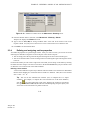
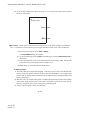
To obtain context-sensitive help:
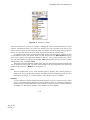
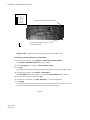
1. From the main menu bar, select Help→On Context.
Tip: You can also click the help tool
to access context-sensitive help.
The cursor changes to a question mark.
2. Click any part of the main window except its frame.
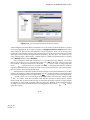
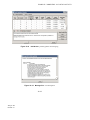
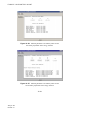
A help window appears in your browser window. The help window displays information about the
item you selected.
3. Scroll to the bottom of the help window.
At the bottom of the window, a list of blue, underlined items appears. These items are links to the
Abaqus/CAE User’s Manual.
4. Click any one of the items.
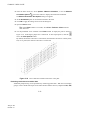
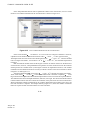
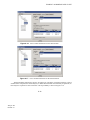
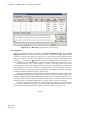
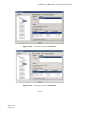
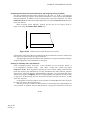
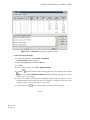
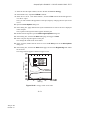
A book window appears in your default web browser. The window is arranged into four frames as
follows:
•
•
•
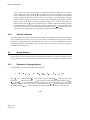
The Abaqus/CAE User’s Manual appears in a text frame on the right side of the window. The
manual is turned to the item that you selected.
An expandable table of contents is available on the lower left side of the window for easy
navigation throughout the book.
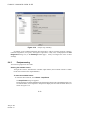
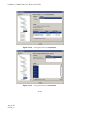
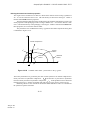
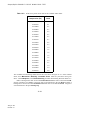
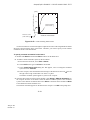
The table of contents control tools in the upper left frame allow you to vary the level of detail
displayed in the table of contents frame or to change the size of the frame. Click
several levels in the table of contents of an online book. Click
•
to collapse all expanded
sections in the table of contents. Click
and
, respectively, to widen or narrow the table
of contents frame.
The navigation frame at the top of the book window allows you to select another book from
the entire Abaqus documentation collection. The navigation frame also allows you to search
the entire manual.
1–11
Abaqus ID:
Printed on:
to expand