1
www.enterprise.comodo.com
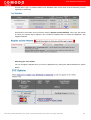
Installing the Verification Engine Download Button
In order to leverage the maximum return from your CVC investment, we recommend you, as a valued customer,
display a Verification Engine download button on your website.
To help you install it, we have created another wizard that explains how you can add the graphic to your
homepage and start benefiting from it immediately.
See http://www.vengine.com/logo.html for installation details.
3 SiteInspector Scanning
3.1
Scan Manager
Note: To run a SiteInspector Scan administrators will of course need to have created at least one device.Please
ensure you have completed this step first.
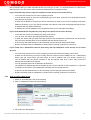
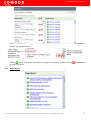
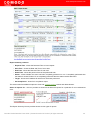
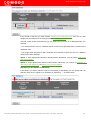
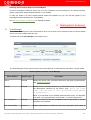
To start a scan click Scan Manager in the options menu.
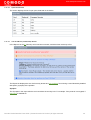
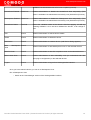
The 'Scan Manager' section shows the list of user stored devices. The the following information could be visible:
Section Specific Controls - 'Scan Manager'
Menu Element
Element Type
Description
Name
Text field
Displays the device name (a friendly name which was given by administrator
when creating the device).
Content
Text field
Displays all the associated domains (e.g. www.domain.com) or IP addresses
that administrator specified for the device. Tip: Place the mouse
cursor over the name to view all the associated domains
or IP addresses.
NOTE: If you specified only IP address (without domain name), it is displayed
in the field. If you entered domain name as well - it is shown instead of IP.
PCI Compliance
Text field
Displays the result of last PCI compliance scan for the device, it can be:
Compliant, Not Compliant.
PCI Scan Enabled
Check-box
Enables administrator to disable the PCI scan temporarily. (This option is
Comodo HackerGuardian User Guide | © 2009 Comodo CA Limited | All rights reserved
69