1
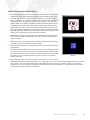
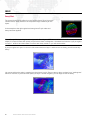
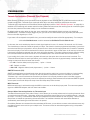
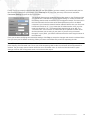
Texture Size:
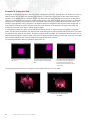
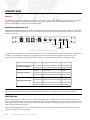
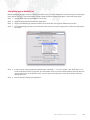
The Texture Size setting should be set to the resolution of the largest content (still or movie) that you intend to display.
Setting the Texture Size to overly large values can negatively affect performance; this setting should be kept as small
as possible. If you attempt to display content that is larger than the Texture Size - either in width or height - it will
automatically be reduced in size (in 50% increments) until it fits within the Texture Size. This automatic resizing affects
image quality but ensures that oversized content can be displayed quickly. You should find a compromise between
keeping the Texture Size as small as possible and keeping your image quality as high as required. Because the
majority of stock content on the Mbox Extreme hard-drive is 720px x 480px, the Texture Size should never be set lower
than this value if you intend to use any stock content.
CAUTION: If you make any changes to the Texture Size settings, you must quit and restart the Mbox
Extreme application for these changes to take effect.
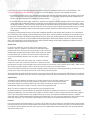
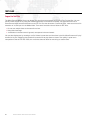
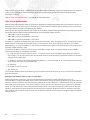
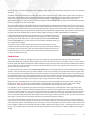
Screen Selection (Screen Arrangement):
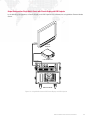
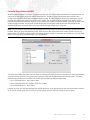
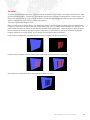
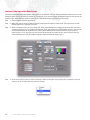
When using the Single Output operating mode, you are able to select whether the Mbox Extreme application will enter
Fullscreen mode on the Main (output 1 on the I/O module) or Alt (output 2 on the I/O module) screen. The other output
will continue to display the Mac desktop. Alternately, you can select the "Mirror Screens" checkbox to cause the
single output to appear on both screens at the same time.
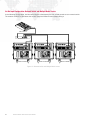
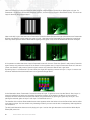
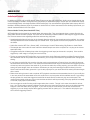
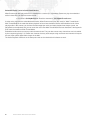
When using either of the Panoramic Wide or Panoramic Dual operating modes, you are able to set and adjust the
overlap between the two screens and whether they are horizontally or vertically arrayed. You may also swap the
outputs by selecting the "Swap Screens" checkbox.
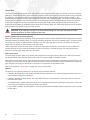
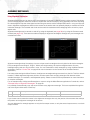
Video Input Setup:
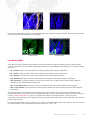
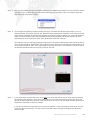
The video setup controls allow you to select and configure the local video inputs to the server. These inputs can be
the standard Blackmagic Decklink Extreme HD card or an optional USB or FireWire® camera.
When setting up the video inputs, make sure that none of the layers are attempting to display the camera that you are
configuring. You may also need to open the Decklink Preference Panel (in the Mac's System Preferences) to select the
type of signal that is being received (SDI, Composite, or Component) by the Decklink card.
Refer to the Appendix "Video Input" on page 101 for more information.
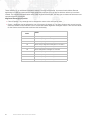
Options:
The settings in the Options section turn on and off various software features:
+ Checking "No Diagnostics" will disable the Mbox Extreme automatic error-reporting images (checking this box is
recommended during show situations).
+ Checking "Deinterlace Video Inputs" will cause Mbox Extreme to deinterlace the video signal that it receives on
the local video inputs.
+ "Pixel Map Enable" toggles the processing of pixel-mapping patches and the resulting Art-Net output. Unless you
are using pixel-mapping, this box should be left unchecked.
+ If you enable or disable "Audio Playback," you must quit and restart the Mbox Extreme application for the change
to take effect.
36
MBOX EXTREME® MEDIA SERVER USER MANUAL