1
Rayzoon Jamstix 2
User Manual
Cymbal Variations
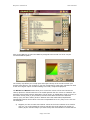
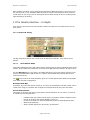
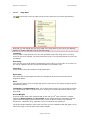
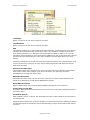
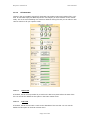
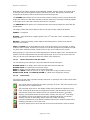
This is very useful when using an e-drumkit with only one or two cymbal pads. If checked,
Crash 1 notes are randomly spread across all available cymbals (crash, splash, china). There
is also an option to have all crash cymbal input other than Crash 1 spread this way.
11.1.2
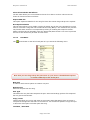
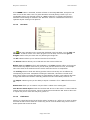
Jam – No Input
In this mode, the Jamstix brain is active but it will not let itself be affected by MIDI input or
audio analysis data. This is perfect if you wish to manually control all aspects of the
performance.
11.1.3
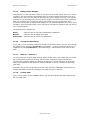
Jam With Audio
This mode is identical to the above but in addition, Jamstix will adjust its power level (velocity)
based on analysis of audio data sent to it by the audioM8 plugin that comes with Jamstix for
use as an insert effect on audio tracks. The power level affects various decisions of the brain,
such as auto sidestick usage, rhythm reduction and hihat/ride switch rules so this mode will let
you use a guitar or bass to jam with Jamstix and feel it respond to your dynamics.
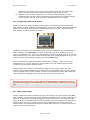
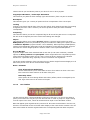
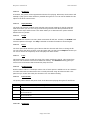
Use the input trim to adjust Jamstix to your specific power level. Your loudest play should
just make the power knob hit max. You should also look at the Input Velocity Map in the
Options screen to adjust the response further, such as making a sweet spot where the power
level is fairly constant unless you play VERY quiet or VERY loud.
11.1.4
Jam With MIDI Input
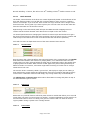
Use this mode if you want to jam with Jamstix using a MIDI instrument
This mode is like the one above but instead of audio data, Jamstix will analyze MIDI data it
receives to adjust the power level. In addition, MIDI analysis also allows some style and
drummer models to adjust their ‘thinking’ to specific characteristics of your play, such as
instant hits when you’re playing staccato.
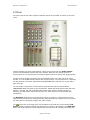
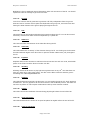
Use the input trim to adjust Jamstix to your specific power level. Your loudest play should
just make the power knob hit max. You should also look at the Input Velocity Map in the
Options screen to adjust the response further, such as making a sweet spot where the power
level is fairly constant unless you play VERY quiet or VERY loud.
11.1.5
The Timing Slider
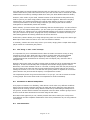
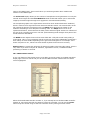
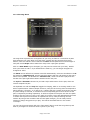
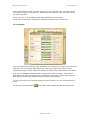
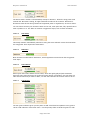
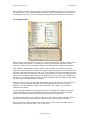
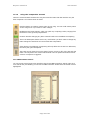
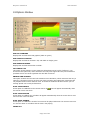
This slider controls the overall position of Jamstix time in relation to the host’s time. If the
slider is centered, they are both perfectly in synch. If the slider is further left, Jamstix will be
behind the host and vice versa the right area will cause Jamstix to move ahead of the host.
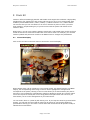
This is useful to force an overall timing feel on Jamstix to fit your song. Note the S-P-B round
buttons in the right area of the screenshot above. These buttons can control whether changing
the timing slider affects the whole song (S), the current part (P) or just the current bar (B) so
that you can fine-tune the timing within a song as needed.
11.1.6
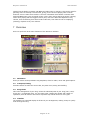
Minimum Power
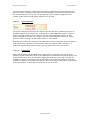
The MIN DYN slider sets the minimum power level allowed, meaning the kit will not be played
any softer than this value. This is great for songs that have a fairly constant power level so
playing too softly in low dynamic areas would make the kit to quiet. Using a higher level on
Page 21 of 51