1
Connecting Image Sources
• Turn the power off for both the projector and the signal source before connecting them.
If the power for either device is on at the time of connection, damage may result.
• Check the shapes of the cable connectors and the device ports before making the
connections. If you try to force a connector to fit a device port with a different shape or
number of terminals, a malfunction or damage to the connector or port may result.
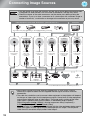
Video equipment (VHS VCR, DVD player, game console, etc.)
Computer
*Port names may vary depending on the equipment being connected.
Video
RCA video cable
(commerciallyavailable)
Component output
S-Video
HDMI
DVI-D output
Component
video cable
(commerciallyavailable)
S-Video cable
(commerciallyavailable)
HDMI cable
(commerciallyavailable *)
HDMI to DVI-D
conversion cable
(commerciallyavailable)
Mini D-Sub
15-pin
Computer cable
(commerciallyavailable)
Mini D-Sub
15-pin
* Use a HDMI cable that conforms to the HDMI specifications.
TIP
12
• Some signal sources may have specially-shaped ports. In such cases, use the
accessory or optional cables that are supplied with the signal source to make the
connections.
• The cable that should be used to connect video equipment to the projector will depend
on the type of video signal that the equipment outputs. Some kinds of video equipment
output several different types of video signal. The image quality ranking of the video
signal types is generally held to be as follows, in descending order of quality:
Digital component video [HDMI ] > Analog component video [Component] >
S-Video [S-Video] > Composite video [Video]
You should refer to the documentation provided with the video equipment being used to
check what types of video signal formats the equipment can output. The composite
video format is sometimes simply called "video output".