1
Chapter 20: Referral Tracking
x
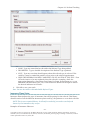
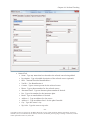
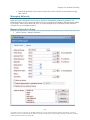
NAME - Type any name that best describes the Specialty being added.
x
DESCRIPTION - Type a detailed description of the specialty (optional).
4.
Select Locations to specify a location for the specialty, if desired.
5.
Click OK to save your work.
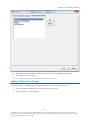
Note: You are also able to edit or disable a specialty.
Special Editing Note
When editing any library of items: if a library item name already in use is changed the new
name will replace the old name throughout the system. For example, if Optometry specialty
type gets changed to Cardiology, every place in Tracks where Optometry was used will now
display Cardiology. Editing is for fixing spelling errors and extending the name to have more
meaning. Never use an old name to become a new name. Instead disable the old name and add
a new name.
Referral Type Setup
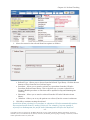
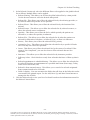
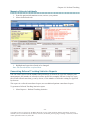
Referral Types indicate the type of referral being assigned to a patient, or the reason for the
patient referral. Additionally, a Referral Type can update a Tracks Procedure or Education
item/indicator. When creating these referral types, keep in mind any indicators that will be
updated automatically when the referral is complete. Only create referral types that fall outside
of procedures or educations you already have in i2iTracks. The system will allow you to attach
your referral to the existing i2iTracks libraries.
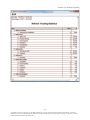
Examples of Referral Types are:
x
Physical Therapy
- 283 -
Copyright 2014 by i2i Systems, Inc. All Rights Reserved. No part of this document shall be reproduced, stored in a
retrieval system, or transmitted by any means, electronic, mechanical, photocopying, recording, or otherwise, without
written permission from i2i Systems, Inc.