1
Home Page
Table of Contents
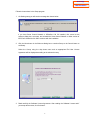
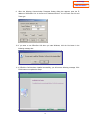
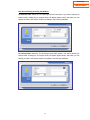
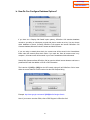
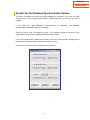
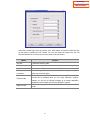
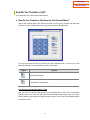
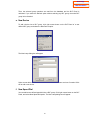
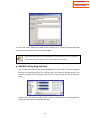
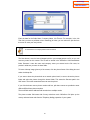
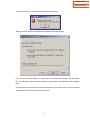
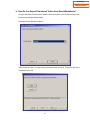
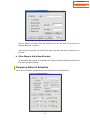
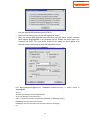
Enter your username and password, if any. When entered correctly, DDE is initialized.
Guidelines for using GOLDMINE:
If it is a local number nnnnnnn, then GOLDMINE stores it in the format(aa)nnn-nnnn where
aa denotes area code. For numbers other then local area numbers, you need to enter them
continuously without any special character such as-or ( etc., for contact popup.
For example: If your contact’s phone number is aa-nnnnnnn, where aa is the area code, you
need to enter it as aannnnnnn in GOLDMINE.
Make sure to enter the correct GOLDMINE EXE file as the username and password are
passed along with it. If you enter any other EXE file there is a chance of the program
crashing.
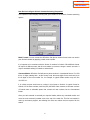
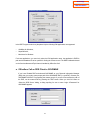
b. OfficeServ Call as DDE Client to SuperOffice
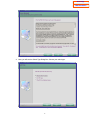
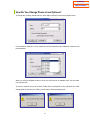
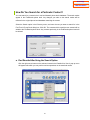
If you have enabled DDE and selected SuperOffice4.0 as your PIM, you need to enter the path
for the SUPEROFFICE file, SUPEROF4.EXE. (If you are not sure about the path of the file, run
it by pressing the TEST button.) Even if you have not logged on to SuperOffice it still shows the
contact pop up.
Guidelines for using SuperOffice4.0:
1. If your contact’s local area is the same as yours, you need to enter only the number.
2. SuperOffice doesn’t show a popup for numbers having more than eight digits. If you have
entered the number in the form aannnnnnn, where aa indicates the area code, then you
cannot view the popup.
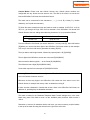
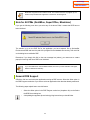
c. OfficeServ Call as DDE Client to Maximizer for Windows
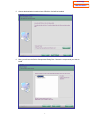
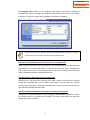
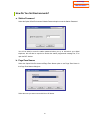
If you have enabled DDE and selected Maximizer for Windows as your PIM, you need to enter
the path of the Maximizer EXE file, MAXWIN.EXE. (If you are not sure about the path of the file,
run it by pressing the TEST button.) When you click OK on the Select the DDE Server dialog
box, DDE is initialized with Maximizer as the DDE server.
Guidelines for using Maximizer for Windows:
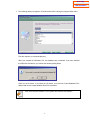
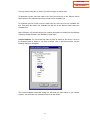
If you have entered a username and password to access the database in Maximizer, then
Maximizer must be running prior to initialization of DDE.
115