1
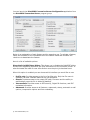
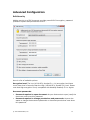
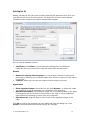
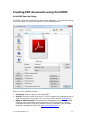
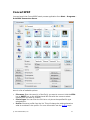
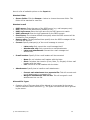
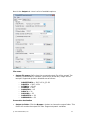
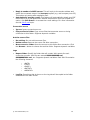
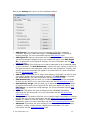
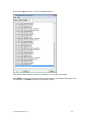
Save to: Click the Browse... button to choose the folder that the converted files will be saved to. Add Security: This will allow you to limit access to PDF files created by Print2PDF. Once you enable this option, click Edit Security... to access all security settings. For more information see the Edit Security topic. Add Digital ID: Signing a document with a Digital ID will ensure authenticity and provide tamper-resistance. Once you enable this option, click Edit Digital ID... to access all of the Digital ID settings. For more information see the Edit Digital ID topic. Add Watermark: This will allow you to add a watermark to all or selected pages of your document. The Edit Watermark... button will open a dialog in which you will type the text for the watermark, select a font, text orientation, visibility, and specify where the watermark will appear in the document. For more information see the Edit Watermark topic. Add Stamp: This allows you to select which page(s) of the PDF you wish to have your stamp appear. Once you enable this option, click Edit Stamp... to access the stamp settings. For more information see the Edit Stamp topic. Automatically merge: This will allow you to automatically merge the contents of multiple documents into a single PDF file. Once you enable this option, click Edit Merge... to access the merge settings. For more information see the Edit Merge topic. Register/About: When the product is in trial mode, this button will launch the Registration Wizard to register the product online. When the product is registered, this button will open the About dialog to display the registration and version information. PDF Info: This button will open a dialog to enter metadata information describing the PDF document. For more information see the PDF Document Information topic. Compression: This button will allow you to modify image compression to change the PDF file size. For more information see the Image Compression Options topic. Fonts: This button will open a dialog to modify the font embedding rules. For more information see the Font Embedding Options topic. Advanced: This button will open a dialog to provide control over color output, resolution, scaling, viewer options, rotation and optimization. For more information see the Advanced Options topic. More >>>: Will expand the Select Files to Convert dialog to show more options available for PDF document conversion. Less <<<: Will shrink the Select Files to Convert dialog and show only the basic set of options. Click Convert to convert the select files to PDF with the options specified. Click Cancel to close the dialog box without saving any changes. © 2007 Software602, Inc. 32