1
www.tissuegnostics.com
HistoQuest 3.0 User Manual
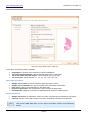
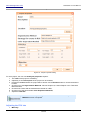
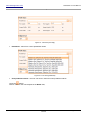
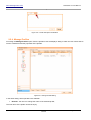
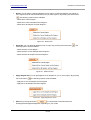
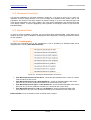
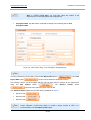
•
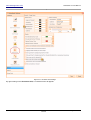
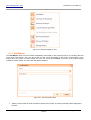
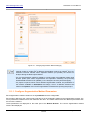
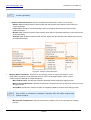
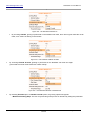
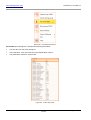
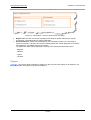
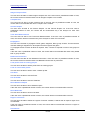
Use Submit Command: check this in order to access an external executable file
that will send the files to a server.
•
Auto Save Report: check this option in order to save the log files on the hard
drive, no matter if the report is sent or not.
•
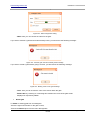
Test Configuration: this option helps you verify whether you introduced the valid
data in order to send your message;
•
Generate Exception: this option simulates generating an error message in order
to check once again the validity of the data introduced in the fields;
•
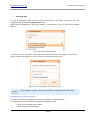
Open Reports Folder: if a report is not sent, it will be automatically stored in a
local folder; press Open Reports Folder to open that folder.
•
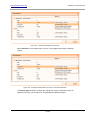
Send Saved Reports: press this button to send all unsent reports, if any. After
effectively sending saved reports, they will be automatically erased from the local
folder where they were stored.
•
Clear Reports Folder: will erase all reports from the folder.
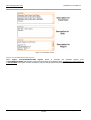
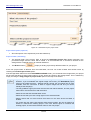
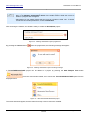
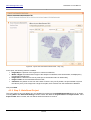
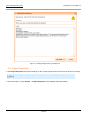
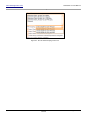
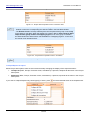
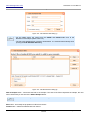
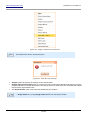
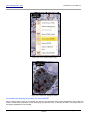
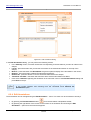
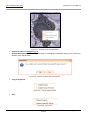
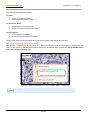
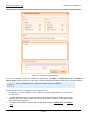
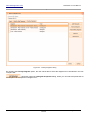
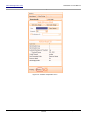
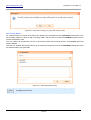
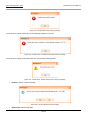
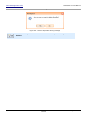
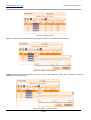
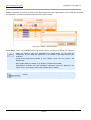
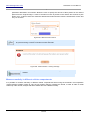
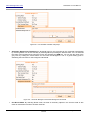
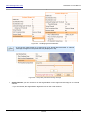
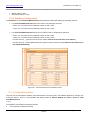
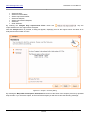
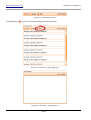
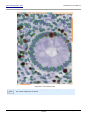
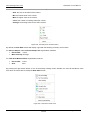
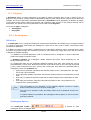
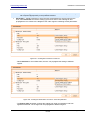
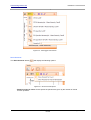
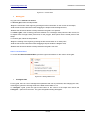
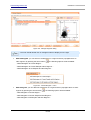
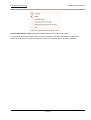
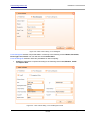
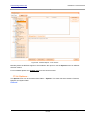
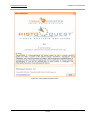
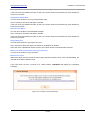
Figure 507 - HistoQuest error dialog
- Error description: here you can see a short description of the error.
- Error detail: here you can read detailed data related to the error.
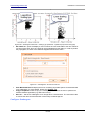
- Product Improvement Program checkbox: In the Product Improvement Program
participating systems send information to TissueGnostics about how they use certain
products. Received data is combined to help TissueGnostics solve problems and to improve
Internal
Page 331 of 351