1
Examining the Design
Note: You can load the saved wave window configuration using the menu command File > Open.
This feature is useful when you have se tup a wave configuration that you will reuse in future
simulation sessions of the design.
You are ready to simulate the design again with the updated wave configuration. Re-run
the simulation by either:
•
Use Run All
•
Use the menu command Simulation >Run All.
•
Type “run all” on the Tcl prompt.
from the main toolbar.
The simulation will run for about 13 microseconds (us).
After the simulation is complete, use the menu toolbar icon
to zoom to full view.
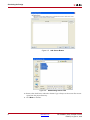
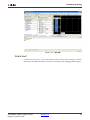
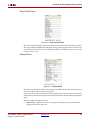
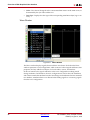
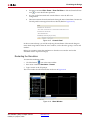
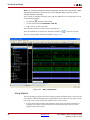
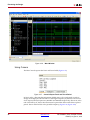
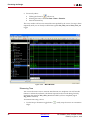
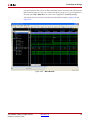
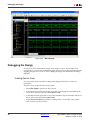
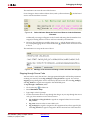
The wave configuration should look similar to Figure 4-32.
X-Ref Target - Figure 1-32
Figure 4-32: Wave Configuration
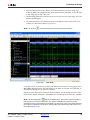
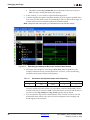
Using Markers
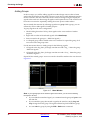
The self-checking test bench used in this design performs 4 different tests to showcase the
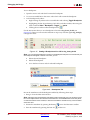
functionality of the DCM Dynamic Reconfiguration feature. Follow the next steps to mark
each time a new test has started with markers in the wave window.
1.
40
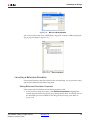
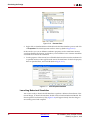
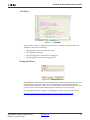
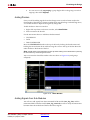
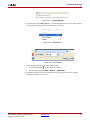
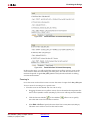
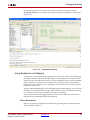
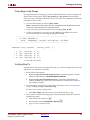
In the Console panel, identify the simulation times when each test has started. For
example, Test 2 starts at about 3.46 microseconds (3,461,664 ps) as shown by this
segment of the ISim console:
www.xilinx.com
ISE Simulator (ISim) In-Depth Tutorial
UG682 (v1.0) April 27, 2009