1
Examining the Design
•
drp_multiply
•
drp_divide
To change the signal name format:
1.
In the wave window, right-click on the signal name, listed under the Name column.
2.
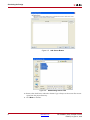
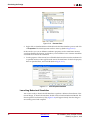
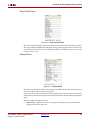
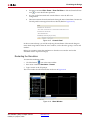
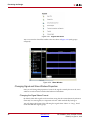
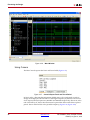
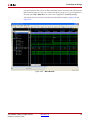
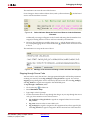
Select Name > Long. (Refer to Figure 4-25.)
X-Ref Target - Figure 1-25
Figure 4-25: Change the Signal Name Format
Note: You can perform a format change on multiple signals with fewer clicks by:
♦
Selecting multiple signals using Ctrl+Shift.
♦
Applying the format change via the right-click context menu.
Changing the Signal Radix Format
Some signals are better interpreted if seen in hexadecimal rather than in binary. For
example, the signals drp_multiply and drp_divide are bus signals that are best interpreted
in hexadecimal format, rather than binary.
You will change the format of the following signals from “Binary” to “Hexadecimal”:
•
drp_demo_tb/drp_multiply
•
drp_demo_tb/drp_divide
To change the radix of a signal:
1.
In the wave window, right-click on the signal name, listed under the Name column.
2.
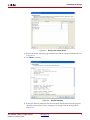
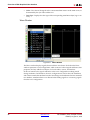
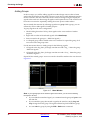
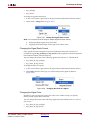
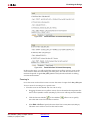
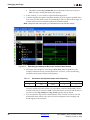
Select Radix, then the radix type you wish to interpret the signal in. (Refer to
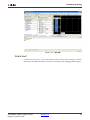
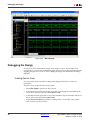
Figure 4-26.)
X-Ref Target - Figure 1-26
Figure 4-26: Changing the Radix of a Signal
Changing the Signal Color
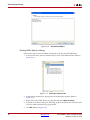
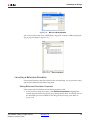
ISim allows you to change the signal color in the wave window to help you quickly
identify similar signals from each other.
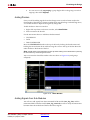
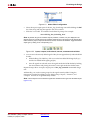
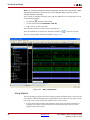
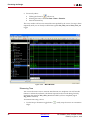
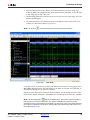
You will change the format of the following signals from their default color to a color of
your choice:
•
drp_demo_tb/drp_multiply
•
drp_demo_tb/drp_divide
ISE Simulator (ISim) In-Depth Tutorial
UG682 (v1.0) April 27, 2009
www.xilinx.com
37