1
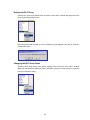
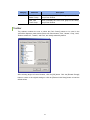
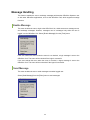
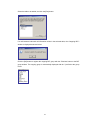
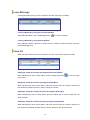
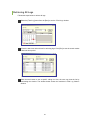
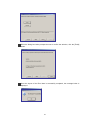
If the user is logged in to the OfficeServ Link, the <Send Message> window will be displayed
as shown below: If the user is not logged in to the OfficeServ Link, the user can automatically
login to the OfficeServ Link by selecting the [Send Message] menu.
Enter the extension number of the recipient in the [To] text box at the upper section of the
window. Separate numbers with semi-colons (;) when entering multiple numbers (e.g.
202;203;204). Clicking the [Send] button without specifying a destination in the [To] text box
will send the message to all logged-in stations.
My messages and messages received from the other stations while this window is open are
displayed in the text box on the center of the window. Messages that arrive while the message
window is closed are displayed on the <Information> window.
Enter the message to be sent in the text box at the bottom section of the <Send Message>
window. Then, click the [Send] button or press the [Enter] key to send the message.
Add Outgoing BLF Group
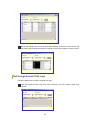
Select [Add Outgoing BLF Group] from the [Tools] menu to retrieve the outgoing call
information from the phonebook and to add the information to the BLF group.
56