1
DRAFT - 28 July 2014
Instruction Manual
MTL Industrial Ethernet
July 2014
INM 9226 1
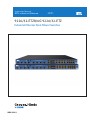
9226/32-ETZ8/6G 9226/32-ETZ
Industrial Ethernet Rack-Mount Switches
INM 9226 1
DRAFT - 28 July 2014
INSTALLATION WARNINGS - These products should not be used to replace proper safety interlocking. No
software-based device (or any other solid-state device) should ever be designed to be responsible for the
maintenance of consequential equipment or personnel safety. In particular, MTL disclaims any responsibility for
damages, either direct or consequential, that result from the use of this equipment in any application.
FCC Statement - This equipment has been tested and found to comply with the limits for a Class B digital
device, pursuant to Part 15 of the FCC Rules. These limits are designed to provide reasonable protection against
harmful interference in a residential installation. This equipment generates, uses and can radiate radio frequency
energy and, if not installed and used in accordance with the instructions, may cause harmful interference to
radio communications. However, there is no guarantee that interference will not occur in a particular installation.
If this equipment does cause harmful interference to radio or television reception, which can be determined by
turning the equipment off and on, the user is encouraged to try to correct the interference by one or more of the
following measures: Reorient or relocate the receiving antenna; Increase the separation between the equipment
and receiver; Connect the equipment into an outlet on a circuit different from that to which the receiver is
connected; Consult the dealer or an experienced radio/TV technician for help.
© 2014 MTL
All rights reserved.
ii
IINM9226 1 280714
DRAFT - 28 July 2014
CONTENTS
1
2
3
GENERAL INFORMATION. . . . . . . . . . . . . . . . . . . . . . . . . . . . . . . . . . . . . . . . . . . . . . . . . . . . . . . . . . . . 1
1.1
Overview. . . . . . . . . . . . . . . . . . . . . . . . . . . . . . . . . . . . . . . . . . . . . . . . . . . . . . . . . . . . . . . . . . . . . . . . . . . . . . . 1
1.2
Operation . . . . . . . . . . . . . . . . . . . . . . . . . . . . . . . . . . . . . . . . . . . . . . . . . . . . . . . . . . . . . . . . . . . . . . . . . . . . . . 1
1.3
Performance specifications. . . . . . . . . . . . . . . . . . . . . . . . . . . . . . . . . . . . . . . . . . . . . . . . . . . . . . . . . . . . . . . . 1
INSTALLATION AND MOUNTING. . . . . . . . . . . . . . . . . . . . . . . . . . . . . . . . . . . . . . . . . . . . . . . . . . . . . . 2
2.1
Overview. . . . . . . . . . . . . . . . . . . . . . . . . . . . . . . . . . . . . . . . . . . . . . . . . . . . . . . . . . . . . . . . . . . . . . . . . . . . . . . 2
2.2
Mounting Brackets. . . . . . . . . . . . . . . . . . . . . . . . . . . . . . . . . . . . . . . . . . . . . . . . . . . . . . . . . . . . . . . . . . . . . . . 3
2.3
Mechanical Dimensions. . . . . . . . . . . . . . . . . . . . . . . . . . . . . . . . . . . . . . . . . . . . . . . . . . . . . . . . . . . . . . . . . . . 4
2.4
Connection Options. . . . . . . . . . . . . . . . . . . . . . . . . . . . . . . . . . . . . . . . . . . . . . . . . . . . . . . . . . . . . . . . . . . . . . 5
THERMAL CONSIDERATIONS. . . . . . . . . . . . . . . . . . . . . . . . . . . . . . . . . . . . . . . . . . . . . . . . . . . . . . . . . 6
3.1
4
5
6
7
8
IP50 Sealed “S” Models. . . . . . . . . . . . . . . . . . . . . . . . . . . . . . . . . . . . . . . . . . . . . . . . . . . . . . . . . . . . . . . . . . .7
POWER AND OUTPUT WIRING . . . . . . . . . . . . . . . . . . . . . . . . . . . . . . . . . . . . . . . . . . . . . . . . . . . . . . . 9
4.1
Overview. . . . . . . . . . . . . . . . . . . . . . . . . . . . . . . . . . . . . . . . . . . . . . . . . . . . . . . . . . . . . . . . . . . . . . . . . . . . . . . 9
4.2
Safety Grounding. . . . . . . . . . . . . . . . . . . . . . . . . . . . . . . . . . . . . . . . . . . . . . . . . . . . . . . . . . . . . . . . . . . . . . . 10
4.3
AC Power Systems. . . . . . . . . . . . . . . . . . . . . . . . . . . . . . . . . . . . . . . . . . . . . . . . . . . . . . . . . . . . . . . . . . . . . . 10
4.4
Positive (+) DC Power . . . . . . . . . . . . . . . . . . . . . . . . . . . . . . . . . . . . . . . . . . . . . . . . . . . . . . . . . . . . . . . . . . . 10
4.5
4.6
PNegative (-) DC Power Systems. . . . . . . . . . . . . . . . . . . . . . . . . . . . . . . . . . . . . . . . . . . . . . . . . . . . . . . . . . 10
Reverse Polarity Protection. . . . . . . . . . . . . . . . . . . . . . . . . . . . . . . . . . . . . . . . . . . . . . . . . . . . . . . . . . . . . . . 10
4.7
“OK” Alarm Output. . . . . . . . . . . . . . . . . . . . . . . . . . . . . . . . . . . . . . . . . . . . . . . . . . . . . . . . . . . . . . . . . . . . . 11
4.8
Wire Guage & Screw Torque. . . . . . . . . . . . . . . . . . . . . . . . . . . . . . . . . . . . . . . . . . . . . . . . . . . . . . . . . . . . . . 11
COMMUNICATION PORTS WIRING. . . . . . . . . . . . . . . . . . . . . . . . . . . . . . . . . . . . . . . . . . . . . . . . . . . 12
5.1
Overview. . . . . . . . . . . . . . . . . . . . . . . . . . . . . . . . . . . . . . . . . . . . . . . . . . . . . . . . . . . . . . . . . . . . . . . . . . . . . . 12
5.2
RJ45 Ethernet Wiring. . . . . . . . . . . . . . . . . . . . . . . . . . . . . . . . . . . . . . . . . . . . . . . . . . . . . . . . . . . . . . . . . . . . 12
5.3
Ethernet Fiber Wiring Guidelines. . . . . . . . . . . . . . . . . . . . . . . . . . . . . . . . . . . . . . . . . . . . . . . . . . . . . . . . . . 13
5.4
Duplex operation . . . . . . . . . . . . . . . . . . . . . . . . . . . . . . . . . . . . . . . . . . . . . . . . . . . . . . . . . . . . . . . . . . . . . . . 13
5.5
Verifying connectivity . . . . . . . . . . . . . . . . . . . . . . . . . . . . . . . . . . . . . . . . . . . . . . . . . . . . . . . . . . . . . . . . . . . 13
5.6
Console Port Management . . . . . . . . . . . . . . . . . . . . . . . . . . . . . . . . . . . . . . . . . . . . . . . . . . . . . . . . . . . . . . .14
5.7
Serial DB9 Console Port. . . . . . . . . . . . . . . . . . . . . . . . . . . . . . . . . . . . . . . . . . . . . . . . . . . . . . . . . . . . . . . . . .15
5.8
USB Type B Console Port . . . . . . . . . . . . . . . . . . . . . . . . . . . . . . . . . . . . . . . . . . . . . . . . . . . . . . . . . . . . . . . . 15
LED INDICATORS. . . . . . . . . . . . . . . . . . . . . . . . . . . . . . . . . . . . . . . . . . . . . . . . . . . . . . . . . . . . . . . . . . 16
6.1
Overview. . . . . . . . . . . . . . . . . . . . . . . . . . . . . . . . . . . . . . . . . . . . . . . . . . . . . . . . . . . . . . . . . . . . . . . . . . . . . . 16
6.2
Ethernet Group 1 . . . . . . . . . . . . . . . . . . . . . . . . . . . . . . . . . . . . . . . . . . . . . . . . . . . . . . . . . . . . . . . . . . . . . . . 16
6.3
Ethernet Group 2 . . . . . . . . . . . . . . . . . . . . . . . . . . . . . . . . . . . . . . . . . . . . . . . . . . . . . . . . . . . . . . . . . . . . . . . 17
6.4
Ethernet Group 3 . . . . . . . . . . . . . . . . . . . . . . . . . . . . . . . . . . . . . . . . . . . . . . . . . . . . . . . . . . . . . . . . . . . . . . . 18
6.5
Status LED. . . . . . . . . . . . . . . . . . . . . . . . . . . . . . . . . . . . . . . . . . . . . . . . . . . . . . . . . . . . . . . . . . . . . . . . . . . . .19
6.6
Power LEDs. . . . . . . . . . . . . . . . . . . . . . . . . . . . . . . . . . . . . . . . . . . . . . . . . . . . . . . . . . . . . . . . . . . . . . . . . . . . 19
6.7
”OK” Alarm LED. . . . . . . . . . . . . . . . . . . . . . . . . . . . . . . . . . . . . . . . . . . . . . . . . . . . . . . . . . . . . . . . . . . . . . . . 19
RESET BUTTON. . . . . . . . . . . . . . . . . . . . . . . . . . . . . . . . . . . . . . . . . . . . . . . . . . . . . . . . . . . . . . . . . . . 20
7.1
Overview. . . . . . . . . . . . . . . . . . . . . . . . . . . . . . . . . . . . . . . . . . . . . . . . . . . . . . . . . . . . . . . . . . . . . . . . . . . . . . 20
7.2
Hardware Reset . . . . . . . . . . . . . . . . . . . . . . . . . . . . . . . . . . . . . . . . . . . . . . . . . . . . . . . . . . . . . . . . . . . . . . . . 20
7.3
Restore Factory Defaults. . . . . . . . . . . . . . . . . . . . . . . . . . . . . . . . . . . . . . . . . . . . . . . . . . . . . . . . . . . . . . . . . 20
TECHNICAL SPECIFICATIONS. . . . . . . . . . . . . . . . . . . . . . . . . . . . . . . . . . . . . . . . . . . . . . . . . . . . . . . . 21
IINM9226 1 280714
iii
DRAFT - 28 July 2014
Safety Standards
These industrial Ethernet Switches meet the following standards plus others:
Note: Some ratings may be pending on newer models. Contact MTL for latest info.
MTL is an ISO9001:2000 certified company. These devices are design, developed and
manufactured per an ISO9001 quality management system.
Electrical safety –
•
CE per Low Voltage Directive and EN61010-1 (IEC1010)
•
UL recognition per UL508 (UL File # E179490)
See warnings below.
Install the Managed Switches in accordance with local and national electrical
codes.
Lightning Danger: Do not work on equipment during periods of lightning activity.
Do not connect a telephone line into one of the Ethernet RJ45 connectors.
EMC (emissions and immunity) –
•
CE per EMC directive, EN 55022 or IEC 61326-1 or EN 61000-6-2/4
•
FCC part 15 and ICES 003; Class B. See FCC statement on previous page.
End of life disposal –
This symbol means that within the European Union the product must be recycled in
accordance with the WEEE directive and local environment regulations. Contact MTL
regarding proper disposal.
RoHS
RoHS compliance –
Complies with the materials restrictions in EU Directive 2002/95/EC (EU RoHS
Directive)
iv
IINM9226 1 280714
DRAFT - 28 July 2014
MTL 9226/32-ETZ Series Ethernet Switches
1
GENERAL INFORMATION
1.1
Overview
INM9226-1
May 2014
The 92xx-ETZxG Series is a line of industrial Ethernet switches designed to be rack
or wall mounted. Up to 32 Ethernet ports are offered including 8 Gigabit.
The rugged and compact 1U packaging allows them to fit into standard EIA, WECO
and ETSI racks from 19 to 24”.
This manual will help you install and maintain these industrial Ethernet switches.
Installation of these switches is very easy and they will begin to operate as soon
as they are powered up. Though these are fully managed switches, they will act
as unmanaged until they are configured otherwise. Refer to the separate managed
switch software manual for configuration of the advanced networking functionality
and security.
NOTE:
This manual covers only the installation and wiring of these switches. Refer to
the seperate software user manuals for details on configuration and use of the
management functions such as SNMP, RSTP, IGMP, VLANs, security, port
mirroring and much more.
1.2
Operation
Unlike an Ethernet hub that broadcasts all messages out of all ports, these industrial
Ethernet switches will intelligently route Ethernet messages only out of the
appropriate port. The major benefits of this are increased bandwidth and speed,
reduction or elimination of message collisions, and deterministic performance when
tied with real-time systems.
These industrial Ethernet switches can support 10BaseT (10 Mbps), 100BaseT
(100 Mbps) and 1000BaseT (100 Mbps) on their RJ45 ports (depending on the
model). Each of these ports will independently auto-sense the speed/duplex, mdi/
mdix-crossover and polarity allowing you to use straight, crossed or even mis-wired
cables. Also these switches are equipped with 4 SFP/TX combo ports which with
suitable SFP transceivers can support noise immune connections up to 120 km.
1.3
Performance specifications
These general specifications apply to these industrial Ethernet switches. Refer to
Section 7 for complete technical specifications.
Number of ports
Up to 32 Ethernet ports
Ethernet Switch Type
Managed
Ethernet Switch Mode Store and forward, wire-speed, non-blocking
IINM9226 1 280714
Ethernet Protocols
All standard IEEE 802.3 protocols supported
RJ45 Ports Speed
10/100 or 10/100/1000 Mbps
RJ45 Ports Operation
Auto-negotiation, auto-mdi/mdix-crossover and
auto-polarity
Fibre Optic Type
Multimode, singlemode, long-haul or special
application
Package style
1U 19” rack mount
1
DRAFT - 28 July 2014
2
INSTALLATION AND MOUNTING
2.1
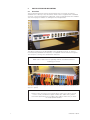
Overview
These industrial Ethernet switches are designed to be mounted in an industry
standard rack or directly to any flat surface. Each switch is supplied with a standard
set of 19” rack mounting brackets. Optionally, other mounting brackets are available.
See the next page for details on utilizing the mounting brackets.
The above image shows an 9232-ETZ6G (with standard front style “F” option)
mounted (using standard rack fasteners, not supplied with the switch) in a typical
19” rack prior to wiring. Use standard rack fasteners
IMPORTANT NOTE
Make sure to read Section 3 regarding thermal considerations before
installing your switch.
The above image shows a typical installation of an 9232-ETZ6G (with standard front
style “F” option).
IMPORTANT NOTE
When you are choosing your mounting option make sure to allow enough
room to route your Ethernet copper or fiber optic cables. Also, please
consult the specifications for your fiber optic cable to make sure you allow
for the proper bend radius.
2
IINM9226 1 280714
DRAFT - 28 July 2014
2.2
Mounting Brackets
There are many options for mounting these industrial Ethernet switches. Each
switch is supplied with a standard set of 19” rack mounting brackets. Optionally,
mounting brackets for 23”, 24” and ETSI width racks are available. These mounting
brackets universally support the mounting hole spacing per the EIA (1.25”), ETSI
(25mm) and WECO (1.00”) standards. Refer to the mechanical diagram on the next
page for details.
There are eight threaded inserts (see red arrows above) on each side of the switch
that allow the brackets to be mounted in numerous positions for the best fit in your
rack. The brackets also have extra holes (see blue arrows above) allowing them to
be shifted right or left 1/2 inch. Use the four supplied screws to mount the bracket
in the desired position. See below for images of a few of the possible mounting
positions.
In the image above, the brackets are
mounted flush with the front of the switch.
In the image above, the brackets are
mounted flush with the back of the switch.
In the image above, the brackets are
mounted so the front of the switch is
setback 1/2 inch.
In the image above, the brackets are
mounted in the middle of the switch to
accommodate a centrally located rail.
For the most durable mounting you can use two brackets on each side (as shown
in the image above). This is ideal for applications requiring the highest shock and
vibration resistance.
IINM9226 1 280714
3
DRAFT - 28 July 2014
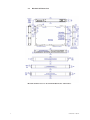
2.3
Mechanical Dimensions
Mechanical Dimensions for the 92xx-ETZxG Switches and Brackets
4
IINM9226 1 280714
DRAFT - 28 July 2014
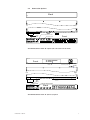
2.4
Connection Options
Bottom
Back
Top
Bottom
Back
Top
Left
Left
Right
1.00"
[25.5]
Chassis Ground Screws
Console ports
Right
Front
Top
B
Power block
1.00"
[25.5]
Power block
Bottom
Chassis Ground Screws
Console ports
Front
Top
B
92xx-ETZxG Switch with “G” Option (all connections in the front)
Bottom
Front
B
Top
LEDs
Bottom
0.33"
Console ports
[8.4]
Bottom
Front
B
Top
Left
LEDs
Console ports
Right
0.33"
[8.4]
Left
1.00"
[25.5]
Power block
Right
Chassis Ground Screws
Back
Bottom
1.00"
[25.5]
Power block
Top
Chassis Ground Screws
Back
Top
Bottom
92xx-ETZxG Switch with “R” (Reverse) Option
IINM9226 1 280714
5
DRAFT - 28 July 2014
3
THERMAL CONSIDERATIONS
The 92xx-ETZxG Series Switches are design to operate from -40 to +85°C when they
are installed properly. Two cooling options are offered: fan cooled and conduction
cooled.
These 92xx-ETZxG switch models are fan cooled and rated for operation from -40 to
+85°C with cold startup at -40. No temperature derating is required. These models
have the highest quality fans for long-term trouble-free operation. With the standard
“T” option the fans are located inside the switch on the right side. The air flow is
normally outward. Optionally (as a special order) the fans can be located on the left
side or even in the back. Contact MTL for more information on these special options.
These models can be installed directly adjacent (vertically) to other devices in
the rack. No extra air gaps are required. However, make sure not to block the
air vent slots.
IMPORTANT NOTE
Make sure to not block either the air inlet or outlet slots.
These fan cooled models are IP30 rated meaning they are protected against
debris >2.5mm.
Optional Fan Location
As a special order, the fans
can be located on the back side
(Contact MTL for details)
Optional Fan Location
With the special order
“L” option the fans can
be located on the left side
(Contact MTL for details)
6
Default Fan Location
With the “T” option the fans are
located on the right side of the
92xx-ETZxG switch
Fan Location in Fan Cooled Models
IINM9226 1 280714
DRAFT - 28 July 2014
3.1
IP50 Sealed “S” Models
These 92xx-ETZxG switch models are conduction cooled and rated for operation from
-40 to +85°C when there are no Gigabit connections. The cold startup rating (-40) is
the same as the fan cooled models. When there are Gigabit connections then the
temperature derating is as follows:
With no external air movement (free air convection):
Maximum operating ambient temperature with 0 Gigabit connections = 85°C
Maximum operating ambient temperature with 1 or 2 Gigabit connections = 75°C
Maximum operating ambient temperature with 3 or 4 Gigabit connections = 70°C
Maximum operating ambient temperature with 5 or 6 Gigabit connections = 65°C
Maximum operating ambient temperature with 7 or 8 Gigabit connections = 60°C
IMPORTANT NOTE
These ratings are based on proper installation with respect to the thermal
guidelines defined in this manual. Improper installation will reduce the
temperature rating and possibly the operational life of the switch.
With 25 CFM of external air movement (forced air convection):
Maximum operating ambient temperature with 0 to 4 Gigabit connections = 85°C
Maximum operating ambient temperature with 5 to 8 Gigabit connections = 75°C
These “S” models are IP50 rated meaning they are mostly sealed against dust and debris.
These conduction cooled models utilize the aluminum case as a large heat sink.
Heat is conducted from the inside of the switch to the case so that it can then be
dissipated outside via convection. For best heat dissipation it is recommended that
there be around 1/2U or more of free air space above and below the switch.
other device
0.75" [19.1mm] above switch
0.75" [19.1mm] below switch
other device
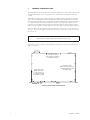
Suggestion: If your space is limited and you must choose between an air gap on the
bottom versus the top it is better to have the air gap on the bottom.
When rack mounting the “S” model (as shown above) it is recommended that
there be some air space between the switch and any other devices directly
above or below in the same rack.
IINM9226 1 280714
7
DRAFT - 28 July 2014
Side View
Front View
1.00" [25.4mm]
Mounting and Cooling Alternative: The bottom surface of the switch could be
mounted flush (no air gap) to a suitable flat metal surface. A heat transfer pad (or
paste) would be needed to conduct the heat from the switch case to the mounting
surface. Contact MTL for more details.
When wall mounting the “S” model it is recommended that the brackets be
installed as shown above to provide some air space between the switch and
the mounting surface.
8
IINM9226 1 280714
DRAFT - 28 July 2014
4
POWER AND OUTPUT WIRING
4.1
Overview
The 92xx-ETZxG Series industrial Ethernet switches are offered with many power
options including:
Standard Options:
Option DD = dual +/-24/48/60 VDC power inputs – both P1 and P2 accept 18 to 75 VDC
Option A0 = single 110/220 VAC power – P1 accepts 90-264 VAC or 130 to 370 VDC
Option AA = dual 110/220 VAC power – P1 & P2 accept 90-264 VAC or 130 to 370 VDC
Special Order Options:
Other power inputs options may be available. Contact MTL for details.
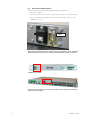
The switch will have a power option specific label below the power input terminals
(see image for an example). Make sure to reference this labeling when wiring
your switch to make sure you are connecting the appropriate power to the correct
terminals.
For the best safety always connect your earth / chassis grounds first!
WARNING!
Make sure all power is OFF before wiring or unwiring any power
connections to the switch!
The power input terminals and chassis ground screws may be located on
either the front or back of the switch as shown in these images.
IINM9226 1 280714
9
DRAFT - 28 July 2014
4.2
Safety Grounding
For the highest electrical safety the 92xx-ETZxG switches are provided with several
grounding points. First, there are two green ground screws that attach directly to the
switch case.
These screws can be used to provide a NEBS compliant safety ground. Please
follow all the NEBS grounding rules and your own local requirements (which are not
documented in this manual) to ensure the safe operation of the switch. Alternatively,
there is a chassis ground terminal (#4) that can be used to safety ground the switch.
This terminal is internally tied to the switch case through a heavy-gauge ground wire.
In addition, there is a ground terminal for each power input. Use these to terminate
the ground wire for each of your power inputs.
WARNING!
Make sure all power is OFF before wiring or unwiring any power
connections to the switch!
4.3
AC Power Systems
For AC powered systems the terminals will be labeled as “L” for Line (aka Hot), “N”
for Neutral and the chassis ground symbol for ground. Connect your AC power input
as appropriate. Typically the Line (Hot) lead is colored black or brown, the Neutral
lead is colored white or blue and the ground is green or green/yellow.
4.4
Positive (+) DC Power
For positive power systems (such as +24 VDC) put the positive lead on the terminal
marked “+” and the return (or ground) lead on the terminal marked “-“. If there is a
chassis, earth or safety ground lead then put it on the associated terminal marked
with the chassis ground symbol.
4.5
PNegative (-) DC Power Systems
The DD power option supports negative power systems. If your power is negative
(such as -48 VDC) then you must put the most positive lead on the + terminal.
Always use a voltmeter to verify which lead is more positive. For dual power inputs
the P1 and P2 polarity must match. For example, if you put a negative voltage on P1
and you also are connecting P2 then it must be a negative voltage as well.
ATTENTION!
For DC powered systems always make sure the more positive lead is
connected to the “+” terminal.
4.6
Reverse Polarity Protection
The DC power inputs are reverse polarity protected. This means that if you swap the
+ and – leads then the switch will not be damaged.
Two #10-32 Screws
for NEBS Compliant
Safety Grounding
Pluggable Screw Block
1 2 3 4 5 6 7 8 9 10
Accepts
14-24 AWG
Wire
0.63"
[15.88mm]
Ground lug not included
P1 P1
+/L -/N
P2 P2
-/N +/L
NO C NC
Power
Chassis
Power
Alarm
Input 1
GND
Input 2
Relay
Power & Alarm Wiring for 92xx-ETZxG Series Switches
10
IINM9226 1 280714
DRAFT - 28 July 2014
4.7
“OK” Alarm Output
The 92xx-ETZxG Series switches have an “OK” alarm output that can be tied to a PLC
input, an alarm indicator (visible or audible) or other device to indicate when there is
an alarm condition (such as the loss of a power input). The alarm output is a Form C
relay with a normally open (NO), normally closed (NC) and common (C) screw terminal.
Apply an appropriate power source to the common (C) terminal.
Alarm Output Ratings:
Maximum voltage = 250 VAC or 220 VDC
Maximum current = 2 A @ 30 VDC or 0.25 A @ 250 VAC
Minimum load = 10 mVDC, 10 μA
The relay will operate as follows:
Condition
NO Contact
NO Contact
No power to switch
Closed
(shorted to common)
Open
Switch powered with no alarms
Open
Closed
(shorted to common)
Switch powered with no alarm
Closed
(shorted to common)
Open
4.8
Wire Guage & Screw Torque
The screw terminals are removable and secured by two screws. They will accept wire
in the range of 24 to 14 AWG. When tightening the screws be careful to tighten to a
maximum torque of 4.5 in/lb (0.51 Nm).
Always install the Managed Switches in accordance with local and national
electrical codes.
IINM9226 1 280714
11
DRAFT - 28 July 2014
5
COMMUNICATION PORTS WIRING
5.1
Overview
The 92xx-ETZxG Series switches provide connections to standard Ethernet devices
such as PLCs, Ethernet I/O, industrial computers and much more. Three types of
communication ports may be found on these switches: RJ45 (copper) Ethernet ports,
fiber optic Ethernet ports and a console port (serial or USB) for management (managed
models).
5.2
RJ45 Ethernet Wiring
Use data-quality (not voice-quality) twisted pair cable rated category 5 (or better)
with standard RJ45 connectors. For best performance use shielded cable. Straight
through or crossover RJ45 cable can be used regardless of the device the switch is
to be connected to as all the ports are capable of auto-mdi/mdix-crossover detection.
The RJ45 Ethernet port connector bodies on these products are metallic and are
connected to the Chassis GND terminal. Therefore, shielded cables may be used to
provide further protection. To prevent ground loops, the cable shield should be tied
to the metal connector
body at one end of the cable only. Electrical isolation is also provided on the Ethernet
ports for increased reliability.
Straight-thru Cable Wiring
Cross-over Cable Wiring
PIN 1
PIN 1
PIN 1
PIN 3
PIN 2
PIN 2
PIN 2
PIN 6
PIN 3
PIN 3
PIN 3
PIN 1
PIN 6
PIN 6
PIN 6
PIN 2
For Reference Only. Either cable wiring will work!
Ethernet Plug & Connector Pin Positions
12
IINM9226 1 280714
DRAFT - 28 July 2014
5.3
Ethernet Fiber Wiring Guidelines
The maximum cable length for 10/100/1000BaseT is typically 100 meters (328 ft.).
The 92xx-ETZxG switches may also have up to four pluggable fiber ports using
mini-gbic SFP (small form pluggable) transceivers. These ports accept plug-in
100Mb or Gigabit (1000Mb) fiber transceivers that typically have an LC style
connector. They are available as multimode, singlemode, long-haul singlemode
(for connections up to 80+ km) or special-application transceivers. Refer to the
technical specifications for details.
IMPORTANT NOTE
When you make a fiber connection to one of the combination SFP / RJ45
ports then you cannot also use the associated copper RJ45 port at the
same time (and vice versa). Which ever connector links first will take
precedent and the other connector will become inactive.
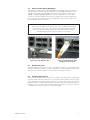
This image shows a typical SFP/LC
transceiver and dual-LC cable.
5.4
This image shows the SFP/LC
transceiver and dual-LC cable
plugged into the switch.
Duplex Operation
The RJ45 ports will auto-sense for Full or Half duplex operation, while the fiber ports
default to full duplex operation or can be configured for Full or Half duplex. Refer to the
software user manual for details on the software configuration options.
5.5
Verifying Connectivity
After all Ethernet and/or fiber connections are made, check the LED’s corresponding
to the ports that each of the devices are connected to. Ensure that for each port that is
in use, the LED is on or blinking. If a port LED is off, go back and check for connectivity
problems between that port and the network device connected to that particular port.
In addition, the color of the LED should indicate the speed for which your device is
connected at (see the next section on the status LEDs).
IINM9226 1 280714
13
DRAFT - 28 July 2014
5.6
Console Port Management
The switch can be software configured by the following methods:
• Web user interface
• Text user interface via one of the console ports, Telnet or SSH (Secure Shell)
• CLI (Command Line Interface) via one of the console ports, Telnet or SSH
• SNMP v1, v2 or v3
USB Type B
RS232
DB9M
Pin 1
Pin 6
This manual only details how to make a physical connection to the serial and
USB console ports. Refer to the software user manual for details on how to
configure the switch.
The console ports may be located on either the front or back of the switch as
shown in these images.
14
IINM9226 1 280714
DRAFT - 28 July 2014
5.7
Serial DB9 Console Port
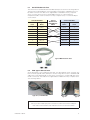
The switch has a standard RS232 male DB9 serial port as shown in the image above.
The pin-outs are defined below. Use a standard “null-modem” cable between your
PC and the switch. This cable is not supplied but is available from any computer
store. If your PC does not have a serial DB9 port then you can purchase an
inexpensive USB to Serial converter from any computer store, or use the USB port
on the switch.
Switch DB9 Male
RJ45F
Pin #
Signal
Name
1
CD in
Typical
Null-modem
CableDB9F to
DB9F
Switch DB9 Male
Signal
Name
RJ45F
Pin #
CD in
1
2
RD in
RD in
2
3
TD out
TD out
3
4
DTR out
DTR out
4
5
GND
GND
5
6
DSR in
DSR in
6
7
RTS out
RTS out
7
8
CTS in
CTS in
8
9
RI in
RI in
9
Typical Null-modem cable
5.8
USB Type B Console Port
As an alternative to the traditional serial port, the 92xx-ETZxG Series switches also
have a female type B (slave) USB port. See the image above. Use a standard USB
cable with a male USB type B (for the switch connection) to a male USB type A (for
the PC connection). This cable is not supplied but is available from any computer store.
See the image below.
Typical A / B USB Cable
Male USB
Type B
Male USB
Type A
NOTE
Once you have made a physical connection to either the serial or USB port
then refer to the software user manual for how to access the switch.
IINM9226 1 280714
15
DRAFT - 28 July 2014
6
LED INDICATORS
6.1
Overview
The 92xx-ETZxG Series switches have 1 or 2 communication LEDs for each port, dual
power LEDs, an “OK” output LED and an overall status LED.
Typical LED Locations (may vary with model)
6.2
Ethernet Group 1
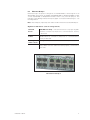
Ethernet Group 1 are ports 1 through 10 on an 9226-ETZ8G or 1 through 18 on an
9232-ETZ6G. These are copper RJ45 ports. See image below.
For the copper RJ45 ports there are two LEDs per port integrated in the connector.
RJ45 Copper Port LED Status:
Yellow LED
ON Solid
Link Only - Indicates that there is a proper Ethernet connection
(Link) but no communications activity is detected.
Yellow LED Link & Activity - Indicates that there is a proper Ethernet connection
ON Flashing (Link) and communications activity is detected.
Yellow LED
OFF
No link - Indicates that there is not a proper Ethernet connection
(Link). Make sure the cable has been properly connected at both
ends.
Green LED
ON Solid
100 Mbps - The port has linked at 100 Mbps.
Green LED
OFF
10 Mbps - The port has linked at 10 Mbps or there is no link.
Ethernet Port Group 1
16
IINM9226 1 280714
DRAFT - 28 July 2014
6.3
Ethernet Group 2
Ethernet Group 2 are ports 11 through 18 on an 9226-ETZ8G or 19 through 24 on an
9232-ETZ6G. These ports are Gigabit (10/100/1000 Mb) on 9226/32-ETZ8/6G models
or Fast (10/100 Mb) on 9226/32-ETZ models. There is only one LED per port. The
triangles on the labeling indicate which port (upper or lower) the LED belongs to. See
the image below.
Note: The SFP ports (if present) each share an LED with their associated RJ45 port.
Gigabit Port LED Status: (reference image below)
ON Solid
Green
1000 Mb Link Only - Indicates that there is a proper Gigabit
Ethernet connection (Link) but no communications activity
is detected.
ON Solid
Yellow
100 or 10 Mb Link Only - Indicates that there is a proper
10/100 Ethernet connection (Link) but no communications
activity is detected.
Flashing
(either colour)
Activity - Indicates that communications activity is detected.
OFF
No link - Indicates that there is not a proper Ethernet connection
(Link). Make sure the cable has been properly connected at
both ends.
Ethernet Port Group 2
IINM9226 1 280714
17
DRAFT - 28 July 2014
6.4
Ethernet Group 3
Ethernet Group 3 are ports 19 through 26 on an 9266-ETZ8G or 25 through 32 on
an 9232-ETZ6G.These ports are 10/100 Mb and there is only one LED per port. The
triangles on thelabeling indicate which port (upper or lower) the LED belongs to. See
the image below.
10/100 Port LED Status: (reference image below)
ON Solid
Green
1000 Mb Link Only - Indicates that there is a proper 100 Mb
Ethernet connection (Link) but no communications activity
is detected.
ON Solid
Yellow
100 or 10 Mb Link Only - Indicates that there is a proper 10
Mb Ethernet connection (Link) but no communications activity
is detected.
Flashing
(either colour)
Activity - Indicates that communications activity is detected.
OFF
No link - Indicates that there is not a proper connection (Link).
Make sure the cable has been properly connected at both ends.
Ethernet Port Group 3
18
IINM9226 1 280714
DRAFT - 28 July 2014
6.5
Status LED
The Status LED indicates the overall health of the switch. It is normally ON solid
indicating that no internal CPU or software problems are detected. It will flash when
loading firmware and briefly on power up or reset. Otherwise, if it is OFF or flashing
for an extended period of time then a problem is detected. In this case, please
contact MTL for support.
6.6
Power LEDs
There are two Power LEDs (labeled P1 for primary power and P2 for backup power)
that indicate if there is power applied to the respective input.
6.7
”OK” Alarm LED
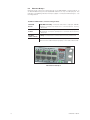
The “OK” LED indicates the status of the alarm relay output. This LED will be
normally ON when there is no alarm or error condition (such as loss of a power
input). Otherwise, when there is an alarm then it will be OFF.
Status, Power and Alarm Group
IINM9226 1 280714
19
DRAFT - 28 July 2014
7
RESET BUTTON
7.1
Reset Button
A reset button has been provided in the event that a full hardware reset of the
switch is required. The reset button is accessed through a small hole in the front of
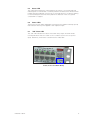
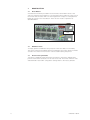
the switch near the status LED. See the image below. Simply use a straightened
paper clip to push in the reset button. There are two modes of operation as
described below.
Reset Button
Hole
7.2
Hardware Reset
To simply perform a hardware reset just push in the reset button momentarily.
The switch will then immediately perform a hardware reset which takes around 30
seconds. The switch will not function or be accessible during this period.
7.3
Restore Factory Defaults
To perform a hardware reset and restore the switch to the factory defaults then
push in and hold the reset button for at least 5 seconds. The switch will then reset
and afterwards restore ALL configuration settings back to the factory defaults.
20
IINM9226 1 280714
DRAFT - 28 July 2014
8
TECHNICAL SPECIFICATIONS
Here are the hardware technical specifications for the 92xx-ETZxG Series switches
covered by this manual. Refer to the software user manual or datasheet for complete
software specifications.
Note: These specifications are subject to change. Contact MTL for the latest details.
inputs has power applied to it.
9226/32-ETZ8/6G Performance Specifications
General
26 or 32 Ethernet ports total
Ethernet switch type
Managed, store & forward,
non blocking
Ethernet compliance
IEEE 802.3, 802.3u, 802.3z/ab, 802.3x, 802.1D/w,
802.1p, 802.1Q and more
MAC addresses & memory
bandwidth
8192 & 32 Gbps
Typ. latency for 100 Mbps
<5 us + frame time (varies on load
Ethernet isolation
1500 VRMS 1 minute
All RJ45 Copper Ports
Up to 26 RJ45 copper ports (8 Gigabit and 18 fast)
Up to 32 RJ45 copper ports (6 Gigabit and 26 fast)
RJ45 speed and duplex
(full or half)
Auto-negotiation or configurable
RJ45 MDI/MDIX and polarity
(TD/RD)
Auto-MDI/MDIX-crossover and Auto-polarity
Gigabit Ethernet
(GE) Ports
6 or 8 total Gigabit Ethernet ports, 10/100/1000
RJ45 on each port
Note: Four of the Gigabit ports are combination ports that have both a RJ45
connector and SFP fiber connector. For each of these ports, only one of the
connectors can be used at a time.
IINM9226 1 280714
GE SFP (pluggable) ports
4 for mini-GBIC
transceivers
GE fiber optic speed &
max distance
1000 or 100 Mb
up to 80 km
GE fiber optic wavelength
(typical)
850 nm , 1310 nm
or 1550 nm
Console Ports
2 for local switch management
RS232 serial port
DB9, male, DTE (2 = RXD in, 3 = TXD out,
5 = GND)
USB slave port
Type B, female
Alarm Output
1 form C relay with NC (normally closed) and NO
(normally open) terminals
Maximum voltage and
current
250 VAC or 220 VDC or 2 A @ 30 VDC or 0.25 A
@ 250 VAC
Minimum load
10 mVDC, 10 μA
Note:
See SFP-F and SFP-G
datasheets for SFP
fiber transceiver
specifications
21
DRAFT - 28 July 2014
Power Input
18-75 VDC (+/-24/48/60 VDC nominal), dual input;
Standard input
voltage options
90-264 VAC or 130-370 VDC (110/220 VAC nominal)
Special order input
voltage options
Contact MTL for details
Special order
power options
Contact MTL for details
Input power
consumption (max.)
9226-ETZ8G: 27 W
9232-ETZ6G: 35 W
Surge protection
(18-75 VDC inputs)
Transient - 15,000 watts peak; Spike - 5,000 watts (10
times for 10 uS)
Environmental
T option (fan cooled): -40 to +85 °C (no derating) (cold
startup at -40 °C)
Operating temperature
range
S option (sealed IP50): -40 to +85 °C with all ports linked
at 10 or 100Mb (derate to +75 °C with 2 ports linked
at Gigabit, +70 °C with 4 Gigabit links, +65 °C with 6
Gigabit links or +60 °C with 8 Gigabit links)
Storage temperature
range
-40 to +85 °C (-40 to 185 °F)
Humidity
(non-condensing)
5 to 95%
Vibration and shock
IEC 60068-2-6, -2-27; IEC 60970-2-2
RH
Conformal coating is available – contact
MTL for details
Standards and
Compliances
Electrical safety
UL508 / CSA C22.2/14 (PENDING); EN 61010-1, CE
EMC emissions &
immunity
FCC Part 15, ICES-003; EN61000-6-2/4, CE
RoHS and WEEE
Compliant, CE
Quality standards
ISO9001:2000 certified
Mechanical
1U rack-mount (19” brackets included) (optional ETSI,
23” and 24” brackets)
Mounting
19” to 24” racks, EIA/WECO/ETSI brackets available
Case construction
Corrosion-resistant heavy-gauge aluminum
Case protection
IP50 with S (sealed) option or IP30 / NEMA 2 with
T option
Dimensions (L x W x H)
nominal
1.75 x 17.3 x 12 inches (44.5 x 439.4 x 305.0 mm)
Weight (typical)
5.5 lbs (2.5 kg) – may vary slightly by model
Specifications are subject to change. Consult factory for latest information.
NOTE
See the separate fiber optic transceiver datasheets for complete
specifications. Also, other fiber transceivers may be available for special
requirements such as longer distances, single strand or other special
applications. Contact MTL for details.
22
IINM9226 1 280714
DRAFT - 28 July 2014
© 2014 MTL
All rights reserved.
IINM9226 1 280714
23
DRAFT - 28 July 2014
AUSTRALIA
MTL Instruments Pty Ltd,
205-209 Woodpark Road, Smithfield,
New South Wales 2164, Australia
Tel: + 61 1300 308 374 Fax: + 61 1300 308 463
BeNeLux
MTL Instruments BV
Terheijdenseweg 465, 4825 BK Breda
The Netherlands
Tel: +31 (0) 76 7505360 Fax: +31 (0) 76 7505370
E-mail: [email protected]
E-mail: [email protected]
CHINA
Cooper Electric (Shanghai) Co. Ltd.
Room 2001, China Life Tower, 16 Chao Yang Men Wai Street,
Chao Yang District, Beijing, China 100020
Tel: + 86 10 5980 0231 Fax: + 86 10 8562 5725
NORWAY
Norex AS
Fekjan 7c, Postboks 147,
N-1378 Nesbru, Norway
Tel: +47 66 77 43 80 Fax: +47 66 84 55 33
E-mail: [email protected]
E-mail: [email protected]
FRANCE
MTL Instruments sarl,
7 rue des Rosiéristes, 69410 Champagne au Mont d’Or
France
Tel: + 33 (0)4 37 46 16 70 Fax: +33 (0)4 37 46 17 20
SINGAPORE
Cooper Crouse-Hinds Pte Ltd
No 2 Serangoon North Avenue 5, #06-01 Fu Yu Building
Singapore 554911
Tel: + 65 6 645 9888 Fax: + 65 6 487 7997
E-mail: [email protected]
E-mail: [email protected]
GERMANY
MTL Instruments GmbH,
Heinrich-Hertz-Str. 12, 50170 Kerpen, Germany
Tel: + 49 (0)22 73 98 12 - 0 Fax: + 49 (0)22 73 98 12 - 2 00
SOUTH KOREA
Cooper Crouse-Hinds Korea
12F, Vision Tower, 707-2 Yeoksam-Dong Gangnam-Gu,
Seoul 135-080, South Korea.
Tel: +82 2 538 3481 Fax: +82 2 538 3505
E-mail: [email protected]
E-mail: [email protected]
INDIA
MTL India,
No.36, Nehru Street, Off Old Mahabalipuram Road
Sholinganallur, Chennai - 600 119, India
Tel: + 91 (0) 44 24501660 /24501857 Fax: + 91 (0) 44 24501463
E-mail: [email protected]
UNITED ARAB EMIRATES
Cooper Industries/Eaton Corporation
Office 205/206, 2nd Floor SJ Towers, off. Old Airport Road,
Abu Dhabi, United Arab Emirates
Tel: +971 2 44 66 840 Fax: +971 2 44 66 841
E-mail: [email protected]
ITALY
MTL Italia srl,
Via A. Meucci, 10, I-20094 Corsico (MI), Italy
Tel: + 39 (0)2 61802011 Fax: + 39 (0)2 61294560
E-mail: [email protected]
JAPAN
Cooper Crouse-Hinds Japan KK,
MT Building 3F, 2-7-5 Shiba Daimon, Minato-ku,
Tokyo, Japan 105-0012
Tel: + 81 (0)3 6430 3128 Fax: + 81 (0)3 6430 3129
E-mail: [email protected]
UNITED KINGDOM
Measurement Technology Limited,
Great Marlings, Butterfield, Luton
Beds LU2 8DL
Tel: + 44 (0)1582 723633 Fax: + 44 (0)1582 422283
E-mail: [email protected]
AMERICAS
Cooper Crouse-Hinds MTL Inc.
3413 N. Sam Houston Parkway W.
Suite 210, Houston TX 77086, USA
Tel: + 1 281-571-8065 Fax: + 1 281-571-8069
E-mail: [email protected]
Measurement Technology Limited,
Great Marlings, Butterfield, Luton
Beds, LU2 8DL, UK.
Tel: + 44 (0)1582 723633 Fax: + 44 (0)1582 422283
E-mail: [email protected]
© 2014 MTL
All Rights Reserved
Publication No. INM 9226 1
July 2014
EUROPE (EMEA):
+44 (0)1582 723633
[email protected]
THE AMERICAS:
+1 800 835 7075
[email protected]
ASIA-PACIFIC:
+65 6 645 9888
[email protected]
The given data is only intended as a product
description and should not be regarded as a legal
warranty of properties or guarantee. In the interest
of further technical developments, we reserve the
right to make design changes.