1
6.4
Reporting the cable skew and configuring the skew
compensator
The skew compensator is specifically designed for use with X-Series KVM extenders
but may also be used with most analogue KVM extenders. The X-Series KVM
extenders report the required skew compensator settings making setup and
configuration easy. For other extender systems the skew compensator may be
setup manually.
To get the X-KVM to report the skew compensator settings:
STEP 1
Connect the X-KVM local transmitter and remote receiver together with the twisted
pair cable(s) that you are going to use. If you already have a skew compensator
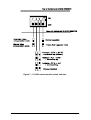
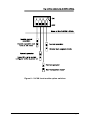
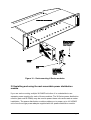
then connect this as shown in figure 11 but set all the switches to the OFF position.
STEP 2
Ensure that the video picture is correctly compensated (see section 2.7). If the video
picture is not correctly compensated then the reported skew settings may be less
accurate.
STEP 3
Open a text editor, DOS command prompt or word processor application on the
computer that is being controlled. Any application that displays typed keys as
characters on the screen will do. The X-KVM reports the skew compensation by
generating a set of faked key presses (as if you had typed the report from the
keyboard).
STEP 4
Enter video compensation / configuration mode by pressing the HOTKEYS together
f
with
on the keyboard connected to the remote receiver unit. The HOTKEYS
are those that were set using the option switches (CTRL + SHIFT by default). For
example, assuming the default hotkeys, press these keys together :
b j f
AdderLink X-Series
Installation and Use
Page 44