1
106
Chapter 5:GRUB
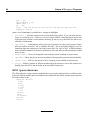
This blocklist tells GRUB to use a file that starts at the first block on the partition and uses blocks 0
through 49, 99 through 124, and 199.
Knowing how to write blocklists is useful when using GRUB to load operating systems that use chain
loading, such as Microsoft Windows. You can leave off the offset number of blocks if you are starting
at block 0. As an example, the chain loading file in the first partition of the first hard drive would have
the following name:
(hd0,0)+1
You can also use the chainloader command with a similar blocklist designation at the GRUB
command line after setting the correct device and partition as root:
chainloader +1
5.2.3 GRUB’s Root Filesystem
Some users are confused by the use of the term "root filesystem" with GRUB. It is important to remember that GRUB’s root filesystem has nothing to do with the Linux root filesystem.
The GRUB root filesystem is the root partition for a particular device. GRUB uses this information to
mount the device and load files from it, among other things.
With Red Hat Linux, once GRUB has loaded its root partition that contains the Linux kernel, the
kernel command can be executed with the location of the kernel file as an option. Once the Linux
kernel boots, it sets its own root filesystem, and that is the one most people associate with Linux. The
original GRUB root filesystem and its mounts are forgotten. They only existed to boot the kernel file.
See the notes given for the root and kernel commands in Section 5.4, Commands for more information.
5.3 Interfaces
GRUB features three powerful interfaces that provide different levels of functionality. Each of these
interfaces allow you to boot operating systems, and you can even move between interfaces within the
GRUB environment.
5.3.1 Menu Interface
If GRUB was automatically configured for you by the Red Hat Linux installation program, this is the
interface you already know. A menu of operating systems or kernels preconfigured with their own
boot commands exists in this interface as a list, by name, after the system first starts. You can use
the arrow keys to select an option other than the default selection and press the [Enter] key to boot it.
Alternatively, a timeout period may have been set, so that GRUB will start loading the default option.