1
Where to Submit a Listing
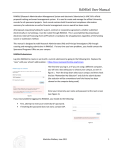
Member contacts with a security setting of Update Member Records have the ability to enter
listings through the MCCVB Member Extranet. Once signed in, the page should default to
the Member Record section. Scroll towards the bottom of the page under the Additional
Fields section until you see a series of tabs on the left side, then select the tab titled Listings.
How to Submit a Listing for Approval
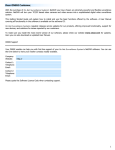
When the Listings section loads, click the blue button that says Add New Listing on the right
side of the page. A window will open for you to enter the Listing Information in which all
required fields are in red.
In the Type field select SeeMonterey.com, then select the Category and Sub-category you
wish to be listed under. Enter your business description in the Listing box, link to the
Account Address and associate a Contact to manage the listing.
In the Listing Details section you can overwrite any of the Account Information to be
displayed. Simply check the box next to the item you would like to update and enter the
new value in the field that opens in the right hand column.