1
To export specific figures as a rich text format (RTF) file:
1. Select one or more figures you wish to export.
2. Choose File > Export Selected Figures As > RTF and enter a file name.
Curio will choose a logical text representation for all the selected figures, even
automatically grabbing a text outline of a list, mind map, or index card or tabbed-delimited
text for tables.
To export specific figures as a single image file:
1. Select one or more figures you wish to export.
2. Choose File > Export Selected Figures As > TIFF (or PDF, JPG, or PNG) and enter a
file name.
To export a specific list or mind map figure as an OPML file:
1. Make sure the collection figure itself is selected, not a figure within the collection
otherwise you will only get the tree under that selected node.
2. Choose File > Export Selected Figures As > OPML and enter a file name.
To export a specific table figure as a comma-separated value (CSV) file:
1. Select the table figure you wish to export.
2. Choose File > Export Selected Figures As > CSV and enter a file name.
Printing
You can easily print your Curio project, or perhaps only specific idea spaces.
To print your idea spaces:
1. Optionally select specific idea spaces in the Organizer that you wish to export.
2. Choose File > Print.
3. Click on Print All if you want to export all idea spaces, else click Print Selected to only
export the selected idea spaces.
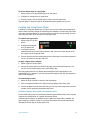
4. Optionally change parameters such as whether Curio should automatically scale idea
spaces to fit a single printed page. When doing this, Curio can also optionally rotate
between landscape and portrait modes for that page to minimize the scaling.
Additionally, the idea space background and grid may be printed as well. You can
access these options by clicking on the “Copies & Pages” popup and choosing
“Curio”.
5. Click Print.
Note that you can permanently change those Curioʼs print options via the Curio
preferences panel.
To permanently change Curioʼs print options:
1. Choose the Curio > Preferences menu item, then click the Idea Space icon.
2. Change one or more of the options under the Printing section.
"
Curio User Manual"
107