1
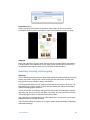
• For a quick preview of any image-based asset, hold down the Option key, then click on
the asset you wish to preview.
• To change the display of previews in the Library view, choose File > Project Properties
from the main menu, then click on General in the resulting Project Properties sheet.
Choose the desired preview size from the Library Previews popup menu. Choose None
to turn off asset previews. You can click the Make Global Default button to set the
selected preview size as the default size for all new projects.
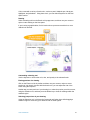
• To retrieve an embedded asset from a project, simply drag it out of the Library view into
the Finder. A copy of the asset will be created in the location you specified.
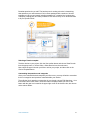
• To add an asset to an idea space, simply drag it from the Library and drop it onto the
desired idea space.
Finding Assets:
• To find the location of an aliased asset in the Finder, select the asset in the Library,
then choose Asset > Reveal in Finder from the main menu.
• To see a list of the idea spaces where an asset is used, control-click (or right-click) on
the asset and choose the Idea Spaces submenu from the resulting popup menu. To
open one of the listed idea spaces, simply choose it from the menu.
• To locate an asset in the Library thatʼs associated with a figure in an idea space, select
the figure, then choose Asset > Reveal in Library from the main menu. If the Library is
already visible, then simply selecting the figure within the idea space will automatically
highlight the associated asset in the Library.
• To find an asset by name, make sure the Library is visible, then use the Search shelf
view to search your project for the title of the asset. The list of assets will be filtered to
only display the matching assets.
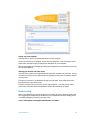
Using Sleuth to Search the Web
Sleuth can help you research ideas by giving you easy access to almost any search
engine available on the Internet. You can quickly look up images, definitions, rhyming
words, translations, and general information related to any topic. You only have to fill in
the search field once, and then visit the sites that most interest you. When you find
something you want to remember, simply drag and drop it into an idea space.
To use Sleuth:
1. Click on Sleuth in the toolbar.
2. Type a word or phrase in the search field located at the top of the Sleuth window.
3. Press return to perform the search on the currently selected website, or choose a
different site from the site popup menu located to the right of the search field.
The search results will be displayed in the bottom part of the Sleuth window. You can
explore your search results as you would any website. You can use the back and forward
arrows at the top of the Sleuth window to navigate web pages. Drag images, selected
text, and web links from the Sleuth window to any idea space or the project library to
save the results you like. You can grab the URL of the currently displayed page by
dragging it from the status area located at the bottom of the Sleuth window.
To see search results for the same word or phrase on a different site, click on the site
menu and choose another site. You can also click on the up and down arrows next to the
"
Curio User Manual"
87